

Your PC isn’t broken — it’s busy: Windows 11 ships with a handful of convenience features and background services that can quietly consume CPU, disk I/O, memory, and GPU time, and those are often the first things to blame when a once-snappy machine starts to feel sluggish. Many of these behaviors are enabled by default because they improve user experience for the majority of users, but on older hardware, budget laptops, or storage-constrained systems they can produce noticeable slowdowns. Recent community reporting and troubleshooting guidance point to a consistent set of built-in Windows features — notably OneDrive sync and visual effects — as common, easy-to-test culprits.
Windows has steadily evolved from a lean, locally focused operating system into a cloud-integrated, visually polished platform. That shift brought real convenience — automatic cloud backup, smoother animations, and proactive background maintenance — but it also increased the number of automatic processes touching your disk, network, and CPU without explicit user action. For many users this trade-off is invisible; for others it’s the difference between a responsive machine and one that “lags” under ordinary multitasking loads. Community diagnostics and Microsoft’s own troubleshooting guidance now routinely recommend pausing OneDrive and trimming nonessential visual effects as first-line steps when a Windows 11 PC feels slow.
For power users and IT teams the takeaway is twofold: first, perform a quick A/B test by pausing suspected services to confirm cause and effect; second, advocate for staged updates and better default choices on low-end devices. Microsoft’s own troubleshooting now points at these same knobs, and community-led diagnostics have repeatedly validated them as first-line defenses against a slow Windows 11 experience. If you follow the checklist above, you will likely recover much of your machine’s snappiness in a matter of minutes — and you’ll gain better control over the trade-off between convenience and performance.
Conclusion: before you buy new hardware, try the basics — pause OneDrive, trim the polish, and prune startups — and you might be surprised how fast your Windows 11 PC can feel again.
Source: bgr.com 5 Windows 11 Features That Are Slowing Down Your Computer - BGR
 Background
Windows has steadily evolved from a lean, locally focused operating system into a cloud-integrated, visually polished platform. That shift brought real convenience — automatic cloud backup, smoother animations, and proactive background maintenance — but it also increased the number of automatic processes touching your disk, network, and CPU without explicit user action. For many users this trade-off is invisible; for others it’s the difference between a responsive machine and one that “lags” under ordinary multitasking loads. Community diagnostics and Microsoft’s own troubleshooting guidance now routinely recommend pausing OneDrive and trimming nonessential visual effects as first-line steps when a Windows 11 PC feels slow.1. OneDrive background syncing: useful — but resource-hungry
What it does and why it slows systems down
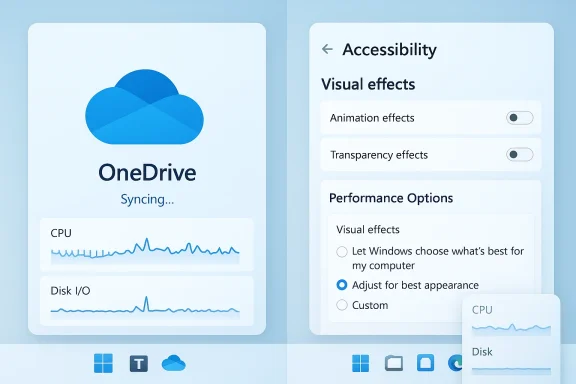
OneDrive runs a deep integration with File Explorer and your user folders to keep files synced with the cloud. While it’s convenient to have documents automatically backed up and available across devices, the sync client watches your filesystem for changes, uploads and downloads files, and keeps local placeholder metadata in sync. On systems with slower storage (older HDDs, near-capacity SSDs) or limited CPU, those continuous I/O bursts can block foreground tasks and elevate disk latency dramatically. Community troubleshooting and official guidance both call OneDrive syncing out as a frequent cause of observable sluggishness.How to diagnose
- Open Task Manager and sort by Disk and CPU to see whether OneDrive.exe or “Microsoft OneDrive” spikes resource usage during slowdowns.
- Use Resource Monitor or the built-in Performance tool to confirm whether high disk queue length correlates with OneDrive activity.
- Temporarily pause syncing from the OneDrive system tray menu and watch for immediate improvements — this is the fastest, reversible test. Community reports show pausing OneDrive often restores snappiness immediately on affected machines.
How to fix (safe, reversible)
- Pause OneDrive sync for a session when you need peak responsiveness.
- Switch to Files On‑Demand to reduce local copy churn (keeps placeholders locally instead of full files).
- Exclude large folders (like developer directories, VM images, or game libraries) from sync.
- If you rarely need cloud sync, consider disabling OneDrive integration and using manual uploads instead.
Pros, cons and risk
- Pros: OneDrive offers automatic backup, cross-device continuity, and integration with Windows search.
- Cons: On I/O‑constrained machines the sync client can saturate disk and CPU, making the UI feel sluggish.
- Risk note: Disabling OneDrive entirely removes automatic cloud backup; advise users to confirm critical files are stored elsewhere before turning it off.
2. Visual effects and animations: polish that costs cycles
What Windows 11’s visual polish does
Windows 11 uses smoother window animations, shadows, rounded corners, and compositor effects to create a modern feel. Those effects are often GPU-accelerated, but they still consume CPU/GPU time and incur more frequent redraws of the UI. On integrated‑GPU machines or systems where the GPU driver is older, animations and fancy shadows can produce stuttering and extra power draw. For machines with modest hardware, disabling nonessential animations is a low‑risk way to reclaim responsiveness.How to diagnose
- Noticeable lag while opening or switching apps often indicates UI compositing work.
- Task Manager’s GPU column will show GPU use spikes when animations run.
- Turning off animations temporarily (Settings → Accessibility → Visual effects) and observing responsiveness is a fast A/B test recommended by troubleshooting guides.
How to tune visual effects
- Use Settings → Accessibility → Visual effects to turn off animation and transparency.
- For more granular control, search “Adjust the appearance and performance of Windows” to open the classic Performance Options and choose “Adjust for best performance,” then selectively re-enable effects you prefer.
- For gaming or graphics-heavy workflows, enable hardware-accelerated GPU scheduling only if your GPU and drivers support it well — this can help on newer hardware but cause regressions on some driver stacks.
Pros, cons and risk
- Pros: Turning off nonessential visuals often yields immediate perceptible speed-ups without functional loss.
- Cons: The UI becomes visually less polished, which some users find displeasing.
- Risk note: Radical changes to visual pipelines can expose driver bugs on older hardware; if you see graphical glitches after toggling settings, revert and update the GPU driver.
3. Startup apps and background processes: inventory and trim
Why startup apps matter
Many apps register themselves to start automatically or run background services. Each added process increases boot time and consumes memory and scheduler time after login, reducing the headroom available for active tasks. This category includes third-party utilities, cloud clients, messaging apps, and even some Microsoft components that changed behavior in recent updates. Community guides keep recommending pruning startup items as a highly effective first step.Common offenders and recent surprises
- Third-party chat, sync, and update services are frequent offenders.
- Windows components like the AppX Deployment Service (AppXSVC) were reported to have been changed to Automatic startup in certain updates, creating unexpected delays on some machines; community diagnostics flagged this behavior and offered mitigations. While such changes can be patched, they illustrate how system updates can alter startup performance.
How to diagnose and fix
- Open Task Manager → Startup and review enabled apps; disable anything nonessential.
- Use Task Manager → Processes to view background processes while idle and under load.
- For stubborn services, use Services.msc to check Start Type and adjust (set to Manual instead of Automatic for seldom-used services).
- Reboot and time startup: Windows’ built-in startup impact estimates are helpful but don’t always capture I/O contention; measure perceived responsiveness after you trim items. Community posts show that a short pass through Startup can eliminate the single biggest cause of sluggishness for many users.
Pros, cons and risk
- Pros: Disabling unnecessary startup items often reduces boot times and frees memory.
- Cons: Disabling some services (auto-update, security tools) can reduce convenience or protection.
- Risk note: Don’t disable security software or critical device services. When in doubt, move items to Manual start and test. If you’re administering a business device, coordinate with IT before changing service start types.
4. Windows Search indexing and aggressive background I/O
What indexing and background file scanning do
Windows Search indexing and related content‑analysis services keep a real-time catalog of your files so searches return instantly. That’s a great convenience, but indexing repeatedly scans files and metadata (especially after large file changes), which can cause sustained disk activity and high I/O wait on HDDs. Historically, disabling indexing was a common performance tweak; modern Windows balances indexing more intelligently, but workloads that continually change many files (virtual machines, databases, developer repos) can still trigger heavy scanning.How to diagnose and manage indexing load
- Use Resource Monitor to see which processes are reading/writing heavily; SearchIndexer.exe is the obvious culprit for indexing loads.
- If you notice frequent indexing activity, exclude large dev or media folders from the index or pause indexing during heavy work sessions.
- For users who rarely use Windows Search, disabling indexing entirely will reduce background I/O but will slow file search results. Community guidance suggests selective exclusion rather than wholesale disablement for most users.
Pros, cons and risk
- Pros: Managing the index reduces unnecessary disk churn and can make a real-world difference on HDD-based machines.
- Cons: Search becomes slower when you remove folders from the index.
- Risk note: Disabling indexing on systems with SSDs yields diminishing returns; the real wins appear on HDDs or near-capacity SSDs that are being hammered by other background workloads.
5. App servicing, update tasks, and Microsoft’s “modern maintenance”
The invisible maintenance that runs when you least expect it
Windows regularly schedules maintenance tasks — app updates, component servicing, disk optimization, and telemetry — to run during idle time. But “idle” isn’t perfect: if your machine is performing light but interactive work (browsing, video calls), maintenance tasks can still overlap and contend for resources. Community reporting has pointed to specific update rollouts and optional cumulative updates that inadvertently altered the behavior of services (causing AppXSVC to become more aggressive, for example), and these incidents highlight how update changes can affect performance.How to detect maintenance interference
- Look at Task Manager or Resource Monitor when you see unexplained disk/CPU spikes; scheduled tasks and service hosts (svchost.exe) often reveal the responsible component.
- In Settings → Windows Update → Advanced options you can change active hours and allow Windows to schedule restarts and heavy work for times you’re not using the machine.
- Use Reliability Monitor (Control Panel → Security and Maintenance → Reliability Monitor) to review recent events that coincide with slowdowns; this can highlight driver updates, service errors, or repeated restarts tied to maintenance jobs.
Pros, cons and risk
- Pros: Maintenance improves security and long-term performance; disabling it permanently isn’t advisable.
- Cons: Poorly timed maintenance or buggy updates can temporarily degrade responsiveness.
- Risk note: If an update introduces a regression, Microsoft typically issues subsequent patches — but if you’re in a mission-critical environment, delay nonessential feature updates until they prove stable. Community threads regularly signal when a particular KB causes regressions so you can make an informed choice.
Diagnosing the real bottleneck: a practical checklist
Most speed “problems” have a clear, measurable cause. Run this checklist before committing to major changes:- Check Task Manager (Ctrl+Shift+Esc): sort by CPU, Memory, Disk, and GPU. Identify the top consumers.
- Use Resource Monitor (resmon) to inspect disk queue length and I/O. If a single process monopolizes the drive, note it.
- Pause OneDrive and see if disk or network usage falls; if it does, adjust sync scope or Files On‑Demand.
- Temporarily disable nonessential visual effects and measure snappiness. If improved, re-enable preferred cosmetics selectively.
- Trim Startup apps and set infrequently used services to Manual. Reboot and measure boot time and responsiveness.
- If the problem persists, scan for malware and check free disk space; low free space, failing drives, or malicious software often masquerade as OS slowness. Community guides emphasize housekeeping as the highest-return step.
Critical analysis: convenience vs. control
Notable strengths in Windows 11’s design
- Microsoft’s integration of cloud services, visual polish, and background maintenance aims to modernize the desktop experience and reduce friction for ordinary users. Those changes deliver clear value: automatic backups, instant search, and smooth UI transitions that make Windows feel contemporary. The majority of users benefit from these features with no downside.
Real risks and where vendors should be honest
- The central risk is one-size-fits-most defaults: features enabled by default can create edge cases where older or budget hardware is left behind. Community reporting has repeatedly shown that pausing OneDrive or trimming animations is an effective first response — but it’s not obvious to every user that the OS itself might be the cause. Microsoft’s own troubleshooting lists now surface these options, which shows awareness of the trade-off, but it also underscores that defaults need careful calibration or clearer onboarding for low-end hardware.
What users and admins should expect
- Expect occasional regressions after cumulative updates. Recent community threads highlighted updates that altered service startup behavior or triggered regressions; those incidents are a reminder that software maintenance itself can sometimes temporarily degrade performance. For end-users, this means keep backups, watch community reporting for problematic KBs, and test updates on non-critical systems first if possible.
Safe, high-impact fixes to try right now (quick-action list)
- Pause OneDrive for the current session; check for immediate improvement. If helped, refine OneDrive settings.
- Turn off Reduce animation and transparency in Accessibility/Visual effects (or use Performance Options for fine control).
- Disable nonessential Startup items via Task Manager → Startup. Prioritize disabling third‑party sync, chat, and helper utilities.
- Exclude large, frequently changing folders from Windows Search indexing.
- Run a full antivirus scan and free up at least 10–15% of disk space (less free space increases I/O pressure). Community guides repeatedly list disk cleanup as a top-tier fix.
When these tweaks aren’t enough: next steps
If you’ve tried the safe tweaks and performance remains poor, escalate in this order:- Update drivers (GPU, chipset, NVMe/SSD firmware). Driver mismatches produce many subtle slowdowns.
- Check SMART for your storage device and run manufacturer diagnostics; failing drives must be replaced.
- Use Windows’ built-in reliability and performance monitors (Reliability Monitor, Windows Performance Recorder and Analyzer) for deeper traces. Community posts indicate these tools expose repeated service or driver faults that Task Manager misses.
- If you manage multiple devices, stage feature updates and monitor community forums for reports of regressions before broad deployment.
Final verdict: performance is recoverable, but defaults matter
Windows 11 brings helpful modern features that, on average, improve the user experience — but those benefits come with a measurable cost on resource-limited hardware. The good news is that most performance regressions tied to built-in features are reversible and easy to diagnose: pausing OneDrive, trimming visual effects, pruning startup apps, and managing indexing often restore the speed users expect without sacrificing security or functionality.For power users and IT teams the takeaway is twofold: first, perform a quick A/B test by pausing suspected services to confirm cause and effect; second, advocate for staged updates and better default choices on low-end devices. Microsoft’s own troubleshooting now points at these same knobs, and community-led diagnostics have repeatedly validated them as first-line defenses against a slow Windows 11 experience. If you follow the checklist above, you will likely recover much of your machine’s snappiness in a matter of minutes — and you’ll gain better control over the trade-off between convenience and performance.
Conclusion: before you buy new hardware, try the basics — pause OneDrive, trim the polish, and prune startups — and you might be surprised how fast your Windows 11 PC can feel again.
Source: bgr.com 5 Windows 11 Features That Are Slowing Down Your Computer - BGR
