

Spicetify turns the familiar Spotify desktop client into a canvas you control — and on Windows 11 that control is quick to install, reversible, and rich with community themes and extensions that actually solve long-standing Spotify UX gaps. In this deep, practical guide I walk through a verified, step‑by‑step Windows 11 installation, explain why the Microsoft Store version of Spotify won’t work for most people, show how to add the Marketplace for one‑click theme installs, and give tested troubleshooting, safety guidance, and long‑term maintenance recommendations you can rely on.
Spicetify is an open‑source command‑line tool that modifies Spotify’s desktop client UI by patching front‑end assets (CSS, JavaScript, color schemes) on your machine. That local-only approach is what makes Spicetify powerful: it doesn’t proxy your traffic or touch account credentials; it simply replaces UI files so Spotify looks and behaves differently for you. The project maintains official docs and a Marketplace that surfaces community themes and extensions inside Spotify itself, making theme installation a click or two once the initial setup is complete.
A few important, verified facts up front:
What this does:
You should see the installed version number. As of this article’s verification, stable releases were in the v2.42.x series — confirm on the GitHub releases page before you begin for the latest tag.
Alternative install routes:
This creates a backup and generates your configuration file (commonly at
Spotify will automatically restart. The baseline Spicetify “hook” is now active even if you haven’t selected a custom theme yet. If Spotify fails to restart or you see no changes, retry
Automatic method (PowerShell):
Or, if you prefer manual installation, place the
After Spotify restarts, a “Marketplace” entry should appear in the left sidebar. The Marketplace queries GitHub for repos tagged with the appropriate topics and allows one‑click installs from within Spotify. If the Marketplace doesn’t show, confirm you ran the
Verified points:
Source: H2S Media How to Install Spicetify on Windows 11 to Customize Spotify
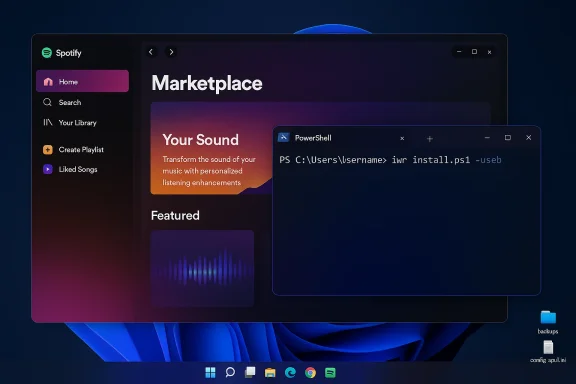 Background / Overview
Spicetify is an open‑source command‑line tool that modifies Spotify’s desktop client UI by patching front‑end assets (CSS, JavaScript, color schemes) on your machine. That local-only approach is what makes Spicetify powerful: it doesn’t proxy your traffic or touch account credentials; it simply replaces UI files so Spotify looks and behaves differently for you. The project maintains official docs and a Marketplace that surfaces community themes and extensions inside Spotify itself, making theme installation a click or two once the initial setup is complete.A few important, verified facts up front:
- The official Spicetify CLI installer lives in the project repository and the project publishes releases on GitHub; recent stable releases in the 2.42.x series are published in the official releases channel. (Check the GitHub releases page for the exact tag before you begin.)
- The Spicetify Marketplace is supported and documented as an optional add‑on that integrates with the CLI to provide an in‑app browsing and install experience.
- The Microsoft Store distribution of Spotify is sandboxed and typically blocks the file writes Spicetify needs; for full funcinstall the desktop (classic) Spotify installer from Spotify’s website rather than the Store edition. This Store‑vs‑desktop distinction is a frequent source of install failures.
Why install Spicetify on Windows 11?
Short answer: personalization and functionality you won’t get from Spotify’s official client.- Visual control: change colors, layout, typography, and add animated or minimal UI variants.
- Functional extensions: floating popup lyrics, customizable hotkeys, improved shuffle behavior, fullscreen now‑playing mode and more — community extensions solve real problems.
- Marketplace convenience: once installed, the Marketplace lets you browse and apply themes and extensions from inside Spotify — no more repetitive command‑line work after setup.
spicetify backup && spicetify apply after some Spotify updates.Requirements and preparations (what to check before you begin)
Before you start, verify the following:- Windows 11 (fully patched) with an admin user account and access to PowerShell or Windows Terminal.
- Spotify desktop app installed using the classic installer (not the Microsoft Store package). Let Spotify run and sign in once so it generates config files. The Store sandbox blocks the file writes Spicetify needs.
- Basic PowerShell familiarity — you’ll paste commands rather than write code.
- Internet access to download from GitHub (the installer script and Marketplace installer are hosted on raw GitHub content).
- Optional package managers: Winget, Scoop, or Chocolatey can install Spicetify, but the official PowerShell install script is the simplest on a stock system.
- Disable or temporarily pause aggressive third‑party antivirus or app control tools that could block script downloads or file modifications.
- Make sure Spotify has been launched once after installation and left running for at least a minute to create its preference files. Skipping that step is a common cause of
prefsfile not found errors.
Step‑by‑step installation on Windows 11
Below is a tested, production‑ready installation flow. I include the exact PowerShell commands you’ll use and what they do. Where appropriate I cite the official Spicetify docs and GitHub releases so you can verify (and update) versions yourself.1. Uninstall Microsoft Store Spotify (if applicable)
If you installed Spotify from the Microsoft Store, uninstall it and install the classic desktop client. The Store app runs in a sandbox and prevents Spicetify from writing the files it needs to change. After installing the classic client, open it and sign in — leave it open for ~60 seconds so necessary files are generated.2. Install Spicetify CLI (official PowerShell method)
Open PowerShell as your normal user (Run → search “PowerShell” → right‑click → Run as administrator if you prefer). Then paste and run this single line:iwr -useb [url]https://raw.githubusercontent.com/spicetify/cli/main/install.ps1[/url] | iexWhat this does:
iwr(Invoke‑WebRequest) downloads the official installer script from the Spicetify repository.iexexecutes the script in your session, which installs the CLI and adds it to PATH.
spicetify -vYou should see the installed version number. As of this article’s verification, stable releases were in the v2.42.x series — confirm on the GitHub releases page before you begin for the latest tag.
Alternative install routes:
- Winget:
winget install Spicetify(may require additional confirmation or time for dependency resolution). - Scoop / Chocolatey packages exist but are community maintained; they work but can lag slightly behind the official install script. Use them if you prefer package manager workflows.
3. Create the backup (first safe step)
Spicetify keeps a backup of original Spotify files so you can restore defaults. Run:spicetify backupThis creates a backup and generates your configuration file (commonly at
%USERPROFILE%\.config\spicetify\config-xpui.ini or inside %appdata%/spicetify depending on the build). Keep this path in mind — it’s where themes, extensions, and prefs settings live.4. Apply Spicetify to Spotify
With your backup in place run:spicetify applySpotify will automatically restart. The baseline Spicetify “hook” is now active even if you haven’t selected a custom theme yet. If Spotify fails to restart or you see no changes, retry
spicetify restore then spicetify backup and spicetify apply. The official FAQ documents these steps and common causes for failure.5. Install the Spicetify Marketplace (recommended)
The Marketplace is the single best convenience feature: it lets you browse and install themes and extensions inside Spotify. Use the official Marketplace installer:Automatic method (PowerShell):
Invoke-WebRequest -UseBasicParsing "[url]https://raw.githubusercontent.com/spicetify/spicetify-marketplace/main/resources/install.ps1[/url]" | Invoke-ExpressionOr, if you prefer manual installation, place the
marketplace folder under %appdata%/spicetify/CustomApps/ and then run:
Code:
spicetify config custom_apps marketplace
spicetify applyspicetify config custom_apps marketplace step and reapply.First themes and extensions to try (what’s actually good)
The Spicetify ecosystem is huge; here are community favorites that are stable and actively maintained.- Dribbblish / Dribbblish Dynamic — feature‑rich, dynamic sidebar, color extraction from album art; requires companion JS extensions for full function (Marketplace handles this).
- Sleek — minimal, polished, multiple color schemes for a clean desktop look.
- Catppuccin — pastel, theme family available in Frappé, Latte, Macchiato, Mocha — popular across dev communities and visually consistent.
- Ziro — inspired by desktop Linux styling; smooth light/dark variants. (Available via Marketplace or the spicetify themes repository.)
- Popup Lyrics — floating, synced lyrics window for immersive lyric display.
- Keyboard Shortcuts — add configurable hotkeys for actions Spotify doesn’t natively expose.
- Full Screen Mode — polished, immersive now‑playing fullscreen.
- Shuffle Plus — adjusted shuffle behavior to reduce perceived repetition.
Troubleshooting — the real issues people hit (and fixes)
Installing Spicetify is usually smooth, but here are the recurring issues you’ll encounter and how to resolve them.- Spotify updated and Spicetify stops working
Cause: Spotify’s update replaces patched files. Fix: runspicetify backup && spicetify applyagain to reapply customizations. Keep an eye on the Spicetify GitHub and Marketplace issue tracker for compatibility notes after big Spotify updates. - PowerShell permission or execution policy errors
Symptom: “script cannot be loaded because running scripts is disabled.” Fix: run PowerShell as Administrator and executeSet-ExecutionPolicy RemoteSigned(orBypassfor the current session) and retry the installer. Only change execution policy if you understand the implications;RemoteSignedis a common practical middle ground. spicetifycommand is not recognized after install
Cause: PATH not refreshed in the active session. Fix: close the terminal, open a new PowerShell window, and runspicetify -v. If still missing, confirm the Spicetify binary location (commonly%USERPROFILE%\.spicetify) and add that folder to your user PATH.- Marketplace tab not showing
Fix: ensure you ranspicetify config custom_apps marketplaceand thenspicetify apply. If it still fails, runspicetify restore, thenspicetify backupandspicetify applyagain. Check Marketplace install logs if present. - Spicetify can’t find the Spotify prefs file
Non‑standard Spotify locations or portable installs cause this. Look forprefsunderC:\Users\YOUR_USERNAME\AppData\Roaming\Spotifyand setprefs_pathin yourconfig-xpui.inito that full path, then reapply. The official FAQ documents this exact troubleshooting step. - Repeated breakage after updates (advanced mitigation)
You can pin a known‑good Spotify version while you wait for Spicetify to add compatibility, or set a small script to runspicetify applyat Spotify startup. Both are pragmatic but require some maintenance.
Safety, legality, and account risk — the realistic picture
Short answer: Spicetify runs locally and does not require your Spotify credentials; most evidence indicates very low practical risk of account action for styling and UI extensions — but it’s not officially supported by Spotify, and that carries a theoretical risk.Verified points:
- Spicetify is open source; the codebase and installer scripts are public on GitHub. This transparency reduces the chance of hidden malicious behavior.
- Spicetify’s operations are local file modifications that do not alter DRM, payment information, or server interactions. That design reduces the likelihood of detection tied to account enforcement.
- Modifying a closed‑source client is often covered under the target app’s Terms of Service. Spotify’s ToS do not explicitly list every modification, but they generally reserve the right to restrict client changes. Historically, there have been no widespread documented account bans tied purely to Spicetify usage; community reporting and official issue threads show users repeatedly using Spicetify without bans. That said, there are zero guarantees — use it at your own risk. Community reports and the official FAQ discuss this nuance.
- Avoid using or installing third‑party modules that claim to remove ads or alter licensing behavior — those materially change playback or ad delivery and considerably increase risk. Stick to UI themes and purely client‑side enhancements.
- Keep backups (
spicetify backup) before applying major changes and know how tospicetify restoreto return to stock. - If you depend on Spotify for critical work, consider not using Spicetify on the same account/device or ensure you can revert quickly.
Best practices and maintenance
To keep a stable Spicetify setup over months:- Maintain a small checklist after a Spotify update:
- Check Spicetify GitHub releases for compatibility notes.
- Run
spicetify backup && spicetify apply. - If you use Marketplace, confirm Marketplace and extension updates from inside Spotify.
- Automate apply on startup (optional): the FAQ suggests setting your Spotify shortcut to run
spicetify autoso Spicetify can backup and apply on launch. This reduces manual work after stability‑breaking updates, but only use it after you’re comfortable with the update pattern. - Keep a local copy of your active theme and extension folders (
%appdata%/spicetifyor%USERPROFILE%\.config\spicetify) in a separate backup so you can reapply even if a community repo changes or is removed. - Prefer Marketplace installations for community themes because the Marketplace automatically manages dependencies and companion extensions (which many complex themes require).
Advanced tips (for power users)
- Manual theme installation: clone theme repositories into your Spicetify themes folder, then run:
UseCode:spicetify config current_theme THEME_NAME spicetify config color_scheme SCHEME_NAME # if provided by the theme spicetify applyspicetify restore backup applyif things look wrong after switching themes. - Extensions: many themes rely on JavaScript extensions (for animated sidebars, color extraction, etc.). The Marketplace installs these for you, but if doing it manually, place
.jsextension files under your Spicetify extensions folder and add the extension name toextensionsinconfig-xpui.ini. - Locking Spotify updates: not generally recommended for security reasons, but some power users temporarily prevent automatic Spotify updates while a critical Spicetify fix is pending. If you do this, be disciplined about manual updates after Spicetify gains compatibility — running outdated clients for long periods can expose you to security and stability bugs.
- Testing compatibility: keep a secondary test user or VM where you try new themes before applying them to your production environment. This is overkill for casual users, but prudent for those who rely on Spotify in live or production contexts.
Common myths, debunked
- “Spicetify steals my credentials.” False — the tool modifies local UI files and does not require account credentials or handle DRM. The code is public and can be audited.
- “You’ll be banned immediately.” Unfounded — community reports consistently show UI customization alone has not resulted in mass bans. However, anything that interferes with ad delivery or licensing is a different story and greatly increases risk. Use caution and prefer UI-only themes and extensions.
- “Marketplace is unsafe because it pulls from GitHub.” The Marketplace aggregates community repos using documented GitHub API discovery; it’s convenient but still community‑driven — review repos and read descriptions before installing complex extensions.
Quick recovery checklist (if things go wrong)
- Close Spotify.
- Open PowerShell and run:
spicetify restore(restores original files). - If that doesn’t fix it, uninstall Spotify, remove the
%appdata%/Spotifyand%localappdata%/Spotifyfolders (after backing up playlists or local files as needed), reinstall Spotify from the official desktop installer and reapply Spicetify. - If Marketplace or themes fail, run
spicetify backup && spicetify applyagain and consult the Marketplace install logs.
Final recommendations
- If you want cosmetic and practical improvements (better themes, confident extensions like popup lyrics or keyboard shortcuts), Spicetify is a strong, community‑vetted option. Use the official install script for the cleanest experience and add the Marketplace for one‑click convenience.
- Always prefer the classic desktop Spotify installer (not the Microsoft Store version) unless you’re experienced with sandboxed app workarounds — the desktop installer ensures Spicetify can reliably patch the files it needs. This distinction is the most common root cause for installation failures.
- Run
spicetify backupbefore you change anything and keep a local copy of your%appdata%/spicetifyfolder. Treat Spicetify as an easily reversible, experimental tweak: it’s powerful, but you should maintain the few safeguards above.
Source: H2S Media How to Install Spicetify on Windows 11 to Customize Spotify
