

If you’ve ever shut down your PC and felt confident you were starting each day from a clean slate, that feeling can be misleading — Windows’ Fast Startup often keeps the operating system in a halfway state that looks like a shutdown but behaves a lot like hibernation, and for many users the trade-offs now outweigh the seconds it saves.
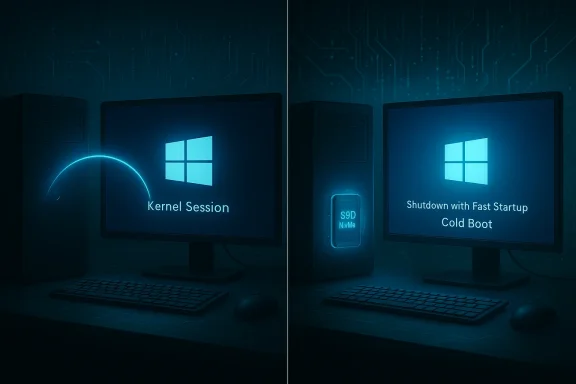
Windows introduced Fast Startup (also called hybrid shutdown, hyberboot, or hiberboot) to tackle painfully long boot times on the mechanical-drive PCs common in the Windows 8 era. Instead of performing a traditional cold boot that reinitializes the kernel, drivers, and hardware, Fast Startup closes user sessions but saves the kernel session and loaded drivers to the hibernation file (hiberfil.sys) and then restores that snapshot on the next power-up. The result: a faster boot, because much of the lengthy initial hardware and kernel initialization is skipped.
That optimization made a lot of sense a decade ago. But hardware has evolved: SSDs and NVMe storage have drastically reduced cold-boot times, and modern operating patterns mean the advantages Fast Startup once delivered are far smaller for many users. Meanwhile, the hybrid approach creates operational differences that matter for stability, updates, multi-boot configurations, and troubleshooting.
At the same time, the hybrid shutdown model breaks several practical expectations about what “shutdown” means: it preserves kernel state, postpones certain update operations, locks volumes in ways that complicate cross-OS workflows, and can mask device or driver defects that only a full reinitialization would expose. For users who value predictable behavior, reliable updates, and clean device initialization — which should include most professionals, power users, and dual-booters — the safest choice is to disable Fast Startup and let the machine actually power off.
If you haven’t already, disabling Fast Startup is a small administrative change that eliminates a surprising number of subtle problems while costing only a little boot-time convenience on contemporary hardware. For most readers, it’s one of those rare, practical tweaks that pays off in everyday reliability and fewer head-scratching troubleshooting sessions.
Conclusion
Turning off Fast Startup is quick, reversible, and often the right move for stability, proper patching, and interoperability. If you share your disk with another OS, manage machines in a business environment, or have experienced stubborn updates or device issues, switching to a full shutdown every night will save you time and frustration in the long run.
Source: MakeUseOf Turn off Windows Fast Startup if you haven't already
 Background
Windows introduced Fast Startup (also called hybrid shutdown, hyberboot, or hiberboot) to tackle painfully long boot times on the mechanical-drive PCs common in the Windows 8 era. Instead of performing a traditional cold boot that reinitializes the kernel, drivers, and hardware, Fast Startup closes user sessions but saves the kernel session and loaded drivers to the hibernation file (hiberfil.sys) and then restores that snapshot on the next power-up. The result: a faster boot, because much of the lengthy initial hardware and kernel initialization is skipped.That optimization made a lot of sense a decade ago. But hardware has evolved: SSDs and NVMe storage have drastically reduced cold-boot times, and modern operating patterns mean the advantages Fast Startup once delivered are far smaller for many users. Meanwhile, the hybrid approach creates operational differences that matter for stability, updates, multi-boot configurations, and troubleshooting.
How Fast Startup works (plain English)
What gets saved and what doesn’t
When you click Shut down with Fast Startup enabled, Windows does the following:- Logs out interactive users and stops user-mode apps.
- Writes a snapshot of the kernel session and device drivers into the hibernation file (hiberfil.sys).
- Powers the machine off.
Why Microsoft shipped it
The idea was simple and pragmatic: hide a lot of the boot overhead behind a single disk load of a kernel snapshot. For users on HDDs the impact was dramatic — seconds turned into fractions of the prior wait. Microsoft designed the feature to be enabled by default on machines that support hibernation because the user experience improvements tended to be broadly positive at the time.The practical downsides you will notice
Fast Startup’s convenience comes with measurable costs. Here are the most important issues readers need to be aware of.1) Updates and patches may not install correctly
Some Windows updates — especially updates touching the kernel or low-level drivers — require a full cold boot to be applied correctly. When Fast Startup is active, shutdown preserves the kernel state and effectively defers a true kernel restart. That can leave patches in limbo and cause installs to fail or behave unpredictably after a reboot. Microsoft documents this behavior: updates that require a full shutdown will not complete until the machine restarts (or the user forces a true shutdown). For administrators and security-conscious users, relying on Restart rather than Shutdown becomes mandatory.2) Device and driver state can persist between sessions
If a driver misbehaves or hardware enters an odd state, a normal shutdown would clear volatile state and reinitialize devices. Fast Startup preserves that kernel/driver state, meaning lingering issues — from USB peripherals to graphics drivers — can survive across boots and complicate troubleshooting. That persistent state also inflates the “uptime” illusion: Task Manager’s uptime counter can continue climbing across nights when users thought they were powering down.3) Dual-boot and cross-platform file access problems
When Windows saves a kernel snapshot it marks volumes as mounted/dirty to avoid corruption on resume. Linux and other OSes typically refuse to mount an NTFS volume that appears hibernated, which is a common cause of dual-boot frustration and “Windows partition won’t mount” errors. Popular Linux tooling (ntfs-3g) explicitly rejects hibernated NTFS volumes to prevent data loss, and virtualization or conversion tools can also fail if a guest uses Fast Startup. If you use or plan to use multiple OSes on the same machine, Fast Startup is frequently the culprit.4) Accessing BIOS/UEFI and troubleshooting becomes fiddly
Because Fast Startup shortens the initialization window, the brief moment where you can press Del/F2/F12 to enter firmware settings can be easy to miss. That forces users into recovery menus or more complex methods to reach UEFI settings, slowing fixes like switching SATA modes, changing boot order, or invoking secure-boot troubleshooting.5) Storage and hiberfil.sys footprint
Fast Startup relies on the hibernation file. That file consumes space — typically a portion of RAM-sized allocation on disk — and on smaller SSDs the reservation can be unwelcome. Users who disable hibernation (powercfg /h off) reclaim that disk space outright.Who should definitely turn Fast Startup off
Disabling Fast Startup is not a universal recommendation, but it is strongly advisable for specific groups:- People running a dual‑boot system with Linux or other OSes.
- Developers and power users who regularly change drivers, firmware, or hardware.
- System administrators deploying Windows on managed fleets where update state must be consistent.
- Anyone who experiences stubborn update failures, device initialization bugs, or unexplained crashes that survive shutdown.
- Those who need reliable, repeatable BIOS/UEFI access without using Windows recovery menus.
How to check whether Fast Startup is enabled
There are simple ways to verify the current state:- Open Power Options in Control Panel and look under “Choose what the power buttons do” — the Turn on fast startup (recommended) checkbox indicates the setting.
- Use PowerShell to query the registry value: check the DWORD HiberbootEnabled under HKEY_LOCAL_MACHINE\SYSTEM\CurrentControlSet\Control\Session Manager\Power.
- Run powercfg /a in an elevated command prompt to list supported sleep states and hybrid boot support.
How to turn Fast Startup off (step-by-step)
Below are safe, administrator-level methods to disable Fast Startup. Use the GUI if you prefer a visual approach; use the CLI or registry methods if you’re scripting or managing many systems.GUI method (Control Panel) — recommended for most users
- Open Control Panel → Hardware and Sound → Power Options.
- Click Choose what the power buttons do in the left pane.
- Click Change settings that are currently unavailable (you’ll need admin rights).
- Uncheck Turn on fast startup (recommended) under Shutdown settings.
- Click Save changes and then perform a full Restart to ensure the change takes effect.
Command line — disable hibernation (this also disables Fast Startup)
- Open Command Prompt or PowerShell as Administrator.
- Run: powercfg /h off
Registry method (advanced — use with caution)
- Run regedit as Administrator.
- Navigate to HKEY_LOCAL_MACHINE\SYSTEM\CurrentControlSet\Control\Session Manager\Power.
- Set the DWORD HiberbootEnabled to 0 (create it if missing).
- Reboot to apply.
Group Policy (enterprises)
Use Group Policy under Computer Configuration → Administrative Templates → System → Shutdown to control Fast Startup centrally. This pathway is appropriate for managed organizations that need to enforce a consistent shutdown behavior across endpoints.After turning it off — what to expect
Once you disable Fast Startup, your machine will perform a true cold boot after shutdown. Expect these immediate changes:- Boot times may increase slightly on older HDD systems; on SSDs the difference is usually small.
- Windows updates that previously failed to install during “shutdown cycles” should now apply correctly after subsequent restarts.
- Dual-boot partitions should mount cleanly from Linux and virtualization/conversion tools will stop complaining about a hibernated guest.
- BIOS/UEFI entry windows behave predictably because the firmware sees a genuine power-on initialization.
Troubleshooting and edge cases
- If the Fast Startup checkbox is grayed out: hibernation might be disabled. Enable it with powercfg /h on, or use the registry / group policy route.
- If Linux still reports the Windows partition is hibernated after disabling Fast Startup: boot Windows, run a full Restart (not Shutdown), and then perform a clean Shutdown — or run powercfg /h off to remove the hibernation file entirely. For emergency access from Linux, ntfs-3g has an option to remove the hibernation file, but that destroys the saved Windows session and can cause data loss. Use it only as a last resort.
- Virtual machine conversions (virt‑v2v, guestfs) will fail with Fast Startup or hibernation enabled — disable Fast Startup in the guest before conversion.
Balancing speed vs. predictability: recommendations
Fast Startup is a trade: seconds shaved at the cost of a persistent kernel state. For most modern users the balance tips toward turning it off because:- SSDs dramatically cut cold-boot time, reducing the practical advantage.
- System stability, reliable update application, and interoperability with other OSes are higher priorities for most workflows.
- If you use a single OS, rarely update drivers, and want the absolute fastest wake-from-off, consider leaving it on — but monitor for update issues.
- If you dual-boot, develop, or manage machines in an IT environment, disable it immediately.
- If you’re uncertain, try disabling Fast Startup for a week to see whether you notice any boot-time difference; the stability improvements are often apparent and the seconds you lose are rarely missed.
Re-enabling Fast Startup (if you ever want those seconds back)
Re-enabling is as simple as reversing the GUI steps (check the Turn on fast startup box) or re-enabling hibernation via powercfg /h on. Keep in mind re-enabling restores the behavior and all the tradeoffs that come with it.Final analysis: why the convenience no longer justifies the cost for many users
Fast Startup solved a real problem for a specific era of hardware. It was a clever compromise: keep the kernel and drivers cached to disk and avoid the slow parts of boot. But the environment that made that compromise compelling has shifted. Modern NVMe drives and efficient device initialization have reduced cold-boot times to the point where the marginal gains of Fast Startup are rarely decisive.At the same time, the hybrid shutdown model breaks several practical expectations about what “shutdown” means: it preserves kernel state, postpones certain update operations, locks volumes in ways that complicate cross-OS workflows, and can mask device or driver defects that only a full reinitialization would expose. For users who value predictable behavior, reliable updates, and clean device initialization — which should include most professionals, power users, and dual-booters — the safest choice is to disable Fast Startup and let the machine actually power off.
If you haven’t already, disabling Fast Startup is a small administrative change that eliminates a surprising number of subtle problems while costing only a little boot-time convenience on contemporary hardware. For most readers, it’s one of those rare, practical tweaks that pays off in everyday reliability and fewer head-scratching troubleshooting sessions.
Conclusion
Turning off Fast Startup is quick, reversible, and often the right move for stability, proper patching, and interoperability. If you share your disk with another OS, manage machines in a business environment, or have experienced stubborn updates or device issues, switching to a full shutdown every night will save you time and frustration in the long run.
Source: MakeUseOf Turn off Windows Fast Startup if you haven't already
