

If Steam reports a game as installed on disk but the title doesn’t appear in your Steam Library, don’t panic — this is a common, often fixable mismatch between the client’s catalog and what’s on your hard drive, and it usually comes down to a few predictable causes and recovery paths.
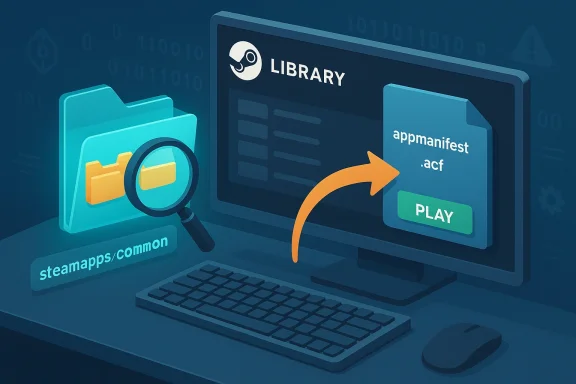
Steam stores two kinds of data for each installed title: the on‑disk game files (in steamapps\common) and a small metadata manifest (the .acf file) that tells the Steam client which app IDs are present and where they live. When those two records get out of sync — because files were moved, Steam was reinstalled, another account downloaded the game, or Steam’s library folders weren’t recognized — the client can show an Install button even though the files are still on disk. The reverse is also possible: the game appears in your Library but won’t launch because its local files aren’t linked correctly. Verifying files and library metadata is the core fix in most cases.
Below you’ll find a practical, structured guide that explains why this happens, step‑by‑step fixes (from safest to more advanced), diagnostics to run, and precautions to avoid data loss while you repair the link between Steam and the files on your PC.
Warning: be careful with file moves and backups. Do not delete game files. Always back up the .acf file before modifying it.
Source: Guiding Tech Steam Game Is Installed on PC But Not Showing in The App – How to Fix
 Background / Overview
Steam stores two kinds of data for each installed title: the on‑disk game files (in steamapps\common) and a small metadata manifest (the .acf file) that tells the Steam client which app IDs are present and where they live. When those two records get out of sync — because files were moved, Steam was reinstalled, another account downloaded the game, or Steam’s library folders weren’t recognized — the client can show an Install button even though the files are still on disk. The reverse is also possible: the game appears in your Library but won’t launch because its local files aren’t linked correctly. Verifying files and library metadata is the core fix in most cases.Below you’ll find a practical, structured guide that explains why this happens, step‑by‑step fixes (from safest to more advanced), diagnostics to run, and precautions to avoid data loss while you repair the link between Steam and the files on your PC.
Why Steam “loses” installed games
Steam can fail to list or recognize an installed game for several reasons. Knowing the cause helps you pick the right fix.- Hidden games — Steam has a per‑account hide feature that removes titles from your main Library view. The files remain on disk but won’t show up in the default list until unhidden.
- Installed under another Steam account — If a different user logged into the client and downloaded the game, the files will be present but owned (registered) to that other account, so your signed‑in account won’t be able to “Play.” Grouping by library makes this visible.
- Moved or restored files — Manually moving game folders, restoring from backups, or reinstalling Steam on a different drive can leave .acf manifests missing or mislocated while the big game files remain. Steam uses .acf files to map app IDs to folders; if those are missing, Steam behaves as if the game is not installed.
- Multiple Steam library folders — Steam supports multiple library folders. If the installation resides in a library folder Steam isn’t currently referencing, the title will be invisible until that library location is re‑added or rescanned.
- Corrupt or missing manifest (.acf) files — The small manifest files in steamapps are essential: they are the client’s record that a particular app ID is installed. Losing or corrupting them will hide the game even though its files exist.
- Client cache, shortcuts, or UI quirks — Sometimes the Library UI needs a restart, the client cache must be rebuilt, or Windows shell/Start menu shortcuts are stale; these are easier to fix than moving files.
Quick checks — the low‑risk first steps
Start here. These are safe, fast and fix most cases.- Restart Steam and Windows
- Quit Steam completely (File → Exit) and restart it. If that fails, reboot Windows. The Library UI and Steam’s file cache sometimes need a fresh client process to reindex installed titles.
- Check for Hidden Games
- In Steam, open View → Hidden Games. If the title is listed there, right‑click → Manage → Remove from Hidden. This instantly returns the game to your regular Library view.
- Remove Library filters and Group by Library
- Clear any Library filters (Installed, Favorites, Tags). Then open the Games menu and check “Group by Library” to reveal which account or library a game might be associated with — helpful if more than one person uses this machine.
- Use the search box
- Type the game name in the Library search box. If Steam knows about the game on that account it will show even if it’s hidden or filtered; that helps determine whether the issue is display vs missing metadata.
The standard repair: Verify integrity and let Steam detect local files
If the title is listed but shows an Install button or Play is missing, use Steam’s built‑in verification and local file detection.- Right‑click the game → Properties → Local Files → Verify integrity of game files.
- This scans the installation, redownloads broken/missing files, and often forces Steam to re‑attach the local files to the Library entry. Let the process finish.
- If the game shows “Install” (not Play), click Install and let Steam begin the pre‑install check.
- Steam’s pre‑install routine sometimes detects existing files and will reconcile them automatically. If Steam starts a download, immediately pause it.
- Pause the download, exit Steam completely, then manually check the steamapps folder for the app’s .acf file (see Advanced below). After adjusting files, restart Steam and allow it to re‑check.
Advanced fix: handling the .acf manifest safely (step‑by‑step)
Use this when Verify integrity or the pre‑install scan doesn’t reconnect the game. The .acf file is the canonical way Steam knows a title is installed, so carefully moving or restoring it will usually restore the Library entry.Warning: be careful with file moves and backups. Do not delete game files. Always back up the .acf file before modifying it.
- Locate your Steam library folder(s)
- Default: C:\Program Files (x86)\Steam\steamapps (but you may have created additional library folders on other drives). Check Steam → Settings → Downloads → Steam Library Folders to list them.
- Find the .acf file for the game
- The files are named appmanifest_APPID.acf. The app ID is the numeric Steam ID for the game. If you don’t know the ID, use SteamDB or the Steam store page (the number in the store page URL) — or locate it from any backup manifest you have. Do not rename the file unless you’re restoring it to the correct app ID name.
- If you see the .acf file, move it temporarily to another folder (for example, your Desktop). Restart Steam:
- With the .acf removed Steam will list the game as uninstalled. Exit Steam again. Return the .acf to steamapps and restart Steam. Steam should now read the manifest and mark the title as installed. This “remove/return” trick forces Steam to re‑read the metadata.
- If Steam starts a small download after manifest restoration, allow it to finish — this is Steam validating/patching any slight differences between the manifest and the files. Resume and let it complete.
If the installation belongs to another account
This is often the case on family/shared PCs where more than one person has used the Steam client.- Remove filters and select Games → Group by Library to see titles grouped by the purchasing account. If the game appears under another account’s library, log in to that account and launch the game from there. You can also use Family Sharing or re‑purchase/transfer the licence as appropriate.
When Steam still can’t see files: extra diagnostics
If the above doesn’t fix the problem, run these checks in order.- Confirm the Steam Library folder is active
- Steam → Settings → Downloads → Steam Library Folders. If the drive or folder where the game lives isn’t in the list, add it. Steam won’t index files outside the library list.
- Check file and folder permissions
- Make sure the Steam client has permission to read the library folder. Right‑click the folder → Properties → Security and confirm your user account (and the SYSTEM account) can read/modify. Running Steam as Administrator for a quick test can reveal permission issues, but don’t keep Steam elevated permanently.
- Rebuild Steam’s download cache
- Steam → Settings → Downloads → Clear Download Cache. This forces Steam to re‑index library states and can recover some metadata inconsistencies. Restart Steam after clearing.
- Test in a new Windows user account
- If the Library appears normal in a fresh Windows profile, the problem is profile‑specific (corrupt user cache, shortcuts, or shell extensions). Creating a new Windows user for tests helps isolate user‑level issues.
- Clean boot Windows and disable overlays
- Some third‑party overlays or injectors can interfere with the Steam client; perform a clean boot (msconfig → Hide Microsoft services → disable others) and test. Disable overlays like Discord, GeForce Experience, or RTSS during troubleshooting.
- System file checks when odd errors persist
- If Steam behaves strangely beyond library mismatches, run sfc /scannow and DISM /Online /Cleanup‑Image /RestoreHealth — these repair Windows system components that Steam may rely on. Use these only after basic troubleshooting.
Reinstalling Steam without losing games (safe approach)
If you must reinstall Steam, don’t delete steamapps unless you want to re‑download everything. Use this procedure to preserve installed games:- Exit Steam.
- Back up the Steamapps folder (Steam\steamapps) and the userdata folder (Steam\userdata) to another drive or a safe location.
- Uninstall the Steam client (this removes the client only, not the backed up steamapps).
- Reinstall Steam to the same folder (or the default).
- Replace the newly created steamapps and userdata with your backups if the client didn’t detect them automatically.
- Start Steam. It will detect the games and run a short discovery/verification for each title — significantly less bandwidth than full reinstalls.
Preventive steps and good library hygiene
Avoid future problems with these practices.- Use Steam’s built‑in library management: add new library folders from the Steam UI rather than moving files manually.
- Keep periodic backups of the steamapps\appmanifest_*.acf files if you back up game folders. Restoring .acf files is much faster than redownloading.
- When moving large installs between drives, do it through Steam's Move Install Folder option where available (right‑click game → Properties → Local Files → Move install folder).
- Avoid leaving multiple users logged into the same client on the same machine when managing installs; if you must share, use Family Sharing properly to avoid ambiguous ownership.
Risks, warnings, and when to get help
- Editing or creating .acf files manually is risky. Only restore known‑good manifests from backups; don’t fabricate manifests. Corrupt manifests can confuse Steam and cause partial downloads or data overwrites.
- Using DDU, toggling Windows Memory Integrity, or doing registry hacks is unnecessary for Library visibility issues and carries real system risk — reserve those for advanced troubleshooting when you’re diagnosing driver or anti‑cheat problems, not missing Library entries.
- If you must run Steam elevated to test permissions, do so briefly and revert; running such a busy network client with persistent elevation is a security risk.
- When the game belongs to another account, don’t try to “force” the game into your account — respect licensing and use Family Sharing or re‑purchase/transfer from the rightful owner.
Real‑world examples and why this is so common
Community troubleshooting threads and help guides repeatedly show the same three root causes: hidden/filtering issues, ownership by another account, and broken/missing .acf manifests after manual file moves or client reinstallation. Users report that simply re‑adding the library folder, restoring a backed‑up .acf, or running Verify Integrity resolves the majority of cases — which is why the recommended workflow is: quick checks → verify files → manifest restore → library re‑add/reinstall if needed. These patterns appear consistently across multiple community and support writeups.Troubleshooting checklist (copy and use)
- Restart Steam; reboot Windows.
- View → Hidden Games; unhide if needed.
- Remove Library filters; Group by Library to see account ownership.
- Right‑click game → Properties → Local Files → Verify integrity of game files.
- If Steam shows Install: begin install → pause → exit Steam → check steamapps for appmanifest_*.acf → temporarily move & return manifest → restart Steam.
- If no manifest exists and you have the game files: start an install, pause it, copy existing game folder into steamapps\common, resume install.
- Rebuild Steam download cache and confirm library folders (Settings → Downloads → Steam Library Folders).
- Test in a new Windows user account to rule out per‑profile problems.
Conclusion
When Steam doesn’t show a game that’s physically present on disk, the problem is almost always a metadata sync issue — either a hidden UI state, account/library ownership mismatch, or a missing/corrupt manifest (.acf) that tells the client where the files are. Start safe: unhide, clear filters, verify integrity, and let Steam’s install routine detect existing files. If those steps fail, the manifest restore technique typically reconnects the files without a full re‑download. Only escalate to client reinstalls or system‑level repairs after you’ve made backups and tried the manifest and library‑folder checks listed above. With a careful, ordered approach you’ll recover most “invisible” installs quickly and avoid unnecessary downloads or data loss.Source: Guiding Tech Steam Game Is Installed on PC But Not Showing in The App – How to Fix
