

Delivery Optimization can save repeated downloads across a home or small-office network, but it can also consume upload capacity and metered data if its peer-sharing settings are left wide open. A new Technobezz guide highlights the Windows 11 controls worth checking; Microsoft’s current documentation confirms that the practical fix is usually to restrict or disable peer sharing rather than disable updates.
In Windows 11, open Settings > Windows Update > Advanced options > Delivery Optimization. Turning off Allow downloads from other devices stops the PC from downloading update fragments from, or uploading them to, other PCs. Windows Update and Microsoft Store downloads continue directly from Microsoft.
For households with multiple Windows PCs, leave the setting on but select Devices on my local network. That retains local caching without allowing internet-based peer sharing. Microsoft says Delivery Optimization can source Windows updates, Store apps and other Microsoft content from its servers or peers, while verifying update authenticity before installation.
A grayed-out control or “managed by your organization” notice means Group Policy or MDM is in charge. Local Settings cannot override it.
Under Upload options, Windows 11 can cap the percentage of bandwidth used to send update data to internet peers and apply a monthly ceiling between 1GB and 500GB. For a single-PC setup or a capped broadband plan, disabling peer sharing is simpler and more definitive than tuning upload thresholds.
Marking Wi-Fi or Ethernet as a metered connection adds another guardrail. Per Microsoft’s privacy guidance, Delivery Optimization will not automatically download or upload update and app fragments to other PCs on the internet while using a metered or capped connection. That does not necessarily prevent all update activity, so it is not a substitute for checking the sharing switch.
Cached update fragments are cleared automatically after a short period or when Windows needs space. To force the issue, run Disk Cleanup, select Delivery Optimization Files, and delete them. This frees storage only; it does not alter sharing or bandwidth policy.
Finally, avoid old registry advice recommending Delivery Optimization
For most Windows 11 users on limited connections, turning off peer sharing and marking the connection metered are the two settings that matter most.
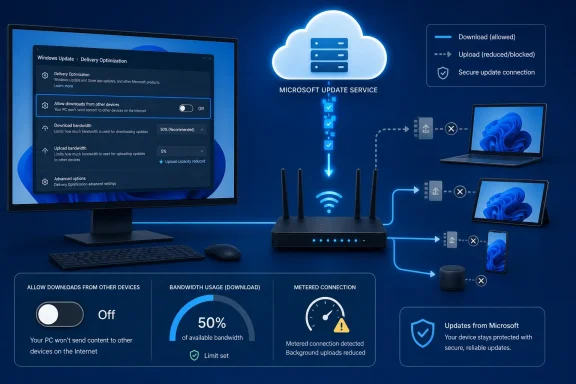 Start with peer sharing
In Windows 11, open Settings > Windows Update > Advanced options > Delivery Optimization. Turning off Allow downloads from other devices stops the PC from downloading update fragments from, or uploading them to, other PCs. Windows Update and Microsoft Store downloads continue directly from Microsoft.For households with multiple Windows PCs, leave the setting on but select Devices on my local network. That retains local caching without allowing internet-based peer sharing. Microsoft says Delivery Optimization can source Windows updates, Store apps and other Microsoft content from its servers or peers, while verifying update authenticity before installation.
A grayed-out control or “managed by your organization” notice means Group Policy or MDM is in charge. Local Settings cannot override it.
Put a ceiling on traffic
The same page provides download and upload controls. Under Download options, admins and power users can set an absolute Mbps limit or a percentage of measured bandwidth for background and foreground Delivery Optimization downloads. Microsoft cautions that these limits apply to automatic downloads, not downloads manually started in Windows Update or the Store.Under Upload options, Windows 11 can cap the percentage of bandwidth used to send update data to internet peers and apply a monthly ceiling between 1GB and 500GB. For a single-PC setup or a capped broadband plan, disabling peer sharing is simpler and more definitive than tuning upload thresholds.
Marking Wi-Fi or Ethernet as a metered connection adds another guardrail. Per Microsoft’s privacy guidance, Delivery Optimization will not automatically download or upload update and app fragments to other PCs on the internet while using a metered or capped connection. That does not necessarily prevent all update activity, so it is not a substitute for checking the sharing switch.
Check evidence, then clear cache if needed
The Activity monitor on the Delivery Optimization page shows the current month’s download sources, average speeds and upload totals. It is the quickest way to determine whether the machine is actually pulling content from peers or contributing data upstream.Cached update fragments are cleared automatically after a short period or when Windows needs space. To force the issue, run Disk Cleanup, select Delivery Optimization Files, and delete them. This frees storage only; it does not alter sharing or bandwidth policy.
Finally, avoid old registry advice recommending Delivery Optimization
DownloadMode 100, known as Bypass. Microsoft lists it as deprecated in Windows 11 and warns that it can cause some content downloads to fail; mode 0 is the supported no-peer configuration for managed systems.For most Windows 11 users on limited connections, turning off peer sharing and marking the connection metered are the two settings that matter most.
References
- Primary source: Technobezz
Published: 2026-07-14T18:45:30.516000+00:00
Delivery Optimization Using Too Much Data? 8 Windows 11 Settings to Change | Technobezz
Manage Delivery Optimization in Windows 11 by stopping peer sharing, limiting bandwidth, checking activity, and clearing cache files.www.technobezz.com - Official source: learn.microsoft.com
Delivery Optimization reference | Microsoft Learn
This article provides a summary of references and descriptions for all of the Delivery Optimization settings.learn.microsoft.com - Official source: support.microsoft.com
Delivery Optimization in Windows | Microsoft Support
Delivery Optimization in Windowssupport.microsoft.com
