

Surface Go 3 is the smallest Surface that still insists it’s a “real Windows PC,” and that insistence is both its greatest strength and its clearest gamble. For anyone who’s ever felt that their laptop is overkill and their phone is underpowered, the Go 3 aims to live in that narrow, useful middle: a 10.5‑inch tablet that can act like a laptop with the optional Type Cover, run full desktop Windows, and slip into a bag without ever feeling like luggage. But whether it’s a sleek productivity companion or a frustrated placeholder depends entirely on which configuration you buy and how willing you are to accept trade‑offs in performance, battery, and cost.
The Surface Go line has always been Microsoft’s experiment in how small a Surface can be while still feeling like a Surface. The Go 3 keeps the same 10.5‑inch PixelSense display and magnesium chassis as its predecessor, updates the silicon toward slightly faster low‑power Intel chips, and ships with full Windows 11—not a mobile OS or forked experience. That combination is the product’s core pitch: a true Windows desktop in a tablet form factor that’s light enough to carry all day.
Hardware options are deliberately constrained: the Go 3 is offered with low‑power Intel processors (Pentium and Core Y‑series in common configurations), LPDDR3 memory in 4 GB or 8 GB flavors, and either eMMC or SSD storage depending on SKU. Those choices define the device’s character: fanless, whisper‑quiet, thermally conservative, and optimized for light productivity rather than heavy-hitting workflows. Multiple independent write‑ups and community threads highlight the same practical guidance: choose the higher‑RAM SSD SKU if you plan to do real work; the base 4 GB / 64 GB model is best reserved for strictly light tasks, kids, or backup use.
Practical limitations:
Enterprise consideration: TPM 2.0 and Windows Hello support mean the device is reasonably well‑equipped for managed deployments, and S mode options can simplify classroom and fleet security. But IT teams should choose the 8 GB / SSD / Pro SKU for any deployment where users will run legacy Win32 apps.
Where it stumbles is equally consistent: the base Pentium / 4 GB / eMMC configuration is too weak for many daily workflows; accessory costs push the final price into laptop territory; and battery-life claims require nuance. If you treat the Go 3 as a secondary device—or you buy a well‑spec’d configuration to match your workload—it can be one of the most charming, useful little machines Microsoft has made. Ask it to be your only workstation and you’ll likely end up upgrading sooner than you expect.
Bottom line: For a lightweight, detachable Windows device that prioritizes portability, inking, and the flexibility of full Windows, the Surface Go 3 is an excellent choice—so long as you buy the right configuration and accept the trade‑offs that come with its compact design.
Source: AD HOC NEWS Surface Go 3 Review: The Tiny Windows 2?in?1 That’s Better (and Worse) Than You Expect
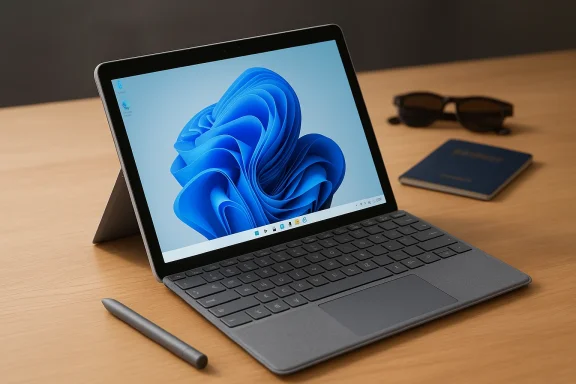 Background / Overview
The Surface Go line has always been Microsoft’s experiment in how small a Surface can be while still feeling like a Surface. The Go 3 keeps the same 10.5‑inch PixelSense display and magnesium chassis as its predecessor, updates the silicon toward slightly faster low‑power Intel chips, and ships with full Windows 11—not a mobile OS or forked experience. That combination is the product’s core pitch: a true Windows desktop in a tablet form factor that’s light enough to carry all day.Hardware options are deliberately constrained: the Go 3 is offered with low‑power Intel processors (Pentium and Core Y‑series in common configurations), LPDDR3 memory in 4 GB or 8 GB flavors, and either eMMC or SSD storage depending on SKU. Those choices define the device’s character: fanless, whisper‑quiet, thermally conservative, and optimized for light productivity rather than heavy-hitting workflows. Multiple independent write‑ups and community threads highlight the same practical guidance: choose the higher‑RAM SSD SKU if you plan to do real work; the base 4 GB / 64 GB model is best reserved for strictly light tasks, kids, or backup use.
Design and Build: Premium smallness
The Go 3 looks and feels like a shrunken Surface Pro, and for good reason—the magnesium alloy shell, precise kickstand, and well‑executed hinge are all familiar Microsoft design signatures. In a market crowded with polymer budget tablets, the Go 3’s materials and finish immediately communicate “premium.” That matters: a durable, light chassis translates into confidence for travelers, commuters, and students who handle the device all day.- Weight and portability: At roughly 544 g (about 1.2 lb) without a keyboard, the device truly disappears in a bag. It’s one of the rare Windows tablets you don’t notice carrying.
- Kickstand: The integrated kickstand remains a standout feature—stable across a wide range of angles and far better than many detachable alternatives.
- Fanless design: The absence of a fan keeps noise to zero under normal tasks, but it also dictates the thermal and performance envelope.
Display and Pen: Small but well‑scaled
The 10.5‑inch PixelSense panel at 1920×1280 with a 3:2 aspect ratio is one of the device’s most consistent strengths. Text is crisp, color and brightness are solid for indoor use, and the taller 3:2 framing gives you more vertical room for documents and web pages than a typical 16:9 slab. For note‑taking, the Surface Pen experience remains convincing—low latency, pressure sensitivity, and reliable palm rejection. If you plan to handwrite or sketch, the Go 3 is well‑suited for that role.Practical limitations:
- It’s a 60 Hz panel—fine for most tasks, but not suited to those who prioritize ultra‑smooth scrolling or high‑refresh gaming.
- The small screen size is inherently limiting for multi‑window productivity; investors in multitasking will quickly hit the display ceiling.
Performance: Tiny silicon, reasonable expectations
Where buyers most frequently trip up is performance expectations. The Go 3’s processors—commonly a Pentium Gold or a low‑power Core i3 Y‑series—are tuned for efficiency, not desktop speed. That tradeoff is deliberate: passive cooling, long battery life in light tasks, and a compact design. But in practice it means:- The Pentium / 4 GB / eMMC baseline is noticeably sluggish under anything more than minimal use: multiple browser tabs, Slack/Teams in the background, and Office documents open together. Community reports and hands‑on reviews repeatedly advise avoiding the base configuration unless ultra‑tight budget and ultra‑light usage are realities.
- The Core i3 / 8 GB / SSD configuration is where the device transforms from “barely coping” to “pleasant for light work.” App launches are faster, multitasking is smoother, and the SSD removes the worst latency of eMMC storage. But even this configuration cannot match the sustained throughput of larger Core series laptops.
Memory and Storage: Buy up if you want longevity
Storage and memory are the single most cost‑effective upgrades. Independent analysis and community consensus converge on the same recommendation:- Prefer 8 GB RAM over 4 GB if you plan to keep tabs, messaging apps, and multiple documents open.
- Prefer an SSD (128 GB or larger) over the entry-level 64 GB eMMC; the SSD materially improves responsiveness and installation capacity.
Battery life: Manufacturer claims vs. real world
Microsoft’s headline numbers are optimistic—lab‑style playback measures and carefully controlled tests produce long runtimes. Real‑world mixed use (web browsing, occasional video, background messaging) tends to produce shorter battery life. Independent test results and user reports typically land in the mid‑range: far from miraculous, but entirely adequate for a few hours of steady work or a day of intermittent use if you economize screen brightness and background tasks.- Expect 6–8 hours in mixed, realistic usage on a good day with moderate settings.
- Expect less under heavier multitasking or with cloud‑heavy workflows (video calls, persistent sync).
Ports, expandability, and connectivity
The Go 3 keeps a sensible, minimal port selection—USB‑C, Surface Connect, a 3.5 mm audio jack, and a microSDXC slot. That microSD slot is genuinely useful because entry storage is constrained on lower SKUs. The presence of USB‑C modernizes connectivity, but the thin design still leaves you wanting a hub if you need multiple wired peripherals. You get LTE on select SKUs in some markets, which is valuable for field work and students.Enterprise consideration: TPM 2.0 and Windows Hello support mean the device is reasonably well‑equipped for managed deployments, and S mode options can simplify classroom and fleet security. But IT teams should choose the 8 GB / SSD / Pro SKU for any deployment where users will run legacy Win32 apps.
Software: Full Windows, with trade‑offs
A principal selling point is that the Go 3 runs full Windows 11—so you can install classic desktop apps, use traditional file management workflows, and integrate with Active Directory or Intune in enterprise scenarios. That’s the core advantage over iPadOS and most Android tablets. But full Windows on low‑power silicon magnifies two realities:- Background services and legacy apps can quickly consume resources on constrained SKUs.
- Windows’ flexibility lets you run many things, but doesn’t make those apps performant on an underpowered chip.
Accessories and cost creep: The real price of productivity
The Go 3’s headline tablet price can seem attractive—until you add the Type Cover and Surface Pen. Accessory pricing at launch historically ranged from modest to significant, and those additions convert the tablet into a more usable productivity device while increasing the out‑the‑door cost toward midrange laptops. Independent coverage and buyer discussion repeatedly call this out: the base device is often just the starting point, not the full solution. Budget for the Type Cover (and possibly the Alcantara option) if you want to use the Go 3 as a primary typing device.- The Type Cover improves productivity vastly, but it’s a separate purchase.
- The Surface Pen is optional but recommended for students and note‑takers.
Alternatives: Where the Go 3 fits in the lineup
No device exists in isolation. The Go 3 sits inside a crowded ecosystem of compact machines:- Surface Pro family: Larger, more powerful, and better suited as a full laptop replacement. More expensive, but much more capable for demanding tasks.
- iPad (with keyboard): Faster-feeling in many day‑to‑day interactions, especially for media and inking workflows, but runs iPadOS and lacks full Windows desktop applications.
- Chromebooks and budget Windows laptops: Often better price‑to‑performance for pure web/cloud workflows, but they lack the Surface Go’s combination of build quality, pen input, and full Windows compatibility.
- Other small Windows 2‑in‑1s: Several OEMs offer competing devices with different trade‑offs—bigger batteries, higher refresh panels, or different port sets.
Who should buy the Surface Go 3?
The Go 3’s sweet spots are clear:- Students and note‑takers who need a light device for classes, inking, and basic Office work.
- Frequent travelers who want a real Windows machine for email and documents without the bulk.
- Parents looking for a durable, managed Windows tablet for homework and media.
- Professionals who already own a powerful desktop or laptop and want a secondary ultra‑portable device for meetings and light tasks.
- Heavy multitaskers, developers with large local builds, video editors, and creators who require sustained CPU/GPU throughput.
- Buyers who expect to buy the base SKU and have it serve as a long‑term, primary machine with many background apps.
Risks, caveats, and the purchase checklist
Every device has risk vectors buyers should factor into a purchase decision. For the Go 3, the major ones are:- SKU sensitivity: Small differences in CPU, RAM, and storage have outsized real‑world impacts. Verify the exact SKU before purchase.
- Accessory cost: Factor in the Type Cover and Pen if productivity matters. The headline price rarely reflects true cost.
- Battery variance: Manufacturer “up to” numbers are controlled; real mixed‑use will be shorter. Plan accordingly.
- App compatibility and performance: Full Windows allows many apps, but not all will perform well on low‑power silicon—test mission‑critical software if you can.
- Decide primary use (note‑taking vs. multitasking).
- Choose 8 GB RAM + SSD if you want a usable daily device.
- Budget for Type Cover and Pen.
- Confirm SKU details and warranty/return policy.
- If deploying at scale, prefer the Pro SKU and 8 GB config for manageability and app compatibility.
Final verdict: A deliberate compromise that pays off if you understand it
The Surface Go 3 is not a perfect product—nor does it pretend to be. It’s a deliberately constrained machine: ultra‑portable, premium in materials, and refreshingly honest about its role as a tablet‑first Windows PC. Where it shines, it does so spectacularly: the PixelSense display, magnesium chassis, kickstand, inking experience, and the psychological freedom of carrying a real Windows PC in one hand are compelling benefits that win converts among students, travelers, and users who value form factor above raw power.Where it stumbles is equally consistent: the base Pentium / 4 GB / eMMC configuration is too weak for many daily workflows; accessory costs push the final price into laptop territory; and battery-life claims require nuance. If you treat the Go 3 as a secondary device—or you buy a well‑spec’d configuration to match your workload—it can be one of the most charming, useful little machines Microsoft has made. Ask it to be your only workstation and you’ll likely end up upgrading sooner than you expect.
Bottom line: For a lightweight, detachable Windows device that prioritizes portability, inking, and the flexibility of full Windows, the Surface Go 3 is an excellent choice—so long as you buy the right configuration and accept the trade‑offs that come with its compact design.
Source: AD HOC NEWS Surface Go 3 Review: The Tiny Windows 2?in?1 That’s Better (and Worse) Than You Expect
