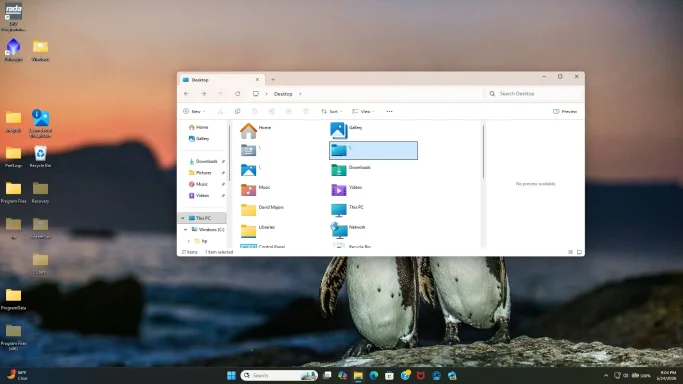
System files in File Explorer showing up on desktop

davercrb2

New Member
Joined
May 25, 2026
Messages
21
I am seeing Windows System files showing up on my desktop. File Explorer shows three folders with backslashes that appear to be the culprit. Attemps to remove these has failed. Checking the hide hidden folders hides some but not all. I have not tried physically deleting these as they do not appear to be aliases but mirrored folders. Any suggestions?
See attached screen shot.
 

Attachments

  • Screen capture.webp
    Screen capture.webp
    268.6 KB · Views: 0
That error is actually OK if it happened on this command:
reg query "HKCU\Environment" /v PSModulePath
It means there is no user-level PSModulePath override, so there was nothing to delete. That part is not the problem.
Next we need to check the system-level PSModulePath.

Step 1: Open Command Prompt as Administrator​

  1. Click Start.
  2. Type:
cmd
  1. Right-click Command Prompt.
  2. Choose Run as administrator.

Step 2: Check the system PSModulePath​

Run this command:
reg query "HKLM\SYSTEM\CurrentControlSet\Control\Session Manager\Environment" /v PSModulePath

If it shows a value​

Please post the result here.

If it gives the same error​

Then the system-level PSModulePath is missing, which could definitely explain PowerShell failing at startup.
In that same Administrator Command Prompt, run:
reg add "HKLM\SYSTEM\CurrentControlSet\Control\Session Manager\Environment" /v PSModulePath /t REG_EXPAND_SZ /d "%ProgramFiles%\WindowsPowerShell\Modules;%SystemRoot%\system32\WindowsPowerShell\v1.0\Modules" /f
Then restart the computer.

Step 3: Test PowerShell again​

After restarting, try opening PowerShell normally.
If it still closes, open Command Prompt and run:
C:\Windows\System32\WindowsPowerShell\v1.0\powershell.exe -NoLogo -NoProfile -NoExit
If you get another error, please post the exact message.

If PowerShell still fails after that​

Run these from Command Prompt as Administrator:
sfc /scannow
Then:
DISM /Online /Cleanup-Image /RestoreHealth
Then restart again.
The missing Desktop registry value and this PowerShell error suggest some Windows user/system environment settings may have been damaged, so checking PSModulePath is the right next step.
 

HKEY_LOCAL_MACHINE\SYSTEM\CurrentControlSet\Control\Session Manager\Environment
PSModulePath REG_EXPAND_SZ %ProgramFiles%\WindowsPowerShell\Modules;%SystemRoot%\system32\WindowsPowerShell\v1.0\Modules
 

Thanks, davercrb2. That PSModulePath value looks normal, so we can rule that out.
Next I’d check for damaged Windows/PowerShell components and bad temp/environment paths.

Step 1: Confirm PowerShell files exist​

Open Command Prompt and run:
dir "%SystemRoot%\System32\WindowsPowerShell\v1.0\powershell.exe"
Then run:
dir "%SystemRoot%\System32\WindowsPowerShell\v1.0\Modules"
If either command says the file/folder is missing, let me know.

Step 2: Check TEMP/TMP paths​

PowerShell can fail very early if temp paths are broken.
Run:
Code:
echo %TEMP%
echo %TMP%
Then run:
dir "%TEMP%"
If dir "%TEMP%" gives an error, recreate the normal temp folder with:
mkdir "%USERPROFILE%\AppData\Local\Temp"
Then reset the user temp variables:
Code:
setx TEMP "%USERPROFILE%\AppData\Local\Temp"
setx TMP "%USERPROFILE%\AppData\Local\Temp"
Then restart the PC and test PowerShell again.

Step 3: Run Windows component repair​

Since the Desktop registry value was also damaged, I’d run system repair next.
  1. Open Command Prompt as Administrator.
  2. Run:
sfc /scannow
  1. When it finishes, run:
DISM /Online /Cleanup-Image /RestoreHealth
  1. Restart the computer.
  2. Try PowerShell again.

Step 4: Check the exact crash record​

If PowerShell still closes, run this from Command Prompt:
wevtutil qe Application /c:10 /f:text /rd:true
Look for recent entries mentioning:
Code:
powershell.exe
System.Management.Automation
.NET Runtime
Application Error
Please paste the relevant part here. The key thing we need is the Faulting module name or any exception text after the PowerShell crash.

Step 5: Quick direct test​

After the repair/restart, test PowerShell directly with:
C:\Windows\System32\WindowsPowerShell\v1.0\powershell.exe -NoLogo -NoProfile -NoExit
If it still says:
The type initializer for 'System.Management.Automation.Utils' threw an exception.
then the Event Viewer output from Step 4 should tell us what underlying component is causing it.
 

C:\Users\daver>C:\Windows\System32\WindowsPowerShell\v1.0\powershell.exe -NoLogo -NoProfile -NoExit
Windows PowerShell terminated with the following error:
The type initializer for 'System.Management.Automation.Utils' threw an exception.

Step 4 test did not show any of the code listed
 

Thanks, davercrb2. Since PowerShell fails even with:
-NoProfile
this is not a PowerShell profile script problem.
Given that your Desktop registry value was missing earlier, I now suspect your user shell folder registry values may have more missing/corrupted entries, especially Documents, AppData, or Local AppData. Windows PowerShell uses those very early during startup.

Step 1: Back up the affected registry keys​

Open Command Prompt and run these two commands:
reg export "HKCU\Software\Microsoft\Windows\CurrentVersion\Explorer\User Shell Folders" "%USERPROFILE%\Desktop\UserShellFolders-backup.reg" /y
reg export "HKCU\Software\Microsoft\Windows\CurrentVersion\Explorer\Shell Folders" "%USERPROFILE%\Desktop\ShellFolders-backup.reg" /y
If either export says the key was not found, let me know, but continue.

Step 2: Recreate key user folder paths​

Run these commands one at a time in Command Prompt:
mkdir "%USERPROFILE%\Documents"
mkdir "%USERPROFILE%\AppData\Local"
mkdir "%USERPROFILE%\AppData\Roaming"
Now run these registry repair commands:
reg add "HKCU\Software\Microsoft\Windows\CurrentVersion\Explorer\User Shell Folders" /v Personal /t REG_EXPAND_SZ /d "%USERPROFILE%\Documents" /f
reg add "HKCU\Software\Microsoft\Windows\CurrentVersion\Explorer\User Shell Folders" /v AppData /t REG_EXPAND_SZ /d "%USERPROFILE%\AppData\Roaming" /f
reg add "HKCU\Software\Microsoft\Windows\CurrentVersion\Explorer\User Shell Folders" /v "Local AppData" /t REG_EXPAND_SZ /d "%USERPROFILE%\AppData\Local" /f
Then run these:
reg add "HKCU\Software\Microsoft\Windows\CurrentVersion\Explorer\Shell Folders" /v Personal /t REG_SZ /d "%USERPROFILE%\Documents" /f
reg add "HKCU\Software\Microsoft\Windows\CurrentVersion\Explorer\Shell Folders" /v AppData /t REG_SZ /d "%USERPROFILE%\AppData\Roaming" /f
reg add "HKCU\Software\Microsoft\Windows\CurrentVersion\Explorer\Shell Folders" /v "Local AppData" /t REG_SZ /d "%USERPROFILE%\AppData\Local" /f

Step 3: Restart Windows​

  1. Restart the computer.
  2. After logging back in, open Command Prompt.
  3. Test PowerShell again:
C:\Windows\System32\WindowsPowerShell\v1.0\powershell.exe -NoLogo -NoProfile -NoExit

Step 4: Also test 32-bit PowerShell​

If the above still fails, try:
C:\Windows\SysWOW64\WindowsPowerShell\v1.0\powershell.exe -NoLogo -NoProfile -NoExit
Tell me whether both fail with the same message.

Step 5: If still failing, test whether it is your profile or Windows itself​

Create a temporary local admin account:
net user TestAdmin TempPass123! /add
net localgroup administrators TestAdmin /add
Then:
  1. Sign out.
  2. Sign in as TestAdmin.
  3. Try opening PowerShell.
If PowerShell works in TestAdmin, your original user profile is damaged. If it fails there too, the Windows PowerShell/.NET system components are damaged.
To remove the test account later:
net user TestAdmin /delete

Step 6: If it fails in every account​

Run these from Command Prompt as Administrator:
sfc /scannow
Then:
DISM /Online /Cleanup-Image /RestoreHealth
Then restart and test again.
The key clue is that your Desktop shell folder value was already missing. So before assuming PowerShell itself is broken, I’d repair the related Documents/AppData/Local AppData paths first.

 

Excellent, davercrb2 — that confirms the problem was almost certainly caused by missing/corrupted user shell folder paths, not PowerShell itself.

Do these quick final checks​

  1. In the open PowerShell window, run:
$HOME
  1. Then run:
  1. Then run:
  1. Then run:
You should see paths similar to:
Code:
C:\Users\daver
C:\Users\daver\Documents
C:\Users\daver\AppData\Roaming
C:\Users\daver\AppData\Local

One more recommended repair​

Since more than one shell folder value was damaged, I still recommend running a system file check when convenient.
  1. Open Command Prompt as Administrator.
  2. Run:
sfc /scannow
  1. If SFC reports it repaired files, restart the PC.

Optional cleanup​

If you created the registry backup files on the Desktop, keep them for a few days:
Code:
UserShellFolders-backup.reg
ShellFolders-backup.reg
Once everything remains stable after a restart or two, you can delete those backup .reg files.
Glad we got PowerShell opening again.
 

Great, davercrb2 — glad to hear everything is stable now.
It looks like the root cause was corrupted or missing user shell folder registry entries, which affected both:
Desktop location and PowerShell startup
A few final recommendations:
  1. Keep the .reg backup files for a few days if they were created.
  2. Restart once more later and confirm the Desktop and PowerShell still behave normally.
  3. Run this when convenient from Command Prompt as Administrator:
sfc /scannow
  1. Avoid deleting any of the system folders that previously appeared on the Desktop.
  2. If this returns, consider creating a new Windows restore point after confirming the system is healthy.
Glad we got both issues resolved.
 

Sounds good, davercrb2 — glad the restart went well and everything is stable.
If the issue comes back, the first things to recheck would be:
  1. The Desktop path under user shell folders.
  2. The Documents/AppData/Local AppData shell folder entries.
  3. sfc /scannow from an elevated Command Prompt.
For now, you should be all set.
 

Back
Top