

If Windows system folders suddenly appear on the desktop, the key distinction is this: did Explorer merely start showing hidden items, or is Windows treating the wrong folder as your Desktop? In the WindowsForum case, the answer was the second one. The confirmed fix was to recreate the missing Desktop shell-folder registry entries so the Desktop pointed back to the user profile, not to remove the folders from the desktop.
That distinction matters because the danger is conditional. A folder named
The WindowsForum thread was titled “System files in File Explorer showing up on desktop.” Member davercrb2 opened with a specific report, not a vague complaint about desktop clutter: Windows system files were appearing on the desktop; File Explorer showed “three folders with backslashes” that looked like the culprit; attempts to remove them had failed; turning hidden folders back off hid only some items; and the user had deliberately avoided physically deleting them because they did not look like normal aliases or shortcuts.
That last detail was the right instinct. The helper’s first read of the screenshot was that the Desktop location appeared to have been redirected to the root of
The first repair attempt followed the normal graphical path: open File Explorer, right-click Desktop, choose Properties, open the Location tab, and check whether the location was something like
After those steps, davercrb2 reported that “those three folders are still there.” That moved the case from a simple Location-tab reset to a registry/path check. The helper then asked whether the remaining folders came from the current user’s Desktop, the Public Desktop, or a still-misdirected Desktop known-folder path. When PowerShell would not open, the helper switched to Command Prompt. When the user ran the registry query, the error was direct: “The system was unable to find the specified registry key or value.” The helper interpreted that as a missing Desktop registry value and gave commands to recreate it.
The final Desktop fix was the command-line recreation of the Desktop entries under the current user’s Explorer shell-folder keys. After that step, davercrb2 replied: “Looks like that last one did it. The folders are gone.” A later follow-up reported that the desktop looked OK, and after the thread continued into a related PowerShell startup issue, the user ultimately confirmed everything was stable.
The observed facts are therefore separate from the interpretation:
But in this WindowsForum case, that setting was only a partial explanation. Davercrb2 reported that hiding hidden folders removed some items but not all. That was the diagnostic break.
If a visibility setting is the whole problem, turning the setting off should remove the unexpected objects from view. If system-looking folders remain, especially when they resist removal and look like mirrored folders rather than shortcuts, stop treating the case as a display preference. At that point, the question becomes: which folder is the Desktop actually showing?
That is why the thread did not end with “turn off hidden items.” The helper moved from appearance to origin.
Those defaults do not prove what happened on a specific PC. They simply define what “normal” looks like. The WindowsForum evidence came from the thread itself: the helper suspected the Desktop was pointed at the wrong place, the registry query reported a missing value, and recreating the Desktop entries resolved the visible folders.
For practical troubleshooting, that means you do not need to begin with GUIDs. You need to answer three plain questions:
This is the compact version of the WindowsForum helper’s logic. The thread did not say “never delete system folders” as a generic slogan. It said not to delete them while the Desktop may be pointed at
In Windows 11:
If everything unexpected disappears, the issue was probably a visibility setting. If only some items disappear, follow the WindowsForum path: stop changing view options and inspect the Desktop location.
Open File Explorer and inspect the Desktop folder:
or, in environment-variable form:
If the Location tab shows:
or another broad system location such as:
then that is the main finding. Explorer may be showing you the contents of that folder as the desktop.
If you use Restore Default, be careful with the move prompt. In the WindowsForum thread, the helper specifically warned not to move the old location’s contents if the old location was
The two keys checked in the WindowsForum thread were:
and:
The value being checked was named:
The helper expected the
and the
If you are comfortable using Command Prompt, the thread’s diagnostic query was:
In davercrb2’s case, the important result was not a wrong path but an error stating that Windows could not find the specified registry key or value. The helper treated that as a missing Desktop registry value and recreated it.
From Command Prompt, the helper first ensured the Desktop folder existed:
Then the helper recreated the per-user Desktop value under
Then the helper recreated the Desktop value under
Because that command is run from Command Prompt,
Then restart Explorer:
If Explorer restarts but the desktop still looks wrong, restart Windows.
In the thread, this was the decisive Desktop repair. After this “last one,” davercrb2 reported that the folders were gone.
That Public Desktop branch is legitimate because Windows can show items from the shared desktop location to users. Microsoft’s KnownFolderID table documents the Public Desktop as a separate common folder with the default path:
A typical expanded path is:
Check it only after the user Desktop path does not explain the remaining items:
The safe response is not “delete the three folders.” The safe response is:
Use them as follow-up branches:
The helper first checked whether PowerShell failed because of a profile script, module path, or environment problem. Eventually the diagnosis returned to user shell-folder paths such as Documents, AppData, and Local AppData. After those related shell-folder paths were recreated, the user reported that PowerShell stayed open. Later, davercrb2 said everything looked stable after the repairs and a restart.
That does not mean every desktop-folder case is a PowerShell case. It means this particular thread ended with a coherent explanation: more than one user shell-folder setting appeared damaged, and restoring those paths stabilized both the Desktop behavior and the later PowerShell startup issue.
For the desktop article, the takeaway is narrower: the visible system folders were not fixed by deleting folders or toggling view settings. They were fixed by restoring the Desktop shell-folder path.
If only some vanish, continue.
Suspicious:
If the Desktop points at a suspicious location, restore the default Desktop location. If prompted to move files from a system root, choose No.
If either value is missing or points somewhere abnormal, that is no longer a cosmetic Explorer problem.
Restart Windows if needed.
If the same objects are there, they may be shared desktop items.
Do not assume the desktop surface tells you the object’s real origin. Desktop content can come from the current user Desktop, the Public Desktop, or a redirected/misconfigured known-folder path.
Do not delete folders named like Windows system folders while the Desktop might be pointed at
Do not blame an Explorer update or a general explorer.exe reliability issue unless the symptom is actually Explorer freezing, crashing, failing to draw the taskbar, or showing other shell reliability failures. This case was about content origin, not Explorer responsiveness.
That is why the earlier visibility tweak was insufficient. It could hide files that were merely being displayed because of a view setting. It could not repair a missing or corrupted Desktop shell-folder value. The confirmed fix was not cosmetic; it restored where Windows looked for the user’s Desktop.
That distinction matters because the danger is conditional. A folder named
Windows, Program Files, Users, ProgramData, Recovery, PerfLogs, or similar is not dangerous because it is visible. It is dangerous to delete if it is visible because the Desktop location points to C:\ or another system-level location. In that situation, the “desktop icons” may be real system folders being shown through the wrong Desktop path.
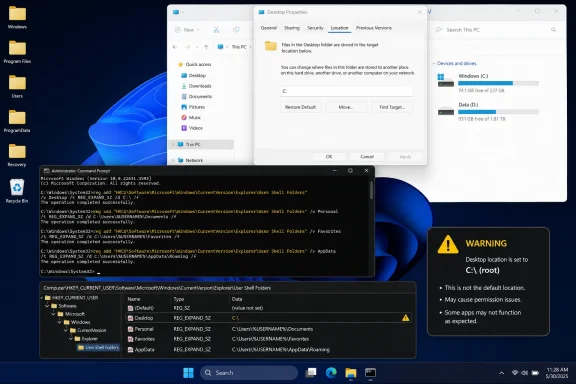 What the WindowsForum thread actually showed
The WindowsForum thread was titled “System files in File Explorer showing up on desktop.” Member davercrb2 opened with a specific report, not a vague complaint about desktop clutter: Windows system files were appearing on the desktop; File Explorer showed “three folders with backslashes” that looked like the culprit; attempts to remove them had failed; turning hidden folders back off hid only some items; and the user had deliberately avoided physically deleting them because they did not look like normal aliases or shortcuts.That last detail was the right instinct. The helper’s first read of the screenshot was that the Desktop location appeared to have been redirected to the root of
C:\. If that was true, Explorer was not inventing icons. It was showing real folders from the root of the system drive, including folders such as Windows, Program Files, Users, ProgramData, and Recovery. The helper therefore warned the user not to delete them and directed the diagnosis toward the Desktop location.The first repair attempt followed the normal graphical path: open File Explorer, right-click Desktop, choose Properties, open the Location tab, and check whether the location was something like
C:\ instead of the user’s Desktop folder. The helper also gave the important restoration warning: if Windows asks whether to move files from the old location to the new location, choose No when the “old location” is a system root. Moving C:\Windows or C:\Program Files into a Desktop folder would not be a cleanup step.After those steps, davercrb2 reported that “those three folders are still there.” That moved the case from a simple Location-tab reset to a registry/path check. The helper then asked whether the remaining folders came from the current user’s Desktop, the Public Desktop, or a still-misdirected Desktop known-folder path. When PowerShell would not open, the helper switched to Command Prompt. When the user ran the registry query, the error was direct: “The system was unable to find the specified registry key or value.” The helper interpreted that as a missing Desktop registry value and gave commands to recreate it.
The final Desktop fix was the command-line recreation of the Desktop entries under the current user’s Explorer shell-folder keys. After that step, davercrb2 replied: “Looks like that last one did it. The folders are gone.” A later follow-up reported that the desktop looked OK, and after the thread continued into a related PowerShell startup issue, the user ultimately confirmed everything was stable.
The observed facts are therefore separate from the interpretation:
- Observed by the user: System-looking folders appeared on the desktop; three path-like folders remained; hiding hidden folders helped only partly; deletion/removal attempts failed; the user did not delete the objects.
- Inferred by the helper: The Desktop location was probably wrong, possibly pointed at
C:\, and later the missing registry value suggested corrupted or missing user shell-folder entries. - Confirmed by the outcome: Recreating the Desktop shell-folder registry entries made the folders disappear from the desktop.
Why the hidden-files toggle was not enough
The hidden-items setting was still a valid first check. Microsoft’s File Explorer guidance describes hidden files as a normal view option: in Windows 11, View > Show > Hidden items controls whether hidden files and folders are shown; Windows 10 exposes the comparable setting through File Explorer options. That explains why some hidden metadata or normally hidden folders may appear after a view setting changes.But in this WindowsForum case, that setting was only a partial explanation. Davercrb2 reported that hiding hidden folders removed some items but not all. That was the diagnostic break.
If a visibility setting is the whole problem, turning the setting off should remove the unexpected objects from view. If system-looking folders remain, especially when they resist removal and look like mirrored folders rather than shortcuts, stop treating the case as a display preference. At that point, the question becomes: which folder is the Desktop actually showing?
That is why the thread did not end with “turn off hidden items.” The helper moved from appearance to origin.
The expected Desktop locations
Microsoft’s KnownFolderID documentation gives the baseline expectation: the per-user Desktop known folder,FOLDERID_Desktop, has the default path %USERPROFILE%\Desktop. The Public Desktop known folder, FOLDERID_PublicDesktop, is separate and has the default path %PUBLIC%\Desktop.Those defaults do not prove what happened on a specific PC. They simply define what “normal” looks like. The WindowsForum evidence came from the thread itself: the helper suspected the Desktop was pointed at the wrong place, the registry query reported a missing value, and recreating the Desktop entries resolved the visible folders.
For practical troubleshooting, that means you do not need to begin with GUIDs. You need to answer three plain questions:
- Is the current user Desktop really
%USERPROFILE%\Desktop? - Is anything unexpected coming from the Public Desktop?
- Do the current user registry entries for Desktop exist and point where they should?
The decision path
Use this order. Stop when the evidence explains the symptom.| Decision point | What it means | Next step |
|---|---|---|
| Hidden items are enabled and all unexpected items disappear when disabled | The issue was probably cosmetic visibility | Leave hidden items off unless you need them |
| Hidden items are disabled but system-looking folders remain | Visibility was not the whole issue | Inspect the Desktop source path |
The visible folders include names like Windows, Program Files, Users, or ProgramData | The Desktop may be showing a system-level location | Do not delete; check the Desktop location |
Desktop Properties shows C:\ or another unexpected location | The Desktop path is wrong | Restore the default location, but do not move system-root contents |
| The Desktop registry value is missing or points wrong | Windows may not know the correct Desktop path | Recreate the Desktop shell-folder entries |
| Items are not in the user Desktop but are in the Public Desktop | They are shared desktop items | Treat them as all-user items, not single-user clutter |
| The path points into OneDrive, a redirected folder, or a managed profile | Sync or policy may be involved | Investigate that layer after confirming the path |
C:\ or another wrong location, because then the visible entries are likely real system folders.Step 1: Normalize visibility, then stop toggling
First, put File Explorer back into a normal view state.In Windows 11:
- Open File Explorer.
- Select View.
- Select Show.
- Make sure Hidden items is off unless you intentionally need it.
- Open File Explorer.
- Open Options or Change folder and search options.
- Use the View tab to control hidden files and folders.
If everything unexpected disappears, the issue was probably a visibility setting. If only some items disappear, follow the WindowsForum path: stop changing view options and inspect the Desktop location.
Step 2: Check whether Desktop points somewhere abnormal
The first helper response in the WindowsForum thread focused on the Desktop Location tab because it is the safest non-registry check.Open File Explorer and inspect the Desktop folder:
- Open File Explorer.
- In the left pane, right-click Desktop.
- Choose Properties.
- Open the Location tab if it is present.
- Check the path.
C:\Users\<your-user-name>\Desktopor, in environment-variable form:
%USERPROFILE%\DesktopIf the Location tab shows:
C:\or another broad system location such as:
Code:
C:\Users
C:\Windows
C:\Program FilesIf you use Restore Default, be careful with the move prompt. In the WindowsForum thread, the helper specifically warned not to move the old location’s contents if the old location was
C:\. In that scenario, choose No if Windows asks whether to move files from the old location to the new one. You want to restore the Desktop pointer, not relocate the system drive into the Desktop folder.Step 3: Check the registry entries the thread used
When the Location-tab approach did not clear the last three folders, the thread moved to the registry values used by Explorer for the current user’s shell folders.The two keys checked in the WindowsForum thread were:
HKCU\Software\Microsoft\Windows\CurrentVersion\Explorer\User Shell Foldersand:
HKCU\Software\Microsoft\Windows\CurrentVersion\Explorer\Shell FoldersThe value being checked was named:
DesktopThe helper expected the
User Shell Folders value to point to:%USERPROFILE%\Desktopand the
Shell Folders value to point to the actual expanded Desktop path for that user.If you are comfortable using Command Prompt, the thread’s diagnostic query was:
Code:
reg query "HKCU\Software\Microsoft\Windows\CurrentVersion\Explorer\User Shell Folders" /v Desktop
reg query "HKCU\Software\Microsoft\Windows\CurrentVersion\Explorer\Shell Folders" /v DesktopStep 4: Recreate the Desktop entries if they are missing or wrong
This is the step that fixed the visible desktop problem in the WindowsForum thread.From Command Prompt, the helper first ensured the Desktop folder existed:
mkdir "%USERPROFILE%\Desktop"Then the helper recreated the per-user Desktop value under
User Shell Folders:reg add "HKCU\Software\Microsoft\Windows\CurrentVersion\Explorer\User Shell Folders" /v Desktop /t REG_EXPAND_SZ /d "%USERPROFILE%\Desktop" /fThen the helper recreated the Desktop value under
Shell Folders:reg add "HKCU\Software\Microsoft\Windows\CurrentVersion\Explorer\Shell Folders" /v Desktop /t REG_SZ /d "%USERPROFILE%\Desktop" /fBecause that command is run from Command Prompt,
%USERPROFILE% is expanded before the REG_SZ value is written. The practical result is that the value points to the user’s actual Desktop path.Then restart Explorer:
Code:
taskkill /f /im explorer.exe
start explorer.exeIn the thread, this was the decisive Desktop repair. After this “last one,” davercrb2 reported that the folders were gone.
Step 5: Check the Public Desktop only if the user Desktop does not explain it
The helper’s follow-up did not jump randomly to every possible Explorer feature. It asked whether the remaining objects were coming from the user Desktop, the Public Desktop, or a still-wrong known-folder path.That Public Desktop branch is legitimate because Windows can show items from the shared desktop location to users. Microsoft’s KnownFolderID table documents the Public Desktop as a separate common folder with the default path:
%PUBLIC%\DesktopA typical expanded path is:
C:\Users\Public\DesktopCheck it only after the user Desktop path does not explain the remaining items:
- Press Win + R.
- Enter:
C:\Users\Public\Desktop- Look for the same folders or shortcuts there.
Why “folders with backslashes” mattered
Davercrb2’s phrase “three folders with backslashes” was an important clue. Backslashes are path separators in Windows. A normal folder name on the desktop usually is not described that way by a user unless the item looks path-like, is displaying a target, or is being surfaced through an unusual namespace or location problem.The safe response is not “delete the three folders.” The safe response is:
- Open the item’s Properties.
- Look for Location, Target, or path fields.
- Compare them with the expected user Desktop path.
- Check the Public Desktop if the user Desktop does not contain the item.
- Repair the Desktop path before removing anything.
Where OneDrive and folder redirection fit
OneDrive, folder backup, enterprise redirection, and managed profiles can all affect where Desktop content lives. But they should not be inserted into this case unless the path evidence points there.Use them as follow-up branches:
- If the Desktop path is under OneDrive, check OneDrive backup and sync behavior.
- If the Desktop path is a network or managed location, check policy or profile redirection.
- If deleted items return after sync, check the sync provider.
- If the same desktop contents appear on multiple signed-in PCs, check cloud or profile synchronization.
What the later PowerShell symptom adds
After the desktop folders disappeared, davercrb2 raised a second issue: PowerShell opened and immediately closed. That was not the original desktop symptom, but the later thread history is useful because it supported the helper’s broader suspicion that user shell-folder values were damaged or missing.The helper first checked whether PowerShell failed because of a profile script, module path, or environment problem. Eventually the diagnosis returned to user shell-folder paths such as Documents, AppData, and Local AppData. After those related shell-folder paths were recreated, the user reported that PowerShell stayed open. Later, davercrb2 said everything looked stable after the repairs and a restart.
That does not mean every desktop-folder case is a PowerShell case. It means this particular thread ended with a coherent explanation: more than one user shell-folder setting appeared damaged, and restoring those paths stabilized both the Desktop behavior and the later PowerShell startup issue.
For the desktop article, the takeaway is narrower: the visible system folders were not fixed by deleting folders or toggling view settings. They were fixed by restoring the Desktop shell-folder path.
The exact troubleshooting sequence to extract
Here is the concise workflow, stripped to the decision points used in the thread.1. Hide hidden items and reassess
If the unexpected items vanish, stop. It was likely a visibility setting.If only some vanish, continue.
2. Confirm whether the Desktop points to the user profile
Expected:%USERPROFILE%\DesktopSuspicious:
Code:
C:\
C:\Users
C:\Windows
C:\Program Files3. Query the Desktop registry values
Use:
Code:
reg query "HKCU\Software\Microsoft\Windows\CurrentVersion\Explorer\User Shell Folders" /v Desktop
reg query "HKCU\Software\Microsoft\Windows\CurrentVersion\Explorer\Shell Folders" /v Desktop4. Recreate the missing Desktop value
Use Command Prompt:
Code:
mkdir "%USERPROFILE%\Desktop"
reg add "HKCU\Software\Microsoft\Windows\CurrentVersion\Explorer\User Shell Folders" /v Desktop /t REG_EXPAND_SZ /d "%USERPROFILE%\Desktop" /f
reg add "HKCU\Software\Microsoft\Windows\CurrentVersion\Explorer\Shell Folders" /v Desktop /t REG_SZ /d "%USERPROFILE%\Desktop" /f
taskkill /f /im explorer.exe
start explorer.exe5. Check the Public Desktop only if needed
Open:C:\Users\Public\DesktopIf the same objects are there, they may be shared desktop items.
6. Only then remove anything
Remove only items you have confirmed are ordinary files or shortcuts in the correct Desktop location. Do not delete system-named folders if the Desktop path is still wrong or unresolved.What not to do
Do not keep toggling Explorer settings after hidden items are already off and the folders remain. That was the point where the WindowsForum case moved away from view settings.Do not assume the desktop surface tells you the object’s real origin. Desktop content can come from the current user Desktop, the Public Desktop, or a redirected/misconfigured known-folder path.
Do not delete folders named like Windows system folders while the Desktop might be pointed at
C:\. If the Desktop path is wrong, deletion is not acting on “desktop clutter”; it may be acting on the system drive.Do not blame an Explorer update or a general explorer.exe reliability issue unless the symptom is actually Explorer freezing, crashing, failing to draw the taskbar, or showing other shell reliability failures. This case was about content origin, not Explorer responsiveness.
The clean conclusion
The WindowsForum thread resolved because the helper followed the evidence in order. Hidden-items settings explained only part of what davercrb2 saw. The remaining folders, especially the three path-like folders that resisted removal, pointed to a Desktop source-path problem. The registry query then exposed the concrete failure: the Desktop value was missing or not available where expected. Recreating the current user’s Desktop entries underUser Shell Folders and Shell Folders, ensuring %USERPROFILE%\Desktop existed, and restarting Explorer made the folders disappear.That is why the earlier visibility tweak was insufficient. It could hide files that were merely being displayed because of a view setting. It could not repair a missing or corrupted Desktop shell-folder value. The confirmed fix was not cosmetic; it restored where Windows looked for the user’s Desktop.
References
- Primary source: learn.microsoft.com
Specifying a Namespace Extension's Location - Win32 apps | Microsoft Learn
The root of a namespace extension is normally displayed by Windows Explorer as a folder in both tree and folder views.learn.microsoft.com - Independent coverage: support.microsoft.com
File Explorer in Windows | Microsoft Support
Find and open File Explorer in Windows, and customize Quick access by pinning and removing files and folders.support.microsoft.com - Primary source: WindowsForum
System files in File Explorer showing up on desktop | Windows Forum
The thread discusses a Windows desktop showing what appear to be Windows system folders (e.g., Windows/Program Files/Users) instead of only user content...windowsforum.com - Related coverage: howtogeek.com
How to Show Hidden Files and Folders in Windows
Your PC is littered with hidden files you probably didn't even know were there. www.howtogeek.com
- Related coverage: omnisecu.com
How to view hidden files using Windows File Explorer
This tutorial lesson explains how to view hidden files using Windows File Explorer.www.omnisecu.com - Related coverage: quickbooks.intuit.com
Display hidden files and folders or search for files using Windows
Learn how to search for hidden files and folders.Need to locate your file? We’ll show you how to display hidden files and folders.On your Desktop or System Trayquickbooks.intuit.com
- Related coverage: makeuseof.com
How to Show Hidden Files and Folders on Windows 11
Certain files and folders are hidden by default. Here's how you can view them in Windows 11. www.makeuseof.com
- Related coverage: windowscentral.com
How to hide (or unhide) files on Windows 11 | Windows Central
On Windows 11, you can hide (or unhide) files through File Explorer and Command Prompt (or PowerShell), and in this guide, I'll show you how.www.windowscentral.com - Official source: cdn-dynmedia-1.microsoft.com
- Related coverage: techcenter.eset.nl
View hidden files and folders in Windows operating systems - Kennisbank / Diagnostics - ESET Tech Center
PDF documenttechcenter.eset.nl
