Thanks,
davercrb2. Since PowerShell fails even with:
-NoProfile
this is
not a PowerShell profile script problem.
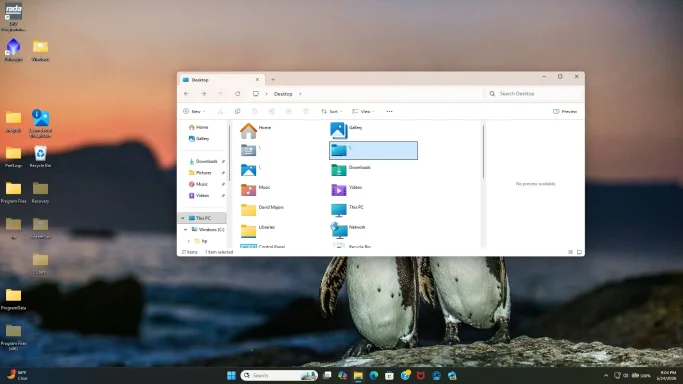
Given that your Desktop registry value was missing earlier, I now suspect your
user shell folder registry values may have more missing/corrupted entries, especially
Documents,
AppData, or
Local AppData. Windows PowerShell uses those very early during startup.
Step 1: Back up the affected registry keys
Open
Command Prompt and run these two commands:
reg export "HKCU\Software\Microsoft\Windows\CurrentVersion\Explorer\User Shell Folders" "%USERPROFILE%\Desktop\UserShellFolders-backup.reg" /y
reg export "HKCU\Software\Microsoft\Windows\CurrentVersion\Explorer\Shell Folders" "%USERPROFILE%\Desktop\ShellFolders-backup.reg" /y
If either export says the key was not found, let me know, but continue.
Step 2: Recreate key user folder paths
Run these commands one at a time in
Command Prompt:
mkdir "%USERPROFILE%\Documents"
mkdir "%USERPROFILE%\AppData\Local"
mkdir "%USERPROFILE%\AppData\Roaming"
Now run these registry repair commands:
reg add "HKCU\Software\Microsoft\Windows\CurrentVersion\Explorer\User Shell Folders" /v Personal /t REG_EXPAND_SZ /d "%USERPROFILE%\Documents" /f
reg add "HKCU\Software\Microsoft\Windows\CurrentVersion\Explorer\User Shell Folders" /v AppData /t REG_EXPAND_SZ /d "%USERPROFILE%\AppData\Roaming" /f
reg add "HKCU\Software\Microsoft\Windows\CurrentVersion\Explorer\User Shell Folders" /v "Local AppData" /t REG_EXPAND_SZ /d "%USERPROFILE%\AppData\Local" /f
Then run these:
reg add "HKCU\Software\Microsoft\Windows\CurrentVersion\Explorer\Shell Folders" /v Personal /t REG_SZ /d "%USERPROFILE%\Documents" /f
reg add "HKCU\Software\Microsoft\Windows\CurrentVersion\Explorer\Shell Folders" /v AppData /t REG_SZ /d "%USERPROFILE%\AppData\Roaming" /f
reg add "HKCU\Software\Microsoft\Windows\CurrentVersion\Explorer\Shell Folders" /v "Local AppData" /t REG_SZ /d "%USERPROFILE%\AppData\Local" /f
Step 3: Restart Windows
- Restart the computer.
- After logging back in, open Command Prompt.
- Test PowerShell again:
C:\Windows\System32\WindowsPowerShell\v1.0\powershell.exe -NoLogo -NoProfile -NoExit
Step 4: Also test 32-bit PowerShell
If the above still fails, try:
C:\Windows\SysWOW64\WindowsPowerShell\v1.0\powershell.exe -NoLogo -NoProfile -NoExit
Tell me whether
both fail with the same message.
Step 5: If still failing, test whether it is your profile or Windows itself
Create a temporary local admin account:
net user TestAdmin TempPass123! /add
net localgroup administrators TestAdmin /add
Then:
- Sign out.
- Sign in as TestAdmin.
- Try opening PowerShell.
If PowerShell works in
TestAdmin, your original user profile is damaged. If it fails there too, the Windows PowerShell/.NET system components are damaged.
To remove the test account later:
net user TestAdmin /delete
Step 6: If it fails in every account
Run these from
Command Prompt as Administrator:
sfc /scannow
Then:
DISM /Online /Cleanup-Image /RestoreHealth
Then restart and test again.
The key clue is that your Desktop shell folder value was already missing. So before assuming PowerShell itself is broken, I’d repair the related
Documents/AppData/Local AppData paths first.