

Windows 11 users can tame an overgrown Downloads folder today by combining File Explorer’s grouping and sorting tools, Storage Sense’s automatic cleanup rules, and—where more control is needed—third-party automation such as File Juggler. The advice is simple, but the implications are bigger than housekeeping. Downloads has quietly become the junk drawer of the modern PC, a place where installers, PDFs, ZIP archives, ISO images, screenshots, invoices, and half-forgotten driver packages pile up until storage warnings or search frustration force a reckoning. The real lesson is that Windows now gives users enough built-in machinery to manage the mess, but not quite enough intelligence to manage it safely for everyone.
The Downloads folder was designed as a convenience, not an archive. Browsers, messaging apps, cloud portals, driver pages, and software vendors all treat it as the path of least resistance: if the user does not choose a destination, the file lands there. That design saves seconds in the moment and costs minutes later, especially on machines that have been in service for months or years.
The TechPP guide’s core diagnosis is right: the problem is not merely visual clutter. A swollen Downloads folder makes files harder to locate, but it also consumes storage that Windows increasingly needs for updates, app caches, recovery operations, virtual memory, and temporary installation files. On budget laptops with 128GB or 256GB SSDs, Downloads can move from annoyance to operational liability.
What makes this folder uniquely messy is that it mixes disposable and important files without distinction. A browser installer that was useful for five minutes may sit next to a tax document, firmware image, work report, or receipt. Windows can sort by type or date, but it cannot infer whether a PDF is an invoice you need for seven years or a brochure you downloaded once by mistake.
That is why organization advice for Downloads always has to balance two goals that pull against each other. Users want automation because manual cleanup is tedious. They also need caution because the wrong deletion rule can remove the one file that was never copied elsewhere.
That matters because Downloads is often not one mess but several. There are installers that can be redownloaded, compressed archives that may have already been extracted, images that belong in Pictures, documents that should live in OneDrive or a work folder, and giant disk images that were needed once for a repair or test. Grouping by type lets a user attack each category with different judgment instead of scrolling through an undifferentiated timeline of file names.
Sorting by date adds another useful clue. Older files are often safer candidates for deletion, but not always. A six-month-old installer is usually expendable; a six-month-old signed contract is not. File Explorer’s value is that it slows the user down just enough to make those distinctions.
There is also a subtle advantage to using view settings instead of creating a new folder taxonomy immediately. Many users do not actually need elaborate subfolders for Downloads. They need a triage view: what is old, what is large, what is an installer, what is an archive, and what should be moved somewhere permanent. File Explorer can supply that without turning cleanup into a weekend project.
The weakness is obvious. Manual triage depends on the user remembering to do it. Anyone who downloads files daily knows how quickly a cleaned folder returns to entropy. File Explorer is excellent for the first cleanup pass, but it is not a maintenance strategy by itself.
The important detail is the one TechPP highlights: Storage Sense uses “last opened” behavior for Downloads cleanup, not simply the day a file was downloaded. That is a meaningful safeguard. A file downloaded months ago but opened yesterday should not be treated the same as an installer that has been untouched since spring.
Even so, this safeguard is not the same as understanding intent. Storage Sense can know that a file has not been opened; it cannot know that the user meant to keep it. That makes its Downloads cleanup setting more dangerous than its temporary-file cleanup. Deleting cache files is routine maintenance. Deleting user-downloaded files is a policy decision.
This distinction is why Microsoft’s own design keeps Storage Sense configurable rather than turning Downloads deletion into a silent default that everyone must accept. Users can choose how often Storage Sense runs and how long files must remain unopened before removal. Those settings are not decoration; they are the difference between helpful automation and surprise data loss.
For most home users, a conservative interval such as 60 days is more defensible than an aggressive one. For shared family PCs, lab machines, kiosks, or devices used mainly for browsing and streaming, shorter windows may be reasonable. For workstations where Downloads is a staging area for client files, installers, logs, exports, and evidence packages, automatic deletion needs more thought.
That permanence changes the risk calculation. A user manually deleting a file in File Explorer usually has a moment of recognition and, often, the safety net of the Recycle Bin. A scheduled cleanup running after a threshold has passed offers neither. The machine is following a rule, not making a judgment.
The TechPP article’s warning on this point is essential. If a user turns on Downloads cleanup, they should first decide whether Downloads is disposable by policy. If the answer is no—if Downloads contains receipts, work exports, school files, scanned documents, or project assets—then the better answer is not to avoid cleanup forever. It is to create a reliable path for important files to leave Downloads before automation arrives.
This is where Windows’ own defaults sometimes work against good hygiene. The operating system gives Documents, Pictures, Videos, Music, and Desktop clear identities. Downloads is functionally a loading dock, but users often treat it as a warehouse. Automation becomes safer only when Downloads returns to being temporary.
IT departments have understood this for years. In managed environments, the Downloads folder is a support problem because it accumulates executable files, duplicate installers, sensitive exports, and stale data. For security teams, that is not just wasted space; it is a history of what the user fetched from the web. Cleanup can reduce clutter, but it can also intersect with retention, investigation, and compliance needs.
That is a different philosophy. Storage Sense says, “If this class of content has not been opened in a while, remove it.” A file automation tool says, “If a file matches these conditions, do this specific thing.” The second approach is more powerful because it can encode a user’s actual workflow.
The trade-off is that power increases the blast radius of a bad rule. A mistaken condition can delete more than intended, move files into unexpected locations, or create a maintenance process the user forgets exists. The first rule should always be narrow, observable, and reversible where possible. Moving files is safer than deleting them; logging actions is safer than trusting silent cleanup.
There is another issue that rarely gets enough attention: third-party automation becomes part of the PC’s reliability story. If the tool stops running, changes licensing behavior, breaks after an update, or is removed during troubleshooting, the workflow collapses. Built-in Windows features have their own quirks, but they are at least part of the platform’s expected maintenance surface.
Still, for enthusiasts and admins, this class of tool can be genuinely useful. Downloads is full of predictable patterns. Installers often use EXE or MSI extensions, archives use ZIP, 7Z, or RAR, disk images use ISO, and browser exports often carry recognizable names. A carefully written automation rule can do what Windows itself refuses to do: distinguish between categories of downloaded clutter.
The best use of third-party automation is not reckless deletion. It is routing. Move known file types to review folders, send large disk images to a dedicated archive, clear known disposable installers after a delay, and leave ambiguous documents alone. In other words, let automation do the boring sorting, but keep final judgment where the risk is highest.
There is a reason professional workflows rarely dump everything into one directory forever. Developers separate source archives from installers. Designers separate assets from exports. Admins separate logs, drivers, ISOs, and scripts. The average Windows user does not need a sysadmin-grade folder hierarchy, but the principle scales down nicely: files with different purposes should not all age in the same pile.
A simple model works better than an elaborate one. Downloads can remain the inbox. Documents, Pictures, project folders, and cloud-synced workspaces become the places where files go when they matter. Anything left in Downloads after a set period is presumed temporary.
That presumption is what makes automation defensible. Without it, Storage Sense is guessing. With it, Storage Sense enforces a habit the user has already chosen. The difference is subtle but important: cleanup should be the final step of a workflow, not a substitute for one.
Windows could do more here. File Explorer already exposes metadata such as type, date, and size. Windows Search indexes content. Defender and SmartScreen inspect downloaded executables. OneDrive knows whether files are synced or local. Yet the Downloads folder experience still largely treats every file as an inert object in a list. Microsoft has the pieces for smarter triage, but it has not turned them into a humane Downloads assistant.
At the same time, automatic deletion is not always the answer. Some organizations need to preserve logs, exported reports, or installation packages for audit or troubleshooting. Others use Downloads as an informal staging location because line-of-business apps and browser-based tools make it difficult to do anything else. A blanket cleanup policy can collide with real work.
That is why managed Windows environments need policy before tooling. If Downloads is temporary, say so. If certain file types must be moved to approved storage, document that. If Storage Sense is configured through management tools, users should understand what will happen and when. Silent cleanup may save help desk tickets about full disks, but it can create worse tickets about missing files.
There is also the security angle. Old installers and archives are not automatically dangerous, but they are a messy inventory of executable content. Users may rerun outdated installers, keep vulnerable utilities, or store scripts from unknown sources. A cleaner Downloads folder reduces the chance that stale software becomes a convenient mistake.
Storage savings are the easy metric. Reduced ambiguity is the better one. A Downloads folder with 20 recent items tells a clearer story than one with 2,000 artifacts spanning three years. For support staff, forensics teams, and users themselves, that clarity has value.
The missing middle is a Windows feature that can recommend actions without taking them. Imagine a Downloads view that says: these installers appear to have been used; these archives have been extracted; these files are duplicated elsewhere; these large files have not been opened in 90 days; these documents are not backed up. That would be more useful than another cleanup toggle.
Microsoft has flirted with this kind of intelligence across Windows, but Downloads remains stubbornly manual. Storage Sense operates at the policy level, not the semantic level. File Explorer displays the evidence but does not interpret it. Users are left to bridge the gap.
There is a product reason for that caution. File deletion is one of the quickest ways for an operating system to lose trust. Users forgive clutter more readily than missing files. Any smarter Downloads cleanup would need previews, undo, clear explanations, and conservative defaults.
Still, Windows 11 is increasingly presented as an AI-assisted operating system. If that ambition is going to matter outside demos and sidebar experiences, mundane file hygiene is exactly the kind of problem it should solve. Not by hallucinating importance, but by surfacing patterns and asking for confirmation.
Users who download mostly installers and media previews can be aggressive. Users who download records, forms, invoices, research papers, or client files should be conservative. Developers and IT pros may need a hybrid approach because their Downloads folder often contains both disposable installers and important diagnostic packages.
The best practice is to run a manual cleanup first, then automate. A user who turns on Storage Sense while Downloads is already chaotic is asking Windows to apply a simple rule to a complicated history. A user who first moves important files elsewhere and then enables cleanup is creating a clean boundary for future behavior.
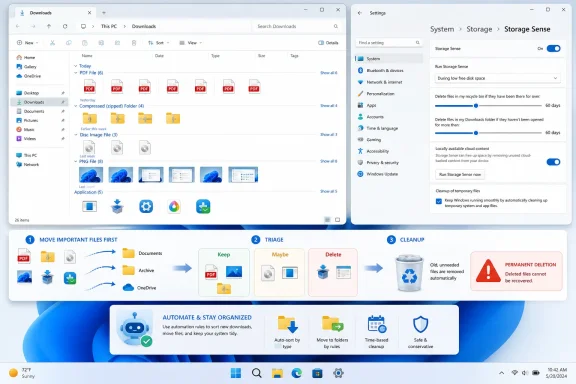
That sequencing matters more than the specific tool. Group and sort. Move what matters. Delete obvious junk. Then turn on a conservative automation rule. After a month or two, adjust based on what actually happened.
This also avoids the emotional problem of cleanup: users fear losing files because they know the folder contains unknown value. Once Downloads is reduced to a temporary inbox, deletion becomes less dramatic. The folder stops being a place where memory lives and returns to being a place where files arrive.
 The Downloads Folder Became Windows’ Default Memory Hole
The Downloads folder was designed as a convenience, not an archive. Browsers, messaging apps, cloud portals, driver pages, and software vendors all treat it as the path of least resistance: if the user does not choose a destination, the file lands there. That design saves seconds in the moment and costs minutes later, especially on machines that have been in service for months or years.The TechPP guide’s core diagnosis is right: the problem is not merely visual clutter. A swollen Downloads folder makes files harder to locate, but it also consumes storage that Windows increasingly needs for updates, app caches, recovery operations, virtual memory, and temporary installation files. On budget laptops with 128GB or 256GB SSDs, Downloads can move from annoyance to operational liability.
What makes this folder uniquely messy is that it mixes disposable and important files without distinction. A browser installer that was useful for five minutes may sit next to a tax document, firmware image, work report, or receipt. Windows can sort by type or date, but it cannot infer whether a PDF is an invoice you need for seven years or a brochure you downloaded once by mistake.
That is why organization advice for Downloads always has to balance two goals that pull against each other. Users want automation because manual cleanup is tedious. They also need caution because the wrong deletion rule can remove the one file that was never copied elsewhere.
File Explorer Still Wins the First Round Because It Shows the Mess Honestly
The least glamorous recommendation in the TechPP piece is also the safest: use File Explorer’s view options to group and sort Downloads. Grouping by type and sorting by creation date does not delete anything, does not require trust in an external app, and does not hide the complexity of the folder behind a magic broom icon. It simply makes the disorder legible.That matters because Downloads is often not one mess but several. There are installers that can be redownloaded, compressed archives that may have already been extracted, images that belong in Pictures, documents that should live in OneDrive or a work folder, and giant disk images that were needed once for a repair or test. Grouping by type lets a user attack each category with different judgment instead of scrolling through an undifferentiated timeline of file names.
Sorting by date adds another useful clue. Older files are often safer candidates for deletion, but not always. A six-month-old installer is usually expendable; a six-month-old signed contract is not. File Explorer’s value is that it slows the user down just enough to make those distinctions.
There is also a subtle advantage to using view settings instead of creating a new folder taxonomy immediately. Many users do not actually need elaborate subfolders for Downloads. They need a triage view: what is old, what is large, what is an installer, what is an archive, and what should be moved somewhere permanent. File Explorer can supply that without turning cleanup into a weekend project.
The weakness is obvious. Manual triage depends on the user remembering to do it. Anyone who downloads files daily knows how quickly a cleaned folder returns to entropy. File Explorer is excellent for the first cleanup pass, but it is not a maintenance strategy by itself.
Storage Sense Is the Sensible Default, Not a Mind Reader
Storage Sense is Microsoft’s answer to the maintenance problem. In Windows 11, it can automatically remove temporary files, clean the Recycle Bin, manage locally cached cloud content, and delete files in Downloads after they have not been opened for a chosen period. For ordinary users, that is the cleanest built-in option because it lives inside Settings and runs without another background utility.The important detail is the one TechPP highlights: Storage Sense uses “last opened” behavior for Downloads cleanup, not simply the day a file was downloaded. That is a meaningful safeguard. A file downloaded months ago but opened yesterday should not be treated the same as an installer that has been untouched since spring.
Even so, this safeguard is not the same as understanding intent. Storage Sense can know that a file has not been opened; it cannot know that the user meant to keep it. That makes its Downloads cleanup setting more dangerous than its temporary-file cleanup. Deleting cache files is routine maintenance. Deleting user-downloaded files is a policy decision.
This distinction is why Microsoft’s own design keeps Storage Sense configurable rather than turning Downloads deletion into a silent default that everyone must accept. Users can choose how often Storage Sense runs and how long files must remain unopened before removal. Those settings are not decoration; they are the difference between helpful automation and surprise data loss.
For most home users, a conservative interval such as 60 days is more defensible than an aggressive one. For shared family PCs, lab machines, kiosks, or devices used mainly for browsing and streaming, shorter windows may be reasonable. For workstations where Downloads is a staging area for client files, installers, logs, exports, and evidence packages, automatic deletion needs more thought.
The Catch Is That Downloads Cleanup Is Permanent Enough to Hurt
The most dangerous sentence in any cleanup guide is the one users skim past: deleted files may not be recoverable from the Recycle Bin. Storage Sense is not simply selecting files for later review. Depending on the action and configuration, it can permanently remove content as part of a background maintenance job.That permanence changes the risk calculation. A user manually deleting a file in File Explorer usually has a moment of recognition and, often, the safety net of the Recycle Bin. A scheduled cleanup running after a threshold has passed offers neither. The machine is following a rule, not making a judgment.
The TechPP article’s warning on this point is essential. If a user turns on Downloads cleanup, they should first decide whether Downloads is disposable by policy. If the answer is no—if Downloads contains receipts, work exports, school files, scanned documents, or project assets—then the better answer is not to avoid cleanup forever. It is to create a reliable path for important files to leave Downloads before automation arrives.
This is where Windows’ own defaults sometimes work against good hygiene. The operating system gives Documents, Pictures, Videos, Music, and Desktop clear identities. Downloads is functionally a loading dock, but users often treat it as a warehouse. Automation becomes safer only when Downloads returns to being temporary.
IT departments have understood this for years. In managed environments, the Downloads folder is a support problem because it accumulates executable files, duplicate installers, sensitive exports, and stale data. For security teams, that is not just wasted space; it is a history of what the user fetched from the web. Cleanup can reduce clutter, but it can also intersect with retention, investigation, and compliance needs.
Third-Party Automation Fills the Gap Microsoft Leaves Open
File Juggler, the third-party tool highlighted by TechPP, is interesting because it addresses the biggest limitation of Storage Sense: Microsoft gives users broad time-based cleanup, while power users often want rule-based file handling. They may want ISO files moved to a specific folder, ZIP and RAR archives deleted after a set age, large files flagged, or installers removed while PDFs are left alone.That is a different philosophy. Storage Sense says, “If this class of content has not been opened in a while, remove it.” A file automation tool says, “If a file matches these conditions, do this specific thing.” The second approach is more powerful because it can encode a user’s actual workflow.
The trade-off is that power increases the blast radius of a bad rule. A mistaken condition can delete more than intended, move files into unexpected locations, or create a maintenance process the user forgets exists. The first rule should always be narrow, observable, and reversible where possible. Moving files is safer than deleting them; logging actions is safer than trusting silent cleanup.
There is another issue that rarely gets enough attention: third-party automation becomes part of the PC’s reliability story. If the tool stops running, changes licensing behavior, breaks after an update, or is removed during troubleshooting, the workflow collapses. Built-in Windows features have their own quirks, but they are at least part of the platform’s expected maintenance surface.
Still, for enthusiasts and admins, this class of tool can be genuinely useful. Downloads is full of predictable patterns. Installers often use EXE or MSI extensions, archives use ZIP, 7Z, or RAR, disk images use ISO, and browser exports often carry recognizable names. A carefully written automation rule can do what Windows itself refuses to do: distinguish between categories of downloaded clutter.
The best use of third-party automation is not reckless deletion. It is routing. Move known file types to review folders, send large disk images to a dedicated archive, clear known disposable installers after a delay, and leave ambiguous documents alone. In other words, let automation do the boring sorting, but keep final judgment where the risk is highest.
The Better Cleanup Strategy Starts Before the Folder Is Full
The smartest way to organize Downloads is to reduce what lands there in the first place. Most browsers can ask where to save each file, and many apps allow default download locations to be changed. That friction is annoying for casual downloads, but it is useful for users who regularly handle different kinds of files.There is a reason professional workflows rarely dump everything into one directory forever. Developers separate source archives from installers. Designers separate assets from exports. Admins separate logs, drivers, ISOs, and scripts. The average Windows user does not need a sysadmin-grade folder hierarchy, but the principle scales down nicely: files with different purposes should not all age in the same pile.
A simple model works better than an elaborate one. Downloads can remain the inbox. Documents, Pictures, project folders, and cloud-synced workspaces become the places where files go when they matter. Anything left in Downloads after a set period is presumed temporary.
That presumption is what makes automation defensible. Without it, Storage Sense is guessing. With it, Storage Sense enforces a habit the user has already chosen. The difference is subtle but important: cleanup should be the final step of a workflow, not a substitute for one.
Windows could do more here. File Explorer already exposes metadata such as type, date, and size. Windows Search indexes content. Defender and SmartScreen inspect downloaded executables. OneDrive knows whether files are synced or local. Yet the Downloads folder experience still largely treats every file as an inert object in a list. Microsoft has the pieces for smarter triage, but it has not turned them into a humane Downloads assistant.
Enterprise IT Sees a Storage Problem and a Governance Problem
For WindowsForum’s sysadmin audience, the Downloads folder is not just a user productivity annoyance. It is a governance surface. Files downloaded from webmail, SaaS portals, vendor sites, and ticketing systems may include sensitive data. Letting that material accumulate indefinitely on endpoints complicates device turnover, eDiscovery, incident response, and data loss prevention.At the same time, automatic deletion is not always the answer. Some organizations need to preserve logs, exported reports, or installation packages for audit or troubleshooting. Others use Downloads as an informal staging location because line-of-business apps and browser-based tools make it difficult to do anything else. A blanket cleanup policy can collide with real work.
That is why managed Windows environments need policy before tooling. If Downloads is temporary, say so. If certain file types must be moved to approved storage, document that. If Storage Sense is configured through management tools, users should understand what will happen and when. Silent cleanup may save help desk tickets about full disks, but it can create worse tickets about missing files.
There is also the security angle. Old installers and archives are not automatically dangerous, but they are a messy inventory of executable content. Users may rerun outdated installers, keep vulnerable utilities, or store scripts from unknown sources. A cleaner Downloads folder reduces the chance that stale software becomes a convenient mistake.
Storage savings are the easy metric. Reduced ambiguity is the better one. A Downloads folder with 20 recent items tells a clearer story than one with 2,000 artifacts spanning three years. For support staff, forensics teams, and users themselves, that clarity has value.
Microsoft’s Built-In Tools Are Good Enough Until They Need Judgment
The TechPP guide frames three paths: organize manually with File Explorer, automate with Storage Sense, or use a third-party app for more control. That is a useful ladder because each rung adds convenience while increasing the need for judgment. The built-in path is safer but blunter. The third-party path is sharper but easier to misuse.The missing middle is a Windows feature that can recommend actions without taking them. Imagine a Downloads view that says: these installers appear to have been used; these archives have been extracted; these files are duplicated elsewhere; these large files have not been opened in 90 days; these documents are not backed up. That would be more useful than another cleanup toggle.
Microsoft has flirted with this kind of intelligence across Windows, but Downloads remains stubbornly manual. Storage Sense operates at the policy level, not the semantic level. File Explorer displays the evidence but does not interpret it. Users are left to bridge the gap.
There is a product reason for that caution. File deletion is one of the quickest ways for an operating system to lose trust. Users forgive clutter more readily than missing files. Any smarter Downloads cleanup would need previews, undo, clear explanations, and conservative defaults.
Still, Windows 11 is increasingly presented as an AI-assisted operating system. If that ambition is going to matter outside demos and sidebar experiences, mundane file hygiene is exactly the kind of problem it should solve. Not by hallucinating importance, but by surfacing patterns and asking for confirmation.
The 60-Day Rule Is a Habit Masquerading as a Setting
TechPP’s example of deleting Downloads files not opened for 60 days is sensible because it maps to human behavior. If a file has not been opened in two months, there is a good chance it was temporary. But “good chance” is not certainty, and that is why the number should be treated as a habit, not a universal rule.Users who download mostly installers and media previews can be aggressive. Users who download records, forms, invoices, research papers, or client files should be conservative. Developers and IT pros may need a hybrid approach because their Downloads folder often contains both disposable installers and important diagnostic packages.
The best practice is to run a manual cleanup first, then automate. A user who turns on Storage Sense while Downloads is already chaotic is asking Windows to apply a simple rule to a complicated history. A user who first moves important files elsewhere and then enables cleanup is creating a clean boundary for future behavior.
That sequencing matters more than the specific tool. Group and sort. Move what matters. Delete obvious junk. Then turn on a conservative automation rule. After a month or two, adjust based on what actually happened.
This also avoids the emotional problem of cleanup: users fear losing files because they know the folder contains unknown value. Once Downloads is reduced to a temporary inbox, deletion becomes less dramatic. The folder stops being a place where memory lives and returns to being a place where files arrive.
The Practical Windows User’s Downloads Doctrine
The right lesson from this guide is not that everyone should install File Juggler or immediately enable Storage Sense. It is that Downloads needs an explicit role. Once that role is defined, the tool choice becomes straightforward.- Downloads should be treated as a temporary inbox, not as a long-term filing cabinet.
- File Explorer grouping by type and sorting by date is the safest first cleanup step because it changes the view without changing the files.
- Storage Sense is the best built-in maintenance option when users are comfortable deleting unopened Downloads files after a defined period.
- Third-party automation makes sense for power users who want rules based on file type, age, size, or destination, but deletion rules should be tested cautiously.
- Important documents should be moved out of Downloads before any automatic cleanup policy is enabled.
- The safest automation strategy is to move or organize first and delete only when the folder’s purpose is already clear.
References
- Primary source: TechPP
Published: Thu, 11 Jun 2026 11:47:57 GMT
How to Organize Your Cluttered Downloads Folder in Windows 11 - TechPP
Struggling to keep your Downloads folder organized? Here are a few ways to organize Downloads folder in Windows 11 and prevent it from getting cluttered going forward.techpp.com - Official source: support.microsoft.com
Manage drive space with Storage Sense - Microsoft Support
How to use Storage Sense to free up hard drive space on your Windows device.support.microsoft.com - Official source: learn.microsoft.com
Storage Policy CSP | Microsoft Learn
Learn more about the Storage Area in Policy CSP.learn.microsoft.com - Official source: microsoft.com
How To Delete Temporary Files | Microsoft Windows
Learn how to delete temporary files in Windows using Storage Sense, Disk Cleanup, or manual methods.www.microsoft.com
- Official source: techcommunity.microsoft.com
Windows 10 and Storage Sense | Microsoft Community Hub
First published on TECHNET on Aug 30, 2018 What’s new in Storage Sense?Starting with Windows 10, Storage Sense has embarked on a path to keep your storage... techcommunity.microsoft.com
- Related coverage: allthings.how
Stop or Make Storage Sense Delete Files from Downloads Folder in Windows 11
Control whether Storage Sense automatically deletes files from your Downloads folder in Windows 11 by configuring system settings, Group Policy, or the Registry.allthings.how
- Official source: answers.microsoft.com
Just installed new computer with Windows 11. I'm running out of storage with this Automatic File download. What is it? Can I stop it? How do I recover the storage? - Microsoft Q&A
Just installed new computer with Windows 11. I'm running out of storage with this Automatic File download. What is it? Can I stop it? How do I recover the storage?answers.microsoft.com - Related coverage: windowscentral.com
How to free up disk space on Windows 11 | Windows Central
In this guide, you'll learn the best tips you can use to free up space for more important files and improve performance on Windows 11.www.windowscentral.com - Related coverage: techyorker.com
How to Turn on Storage Sense in Windows 11 | Free Space in Windows 11 - TechYorker
Storage Sense is a built-in Windows 11 feature designed to automatically manage storage and prevent your device from running out of disk… techyorker.com
