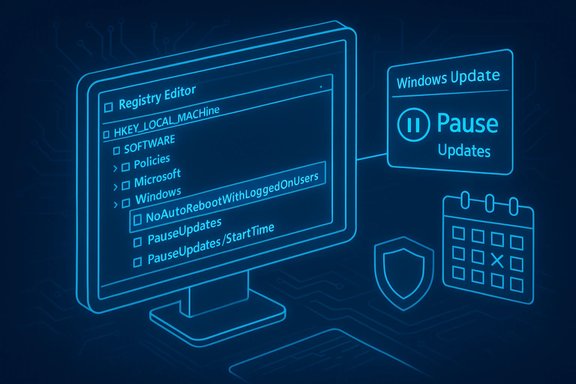
Windows Update's well‑intentioned drive to keep systems secure often collides with real work: interrupted presentations, lost progress, and machines rebooting at the worst possible moment — and many of the most effective ways to regain control live in the Registry. This feature walks through the safest, most reliable registry hacks for taming disruptive Windows updates, verifies key claims against official and independent documentation, explains how to test and undo each change, and highlights the security and reliability trade‑offs you must accept before applying them.
Windows Update is a layered system: a client that checks for updates, the Update Orchestrator that schedules installs and reboots, and management surfaces that include Settings, Group Policy, and MDM/Intune. For consumer systems, the Settings UI gives limited controls (Pause, Active Hours), while Pro/Enterprise editions get Group Policy and enterprise tooling for precise behavior. The OS also records pause state and policy in the registry; many of the registry hacks covered here mirror the settings Group Policy would apply. Microsoft documents the standard pause behavior — notably, pause windows are limited to 35 days when set via policy or Settings unless an administrative policy is used — and the registry exposes status flags that reflect this behavior. Community guides and hands‑on threads have long cataloged the registry locations and values that govern restart behavior, automatic updates, and the Pause UI. Those independent writeups provide practical, scriptable examples and verification steps; they also consistently warn that registry fallbacks can be overwritten by major feature updates or management policies.
Where to change it:
Caveats and verification:
Where to change it:
Important Microsoft baseline: Microsoft documents the standard 35‑day pause window and the registry status flags such as
Risks and verifiability:
How to apply:
How to apply:
However, these hacks are not a replacement for a disciplined patching strategy. The balance is simple:
If you implement any of the edits above, export the changed registry keys immediately, create a System Restore point, and keep a short revert script in a safe folder. These small precautions are what separate a useful tweak from a recovery‑heavy mistake. Good maintenance and a modest schedule for manual updates are the safest way to enjoy fewer interruptions without leaving your system exposed.
Source: Make Tech Easier Use These Windows Registry Hacks to Tame the Disruptive Windows Updates - Make Tech Easier
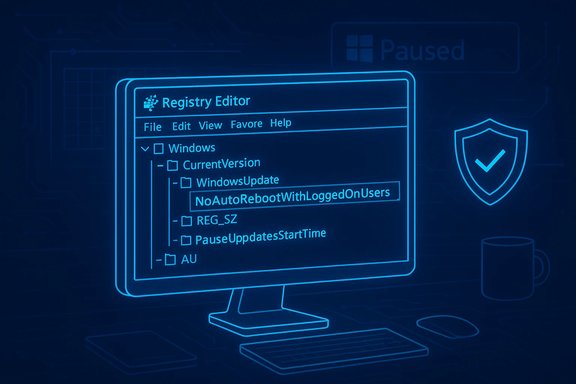 Background / Overview
Windows Update is a layered system: a client that checks for updates, the Update Orchestrator that schedules installs and reboots, and management surfaces that include Settings, Group Policy, and MDM/Intune. For consumer systems, the Settings UI gives limited controls (Pause, Active Hours), while Pro/Enterprise editions get Group Policy and enterprise tooling for precise behavior. The OS also records pause state and policy in the registry; many of the registry hacks covered here mirror the settings Group Policy would apply. Microsoft documents the standard pause behavior — notably, pause windows are limited to 35 days when set via policy or Settings unless an administrative policy is used — and the registry exposes status flags that reflect this behavior. Community guides and hands‑on threads have long cataloged the registry locations and values that govern restart behavior, automatic updates, and the Pause UI. Those independent writeups provide practical, scriptable examples and verification steps; they also consistently warn that registry fallbacks can be overwritten by major feature updates or management policies.Why use registry edits (and when not to)
Making registry edits is powerful because:- They can mirror Group Policy for Home users who don’t have gpedit.msc.
- They let you script and audit changes for repeatable results on multiple machines.
- Certain benign behaviors (like suppressing auto‑reboots while a user is logged on) aren’t exposed in every Settings UI, but the system honors the policy values that the Registry contains.
- Major Windows feature updates can reset or ignore client‑side registry tweaks.
- Microsoft can (and sometimes does) enforce critical security patches in ways that bypass local disables.
- Disabling update mechanisms increases the window of exposure to vulnerabilities if you forget to apply patches manually.
Prepare: safety and verification checklist (do this first)
Before you edit the Registry, complete this minimal safety checklist:- Create a full System Restore point or disk image (Macrium, Acronis, etc..
- Export any registry key you will change (Regedit → select key → File → Export).
- Run changes first in a test VM or noncritical machine for 48–72 hours.
- Keep an “undo” .reg file and a short checklist of revert commands.
- If the machine is domain‑joined or managed by MDM, check with IT before applying system‑wide keys.
Core Registry Hacks to tame updates — what they do and how to apply them
1) Stop automatic reboots while a user is logged on
What it does: Prevents Windows from automatically restarting the device for an update while a user session is active. This stops a device from booting mid‑task when you’ve acknowledged a pending restart or when an installation tries to finish.Where to change it:
- Path:
HKEY_LOCAL_MACHINE\SOFTWARE\Policies\Microsoft\Windows\WindowsUpdate\AU - Value:
NoAutoRebootWithLoggedOnUsers(DWORD) =1to enable;0or delete to revert.
- Press Win + R →
regedit→ Enter. - Create the key
WindowsUpdate\AUunder thePolicies\Microsoft\Windowspath if it’s not present. - Create a DWORD named
NoAutoRebootWithLoggedOnUsersand set to1. - Reboot to ensure policy is applied.
Caveats and verification:
- Verification: Check the registry value exists and test by installing a small update or running local maintenance that normally triggers a restart; Windows should notify rather than force the reboot. You can also run
gpresult /h gpresult.htmlto inspect applied policies. - Caveat: Certain critical security servicing may still force reboots in emergency cases; local policy does not guarantee absolute prevention.
2) Disable automatic updates entirely (use with extreme caution)
What it does: Stops Windows from automatically checking for and installing updates. This is the “nuclear” option: it eliminates automatic patching and reboots until you re-enable updates manually.Where to change it:
- Path:
HKEY_LOCAL_MACHINE\SOFTWARE\Policies\Microsoft\Windows\WindowsUpdate\AU - Value:
NoAutoUpdate(DWORD) =1to disable auto updates; set to0or delete to re-enable.
- Open
regeditas Administrator. - Navigate to
HKLM\SOFTWARE\Policies\Microsoft\Windows\WindowsUpdate\AU. - Create
NoAutoUpdate(DWORD) and set to1. - Reboot.
- Verification: Services should no longer automatically download/install updates;
Windows Updatein Settings will still allow manual checks. Confirm the key exists and optionally stop thewuauservservice to test behavior. - Caveat: This leaves the device vulnerable unless you run a strict manual update process. Major OS servicing components (Windows Update Medic, Update Orchestrator) may repair or override disabled services over time; do not apply this without a clear manual update schedule.
3) Extend or simulate the Pause updates window (pause beyond the UI limits)
What it does: The Windows Settings UI lets you pause updates for a finite period (typically up to 35 days). Community techniques set or extend the registry timestamps that Windows checks for pause state so the system treats updates as paused through a date you choose.Important Microsoft baseline: Microsoft documents the standard 35‑day pause window and the registry status flags such as
PausedFeatureStatus and PausedQualityStatus that indicate whether updates are paused. That official limitation is why registry timestamp edits are considered a workaround rather than a supported indefinite pause. Where to change it (conceptual overview):- Status flags:
HKLM\SOFTWARE\Microsoft\WindowsUpdate\UpdatePolicy\Settings— keys includePausedFeatureStatusandPausedQualityStatus. - UI timestamps and limits:
HKLM\SOFTWARE\Microsoft\WindowsUpdate\UX\Settings— keys includePauseUpdatesStartTime,PauseUpdatesExpiryTime, andFlightSettingsMaxPauseDays.
- Use Settings → Windows Update → Pause updates once (this creates the canonical keys).
- Export the registry keys noted above as a backup.
- Set
PausedFeatureStatusandPausedQualityStatusto the “paused” value (community scripts use1for paused). - Set
FlightSettingsMaxPauseDaysto a larger decimal value (for example,3650to represent ~10 years) and write corresponding ISO‑8601 timestamps for start and expiry keys to a date far in the future. - Restart or restart the Windows Update service to apply.
Risks and verifiability:
- Microsoft’s official documentation still notes the intended 35‑day behavior and the preference for managed policies in enterprise; editing pause timestamps is a workaround and may be reset by future updates or by policies. Treat this as a temporary tool for bandwidth‑constrained periods, not a permanent security policy.
4) Disable (or disable the schedule for) the UpdateOrchestrator Reboot task
What it does: The UpdateOrchestrator scheduled tasks include entries likeReboot which are responsible for scheduling restarts. Disabling the task can stop many automatic reboot triggers.How to apply:
- Open Task Scheduler → navigate to
Task Scheduler Library\Microsoft\Windows\UpdateOrchestrator. - Find tasks named
Reboot, and optionallyScheduleRestartor similar. - Right‑click → Disable. Inspect the Triggers tab to confirm it won’t fire.
- Verification: Confirm the task remains disabled; install a noncritical update and verify Windows notifies you rather than restarting automatically.
- Caveats: Microsoft’s servicing stack may recreate or reenable tasks; some critical updates or repair logic can still force reboots. This is a high‑impact change; keep an undo plan.
5) Metered connection and Delivery Optimization controls (complementary, low‑risk)
What it does: Setting a connection as metered is a supported, low‑risk way to stop large downloads; Delivery Optimization has bandwidth caps and peer limits you can set in Settings → Windows Update → Advanced options. This avoids heavy registry work and reduces unexpected large downloads.How to apply:
- For Wi‑Fi: Settings → Network & Internet → Wi‑Fi → your network → toggle Set as metered connection.
- For Ethernet: Registry or admin methods are required; community guides show how to change
DefaultMediaCostvalues but these require changing permissions. Do this only if comfortable with registry permissions and always keep backups.
How to verify changes worked (practical steps)
- Registry check: Open
regeditand confirm the exact key and DWORD value are present and set as expected. Example:HKLM\SOFTWARE\Policies\Microsoft\Windows\WindowsUpdate\AU\NoAutoRebootWithLoggedOnUsers = 1. - Task Scheduler: Confirm
UpdateOrchestrator\Rebootis disabled if you changed it. - Simulate: Install a small Windows update or use Windows Update assistant and watch whether the system prompts instead of rebooting, or whether Settings reports the pause date you set.
- Use gpresult: Run
gpresult /h gpresult.htmlto check applied policies if you’re using policy keys.
gpupdate /force to take effect.Reverting changes — the safe undo pattern
- Use your exported
.regfile to restore original values (double‑click the .reg to import). - For Task Scheduler changes, re‑enable disabled tasks.
- Reboot and verify Settings → Windows Update shows default behavior or run
gpupdate /force. - If the system was made managed by a policy or MDM, check and reapply corporate policies as needed.
Realistic expectations and operational guidance
- Short pause windows (days to a few weeks) are the safest approach for most users; they reduce interruptions while keeping systems patched in a timely fashion. Microsoft documents a 35‑day pause limit for a reason: staged rollouts and telemetry inform whether an update is safe broadly.
- For professional creators, researchers, or servers running long‑running tasks, the
NoAutoRebootWithLoggedOnUserspolicy is an excellent balance — it avoids surprise restarts while keeping updates arriving so you can schedule reboots at a convenient maintenance time. - Disabling updates entirely should be reserved for well‑managed scenarios where you maintain a disciplined manual update process; otherwise the security risk is significant.
Enterprise and managed environments — do it the supported way
For businesses and fleets, local registry hacks are brittle and hard to audit. Use:- Windows Update for Business and Deployment Rings,
- WSUS or Configuration Manager (SCCM),
- Microsoft Intune (MDM) to set update rings, deadlines, and active hours across devices.
Common pitfalls, limitations and what to watch for
- Windows Update Medic Service and other self‑repair components can reenable services or tasks you disable; registry edits might not be permanent.
- Major feature updates can reset registry fallbacks and Group Policy settings may not reflect resume state in the UI even after auto‑resume occurs; always verify with
PausedFeatureStatusandPausedQualityStatuskeys if you rely on a pause. - Some vendor drivers and Store apps update via separate channels; controlling the OS update path doesn’t necessarily stop driver or Store app updates — those have their own policies or registry backing keys. Use Group Policy or Store policies to control Store app updates.
- Third‑party “update blockers” exist and wrap these changes into GUIs, but they can be opaque and must be vetted carefully. Prefer manual, auditable changes or well‑maintained utilities from reputable sources.
Practical recipes: three role‑based setups
- For the everyday user who needs fewer interruptions:
- Set Active Hours and enable “Notify me when a restart is required.”
- Use Pause updates for short trips.
- Set your home Wi‑Fi as metered when on a capped plan.
- For creative professionals running long jobs:
- Apply
NoAutoRebootWithLoggedOnUsers = 1. - Disable the UpdateOrchestrator
Reboottask (test in a VM). - Maintain a monthly manual update and scheduled restart window.
- For power users who need longer control but accept risk:
- Use the Pause timestamp technique to extend Pause dates (export keys first).
- Keep a weekly manual check to install critical security patches.
- Keep a restoration plan in case a feature update resets your edits.
Final analysis — strengths, risks, and the sensible compromise
Registry tweaks give real control over the interruptions Windows can cause. They are particularly valuable for Home edition users who lack Group Policy, and for power users who need reproducible, scriptable configuration. Community testing shows theNoAutoRebootWithLoggedOnUsers policy and the pause‑timestamp method work on many builds and are practical first options for reducing surprise restarts.However, these hacks are not a replacement for a disciplined patching strategy. The balance is simple:
- Use reversible registry edits to reduce interruptions,
- Keep security updates applied on a known cadence,
- Prefer supported management tools (Group Policy, Intune, WSUS) for fleets.
If you implement any of the edits above, export the changed registry keys immediately, create a System Restore point, and keep a short revert script in a safe folder. These small precautions are what separate a useful tweak from a recovery‑heavy mistake. Good maintenance and a modest schedule for manual updates are the safest way to enjoy fewer interruptions without leaving your system exposed.
Source: Make Tech Easier Use These Windows Registry Hacks to Tame the Disruptive Windows Updates - Make Tech Easier