

Microsoft is preparing new Microsoft Teams event layout options for organizers and presenters using production tools, with “Speaker focused,” “Content focused,” and “Content only” choices scheduled for general availability in August 2026 across desktop and mobile roadmap platforms. The change sounds small because it lives inside the “Manage what attendees see” workflow, but it points to a larger shift in Teams events: Microsoft is turning the live-event control room into a first-class interface rather than a collection of meeting hacks. For Windows admins, communications teams, and anyone who has ever watched a town hall collapse into a screen-share-with-tiny-heads experience, the interesting part is not the labels. It is Microsoft’s bet that event production belongs inside Teams itself.
For years, Teams has carried two identities that do not always sit comfortably together. It is the daily stand-up room, the help desk huddle, the executive briefing, the webinar platform, and the company broadcast stage. Microsoft’s product strategy has been to keep pulling those use cases into one client, then expose different controls depending on licensing, role, and event type.
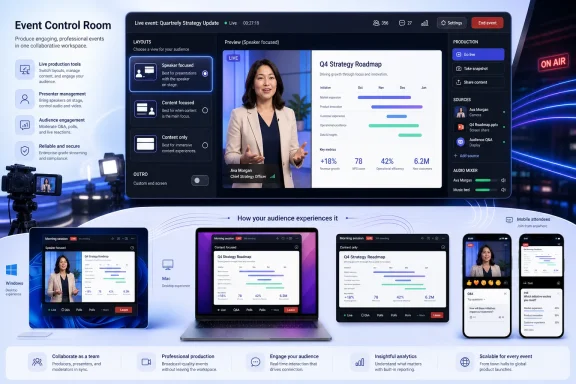
The new layout picker for Teams events fits squarely into that strategy. Organizers and presenters who have access to production tools will see three layout modes when sharing content in the “Manage what attendees see” experience: “Speaker focused,” “Content focused,” and “Content only.” The new “Speaker focused” layout gives presenter video more prominence alongside the shared material, while the other two layouts make the familiar tradeoff between content dominance and camera presence.
That framing matters because Teams events are not merely meetings with more people. In a normal meeting, attendees tolerate chaos because participation is part of the premise. In a town hall, webinar, or managed event, the audience expects a coherent broadcast. They should not have to infer who is speaking, which slide matters, or whether the presenter has accidentally exposed a rehearsal screen.
Microsoft’s latest move acknowledges that production value is now part of workplace software. The pandemic-era assumption was that video meetings were temporary substitutes for in-person gatherings. The 2026 reality is harsher and more permanent: internal communications, training, all-hands meetings, public webinars, and regulated briefings are now judged by the same audience instincts that people bring to YouTube, Twitch, and polished conference livestreams.
The new layout options build on that production mindset. “Content only” is the cleanest mode when a slide deck, demo, or document needs to dominate the frame. “Content focused” keeps the presenter present without letting video crowd out the shared material. “Speaker focused” tilts the balance the other way, making the person delivering the message more visible alongside the content.
That sounds like a cosmetic preference until you imagine common enterprise scenarios. A CFO presenting quarterly results may want the spreadsheet or slide deck to carry the authority. A CEO delivering a change-management message may need their face visible enough to read as human, not just as a postage stamp next to bullet points. A training presenter may need the opposite balance depending on whether they are explaining a concept, demonstrating a workflow, or answering live questions.
The point is not that Microsoft invented layouts. Competing event and webinar platforms have offered production-oriented controls for years. The point is that Teams is increasingly absorbing those controls directly into the default Microsoft 365 collaboration layer, where many organizations already have identity, compliance, calendar, chat, recordings, and device management wired in.
For IT departments, that is both convenient and dangerous. Convenient, because fewer separate webinar platforms means fewer procurement fights, fewer guest-access exceptions, and fewer compliance unknowns. Dangerous, because every new event feature inside Teams tends to create another round of “who can use this, on which license, in which client, in which cloud, and with which policy?”
This is the familiar Teams administration story. Microsoft ships a capability that is easy to explain in a marketing sentence and harder to operationalize in a tenant. The organization then has to map it onto event policies, licensing assignments, presenter training, support desk scripts, and internal communications standards.
The first support ticket will not say, “Please explain Roadmap ID 564613.” It will say, “Why can’t our presenter see the new layout?” Or: “Why did the Mac host have it but the Windows co-presenter didn’t?” Or: “Why does the attendee experience look different on mobile?” The gap between “general availability” and “our executive town hall can rely on this next Tuesday” is where IT departments live.
That does not make the feature unwelcome. It just means the rollout should be treated less like a UI tweak and more like a production workflow change. If an organization uses Teams for high-visibility events, the layout picker belongs in rehearsal checklists, presenter runbooks, and help desk knowledge bases before it belongs in a live CEO broadcast.
A tiny presenter video next to a full-screen deck is fine for a technical walkthrough. It is less effective for leadership communication, crisis response, fundraising, training, or any event where trust depends on seeing the person behind the message. In those moments, the speaker’s expression, pacing, and presence are not decorative. They are part of the content.
This is where Microsoft’s move reflects a broader maturity in collaboration tools. Early video meeting software treated people and content as competing rectangles. Modern event production treats layout as editorial judgment. Sometimes the slide should win. Sometimes the speaker should. Sometimes the cleanest version of the event is content only, because the speaker’s face adds distraction rather than clarity.
Teams has often been criticized for burying useful controls under layers of meeting chrome. But a simple three-option layout model may be exactly the right abstraction for most enterprise presenters. The average HR director or product manager does not want a full broadcast switcher. They want an obvious choice that maps to the kind of event they are running.
That is the subtle promise of “Manage what attendees see.” It moves Teams away from the democratic chaos of every participant sharing the same meeting canvas. It gives organizers and presenters a buffer between backstage activity and front-of-house output. In that sense, layout options are part of the same philosophical bucket as previewing changes, controlling when shared content becomes visible, and deciding who appears on screen.
The hard part is that Teams events are still Teams. The product inherits all the strengths and baggage of the Microsoft 365 ecosystem. Identity is mature. Compliance hooks are strong. Calendar integration is obvious. But the client surface can be busy, licensing can be opaque, and rollout timing can vary across tenants, platforms, and clouds.
A dedicated production tool can sometimes be simpler precisely because it does less. Teams wins when the organization’s center of gravity is already Microsoft 365 and the event does not justify a separate production stack. It loses when the workflow becomes a scavenger hunt through policies, meeting options, client versions, and license entitlements.
For WindowsForum.com readers, the Windows desktop angle is especially relevant because Teams event production often lives on managed corporate PCs. That means the feature’s real-world readiness will depend on update channels, client version control, hardware policies, camera and audio device behavior, and whether the “new Teams” client in a given tenant exposes the controls consistently.
Mac support matters because communications and creative teams often run mixed environments. A polished event workflow that works only from Windows would be a nonstarter in many enterprises. Conversely, a feature that works on both Windows and Mac but behaves subtly differently can be just as painful for support teams.
The mobile platform listing should be read carefully. It may mean attendee rendering, organizer-related support, or broader platform availability over time, but it should not be treated as proof that phone-based production will be equivalent to desktop production. If an event matters, use desktop hosts, rehearse on the same client family, and assume mobile is primarily an attendee surface unless Microsoft documents otherwise.
In those environments, a layout picker is not just about polish. It can shape what information is emphasized, what faces are visible, and how easily attendees follow the official message. A “Content only” view may be preferable for procedural training. A speaker-forward view may be preferable for leadership announcements or public-facing briefings where accountability and presence matter.
The security angle is indirect but real. Better production controls reduce the temptation to improvise with consumer streaming tools, external webinar services, or unmanaged capture workflows. If Teams can deliver a good-enough event experience inside the tenant boundary, organizations have a stronger argument for keeping sensitive communications within governed Microsoft 365 infrastructure.
But government cloud support also raises expectations. Administrators in GCC High and DoD environments tend to be less forgiving of vague rollout language because availability, compliance, and client behavior are operational facts, not nice-to-have details. Microsoft will need to be precise about what arrives in August 2026, what is delayed by cloud, and what requires specific licensing or policy configuration.
For customers, the practical question is not whether a feature is “in Teams.” The question is whether the people who schedule and produce events have the exact SKU required, whether attendees need anything special, and whether adjacent capabilities live behind Teams Premium or other licensing gates. A layout picker may be included for one set of event production tools while branding, advanced town hall features, or deeper customization live elsewhere.
This is where Microsoft risks frustrating the very organizations most likely to care. Communications teams want predictable event tooling. IT wants clean entitlement models. Procurement wants to avoid buying another add-on just to make an executive broadcast look professional. If the layout options are straightforwardly included for the relevant Teams Enterprise organizers, adoption will be easier. If they become another breadcrumb in a licensing maze, many tenants will underuse them.
There is also a governance question. Should every eligible organizer be able to use production layouts, or should the feature be reserved for trained event producers? Microsoft often gives admins policy levers, but organizations still need to decide whether event polish is a general productivity capability or a controlled communications function.
Admins know the drill. Targeted Release may see controls first. General Availability can roll out gradually. Government clouds may trail or follow a different cadence. Client updates may be required. Documentation may lag the actual UI, or the UI may appear before the support organization has finished internal training.
The best way to read August 2026 is as a window for readiness work. Organizations that run major Teams events should identify pilot organizers, confirm licensing, monitor Message Center updates, and build a small test plan. Waiting until the first production event after the feature appears is how minor UI improvements become visible failures.
A good test plan does not need to be elaborate. Schedule a mock event, assign organizer and presenter roles, share content from Windows and Mac clients, switch between all three layouts, and join as attendees from desktop, browser, and mobile. Record the event if recording is part of the normal workflow, then verify what the output looks like afterward. The point is not to admire the feature. The point is to discover where it breaks your assumptions.
The old Teams mental model was “everyone joins a meeting.” The newer model is closer to “different audiences experience different productions through the Teams client.” That is a meaningful change. It makes Teams more capable, but also more role-driven and policy-dependent.
For users, the upside is obvious. Better layouts mean better events with less need for external tools. For presenters, the upside is a simpler path to a polished attendee view. For admins, the upside is consolidation. But consolidation always has a second edge: when Teams becomes the event platform, outages, client bugs, licensing misconfigurations, and policy mistakes become event-production risks.
This is the trade Microsoft keeps asking customers to accept. Put more communication workflows into Microsoft 365, and Microsoft will give you integration, governance, and fewer vendor handoffs. In exchange, you accept the complexity of a platform that now has to serve casual chats, regulated broadcasts, training sessions, and executive communications from the same sprawling ecosystem.
People know what a decent livestream looks like. They know when a speaker is too small, when slides are unreadable, when transitions are clumsy, and when the event feels like an internal meeting accidentally exposed to an audience. They may not know the phrase “production tools,” but they know when nobody is producing the show.
Microsoft’s challenge is to raise the floor without overwhelming ordinary staff. A full broadcast studio is too much for most Teams organizers. A rigid meeting layout is too little. Three clear layout choices inside “Manage what attendees see” is a reasonable middle path, assuming the controls are discoverable and stable.
There is a lesson here for the broader Windows and Microsoft 365 ecosystem. Enterprise users do not always need more features; they need better defaults at the moments when the software becomes public. An internal town hall, customer webinar, or agency briefing is a reputational surface. It is not just another meeting invite.
A presenter who assumes the deck is always dominant may be surprised by “Speaker focused.” A producer who assumes attendees can see content the moment it is shared may misunderstand the managed-view workflow. A support technician who has not seen the updated controls may waste precious minutes during a live event trying to diagnose a permissions issue that is really a license, client, or role mismatch.
This is why communications and IT need to meet in the middle. Communications teams should define preferred layouts for common event formats. IT should validate client behavior and licensing. Executives and presenters should rehearse with the same machines, cameras, and sharing methods they will use live. The feature is simple; the event environment is not.
 Teams Is No Longer Pretending Every Meeting Is the Same
For years, Teams has carried two identities that do not always sit comfortably together. It is the daily stand-up room, the help desk huddle, the executive briefing, the webinar platform, and the company broadcast stage. Microsoft’s product strategy has been to keep pulling those use cases into one client, then expose different controls depending on licensing, role, and event type.The new layout picker for Teams events fits squarely into that strategy. Organizers and presenters who have access to production tools will see three layout modes when sharing content in the “Manage what attendees see” experience: “Speaker focused,” “Content focused,” and “Content only.” The new “Speaker focused” layout gives presenter video more prominence alongside the shared material, while the other two layouts make the familiar tradeoff between content dominance and camera presence.
That framing matters because Teams events are not merely meetings with more people. In a normal meeting, attendees tolerate chaos because participation is part of the premise. In a town hall, webinar, or managed event, the audience expects a coherent broadcast. They should not have to infer who is speaking, which slide matters, or whether the presenter has accidentally exposed a rehearsal screen.
Microsoft’s latest move acknowledges that production value is now part of workplace software. The pandemic-era assumption was that video meetings were temporary substitutes for in-person gatherings. The 2026 reality is harsher and more permanent: internal communications, training, all-hands meetings, public webinars, and regulated briefings are now judged by the same audience instincts that people bring to YouTube, Twitch, and polished conference livestreams.
The Layout Picker Is Really a Control-Room Feature
“Manage what attendees see” has become one of the more important phrases in modern Teams events because it separates what presenters are doing from what attendees are allowed to see. That distinction is basic in broadcast production, but historically awkward in meeting software. Presenters share screens, switch windows, join and leave panels, and troubleshoot cameras; attendees should see only the curated output.The new layout options build on that production mindset. “Content only” is the cleanest mode when a slide deck, demo, or document needs to dominate the frame. “Content focused” keeps the presenter present without letting video crowd out the shared material. “Speaker focused” tilts the balance the other way, making the person delivering the message more visible alongside the content.
That sounds like a cosmetic preference until you imagine common enterprise scenarios. A CFO presenting quarterly results may want the spreadsheet or slide deck to carry the authority. A CEO delivering a change-management message may need their face visible enough to read as human, not just as a postage stamp next to bullet points. A training presenter may need the opposite balance depending on whether they are explaining a concept, demonstrating a workflow, or answering live questions.
The point is not that Microsoft invented layouts. Competing event and webinar platforms have offered production-oriented controls for years. The point is that Teams is increasingly absorbing those controls directly into the default Microsoft 365 collaboration layer, where many organizations already have identity, compliance, calendar, chat, recordings, and device management wired in.
For IT departments, that is both convenient and dangerous. Convenient, because fewer separate webinar platforms means fewer procurement fights, fewer guest-access exceptions, and fewer compliance unknowns. Dangerous, because every new event feature inside Teams tends to create another round of “who can use this, on which license, in which client, in which cloud, and with which policy?”
Microsoft Is Selling Polish, but Admins Will Hear Complexity
The roadmap entry says the feature is available for Teams event organizers with a Teams Enterprise license, and that it is available on Teams for Windows desktop and Mac desktop. The roadmap metadata also lists Android, Desktop, iOS, and Mac as platforms, with general availability and targeted release rings across Worldwide, GCC, GCC High, and DoD cloud instances. That is a lot of surface area for a feature whose actual usefulness will depend on exactly where the control appears, which roles can touch it, and whether attendees receive a consistent output across devices.This is the familiar Teams administration story. Microsoft ships a capability that is easy to explain in a marketing sentence and harder to operationalize in a tenant. The organization then has to map it onto event policies, licensing assignments, presenter training, support desk scripts, and internal communications standards.
The first support ticket will not say, “Please explain Roadmap ID 564613.” It will say, “Why can’t our presenter see the new layout?” Or: “Why did the Mac host have it but the Windows co-presenter didn’t?” Or: “Why does the attendee experience look different on mobile?” The gap between “general availability” and “our executive town hall can rely on this next Tuesday” is where IT departments live.
That does not make the feature unwelcome. It just means the rollout should be treated less like a UI tweak and more like a production workflow change. If an organization uses Teams for high-visibility events, the layout picker belongs in rehearsal checklists, presenter runbooks, and help desk knowledge bases before it belongs in a live CEO broadcast.
Speaker Focused Is Microsoft Admitting the Tiny Headshot Was Not Enough
The most interesting of the three options is the new “Speaker focused” layout. Shared content has long dominated online presentations because slides and demos are easy to justify: they are the artifact, the thing being shown, the apparent reason everyone joined. But communication is not only informational. It is relational, political, and often emotional.A tiny presenter video next to a full-screen deck is fine for a technical walkthrough. It is less effective for leadership communication, crisis response, fundraising, training, or any event where trust depends on seeing the person behind the message. In those moments, the speaker’s expression, pacing, and presence are not decorative. They are part of the content.
This is where Microsoft’s move reflects a broader maturity in collaboration tools. Early video meeting software treated people and content as competing rectangles. Modern event production treats layout as editorial judgment. Sometimes the slide should win. Sometimes the speaker should. Sometimes the cleanest version of the event is content only, because the speaker’s face adds distraction rather than clarity.
Teams has often been criticized for burying useful controls under layers of meeting chrome. But a simple three-option layout model may be exactly the right abstraction for most enterprise presenters. The average HR director or product manager does not want a full broadcast switcher. They want an obvious choice that maps to the kind of event they are running.
The Best Event Features Are the Ones Attendees Never Notice
If Microsoft gets this right, attendees will not think about the feature at all. They will simply experience a Teams event that looks more intentional. The speaker will not vanish into a thumbnail at the moment when their presence matters. The deck will not be squeezed into a compromise frame during a dense chart explanation. The event will feel less like a meeting that got too large and more like a broadcast designed for an audience.That is the subtle promise of “Manage what attendees see.” It moves Teams away from the democratic chaos of every participant sharing the same meeting canvas. It gives organizers and presenters a buffer between backstage activity and front-of-house output. In that sense, layout options are part of the same philosophical bucket as previewing changes, controlling when shared content becomes visible, and deciding who appears on screen.
The hard part is that Teams events are still Teams. The product inherits all the strengths and baggage of the Microsoft 365 ecosystem. Identity is mature. Compliance hooks are strong. Calendar integration is obvious. But the client surface can be busy, licensing can be opaque, and rollout timing can vary across tenants, platforms, and clouds.
A dedicated production tool can sometimes be simpler precisely because it does less. Teams wins when the organization’s center of gravity is already Microsoft 365 and the event does not justify a separate production stack. It loses when the workflow becomes a scavenger hunt through policies, meeting options, client versions, and license entitlements.
Windows and Mac Hosts Get the Practical Center of Gravity
Although the roadmap metadata includes mobile platforms, the practical note that the feature is available on Teams for Windows desktop and Mac desktop is the one admins should focus on first. Serious event production still tends to happen from desktop machines. Presenters need screen real estate, stable network connections, reliable audio routing, and the ability to juggle decks, demos, chat, Q&A, and production controls.For WindowsForum.com readers, the Windows desktop angle is especially relevant because Teams event production often lives on managed corporate PCs. That means the feature’s real-world readiness will depend on update channels, client version control, hardware policies, camera and audio device behavior, and whether the “new Teams” client in a given tenant exposes the controls consistently.
Mac support matters because communications and creative teams often run mixed environments. A polished event workflow that works only from Windows would be a nonstarter in many enterprises. Conversely, a feature that works on both Windows and Mac but behaves subtly differently can be just as painful for support teams.
The mobile platform listing should be read carefully. It may mean attendee rendering, organizer-related support, or broader platform availability over time, but it should not be treated as proof that phone-based production will be equivalent to desktop production. If an event matters, use desktop hosts, rehearse on the same client family, and assume mobile is primarily an attendee surface unless Microsoft documents otherwise.
Government Clouds Make This More Than a Corporate Webinar Story
The roadmap’s inclusion of Worldwide, GCC, GCC High, and DoD cloud instances is notable. Teams events are not just marketing webinars and corporate all-hands meetings. They are public-sector briefings, regulated training sessions, agency communications, and contractor-facing events where presentation control can intersect with records, accessibility, and information handling requirements.In those environments, a layout picker is not just about polish. It can shape what information is emphasized, what faces are visible, and how easily attendees follow the official message. A “Content only” view may be preferable for procedural training. A speaker-forward view may be preferable for leadership announcements or public-facing briefings where accountability and presence matter.
The security angle is indirect but real. Better production controls reduce the temptation to improvise with consumer streaming tools, external webinar services, or unmanaged capture workflows. If Teams can deliver a good-enough event experience inside the tenant boundary, organizations have a stronger argument for keeping sensitive communications within governed Microsoft 365 infrastructure.
But government cloud support also raises expectations. Administrators in GCC High and DoD environments tend to be less forgiving of vague rollout language because availability, compliance, and client behavior are operational facts, not nice-to-have details. Microsoft will need to be precise about what arrives in August 2026, what is delayed by cloud, and what requires specific licensing or policy configuration.
Licensing Is the Shadow Feature
The roadmap text says Teams event organizers need a Teams Enterprise license. That wording deserves attention because Microsoft’s Teams licensing story has become more fragmented over the past few years, particularly as Teams has been unbundled, repackaged, and layered with Premium features in different markets and customer segments.For customers, the practical question is not whether a feature is “in Teams.” The question is whether the people who schedule and produce events have the exact SKU required, whether attendees need anything special, and whether adjacent capabilities live behind Teams Premium or other licensing gates. A layout picker may be included for one set of event production tools while branding, advanced town hall features, or deeper customization live elsewhere.
This is where Microsoft risks frustrating the very organizations most likely to care. Communications teams want predictable event tooling. IT wants clean entitlement models. Procurement wants to avoid buying another add-on just to make an executive broadcast look professional. If the layout options are straightforwardly included for the relevant Teams Enterprise organizers, adoption will be easier. If they become another breadcrumb in a licensing maze, many tenants will underuse them.
There is also a governance question. Should every eligible organizer be able to use production layouts, or should the feature be reserved for trained event producers? Microsoft often gives admins policy levers, but organizations still need to decide whether event polish is a general productivity capability or a controlled communications function.
The Roadmap Date Is a Planning Signal, Not a Promise to Bet the Town Hall On
General availability is listed for August 2026, with the roadmap item created on June 2, 2026, and last updated on June 22, 2026. That makes this a fresh roadmap entry, not a long-forgotten placeholder. Still, Microsoft 365 roadmap dates are planning signals, not guarantees that every tenant will see the feature on the first day of the month.Admins know the drill. Targeted Release may see controls first. General Availability can roll out gradually. Government clouds may trail or follow a different cadence. Client updates may be required. Documentation may lag the actual UI, or the UI may appear before the support organization has finished internal training.
The best way to read August 2026 is as a window for readiness work. Organizations that run major Teams events should identify pilot organizers, confirm licensing, monitor Message Center updates, and build a small test plan. Waiting until the first production event after the feature appears is how minor UI improvements become visible failures.
A good test plan does not need to be elaborate. Schedule a mock event, assign organizer and presenter roles, share content from Windows and Mac clients, switch between all three layouts, and join as attendees from desktop, browser, and mobile. Record the event if recording is part of the normal workflow, then verify what the output looks like afterward. The point is not to admire the feature. The point is to discover where it breaks your assumptions.
Teams Events Are Becoming a Product Category Inside Teams
This update is one tile in a larger mosaic. Microsoft has spent the last few years turning Teams into a layered communications platform: meetings for collaboration, webinars for structured interaction, town halls for one-to-many broadcasting, and Premium-style controls for organizations that want branding, protection, or tighter production. The layout picker belongs to that evolution.The old Teams mental model was “everyone joins a meeting.” The newer model is closer to “different audiences experience different productions through the Teams client.” That is a meaningful change. It makes Teams more capable, but also more role-driven and policy-dependent.
For users, the upside is obvious. Better layouts mean better events with less need for external tools. For presenters, the upside is a simpler path to a polished attendee view. For admins, the upside is consolidation. But consolidation always has a second edge: when Teams becomes the event platform, outages, client bugs, licensing misconfigurations, and policy mistakes become event-production risks.
This is the trade Microsoft keeps asking customers to accept. Put more communication workflows into Microsoft 365, and Microsoft will give you integration, governance, and fewer vendor handoffs. In exchange, you accept the complexity of a platform that now has to serve casual chats, regulated broadcasts, training sessions, and executive communications from the same sprawling ecosystem.
The Real Competition Is Not Zoom or Webex, but Expectations
It is tempting to frame every Teams event feature as another shot in the long-running contest with Zoom, Webex, and specialized webinar tools. That comparison is still relevant, especially for organizations choosing a standard platform. But the deeper competition is with user expectations that have moved faster than enterprise software procurement.People know what a decent livestream looks like. They know when a speaker is too small, when slides are unreadable, when transitions are clumsy, and when the event feels like an internal meeting accidentally exposed to an audience. They may not know the phrase “production tools,” but they know when nobody is producing the show.
Microsoft’s challenge is to raise the floor without overwhelming ordinary staff. A full broadcast studio is too much for most Teams organizers. A rigid meeting layout is too little. Three clear layout choices inside “Manage what attendees see” is a reasonable middle path, assuming the controls are discoverable and stable.
There is a lesson here for the broader Windows and Microsoft 365 ecosystem. Enterprise users do not always need more features; they need better defaults at the moments when the software becomes public. An internal town hall, customer webinar, or agency briefing is a reputational surface. It is not just another meeting invite.
The August Rollout Should Put Rehearsals Back on the Calendar
The concrete takeaway for organizations is simple: this feature should make Teams events easier to produce, but only if teams practice using it before a real audience is watching. Layout controls change the presenter’s job. They also change the producer’s job, because someone now has to decide which mode fits the moment and when to switch.A presenter who assumes the deck is always dominant may be surprised by “Speaker focused.” A producer who assumes attendees can see content the moment it is shared may misunderstand the managed-view workflow. A support technician who has not seen the updated controls may waste precious minutes during a live event trying to diagnose a permissions issue that is really a license, client, or role mismatch.
This is why communications and IT need to meet in the middle. Communications teams should define preferred layouts for common event formats. IT should validate client behavior and licensing. Executives and presenters should rehearse with the same machines, cameras, and sharing methods they will use live. The feature is simple; the event environment is not.
A Small Layout Menu Carries a Bigger Message for Teams Shops
The practical lessons are clearer than the roadmap wording makes them sound. Microsoft is giving Teams event producers more control over the attendee canvas, and organizations should treat that as a production capability rather than a cosmetic toggle.- The new layout options are scheduled for general availability in August 2026, but tenants should expect staged rollout behavior rather than instant universal availability.
- The three layouts give presenters a faster way to choose whether the speaker, the shared content, or the content alone should dominate the attendee view.
- The feature is most relevant to managed Teams events where organizers and presenters use production tools inside “Manage what attendees see.”
- Windows and Mac desktop clients should be the first place serious event teams validate the workflow, even if the roadmap metadata lists mobile platforms.
- Licensing, role assignment, client version, and cloud environment will determine whether the feature is actually available to a given organizer.
- Organizations that run executive, regulated, or public-facing Teams events should add these layouts to rehearsal scripts before using them in production.
References
- Primary source: Microsoft 365 Roadmap
Published: 2026-06-22T23:00:47.0315291Z
Microsoft 365 Roadmap | Microsoft 365
The Microsoft 365 Roadmap lists updates that are currently planned for applicable subscribers. Check here for more information on the status of new features and updates.www.microsoft.com
- Related coverage: m365admin.handsontek.net
Microsoft Teams: Control when shared content is visible to attendees in "Manage what attendees see" - M365 Admin
Microsoft Teams is enhancing the “Manage what attendees see” feature, giving organizers and presenters more control over when shared content is visible to attendees. This update will roll out in April 2025, with no admin action required. Notify users and update documentation as...m365admin.handsontek.net - Official source: learn.microsoft.com
Manage the meeting presentation experience for sensitive Teams meetings - Microsoft Teams | Microsoft Learn
Learn about admin options for managing who can present, how content is shared, and how attendees collaborate in sensitive Teams meetings.learn.microsoft.com - Related coverage: techriver.com
- Related coverage: office365.delaware.gov
- Related coverage: bulletin.checdc.org
</rdf:Alt> </dc:title> <dc:description> <rdf:Alt> <rdf:li xml:lang="x-default"/> </rdf:Alt> </dc:description> <dc:creator> <rdf:Seq> <rdf:li>Kieh, S
</rdf:Alt> </dc:description> <dc:creator> <rdf:Seq> <rdf:li>Kieh, Sakon (DCPS)www.bulletin.checdc.org
- Related coverage: content.focusgroup.co.uk
