

Microsoft is rolling out a Microsoft Teams desktop feature in July 2026 that lets users open links inside chat and channel messages in a separate window on Windows and Mac, using the More options menu or Ctrl/Cmd-click. It is a small interface change with a large admission behind it: Teams has become less like a messaging app and more like a working surface where context is the scarce resource. As detailed in Microsoft’s Microsoft 365 Roadmap entry for ID 565220 and echoed in Message Center tracking by Merill Fernando’s archive, the feature is headed to General Availability and Targeted Release across commercial, GCC, GCC High, and DoD clouds. The interesting part is not that Teams can pop out another window; it is that Microsoft is still teaching Teams how to behave like the desktop app it replaced.
For years, Teams has tried to compress too many jobs into one column of activity. A chat might contain a SharePoint link, a Loop component, a meeting recap, a Power BI item, a ticketing-system URL, a pasted file, and the actual human conversation about what all of those things mean. The user’s problem is rarely “I need to open a link.” The problem is “I need to inspect the thing someone sent without losing the thread that explains why it matters.”
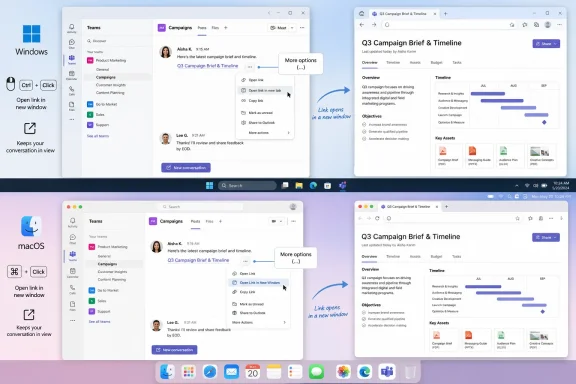
That is what this update targets. A link in a Teams message can now be opened in a new window, allowing the source conversation and the linked content to sit side by side. On Windows, Microsoft says the shortcut is Ctrl-click; on macOS, it is Cmd-click. The same action is also exposed through the More options menu, which matters because not every enterprise workflow can assume keyboard shortcuts, and not every user discovers hidden modifier-click behavior.
This is not a reinvention of collaboration software. It is a catch-up move toward the basic ergonomics of desktop work: compare, copy, verify, respond. Yet that is precisely why the feature matters. Teams is now mature enough that its biggest improvements are often not conceptual breakthroughs but friction removals around the daily rituals of office work.
The rollout status is “Rolling out,” with general availability listed for July 2026. Microsoft’s roadmap metadata shows the item was created on June 10, 2026, and last updated on July 6, 2026, which suggests this is not a speculative placeholder but an active deployment item. For administrators, the cloud-instance breadth is also notable: this is not merely a worldwide commercial tenant feature; Microsoft lists GCC, GCC High, and DoD as included.
A single-pane collaboration hub sounds clean in product marketing. In practice, it asks the user to constantly trade one context for another. Click a message link, and you risk losing the conversation. Open the linked object somewhere else, and you risk losing the working thread. Jump back and forth often enough, and the app starts to feel less like a hub than a hallway.
Microsoft has been moving away from that constraint for some time. Teams already supports popping chats into separate windows, and Microsoft has also been expanding separate-window behavior for channels and other experiences. TechRadar covered the earlier channel-window push as part of Microsoft’s broader effort to make Teams less cramped for multitasking. The new message-link behavior fits that same pattern: Teams is becoming more window-aware because knowledge work is already window-aware.
The deeper shift is that Microsoft appears to be accepting that one app does not have to mean one viewport. The first version of Teams tried to centralize everything. The current version is learning to externalize just enough of the experience that users can work across multiple contexts without feeling punished for doing so.
That distinction matters on large monitors, ultrawides, docking stations, and multi-display setups. A sysadmin monitoring an incident channel may need a linked runbook open on one side and the live Teams discussion on the other. A project manager may need to compare a pasted Planner link with the channel debate that created the task. A developer may need to read an Azure DevOps item while keeping the review conversation visible. Those scenarios are mundane, but enterprise productivity is mostly mundane work done with fewer interruptions.
Browsers trained users long ago that modifier-click means “open this elsewhere without destroying where I am.” Teams has not always honored those expectations consistently, especially because a Teams message can point to many kinds of things: web links, Microsoft 365 files, channel posts, app content, meeting artifacts, and internal resources. The new behavior extends a familiar desktop grammar into the collaboration layer.
That sounds minor until you consider the cost of broken flow. A Teams conversation is not just text; it is often the decision trail. When clicking a link pulls the user away from that trail, the user must reconstruct intent: who sent this, in response to what, with which caveat, and what am I supposed to do next? Opening the link in a new window keeps the evidence and the instruction visible at the same time.
For IT pros, this is the practical value. It is not that users gain one more window. It is that they lose one less breadcrumb. In incident response, procurement review, HR case handling, legal review, classroom coordination, and operations planning, the conversation around a link may be as important as the linked object.
The More options entry is equally important because Teams is deployed into environments where discoverability beats elegance. Keyboard shortcuts reward power users; menus train everyone else. Microsoft’s inclusion of both paths suggests this is being treated as a first-class interaction rather than a hidden convenience.
That does not make the rollout irrelevant to administrators. Separate windows can affect training materials, support scripts, help-desk screenshots, and user expectations. In tightly managed environments, even a new menu item can generate tickets if it appears before internal communications are ready.
Still, this is not the kind of feature that should trigger a heavy governance response. There is no indication from the roadmap details that admins must configure a new policy, grant a new permission, or prepare for a new data boundary. The safer read is that Microsoft is changing how Teams presents existing linked content, not changing what content users can access.
That distinction should guide IT messaging. The security story is not “Teams is exposing new data.” It is “Teams is giving users another way to view data they could already open.” For regulated tenants, that difference matters because it separates interface change management from access-control change management.
The obvious caveat is browser and link-handling policy. Teams has been part of Microsoft’s broader debate over where Microsoft 365 links open, especially around Edge, default browsers, and enterprise link preferences. Windows Central and other outlets have previously reported user frustration and admin concern around Microsoft’s attempts to steer Teams and Outlook links toward Edge in some scenarios. This new feature is adjacent to that debate, even if it is not the same policy fight.
Opening message links in a new window is a subtle design concession. Rather than forcing every linked experience into the same navigation stack, Microsoft is allowing the workspace to breathe outward. That is a different remedy from simplification. It does not remove features; it reduces the penalty for moving among them.
This approach is consistent with where Microsoft 365 has been heading. The suite is less a collection of discrete apps than a mesh of documents, chats, meetings, AI summaries, tasks, and embedded components. In that environment, the main interface challenge is not launching content. It is preserving relationship: this file belongs to that discussion, this message explains that decision, this link was sent as evidence for that claim.
The danger, of course, is window sprawl. Anyone who lived through the worst of old desktop enterprise software knows that “open in new window” can become its own tax. Pop-out chats, separate meetings, browser tabs, Office documents, Teams windows, and admin consoles can multiply quickly. Microsoft’s job is not merely to add more windows; it is to make the relationship between them legible.
That is where Teams still has work to do. A link opened in a new window is useful, but users also need clear titles, predictable focus behavior, sensible taskbar grouping, and consistent handling across Windows and macOS. If the new window looks detached from its originating conversation, some of the benefit evaporates. The feature succeeds only if users can maintain context, not merely create another rectangle on the screen.
Mac users are particularly sensitive to inconsistent window behavior because macOS has its own long-standing conventions around Command-click, Spaces, window focus, and application-level menus. A feature that behaves naturally on Windows but awkwardly on Mac would be worse than no parity at all; it would reinforce the sense that Teams for Mac is always a translation layer behind the Windows client.
Microsoft has improved that story over time, especially with the new Teams architecture, but parity remains a moving target. The Mac version has to coexist with Safari, Chrome, Edge, native Office apps, Finder, Stage Manager, multiple desktops, and corporate security tooling. A new-window link feature may look simple, but it touches the daily choreography of how Mac users move through work.
The inclusion of Mac in the first roadmap description is therefore reassuring. It tells cross-platform shops that this is not being treated as a Windows-first convenience with Mac support arriving later. For organizations with designers, developers, executives, and mobile-heavy teams on Macs, that matters.
It also reinforces an important product reality: Teams is no longer just a Windows collaboration app. It is Microsoft’s cross-platform workplace client. If Microsoft wants Teams to be the place where work begins, the desktop behaviors need to feel credible on every desktop Microsoft supports.
That tension has been visible before. Microsoft has tested and rolled out link-handling experiences that encourage or configure Edge for links from Teams and Outlook, sometimes with enterprise policy controls and sometimes with messaging that users interpret as nudging. Windows Central reported earlier this year on Teams prompting users around browser choices for external links, while older admin discussions around Teams and Outlook link behavior have repeatedly produced complaints from users who do not want Microsoft 365 apps overriding their default browser expectations.
The new message-link window feature does not, by itself, answer the browser-choice issue. It answers a different question: can the user keep the Teams conversation visible while opening linked content? But the two issues will intersect in the user’s mind. If Ctrl-click opens a new Teams window for one kind of link, an Edge window for another, and an Office viewer for a third, users will not parse the architecture; they will judge the experience.
That is why consistency will matter. Microsoft can defend Edge integration on security and identity grounds, especially in managed environments. It can also defend Teams-native windows when the linked target is part of Teams itself. But if link handling feels like a funnel for Microsoft’s preferred surfaces rather than a predictable productivity behavior, the goodwill from this feature will be limited.
For administrators, this is the practical follow-up: watch how the feature behaves with the actual link types your users send. SharePoint files, channel-message links, Loop components, Viva Engage links, Planner tasks, internal web apps, third-party SaaS URLs, and meeting artifacts may not all produce the same experience. The roadmap item describes the capability at a high level; deployment reality is usually messier.
Help desks will see users ask why a message link opened differently than it did last week. Trainers will need to update screenshots. Power users will discover the shortcut immediately and start expecting it everywhere. Accessibility reviewers may want to confirm that the More options path works cleanly with keyboard navigation and screen readers. Security teams may ask whether separate windows affect session handling or screen-sharing behavior, even if the likely answer is no.
The release rings tell their own story. Microsoft lists both General Availability and Targeted Release, which means some tenants may see the behavior before others depending on update channels and tenant configuration. For organizations that rely on Targeted Release users as early warning sensors, this is a good candidate for lightweight validation. Have a few users test common link scenarios and report what opens in Teams, what opens in a browser, and what happens when multiple windows are already active.
There is also a documentation gap that administrators should expect. Roadmap entries are not implementation guides. They tell you what Microsoft intends to ship, not every condition under which it will behave. As with many Teams changes, the first wave of practical knowledge will come from tenant experience, Message Center posts, support pages, and community reports.
That is where WindowsForum readers tend to be ahead of the curve. The useful question is not “does the feature exist?” It is “does it behave predictably in the way our users actually work?” The answer may vary across client versions, platforms, and link types during rollout.
The web-app era often treated the single-page application as a virtue. Keep everything in one shell, reduce navigation complexity, and abstract the operating system away. That worked for lightweight workflows. It became less convincing once the browser tab, the meeting window, the chat pane, and the document editor all converged into the same workday.
Teams sits at the collision point. It is built like a modern service but used like a desktop command center. Its users do not just consume updates; they triage interruptions, compare evidence, coordinate decisions, and document outcomes. The interface has to support that reality.
Opening message links in a new window is therefore part of a broader correction. Microsoft is not abandoning the hub model. It is making the hub more porous. That is the right direction, because the alternative is forcing every workflow through a single navigational throat.
The best version of Teams will not be the one that keeps users inside Teams at all costs. It will be the one that helps users move between Teams and linked work without losing their place. That is a more mature ambition, and this feature points toward it.
The first validation pass should be practical rather than theoretical. Test the feature on Windows and Mac. Try Ctrl-click and Cmd-click. Try the More options menu. Try a channel message link, a chat message link, a SharePoint file, a OneDrive file, a Planner task, and a normal web URL. Then test what happens during screen sharing, because that is where surprise windows can become embarrassing.
Support staff should also be ready to distinguish this feature from pop-out chats and pop-out channels. Users will not necessarily use Microsoft’s vocabulary. Someone may say “Teams keeps opening new windows” when they mean a message link, a notification, a channel, a meeting, or a chat. The troubleshooting path depends on which one is actually happening.
There is no need to turn this into a governance drama. But the organizations that handle small interface changes well are usually the ones that avoid death by a thousand tickets. The difference is rarely technical sophistication. It is simply telling users what changed before they assume something broke.
 Microsoft Finally Treats the Teams Message as a Workspace
For years, Teams has tried to compress too many jobs into one column of activity. A chat might contain a SharePoint link, a Loop component, a meeting recap, a Power BI item, a ticketing-system URL, a pasted file, and the actual human conversation about what all of those things mean. The user’s problem is rarely “I need to open a link.” The problem is “I need to inspect the thing someone sent without losing the thread that explains why it matters.”That is what this update targets. A link in a Teams message can now be opened in a new window, allowing the source conversation and the linked content to sit side by side. On Windows, Microsoft says the shortcut is Ctrl-click; on macOS, it is Cmd-click. The same action is also exposed through the More options menu, which matters because not every enterprise workflow can assume keyboard shortcuts, and not every user discovers hidden modifier-click behavior.
This is not a reinvention of collaboration software. It is a catch-up move toward the basic ergonomics of desktop work: compare, copy, verify, respond. Yet that is precisely why the feature matters. Teams is now mature enough that its biggest improvements are often not conceptual breakthroughs but friction removals around the daily rituals of office work.
The rollout status is “Rolling out,” with general availability listed for July 2026. Microsoft’s roadmap metadata shows the item was created on June 10, 2026, and last updated on July 6, 2026, which suggests this is not a speculative placeholder but an active deployment item. For administrators, the cloud-instance breadth is also notable: this is not merely a worldwide commercial tenant feature; Microsoft lists GCC, GCC High, and DoD as included.
The Pop-Out Era Was Inevitable Once Teams Became the Front Door
Teams’ history has been a slow march away from a chat client and toward a consolidated operating layer for Microsoft 365. Calls, meetings, files, channels, apps, approvals, Copilot surfaces, webinar controls, collaborative notes, and third-party workflows have all been pulled into the same shell. That made Teams strategically important for Microsoft, but it also made the single-window model increasingly brittle.A single-pane collaboration hub sounds clean in product marketing. In practice, it asks the user to constantly trade one context for another. Click a message link, and you risk losing the conversation. Open the linked object somewhere else, and you risk losing the working thread. Jump back and forth often enough, and the app starts to feel less like a hub than a hallway.
Microsoft has been moving away from that constraint for some time. Teams already supports popping chats into separate windows, and Microsoft has also been expanding separate-window behavior for channels and other experiences. TechRadar covered the earlier channel-window push as part of Microsoft’s broader effort to make Teams less cramped for multitasking. The new message-link behavior fits that same pattern: Teams is becoming more window-aware because knowledge work is already window-aware.
The deeper shift is that Microsoft appears to be accepting that one app does not have to mean one viewport. The first version of Teams tried to centralize everything. The current version is learning to externalize just enough of the experience that users can work across multiple contexts without feeling punished for doing so.
That distinction matters on large monitors, ultrawides, docking stations, and multi-display setups. A sysadmin monitoring an incident channel may need a linked runbook open on one side and the live Teams discussion on the other. A project manager may need to compare a pasted Planner link with the channel debate that created the task. A developer may need to read an Azure DevOps item while keeping the review conversation visible. Those scenarios are mundane, but enterprise productivity is mostly mundane work done with fewer interruptions.
A Tiny Shortcut Fixes a Very Expensive Kind of Friction
The keyboard shortcut is almost comically simple: Ctrl-click on Windows, Cmd-click on Mac. But in user-interface design, small shortcuts often carry a larger promise. They tell experienced users that the application respects existing muscle memory.Browsers trained users long ago that modifier-click means “open this elsewhere without destroying where I am.” Teams has not always honored those expectations consistently, especially because a Teams message can point to many kinds of things: web links, Microsoft 365 files, channel posts, app content, meeting artifacts, and internal resources. The new behavior extends a familiar desktop grammar into the collaboration layer.
That sounds minor until you consider the cost of broken flow. A Teams conversation is not just text; it is often the decision trail. When clicking a link pulls the user away from that trail, the user must reconstruct intent: who sent this, in response to what, with which caveat, and what am I supposed to do next? Opening the link in a new window keeps the evidence and the instruction visible at the same time.
For IT pros, this is the practical value. It is not that users gain one more window. It is that they lose one less breadcrumb. In incident response, procurement review, HR case handling, legal review, classroom coordination, and operations planning, the conversation around a link may be as important as the linked object.
The More options entry is equally important because Teams is deployed into environments where discoverability beats elegance. Keyboard shortcuts reward power users; menus train everyone else. Microsoft’s inclusion of both paths suggests this is being treated as a first-class interaction rather than a hidden convenience.
Government Clouds Getting It Early Signals a Low-Risk Change
The roadmap lists Worldwide Standard Multi-Tenant, GCC, GCC High, and DoD. That combination is worth noticing because Teams features do not always arrive across sovereign and government-aligned environments with the same timing or completeness. When Microsoft includes all of them in a simple desktop feature, it usually means the change is client-side or interface-level enough to avoid the compliance entanglements that slow deeper service features.That does not make the rollout irrelevant to administrators. Separate windows can affect training materials, support scripts, help-desk screenshots, and user expectations. In tightly managed environments, even a new menu item can generate tickets if it appears before internal communications are ready.
Still, this is not the kind of feature that should trigger a heavy governance response. There is no indication from the roadmap details that admins must configure a new policy, grant a new permission, or prepare for a new data boundary. The safer read is that Microsoft is changing how Teams presents existing linked content, not changing what content users can access.
That distinction should guide IT messaging. The security story is not “Teams is exposing new data.” It is “Teams is giving users another way to view data they could already open.” For regulated tenants, that difference matters because it separates interface change management from access-control change management.
The obvious caveat is browser and link-handling policy. Teams has been part of Microsoft’s broader debate over where Microsoft 365 links open, especially around Edge, default browsers, and enterprise link preferences. Windows Central and other outlets have previously reported user frustration and admin concern around Microsoft’s attempts to steer Teams and Outlook links toward Edge in some scenarios. This new feature is adjacent to that debate, even if it is not the same policy fight.
This Is Also Microsoft’s Quiet Answer to Teams Bloat
Teams has taken years of criticism for feeling heavy, busy, and too eager to absorb neighboring workflows. The “new Teams” client was Microsoft’s major performance and architecture reset, but speed alone does not solve cognitive congestion. A faster crowded room is still a crowded room.Opening message links in a new window is a subtle design concession. Rather than forcing every linked experience into the same navigation stack, Microsoft is allowing the workspace to breathe outward. That is a different remedy from simplification. It does not remove features; it reduces the penalty for moving among them.
This approach is consistent with where Microsoft 365 has been heading. The suite is less a collection of discrete apps than a mesh of documents, chats, meetings, AI summaries, tasks, and embedded components. In that environment, the main interface challenge is not launching content. It is preserving relationship: this file belongs to that discussion, this message explains that decision, this link was sent as evidence for that claim.
The danger, of course, is window sprawl. Anyone who lived through the worst of old desktop enterprise software knows that “open in new window” can become its own tax. Pop-out chats, separate meetings, browser tabs, Office documents, Teams windows, and admin consoles can multiply quickly. Microsoft’s job is not merely to add more windows; it is to make the relationship between them legible.
That is where Teams still has work to do. A link opened in a new window is useful, but users also need clear titles, predictable focus behavior, sensible taskbar grouping, and consistent handling across Windows and macOS. If the new window looks detached from its originating conversation, some of the benefit evaporates. The feature succeeds only if users can maintain context, not merely create another rectangle on the screen.
Mac Parity Matters More Than Microsoft Usually Admits
The roadmap lists Desktop and Mac, and the shortcut language explicitly calls out Ctrl-click and Cmd-click. That is not just a courtesy note. Teams is one of the few Microsoft enterprise applications that has to feel native enough on macOS for mixed-device organizations to accept it as infrastructure.Mac users are particularly sensitive to inconsistent window behavior because macOS has its own long-standing conventions around Command-click, Spaces, window focus, and application-level menus. A feature that behaves naturally on Windows but awkwardly on Mac would be worse than no parity at all; it would reinforce the sense that Teams for Mac is always a translation layer behind the Windows client.
Microsoft has improved that story over time, especially with the new Teams architecture, but parity remains a moving target. The Mac version has to coexist with Safari, Chrome, Edge, native Office apps, Finder, Stage Manager, multiple desktops, and corporate security tooling. A new-window link feature may look simple, but it touches the daily choreography of how Mac users move through work.
The inclusion of Mac in the first roadmap description is therefore reassuring. It tells cross-platform shops that this is not being treated as a Windows-first convenience with Mac support arriving later. For organizations with designers, developers, executives, and mobile-heavy teams on Macs, that matters.
It also reinforces an important product reality: Teams is no longer just a Windows collaboration app. It is Microsoft’s cross-platform workplace client. If Microsoft wants Teams to be the place where work begins, the desktop behaviors need to feel credible on every desktop Microsoft supports.
The Browser Question Still Lurks Behind Every Teams Link
Any Teams link feature eventually runs into a familiar Microsoft 365 argument: what opens where, and who decides? Users often think in terms of “the link.” Administrators think in terms of default browsers, identity state, conditional access, app protection, auditability, and support burden. Microsoft thinks in terms of Edge integration, Microsoft 365 continuity, and security posture.That tension has been visible before. Microsoft has tested and rolled out link-handling experiences that encourage or configure Edge for links from Teams and Outlook, sometimes with enterprise policy controls and sometimes with messaging that users interpret as nudging. Windows Central reported earlier this year on Teams prompting users around browser choices for external links, while older admin discussions around Teams and Outlook link behavior have repeatedly produced complaints from users who do not want Microsoft 365 apps overriding their default browser expectations.
The new message-link window feature does not, by itself, answer the browser-choice issue. It answers a different question: can the user keep the Teams conversation visible while opening linked content? But the two issues will intersect in the user’s mind. If Ctrl-click opens a new Teams window for one kind of link, an Edge window for another, and an Office viewer for a third, users will not parse the architecture; they will judge the experience.
That is why consistency will matter. Microsoft can defend Edge integration on security and identity grounds, especially in managed environments. It can also defend Teams-native windows when the linked target is part of Teams itself. But if link handling feels like a funnel for Microsoft’s preferred surfaces rather than a predictable productivity behavior, the goodwill from this feature will be limited.
For administrators, this is the practical follow-up: watch how the feature behaves with the actual link types your users send. SharePoint files, channel-message links, Loop components, Viva Engage links, Planner tasks, internal web apps, third-party SaaS URLs, and meeting artifacts may not all produce the same experience. The roadmap item describes the capability at a high level; deployment reality is usually messier.
The Roadmap Entry Is Small, but the Rollout Surface Is Not
The Microsoft 365 Roadmap often hides meaningful operational changes in plain sight. This item is a perfect example. Its description is short, its user-facing behavior is simple, and it does not sound like something that belongs in a change-advisory meeting. Yet Teams is so central to daily work that even modest interface changes ripple outward.Help desks will see users ask why a message link opened differently than it did last week. Trainers will need to update screenshots. Power users will discover the shortcut immediately and start expecting it everywhere. Accessibility reviewers may want to confirm that the More options path works cleanly with keyboard navigation and screen readers. Security teams may ask whether separate windows affect session handling or screen-sharing behavior, even if the likely answer is no.
The release rings tell their own story. Microsoft lists both General Availability and Targeted Release, which means some tenants may see the behavior before others depending on update channels and tenant configuration. For organizations that rely on Targeted Release users as early warning sensors, this is a good candidate for lightweight validation. Have a few users test common link scenarios and report what opens in Teams, what opens in a browser, and what happens when multiple windows are already active.
There is also a documentation gap that administrators should expect. Roadmap entries are not implementation guides. They tell you what Microsoft intends to ship, not every condition under which it will behave. As with many Teams changes, the first wave of practical knowledge will come from tenant experience, Message Center posts, support pages, and community reports.
That is where WindowsForum readers tend to be ahead of the curve. The useful question is not “does the feature exist?” It is “does it behave predictably in the way our users actually work?” The answer may vary across client versions, platforms, and link types during rollout.
Microsoft Is Rebuilding Desktop Muscle Memory One Feature at a Time
The irony of modern Teams is that many of its “new” productivity features are rediscoveries of old desktop principles. Multiple windows. Persistent context. Keyboard shortcuts. Side-by-side comparison. Clear separation between conversation and content. These are not fashionable ideas; they are durable ones.The web-app era often treated the single-page application as a virtue. Keep everything in one shell, reduce navigation complexity, and abstract the operating system away. That worked for lightweight workflows. It became less convincing once the browser tab, the meeting window, the chat pane, and the document editor all converged into the same workday.
Teams sits at the collision point. It is built like a modern service but used like a desktop command center. Its users do not just consume updates; they triage interruptions, compare evidence, coordinate decisions, and document outcomes. The interface has to support that reality.
Opening message links in a new window is therefore part of a broader correction. Microsoft is not abandoning the hub model. It is making the hub more porous. That is the right direction, because the alternative is forcing every workflow through a single navigational throat.
The best version of Teams will not be the one that keeps users inside Teams at all costs. It will be the one that helps users move between Teams and linked work without losing their place. That is a more mature ambition, and this feature points toward it.
Where Admins Should Look Before Users Find the Edge Cases
The rollout does not appear to demand urgent action, but it does reward awareness. Teams changes are often most disruptive when IT treats them as too small to communicate and users treat them as too visible to ignore. A short note in an internal Teams tips channel may be enough.The first validation pass should be practical rather than theoretical. Test the feature on Windows and Mac. Try Ctrl-click and Cmd-click. Try the More options menu. Try a channel message link, a chat message link, a SharePoint file, a OneDrive file, a Planner task, and a normal web URL. Then test what happens during screen sharing, because that is where surprise windows can become embarrassing.
Support staff should also be ready to distinguish this feature from pop-out chats and pop-out channels. Users will not necessarily use Microsoft’s vocabulary. Someone may say “Teams keeps opening new windows” when they mean a message link, a notification, a channel, a meeting, or a chat. The troubleshooting path depends on which one is actually happening.
There is no need to turn this into a governance drama. But the organizations that handle small interface changes well are usually the ones that avoid death by a thousand tickets. The difference is rarely technical sophistication. It is simply telling users what changed before they assume something broke.
The Window Is the Feature, but Context Is the Prize
The concrete facts are straightforward, but the impact depends on how Teams behaves once the feature reaches real tenants. Microsoft’s roadmap says the rollout is underway for Teams desktop on Windows and Mac, with July 2026 general availability and broad cloud coverage. The user benefit is side-by-side work without abandoning the originating conversation. The administrative task is to observe, communicate, and test the obvious link types before the help desk learns about them from confused users.- Microsoft Teams is adding the ability to open links from chat and channel messages in a new window on desktop clients for Windows and Mac.
- The feature is available through the More options menu and through Ctrl-click on Windows or Cmd-click on macOS.
- Microsoft lists the rollout for July 2026, with General Availability and Targeted Release coverage.
- The roadmap entry includes Worldwide commercial tenants as well as GCC, GCC High, and DoD cloud instances.
- The main productivity gain is preserving the conversation while inspecting the linked content beside it.
- Administrators should test common link types because Teams, browser, Office, and app links may not all behave identically during rollout.
References
- Primary source: Microsoft 365 Roadmap
Published: 2026-07-06T23:00:50.6928566Z
Microsoft 365 Roadmap | Microsoft 365
The Microsoft 365 Roadmap lists updates that are currently planned for applicable subscribers. Check here for more information on the status of new features and updates.www.microsoft.com
- Official source: support.microsoft.com
Open a chat in a new window in Microsoft Teams | Microsoft Support
You can instantly open your one-on-one or group chat into a separate window. Then, reposition, resize, or close the window as you wish. It’s a great way to get a lot done when you’re in a meeting or in a call.support.microsoft.com - Related coverage: mc.merill.net
MC1396359 - Microsoft Teams: Open message links in new window | Microsoft 365 Message Center Archive
Microsoft Teams will allow users to open message links in a new window on desktop (Windows and Mac) starting July 2026, enhancing multitasking by viewing linked content side by…mc.merill.net - Related coverage: supersimple365.com
Open Microsoft Teams channels in a new window - Super Simple 365
Short VersionYou will soon be able to open Microsoft Teams channels in a new window. Now due late October 2025 to late January 2026. DetailsThis feature lets you detach a channel from the main Teams client and view it in a separate window. There are two ways to do this: 1. Select the More options supersimple365.com
- Related coverage: m365admin.handsontek.net
Microsoft Teams: Open channels in a new window - M365 Admin
You can now open channels in a separate window to stay on top of multiple conversations at once. Product Microsoft Teams Release phase General Availability Release date November CY2025 Platform Mac Cloud Instance Worldwide (Standard Multi-Tenant) Created 2025-10-03 Roadmap ID 509110 Roadmap Link...m365admin.handsontek.net - Related coverage: windowsreport.com
- Official source: learn.microsoft.com
Open meeting in a new browser tab on Microsoft Teams on the Web - Microsoft Q&A
Is there a way to open a meeting in a new browser tab instead of in the primary Teams tab? I tried to click the "Join" button with the CTRL key pressed, but it didn't work. (the button is a DIV, not a Link) In the desktop version, whenever we…learn.microsoft.com - Official source: adoption.microsoft.com
- Related coverage: techradar.com
Microsoft's planned new AI trick for Edge will 'automatically open the Copilot side pane' with Outlook email links — and I can feel the hate already | TechRadar
New feature is on the roadmap for May 2026www.techradar.com - Related coverage: windowscentral.com
Microsoft Teams to suggest Edge as the default mobile browser | Windows Central
Microsoft is rolling out a new Teams setting to smartphones that asks users to choose a browser when opening links, but it's promoting Edge as the default.www.windowscentral.com - Related coverage: learningservices.ca.uky.edu