

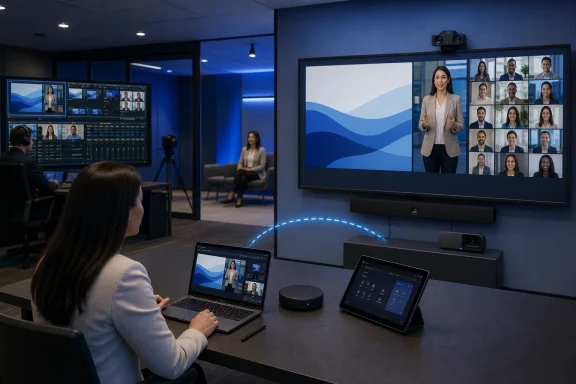
Microsoft has completed the rollout of proximity join support for presenters using nearby Teams Rooms during Teams events, closing an awkward gap between personal devices and shared conference-room systems. The capability, tracked under Microsoft 365 Roadmap ID 561550, lets presenters discover and connect to Teams Rooms on Windows or Android while participating in town halls, webinars, and structured meetings, making it substantially easier to move a live production from a laptop to a room’s cameras, microphones, speakers, and displays without rebuilding the session at the last moment.
Microsoft Teams proximity join began as a practical answer to a common hybrid-work problem: a user walks into a conference room with a meeting already open on a laptop or phone, but the best audiovisual equipment belongs to the room. Instead of searching for the room account, forwarding an invitation, typing a meeting ID, or connecting several cables, the Teams client can discover a nearby Teams Rooms system and offer to add it to the meeting.
That workflow became familiar in ordinary Teams meetings, where the room system generally behaves as another participant. Events are more complicated because they divide people into roles, distinguish backstage activity from the attendee broadcast, and can restrict which audio, video, and content streams reach the audience.
Teams Rooms on Windows gained the ability to join webinars and town halls as presenters through an earlier service-side update. Android-based rooms subsequently gained presenter support for town halls, extending Microsoft’s broader effort to narrow functional differences between its two principal room platforms.
Roadmap item 561550 builds on that foundation. The important change is not simply that a room can participate in an event, but that a presenter can bring a nearby room into the event through the familiar proximity workflow.
The feature reached general availability in June 2026 and is now listed as launched. Microsoft identifies support across Teams desktop and mobile clients, including Android and iOS, with the nearby room running Teams Rooms on Windows or Teams Rooms on Android.
This is especially valuable when the event was organized by someone else, the presenter is visiting an unfamiliar office, or the room was not added correctly when the event was first scheduled. Proximity join turns physical presence near the room into a simpler route for establishing the connection.
Its launched status indicates that Microsoft considers the applicable general-availability deployment complete. Administrators should still expect differences at the device level because certified Android room systems can receive application and firmware releases through manufacturer-controlled schedules.
That distinction is important. The personal account carries information about the user’s role, while the room contributes the physical audiovisual environment.
Teams usually suppresses or discourages use of the personal device’s room audio when a nearby Teams Rooms endpoint is selected. That design helps prevent the echo and feedback caused by multiple open microphones and speakers occupying the same physical space.
Proximity join therefore needs to preserve more than a meeting link. It must fit into the event’s identity, role, stage, and media-control model without causing the room to appear in the wrong place.
For an event, Microsoft must coordinate those identities carefully. The presenter needs to remain recognizable as the authorized person, while the room supplies media hardware and a shared in-room experience.
This separation is central to modern meeting-room architecture. The person owns the role; the room owns the space and its equipment. Proximity join acts as the bridge between them.
Teams Rooms event support has consequently evolved around attendee-view defaults, presenter controls, green-room access, and deliberate stage management. A room can provide controls to presenters without necessarily showing the presenter-oriented interface on the front display or exposing backstage activity to attendees.
The new proximity workflow must preserve those safeguards. Speed is valuable only if it does not bypass the event producer’s authority.
For organizations already using Windows-based rooms for executive communications, the new proximity feature should fit into a mature operational model rather than requiring an entirely new deployment.
Microsoft has also refined how event content appears on the room’s front displays. A room invited as a presenter can default to an attendee-oriented front-of-room view while retaining production controls on the console, helping people in the physical room understand what the audience is seeing.
This division reduces the risk that backstage controls or private production information dominate the main display. It also gives presenters a clearer reference for the live experience.
Administrators should verify:
Microsoft’s inclusion of Android in roadmap item 561550 is therefore significant. If proximity join for events were limited to Windows rooms, organizations with mixed estates would have an inconsistent presenter experience depending on which room happened to be available.
Proximity join strengthens that platform parity. A visiting presenter should not need to know whether the video bar runs Android or whether the room contains a Windows compute module before attempting to connect.
That consistency is strategically valuable. Enterprises increasingly purchase rooms based on size, price, camera design, acoustics, and vendor preference rather than insisting on one operating system across every space.
IT teams should test the feature on each certified hardware family instead of assuming that success on one Android room guarantees identical behavior on another. Directly attached consoles and specialized control panels can also have capability exceptions.
A sensible validation matrix should record:
Microsoft additionally offers QR-code joining on Teams Rooms on Windows and Android. QR codes are not the same mechanism as automatic nearby-room discovery, but they address a similar goal: linking a user’s authenticated personal device with a shared room system while minimizing manual entry.
Ultrasound offers another way to associate a personal client with a physical room. Compatible hardware can emit information that is detectable within the acoustic environment, potentially helping Teams identify the appropriate nearby space without relying only on radio proximity.
Neither method should be treated as infallible. Open-plan offices, movable partitions, closely spaced rooms, disabled laptop radios, peripheral failures, and restrictive endpoint policies can all complicate discovery.
For event presenters, a QR-based fallback may be operationally valuable even when proximity join is the preferred route. Production teams should document at least one alternative method rather than depending on a single wireless handshake immediately before going live.
Administrators must balance convenience with trust. A room that accepts every nearby request becomes easier to use, but it can also become easier to disrupt, particularly in shared buildings, conference centers, or offices hosting outside guests.
Proximity join gives production staff a simpler instruction: open the event in Teams, select the nearby room, and confirm the connection. That is easier to rehearse and easier to communicate than a chain of room-specific steps.
This is particularly useful for distributed town halls. A chief executive may present from one office, a regional leader from another, and a product team from a third, with each location represented by a Teams Room rather than improvised laptop audio.
Using that hardware can improve intelligibility as much as image quality. In live events, clear audio is often more important than high-resolution video because attendees will tolerate an imperfect picture longer than distorted, echoing, or intermittent speech.
Proximity join provides another route when the presenter has the correct event but the room does not. It should not eliminate proper scheduling practices, yet it can make the production more resilient when calendaring fails.
The feature may also reduce support calls caused by presenters trying to join the same event independently on a laptop and room console, then struggling with role mismatches or audio feedback.
Government administrators should validate the workflow under their actual compliance configuration. A feature may be generally available in the cloud while local policy correctly blocks certain external, anonymous, or cross-tenant use cases.
A speaker should be able to enter an unfamiliar room and understand the available action without knowing the room’s address, account name, operating system, or hardware vendor.
By reducing setup ceremony, proximity join lets the presenter focus on delivery. The best room technology is technology that disappears from the speaker’s mental workload once the event begins.
Organizations should resist the temptation to weaken security controls merely to make every proximity request succeed. A failed external request may represent the intended policy rather than a technical defect.
For high-profile events, organizers should assign roles in advance and verify them during rehearsal. Last-minute role changes can work, but they create unnecessary uncertainty when combined with room discovery, media checks, and stage management.
Rooms also need clear shutdown procedures after an event. The presenter should leave the event on both the personal device and room endpoint, confirm that sharing has stopped, and remove any physical cables or removable media.
Organizations should document who can access those records and how long they are retained. Convenience at join time does not reduce the compliance obligations surrounding recorded executive communications, regulated training, or externally attended webinars.
Testing should measure the complete experience from room discovery through leaving the event. A successful join followed by inaccessible stage controls is not a successful production workflow.
A one-page presenter card can be more useful than a long technical manual. It should name the preferred join method, the fallback method, the production contact, and the rule that only one device in the room should handle active audio.
The advantage lies in continuity. Organizations already manage user identities, calendars, room accounts, endpoint policies, and compliance within Microsoft 365, so an integrated event workflow can reduce the need for separate production systems in many internal scenarios.
Proximity join consolidates part of that process around the presenter’s Teams identity. Competitors can offer comparable room discovery, but Microsoft benefits when the same identity and policy framework spans personal clients, shared rooms, meetings, webinars, and town halls.
The strongest use case sits between casual meetings and full broadcast production. Executive updates, institutional webinars, company town halls, and structured hybrid sessions can gain meaningful polish without the cost and complexity of a dedicated studio.
Platform documentation should also clarify feature-by-feature differences between Teams Rooms on Windows and Android as event capabilities continue to expand.
Such automation would need strong safeguards. Event producers must retain final control over what reaches attendees, particularly in public or regulated broadcasts.
Windows rooms may also gain richer integration with multiple cameras, intelligent framing, touch displays, and advanced content sources. The challenge will be presenting those capabilities without overwhelming occasional presenters.
Clear diagnostic categories could dramatically reduce support time. They would also help event producers decide whether to retry, switch rooms, use a QR code, join directly from the console, or fall back to laptop media.
Microsoft’s launch of presenter proximity join for Teams events is a logical but consequential extension of the Teams Rooms strategy. By connecting a presenter’s authenticated identity and event role with the professional hardware of a nearby Windows or Android room, Microsoft is removing one of the most fragile handoffs in hybrid event production. The feature will not eliminate the need for current devices, correct policies, rehearsals, stage management, or fallback plans, but it can make the normal path substantially faster and less error-prone. For organizations that regularly conduct town halls, webinars, and controlled company meetings, that reduction in pre-event friction may prove more valuable than the modest roadmap description initially suggests.
 Background
Microsoft Teams proximity join began as a practical answer to a common hybrid-work problem: a user walks into a conference room with a meeting already open on a laptop or phone, but the best audiovisual equipment belongs to the room. Instead of searching for the room account, forwarding an invitation, typing a meeting ID, or connecting several cables, the Teams client can discover a nearby Teams Rooms system and offer to add it to the meeting.That workflow became familiar in ordinary Teams meetings, where the room system generally behaves as another participant. Events are more complicated because they divide people into roles, distinguish backstage activity from the attendee broadcast, and can restrict which audio, video, and content streams reach the audience.
From meetings to managed productions
Town halls and webinars are not merely large meetings. They are controlled productions in which organizers and presenters may prepare in a green room, wait off stage, coordinate privately, and then bring selected people or content into the live attendee experience.Teams Rooms on Windows gained the ability to join webinars and town halls as presenters through an earlier service-side update. Android-based rooms subsequently gained presenter support for town halls, extending Microsoft’s broader effort to narrow functional differences between its two principal room platforms.
Roadmap item 561550 builds on that foundation. The important change is not simply that a room can participate in an event, but that a presenter can bring a nearby room into the event through the familiar proximity workflow.
A small interface change with operational consequences
On paper, proximity join can look like a convenience feature. In a live event, however, reducing the number of manual steps can prevent wrong-account joins, accidental attendee participation, muted room microphones, duplicate audio paths, and delays while production staff troubleshoot an invitation.The feature reached general availability in June 2026 and is now listed as launched. Microsoft identifies support across Teams desktop and mobile clients, including Android and iOS, with the nearby room running Teams Rooms on Windows or Teams Rooms on Android.
What Microsoft Is Delivering
The new experience allows a designated presenter to use a personal Teams client to detect a nearby compatible room system and connect that room during a supported Teams event. The room can then provide the shared audiovisual endpoint needed for a polished presentation while the presenter retains the flexibility of a personal device.This is especially valuable when the event was organized by someone else, the presenter is visiting an unfamiliar office, or the room was not added correctly when the event was first scheduled. Proximity join turns physical presence near the room into a simpler route for establishing the connection.
Supported event scenarios
Microsoft explicitly associates the feature with Teams events and structured meeting experiences. The most relevant scenarios include:- Town halls, where organizers manage what a potentially large audience sees and presenters may wait backstage before appearing.
- Webinars, where registration, role assignment, controlled presentation, and audience engagement tools create a more formal environment than a normal meeting.
- Structured meetings, particularly sessions using managed attendee views or other production controls that separate presenters from the general audience.
- Internal broadcasts, such as leadership briefings, quarterly updates, product announcements, and company-wide training sessions.
- Externally facing presentations, where a room’s certified microphones, cameras, and displays can produce a more professional result than a laptop alone.
Availability and cloud coverage
The roadmap entry lists the feature for Worldwide Standard Multi-Tenant, GCC, and GCC High environments. That breadth matters because government organizations often receive collaboration features later than commercial tenants or under separate deployment schedules.Its launched status indicates that Microsoft considers the applicable general-availability deployment complete. Administrators should still expect differences at the device level because certified Android room systems can receive application and firmware releases through manufacturer-controlled schedules.
How the Presenter Workflow Changes
The most obvious benefit is a shorter path from entering the room to becoming production-ready. A presenter can use the Teams application already authenticated with the correct identity and event role, then connect to the nearby room instead of relying entirely on the room’s resource account and calendar.That distinction is important. The personal account carries information about the user’s role, while the room contributes the physical audiovisual environment.
A likely presentation sequence
Although details can vary by client, room configuration, and event format, the practical workflow follows the established logic of Teams proximity join:- The presenter enters the meeting room with the event available in Teams on a laptop or mobile device.
- Teams discovers an eligible nearby Teams Rooms system through the configured proximity mechanism.
- The presenter selects the room from the join experience and requests that it participate in the event.
- The room joins with its cameras, microphones, speakers, displays, and event-specific controls available as supported.
- The presenter uses the personal device as a companion for content, notes, chat, or other controls while avoiding duplicate room audio.
- The organizer or production team manages when the presenter or room feed moves from preparation into the attendee-facing stage.
Companion devices remain useful
Proximity join does not make the presenter’s laptop redundant. The personal device may remain the best place to display speaker notes, share a specific application, monitor chat, respond to questions, or communicate with the production team.Teams usually suppresses or discourages use of the personal device’s room audio when a nearby Teams Rooms endpoint is selected. That design helps prevent the echo and feedback caused by multiple open microphones and speakers occupying the same physical space.
Why Teams Events Needed Separate Support
A normal Teams meeting tends to treat each joined endpoint as a participant with broadly similar access, subject to meeting options and organizational policy. Events introduce a more complex state model in which a person may be invited, admitted, assigned a production role, held off stage, previewed, and then exposed to attendees.Proximity join therefore needs to preserve more than a meeting link. It must fit into the event’s identity, role, stage, and media-control model without causing the room to appear in the wrong place.
Identity and endpoint are not the same thing
A Teams Room normally signs in through a resource account associated with a physical location. A presenter signs in through an individual Microsoft Entra identity associated with permissions, policies, and an event role.For an event, Microsoft must coordinate those identities carefully. The presenter needs to remain recognizable as the authorized person, while the room supplies media hardware and a shared in-room experience.
This separation is central to modern meeting-room architecture. The person owns the role; the room owns the space and its equipment. Proximity join acts as the bridge between them.
Stage control raises the stakes
In an ordinary meeting, a camera appearing a few seconds early may be mildly embarrassing. During a town hall, an unintended feed can be broadcast to hundreds or thousands of people.Teams Rooms event support has consequently evolved around attendee-view defaults, presenter controls, green-room access, and deliberate stage management. A room can provide controls to presenters without necessarily showing the presenter-oriented interface on the front display or exposing backstage activity to attendees.
The new proximity workflow must preserve those safeguards. Speed is valuable only if it does not bypass the event producer’s authority.
Teams Rooms on Windows
Teams Rooms on Windows remains Microsoft’s more extensible room platform, particularly for sophisticated conference rooms with multiple displays, several cameras, touch boards, HDMI ingest, and advanced peripherals. It has also received many event-production capabilities before or in greater depth than the Android platform.For organizations already using Windows-based rooms for executive communications, the new proximity feature should fit into a mature operational model rather than requiring an entirely new deployment.
Existing event capabilities
Windows rooms gained presenter participation in Teams webinars and town halls before this proximity enhancement. Supported configurations can provide green-room access, stage-related controls, multiple camera views, and intelligent framing features.Microsoft has also refined how event content appears on the room’s front displays. A room invited as a presenter can default to an attendee-oriented front-of-room view while retaining production controls on the console, helping people in the physical room understand what the audience is seeing.
This division reduces the risk that backstage controls or private production information dominate the main display. It also gives presenters a clearer reference for the live experience.
Windows management considerations
Teams Rooms on Windows uses a specialized application and a supported Windows Enterprise or Windows IoT Enterprise foundation. Microsoft manages the room application on an evergreen lifecycle, and supported deployments should remain on current releases rather than treating the appliance like a conventional PC that can be frozen indefinitely.Administrators should verify:
- The Teams Rooms application is on a currently supported release.
- Windows servicing has not been blocked by an incompatible management baseline.
- Certified cameras, consoles, audio devices, and firmware remain current.
- Bluetooth or supported ultrasound proximity functionality is available where required.
- The room resource account can join the organization’s intended event types.
- Teams meeting and event policies do not prevent presenter participation.
- Network controls allow the room to reach all required Microsoft 365 services.
Teams Rooms on Android
Android-based Teams Rooms have become increasingly important in huddle spaces, small conference rooms, and integrated video-bar deployments. They offer a streamlined appliance model and are often easier to install than multi-component Windows systems.Microsoft’s inclusion of Android in roadmap item 561550 is therefore significant. If proximity join for events were limited to Windows rooms, organizations with mixed estates would have an inconsistent presenter experience depending on which room happened to be available.
Closing the platform gap
Teams Rooms on Android gained town hall presenter support as part of Microsoft’s broader effort to bring formal event capabilities to certified Android devices. Front-of-room view controls also help separate what people inside the room see from the console functions used to manage the presentation.Proximity join strengthens that platform parity. A visiting presenter should not need to know whether the video bar runs Android or whether the room contains a Windows compute module before attempting to connect.
That consistency is strategically valuable. Enterprises increasingly purchase rooms based on size, price, camera design, acoustics, and vendor preference rather than insisting on one operating system across every space.
Manufacturer-dependent delivery
Android room updates have an extra variable: the device manufacturer. Microsoft can release a Teams application capability, but availability on a particular model may depend on validated firmware, console compatibility, and the vendor’s rollout process.IT teams should test the feature on each certified hardware family instead of assuming that success on one Android room guarantees identical behavior on another. Directly attached consoles and specialized control panels can also have capability exceptions.
A sensible validation matrix should record:
- Device manufacturer and model.
- Teams Rooms application version.
- Firmware and Android platform version.
- Console or touch-controller model.
- Supported discovery method.
- Town hall and webinar behavior.
- Green-room and stage-control behavior.
- Content-sharing and HDMI-ingest behavior.
- Guest and cross-tenant limitations.
Proximity Discovery and Connection
The term proximity join describes a user experience rather than one universal discovery technology. Teams Rooms deployments have historically used Bluetooth, while compatible Windows room consoles can also support ultrasound-based discovery.Microsoft additionally offers QR-code joining on Teams Rooms on Windows and Android. QR codes are not the same mechanism as automatic nearby-room discovery, but they address a similar goal: linking a user’s authenticated personal device with a shared room system while minimizing manual entry.
Bluetooth and ultrasound
Bluetooth discovery can allow Teams to recognize that a user is physically near a room. It is familiar and widely supported, but its practical behavior can be influenced by device settings, drivers, radio conditions, and the proximity of several rooms.Ultrasound offers another way to associate a personal client with a physical room. Compatible hardware can emit information that is detectable within the acoustic environment, potentially helping Teams identify the appropriate nearby space without relying only on radio proximity.
Neither method should be treated as infallible. Open-plan offices, movable partitions, closely spaced rooms, disabled laptop radios, peripheral failures, and restrictive endpoint policies can all complicate discovery.
QR codes as a fallback
Teams Rooms can display a frequently refreshed QR code that users scan with a mobile device. The code provides a deliberate, visual association with the room and can be useful when automatic discovery is unavailable or ambiguous.For event presenters, a QR-based fallback may be operationally valuable even when proximity join is the preferred route. Production teams should document at least one alternative method rather than depending on a single wireless handshake immediately before going live.
Auto-accept and trust boundaries
Earlier Teams Rooms improvements tightened proximity behavior involving external or federated tenants, avoiding indiscriminate acceptance of every external nudge. That reflects an important security principle: physical closeness alone should not grant unrestricted control of a corporate room.Administrators must balance convenience with trust. A room that accepts every nearby request becomes easier to use, but it can also become easier to disrupt, particularly in shared buildings, conference centers, or offices hosting outside guests.
Impact on Live Event Production
The feature’s biggest practical effect will be felt during the final minutes before a broadcast. Presenters often arrive with a deck open, a Teams event invitation on their calendar, and little understanding of the room’s underlying resource account.Proximity join gives production staff a simpler instruction: open the event in Teams, select the nearby room, and confirm the connection. That is easier to rehearse and easier to communicate than a chain of room-specific steps.
Faster presenter turnover
Events with several speakers may move between conference rooms, home offices, studios, and individual laptops. A consistent proximity workflow can reduce transition time when a new presenter enters a shared room.This is particularly useful for distributed town halls. A chief executive may present from one office, a regional leader from another, and a product team from a third, with each location represented by a Teams Room rather than improvised laptop audio.
Better use of certified hardware
Laptop webcams and microphones have improved, but they remain poorly suited to many group presentations. A Teams Room can offer beamforming microphones, echo cancellation, speaker tracking, wide-angle cameras, intelligent framing, and dedicated front-of-room displays.Using that hardware can improve intelligibility as much as image quality. In live events, clear audio is often more important than high-resolution video because attendees will tolerate an imperfect picture longer than distorted, echoing, or intermittent speech.
Reduced dependence on the room calendar
Traditional one-touch join works best when the event appears correctly on the room’s calendar. That generally requires the room to be invited, the Exchange resource mailbox to process the invitation, and policy to permit the join scenario.Proximity join provides another route when the presenter has the correct event but the room does not. It should not eliminate proper scheduling practices, yet it can make the production more resilient when calendaring fails.
Enterprise Impact
For enterprise IT, this launch is less about one new button and more about standardizing the relationship between personal identities and shared meeting spaces. Organizations can design presenter guidance around a common workflow across Windows and Android rooms.The feature may also reduce support calls caused by presenters trying to join the same event independently on a laptop and room console, then struggling with role mismatches or audio feedback.
Operational standardization
Enterprises should update event runbooks to distinguish three connected components:- The presenter identity determines whether the person is authorized to present.
- The room resource account represents the physical conference room and its managed endpoint.
- The event organizer or producer controls what reaches attendees and when it appears.
Support-desk readiness
Help-desk scripts should begin with basic environmental checks rather than immediately escalating to Teams engineering. A disciplined sequence can identify most failures quickly:- Confirm that the user is signed into the intended organizational account.
- Confirm that the person was assigned the appropriate event role.
- Verify that the room is online and signed into its resource account.
- Check whether Teams detects the correct nearby room.
- Confirm that the room is not already occupied by another call.
- Inspect the room’s Teams application and firmware versions.
- Test a documented fallback, such as direct calendar join, meeting ID, or QR-code association.
- Escalate with client, room, event, and timestamp details if the issue persists.
Government cloud relevance
Availability in GCC and GCC High broadens the feature’s usefulness for public-sector organizations that conduct controlled briefings, training sessions, public webinars, and internal leadership events. These environments often apply more restrictive identity, guest-access, and device-management policies.Government administrators should validate the workflow under their actual compliance configuration. A feature may be generally available in the cloud while local policy correctly blocks certain external, anonymous, or cross-tenant use cases.
Consumer and End-User Impact
This is primarily an organizational feature because Teams Rooms systems are managed shared devices and town halls or webinars are usually business or institutional events. Nevertheless, its success will be measured through the presenter experience rather than through an administrator’s configuration screen.A speaker should be able to enter an unfamiliar room and understand the available action without knowing the room’s address, account name, operating system, or hardware vendor.
Less technical ceremony
Presenters are often subject-matter experts rather than collaboration specialists. They may have only a few minutes to prepare and may already be managing slides, notes, demonstrations, and questions.By reducing setup ceremony, proximity join lets the presenter focus on delivery. The best room technology is technology that disappears from the speaker’s mental workload once the event begins.
Remaining points of confusion
Users may still misunderstand several aspects of the workflow:- Connecting the room does not necessarily put the presenter live on stage.
- The laptop may remain joined as a companion device without using its speakers and microphone.
- The room’s front display may show an attendee-oriented view rather than the full presenter interface.
- Event chat or certain production features may not appear on every Teams Rooms platform.
- External presenters may encounter different trust and policy behavior from internal users.
- Sharing content from the laptop and sharing room video are separate actions.
Security, Governance, and Compliance
Linking a personal user to a shared room endpoint creates a powerful but sensitive interaction. The feature must respect identity boundaries, event roles, meeting policies, room policies, and tenant relationships.Organizations should resist the temptation to weaken security controls merely to make every proximity request succeed. A failed external request may represent the intended policy rather than a technical defect.
Role assignment remains fundamental
The presenter should be added or promoted according to the event’s supported role workflow. Proximity join is not a substitute for correct event configuration, and physical access to a room should not transform an attendee into a presenter.For high-profile events, organizers should assign roles in advance and verify them during rehearsal. Last-minute role changes can work, but they create unnecessary uncertainty when combined with room discovery, media checks, and stage management.
Shared-room privacy
A presenter’s personal device may display private notes, messages, or unrelated notifications while serving as a companion. Screen sharing should therefore remain deliberate, and users should share a specific application or presentation window whenever practical.Rooms also need clear shutdown procedures after an event. The presenter should leave the event on both the personal device and room endpoint, confirm that sharing has stopped, and remove any physical cables or removable media.
Audit and troubleshooting data
Teams administrators may need logs from both the personal client and the room to investigate failures. Event organizers may also review attendance, recording, and production records depending on policy and licensing.Organizations should document who can access those records and how long they are retained. Convenience at join time does not reduce the compliance obligations surrounding recorded executive communications, regulated training, or externally attended webinars.
Strengths and Opportunities
The launch creates several immediate advantages for organizations operating hybrid events:- It shortens the path to professional room audio and video. Presenters can use managed, certified equipment without manually reconstructing the event on the room console.
- It supports mixed Windows and Android room estates. A common conceptual workflow reduces training differences across device categories.
- It makes events more resilient to calendar mistakes. A presenter with the correct invitation may still be able to bring a nearby room into the session.
- It improves support for visiting speakers. Guests and employees working from another office have less need to understand local room naming conventions.
- It encourages use of managed endpoints. Organizations gain more value from cameras, microphones, displays, and consoles already deployed in conference spaces.
- It supports distributed production models. Multiple speakers can present from different offices while using comparable room-quality equipment.
- It creates a foundation for deeper spatial intelligence. Microsoft can build future workflows around knowledge of which authenticated users are physically present in which managed rooms.
- It reinforces Teams as an event-production platform. The enhancement connects everyday meeting-room behavior with formal webinars and town halls.
Risks and Concerns
The feature also introduces technical and operational risks that organizations should address before relying on it for critical broadcasts:- Discovery can fail or identify the wrong room. Closely spaced rooms and inconsistent device settings can undermine the promise of effortless proximity.
- Platform parity may remain incomplete. Windows and Android support the overall workflow, but individual event controls and peripherals may behave differently.
- Manufacturer rollout delays can affect Android systems. A launched cloud capability may not be immediately usable on every certified model.
- Users may confuse connection with going live. Presenters still need to understand green rooms, off-stage status, and organizer-controlled staging.
- External and federated scenarios may be restricted. Security protections can prevent the automatic acceptance behavior users expect.
- Duplicate audio remains possible. An incorrectly configured companion device can create echo, feedback, or distracting notifications.
- Room readiness can be mistaken for service availability. Outdated applications, firmware, credentials, or network rules can block a generally available feature.
- Last-minute dependence creates production risk. Proximity join should simplify rehearsed workflows, not replace rehearsals for important events.
- Privacy mistakes remain possible. A personal desktop or notification can still be exposed if the presenter shares the wrong content.
- Licensing and policy dependencies may surprise administrators. Advanced room and event functions can require specific subscriptions or Teams Rooms configurations.
Deployment and Testing Recommendations
Organizations should begin with a controlled pilot covering representative room types rather than enabling a new event procedure everywhere based solely on roadmap status. The pilot should include at least one Windows room, each major Android hardware family, internal presenters, and any commonly used external-speaker scenario.Testing should measure the complete experience from room discovery through leaving the event. A successful join followed by inaccessible stage controls is not a successful production workflow.
Build a repeatable test plan
A useful validation plan should cover:- Scheduled town halls with the room invited in advance.
- Town halls where the presenter brings in a room not originally invited.
- Webinars with internal and external presenters.
- Structured meetings using managed attendee views.
- Laptop proximity join over the supported local discovery method.
- Mobile proximity join from Android and iOS.
- Companion-mode content sharing without room-audio duplication.
- Green-room entry, presenter preview, and stage activation.
- Front-of-room attendee view and console-based presenter controls.
- Recovery after discovery, network, or room-application failure.
Rehearse human behavior
Technology checks are only half the preparation. Presenters should rehearse where to look, which device controls content, who places them on stage, and what to do if the room does not appear.A one-page presenter card can be more useful than a long technical manual. It should name the preferred join method, the fallback method, the production contact, and the rule that only one device in the room should handle active audio.
Competitive Implications
Microsoft is competing not only with other collaboration services but also with dedicated event platforms, broadcast tooling, and conference-room ecosystems. Making Teams Rooms easier to use in formal events helps Microsoft connect its installed room footprint with its webinar and town hall ambitions.The advantage lies in continuity. Organizations already manage user identities, calendars, room accounts, endpoint policies, and compliance within Microsoft 365, so an integrated event workflow can reduce the need for separate production systems in many internal scenarios.
Pressure on fragmented room workflows
Traditional room deployments often divide scheduling, endpoint control, event production, and content sharing into separate systems. Each handoff creates another place for credentials, invitations, or device selection to fail.Proximity join consolidates part of that process around the presenter’s Teams identity. Competitors can offer comparable room discovery, but Microsoft benefits when the same identity and policy framework spans personal clients, shared rooms, meetings, webinars, and town halls.
Dedicated production tools still have a place
This enhancement does not turn every Teams Room into a television studio. Complex broadcasts may still require hardware switching, professional audio mixing, redundant encoders, contribution feeds, graphics systems, and trained operators.The strongest use case sits between casual meetings and full broadcast production. Executive updates, institutional webinars, company town halls, and structured hybrid sessions can gain meaningful polish without the cost and complexity of a dedicated studio.
What to Watch Next
The next question is whether Microsoft can make the feature consistently predictable across every supported client, cloud, room platform, and hardware combination. General availability establishes product support, but broad real-world reliability will depend on endpoint updates and customer configuration.Platform documentation should also clarify feature-by-feature differences between Teams Rooms on Windows and Android as event capabilities continue to expand.
Deeper role-aware room behavior
Microsoft could further streamline events by making the room more aware of the nearby presenter’s assigned role and expected production state. Teams might eventually guide users explicitly through backstage entry, media testing, producer approval, and stage activation.Such automation would need strong safeguards. Event producers must retain final control over what reaches attendees, particularly in public or regulated broadcasts.
More consistent peripheral support
Android rooms will remain an area to monitor because consoles, video bars, and firmware versions can introduce exceptions. Better visibility in the Teams admin and Pro Management portals could help administrators determine whether a specific room is ready for event proximity join before a presenter arrives.Windows rooms may also gain richer integration with multiple cameras, intelligent framing, touch displays, and advanced content sources. The challenge will be presenting those capabilities without overwhelming occasional presenters.
Better diagnostics
A useful future enhancement would be a join-readiness diagnostic that distinguishes among discovery, identity, role, policy, network, and device failures. Today, users may see only that the expected room or action is unavailable.Clear diagnostic categories could dramatically reduce support time. They would also help event producers decide whether to retry, switch rooms, use a QR code, join directly from the console, or fall back to laptop media.
Microsoft’s launch of presenter proximity join for Teams events is a logical but consequential extension of the Teams Rooms strategy. By connecting a presenter’s authenticated identity and event role with the professional hardware of a nearby Windows or Android room, Microsoft is removing one of the most fragile handoffs in hybrid event production. The feature will not eliminate the need for current devices, correct policies, rehearsals, stage management, or fallback plans, but it can make the normal path substantially faster and less error-prone. For organizations that regularly conduct town halls, webinars, and controlled company meetings, that reduction in pre-event friction may prove more valuable than the modest roadmap description initially suggests.