

Remote access software has become essential infrastructure for modern Windows users, whether the job is reaching a home PC from the office, helping relatives with a stubborn printer, maintaining a small fleet of workstations, or providing professional IT support. The best remote access software for 2026 is no longer defined solely by whether it can display another computer’s desktop. It must balance responsive performance, unattended access, cross-platform compatibility, manageable licensing, and security controls strong enough to justify the extraordinary level of access it grants.
For most personal Windows users, TeamViewer remains the strongest free remote access choice because it offers a polished, feature-rich experience across Windows, macOS, Linux, Android, and iOS. For budget-conscious small businesses, RemotePC stands out for its comparatively low entry cost and broad unattended-access capabilities. For IT technicians needing a genuinely usable free business tier, Zoho Assist is especially compelling. Meanwhile, Splashtop remains a powerful choice for performance-sensitive remote work, and Chrome Remote Desktop is the uncomplicated zero-cost fallback for users who need basic access without a large feature set.
The important caveat is that no remote desktop product is automatically safe merely because it uses encryption. Remote access is a high-trust capability. It can expose documents, saved browser sessions, passwords, financial information, cameras, microphones, and network resources if the wrong person obtains access. The best remote access solution is therefore the one that fits the task and can be administered securely.
A dedicated remote access application lets one device view and control another over a local network or the internet. Unlike simple screen sharing, most full remote desktop tools support unattended access. That means a user can connect to a configured PC even when nobody is physically sitting in front of it.
This makes remote access software invaluable for several common Windows scenarios:
A strong remote access product should offer more than a desktop feed. Essential capabilities include reliable file transfer, remote reboot support, display scaling, multi-monitor controls, clipboard synchronization, support for User Account Control prompts, and secure account authentication. Businesses should also look for session logs, role-based access, device groups, centralized deployment, and audit controls.
A typical personal setup involves installing TeamViewer on the Windows PC that will be accessed remotely, associating it with an account or using a device ID and password, and then connecting from another PC, tablet, or smartphone. The product is designed to work through common home-router configurations without requiring users to manually configure port forwarding.
Important features include:
TeamViewer makes the personal edition available at no charge, but it applies restrictions when usage patterns appear commercial. Supporting clients, accessing company-owned systems, administering devices as part of paid work, or regularly connecting across business environments can all fall outside personal-use eligibility.
When TeamViewer flags an account or device as suspected commercial use, it can impose connection time limits or other restrictions. Users who believe the system has made a mistake can submit a reset request for review, but the possibility of interruption is an important consideration.
That makes TeamViewer an excellent fit for personal household support, personal PCs, and non-commercial remote access. It is a less predictable choice for freelancers, small repair shops, managed service providers, or anyone who depends on uninterrupted customer support sessions.
The trade-off is simple: do not build a business workflow around a license intended for private use. A free plan is only a bargain if it continues to work under the real-world conditions of the job.
RemotePC’s entry-level business-oriented plans have historically offered access to multiple computers at a substantially lower cost than many premium remote support platforms. Promotions can make the first billing period look especially attractive, so buyers should always review the ongoing renewal price rather than comparing introductory prices alone.
Its core capabilities include:
RemotePC supports file transfers in ways that are more practical than relying entirely on shared cloud folders or email attachments. For users who switch regularly between Windows PCs and Macs, that can be a substantial productivity advantage.
Its interface and support workflow may also feel less polished to users who value the deeply established brand recognition and guided support experience of TeamViewer. That is not necessarily a functional problem, but it matters when supporting less technical employees or customers.
The free plan supports one remote support technician, one concurrent session, and up to five unattended computers. That will not replace a full help desk platform for a growing IT department, but it can be remarkably useful for a solo consultant, a small nonprofit, a side business, or an internal technician supporting a handful of devices.
Key features include:
It can provide remote-control capabilities for supported Android devices and remote viewing or monitoring functions for iPhone and iPad scenarios, subject to the platform restrictions imposed by mobile operating systems. This makes Zoho Assist more relevant for organizations managing a mixture of PCs, tablets, and smartphones.
The product also has a more business-oriented character than TeamViewer or Chrome Remote Desktop. For a casual user helping a family member once a month, the management console may feel like more software than necessary.
Its consumer-oriented Splashtop Personal offering remains free for non-commercial use on a local network, with a limited number of accessible computers. Internet-based access requires a subscription, but the local-network option is valuable for users who want to control a Windows PC from another device elsewhere in the home.
Splashtop’s strengths generally include:
That distinction matters. A product that works beautifully at home may become inaccessible when the user leaves the house unless a paid remote-access plan is in place.
A user installs the remote access component on a Windows, macOS, or Linux computer, chooses a PIN, and signs in with the associated Google account. That simplicity is its greatest strength.
Its benefits include:
It is a utility, not a comprehensive IT-management system.
This approach has an important security advantage. It is not intended as a silent, permanent remote-access channel. The person receiving help can see the session and can end it.
Quick Assist is a sensible choice for:
However, directly exposing RDP to the public internet is a poor practice. RDP is a frequent attack target, and businesses should use layered protections such as multi-factor authentication, Network Level Authentication, restricted administrative access, least-privilege accounts, logging, patch management, and carefully controlled network exposure.
RDP remains excellent for administrators who understand Windows infrastructure. It is not the easiest or safest default for a casual home user.
The most important principle is straightforward: remote access software grants powerful control and must be treated like a privileged account.
Scammers frequently impersonate Microsoft, antivirus companies, banks, internet providers, retailers, government agencies, or well-known technical support brands. They may call unexpectedly, send a convincing text or email, trigger a fake browser warning, or claim that a subscription renewal requires immediate action.
Their objective is often to persuade the victim to install a remote access tool and give them control of the PC.
Once connected, a criminal may attempt to:
A reputable support request should begin through an official channel that the user independently verifies. Do not trust a phone number displayed in a pop-up, included in an unsolicited message, or supplied by an unknown caller.
However, VNC is no longer the best default option for most people.
The core problem is that VNC security and performance vary dramatically by implementation. Older or poorly configured VNC servers may not use modern encryption, may be difficult to expose safely through a firewall, and may require manual networking work that cloud-mediated remote access tools avoid.
VNC still has valid uses:
The differences are substantial:
Choose TeamViewer when personal, non-commercial use is the priority and you want the most complete free experience. Choose RemotePC when a small business needs affordable, legitimate unattended access to multiple computers. Choose Zoho Assist when a solo technician or small organization needs a free plan that supports limited commercial work. Choose Splashtop when smooth remote performance matters most, particularly for demanding desktop workflows. Choose Chrome Remote Desktop when basic free access is enough and simplicity is more valuable than advanced management tools.
For Windows users, the final decision should start with one question: is this temporary support, permanent access to personal devices, or managed access to business systems? Once that is clear, the product choice becomes far easier.
Remote access software can be one of the most useful tools in a Windows toolkit. It can also become one of the most dangerous if passwords are weak, access is left unattended, or a scammer is allowed into the system. The best setup combines the right platform with strong authentication, minimal permissions, careful device management, and an absolute refusal to grant access to unsolicited “tech support” callers.
For most personal Windows users, TeamViewer remains the strongest free remote access choice because it offers a polished, feature-rich experience across Windows, macOS, Linux, Android, and iOS. For budget-conscious small businesses, RemotePC stands out for its comparatively low entry cost and broad unattended-access capabilities. For IT technicians needing a genuinely usable free business tier, Zoho Assist is especially compelling. Meanwhile, Splashtop remains a powerful choice for performance-sensitive remote work, and Chrome Remote Desktop is the uncomplicated zero-cost fallback for users who need basic access without a large feature set.
The important caveat is that no remote desktop product is automatically safe merely because it uses encryption. Remote access is a high-trust capability. It can expose documents, saved browser sessions, passwords, financial information, cameras, microphones, and network resources if the wrong person obtains access. The best remote access solution is therefore the one that fits the task and can be administered securely.
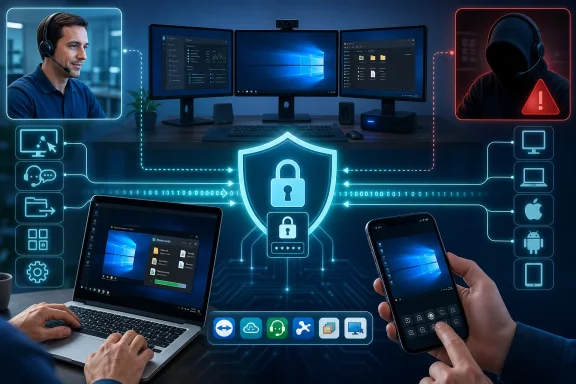 Overview: What Makes Remote Access Software Worth Using?
A dedicated remote access application lets one device view and control another over a local network or the internet. Unlike simple screen sharing, most full remote desktop tools support unattended access. That means a user can connect to a configured PC even when nobody is physically sitting in front of it.This makes remote access software invaluable for several common Windows scenarios:
- Accessing a desktop PC, workstation, or home server while travelling
- Supporting family members or colleagues from another location
- Running maintenance, updates, and troubleshooting on unattended PCs
- Retrieving files from an office computer
- Managing multi-monitor systems remotely
- Supporting Windows, macOS, Linux, and mobile devices from a single console
- Reducing the need for on-site service visits
A strong remote access product should offer more than a desktop feed. Essential capabilities include reliable file transfer, remote reboot support, display scaling, multi-monitor controls, clipboard synchronization, support for User Account Control prompts, and secure account authentication. Businesses should also look for session logs, role-based access, device groups, centralized deployment, and audit controls.
Best Free Remote Access Software for Personal Use: TeamViewer
TeamViewer is the best free remote access software for personal use because it remains one of the most complete and mature options available. Its client applications are widely supported, its setup process is straightforward, and its remote-session tools go far beyond a barebones screen-sharing utility.A typical personal setup involves installing TeamViewer on the Windows PC that will be accessed remotely, associating it with an account or using a device ID and password, and then connecting from another PC, tablet, or smartphone. The product is designed to work through common home-router configurations without requiring users to manually configure port forwarding.
Why TeamViewer Still Leads for Home Users
TeamViewer’s greatest advantage is its balance of convenience and capability. It is useful for both unattended access to a personally owned PC and attended support sessions for friends or family members.Important features include:
- Cross-platform remote control for Windows, macOS, Linux, Android, and iOS
- Unattended access to configured devices
- File transfer tools
- Remote reboot and reconnect support
- Multi-monitor navigation
- Clipboard sharing
- Session permissions and remote-access controls
- Chat and support-oriented collaboration features
- Device lists managed through an account
The Main Limitation: Personal Use Is Not Commercial Use
The largest complication with TeamViewer’s free plan is not an absent feature list. It is commercial-use detection.TeamViewer makes the personal edition available at no charge, but it applies restrictions when usage patterns appear commercial. Supporting clients, accessing company-owned systems, administering devices as part of paid work, or regularly connecting across business environments can all fall outside personal-use eligibility.
When TeamViewer flags an account or device as suspected commercial use, it can impose connection time limits or other restrictions. Users who believe the system has made a mistake can submit a reset request for review, but the possibility of interruption is an important consideration.
That makes TeamViewer an excellent fit for personal household support, personal PCs, and non-commercial remote access. It is a less predictable choice for freelancers, small repair shops, managed service providers, or anyone who depends on uninterrupted customer support sessions.
The Verdict on TeamViewer
TeamViewer is the best free remote access platform for most non-commercial Windows users because it offers a premium-style experience without requiring an immediate subscription. Its free tier is more practical than many alternatives, provided that usage clearly remains personal.The trade-off is simple: do not build a business workflow around a license intended for private use. A free plan is only a bargain if it continues to work under the real-world conditions of the job.
Best Value Remote Access Software for Small Businesses: RemotePC
For organizations that need legitimate commercial remote access without paying enterprise-level prices, RemotePC is one of the strongest value options in 2026. Its plans are generally structured around the number of computers that can be accessed, making it easier for a small business to estimate costs than products that rely on more complicated licensing tiers.RemotePC’s entry-level business-oriented plans have historically offered access to multiple computers at a substantially lower cost than many premium remote support platforms. Promotions can make the first billing period look especially attractive, so buyers should always review the ongoing renewal price rather than comparing introductory prices alone.
Why RemotePC Makes Sense for Small Teams
RemotePC emphasizes unattended access, which is often the real requirement for a small office. A business owner may need to reach an accounting computer after hours, an IT contractor may need access to a handful of workstations, or a remote employee may need to reach their office desktop.Its core capabilities include:
- Remote access to Windows, macOS, and Linux computers
- Always-on unattended access
- File transfer
- Remote printing
- Multi-monitor support
- Remote reboot
- Web-based access options
- Session recording on eligible plans
- Chat and microphone passthrough capabilities
- Browser-based management features
- Security controls including encrypted sessions and two-factor authentication options
A Practical Strength: Windows-to-Mac File Workflows
RemotePC is also one of the more useful choices for mixed-platform environments. Windows users who work with macOS devices often discover that seemingly simple remote desktop tasks, such as moving files between systems, can become frustrating when an application restricts cross-platform transfer methods.RemotePC supports file transfers in ways that are more practical than relying entirely on shared cloud folders or email attachments. For users who switch regularly between Windows PCs and Macs, that can be a substantial productivity advantage.
Where RemotePC Is Less Compelling
RemotePC does not provide a full-featured free plan comparable to TeamViewer’s personal offering. It offers trials and aggressively priced paid plans, but users wanting permanent internet-based remote access at no cost will need to consider TeamViewer, Chrome Remote Desktop, or the free tier of Zoho Assist.Its interface and support workflow may also feel less polished to users who value the deeply established brand recognition and guided support experience of TeamViewer. That is not necessarily a functional problem, but it matters when supporting less technical employees or customers.
The Verdict on RemotePC
RemotePC is the best budget-focused remote access software for many small businesses because it delivers the capabilities that matter most—unattended access, cross-platform support, file transfer, and scalable endpoint licensing—without pushing every customer toward a high-priced support suite.Best Free Remote Access Software for Commercial Use: Zoho Assist
Zoho Assist is the best free remote access option for limited commercial use because it provides a free tier designed for legitimate support work rather than relying solely on personal-use licensing. Its free edition is more constrained than TeamViewer’s feature set, but it has a clearer role for technicians and organizations.The free plan supports one remote support technician, one concurrent session, and up to five unattended computers. That will not replace a full help desk platform for a growing IT department, but it can be remarkably useful for a solo consultant, a small nonprofit, a side business, or an internal technician supporting a handful of devices.
Why Zoho Assist Is Different
Zoho Assist is designed with IT support workflows in mind. Rather than presenting remote access as an occasional personal convenience, it offers a structured system for technicians, managed devices, and customer support sessions.Key features include:
- One-technician free remote support access
- Up to five unattended computers on the free plan
- Windows, macOS, Linux, and ChromeOS compatibility
- Clipboard sharing
- Support for User Account Control prompts
- Instant chat
- Multi-monitor navigation
- Mobile-device support features
- Role and technician-management tools
- Integration potential with the wider Zoho ecosystem
- Deployment tools on higher tiers
Mobile Device Support Is a Major Differentiator
Many remote desktop products let users control PCs from a phone or tablet. Zoho Assist goes further in certain use cases by allowing IT staff to support mobile devices from a computer.It can provide remote-control capabilities for supported Android devices and remote viewing or monitoring functions for iPhone and iPad scenarios, subject to the platform restrictions imposed by mobile operating systems. This makes Zoho Assist more relevant for organizations managing a mixture of PCs, tablets, and smartphones.
The Limits of the Free Edition
Zoho Assist’s free plan is deliberately modest. A one-technician, five-computer limit is excellent for a narrow deployment but will not scale far. Organizations that require multiple technicians, recurring support sessions, session recording, expanded device-management capabilities, or a large unattended estate should expect to move to a paid plan.The product also has a more business-oriented character than TeamViewer or Chrome Remote Desktop. For a casual user helping a family member once a month, the management console may feel like more software than necessary.
The Verdict on Zoho Assist
Zoho Assist is the best free remote access software for a small commercial environment because its free tier recognizes that professional support work exists below enterprise scale. It is particularly effective for technicians who need structured unattended access and Windows administrative support without violating personal-use licensing terms.Best for High-Performance Remote Work: Splashtop
Splashtop is one of the best remote access platforms for performance-sensitive work, especially where visual quality, responsiveness, and remote creative workflows matter. It is often favored by users who remotely access powerful office workstations for media editing, design, engineering, or other graphics-heavy tasks.Its consumer-oriented Splashtop Personal offering remains free for non-commercial use on a local network, with a limited number of accessible computers. Internet-based access requires a subscription, but the local-network option is valuable for users who want to control a Windows PC from another device elsewhere in the home.
Why Splashtop Appeals to Power Users
Remote desktop performance is not only about connection speed. It is also about image quality, input responsiveness, display handling, and how well the product behaves with high-resolution and multi-monitor setups.Splashtop’s strengths generally include:
- Smooth remote desktop performance
- Strong support for multimedia and creative workflows
- Multi-monitor support
- Remote printing
- File transfer on eligible plans
- Mobile access
- Cross-platform client availability
- Business-oriented remote support products
- Options for managed endpoints and IT teams
Free Means Local Network Only
The critical limitation is that Splashtop Personal’s free functionality is intended for personal, non-commercial access over the local home network. It is ideal for controlling an upstairs desktop from a living-room laptop or using a tablet to access a home PC, but it does not replace free internet-based remote access.That distinction matters. A product that works beautifully at home may become inaccessible when the user leaves the house unless a paid remote-access plan is in place.
The Verdict on Splashtop
Splashtop is a leading choice for users who prioritize remote desktop quality and are willing to pay for internet access or stay within a local network. It is not the best universal free solution, but it is among the best premium-oriented options for demanding Windows workflows.Best Simple Free Alternative: Chrome Remote Desktop
Chrome Remote Desktop is the best option for users who want basic, free, cross-platform remote access with minimal setup and no complicated plan comparison. It works through a web-based interface on computers and companion apps on mobile devices.A user installs the remote access component on a Windows, macOS, or Linux computer, chooses a PIN, and signs in with the associated Google account. That simplicity is its greatest strength.
Where Chrome Remote Desktop Works Well
Chrome Remote Desktop is well suited to users who need to occasionally access their own PC, retrieve a file, launch a program, or provide short-term help to somebody they trust.Its benefits include:
- No subscription cost
- Support for Windows, macOS, and Linux host computers
- Access from desktop browsers and mobile devices
- Encrypted remote sessions
- PIN-based unattended access
- Temporary support codes for attended sessions
- Low-friction setup for users already invested in Google accounts
What It Does Not Replace
Chrome Remote Desktop lacks many of the advanced workflows that make TeamViewer, RemotePC, Splashtop, and Zoho Assist suitable for professional support. It is not the best choice when file transfer, robust session administration, enterprise auditing, technician roles, device grouping, or remote maintenance tools are essential.It is a utility, not a comprehensive IT-management system.
The Verdict on Chrome Remote Desktop
Chrome Remote Desktop is the best no-cost choice for basic self-service access. Its minimalism is a feature for casual use but becomes a limitation for business support, complex remote administration, and demanding file-management tasks.Windows Built-In Options: Quick Assist and Remote Desktop
Windows users should not overlook Microsoft’s own remote-access tools. They are not direct replacements for every third-party platform, but they can be appropriate in the right situation.Quick Assist for Attended Support
Quick Assist is useful when one person needs to help another Windows user who is present at their PC. It is designed around a temporary assistance workflow: the helper provides a code, the recipient enters it, and the recipient explicitly permits screen sharing or control.This approach has an important security advantage. It is not intended as a silent, permanent remote-access channel. The person receiving help can see the session and can end it.
Quick Assist is a sensible choice for:
- Helping a friend or family member with a Windows issue
- Basic employee support
- Temporary troubleshooting
- Situations where no unattended access is needed
Remote Desktop Protocol for Managed Environments
Microsoft’s Remote Desktop Protocol, commonly called RDP, is powerful and deeply integrated with Windows. It is often the best solution for managed business systems when deployed correctly through a secure gateway, VPN, or zero-trust access design.However, directly exposing RDP to the public internet is a poor practice. RDP is a frequent attack target, and businesses should use layered protections such as multi-factor authentication, Network Level Authentication, restricted administrative access, least-privilege accounts, logging, patch management, and carefully controlled network exposure.
RDP remains excellent for administrators who understand Windows infrastructure. It is not the easiest or safest default for a casual home user.
Is Remote Access Software Safe?
Remote access software can be safe, but safety depends on both the vendor’s security design and the user’s configuration. Encryption protects a remote desktop session from straightforward interception, but it does not help if an attacker steals account credentials, convinces a user to approve a session, or gains physical access to an unlocked device.The most important principle is straightforward: remote access software grants powerful control and must be treated like a privileged account.
Essential Security Practices
Every user and organization should follow these practices:- Use a unique, long password for the remote access account.
Reused passwords are an unnecessary risk, especially for accounts that can control multiple computers. - Enable multi-factor authentication.
MFA adds a critical second barrier if a password is stolen through phishing, malware, or a data breach. - Use a password manager.
A password manager makes it practical to create and retain unique credentials for every remote access service and device. - Remove devices that no longer need access.
Retired PCs, old laptops, loaner systems, and former employee devices should not remain in a remote-access inventory. - Review device lists and account activity.
Unexpected devices, unfamiliar location alerts, or unrecognized session activity require immediate investigation. - Restrict unattended access.
Do not configure permanent access on a PC unless there is a real need for it. Disable the feature when that need ends. - Use separate accounts for administration where appropriate.
Business environments should avoid using everyday email and browsing accounts as high-privilege remote administration identities. - Keep Windows and remote access clients updated.
Security patches matter on both the local machine and the remote endpoint. - Limit clipboard, drive, printer, camera, microphone, and USB redirection.
These conveniences can also expose sensitive local resources during a remote session. - Use session confirmations where practical.
For support sessions involving another person’s device, visible consent is an important trust safeguard.
The Biggest Risk: Tech Support Scams
The greatest remote access threat for many individuals is not a software vulnerability. It is a tech support scam.Scammers frequently impersonate Microsoft, antivirus companies, banks, internet providers, retailers, government agencies, or well-known technical support brands. They may call unexpectedly, send a convincing text or email, trigger a fake browser warning, or claim that a subscription renewal requires immediate action.
Their objective is often to persuade the victim to install a remote access tool and give them control of the PC.
Once connected, a criminal may attempt to:
- Search for financial records and tax documents
- Install malware or password-stealing software
- Access saved browser passwords
- Manipulate online banking pages
- Claim a false refund was issued
- Pressure the victim into buying gift cards or sending cryptocurrency
- Lock the device or create persistent access
A reputable support request should begin through an official channel that the user independently verifies. Do not trust a phone number displayed in a pop-up, included in an unsolicited message, or supplied by an unknown caller.
Should You Use VNC?
Virtual Network Computing, or VNC, remains relevant because it is an open and widely supported remote-desktop standard. Many Linux distributions support VNC clients or servers, and macOS includes screen-sharing functionality with optional VNC compatibility. Windows users can also choose from multiple VNC applications.However, VNC is no longer the best default option for most people.
The core problem is that VNC security and performance vary dramatically by implementation. Older or poorly configured VNC servers may not use modern encryption, may be difficult to expose safely through a firewall, and may require manual networking work that cloud-mediated remote access tools avoid.
VNC still has valid uses:
- Local-network administration
- Lab environments
- Legacy systems
- Linux and cross-platform interoperability
- Specialized self-hosted setups
- Users who understand tunneling, VPNs, and secure network design
Can Zoom Replace Remote Access Software?
Zoom, Microsoft Teams, Google Meet, and similar collaboration platforms can share a screen and may allow the presenter to grant temporary control. That can be useful for a quick support session, but it is not a replacement for dedicated remote access software.The differences are substantial:
- Dedicated remote access tools support unattended access
- Remote desktop apps usually provide better responsiveness for control tasks
- File transfers and remote reboot workflows are more mature
- Device inventories and permanent access settings are easier to manage
- Support tools can better handle multi-monitor systems and administration tasks
- Remote access platforms are built for continuing device management, not meetings
Choosing the Right Remote Access Software for 2026
The best remote access software depends on the job rather than on a universal feature checklist.Choose TeamViewer when personal, non-commercial use is the priority and you want the most complete free experience. Choose RemotePC when a small business needs affordable, legitimate unattended access to multiple computers. Choose Zoho Assist when a solo technician or small organization needs a free plan that supports limited commercial work. Choose Splashtop when smooth remote performance matters most, particularly for demanding desktop workflows. Choose Chrome Remote Desktop when basic free access is enough and simplicity is more valuable than advanced management tools.
For Windows users, the final decision should start with one question: is this temporary support, permanent access to personal devices, or managed access to business systems? Once that is clear, the product choice becomes far easier.
Remote access software can be one of the most useful tools in a Windows toolkit. It can also become one of the most dangerous if passwords are weak, access is left unattended, or a scammer is allowed into the system. The best setup combines the right platform with strong authentication, minimal permissions, careful device management, and an absolute refusal to grant access to unsolicited “tech support” callers.