

Right‑clicking on a laptop in Windows is no longer limited to a single physical button — modern machines give you multiple, built‑in ways to summon the context menu, and mastering them saves time and frustration whether you’re on Windows 11 or Windows 10. This feature article distills the three easiest methods — two‑finger tap, touchpad corner, and keyboard shortcuts — explains when each is the right choice, and walks through troubleshooting, customization, and the safety trade‑offs for power users who want to change the default behavior.
Windows laptops have evolved from simple touchpads with discrete buttons to capacitive, gesture‑aware surfaces that replace hardware buttons with multitouch interactions. Microsoft exposes touchpad configuration in Settings and supports advanced gestures on devices that ship with a Precision Touchpad, but OEM drivers and firmware still influence real‑world behavior. The practical upshot: the ways you can right‑click vary by Windows version, touchpad technology, and driver stack.
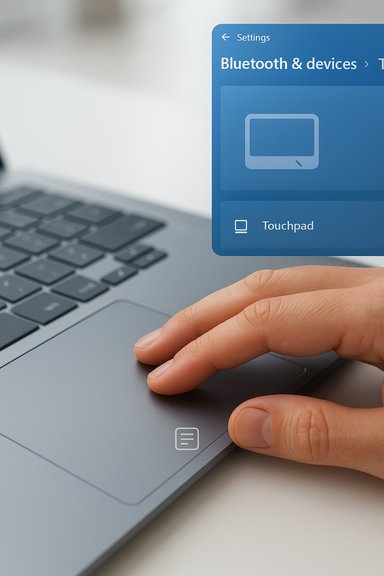
Many consumer help guides summarize the basics — tap with two fingers to right‑click, press the lower‑right corner, or use the Menu key / Shift+F10 on the keyboard — and those remain the three fastest ways for most laptop users to access the context menu. The Settings path to enable or change these options is
If right‑click stops working, follow the troubleshooting checklist in order: verify Settings, test with an external mouse, update or reinstall the touchpad driver, test in Safe Mode, and check BIOS/UEFI. Those steps resolve the majority of faults without risky workarounds.
Mastering right‑click on a laptop is a small but meaningful productivity win. Whether you accept the modern, simplified menus in Windows 11 or restore classic behavior for power tools, the combination of gesture settings, keyboard shortcuts, and cautious troubleshooting gives every laptop user practical control over how they interact with their PC.
Source: Windows Report How to Right Click on a Laptop in Windows: 3 Easy Methods
 Background
Windows laptops have evolved from simple touchpads with discrete buttons to capacitive, gesture‑aware surfaces that replace hardware buttons with multitouch interactions. Microsoft exposes touchpad configuration in Settings and supports advanced gestures on devices that ship with a Precision Touchpad, but OEM drivers and firmware still influence real‑world behavior. The practical upshot: the ways you can right‑click vary by Windows version, touchpad technology, and driver stack.Many consumer help guides summarize the basics — tap with two fingers to right‑click, press the lower‑right corner, or use the Menu key / Shift+F10 on the keyboard — and those remain the three fastest ways for most laptop users to access the context menu. The Settings path to enable or change these options is
Settings > Bluetooth & devices > Touchpad in Windows 11 and Settings > Devices > Touchpad in Windows 10.Quick summary: 3 easy ways to right‑click on a laptop (what you’ll use right away)
- Two‑finger tap — tap the touchpad with two fingers simultaneously to open the context menu. This is the most commonly used gesture on modern laptops.
- Lower‑right corner press/tap — press or tap the lower‑right corner of the touchpad to trigger a right‑click (some touchpads expose this as “press the lower right corner to right click”).
- Menu key / Shift+F10 — use the keyboard: press the Menu key (usually near the right Ctrl) or press Shift+F10 to open the context menu without touching the touchpad.
How to enable and use each method (step‑by‑step)
1) Two‑finger tap — the modern default
Two‑finger tapping is the simplest and most ergonomic way to right‑click on a Precision Touchpad.- Open Settings.
- Windows 11: go to
Bluetooth & devices > Touchpad. - Windows 10: go to
Devices > Touchpad. - Find the Taps / Secondary click options and enable “Tap with two fingers to right click” (or equivalent).
- Tap the touchpad with two fingers to open the context menu.
2) Press the lower‑right corner — the familiar legacy behavior
If you prefer a more mouse‑like feel, many touchpads still allow the lower‑right corner to act as a right‑click zone.- Open Settings >
Bluetooth & devices > Touchpad. - Under Taps or Secondary click, enable “Press the lower right corner of the touchpad to right click” or the option named “Secondary click.”
- Press that corner firmly (or tap, depending on hardware) to summon the context menu.
3) Keyboard shortcut: Menu key or Shift+F10 — mouse‑free right‑click
The keyboard offers two convenient ways to get the context menu without the touchpad.- Place the text cursor or focus on the item you want.
- Press the Menu key (sometimes called the Application key) typically located to the right of the right Ctrl key.
- If the Menu key is absent, press Shift+F10 — it opens the same menu.
Why right‑click methods sometimes stop working — common causes
If right‑click gestures or buttons stop responding, the reason is typically one of the following:- Touchpad gestures disabled in Settings or remapped by an OEM utility.
- Incorrect or missing touchpad driver (Windows generic HID driver vs. OEM Synaptics / ELAN / Precision driver).
- Touchpad disabled in BIOS / UEFI or via a function hotkey (Fn + touchpad icon).
- Third‑party shell extensions interfering with context menu generation (causing slow or broken menus).
Troubleshooting: a practical checklist to restore right‑click functionality
- Quick checks
- Confirm touchpad is enabled: Settings >
Bluetooth & devices > Touchpad. - Try a two‑finger tap and a lower‑right corner press after enabling options.
- Plug in an external USB mouse. If the external mouse’s right‑click works, the problem is touchpad‑specific.
- Update or reinstall the touchpad driver
- Open Device Manager (Win + X → Device Manager).
- Expand “Mice and other pointing devices” and “Human Interface Devices.”
- Update driver → Search automatically. If that fails, uninstall the device (optionally delete driver software), reboot, and let Windows reinstall. If Windows’ generic driver isn’t sufficient, download the OEM driver from the laptop maker (Synaptics, ELAN, etc..
- Check Windows Update → Optional updates → Driver updates
- Windows sometimes publishes newer driver packages in Optional updates. This can resolve missing gesture options or poor responsiveness.
- Test in Safe Mode and perform a Clean Boot
- Boot to Safe Mode to see if a third‑party process is interfering. If right‑click works in Safe Mode, use a Clean Boot to isolate the offender.
- Verify BIOS / UEFI settings
- Some laptops expose an “Internal Pointing Device” option or touchpad mode (Advanced/Basic). Make sure the touchpad is enabled and experiment with modes if available. Enter BIOS using vendor‑specific keys at startup.
- If nothing helps, test hardware
- Try an external USB mouse and, if possible, test the laptop on a diagnostic boot (USB live environment) to rule out hardware failure. If the physical zone of the touchpad is unresponsive, it could be a hardware fault or a firmware issue.
Customization: tailoring right‑click to your workflow
Windows exposes several ways to customize how the touchpad behaves and how context menus are accessed:- Touchpad settings: map two‑finger tap, corner press, and adjust sensitivity or delay to avoid accidental activation. These settings are in
Settings > Bluetooth & devices > Touchpadfor Windows 11. - OEM control panels: Synaptics and ELAN often ship vendor apps with advanced zone mapping, palm rejection, and click sensitivity. Installing the OEM driver brings these options back.
- Keyboard mapping: remap or add an Application/Menu key using registry tweaks or third‑party tools if your keyboard lacks the Menu key. Exercise caution with remappers — test settings on a secondary account first.
Windows 11: the context menu change and power‑user workarounds
Windows 11 introduced a streamlined context menu that surfaces common actions and hides less‑used items behind “Show more options.” For users who rely on a comprehensive context menu, there are practical workarounds:- Hold Shift while right‑clicking or use Shift+F10 to display the classic, full context menu temporarily. This is zero‑risk and immediate.
- Use a registry tweak (create a per‑user CLSID key under
HKCU\Software\Classes\CLSID{86ca1aa0‑34aa‑4e8b‑a509‑50c905bae2a2}\InprocServer32and leave the default value blank) to force Explorer to use the legacy menu by default. This is reversible but involves editing the registry — back up first. - ExplorerPatcher and similar community projects can restore many Windows 10 behaviors, including the legacy context menu, but they operate by hooking into Explorer and may trigger antivirus alerts or break with future Windows updates. Use these only if you accept the elevated risk.
Security and risk analysis — what to watch for
- Driver and firmware updates: always prefer official OEM drivers or Microsoft‑released packages for stability and security. Third‑party or unsigned drivers can undermine system integrity.
- Registry edits: the per‑user CLSID trick is reversible but alters how Explorer instantiates context menu COM objects; improper edits elsewhere in the registry can cause system instability. Back up keys and create a System Restore point before changing the registry.
- Explorer hooks (ExplorerPatcher): these tools use in‑memory hooks and helper binaries to change shell behavior. They can trigger antivirus/Defender alerts and may be broken by major OS updates. Treat them as community‑supported, not officially supported, solutions.
- Shell extensions and performance: third‑party shell extensions are COM objects invoked during context menu generation. A slow or buggy extension can make right‑click sluggish or crash Explorer, so use ShellExView or Autoruns to inspect and disable problematic extensions during troubleshooting.
Advanced tips and power‑user workflows
- If you rely on context menu tools like 7‑Zip, Git clients, or productivity shell extensions, test how they behave under the Windows 11 compact menu; enabling the legacy menu via the registry or ExplorerPatcher may be worth the trade‑off for heavy shell extension usage.
- Map three‑ or four‑finger gestures to productivity shortcuts in Settings to reduce reliance on right‑clicks for common tasks (for example, a three‑finger tap for Search or a custom three‑finger swipe to switch desktops). These gesture mappings compound productivity gains when paired with Snap Layouts and virtual desktops.
- For administrators: use Group Policy to remove or adjust specific context menu items across many machines rather than using registry hacks on each system; Group Policy gives a managed, auditable way to control UI surface area.
Short FAQ (practical answers)
- How do I right‑click without a mouse on Windows?
Use a two‑finger tap on the touchpad, press the lower‑right corner if enabled, or press the Menu key / Shift+F10. - Where is the right‑click button on a laptop?
Usually the lower‑right corner of the touchpad acts as the right‑click zone, or the secondary click is mapped to a two‑finger tap. OEM control panels may expose additional zone mapping. - Why does two‑finger tap not work?
It may be disabled in Settings, the device may not use a Precision Touchpad, or the driver could be missing or out of date. Verify Settings and update / reinstall the touchpad driver. - Can I customize how I right‑click on my laptop?
Yes. Touchpad settings and OEM utilities allow reassigning gestures and enabling corner zones; keyboard remaps and third‑party tools can provide additional options but introduce risk.
Final verdict — pick the right approach for your needs
For most users, enabling two‑finger tap or the lower‑right corner in Settings provides the fastest, least risky path to reliable right‑click behavior. The keyboard shortcut Shift+F10 is indispensable when a mouse or touchpad is unavailable or when you need the full legacy menu quickly. Power users who demand the complete Windows 10 context menu should weigh the registry tweak (low surface area, reversible) against ExplorerPatcher (comprehensive but higher risk) and proceed with appropriate backups and change control.If right‑click stops working, follow the troubleshooting checklist in order: verify Settings, test with an external mouse, update or reinstall the touchpad driver, test in Safe Mode, and check BIOS/UEFI. Those steps resolve the majority of faults without risky workarounds.
Mastering right‑click on a laptop is a small but meaningful productivity win. Whether you accept the modern, simplified menus in Windows 11 or restore classic behavior for power tools, the combination of gesture settings, keyboard shortcuts, and cautious troubleshooting gives every laptop user practical control over how they interact with their PC.
Source: Windows Report How to Right Click on a Laptop in Windows: 3 Easy Methods
