

I used a tiny, open‑source tweak to turn my chaotic Windows system tray into something calm, usable, and—most importantly—predictable, and the change felt disproportionately big compared with the small amount of time it took to apply. The author at MakeUseOf described that same revelation after wrestling with a crowded tray and finally using ExplorerPatcher to tame it; the utility allowed selective pinning, a configurable overflow, and a few small UX improvements that made daily interactions smoother and quieter.
The system tray (a.k.a. notification area, taskbar corner overflow) is the little strip of icons that lives near the clock. It's a classic piece of real estate: small, persistent, and used for low‑attention controls such as audio, VPNs, cloud sync, keyboard utilities, and background agents. Because it’s always visible, clutter there creates repeated micro‑interruptions—click the wrong icon, miss an important badge, or trigger the wrong app at a bad moment—and those micro‑interactions add up into friction.
Windows offers basic controls for what appears in the overflow menu and what remains visible, but the built‑in options are limited and sometimes brittle across builds. Power users and people who rely on precise, repeatable workflows want a tray that is:
That said, the tool is not without risk. Its insertion into Explorer internals makes it sensitive to Windows updates, occasionally triggers AV engines, and demands a readiness to troubleshoot. If you run a critical work machine, manage devices with an IT policy, or prefer a zero‑maintenance setup, a paid product with support (StartAllBack, Start11) or sticking with native settings is the safer path.
Practical verdict in a single line: for a personal machine where you can accept occasional maintenance and you value reclaimed UX control, ExplorerPatcher is worth trying—but treat it like a configuration that requires monitoring and a quick rollback plan.
A clean system tray is more than cosmetic. It’s a small, practical investment in attention management: fewer accidental clicks, faster status checks, and fewer low‑level frustrations. The MakeUseOf author’s simple story—tweaking the tray and immediately feeling more composed at the desktop—captures why these modest UI tools remain popular. ExplorerPatcher delivers that tidy, intentional tray for many users, but it does so by operating where Windows is most sensitive. Use it with respect for backups, a healthy dose of caution around updates, and a plan to revert if the OS and the mod briefly disagree.
Source: MakeUseOf I didn’t realize how messy my Windows system tray was until I fixed it
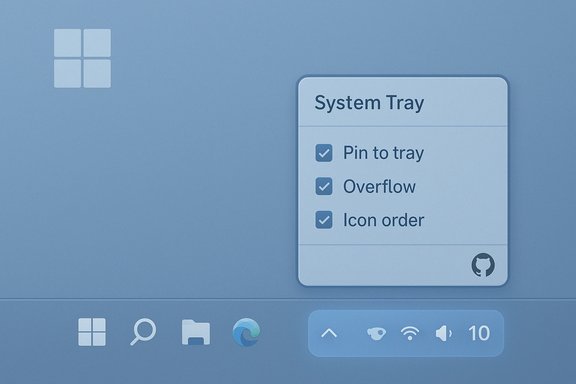 Background: why the system tray matters more than you think
The system tray (a.k.a. notification area, taskbar corner overflow) is the little strip of icons that lives near the clock. It's a classic piece of real estate: small, persistent, and used for low‑attention controls such as audio, VPNs, cloud sync, keyboard utilities, and background agents. Because it’s always visible, clutter there creates repeated micro‑interruptions—click the wrong icon, miss an important badge, or trigger the wrong app at a bad moment—and those micro‑interactions add up into friction.Windows offers basic controls for what appears in the overflow menu and what remains visible, but the built‑in options are limited and sometimes brittle across builds. Power users and people who rely on precise, repeatable workflows want a tray that is:
- Consistent (icons stay where they belong after restarts),
- Prioritized (essential items always visible),
- Minimal (unused apps tucked away), and
- Fast to reach (no extra clicks just to reveal hidden icons).
What the MakeUseOf author did — a practical summary
The MakeUseOf piece is a plainspoken account of what many readers experience: years of installs, multiple background apps, and a tray that quietly accumulated icons until it became a source of daily friction. The author tried the usual fixes—rearranging icons, manually hiding items, restarting Explorer to clear ghost icons—but found the native controls insufficient. Installing ExplorerPatcher yielded the following practical outcomes:- A simple installer (single executable) that restored a richer properties UI for the taskbar and tray.
- The ability to select which icons deserve permanent visibility and which should go to an overflow/hidden area.
- Additional UI tweaks such as a hover‑to‑expand behavior and a “remember icon order” setting that avoids reordering after restarts.
- A measurable improvement in day‑to‑day efficiency and less accidental opening of foreground apps.
ExplorerPatcher: what it is and how it works
The basics
ExplorerPatcher is an open‑source project hosted on GitHub that targets the Windows shell and taskbar. It delivers a compact configuration UI (the Project’s Properties menu) that exposes many classic behaviors Microsoft streamlined away in recent releases. The project is GPL‑2.0 licensed, actively maintained, and distributed as a small installer that patches Explorer behavior at runtime. The official README documents installation and uninstall steps and recommends the GitHub releases page as the download source. Key technical notes:- It installs as a lightweight setup (x64 or ARM64 variants) and restarts explorer.exe during setup.
- The code injects hooks into Explorer to intercept and replace certain UI elements; that’s how it restores legacy taskbar / Start menu experiences.
- Because it modifies Explorer internals, some features may be unavailable or behave differently across Windows builds. The project’s changelog and issue tracker explicitly acknowledge this compatibility surface.
The tray and taskbar features power users care about
ExplorerPatcher’s configuration goes beyond simple icon toggles. Community documentation and walkthroughs note options for:- Restoring a Windows‑10‑style taskbar and Start menu,
- Adjusting taskbar position and size,
- Turning off or replacing the modern Explorer command bar (useful for File Explorer appearance),
- Controlling which system tray icons are permanently shown and how the overflow behaves.
Strengths — why ExplorerPatcher appealed to the MakeUseOf author (and many others)
- Restores control. ExplorerPatcher returns UI choices (icon placement, Start style, taskbar alignment) that Microsoft doesn’t expose natively. For users who rely on muscle memory, this is productivity recovered.
- Lightweight and fast. It’s a small download, quick to install, and the UI is immediate. That low friction is a big factor in adoption.
- Open source and community driven. Being on GitHub means the code is inspectable, issues are public, and the project evolves with community input. GPL licensing also lets enthusiasts fork or audit the code.
- Granularity. Compared with native controls, EP exposes more granular behavior for the tray: which apps to pin permanently, which to overflow, and how the overflow reveals itself (the author preferred hover‑expansion for quick reveal).
- Alternatives coexist. The tool plays well as one option among others—paid alternatives like StartAllBack and Start11 offer similar restoration with a commercial support model, while Windhawk offers modular mods (including taskbar tweaks) for those who prefer a plugin approach.
Risks and caveats — what can go wrong (and what users reported)
No third‑party shell‑level modification is risk‑free. The community’s real‑world reporting highlights consistent themes you should weigh before installing:- Breakage after Windows updates. Major Windows updates can change Explorer internals and temporarily render ExplorerPatcher incompatible. The EP issue tracker and user threads show repeated reports of taskbar or Start menu breakage tied to specific cumulative updates. That means you may need to wait for an EP update or uninstall to restore native behavior.
- Uninstall pitfalls. Several users reported that uninstalling EP after a problematic update left the system with a missing or nonfunctional taskbar until manual remediation. Follow the README uninstall steps and have a restore point before you install.
- Antivirus false positives and AV friction. Unsigned or injected system binaries can trigger Windows Defender or other AV engines. Community guidance sometimes recommends creating targeted AV exclusions for EP’s install paths; consider this only if you understand the security implications and are comfortable managing exclusions.
- No official Microsoft support. Microsoft will not support or troubleshoot third‑party shell hooks on your behalf. If this is a work machine under a support contract, check policy first.
- Stability sensitivity. Because EP injects hooks into core UI processes, instability (explorer crashes, odd windowing behavior) is possible in edge cases or on machines with many shell extensions. Test on a non‑critical machine first.
A practical, safe playbook: how to try ExplorerPatcher and protect yourself
- Back up and prepare
- Create a full System Restore point (Control Panel → Recovery → Create a restore point). This is the fastest way to undo shell‑level changes.
- Note your current Windows build (Settings → System → About). When you read compatibility notes, match the build numbers.
- Download from the official source
- Use the project’s GitHub releases page (the README recommends it) and avoid third‑party mirrors. Official builds usually have the latest compatibility fixes.
- Test on a non‑critical machine first
- If possible, try EP on a spare laptop or a virtual machine. Confirm that the tray, Start menu, and taskbar behave as you expect before applying it to a daily driver.
- Install with caution
- Run the installer as Administrator. EP will restart explorer.exe during install.
- If Defender or SmartScreen flags the installer, pause and verify: download source, file size, and GitHub release integrity (look for matching release notes). Some users temporarily paused AV to install, but AV exclusions carry risk—prefer temporary pauses where possible over permanent exclusions.
- Configure only the features you need
- Open EP Properties (right‑click the taskbar → Properties) and focus on the System Tray section first.
- Start with a conservative setup: pin only essential icons (VPN, audio, comms), move cloud sync and rarely used utilities to overflow, enable a hover reveal if available.
- Use “remember icon order” (or similar) where offered—but test a reboot to confirm settings persist.
- Maintain an update plan
- When Microsoft publishes a feature update or cumulative update, check the EP GitHub issues / releases before applying on your primary machine. If you rely on EP to keep the desktop usable, delay updates briefly to allow the EP maintainer to patch incompatibilities.
- Uninstall safely if needed
- Use the documented uninstall path (EP Properties → Uninstall, or ep_setup.exe /uninstall). If the taskbar disappears after uninstall, use Safe Mode or a restore point to recover; EP issue threads include troubleshooting steps for these edge cases.
Alternatives and when to prefer them
ExplorerPatcher isn’t the only route to a cleaner tray. Choose an alternative based on your risk tolerance and whether you prefer paid support:- Native Windows settings: No risk, limited power. Use Settings → Personalization → Taskbar → Taskbar corner overflow to toggle icons. It’s stable and supported, but lacks grouping and advanced overflow behavior.
- StartAllBack (commercial): Polished, vendor‑backed restoration of Start and taskbar behaviors. Good for mainstream users who want fewer maintenance headaches.
- Start11 (commercial): Another paid option with enterprise‑grade polish and official support channels.
- Windhawk (mod framework): Modular approach where you install small mods that tweak the taskbar or tray; safer in the sense mods can be disabled individually. Many community‑developed mods cover tray behavior and taskbar placement. Community feedback suggests Windhawk’s modularity reduces the need to patch Explorer itself for every tweak.
- Utility‑specific tweaks (RoundedTB, TranslucentTB, 7+ Taskbar Tweaker): For narrower visual needs (rounded corners, translucency, grouping tweaks), these lighter‑weight tools might suffice without a full shell mod.
Troubleshooting common issues and what to watch for
- Symptoms: missing taskbar, Start menu not opening, explorer.exe crashes on login.
- First steps: boot to Safe Mode and uninstall EP or apply System Restore.
- Community fixes: multiple users documented that uninstalling after an incompatible update required manual recovery steps—be ready to use Safe Mode or command‑line removals if needed.
- Symptoms: AV flags or blocked installer.
- Confirm the download came from GitHub. If you still see a Defender detection, compare file hashes (if provided) and consider running a one‑off scan on a test VM. Community scripts and guidance exist to create temporary exclusions, but permanent exclusions are a risk; prefer temporary pauses where possible.
- Symptoms: tray icons disappearing or not reporting new apps.
- Some users reported interaction effects between Windows updates and EP’s tray hooks that caused missing options in the overflow settings. If that happens, test removing EP temporarily to confirm whether EP is the cause.
- Symptom mitigation: keep EP up to date and follow the project’s releases page before major Windows feature updates. The developer is generally responsive, but community patches and fixes may be necessary in the short window after large OS updates.
Final analysis — who benefits and who should avoid it
ExplorerPatcher is a power‑user tool that solves a real, everyday pain: a cluttered system tray that steals attention and slows interactions. For the MakeUseOf author and many in the enthusiast community, the payoff—less friction, faster access, and a visually calmer workspace—is immediate and meaningful. The tool’s open‑source nature, compact size, and granular controls make it an attractive, low‑cost option for personal systems.That said, the tool is not without risk. Its insertion into Explorer internals makes it sensitive to Windows updates, occasionally triggers AV engines, and demands a readiness to troubleshoot. If you run a critical work machine, manage devices with an IT policy, or prefer a zero‑maintenance setup, a paid product with support (StartAllBack, Start11) or sticking with native settings is the safer path.
Practical verdict in a single line: for a personal machine where you can accept occasional maintenance and you value reclaimed UX control, ExplorerPatcher is worth trying—but treat it like a configuration that requires monitoring and a quick rollback plan.
Quick checklist to replicate the MakeUseOf outcome (clean tray, minimal friction)
- Make a System Restore point.
- Note your Windows build (Settings → About).
- Download ExplorerPatcher from the official GitHub releases page and save the installer.
- Run the installer as Administrator; allow it to restart Explorer if prompted.
- Open EP Properties (right‑click taskbar → Properties) and go to the System Tray section.
- Pin essential icons (VPN, audio, communication), move others to overflow.
- Enable any hover‑to‑expand and remember‑order toggles if present; test reboot.
- Keep EP updated and check the GitHub issues feed before major Windows updates.
A clean system tray is more than cosmetic. It’s a small, practical investment in attention management: fewer accidental clicks, faster status checks, and fewer low‑level frustrations. The MakeUseOf author’s simple story—tweaking the tray and immediately feeling more composed at the desktop—captures why these modest UI tools remain popular. ExplorerPatcher delivers that tidy, intentional tray for many users, but it does so by operating where Windows is most sensitive. Use it with respect for backups, a healthy dose of caution around updates, and a plan to revert if the OS and the mod briefly disagree.
Source: MakeUseOf I didn’t realize how messy my Windows system tray was until I fixed it
