

Over the past few weeks a Tiny11‑based Windows 11 25H2 image that I built held together through multiple cumulative updates—but when I tried to customize the builder script (tiny11maker.ps1) to re‑include a set of inbox apps and then install that custom ISO on a different laptop, the results were inconsistent: the second machine booted into a seemingly normal Windows 11 desktop with Microsoft Edge and OneDrive present despite the script edits, and repeated rebuilds produced the same surprise until I consulted the project documentation and adjusted my approach.
Tiny11 Builder is a community‑maintained PowerShell toolchain that takes an official Windows 11 ISO, performs offline servicing (DISM), strips or keeps selected inbox components, applies compression, and emits a new bootable ISO. The project intentionally exposes two main profiles: a serviceable (standard) profile that aims to preserve the Windows servicing stack and updateability, and an aggressive core profile that removes servicing components to produce a much smaller, non‑serviceable image. Use of the serviceable profile is encouraged for day‑to‑day machines because it preserves Windows Update and other repair mechanics; core is explicitly for VMs or air‑gapped appliances.
The workflow most Tiny11 users follow is straightforward: obtain an official 25H2 ISO, run tiny11maker.ps1 with the chosen profile, test the generated ISO in a VM, and then deploy to physical hardware only after validating drivers, update behavior, and application compatibility. The builder’s transparency—scripts are readable—means technically adept users can and do edit removal lists and autounattend settings, but that very flexibility is the source of the problems highlighted in the recent Round 3 customization attempt.
But the trade‑offs are real. If you strip servicing components you accept manual maintenance and a growing long‑term technical debt. Microsoft’s servicing model and server‑side provisioning can and do change, which means Tiny11 must keep pace; attempts to lightly “tweak” the exclusion list without understanding provisioning and package identifiers are likely to fail or produce surprising results. That mismatch—user expectation vs. the complexity of Windows provisioning—is the root of the Round 3 customization failures.
For the specific case described—attempting to re‑include apps by deleting entries in tiny11maker.ps1—the immediate takeaway is straightforward: cosmetic edits to the visible app list are not a guaranteed way to change provisioning. Inspect the image’s provisioned packages, the autounattend file, and the builder’s removal logic; rebuild and verify in a VM before touching production hardware. Until you do that, expect surprises like Edge and OneDrive returning despite your edits.
Tiny11 Builder is a powerful, pragmatic response to a modern problem—how to keep older hardware useful without accepting cloud‑first bloat. The project’s openness and configurability are its strengths, but those same attributes require technical discipline. For anyone planning to customize tiny11maker.ps1 and roll that image to hardware, the Round 3 experience is a useful reminder: look deeper than the visible list, treat provisioning and servicing as first‑class citizens in your build process, and validate every build in a controlled environment before trusting it with a real machine.
Source: Thurrott.com Tiny11 Builder 2025 Round 3: Customization Fails, New Laptop Install
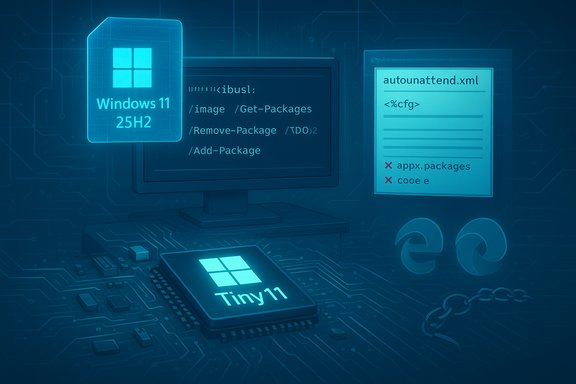 Background
Tiny11 Builder is a community‑maintained PowerShell toolchain that takes an official Windows 11 ISO, performs offline servicing (DISM), strips or keeps selected inbox components, applies compression, and emits a new bootable ISO. The project intentionally exposes two main profiles: a serviceable (standard) profile that aims to preserve the Windows servicing stack and updateability, and an aggressive core profile that removes servicing components to produce a much smaller, non‑serviceable image. Use of the serviceable profile is encouraged for day‑to‑day machines because it preserves Windows Update and other repair mechanics; core is explicitly for VMs or air‑gapped appliances.The workflow most Tiny11 users follow is straightforward: obtain an official 25H2 ISO, run tiny11maker.ps1 with the chosen profile, test the generated ISO in a VM, and then deploy to physical hardware only after validating drivers, update behavior, and application compatibility. The builder’s transparency—scripts are readable—means technically adept users can and do edit removal lists and autounattend settings, but that very flexibility is the source of the problems highlighted in the recent Round 3 customization attempt.
What went wrong: the customization failures explained
The symptom: removed exclusions didn’t “stick”
The basic change attempted was simple: edit tiny11maker.ps1 and delete the names of several modern apps from the script’s exclusion list (so they would remain in the ISO). After building the custom ISO, writing it to USB, and installing to a fresh laptop, the OOBE progressed normally—format, reboot, Out Of Box Experience screens—but after first login the desktop showed Microsoft Edge and OneDrive installed. Multiple repeats with slightly different exclusion lists produced the same result until the builder documentation was consulted.Why this can happen: provisioning, servicing, and OOBE reintroduction
There are three common, interacting reasons apps you expect to be included or excluded behave differently after setup:- Provisioning packages baked into the image: Windows installers and some ISOs include app provisioning (preinstalled appx bundles) that are applied during OOBE. Simply removing an app’s friendly name from a removal list may not change deeper provisioning entries that re‑provision the package at first boot. Tiny11’s build process uses DISM to perform offline removals, but if the wrong artifacts are targeted the provisioning will survive and reappear during OOBE.
- Servicing and forced reinstallation via updates or Store: Microsoft has mechanisms that can reintroduce certain inbox components via cumulative updates, the Microsoft Store, or server‑side provisioning. The Tiny11 serviceable profile preserves Windows Update, which helps keep devices secure—but it also means that future servicing or Store actions may re‑seed apps Microsoft deems integral. Project maintainers and reviewers have warned that Microsoft occasionally changes how and when inbox apps are reintroduced, which requires Tiny11 updates to match.
- Script logic and syntax—not just the list order: Editing a PowerShell script by hand can introduce subtle syntax or logical issues. Tiny11’s removal logic is not a simple “delete this string and the app is kept.” The script may reference package family names, package IDs, or registry/OOBE hooks; removing a readable name from a human‑oriented list may not be sufficient. The GitHub docs explicitly encourage reading and understanding the script before customizing it.
Verifying the core claims and hard facts
Few claims about Tiny11 are more important than whether a given build remains serviceable (i.e., it will accept Windows Update and standard cumulative updates). Cross‑checking community analysis shows:- The tiny11maker (standard/serviceable) profile attempts to preserve WinSxS and the servicing stack so that updates are possible. The tiny11 core profile explicitly removes servicing components and should be used only in offline VMs or disposable appliances. This distinction is consistently documented across project notes and independent reviews.
- Claims about extreme resource usage (for example “100MB RAM installs”) are anecdotal and unlikely to represent practical, daily‑use scenarios. Community reviewers caution against treating those extreme examples as normative. Expect wide variance by configuration, language packs, .NET versions, and drivers.
- The builder is transparent and auditable—scripts are available and rely on Microsoft DISM/oscdimg tooling—which reduces but does not eliminate supply‑chain risk. Building your own ISO from an official ISO is the recommended practice.
Practical root‑cause analysis — what to inspect in the builder and image
If your Tiny11 customization “doesn’t take,” inspect these areas in order:- tiny11maker.ps1 logic and removal entry format
- Confirm you edited the correct identifier: friendly app names are not always the thing the build script uses to remove packages. Look for PackageFamilyName, PackageFullName, or scheduled tasks that drive re‑provisioning. The GitHub README and script comments show which identifiers the script expects.
- Autounattend and OOBE provisioning
- Open autounattend.xml injected into the ISO. Check whether there are provisioning steps that call AddProvisionedAppxPackage or run package reinstallation during the Out Of Box Experience. Tiny11 commonly injects an autounattend to control the MSA bypass and local account creation, and that file is also how some packages get applied.
- Offline image package lists (DISM)
- Mount the WIM/ESD and run DISM queries to list provisioned packages in the offline image. If the package still appears in that list, it will be applied during OOBE even if you thought you removed it by touching a comment block in the script. Use DISM /Get‑Package /Image: to enumerate what’s truly in the image.
- Recomputation of the ISO and recompression behavior
- Some builds use recovery/LZMS compression and then repack with oscdimg. Ensure the output ISO path you are copying to USB is the new one and not an old ISO cached by the builder or your build steps. Build logs and output timestamps are helpful here.
- Post‑install Store provisioning
- If Microsoft is provisioning the app via the Store or reintroducing it through a cumulative update that runs post‑OOBE, you’ll see the app appear after first login. The serviceable profile’s acceptance of updates is a double‑edged sword: it keeps devices patched but may reintroduce inbox bits.
Concrete troubleshooting steps (step‑by‑step)
- Verify you are editing the right script and running the rebuilt ISO.
- Confirm tiny11maker.ps1 version, check its header comments (version, date), and make a small deliberate change in the output filename to ensure you can tell which ISO is being used during install.
- Test in a VM first.
- Mount the freshly built ISO in Hyper‑V or VirtualBox and perform a full OOBE. If the app appears in the VM, the problem is in the image; if not, the issue may be the specific laptop’s hardware/online provisioning. Always start with a VM before wiping a physical drive.
- Enumerate offline provisioned packages before you rebuild:
- Mount the WIM (DISM /Mount‑Wim), then run DISM /Image:C:\mount /Get‑ProvisionedAppxPackages and /Get‑Packages to see what the image contains. Remove offending packages with DISM /Image:… /Remove‑Package or adjust the script to remove the right identifiers.
- Inspect and edit autounattend.xml:
- If autounattend injects provisioning calls, either remove those steps or replace them with a known good version. Be cautious: autounattend also controls local account creation and the MSA bypass.
- Rebuild and verify with checksums and timestamps:
- Keep build logs, checksum the output ISO, and write the ISO to USB with Rufus or similar. Verify Rufus settings if you rely on Extended Installer bypasses (TPM/MA bypass).
- If the app still reappears after first login, capture network traffic or block updates temporarily:
- For forensic analysis, isolate the VM from the network to see whether the app is provisioned from the image or reintroduced from the Internet. If it only appears when online, the Store/servicing mechanism is the likely culprit.
Best practices and risk management
- Prefer the serviceable Tiny11 profile for primary use. The standard profile is designed to keep updates functioning. Core images produce an attractive small footprint, but they remove repair and update paths and are not suitable for machines that will connect to the Internet.
- Always build from the official Microsoft ISO and verify checksums. Do not rely on prebuilt ISOs downloaded from unknown mirrors. Building locally with audited scripts is the recommended trust model.
- Document and version your builds. Treat each custom ISO as a configuration artifact: include the tiny11maker commit/tag, exact command line used, a SHA256 for the resulting ISO, and a short test checklist (drivers, Windows Update, Defender status). This is essential if you need to roll back.
- Keep recovery media and vendor drivers. Aggressive builds can produce driver or WinRE issues. Maintain a stock Microsoft ISO and USB recovery so you can recover if an update or driver causes a problem.
- Avoid deploying modified images to production fleets without formal change control. Supply‑chain, support, and licensing consequences are real. For enterprise use, the safer route is controlled pilot and strict documentation—or simply prefer vendor‑supported upgrades.
Strengths, trade‑offs, and the long view
Tiny11 Builder remains a compelling project because it puts image control back in the hands of the user: transparency, small footprint, and the ability to avoid forced cloud integrations appeal to refurbishers and hobbyists. The builder uses Microsoft tooling (DISM, oscdimg) and provides repeatable, auditable steps so you can reproduce the same image across machines. Those are meaningful strengths for labs, kiosks, and constrained hardware.But the trade‑offs are real. If you strip servicing components you accept manual maintenance and a growing long‑term technical debt. Microsoft’s servicing model and server‑side provisioning can and do change, which means Tiny11 must keep pace; attempts to lightly “tweak” the exclusion list without understanding provisioning and package identifiers are likely to fail or produce surprising results. That mismatch—user expectation vs. the complexity of Windows provisioning—is the root of the Round 3 customization failures.
Final assessment and practical verdict
Tiny11 Builder is an excellent tool for technically literate users who accept responsibility for build integrity, testing, and updates. If the goal is to de‑bloat Windows 11 25H2 while keeping the system serviceable, use the standard tiny11maker profile, test builds in VMs, and audit autounattend and offline package lists carefully. If you are trying to redeploy a customized image at scale, formalize the build pipeline, maintain checksums, and stage pilot devices.For the specific case described—attempting to re‑include apps by deleting entries in tiny11maker.ps1—the immediate takeaway is straightforward: cosmetic edits to the visible app list are not a guaranteed way to change provisioning. Inspect the image’s provisioned packages, the autounattend file, and the builder’s removal logic; rebuild and verify in a VM before touching production hardware. Until you do that, expect surprises like Edge and OneDrive returning despite your edits.
Quick checklist to avoid the same pitfall
- Build from official Windows 11 25H2 ISO and verify the SHA256.
- Test every custom ISO in a VM before using it on physical hardware.
- Use DISM to enumerate and remove provisioned packages in the offline image rather than only editing a human‑readable list.
- Inspect and, if necessary, alter autounattend.xml to avoid re‑provisioning during OOBE.
- Keep a recovery USB with stock Microsoft install media and a disk image to revert if servicing fails.
Tiny11 Builder is a powerful, pragmatic response to a modern problem—how to keep older hardware useful without accepting cloud‑first bloat. The project’s openness and configurability are its strengths, but those same attributes require technical discipline. For anyone planning to customize tiny11maker.ps1 and roll that image to hardware, the Round 3 experience is a useful reminder: look deeper than the visible list, treat provisioning and servicing as first‑class citizens in your build process, and validate every build in a controlled environment before trusting it with a real machine.
Source: Thurrott.com Tiny11 Builder 2025 Round 3: Customization Fails, New Laptop Install
