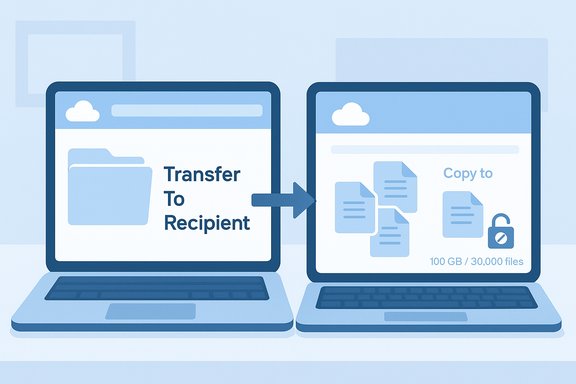
The quickest way to effectively hand someone your OneDrive files is to put those files inside a single parent folder, share that parent folder with the other account, and have the recipient use OneDrive’s web "Copy to" (or File Explorer / sync client) to copy the content into their own OneDrive — but that does not transfer real ownership, it creates new copies and carries important limits you must plan around.
Background / Overview
OneDrive for personal and business accounts is built around access control and an owner account — not ownership transfers. There is no built‑in “change owner” button that flips a file or folder from one Microsoft account to another and preserves the original sharing links, version history, or metadata the way full ownership changes in some enterprise systems would. Microsoft’s guidance and community responses make this clear: you can grant edit or full control access, but direct ownership transfer for personal OneDrive folders or files isn’t supported. That limitation pushes many users toward a practical workaround: copy the files into the recipient’s own OneDrive account so the recipient becomes the hosting account for those files (and can manage storage, retention, and sharing going forward). The typical technique — create a parent folder, move the content into it, share it, and let the recipient use OneDrive’s "Copy to" — is simple, widely used, and works for most personal transfers, but it’s important to understand exactly what gets preserved and what does not. WindowsForum step‑by‑step guides and migration discussions explain the same approach and why it’s commonly recommended.What the OneDrive “copy/move between accounts” workaround does (and doesn’t do)
What it does
- Creates a new copy of each file inside the recipient’s OneDrive (the copy is hosted by the recipient’s account).
- Lets the recipient control the files going forward (delete, reshare, manage storage).
- Keeps the original files available to the sender until they delete them.
- Gives a straightforward path for parents transferring photos to a child’s managed account or users consolidating personal archives into a different account.
What it does NOT do — critical differences from a true ownership transfer
- It does not transfer ownership metadata. The copy is a new file; the original owner, timestamps, and original share links are not preserved as owner‑level attributes.
- Version history is reset. The "Copy to" operation copies the latest file version only; previous versions are not carried over by the web copy operation. If preserving version history matters, you must use other tools or administrator workflows.
- Share links stop working. Any existing share links tied to the original file/folder will not automatically redirect to the new copy on the recipient account.
- Some metadata and permissions won’t survive. Complex ACLs, file-specific permissions and some metadata may not move with a simple copy — enterprise migrations require formal tools.
Short primer on limits you must consider (verified)
Practical constraints make this workaround imperfect for very large or very numerous transfers. Microsoft documents several relevant limits:- Single file upload / sync limit: OneDrive and SharePoint now support individual files up to 250 GB for upload/sync when using the OneDrive sync client. For uploads via the website smaller limits apply; for very large files use the sync client.
- Copy/Move across sites (single operation) limits: When copying or moving content across site collections or containers (the same operation that governs moving/copying between different OneDrive accounts or a OneDrive and SharePoint site), Microsoft documents limits such as no more than 100 GB total per copy/move operation and no more than 30,000 files per operation. Individual file size ceilings may also apply in cross‑geo operations. These limits exist for the server‑side copy/move process and are easy to hit with big photo/video libraries.
- Web portal copy size warning: The OneDrive web interface has extra constraints — the portal notes you can only copy small batches via the site (for larger transfers it recommends using File Explorer or the sync client). The web UI’s copy/move dialog can show much smaller practical limits (for example, 500 MB in some portal flows), so plan to use File Explorer / the sync client for anything big.
- Sync performance guidance: For optimum performance Microsoft recommends syncing no more than ~300,000 files per OneDrive or team site library; syncing far more files may cause long processing times and sync issues.
Step-by-step: the practical “parent folder + Copy to” method
Follow these steps if you want to copy content from Account A (sender) to Account B (recipient) with minimal fuss. These steps assume you’ll use OneDrive on the web and that both users can sign in.- Using Account A (the current host of the files):
- Create a single parent folder (call it Transfer‑To‑[Recipient] or similar).
- Move the files and subfolders you want to give away into that parent folder (use OneDrive’s Move to or drag‑and‑drop in File Explorer into the parent folder so everything is grouped).
- Share the parent folder with Account B, granting Edit permissions and sending the invite link or email. Press “Send” (don’t skip this step).
- Using Account B (the receiving account):
- Open the shared parent folder in the OneDrive web UI (or if using the OneDrive sync client, add the shared folder to your OneDrive).
- Select the folders or files you want to pick up (you can copy the whole parent folder's contents).
- From the context menu choose Copy to (if available) and select My files → the destination folder in Account B. Click Copy here.
- If Copy to is missing for certain items, testers report the web UI sometimes shows only Copy to and not Move to for non‑owners; that’s expected. If the portal blocks big batches, switch to File Explorer (via the one‑drive sync client) and copy there instead.
- Wait for the operation to finish, then validate files in Account B (check file sizes, thumbnails, and a few open operations).
- Post‑copy housekeeping:
- Verify the copied files in Account B are intact and accessible across devices.
- If everything looks correct, delete the originals in Account A (only after you have a verified backup or after ensuring Account B holds all needed content).
- Re‑share the new folder from Account B back to Account A (if you want continued access from the original account) rather than relying on ownership transfer behavior.
- Use the OneDrive desktop sync client + File Explorer for large batches. The web UI may enforce stricter caps and is less reliable for bulk jobs.
- Preserve local timestamps and ACLs: if timestamps, ownership attribution, or advanced ACLs matter, consider downloading the files and using a tool that preserves attributes (robocopy / rclone / a migration tool) to upload into the new account; simple web copies will not preserve all attributes.
- If the copy operation fails because you exceed the 100 GB / 30,000 files guidance, break the transfer into smaller batches or use an offline approach (external drive + upload).
Alternatives for larger or more sensitive migrations
If you need to transfer large volumes, preserve version history, or move enterprise data, consider these options:- Use the OneDrive sync client and File Explorer as your transfer path: sign Account B into a device that can temporarily host both the source and destination syncs (Business accounts can be used side by side with a personal account in the client in many configurations) and copy locally. This avoids some web portal limits.
- For retention of version history, timestamps, and metadata, use a migration tool designed for OneDrive/SharePoint (third‑party migration services or Microsoft migration tooling). Enterprise migration tools (CloudFuze, Mover, ShareGate, Azure Storage Mover) preserve metadata and can operate server‑side to avoid browser caps. These are the right choice for business or compliance‑sensitive moves.
- Admin workflows for departing employees: If you’re an admin saving files from an account that will be deleted, use Microsoft 365 admin/SharePoint Admin Center workflows (secondary owner, manager access) which provide supported transfer options for OneDrive business accounts. That is the formal mechanism for enterprise ownership transitions.
- Local copy to external drive: For very large archives (multiple TB), copy to an external drive and then upload from a high‑bandwidth environment or connect the drive to the recipient’s machine to perform the upload. This minimizes timeouts, reduces web UI failures, and avoids per‑operation caps.
Practical checklist before you start (save headaches)
- Confirm available storage on the recipient account. If Account B has insufficient quota you’ll see failed uploads. Upgrading OneDrive / Microsoft 365 storage may be required.
- Back up the original files locally or to an external drive — do not rely only on the source OneDrive copy while you test the transfer.
- Count files and estimate total size; if you exceed 100 GB in total or 30,000 items consider splitting the job or using a sync client or migration tool.
- Prefer the OneDrive sync client for large binary files; the web interface is best for small batches or quick ad hoc transfers.
- If version history matters, plan for a tool that explicitly preserves versions — web copy will copy only the latest version.
Troubleshooting common issues
- “Copy to” fails mid‑operation: break the selection into smaller batches; try using File Explorer; check both accounts’ storage quotas.
- Missing “Move to” option for shared folders: OneDrive often restricts move operations to the owner. Editors typically have Copy to which creates a new file in the editor’s account rather than moving the hosted file. That’s expected.
- Large video files time out or fail in the browser: use the OneDrive sync client or File Explorer; the client can handle files up to the service’s single‑file cap (currently 250 GB).
- Need to preserve timestamps and ACLs: download to local storage and use a tool like robocopy (Windows) with /COPYALL or advanced migration tools that explicitly state metadata preservation. Community guides include robust robocopy recipes for these scenarios.
Security, privacy and compliance considerations
- Transferring files between accounts changes where data is hosted and who can be compelled to produce it. For family photos this is benign, but for corporate data the move may violate policies. Use enterprise migration tools and coordinate with IT when dealing with work data.
- BitLocker / device encryption and stored recovery keys: if you plan to unlink accounts from a device or change protected sign‑ins, confirm where BitLocker recovery keys are stored. Removing an MSA or switching devices can complicate recovery if keys are not exported.
- GDPR / data residency: copying data between accounts in different tenants or geographies may change its residency; cross‑geo copy/move operations carry extra limits and policy considerations (cross‑geo file size caps and restrictions). Consult your org’s compliance lead before large cross‑geo migrations.
Final verdict — when to use the Copy‑to workaround and when not to
Use the parent‑folder + share + Copy to workaround when:- You have a moderate volume of files (under the documented single‑operation limits) and don’t need to preserve version history or all metadata.
- You want a simple, quick, low‑cost way to hand someone a set of files (family photos, a simple project folder, personal documents).
- You can accept that the original owner will need to delete the originals manually and that share links/version history will not follow.
- You must preserve complete version history, timestamps, or complex ACLs.
- The transfer contains more than 100 GB total or more than 30,000 files in one operation — split the job, or use the sync client / migration tooling.
- You are transferring corporate data or anything subject to compliance obligations — use the supported admin or migration paths.
Quick reference: condensed steps (copy & paste friendly)
- Create a parent folder in the sender’s OneDrive and move everything to it.
- Share the parent folder with the recipient with Edit permission and send the invite.
- Recipient opens the shared folder, selects what they need, and chooses Copy to → My files → destination. If the web UI blocks or is slow, use File Explorer / OneDrive sync client.
- Verify copied files in recipient’s account, then (optionally) delete originals once backed up.
Transferring OneDrive files between accounts is straightforward in principle but messy in practice because OneDrive doesn’t natively flip “ownership” between accounts. The parent‑folder + share + Copy to sequence is the pragmatic path for most personal users, but anyone dealing with large archives, legal/retention obligations, or complex metadata should plan a proper migration using the sync client or a migration tool and account for Microsoft’s documented limits and behaviors.
Source: Windows Central https://www.windowscentral.com/micr...sfer-ownership-of-files-and-folders-onedrive/