

A tiny, tray-resident Windows app called Trdo — free, open-source, and built with modern Windows UI frameworks — has quietly reminded many of why internet radio still matters: simplicity, serendipity, and one-click listening that lets someone else do the curation while you get on with your day.
For more than a decade streaming services have reshaped how people discover and consume music. On-demand platforms offer unparalleled control, libraries that dwarf FM playlists, and algorithmic discovery that can feel eerily prescient. But that control comes at a cost: endless decisions, playlist maintenance, and the erosion of the unexpected discovery that used to define radio.
Internet radio sits between the world of curated broadcast and the convenience of streaming. It offers thousands of niche stations, global reach, and — when done well — the ease of turning something on and letting it play. Trdo aims squarely at that middle ground: a minimalist, system tray–first radio player for Windows that makes internet radio feel as effortless as flipping on a car radio.
This article examines Trdo’s design, technical foundations, real-world behavior, strengths, and the risks and trade-offs you should understand before making it your daily driver.
Key selling points:
Because the project is released with its source code publicly available, advanced users can audit what the app does on the network, check how stream handling is implemented, or compile their own packages.
Because the app is packaged for the Microsoft Store, it benefits from standard distribution and auto-update mechanisms on Windows. Power users who prefer unpackaged or self-contained binaries can build from source using standard .NET tooling.
This minimalism is a feature, not a bug: there is a real user segment that prefers the “turn on and enjoy” model of radio rather than juggling playlists and recommendations. For anyone who misses that, or who wants unobtrusive audio while working, a tiny tray-based radio player is both an efficient and delightful compromise.
Trdo is an elegant example of minimal software done right: a single-purpose tool that respects users’ attention while delivering modern Windows polish. As the project matures — with ongoing bug fixes, UI tweaks, and incremental feature improvements — it’s worth watching for refinements that address visibility, station discovery, and any third-party integration details. For now, it’s an excellent tool for anyone who wants their desktop radio to be as effortless as reaching for the in-dash button once was.
Source: MakeUseOf I finally fell back in love with internet radio thanks to this tiny Windows app
 Background
For more than a decade streaming services have reshaped how people discover and consume music. On-demand platforms offer unparalleled control, libraries that dwarf FM playlists, and algorithmic discovery that can feel eerily prescient. But that control comes at a cost: endless decisions, playlist maintenance, and the erosion of the unexpected discovery that used to define radio.Internet radio sits between the world of curated broadcast and the convenience of streaming. It offers thousands of niche stations, global reach, and — when done well — the ease of turning something on and letting it play. Trdo aims squarely at that middle ground: a minimalist, system tray–first radio player for Windows that makes internet radio feel as effortless as flipping on a car radio.
This article examines Trdo’s design, technical foundations, real-world behavior, strengths, and the risks and trade-offs you should understand before making it your daily driver.
Overview
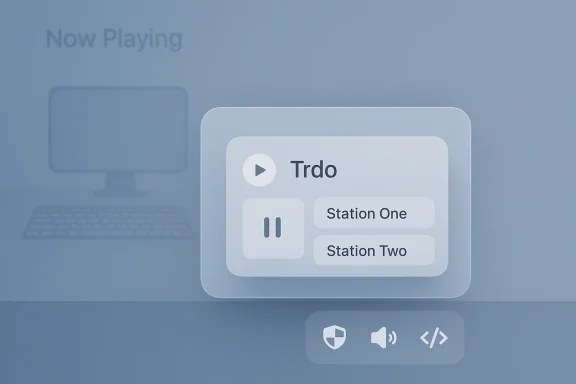
Trdo is a small Windows utility that lives in the notification area (system tray) and focuses single-mindedly on playing internet radio. The app is distributed for free and is open-source under a permissive license. It is built using contemporary Windows development stacks and has a deliberately minimal interface: one click to play or pause, right-click for options, and the ability to add, save, and recall stations.Key selling points:
- Minimal footprint and tray-first UX
- Native look and feel on Windows 11 thanks to modern UI frameworks
- Quick one-click control for play/pause
- Station management with search and manual stream URL entry
- Now-playing metadata (when available) and basic volume control
- Open-source code for transparency and community review
Technical foundations and development
Trdo is not a throwback Win32 hack — it’s built on the modern Windows desktop stack. The project is implemented with the following technologies:- .NET 9 as the runtime and application framework.
- WinUI 3 and Windows App SDK for UI and integration with Windows shell and appearance.
- Packaged and distributed for convenience through the official app store.
Because the project is released with its source code publicly available, advanced users can audit what the app does on the network, check how stream handling is implemented, or compile their own packages.
Features and day-to-day use
Trdo’s user experience is intentionally narrow and focused. The features that matter to everyday listening are front and center:- Tray-first operation: the app runs in the notification area and can be controlled without opening full windows.
- One-click play/pause: single left-click toggles playback, which is optimized for quick muting and resuming.
- Right-click flyout for station selection and settings: the context menu exposes station management and more advanced controls.
- Station search and manual entry: you can search for known stations or add a station by its stream URL.
- Simple volume slider inside the flyout, avoiding the need to open system sound settings.
- Now-playing metadata (title and artist) when available in the stream.
- Basic persistence: saved stations, along with last station and volume, are remembered across sessions.
- Install Trdo from the store (or compile from source if you prefer).
- Click the tray icon to open the flyout, choose “Add Station,” search by name or paste a stream URL.
- Left-click the tray icon to play or pause. Right-click for the flyout to change stations or adjust settings.
- Use the small volume slider to quickly adjust audio level without leaving your workspace.
What’s impressively well done
- Native Windows 11 integration
- The app’s visual language and animations are modern. Building with WinUI 3 and Windows App SDK pays off: Trdo looks like a first-class Windows 11 utility rather than a tacked-on third-party player.
- Extreme simplicity
- The single-click play/pause model is a design win for people who want radio to be background noise rather than an activity. The tray-first approach respects the user’s focus.
- Low overhead and open source
- Small footprint and an MIT-style license reduce the security and privacy concerns that accompany closed, networked apps. Anyone can audit or fork the code.
- Practical station handling
- The ability to manually add streams is crucial — many useful or local stations do not appear in searchable directories. Trdo preserves that control without compromising the simple UX.
- Responsive development and community feedback
- The developer maintains an active repository and responds to issues and feedback publicly, a good sign for long-term maintenance and quick fixes.
Rough edges and limitations
Trdo is still maturing and several small but meaningful UX and compatibility issues remain:- Tray icon visibility: the monochrome icon design can be hard to distinguish on light-themed taskbar backgrounds. This is an aesthetic and usability nuisance that affects quick recognition.
- Flyout control mapping: left-click toggles playback, while right-click opens the full flyout. That behavior is fast once learned but non-standard and initially surprising for users who expect a left-click to open the UI.
- Dependency on external station directories: search results depend on whatever directory or API the app queries. If a station doesn’t expose a standard stream URL or is not indexed, it won’t appear in search. This limits convenience for some public broadcasters and larger media networks that do not publish direct streams.
- Manual entry UI: long URLs or long station names are awkward to edit in the current UI because input fields in the flyout are not always resizable or easy to navigate.
- Beta polish: occasional edge cases have been reported around resuming broken streams and how metadata is discovered or displayed. The developer has prioritized those as issues and is iterating.
Privacy and security analysis
When evaluating a networked media player, consider what it does over the wire, how much personal data it holds, and the packaging/distribution model.- Open-source advantage: Trdo’s code is publicly available under a permissive license. That transparency reduces the risk of hidden telemetry or malicious behavior; anyone with the skills can inspect network calls and OAuth flows.
- Network exposure: playing internet radio requires opening streaming network connections. Malicious or compromised streams could attempt to exploit client-side players if the player decodes problematic data or supports vulnerable codecs. However, on modern Windows and using robust audio libraries, the attack surface is limited and typical for all radio players.
- OAuth and third-party integrations: some reporting has suggested the app can save tracks for later listening (for example, via integration with third-party services). That kind of feature — if present — would typically require OAuth flows and account permissions. At the time of examination, public documentation of a Spotify integration was not complete or independently verifiable; treat such features cautiously and avoid granting broad account permissions unless you verify the implementation in the source or official documentation.
- Store distribution: getting an app from the official app store reduces distribution risk because the store enforces packaging and endorsement checks. If you prefer the highest level of assurance, you can compile from source and run a locally built binary.
Compatibility and platform considerations
Trdo is clearly designed for modern Windows desktops and is optimized for Windows 11 aesthetics. The use of WinUI 3 and the Windows App SDK favors Windows 11 integration, but the underlying .NET/WinUI stack can run on Windows 10 systems that support the Windows App SDK runtime — users should check compatibility if they are on older Windows builds.Because the app is packaged for the Microsoft Store, it benefits from standard distribution and auto-update mechanisms on Windows. Power users who prefer unpackaged or self-contained binaries can build from source using standard .NET tooling.
How Trdo compares to alternatives
Trdo carves a very specific niche: the ultra-minimal tray radio. Comparing it to alternatives clarifies when it’s the right tool.- Full-featured streaming apps (Spotify, YouTube Music)
- Pros: Massive catalogs, offline downloads, personalized discovery
- Cons: Requires active selection and algorithmic feeds; less serendipity
- Trdo’s edge: Simplicity and passive listening
- Radio directory apps (TuneIn, radio-browser-based clients, Odio)
- Pros: Large search and discovery, cross-platform support
- Cons: UI bloat, heavier clients, less system integration
- Trdo’s edge: System-tray convenience and minimal distraction
- Media players (VLC, foobar2000)
- Pros: Robust codec support and manual stream playback
- Cons: Not optimized for quick, one-click radio listening
- Trdo’s edge: Streamlined workflow for everyday radio
Unverified claims and cautionary notes
A few assertions circulating in product write-ups and user commentary deserve careful qualification:- Radio directory source: some secondary write-ups state that Trdo searches stations using a community-maintained radio directory service. While this describes common practice for many internet radio apps, the exact directory or API Trdo uses for station search is not explicitly confirmed in all public documentation. That means search coverage may vary, and some stations (including some public broadcaster streams) may not appear via search. If station discovery matters, be prepared to add station stream URLs manually.
- "Save to Spotify" or direct playlist export: there are mentions that Trdo can save favorite songs to a Spotify playlist. That capability will typically require the stream to expose reliable metadata (song title + artist) and an implemented OAuth flow to communicate with Spotify APIs. At the time of writing, documentation and repository references for an official, fully functional Spotify save feature were not clearly documented. Treat references to this feature as provisional until you confirm it in the app’s released feature list or by inspecting the source.
Practical tips and recommendations
- If you use Trdo as your primary radio client:
- Add frequently used stations manually with their canonical stream URLs to avoid dependency on third-party directories.
- Keep the Store app updated, or watch the repository for release notes to stay abreast of fixes.
- Test playback and metadata on a small sample of stations you care about to see how well Now Playing information is surfaced.
- For improved security and privacy:
- Audit the source or run the app from a locally built copy if you have concerns about the packaged binary.
- Avoid using any “save to service” features until you’ve verified which scopes the app requests and whether the source exposes a trustworthy implementation.
- Reporting issues and feature requests:
- The developer maintains a public issue tracker where small UX and stream-resume bugs have been opened and discussed. If you run into a problem, open an issue or check existing reports to see if a fix is underway.
Where Trdo fits in the modern listening landscape
Trdo is a reminder that software doesn’t need to be feature-saturated to be valuable. Its philosophy is deliberately oppositional to the modern app tendency to offer every feature imaginable; instead, Trdo brings back the delight of simple, passive listening.This minimalism is a feature, not a bug: there is a real user segment that prefers the “turn on and enjoy” model of radio rather than juggling playlists and recommendations. For anyone who misses that, or who wants unobtrusive audio while working, a tiny tray-based radio player is both an efficient and delightful compromise.
Final take: who should install Trdo and when
Trdo is a strong fit if you:- Use Windows 11 (or supported Windows 10 builds) and want a native-feeling tool.
- Prefer passive, curated listening and value minimal UI friction.
- Appreciate open-source software and want the option to inspect or build the client yourself.
- Want a low-resource, always-available radio stream without opening another app window.
- Rely on a specific third-party streaming integration (e.g., automatic Spotify playlisting) without verifying how it’s implemented.
- Need deep station discovery across every global broadcaster — some large networks do not expose direct stream URLs and may be missing in search.
- Are uncomfortable granting account permissions for features that aren’t fully documented.
Trdo is an elegant example of minimal software done right: a single-purpose tool that respects users’ attention while delivering modern Windows polish. As the project matures — with ongoing bug fixes, UI tweaks, and incremental feature improvements — it’s worth watching for refinements that address visibility, station discovery, and any third-party integration details. For now, it’s an excellent tool for anyone who wants their desktop radio to be as effortless as reaching for the in-dash button once was.
Source: MakeUseOf I finally fell back in love with internet radio thanks to this tiny Windows app
