

Windows 11’s Widgets panel has always promised a fast, glanceable dashboard for weather, calendar, stocks and more — but for many users the out‑of‑the‑box experience felt like a half‑finished mobile feed shoved onto the desktop. Tidy it up with five deliberate changes — disabling the news feed, turning off hover activation, muting taskbar announcements, customizing individual cards, and rearranging/resizing widgets — and what felt like a gimmick becomes a genuinely useful, productivity‑friendly dashboard you’ll actually use every day.
Widgets arrived in Windows 11 as a built‑in, panel‑style space for small, focused cards: weather, calendar, traffic, stocks, Microsoft To Do, and a feed driven by Microsoft Start. The idea — a low‑effort surface you can check without opening full apps — is sound. The execution, however, has been uneven. Many users complain the Widgets board was dominated by a sensationalized news feed and intrusive ticker‑style taskbar updates, which pushed away the useful glanceable elements and made the feature feel noisy rather than helpful. Recent changes in Windows 11’s widget settings have given administrators and users more control, and those controls are exactly what turn Widgets from annoying to indispensable.
This article walks through the five changes you should make, explains why each matters, and flags caveats — including build‑dependent behavior and privacy considerations — so you can tweak Widgets safely and confidently.
Why it matters
Caveats and verification
Why it matters
Advanced note (power users)
Why it matters
Caveats
What to set and why
Privacy and account notes
Why layout matters
Pro tip for multi‑monitor users
The problem wasn’t the concept; it was the defaults. Microsoft’s initial defaults favored an attention‑grabbing news feed and announcement tickers, which obscured the cards that actually save time. The five changes described here strip away that loudness and let Widgets do what they were meant to do: present concise, useful information at a glance. Community testing and documentation confirm that these simple changes make a material difference in daily use.
Conclusion
Windows 11’s Widgets can be a useful daily dashboard — but only if you treat the panel as a customization canvas, not a default feed. Turn off the Feed, stop hover activation, mute taskbar announcements, configure each widget to reflect your data, and arrange the layout for quick glances. Those five steps convert Widgets from a cluttered afterthought into a compact, practical dashboard that helps you stay informed without interrupting your work.
Source: MakeUseOf Windows widgets would be great... if you change these 5 settings
 Background / Overview
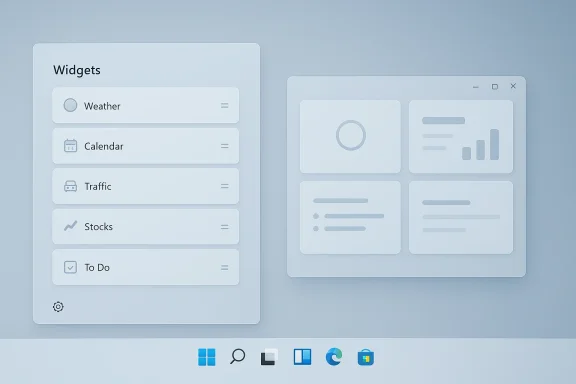
Widgets arrived in Windows 11 as a built‑in, panel‑style space for small, focused cards: weather, calendar, traffic, stocks, Microsoft To Do, and a feed driven by Microsoft Start. The idea — a low‑effort surface you can check without opening full apps — is sound. The execution, however, has been uneven. Many users complain the Widgets board was dominated by a sensationalized news feed and intrusive ticker‑style taskbar updates, which pushed away the useful glanceable elements and made the feature feel noisy rather than helpful. Recent changes in Windows 11’s widget settings have given administrators and users more control, and those controls are exactly what turn Widgets from annoying to indispensable.This article walks through the five changes you should make, explains why each matters, and flags caveats — including build‑dependent behavior and privacy considerations — so you can tweak Widgets safely and confidently.
Why bother: what a cleaned Widgets board buys you
A pared‑down Widgets board changes the way your desktop behaves in two big ways.- It reduces visual noise and interruptions: you stop fighting sensational headlines and rotating taskbar tickers, and instead get a calm, glanceable surface for the data you rely on.
- It replaces application context switches with instant micro‑interactions: glance at your calendar or weather, tap a stock price for detail, or add a quick reminder without launching a full app.
1) Ditch the news feed that’s hogging the board
The single most impactful change: remove the Feed.Why it matters
- The Feed (Microsoft Start) is the element most likely to dominate the Widgets panel with clickbait and long headline lists. That shrinks or buries the small, functional widgets you care about.
- Removing it returns screen real estate to true dashboard cards — weather, calendar and other glanceable items — and immediately makes the panel feel focused.
- Open the Widgets board with Windows key + W.
- Click the Settings (cog) icon in the top‑right corner of the Widgets panel.
- Choose Show or hide feeds (or the equivalent “Feed” control in your build).
- Turn the Feed slider off.
Caveats and verification
- This control was rolled out incrementally and can be missing in older builds or restricted Insider flights. If you don’t see it, check for OS updates and consider whether your device is on a managed/enterprise configuration that limits widget controls.
- Because the Feed is a content surface that pulls from Microsoft Start, disabling it reduces data collection surface for news personalization — but does not affect other telemetry settings across Windows. Treat this as a UI cleanup, not a privacy cure‑all.
2) Stop Widgets from opening on accidental hover
Nothing kills concentration like a half‑screen Widgets panel appearing because your mouse passed over the taskbar. The hover activation was intended to feel fast, but it triggers far more by accident than by intent.Why it matters
- Hover activation causes accidental context switches when you move the mouse to the lower left or right of the screen, or when you’re working on multi‑monitor setups.
- Disabling hover makes the Widgets board behave deliberately — you click the icon or press Win + W and it appears only when you want it.
- Open Widgets with Windows key + W and click the Settings (cog) icon.
- Turn off Open Widgets board on hover (or a similarly worded toggle).
Advanced note (power users)
- There are known PowerShell/reg hacks published by community members to force the hover setting off. Use those only if you understand registry editing and have a backup, because the changes target user‑specific registry keys for the Widgets client. Community scripts are available but aren’t official Microsoft recommendations.
3) Turn off taskbar announcements and notification badges
Even with the Widgets board closed, Windows can announce updates through the taskbar widget icon: rotating announcements, ticker‑style headlines, and notification badges. That defeats the idea of a calm glanceable indicator.Why it matters
- Rotating announcements make your taskbar visually noisy and draw attention away from active tasks.
- Badges and tickers are designed to trigger curiosity clicks; they’re not helpful when your goal is minimal disruption.
- Open Widgets (Win + W) and click the Settings icon.
- Select Notifications.
- Disable Show announcements on the taskbar.
- While you’re there, you can also disable Show notification badges on the taskbar if you prefer no badges.
Caveats
- Some Windows builds may re‑enable these notifications after feature updates; verify your settings after major Windows updates.
- Notifications and badges are separate from other system notifications (Focus Assist, Action Center), so turning these off doesn’t silence everything — it just limits the Widgets taskbar behavior.
4) Customize each widget so it actually serves you
The Widgets panel ships with broad defaults: wrong location for weather, generic stock tickers, and traffic routes that might not match your commute. Spend a few minutes customizing the cards you use and they’ll start returning real value.What to set and why
- Weather: set your preferred location and unit (°C/°F) so the top card is always correct.
- Calendar: connect the account you use for appointments and choose the right calendar scope.
- Traffic: set home/work addresses so the traffic card tracks routes you actually drive.
- Stocks: replace the default symbols with your own watchlist.
- Hover over a widget and open the three‑dot menu (…).
- Choose Customize widget.
- Follow the widget’s options to change location, accounts, symbols or other settings.
Privacy and account notes
- Some widgets require signing in with a Microsoft account (or granting permissions like location). If you prefer to keep accounts separate or minimize cross‑site personalization, review each widget’s permission prompts and turn off location for widget apps where feasible.
- Third‑party widget clients exist, but they’re outside Microsoft’s support surface; evaluate their trustworthiness before installing.
5) Rearrange and resize widgets into a true dashboard
Once you’ve removed the feed and tuned individual widgets, arrange and size them so your most important cards live at the top and occupy the right amount of space.Why layout matters
- Widgets that show more data (a five‑day weather forecast, upcoming calendar agenda) should be larger; small items (single stock tickers, one‑line reminders) can be small.
- A coherent hierarchy — weather/calendar at the top, secondary cards below — converts the Widgets panel from a random card pile into a focused control surface.
- Drag a widget by its header to reposition it.
- Use the three‑dot menu for each widget and select Small, Medium, or Large sizes.
- Prioritize frequently used widgets in the top rows so they’re visible immediately when the board opens.
Pro tip for multi‑monitor users
- You can size an intentionally concise widget set on your second monitor for quick glances while the main monitor remains app‑focused. Experiment with a narrow stack of large weather/calendar widgets on the secondary display to create a lightweight dashboard.
Quick checklist: five settings to change right now
- Disable the Feed (Show or hide feeds → Feed: Off).
- Turn off Open Widgets board on hover.
- Disable Show announcements on the taskbar and turn off notification badges.
- Customize each widget’s content (three‑dot menu → Customize widget).
- Rearrange and resize widgets into a sensible hierarchy (drag headers; menu → Small/Medium/Large).
Risks, limitations, and gotchas
- Build and channel differences: Microsoft rolled many widget controls out over time. If a control is missing in your Settings, you may be on an older build or a particular Insider channel where that toggle hasn’t landed. Check Windows Update and your Windows build number if an expected option is absent.
- Managed devices: enterprise policies or management profiles can block or reconfigure Widgets. If you see controls greyed out, talk to your IT admin before attempting workarounds.
- Settings that don’t stick: some community reports show settings re‑enabling after feature updates or in buggy Insider builds; if that happens, re‑apply your preferences after updates or consider filing feedback through the Feedback Hub.
- Registry/PowerShell hacks: there are community scripts to force certain behaviors (hover off, feed removal), but editing registry values or using unsigned PowerShell commands carries risk. Always back up the registry or create a system restore point before attempting such changes.
- Third‑party widgets: some third‑party widgets can be useful, but they increase your attack surface and may require additional permissions. Prefer Microsoft‑published widgets or thoroughly vetted community tools.
Security and privacy considerations
- Feed content and personalization: the Feed pulls articles and suggested content driven by Microsoft Start’s personalization. Disabling the Feed reduces how much public content is surfaced in Widgets, but it does not remove other Microsoft telemetry or personalization flows across Windows. Treat Feed removal as a user‑interface cleanup rather than a full privacy control.
- Location, calendar and accounts: several widgets require location, calendar access or Microsoft account sign‑in. Audit these permissions in Settings → Privacy & security and in individual widget Customize menus if you want to limit data sharing.
- Third‑party widgets and add‑ons: installing third‑party widget packs or non‑Microsoft clients gives those vendors access to the local system and possibly cloud accounts. Check publisher reputation, and match permissions to necessity.
The bigger picture: why Widgets still matter to Windows users
Widgets represent a reconciliatory UI concept: a lightweight information layer without full app context switching. When well‑configured, they offer real productivity wins — quick weather checks before leaving the house, a glanceable calendar for meetings, or a stock watchlist you can monitor without opening a full financial app.The problem wasn’t the concept; it was the defaults. Microsoft’s initial defaults favored an attention‑grabbing news feed and announcement tickers, which obscured the cards that actually save time. The five changes described here strip away that loudness and let Widgets do what they were meant to do: present concise, useful information at a glance. Community testing and documentation confirm that these simple changes make a material difference in daily use.
Final notes: tune, test, repeat
- Make the five changes. If a setting isn’t available, check Windows Update and your build number.
- Tailor widget content to your life: weather, calendar, tasks and one or two domain‑specific widgets (finance, commute) are enough for most users.
- Revisit your layout and permissions after major Windows updates — Microsoft sometimes adjusts defaults and behavior in feature releases.
- If you rely on Widgets in a managed environment, coordinate with IT to ensure policies permit the UX you want.
Conclusion
Windows 11’s Widgets can be a useful daily dashboard — but only if you treat the panel as a customization canvas, not a default feed. Turn off the Feed, stop hover activation, mute taskbar announcements, configure each widget to reflect your data, and arrange the layout for quick glances. Those five steps convert Widgets from a cluttered afterthought into a compact, practical dashboard that helps you stay informed without interrupting your work.
Source: MakeUseOf Windows widgets would be great... if you change these 5 settings
