

Windows already has the ingredients for a modern, phone‑centric workflow — you just have to know where to look and which toggles to flip. Pocket‑lint’s recent hands‑on guide distilled five small but high‑impact Windows features that turn a laptop or desktop into a true “smartphone companion,” and the payoff is real: fewer cables, fewer context switches, and a more seamless content pipeline between your devices. This piece verifies those claims, expands the how‑to with precise steps, flags risks, and checks two separate technology storylines that accompanied the uploads: Apple’s reported OLED roadmap for iPads and MacBooks, and a sensational viral piece that lacks reliable corroboration.
Smartphone–PC continuity has moved from novelty to necessity. Modern work and home workflows frequently span multiple devices: shoot a photo on a phone, edit on a PC; get a one‑time code and paste it into a desktop form; take a call without reaching for your handset. Microsoft has incrementally folded this continuity into Windows, delivering features that echo smartphone conveniences while leaving power and privacy controls in the user’s hands. Pocket‑lint’s roundup highlights practical, low‑friction toggles — Focus (Focus Sessions), Phone Link, God Mode, Virtual Desktops, and Storage Sense — that deliver these smartphone‑style benefits without installing a heavy third‑party stack. l Phone Link documentation confirms the basic mechanics Pocket‑lint describes: a QR pairing workflow, Android 8.0+ support (Android 10+ recommended for best experience), and a reliance on the devices sharing the same Wi‑Fi network for many features. That same Microsoft documentation is the authoritative technical baseline if you want to pair and troubleshoot the Phone Link experience.
When it comes to the Apple OLED roadmap, multiple independent tech outlets report Apple plans to expand OLED across iPadose reports are consistent enough to treat the strategy as likely, though timelines and specific model rollouts remain provisional until Apple confirms. The golden rule: try built‑in features first — they’re integrated, often more secure by design, and typically sufficient for everyday workflows. Keep a shortlist of trusted third‑party tools for advanced needs (virtual webcams, offline dashboards, or cross‑platform parity), and always balance convenience against privacy and corporate governance. If a headline promises earth‑shattering change without corroboration from reputable outlets, treat it skeptically; verify with multiple authoritative sources before acting.
The net result: with a handful of settings and one short‑pairing session, most modern Windows PCs can adopt the best parts of a smartphone’s convenience while keeping management and privacy choices under the user’s control. Try one feature today — it often takes just five minutes to reclaim the time you’d otherwise waste swapping devices and chasing files.
Source: Pocket-lint https://www.pocket-lint.com/make-wi...1/18/dicaprios-rave-just-changed-everything/]
 Background
Smartphone–PC continuity has moved from novelty to necessity. Modern work and home workflows frequently span multiple devices: shoot a photo on a phone, edit on a PC; get a one‑time code and paste it into a desktop form; take a call without reaching for your handset. Microsoft has incrementally folded this continuity into Windows, delivering features that echo smartphone conveniences while leaving power and privacy controls in the user’s hands. Pocket‑lint’s roundup highlights practical, low‑friction toggles — Focus (Focus Sessions), Phone Link, God Mode, Virtual Desktops, and Storage Sense — that deliver these smartphone‑style benefits without installing a heavy third‑party stack. l Phone Link documentation confirms the basic mechanics Pocket‑lint describes: a QR pairing workflow, Android 8.0+ support (Android 10+ recommended for best experience), and a reliance on the devices sharing the same Wi‑Fi network for many features. That same Microsoft documentation is the authoritative technical baseline if you want to pair and troubleshoot the Phone Link experience. What Pocket‑lint actually tested — a concise summary
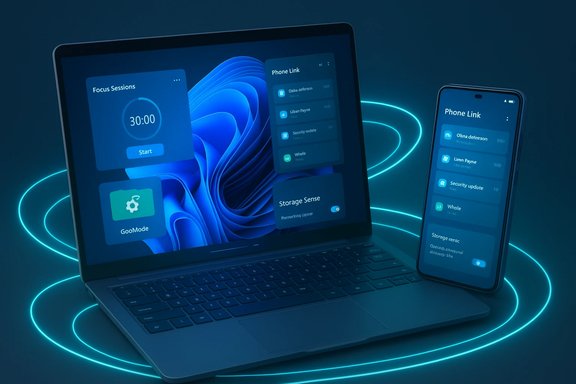
Pocket‑lint focuses on five practical features that unlock smartphone‑style convenience on Windows:essions** — a built‑in Do Not Disturb with a Pomodoro‑style timer and task visibility controls.- Phone Link — wireless pairing for messages, photos, notifications, calls, and, on supported devices,era passthrough. Setup uses a QR code and the Link to Windows mobile app.
- God Mode — a single shell folder (special GUID name) aggregating hundreds of Control Panel items for power users. Classic trick; convenient but potentially danderstand the settings you change.
- Virtual Desktops — create workspace separation for different tts quickly.
- Storage Sense — scheduled cleanup that can remove temporary files and convert rarely used OneDrive files to online‑only, saving k is small, straightforward to enable, and validated against Microsoft documentation and independent technical reporting; the practical win is real but bounded by device compatibility, privacy choices, and corporate management policies.
: step‑by‑step and why each one matters
Focus / Focus Sessions: control interruptions like you would on a phone
Focus Sessions (the modern Face of Focus Assist) is Windows’ way to silence distractions and time‑box work sessions.- Why it matters: Blocks interruptions while you run a timed work block, and encourages time‑boxed productivity.
- How to enable (quick):
- O > Focus.
- Or open the Clock app > Start focus session.
- Configure whether to show the timer, hide taskbar badges, and set automatic rules (e.g., during duplicating displays or specific hours).
Phone Link: the central continuity hub (Android‑first)
Phone Link insformative feature in practical smartphone‑to‑PC continuity for most users.- What it does: mirrors notifications, provides SMS/RCS messaging, shows and transfers photos, handles calls, and — on supported phones — streams apps and uses the phone camera as a webcam.
- System requirements: Windows 10 (October 2022 update) or Windows 11; Android 8.0+ (Android 1devices should be on the same Wi‑Fi network for many features.
- How to pair (concise):
- Open Phone Link on the PC.
- Install/open Link to Windows on your Android device.
- From Phone Link choose Pair with QR code and scan it with the Link to Windows app camera.
- Grant permissions (contacts, notifications, SMS, etc..
God Mode: one folder toor power users)
- What it is: a special shell folder aggregated by a GUID that lists hundreds of Windows settings. It doesn’t grant elevated privileges but provides fast accessHow to enable (classic):
- Create a new folder on the desktop.
- Rename it exactly to GodMode.{ED7BA470-8E54-465E-825C-99712043E01C} and press Enter.
Virtual Desktops: smartphone app‑style context switching
Virtual Desktops help you create separate workspaces (for work, entertainment, research) and switch quickly.- How to use: Win + Tab → New desktop. Switch with Win + Ctrl + Left/Right. Rename desktops for clarity.
Storaeanup that behaves like a phone’s storage management
- What it does: removes temporary files, empties the Recycle Bin on a schedule, and converts rarely used OneDrive files to onlial storage. Configure cadence and rules in Settings > System > Storage > Storage Sense.
Tools to consider beyond Windows: where third parties still win
ommon scenarios, but third‑party apps still solve niche gaps:- Advanced webcam control: tools like DroidCam (and virtual webcam drivers) provide manual exposure, multiple resolution choices, and virtual webcam support that works across apps.
- Device dashboarding and local telemetry: Pitikapp and similar local‑first dashboard apps old phone as a persistent PC performance panel (CPU/GPU temps, fan speeds, FPS) without sending telemetry to cloud services. The server/client model discovers the phone over the local network and renders configurable widgets.
glue: tools such as Pushbullet solved many problems before Microsoft integrated them. If you need platform‑agnostic parity (for example, stronger iPhone–Windows parity), third‑party tools remain relevant.
Apple OLED roadmap: what’s being claimed — and what independent reporting confirms
One of the uploaded items claimed that Apple’s OLED roadmap for iPads and MacBooks has been confirmed. That claim tracks multiple supply‑chain and analyst reports: analysis published by outlets such as MacRumors and reporting in hardware sites indicates Apple is moving more MacBook and iPad models to OLED in a staggered roadmap, including the 16‑inch MacBook Pro in 2025 (per some reports), the 14‑inch in 2026, and additional MacBook Air and iPad Pro transitions later. These reports often cite supply‑chain leaks and known analyst commentary. What the verification shows:- Multiple reputable tech outlets have reported that Apple intends to broaden OLED use beyond iPhone: MacRumors summarizes a multi‑year plan to transition iPad Pro and MacBook models to OLED, and Tom’s Hardware and other publications have reported similar timelines tied to supplier roadmaps and analyst claims.
- Reported benefits are typical for OLED: deeper contrast, improved color gamut, thinner panels, and potential power advantages when dark UI elements dominate. Some supply‑chain details suggest Apple may use advanced OLED stacks (for example, Color Filter on Encapsulation) to improve light efficiency and enable features like under‑display cameras on tablets.
- Timelines are fluid. Apple’s product schedule is tightly controlled and often staggered; rumors about specific model years and features come from analyst leaks and supply‑chain chatter and can change. Treat dates and exact model lists as provisional until Apple announces them.
- Feature trade‑offs remain. OLED brings superior contrast and thinness, but HDR peak brightness, long‑term burn‑in management, and color uniformity for large panels remain engineering targets that manufacturers must handle carefully. Claims of “confirmed” roadmaps deserve the usual skepticism until Apple publishes finalized specs.
The odd one out: DiCaprio’s rave — flagged as unverifiable
The uploaded sensational item about “DiCaprio’s Rave Just Changed Everything” appears to be a viral or sensational headline originating from a low‑profile outlet. There is no corroborating reporting from mainstream entertainment or tech news outlets in the verified searches, and the claim lacks transparent sourcing or independently verifiable evidence. Treat that piece as clickbait unless reputable outlets verify the event or its consequences. When a headline promises seismic industry shifts tied to a celebrity event, reli appear in mainstream coverage — until then it should be considered unverified.Security, privacy and management considerations — concrete checks
When you enable phone–PC continuity features, check these specific items:- Permissions audit: Phone Link requires notification access, contact access, SMS access and optionally call permissions on Android. Review these permissions before enabling sync.
- Account scope: Cloud clipb sync tie to your Microsoft account. If you handle sensitive text (passwords, tokens), disable automatic cloud clipboard sync and use manual copy/paste.
- OS privacy changes: Android’s privacy evolution can alter Phone Link behavior (e.g., Andive” notifications). If you rely on desktop visibility for 2FA codes, verify your phone’s notification privacy settings and whether your device uses the Companion Device Role (Samsung models may have exceptions).
- Enterprise policies: Managed devices and corporate policies can block or change functionality (e.g., restrict Device Administrator or Companion Device roles). If you’re on a work laptop or phone, consult your admin before enabling cross‑device sync.
- Local vs cloud processing: New AI and generative features (Photos edits, Snipping Tool OCR) may process data locally or in the cloud depending on app versions. Confirm the data‑handling model if you’re editing sensitive images or documents.
Troubleshooting: common problems and fixes
- QR sure both devices are on the same Wi‑Fi network.
- Confirm Link to Windows is installed and updated on your phone.
- If the QR scan stalls, try Pair manually and enter the code.
- Phone Link not showing certain notifications (2FA or “sensitive” notifications):
- Check your phone’s notification privacy settings (Android 15 introdufications” feature). You may need to disable enhanced notification privacy to surface some items, but that reduces protections. Consider the security trade‑off carefully. ([theverge.com](Windows warns Phone Link won’t show ‘sensitive’ Android 15 notifications or slow transfers:
- Phone Link often requires both devices on the same netwover guest or public Wi‑Fi. For large batches, use a direct transfer method (USB or cloud sync) or drag‑and‑drop via the Files app on Windows.
- Battery drain when keeping Phone Link active:
o‑PC mirroring can increase battery use if the phone constantly shares telemetry and notification data. Disable background activity on the phone when you don’t need continuous mirroring.
Quick reference: enable the five Pocket‑lint picks (cheat sheet)
- Focus (Focus Sessions): Settings > System > Focus OR Clock app → Start focus session. Toggle timer, hide badges, and set automatic rules.
- Phone Link: Open Phone Link on PC > Install/open Link to Windows on Android > Pair with QR code > Grant permissions. Minimum Android 8.0; Android 10+ recommended.
- God Mode: New folder → rename to GodMode.{ED7BA470-8E54-465E-825C-99712043E01C} → open aggregated settings.
- Virtual Desktops: Win + Tab → New desktop; switch with Win + Ctrl + Left/Right.
- Storage Sense: Settings > System > Storage > Storage Sense → toggle and configure cadence/online‑only rules. Mark critical files as “Always keep on this device” if you need offline access.
Final analysis and recommendation
Pocket‑lint’s practical checklist is a good, low‑friction way to give a PC the smartphone features it was missing: focused sessions for distraction control, Phone Link for cross‑device continuity, and simple administrative and cleanup tools that replicate phone convenience on the desktop. Each feature is verifiable against Microsoft documentation and independent reporting; the real‑world benefits are immediate and tangible for most users, especially Android owners who want to drop the USB cable habit.When it comes to the Apple OLED roadmap, multiple independent tech outlets report Apple plans to expand OLED across iPadose reports are consistent enough to treat the strategy as likely, though timelines and specific model rollouts remain provisional until Apple confirms. The golden rule: try built‑in features first — they’re integrated, often more secure by design, and typically sufficient for everyday workflows. Keep a shortlist of trusted third‑party tools for advanced needs (virtual webcams, offline dashboards, or cross‑platform parity), and always balance convenience against privacy and corporate governance. If a headline promises earth‑shattering change without corroboration from reputable outlets, treat it skeptically; verify with multiple authoritative sources before acting.
The net result: with a handful of settings and one short‑pairing session, most modern Windows PCs can adopt the best parts of a smartphone’s convenience while keeping management and privacy choices under the user’s control. Try one feature today — it often takes just five minutes to reclaim the time you’d otherwise waste swapping devices and chasing files.
Source: Pocket-lint https://www.pocket-lint.com/make-wi...1/18/dicaprios-rave-just-changed-everything/]
