
Microsoft’s recent message to Windows 10 holdouts — “install the latest update” — is good advice, and it lands against a long, sometimes messy history of hidden or manually distributed cumulative updates that require a careful, practical response from both consumers and IT professionals.
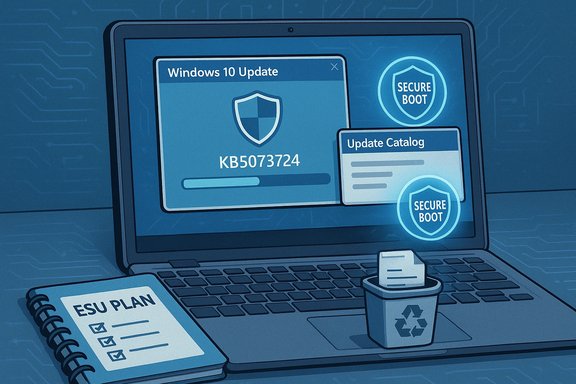
Windows 10’s lifecycle has shifted from frequent feature releases to a security-focused maintenance model for systems that remain on the platform. Microsoft stopped mainstream feature updates for most Windows 10 editions and now provides critical fixes and security updates only through targeted programs such as Extended Security Updates (ESU) and servicing channels for enterprise/LTSC builds. The mechanics of this change mean some updates are delivered to all eligible systems automatically while others are staged, targeted, or — in exceptional cases — distributed manually through the Microsoft Update Catalog. That duality — automatic Windows Update delivery versus manual or catalog-only releases — is crucial context. In January 2026 Microsoft published the ESU security rollup KB5073724 for eligible Windows 10 builds (19045.6809 / 19044.6809), and told users enrolled in ESU to install it; the package contains targeted Secure Boot certificate updates, a fix to a WinSqlite3.dll detection issue, and the removal of a few outdated modem drivers. For many machines enrolled in ESU, Microsoft will push the update automatically; for some scenarios administrators will need to pull installers from the Update Catalog. At the same time, Windows history includes episodes where Microsoft published a cumulative update only to the Update Catalog (manual install), rather than via Windows Update — the KB3140742 episode from February 2016 is one clear example. That update bumped the OS build to 10586.112 and circulated initially as a catalog-only package, prompting both curiosity and caution in the user community. The contrast between catalog-only rollouts and automatic distribution is instructive for anyone managing legacy devices today.
Administrators should treat the update as a risk transfer exercise: the security posture improves for modern, patched devices while older hardware either needs vendor-supplied fixes, protected isolation, or replacement. The prudent course combines rapid patch application for eligible systems with targeted compensating controls (network segmentation, reduced privileges, or client isolation) for devices that cannot be updated immediately.
Better practices would include:
Source: PCWorld https://www.pcworld.com/article/303...ould-install-the-latest-update.html]_**Source:** BetaNews https://betanews.com/article/micros...ate-that-takes-windows-10-to-build-10586-112/
 Background
Windows 10’s lifecycle has shifted from frequent feature releases to a security-focused maintenance model for systems that remain on the platform. Microsoft stopped mainstream feature updates for most Windows 10 editions and now provides critical fixes and security updates only through targeted programs such as Extended Security Updates (ESU) and servicing channels for enterprise/LTSC builds. The mechanics of this change mean some updates are delivered to all eligible systems automatically while others are staged, targeted, or — in exceptional cases — distributed manually through the Microsoft Update Catalog. That duality — automatic Windows Update delivery versus manual or catalog-only releases — is crucial context. In January 2026 Microsoft published the ESU security rollup KB5073724 for eligible Windows 10 builds (19045.6809 / 19044.6809), and told users enrolled in ESU to install it; the package contains targeted Secure Boot certificate updates, a fix to a WinSqlite3.dll detection issue, and the removal of a few outdated modem drivers. For many machines enrolled in ESU, Microsoft will push the update automatically; for some scenarios administrators will need to pull installers from the Update Catalog. At the same time, Windows history includes episodes where Microsoft published a cumulative update only to the Update Catalog (manual install), rather than via Windows Update — the KB3140742 episode from February 2016 is one clear example. That update bumped the OS build to 10586.112 and circulated initially as a catalog-only package, prompting both curiosity and caution in the user community. The contrast between catalog-only rollouts and automatic distribution is instructive for anyone managing legacy devices today. What the January 2026 update actually does
Key technical items in KB5073724
- Secure Boot certificate updates: The update includes a mechanism to deliver a subset of high-confidence device targeting data used to determine which devices should automatically receive updated Secure Boot certificates. This is a phased, telemetry-driven rollout designed to avoid accidentally bricking devices during a mass certificate change.
- WinSqlite3.dll remediation: KB5073724 updates the Windows core component WinSqlite3.dll to address false positives or detection issues with security products; the intent is to reduce erroneous vulnerability flags from third-party security tooling.
- Removal of legacy modem drivers: A small but nontrivial compatibility change is the removal of specific modem drivers (agrsm64.sys, agrsm.sys, smserl64.sys, smserial.sys). Machines relying on those legacy drivers will lose modem connectivity after installation unless a vendor-supplied replacement is available. Microsoft clearly documents this in the release note so organizations and end-users can plan device-specific remediation.
- Servicing stack and sequencing requirements: The cumulative update is bundled with modern servicing stack logic; Microsoft’s documentation reiterates installing the latest Servicing Stack Update (SSU) before applying LCUs (Latest Cumulative Updates) to avoid installation problems. This sequence is especially important when manually applying catalog packages or staging updates for large fleets.
Why these items matter
Secure Boot certificate rotation is a low-level, high-impact change — if mishandled it can render machines unable to boot securely or cause devices to fail validation checks in virtualized or cloud-hosted environments. Likewise, driver removals can break modem-based connections on older hardware; the combination of targeted certificate updates and driver pruning demonstrates Microsoft’s intent to harden modern Windows platforms while phasing out legacy, risky components. For ESU customers this is a logical, cautious approach; for unsupported home users or legacy hardware owners, the changes are a concrete reminder that staying on Windows 10 carries growing compatibility risk.The KB3140742 episode: a useful case study
What happened in 2016
In February 2016 Microsoft published KB3140742 as a cumulative update for Windows 10 Version 1511. The update was initially visible in the Microsoft Update Catalog and raised the OS build to 10586.112. It appeared to be a catalog-only release at first — meaning administrators and curious users had to download and apply the MSU package manually rather than receive it via Windows Update. At the time the lack of public release notes and the manual distribution path prompted advice to avoid installing it on production systems until the update was confirmed stable.Takeaways from that release
- Manual/catalog-only distribution can be a sign of a targeted or testing-first rollout. Microsoft sometimes uses the Update Catalog to stage fixes that are not yet ready for broad automated deployment.
- Lack of immediate release notes and corporate communication increases user uncertainty. Community forums and independent sites filled the information gap, but that increases risk for less technical users.
- The update was cumulative and replaced earlier updates, which is the normal cumulative model — but the manual-only delivery pushed administrators to be conservative and test before mass deployment.
Why Microsoft ships manual or catalog-only updates
There are legitimate technical reasons for catalog-only or manual distribution:- Targeted rollouts and risk mitigation: Some fixes require controlled, telemetry-driven rollouts or device targeting to ensure reliability. Rolling the change out through the Update Catalog first lets Microsoft collect feedback and limit exposure.
- Servicing stack or prerequisite sequencing: Certain servicing stack or binary changes must be staged because incorrect sequencing can prevent later updates from installing.
- Licensing or entitlement gating: ESU packages and some specialized fixes are gated behind eligibility checks; catalog installers are used when entitlement checks are performed server-side or through enrollment workflows.
- Emergency or out-of-band fixes: Critical issues occasionally require immediate manual distribution, especially when normal channels are delayed or causing conflicts.
These are valid operational choices, but they trade transparency for control — leaving non-technical users to interpret cryptic catalog entries and independent write-ups.
Risks and real-world impact
For consumers and small businesses
- Compatibility surprises: Driver removals (as in KB5073724) can disable hardware on older machines that the owner may have relied on for specialized connectivity.
- False positives and AV interactions: Component updates (WinSqlite3.dll) are intended to reduce false positives, but they can also momentarily upset third-party security tooling until signatures are updated.
- Manual-install complexity: Catalog downloads, SSU sequencing, and wusa/dism uninstalls are non-trivial for inexperienced users and raise the bar for safe manual remediation.
For enterprise administrators
- Staging and testing hurdles: Organizations must validate new SSU+LCU combinations in lab environments before broad deployment to avoid outages.
- Licensing and enrollment traps: ESU enrollment is mandatory to receive months’ ESU updates; earlier enrollment bugs and entitlement issues required Microsoft to ship out‑of‑band fixes to restore enrollment flows. If enrollment is misconfigured or backend entitlements are inconsistent, updates may not be offered automatically. Community and Microsoft guidance during past ESU rollouts emphasized checking enrollment and servicing stacks carefully.
A concrete deadline to plan around
For organizations and users relying on ESU as a stopgap, the extension is time-limited. Treat the ESU period as a migration window: after the ESU end-date devices will stop receiving official security rollups unless another support contract is in place. That deadline for consumer ESU programs has been explicitly stated in Microsoft’s rollout planning and community guidance; plan migrations accordingly rather than expecting indefinite support.Recommended, practical steps (for consumers and admins)
If you or your organization are running Windows 10 and either are ESU-eligible or manage legacy devices, follow this concise checklist.- Confirm your Windows version and build (run winver).
- If you’re an ESU customer: confirm enrollment status in Settings → Windows Update → Enroll now (consumer wizard) or verify volume/entitlement status with Microsoft if you use enterprise licensing. If you encounter enrollment failures, install any out-of-band enrollment repair packages Microsoft has published before retrying enrollment.
- Always install the latest Servicing Stack Update (SSU) before applying cumulative updates when manually installing packages. Microsoft’s KB pages list exact SSU prerequisites.
- Back up critical data and create a system image before applying manual MSU installs or performing image servicing.
- Test updates on a non-production machine (one representative device) to confirm drivers and apps behave as expected.
- For fleet deployment, stage via WSUS/ConfigMgr with a pilot ring, monitor telemetry, and only expand after verification.
- If a device loses functionality (e.g., modem drivers removed), consult the vendor for replacement drivers or plan hardware replacement for unsupported components.
A few technical notes for admins: when using the Update Catalog, prefer the combined SSU+LCU packages Microsoft publishes; if you select standalone LSUs or LCUs, ensure SSUs recommended in Microsoft’s guidance are installed first. Also collect WindowsUpdate, CBS, and SetupAPI logs when troubleshooting failed applies — these logs help Microsoft and vendors diagnose installation failures.
Deployment best practices and hardening guidance
- Adopt a staged rollout model: 1) lab validation, 2) pilot group, 3) broad deployment. Use telemetry and endpoint management tools to flag regressions early.
- Keep the SSU chain current: servicing stack mismatches are a frequent cause of failed updates; automate SSU application in your baseline images.
- Map hardware dependencies: maintain an inventory of devices that rely on legacy drivers or specialized modems; decommission or replace hardware that cannot be patched safely.
- Document ESU entitlements and accounts: ensure that the Microsoft Accounts or business entitlements used for ESU enrollment are controlled and recorded; broken enrollments can block updates until entitlement is verified. Past ESU rollouts saw enrollment issues that required targeted out-of-band packages to fix.
Security perspective: what the updates mean for risk management
From a security standpoint, the January 2026 ESU update is exactly what ESU is for: it patches vulnerabilities, updates low-level components to avoid false positives, and rotates certificates to preserve boot integrity. The removal of legacy drivers is a defensible security move — unsupported modem drivers often contain unpatched vulnerabilities and create an attack surface for remote compromise — but the trade-off is operational disruption for owners of older hardware.Administrators should treat the update as a risk transfer exercise: the security posture improves for modern, patched devices while older hardware either needs vendor-supplied fixes, protected isolation, or replacement. The prudent course combines rapid patch application for eligible systems with targeted compensating controls (network segmentation, reduced privileges, or client isolation) for devices that cannot be updated immediately.
Transparency and communication: what Microsoft and vendors can do better
Both the KB3140742 catalog-only episode and recent ESU rollouts highlight a consistent need: clearer, earlier communication. Catalog-only releases are often technically necessary, but they carry outsized PR risk if release notes and impact statements aren’t published in tandem.Better practices would include:
- Publishing a short advisory in parallel with catalog entries that states the intent, affected builds, and rollback guidance.
- Flagging driver removals or other breaking changes clearly in the update title and description, not buried in file lists.
- Providing troubleshooting scripts or explicit log paths for common enrollment or apply failure modes.
Final assessment and action plan
- If you are on Windows 10 and enrolled in ESU: install KB5073724 promptly after ensuring the required SSU is in place. Expect the update to be offered automatically, but use the Update Catalog if you must apply manually. Back up first, and follow a pilot-phase rollout if you're managing multiple devices.
- If you are on Windows 10 and not enrolled: plan a migration. ESU is a time-limited lifeline — treat it as a one-year window to upgrade hardware or move workloads. Do not assume indefinite support. Community guidance and Microsoft announcements underline the finite nature of ESU and the need to migrate before the program ends.
- If you maintain older hardware tied to legacy modems or drivers: identify those endpoints now, make replacement plans, or isolate them on segmented networks. Driver removal is a realistic possibility when software vendors decide to sunset risky components.
- If you’re a Windows enthusiast or power user: don’t avoid patching out of fear. Instead, build safe habits: image backups, disposable test machines, and clear recovery processes. History shows manual catalog updates are sometimes necessary — but they are rarely urgent for average users unless the KB explicitly states a critical security fix for a device you depend on.
Microsoft’s update cadence for Windows 10 has evolved from universal monthly rollups to a model that mixes automation, targeted distribution, and entitlement checks. That complexity is the trade-off for continued security support into a platform’s twilight. The practical conclusion is simple: when Microsoft tells you to install the latest update, take the prompt seriously — but install it safely: confirm prerequisites, back up, test, and stage. The KB3140742 catalog episode from 2016 taught the community caution; KB5073724 shows why that caution remains relevant — whether you’re a solo user keeping an old laptop running or an administrator managing hundreds of endpoints.
Summary action checklist (one-page): - Run winver and note OS build.
- Confirm ESU enrollment if applicable.
- Install SSU before LCU when applying catalog packages.
- Test on a pilot device; back up and image before mass deployment.
- Map hardware dependencies for legacy drivers; plan replacements if necessary.
- Schedule migration off Windows 10 within the ESU window; do not rely on indefinite fixes.
Source: PCWorld https://www.pcworld.com/article/303...ould-install-the-latest-update.html]_**Source:** BetaNews https://betanews.com/article/micros...ate-that-takes-windows-10-to-build-10586-112/
Last edited:
