

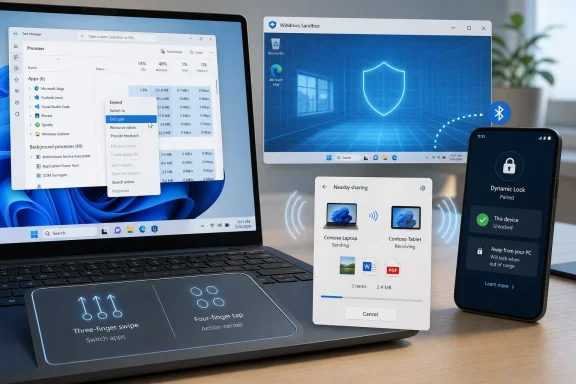
Windows has several underused built-in features in Windows 10 and Windows 11, including Nearby Sharing, customizable touchpad gestures, Dynamic Lock, Windows Sandbox, and a taskbar End Task command that can simplify daily PC use without installing extra utilities. The more interesting story is not that these tools exist, but that Microsoft has buried many of them just deeply enough that ordinary users never build habits around them. Windows remains a sprawling operating system with surprisingly good ideas scattered across Settings, legacy dialogs, security panels, and developer menus. That sprawl is both its superpower and its recurring self-inflicted wound.
The MakeUseOf piece that kicked this discussion off is right about the broad problem: Windows has a discoverability crisis. Microsoft is very good at promoting the big-ticket features it wants people to associate with a new release — Copilot, Snap layouts, Widgets, Windows Hello, gaming improvements — but much less consistent about surfacing the smaller utilities that reduce friction every day.
That matters because operating systems are judged less by their keynote slides than by the five-second annoyances they remove. A built-in file handoff tool, an automatic lock when you leave your desk, a disposable test environment, and a quicker way to kill a frozen app are not glamorous features. They are the sort of things that make a machine feel more cooperative.
The irony is that Windows power users often install third-party tools to solve problems Windows already has partial answers for. Sometimes those third-party tools are better. But just as often, users are reaching outside the OS because Microsoft never taught them what was already inside it.
Nearby Sharing, Dynamic Lock, Sandbox, precision touchpad gestures, and taskbar End Task are not secret in the strict sense. They are documented, searchable, and available through Settings or Windows Features. But in practical terms, a feature might as well be hidden if most users only find it through a blog post, a forum thread, or a frustrated late-night search.
Windows already has a native answer. Nearby Sharing uses Bluetooth and Wi-Fi to discover nearby Windows PCs and move files, links, photos, and documents between them. In spirit, it is Microsoft’s answer to AirDrop, although in practice it has never achieved AirDrop’s cultural visibility or reputation for near-magical reliability.
That comparison is revealing. Apple made AirDrop feel like part of the social fabric of its devices. Microsoft made Nearby Sharing feel like a setting. The difference is not merely marketing; it is integration, confidence, and repetition. Users trust features they see often, and they forget features that live three clicks below the surface.
Nearby Sharing works best for small, casual transfers. That is not a criticism so much as a realistic boundary. If you are moving a video archive, a disk image, or a multi-gigabyte folder, a wired connection, network share, cloud sync folder, or a dedicated transfer tool may still be the better option. But for the ordinary debris of modern work — screenshots, receipts, PDFs, notes, exported logs — the built-in option is good enough that more Windows users should know it exists.
The feature also illustrates a recurring Windows problem: Microsoft builds useful bridges, then leaves users to discover which bridge applies to which river. Nearby Sharing is for nearby Windows devices. Phone Link is for tying Android phones to Windows. OneDrive handles cloud sync. SMB shares remain the grown-up answer for persistent local-network access. None of those tools is wrong, but the overlap makes the simplest use case feel oddly fragmented.
For home users, the advice is straightforward: turn on Nearby Sharing for your own devices, test it before you need it, and treat it as a quick handoff tool rather than a universal file-transfer system. For administrators, the question is more policy-driven. File sharing features can be convenient, but convenience is still data movement, and data movement belongs in the same governance conversation as removable drives, consumer cloud storage, and unmanaged messaging apps.
It is now more than that. Windows lets users customize three-finger and four-finger gestures for actions like switching apps, showing the desktop, opening search, controlling media, and launching other system behaviors. On a laptop, that turns the touchpad into a command surface, not just a pointer.
This is one of those features whose value compounds with habit. A three-finger swipe down to clear the desktop is useful. A custom tap to launch search or control playback is useful. A four-finger gesture tied to notifications or desktop switching can be useful. But the feature only becomes powerful after the user stops thinking about it.
Microsoft’s challenge here is that gestures are invisible. A button can advertise itself. A menu can be browsed. A gesture has to be learned, remembered, and practiced before it feels natural. That makes gesture customization easy to underappreciate, even when it is one of the best laptop productivity features Windows has.
There is also a hardware caveat. The experience depends on the quality of the touchpad and driver support. A premium laptop with a large precision touchpad can make Windows gestures feel fluid and deliberate. A cramped or inconsistent touchpad can make the same feature feel like a parlor trick.
Still, this is one of the rare Windows features that can change a user’s relationship with the machine. Keyboard shortcuts reward memorization. Touchpad gestures reward muscle memory. Once they stick, going back to a generic external mouse can feel strangely limiting.
It is tempting to oversell this. Dynamic Lock is not a replacement for pressing Windows+L when you stand up. It does not unlock the PC when you return. Bluetooth range can be messy, and the lock is not instantaneous in the way a security professional would want for a strict control. The feature is best understood as a safety net, not a seatbelt.
That distinction matters. In security, defaults and fallbacks do a lot of work. People forget. People get interrupted. People step away “for ten seconds” and return ten minutes later. A delayed automatic lock is still better than an unlocked machine sitting unattended indefinitely.
For administrators, Dynamic Lock sits in an interesting middle ground. It is simple enough for consumers, but it overlaps with enterprise concerns around identity, device compliance, and physical security. In managed environments, the more relevant question is not whether Dynamic Lock is clever. It is whether it fits into policy alongside screen timeout rules, Windows Hello, BitLocker, conditional access, and user training.
For individuals, the calculation is easier. If you already carry a phone and use Bluetooth, Dynamic Lock is a low-effort improvement. It will not save you from every careless moment, but it can catch some of them. In security, that is often the whole game: not perfection, but one more layer that works when attention fails.
For IT pros and enthusiasts, that is gold. The modern Windows ecosystem is full of questionable installers, unsigned utilities, scripts copied from forums, browser downloads, email attachments, and “just test this one thing” moments. Sandbox gives those moments a safer container.
The feature’s limitations are important. Windows Sandbox is not available on Windows Home editions. It requires virtualization support. It is not a full malware-analysis lab, and no one should treat it as a magic blast chamber for handling known-dangerous samples on a production machine. But for routine caution, it is one of the most useful security-adjacent tools Microsoft ships.
Its existence also says something larger about Windows. Microsoft knows that users need disposable environments. Developers use virtual machines and containers. Security researchers use labs. Enterprises use application control and endpoint detection. Sandbox brings a simplified version of that idea to the desktop, where the line between ordinary curiosity and system risk is often one double-click.
The frustrating part is that many eligible users never turn it on. It sits behind the “Turn Windows features on or off” dialog, a legacy-feeling interface that still contains some of the OS’s most consequential switches. That location makes sense historically, but not experientially. A user who would benefit from Sandbox is exactly the sort of user who may not know to look there.
Windows Sandbox deserves a more prominent place in Microsoft’s security story. Not because everyone should use it every day, but because it teaches the right instinct: test uncertain things in a disposable place. That is a healthier message than pretending users will simply stop downloading risky files.
Traditionally, the answer was Task Manager. That is fine for troubleshooting, but heavy for a simple “make this stop.” The newer taskbar End Task command lets users right-click an app’s taskbar icon and terminate it directly, once the feature is enabled in Settings.
The placement is odd. Microsoft has tucked it under developer-oriented settings, even though frozen apps are not a developer-only problem. If anything, less technical users are more likely to benefit from a visible escape hatch, provided it is labeled and explained clearly.
There is a reason for caution. Ending a task is not the same as gracefully exiting an application. Unsaved work can be lost. Background sync can be interrupted. Apps that are supposed to run in the tray — messaging clients, cloud sync tools, VPN utilities, audio controllers — may stop doing useful work if killed indiscriminately. Microsoft likely does not want every user treating End Task as the normal way to close software.
But the feature is still a net win. Windows has long needed a middle path between “click X and hope” and “open Task Manager, find the process, and kill it.” The taskbar is the place users already associate with running apps. Putting a termination command there is logical, overdue, and very Windows: powerful, slightly hidden, and potentially dangerous if misunderstood.
For sysadmins supporting Windows 11 fleets, the command is also culturally useful. It gives users a sanctioned way to deal with a stuck foreground app without walking them through Task Manager over chat or phone. That does not replace support, but it may reduce the number of trivial escalations caused by one frozen window.
Those are compelling stories, but Windows does not present them that way. Instead, each feature appears as a setting, a checkbox, a submenu, or a line in documentation. The user is left to assemble the philosophy from scattered parts.
This has been true of Windows for decades. The platform accumulates capabilities faster than it explains them. Power users eventually discover the good stuff. Enterprises document the bits they standardize. Everyone else uses the defaults and assumes that whatever is not obvious must not exist.
Microsoft’s current Windows strategy makes the contrast sharper. The company is eager to place AI features, cloud integrations, and account-based services in front of users. Meanwhile, practical local features often remain quiet. That imbalance feeds the perception that Windows is pushy about Microsoft’s priorities and coy about the user’s.
The criticism should not be that Microsoft talks about new features. It should. The criticism is that the OS often fails to distinguish between promotional surfaces and genuinely useful affordances. If a feature helps users avoid a cable, secure a session, test risky software, or recover from an app hang, it deserves better than burial in Settings archaeology.
But discoverability is not the same as clutter. Microsoft does not need to dump every advanced feature onto the desktop. It needs better pathways from common user problems to built-in solutions. “I need to send this file to the laptop beside me” should naturally reveal Nearby Sharing. “This app froze” should reveal taskbar End Task. “I want to test this installer safely” should reveal Sandbox, at least on editions that support it.
The Settings app has improved over the years, but it still feels like a compromise between modern design and inherited control-panel logic. Search helps, but only if users know the right words. A person looking for “AirDrop for Windows” may not think to search “Nearby Sharing.” A person looking for “lock when I walk away” may not know the phrase “Dynamic Lock.”
Windows also suffers from edition confusion. Sandbox being unavailable on Home is understandable from a product segmentation and virtualization-management perspective, but it means many users who read about the feature will hit a wall. That experience teaches users not “my edition lacks this,” but “Windows advice is unreliable.” The distinction matters less emotionally than it does technically.
The answer is not to flatten Windows into a tablet OS. The answer is contextual surfacing. When a user right-clicks a file and opens Share, Windows can do more to explain nearby device sharing. When an app stops responding, the taskbar could offer a plain-language recovery path. When SmartScreen or Defender warns about an unknown app, Windows could suggest Sandbox on supported editions. These are not ads; they are timely interventions.
This is where Windows’ consumer and enterprise personalities collide. A feature that feels liberating on a personal laptop can be risky on a regulated workstation. A feature that helps a developer test a tool can violate a locked-down endpoint policy. Microsoft has to design for both, and administrators have to decide which conveniences are worth enabling.
The practical approach is not blanket suspicion. Nearby Sharing can be limited or disabled where inappropriate. Dynamic Lock can complement existing lock policies. Sandbox can be valuable for IT staff, developers, and security teams even if it is not broadly exposed. End Task can be useful on knowledge-worker devices while remaining a training issue for apps with background components.
The bigger enterprise lesson is that “hidden Windows features” should not be left to user folklore. If an organization wants people to use Windows effectively, it should document the approved small features just as it documents VPN access, MFA enrollment, and Teams etiquette. A two-page internal guide to practical Windows capabilities may do more for productivity than another generic digital-transformation memo.
For IT departments, the underused nature of these tools is an opportunity. The best support ticket is the one that never happens because the user had a safe, known path to solve the problem. Microsoft supplies some of those paths. Organizations have to decide whether to pave them.
A good hidden feature feels like proof that Windows can still be generous. It says: here is a thing you needed, already included, no subscription required, no extra installer, no new account funnel. That feeling is valuable at a time when many users are weary of prompts, recommendations, cloud nudges, and AI branding.
But hidden generosity is still hidden. If users only learn about these tools through third-party writeups, Microsoft is outsourcing one of the most important parts of product design: helping people understand what the product can do. Documentation is not enough. A feature that solves an everyday problem should meet the user somewhere near that problem.
There is also a reputational cost. When Windows users discover useful built-ins years late, the reaction is not always delight. Sometimes it is irritation: why did no one tell me this was here? That irritation becomes part of the ambient Windows narrative, the sense that the OS is both indispensable and unnecessarily opaque.
This is where Microsoft could learn from its own best moments. Snap Assist became widely used because it mapped to an obvious action and kept showing up at the right time. Clipboard history gained traction because the shortcut was memorable and the benefit immediate. The lesser-known features need similar treatment: not nagging, not promotion, but useful surfacing.
Windows has always been an operating system of layers: consumer polish over enterprise machinery, new Settings pages over old control panels, cloud-era ambitions over decades of local capability. The features highlighted here are reminders that some of the best Windows improvements are not sweeping reinventions but small acts of respect for the user’s time. If Microsoft wants Windows to feel less like a platform constantly asking for attention and more like a tool quietly earning trust, it should start by bringing these buried conveniences closer to the moments when people actually need them.
 Windows Is Better Than Its Onboarding
The MakeUseOf piece that kicked this discussion off is right about the broad problem: Windows has a discoverability crisis. Microsoft is very good at promoting the big-ticket features it wants people to associate with a new release — Copilot, Snap layouts, Widgets, Windows Hello, gaming improvements — but much less consistent about surfacing the smaller utilities that reduce friction every day.That matters because operating systems are judged less by their keynote slides than by the five-second annoyances they remove. A built-in file handoff tool, an automatic lock when you leave your desk, a disposable test environment, and a quicker way to kill a frozen app are not glamorous features. They are the sort of things that make a machine feel more cooperative.
The irony is that Windows power users often install third-party tools to solve problems Windows already has partial answers for. Sometimes those third-party tools are better. But just as often, users are reaching outside the OS because Microsoft never taught them what was already inside it.
Nearby Sharing, Dynamic Lock, Sandbox, precision touchpad gestures, and taskbar End Task are not secret in the strict sense. They are documented, searchable, and available through Settings or Windows Features. But in practical terms, a feature might as well be hidden if most users only find it through a blog post, a forum thread, or a frustrated late-night search.
Nearby Sharing Shows the Promise and the Limits of Native Convenience
Nearby Sharing is the easiest of these features to understand because everyone has needed it at some point. You have a screenshot on one laptop and need it on another. You have a PDF on a desktop and want it on the machine across the room. The obvious paths are often clumsy: email it to yourself, upload it to OneDrive, plug in a USB drive, open a chat app, or install a cross-platform transfer utility.Windows already has a native answer. Nearby Sharing uses Bluetooth and Wi-Fi to discover nearby Windows PCs and move files, links, photos, and documents between them. In spirit, it is Microsoft’s answer to AirDrop, although in practice it has never achieved AirDrop’s cultural visibility or reputation for near-magical reliability.
That comparison is revealing. Apple made AirDrop feel like part of the social fabric of its devices. Microsoft made Nearby Sharing feel like a setting. The difference is not merely marketing; it is integration, confidence, and repetition. Users trust features they see often, and they forget features that live three clicks below the surface.
Nearby Sharing works best for small, casual transfers. That is not a criticism so much as a realistic boundary. If you are moving a video archive, a disk image, or a multi-gigabyte folder, a wired connection, network share, cloud sync folder, or a dedicated transfer tool may still be the better option. But for the ordinary debris of modern work — screenshots, receipts, PDFs, notes, exported logs — the built-in option is good enough that more Windows users should know it exists.
The feature also illustrates a recurring Windows problem: Microsoft builds useful bridges, then leaves users to discover which bridge applies to which river. Nearby Sharing is for nearby Windows devices. Phone Link is for tying Android phones to Windows. OneDrive handles cloud sync. SMB shares remain the grown-up answer for persistent local-network access. None of those tools is wrong, but the overlap makes the simplest use case feel oddly fragmented.
For home users, the advice is straightforward: turn on Nearby Sharing for your own devices, test it before you need it, and treat it as a quick handoff tool rather than a universal file-transfer system. For administrators, the question is more policy-driven. File sharing features can be convenient, but convenience is still data movement, and data movement belongs in the same governance conversation as removable drives, consumer cloud storage, and unmanaged messaging apps.
The Touchpad Became a Control Surface While Nobody Was Looking
Windows laptops used to lose the input-device argument before the conversation started. MacBooks had smooth gestures and predictable trackpads; Windows machines had a lottery of drivers, hardware quality, palm rejection, and vendor utilities. Precision touchpads changed that story over time, but many users still behave as if the touchpad is just a mouse substitute.It is now more than that. Windows lets users customize three-finger and four-finger gestures for actions like switching apps, showing the desktop, opening search, controlling media, and launching other system behaviors. On a laptop, that turns the touchpad into a command surface, not just a pointer.
This is one of those features whose value compounds with habit. A three-finger swipe down to clear the desktop is useful. A custom tap to launch search or control playback is useful. A four-finger gesture tied to notifications or desktop switching can be useful. But the feature only becomes powerful after the user stops thinking about it.
Microsoft’s challenge here is that gestures are invisible. A button can advertise itself. A menu can be browsed. A gesture has to be learned, remembered, and practiced before it feels natural. That makes gesture customization easy to underappreciate, even when it is one of the best laptop productivity features Windows has.
There is also a hardware caveat. The experience depends on the quality of the touchpad and driver support. A premium laptop with a large precision touchpad can make Windows gestures feel fluid and deliberate. A cramped or inconsistent touchpad can make the same feature feel like a parlor trick.
Still, this is one of the rare Windows features that can change a user’s relationship with the machine. Keyboard shortcuts reward memorization. Touchpad gestures reward muscle memory. Once they stick, going back to a generic external mouse can feel strangely limiting.
Dynamic Lock Is Not Security Theater, but It Is Not a Security Strategy
Dynamic Lock is a small feature with a serious premise: your PC should notice when you walk away. Pair a phone over Bluetooth, enable the setting, and Windows can automatically lock the device after the phone moves out of range. For home users, that may protect a session from children, roommates, or accidental interference. For office workers, it can reduce the odds of leaving a workstation exposed.It is tempting to oversell this. Dynamic Lock is not a replacement for pressing Windows+L when you stand up. It does not unlock the PC when you return. Bluetooth range can be messy, and the lock is not instantaneous in the way a security professional would want for a strict control. The feature is best understood as a safety net, not a seatbelt.
That distinction matters. In security, defaults and fallbacks do a lot of work. People forget. People get interrupted. People step away “for ten seconds” and return ten minutes later. A delayed automatic lock is still better than an unlocked machine sitting unattended indefinitely.
For administrators, Dynamic Lock sits in an interesting middle ground. It is simple enough for consumers, but it overlaps with enterprise concerns around identity, device compliance, and physical security. In managed environments, the more relevant question is not whether Dynamic Lock is clever. It is whether it fits into policy alongside screen timeout rules, Windows Hello, BitLocker, conditional access, and user training.
For individuals, the calculation is easier. If you already carry a phone and use Bluetooth, Dynamic Lock is a low-effort improvement. It will not save you from every careless moment, but it can catch some of them. In security, that is often the whole game: not perfection, but one more layer that works when attention fails.
Windows Sandbox Is the Disposable PC Hiding in Plain Sight
Windows Sandbox may be the most powerful feature on the list, and also the one Microsoft has the best excuse for hiding from mainstream users. It creates an isolated, temporary Windows environment using virtualization technology, giving users a place to run an installer, open a suspicious file, or test a configuration without committing changes to the host system. Close the Sandbox, and the environment is wiped.For IT pros and enthusiasts, that is gold. The modern Windows ecosystem is full of questionable installers, unsigned utilities, scripts copied from forums, browser downloads, email attachments, and “just test this one thing” moments. Sandbox gives those moments a safer container.
The feature’s limitations are important. Windows Sandbox is not available on Windows Home editions. It requires virtualization support. It is not a full malware-analysis lab, and no one should treat it as a magic blast chamber for handling known-dangerous samples on a production machine. But for routine caution, it is one of the most useful security-adjacent tools Microsoft ships.
Its existence also says something larger about Windows. Microsoft knows that users need disposable environments. Developers use virtual machines and containers. Security researchers use labs. Enterprises use application control and endpoint detection. Sandbox brings a simplified version of that idea to the desktop, where the line between ordinary curiosity and system risk is often one double-click.
The frustrating part is that many eligible users never turn it on. It sits behind the “Turn Windows features on or off” dialog, a legacy-feeling interface that still contains some of the OS’s most consequential switches. That location makes sense historically, but not experientially. A user who would benefit from Sandbox is exactly the sort of user who may not know to look there.
Windows Sandbox deserves a more prominent place in Microsoft’s security story. Not because everyone should use it every day, but because it teaches the right instinct: test uncertain things in a disposable place. That is a healthier message than pretending users will simply stop downloading risky files.
Taskbar End Task Is the Tiny Admission Windows Needed to Make
The taskbar End Task option is a wonderfully revealing feature because it quietly admits something every Windows user already knows: sometimes apps do not close cleanly, and Task Manager is more ceremony than the moment requires. Clicking the X in a window often closes the window, not necessarily the process. Some apps minimize to the tray. Some hang. Some continue chewing memory, CPU, battery, or network resources after the user thinks the interaction is over.Traditionally, the answer was Task Manager. That is fine for troubleshooting, but heavy for a simple “make this stop.” The newer taskbar End Task command lets users right-click an app’s taskbar icon and terminate it directly, once the feature is enabled in Settings.
The placement is odd. Microsoft has tucked it under developer-oriented settings, even though frozen apps are not a developer-only problem. If anything, less technical users are more likely to benefit from a visible escape hatch, provided it is labeled and explained clearly.
There is a reason for caution. Ending a task is not the same as gracefully exiting an application. Unsaved work can be lost. Background sync can be interrupted. Apps that are supposed to run in the tray — messaging clients, cloud sync tools, VPN utilities, audio controllers — may stop doing useful work if killed indiscriminately. Microsoft likely does not want every user treating End Task as the normal way to close software.
But the feature is still a net win. Windows has long needed a middle path between “click X and hope” and “open Task Manager, find the process, and kill it.” The taskbar is the place users already associate with running apps. Putting a termination command there is logical, overdue, and very Windows: powerful, slightly hidden, and potentially dangerous if misunderstood.
For sysadmins supporting Windows 11 fleets, the command is also culturally useful. It gives users a sanctioned way to deal with a stuck foreground app without walking them through Task Manager over chat or phone. That does not replace support, but it may reduce the number of trivial escalations caused by one frozen window.
The Best Windows Features Often Live Where Product Strategy Goes to Die
The common thread across these tools is not that they are obscure. It is that they are under-narrated. Microsoft rarely gives them a coherent story. Nearby Sharing is about local continuity. Gestures are about laptop fluency. Dynamic Lock is about physical-world security. Sandbox is about disposable trust. End Task is about user control when software misbehaves.Those are compelling stories, but Windows does not present them that way. Instead, each feature appears as a setting, a checkbox, a submenu, or a line in documentation. The user is left to assemble the philosophy from scattered parts.
This has been true of Windows for decades. The platform accumulates capabilities faster than it explains them. Power users eventually discover the good stuff. Enterprises document the bits they standardize. Everyone else uses the defaults and assumes that whatever is not obvious must not exist.
Microsoft’s current Windows strategy makes the contrast sharper. The company is eager to place AI features, cloud integrations, and account-based services in front of users. Meanwhile, practical local features often remain quiet. That imbalance feeds the perception that Windows is pushy about Microsoft’s priorities and coy about the user’s.
The criticism should not be that Microsoft talks about new features. It should. The criticism is that the OS often fails to distinguish between promotional surfaces and genuinely useful affordances. If a feature helps users avoid a cable, secure a session, test risky software, or recover from an app hang, it deserves better than burial in Settings archaeology.
Power Users Should Not Be the Only Ones Who Get a Better Windows
There is a familiar defense of Windows complexity: choice requires complexity. That is partly true. Windows serves gamers, accountants, developers, students, governments, factories, hospitals, and hobbyists. A single clean interface cannot expose every capability without becoming noise.But discoverability is not the same as clutter. Microsoft does not need to dump every advanced feature onto the desktop. It needs better pathways from common user problems to built-in solutions. “I need to send this file to the laptop beside me” should naturally reveal Nearby Sharing. “This app froze” should reveal taskbar End Task. “I want to test this installer safely” should reveal Sandbox, at least on editions that support it.
The Settings app has improved over the years, but it still feels like a compromise between modern design and inherited control-panel logic. Search helps, but only if users know the right words. A person looking for “AirDrop for Windows” may not think to search “Nearby Sharing.” A person looking for “lock when I walk away” may not know the phrase “Dynamic Lock.”
Windows also suffers from edition confusion. Sandbox being unavailable on Home is understandable from a product segmentation and virtualization-management perspective, but it means many users who read about the feature will hit a wall. That experience teaches users not “my edition lacks this,” but “Windows advice is unreliable.” The distinction matters less emotionally than it does technically.
The answer is not to flatten Windows into a tablet OS. The answer is contextual surfacing. When a user right-clicks a file and opens Share, Windows can do more to explain nearby device sharing. When an app stops responding, the taskbar could offer a plain-language recovery path. When SmartScreen or Defender warns about an unknown app, Windows could suggest Sandbox on supported editions. These are not ads; they are timely interventions.
Enterprise IT Will See Both Utility and Governance Problems
For managed environments, these features split into two categories: helpful user empowerment and potential policy headaches. Dynamic Lock and Sandbox align neatly with security thinking, but even there, admins will want control. Nearby Sharing is convenient, but file movement between nearby PCs may conflict with data-loss prevention expectations. Taskbar End Task may reduce helpdesk calls, but it may also encourage users to kill business-critical agents if the interface is not constrained.This is where Windows’ consumer and enterprise personalities collide. A feature that feels liberating on a personal laptop can be risky on a regulated workstation. A feature that helps a developer test a tool can violate a locked-down endpoint policy. Microsoft has to design for both, and administrators have to decide which conveniences are worth enabling.
The practical approach is not blanket suspicion. Nearby Sharing can be limited or disabled where inappropriate. Dynamic Lock can complement existing lock policies. Sandbox can be valuable for IT staff, developers, and security teams even if it is not broadly exposed. End Task can be useful on knowledge-worker devices while remaining a training issue for apps with background components.
The bigger enterprise lesson is that “hidden Windows features” should not be left to user folklore. If an organization wants people to use Windows effectively, it should document the approved small features just as it documents VPN access, MFA enrollment, and Teams etiquette. A two-page internal guide to practical Windows capabilities may do more for productivity than another generic digital-transformation memo.
For IT departments, the underused nature of these tools is an opportunity. The best support ticket is the one that never happens because the user had a safe, known path to solve the problem. Microsoft supplies some of those paths. Organizations have to decide whether to pave them.
The Hidden-Feature Beat Is Really a Windows Trust Story
The reason articles like this resonate is not merely that people like tips. It is that Windows users have a complicated relationship with the operating system. They suspect it is capable of more than it shows them, and they are usually right. They also suspect Microsoft is not always prioritizing their convenience, and they are not entirely wrong there either.A good hidden feature feels like proof that Windows can still be generous. It says: here is a thing you needed, already included, no subscription required, no extra installer, no new account funnel. That feeling is valuable at a time when many users are weary of prompts, recommendations, cloud nudges, and AI branding.
But hidden generosity is still hidden. If users only learn about these tools through third-party writeups, Microsoft is outsourcing one of the most important parts of product design: helping people understand what the product can do. Documentation is not enough. A feature that solves an everyday problem should meet the user somewhere near that problem.
There is also a reputational cost. When Windows users discover useful built-ins years late, the reaction is not always delight. Sometimes it is irritation: why did no one tell me this was here? That irritation becomes part of the ambient Windows narrative, the sense that the OS is both indispensable and unnecessarily opaque.
This is where Microsoft could learn from its own best moments. Snap Assist became widely used because it mapped to an obvious action and kept showing up at the right time. Clipboard history gained traction because the shortcut was memorable and the benefit immediate. The lesser-known features need similar treatment: not nagging, not promotion, but useful surfacing.
Five Small Switches That Change the Daily Feel of Windows
The practical lesson is that these features are worth testing before you need them. None will transform Windows by itself, but each removes a specific bit of friction that users often solve in worse ways.- Nearby Sharing is best for quick transfers between nearby Windows PCs, especially screenshots, documents, links, and other small files.
- Custom touchpad gestures are worth configuring on any laptop with a good precision touchpad because they turn common actions into muscle memory.
- Dynamic Lock is a useful fallback for unattended PCs, but it should supplement rather than replace manual locking and sensible timeout policies.
- Windows Sandbox is one of the strongest reasons to run a Pro, Enterprise, or Education edition if you regularly test unfamiliar software.
- The taskbar End Task command is a practical escape hatch for frozen or misbehaving apps, but it should not become the default way to close software with unsaved work or background duties.
Windows has always been an operating system of layers: consumer polish over enterprise machinery, new Settings pages over old control panels, cloud-era ambitions over decades of local capability. The features highlighted here are reminders that some of the best Windows improvements are not sweeping reinventions but small acts of respect for the user’s time. If Microsoft wants Windows to feel less like a platform constantly asking for attention and more like a tool quietly earning trust, it should start by bringing these buried conveniences closer to the moments when people actually need them.
References
- Primary source: MakeUseOf
Published: Sun, 24 May 2026 14:00:19 GMT
I can’t believe more people don’t use these Windows features
Built into Windows, yet barely anyone uses them. www.makeuseof.com
- Related coverage: windowscentral.com
I tested Windows 11’s return of taskbar positioning and resizing, and it’s not the classic Windows 10 experience | Windows Central
Windows 11 finally brings back classic Taskbar features, but the experience still falls short of Windows 10.www.windowscentral.com - Related coverage: pcgamer.com
Microsoft announces plans to give you more control over the Windows 11 taskbar and Start menu | PC Gamer
Top, bottom, left and right.www.pcgamer.com - Official source: support.microsoft.com
Share things with nearby devices in Windows | Microsoft Support
Learn how to share documents, links, and pictures with nearby devices using Bluetooth or Wi-Fi in Windows.support.microsoft.com - Official source: learn.microsoft.com
Dynamic lock | Microsoft Learn
Learn how to configure dynamic lock on Windows devices via group policies. This feature locks a device when a Bluetooth signal falls below a set value.learn.microsoft.com - Related coverage: tomshardware.com
Kill Windows tasks with impunity — Windows 11 has a hidden 'End Task' taskbar option that's quick and easy to toggle | Tom's Hardware
Just dive into the Developer features in Settings.www.tomshardware.com
- Related coverage: windowslatest.com
Windows 11's secret End Task button for Taskbar is the best feature to try
Windows 11 allows you to add an End Task button to the right-click menu on the taskbar. To do this, open Settings > System > For Developers. www.windowslatest.com
- Related coverage: techspot.com
Windows 11 adds taskbar 'End Task' button for killing frozen apps | TechSpot
For years, the standard response to a frozen app was either to reboot the system or summon Task Manager – often by pressing Ctrl + Alt +...www.techspot.com - Related coverage: memstechtips.com
How To Enable End Task In The Windows 11 Taskbar (Hidden Setting)
Enable End Task in the Windows 11 taskbar via Settings or a single reg add command. Force-close frozen apps without opening Task Manager.memstechtips.com - Official source: microsoft.com
Presence Sensing for Security | Microsoft Windows
Explore Windows 11 security with Presence Sensing. Presence sensing automatically lock your device when you walk away and unlock it when you return.www.microsoft.com
- Related coverage: beebom.com
You Can Now Kill a Task from the Windows 11 Taskbar, Here's How | Beebom
There is a hidden new way to kill a task from the Windows 11 Taskbar instead of the Task Manager to end any process.beebom.com - Related coverage: howtogeek.com
How to Use Dynamic Lock to Automatically Lock Your Windows 10 PC
Windows 10's Creators Update adds Dynamic Lock, which tries to automatically lock your PC when you step away. www.howtogeek.com
- Related coverage: techradar.com
Windows 11 is finally getting a handy Bluetooth headphone sharing feature for some – here's how it works | TechRadar
A nifty addition for watching a movie with a friend on the same laptopwww.techradar.com - Related coverage: u3ahavelocknorth.com
- Official source: download.microsoft.com
- Official source: techcommunity.microsoft.com
Three-finger or four-finger gesture on touchpad problem | Microsoft Community Hub
When I tap my touchpad with three or four fingers, it detects that I am pressing the buttons 'shift+ctrl+windows key' even when I set both gestures to do... techcommunity.microsoft.com
