

Windows Central’s guide to configuring Windows 11 Pro for hybrid teams argues that Microsoft’s built-in Remote Desktop, Dynamic Lock, and Group Policy tools can help small businesses and advanced users support remote work without immediately buying more management software. The piece is useful because it treats Windows 11 Pro not as a consumer operating system with a business badge, but as a practical baseline for distributed work. The bigger story is that hybrid work has turned formerly optional Windows features into operational plumbing. If a company is going to let work happen from bedrooms, branch offices, coworking desks, and hotel Wi-Fi, the endpoint has to become both reachable and less trusting.
The Windows Central guide is framed as a how-to, but its timing says something larger about where Windows 11 Pro now sits in the business stack. For enterprises with Intune, Entra ID, VPN concentrators, conditional access rules, and dedicated security teams, Remote Desktop and Group Policy are familiar parts of a much larger architecture. For smaller organizations, consultants, and self-managed professionals, they may be the architecture.
That gap matters. Hybrid work did not only change where employees sit; it changed the assumptions around the PC itself. The office desktop used to be physically protected by the office, logically protected by the network, and culturally protected by the expectation that work happened in one place. A Windows 11 Pro machine in 2026 is more likely to move between networks, share space with personal devices, and become the only stable point in a user’s work environment.
Microsoft’s pitch has long been that Windows Pro editions include business-grade features unavailable or limited in Home editions. Remote Desktop hosting, Local Group Policy Editor, BitLocker-related controls, and broader management hooks all reinforce that line. But the real question is no longer whether those features exist. It is whether organizations understand the trade-offs when they switch them on.
Windows Central’s article correctly identifies three features that form a basic hybrid-work triangle: remote access, automatic local locking, and policy enforcement. That is a sensible starting point. It also exposes a tension Microsoft has never fully resolved for smaller customers: Windows 11 Pro gives you powerful switches, but it does not automatically give you a mature operating model.
That simplicity is the attraction. A designer can reach a workstation with specialized software. An accountant can use a desktop tied to a local database. A sysadmin can fix a machine without walking across a building or driving to a branch office. The remote user sees the familiar desktop rather than a partly reconstructed environment on a laptop.
But Remote Desktop has always had a split personality. Inside a protected LAN or over a properly configured VPN, it is a productivity tool. Exposed carelessly to the public internet, it becomes an invitation. Attackers have spent years scanning for Remote Desktop Protocol endpoints, brute-forcing weak credentials, abusing stolen passwords, and exploiting misconfigurations. The technology is not inherently reckless, but the deployment pattern can be.
That is why the most important line in the Windows Central guide is not the toggle path. It is the warning that enabling Remote Desktop in Windows settings generally configures local network access, while internet access should be handled through an administrator-managed VPN or equivalent secure path. This distinction is where many small deployments succeed or fail. Remote Desktop should not become a shortcut around network design.
There is also an identity question. Remote Desktop access should be limited to named users who need it, protected by strong authentication, and paired with sensible lockout and monitoring policies. In a hybrid-work setting, administrators should assume that the connecting device may be outside their building and that the network path may be hostile. The old mental model of “it works from home, therefore it is fine” is no longer good enough.
If employees rely on Remote Desktop, the host computer must remain powered on and reachable. Sleep policies that made sense for energy savings may interrupt work. Reboots that were once minor inconveniences can cut off an after-hours user. Network changes, DHCP churn, name resolution problems, and firewall policies become user-facing issues.
This is where hybrid work blurs the line between desktop administration and infrastructure administration. A single Windows 11 Pro PC may not look like infrastructure on an asset spreadsheet, but if a remote worker needs it to close payroll or access a line-of-business application, it has become infrastructure in practice. Treating it casually creates fragility.
There are also licensing and data-placement considerations. Remote Desktop is often used because important data or software lives on the office machine, not because that is the ideal long-term design. In some cases, that is unavoidable. In others, Remote Desktop becomes a bandage over old application architecture, poor cloud migration planning, or inconsistent file storage practices.
That does not make it bad. It makes it honest. Remote Desktop is often the most practical bridge between traditional Windows workflows and modern mobility. The mistake is pretending the bridge is the destination.
This is not high drama security. It is not ransomware containment, kernel isolation, or phishing-resistant authentication. It is protection against the opportunistic glance, the curious coworker, the visitor in a conference room, and the accidental exposure of email, chats, customer records, or financial data. Those risks are mundane, which is exactly why they matter.
The feature’s strength is also its limitation. Dynamic Lock depends on Bluetooth proximity, user pairing, and behavior that can vary across phones, adapters, drivers, and office layouts. It does not instantly lock the machine the moment a person stands up, and it should not be treated as a replacement for pressing Windows-L. It is a backup habit, not a primary security culture.
Still, backup habits are valuable. Hybrid work has made the boundary between personal and professional spaces fuzzier. A laptop may sit on a kitchen table in the morning, a shared office bench in the afternoon, and a hotel desk at night. In each place, the risk is slightly different, but the failure mode is the same: an unlocked session.
Dynamic Lock is most persuasive when paired with user education and stricter sign-in requirements. If a company tells users to manually lock their PCs, configures reasonable inactivity timers, and enables Dynamic Lock as a safety net, the feature fits. If it is used as a magical substitute for discipline, it will disappoint.
That matters because hybrid work punishes inconsistency. One machine delays updates indefinitely. Another allows risky device redirection. A third has weak lock-screen behavior. A fourth lets users modify settings that should be controlled. Each exception may appear harmless on its own, but together they create an estate that is hard to support and harder to secure.
Windows Central’s example of configuring automatic updates through policy is a good entry point because patch behavior is one of the most contentious areas of Windows administration. Users want control because reboots interrupt work. Administrators want compliance because unpatched machines become liabilities. Hybrid work makes both sides more intense, since IT may not be able to physically touch the machine and the user may be working across time zones.
Group Policy also functions as a translation layer between business intent and operating-system behavior. A company can decide that updates must install within a defined window, that lock-screen requirements should be consistent, that certain Windows components should be restricted, or that Remote Desktop behavior should follow a standard. Policy turns those decisions into something enforceable.
The problem is that Group Policy is powerful enough to create its own mess. Local policies applied one machine at a time can drift. Domain policies can conflict. Old settings can persist long after the business reason has vanished. Documentation often lags behind reality. A badly managed policy estate can become a haunted house of good intentions.
A small business can absolutely use Local Group Policy to harden a handful of PCs. A consultant can configure Remote Desktop responsibly for a client. An advanced user can enable Dynamic Lock and improve personal security. But once an organization grows beyond a few machines, repetition becomes risk. The question shifts from “Can I configure this?” to “Can I prove every device is configured this way?”
That is where cloud management, mobile device management, and identity-based controls enter the conversation. Microsoft would prefer many customers to manage Windows through Intune, Entra ID, Windows Update for Business, and security baselines. Those tools are not the subject of the Windows Central guide, but they are the logical next layer for any organization that finds itself manually repeating the same Windows 11 Pro setup.
This is not a knock on Group Policy. It is a reminder that Local Group Policy is a tool, not a fleet strategy. The same setting that is perfectly reasonable on one PC can become operational debt when copied manually across 80 machines without inventory, reporting, or change control.
The hybrid workplace rewards central visibility. IT needs to know which devices permit remote access, which users can connect, which machines are missing updates, which policies are applied, and which security features are actually active. Windows 11 Pro provides many of the switches. Mature management provides the map.
This is the difference between configuration and administration. Configuration is turning on the toggle. Administration is knowing why the toggle is on, who owns it, how it is monitored, and when it should be changed. Hybrid work has made that distinction harder to ignore.
There is a temptation, especially in smaller organizations, to treat built-in Windows Pro features as a way to avoid investing in process. That is understandable. Budgets are real, IT staffing is thin, and many businesses would rather use what they already paid for. But built-in does not mean self-governing.
The better argument for Windows 11 Pro is not that it eliminates the need for management. It is that it gives smaller teams a credible starting point. You can enable secure remote access without immediately deploying a virtual desktop platform. You can reduce unlocked-session risk without buying a new endpoint agent. You can enforce basic behavior without waiting for a full enterprise management rollout.
That starting point has value. It just should not be mistaken for the finish line.
That is not a contradiction. It is the reality of Windows as a platform with decades of accumulated enterprise expectations. The flashy features sell the roadmap; the boring features keep the office running.
Remote Desktop, Dynamic Lock, and Group Policy do not feel modern in the way a cloud dashboard feels modern. Yet they map cleanly onto modern work problems. Employees need to reach stable work environments from unstable locations. Devices need to defend themselves when users are distracted. Administrators need to impose consistency on machines they may rarely see.
The Windows Central piece is therefore less a revelation than a reminder. Windows 11 Pro already contains much of the machinery a small hybrid team needs to become more disciplined. The missing ingredient is not always another product. Sometimes it is the decision to treat endpoint configuration as a first-class business system.
For a single power user, this complexity is manageable. For a team, it needs documentation. For an organization, it needs ownership.
Support complexity is not a reason to avoid the features. It is a reason to deploy them deliberately. The worst hybrid-work environments are not the ones with too many controls; they are the ones where nobody knows which controls are active. Users blame Windows, administrators blame users, and the business experiences security policy as random weather.
A well-run Windows 11 Pro environment should feel predictable. Users should know how to connect remotely, when their machines will lock, and why certain settings are unavailable. Administrators should know which configurations are standard and which are exceptions. Predictability is the real productivity feature.
But the real lesson is architectural. Hybrid work is not a single feature; it is a set of assumptions about where users are, how devices are protected, and how consistently rules are enforced. Windows 11 Pro can support those assumptions, but it will not define them for you.
The sensible approach is to start with a small baseline. Decide which machines may accept Remote Desktop connections. Require secure network paths rather than public exposure. Enable Dynamic Lock where it fits the working environment. Use policy controls for update behavior and security settings that should not depend on user preference.
Then review the result as a system. If the business cannot inventory it, monitor it, or explain it, the configuration is not finished.
 Windows 11 Pro Is Becoming the Small-IT Control Plane
The Windows Central guide is framed as a how-to, but its timing says something larger about where Windows 11 Pro now sits in the business stack. For enterprises with Intune, Entra ID, VPN concentrators, conditional access rules, and dedicated security teams, Remote Desktop and Group Policy are familiar parts of a much larger architecture. For smaller organizations, consultants, and self-managed professionals, they may be the architecture.That gap matters. Hybrid work did not only change where employees sit; it changed the assumptions around the PC itself. The office desktop used to be physically protected by the office, logically protected by the network, and culturally protected by the expectation that work happened in one place. A Windows 11 Pro machine in 2026 is more likely to move between networks, share space with personal devices, and become the only stable point in a user’s work environment.
Microsoft’s pitch has long been that Windows Pro editions include business-grade features unavailable or limited in Home editions. Remote Desktop hosting, Local Group Policy Editor, BitLocker-related controls, and broader management hooks all reinforce that line. But the real question is no longer whether those features exist. It is whether organizations understand the trade-offs when they switch them on.
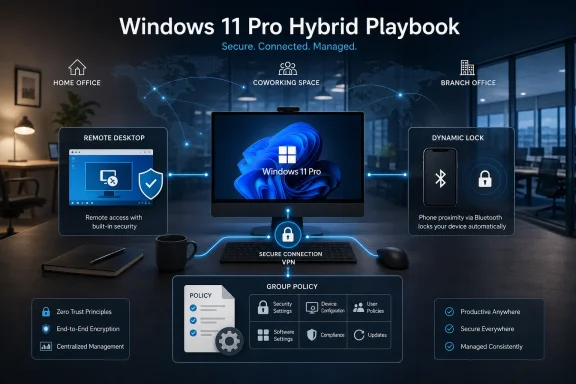
Windows Central’s article correctly identifies three features that form a basic hybrid-work triangle: remote access, automatic local locking, and policy enforcement. That is a sensible starting point. It also exposes a tension Microsoft has never fully resolved for smaller customers: Windows 11 Pro gives you powerful switches, but it does not automatically give you a mature operating model.
Remote Desktop Solves Access, Then Hands You a Security Problem
Remote Desktop remains one of Windows’ most durable business features because it answers a painfully ordinary question: how does an employee reach the machine that has the files, apps, licenses, shortcuts, and internal access they need? In Windows 11 Pro, enabling Remote Desktop through Settings is straightforward. The host PC must be a Pro edition machine, the user needs permission to connect, and the client can use Microsoft’s Windows App or Remote Desktop clients from another device.That simplicity is the attraction. A designer can reach a workstation with specialized software. An accountant can use a desktop tied to a local database. A sysadmin can fix a machine without walking across a building or driving to a branch office. The remote user sees the familiar desktop rather than a partly reconstructed environment on a laptop.
But Remote Desktop has always had a split personality. Inside a protected LAN or over a properly configured VPN, it is a productivity tool. Exposed carelessly to the public internet, it becomes an invitation. Attackers have spent years scanning for Remote Desktop Protocol endpoints, brute-forcing weak credentials, abusing stolen passwords, and exploiting misconfigurations. The technology is not inherently reckless, but the deployment pattern can be.
That is why the most important line in the Windows Central guide is not the toggle path. It is the warning that enabling Remote Desktop in Windows settings generally configures local network access, while internet access should be handled through an administrator-managed VPN or equivalent secure path. This distinction is where many small deployments succeed or fail. Remote Desktop should not become a shortcut around network design.
There is also an identity question. Remote Desktop access should be limited to named users who need it, protected by strong authentication, and paired with sensible lockout and monitoring policies. In a hybrid-work setting, administrators should assume that the connecting device may be outside their building and that the network path may be hostile. The old mental model of “it works from home, therefore it is fine” is no longer good enough.
The Office Desktop Is Now a Service Endpoint
The interesting consequence of Remote Desktop is that it turns a physical PC into something closer to a service. The machine under a desk is no longer just a local workstation; it becomes an endpoint that other devices depend on. That changes how IT should think about uptime, patching, power settings, and user expectations.If employees rely on Remote Desktop, the host computer must remain powered on and reachable. Sleep policies that made sense for energy savings may interrupt work. Reboots that were once minor inconveniences can cut off an after-hours user. Network changes, DHCP churn, name resolution problems, and firewall policies become user-facing issues.
This is where hybrid work blurs the line between desktop administration and infrastructure administration. A single Windows 11 Pro PC may not look like infrastructure on an asset spreadsheet, but if a remote worker needs it to close payroll or access a line-of-business application, it has become infrastructure in practice. Treating it casually creates fragility.
There are also licensing and data-placement considerations. Remote Desktop is often used because important data or software lives on the office machine, not because that is the ideal long-term design. In some cases, that is unavoidable. In others, Remote Desktop becomes a bandage over old application architecture, poor cloud migration planning, or inconsistent file storage practices.
That does not make it bad. It makes it honest. Remote Desktop is often the most practical bridge between traditional Windows workflows and modern mobility. The mistake is pretending the bridge is the destination.
Dynamic Lock Is a Small Feature With a Very Human Threat Model
Dynamic Lock is less glamorous than Remote Desktop, but it addresses one of the most common security failures in any office: people walk away from unlocked computers. Windows 11 can pair with a user’s phone over Bluetooth and automatically lock the PC when the phone leaves range. It is the kind of feature that sounds minor until a company starts using shared desks, coworking spaces, client offices, and hybrid meeting rooms.This is not high drama security. It is not ransomware containment, kernel isolation, or phishing-resistant authentication. It is protection against the opportunistic glance, the curious coworker, the visitor in a conference room, and the accidental exposure of email, chats, customer records, or financial data. Those risks are mundane, which is exactly why they matter.
The feature’s strength is also its limitation. Dynamic Lock depends on Bluetooth proximity, user pairing, and behavior that can vary across phones, adapters, drivers, and office layouts. It does not instantly lock the machine the moment a person stands up, and it should not be treated as a replacement for pressing Windows-L. It is a backup habit, not a primary security culture.
Still, backup habits are valuable. Hybrid work has made the boundary between personal and professional spaces fuzzier. A laptop may sit on a kitchen table in the morning, a shared office bench in the afternoon, and a hotel desk at night. In each place, the risk is slightly different, but the failure mode is the same: an unlocked session.
Dynamic Lock is most persuasive when paired with user education and stricter sign-in requirements. If a company tells users to manually lock their PCs, configures reasonable inactivity timers, and enables Dynamic Lock as a safety net, the feature fits. If it is used as a magical substitute for discipline, it will disappoint.
Group Policy Remains the Old Tool That Still Matters
Group Policy is not fashionable, but it is still one of the clearest dividing lines between consumer Windows and managed Windows. On Windows 11 Pro, the Local Group Policy Editor gives administrators and advanced users a way to enforce settings that ordinary users cannot casually undo. In domain environments, Group Policy remains a central mechanism for standardizing behavior across fleets of PCs.That matters because hybrid work punishes inconsistency. One machine delays updates indefinitely. Another allows risky device redirection. A third has weak lock-screen behavior. A fourth lets users modify settings that should be controlled. Each exception may appear harmless on its own, but together they create an estate that is hard to support and harder to secure.
Windows Central’s example of configuring automatic updates through policy is a good entry point because patch behavior is one of the most contentious areas of Windows administration. Users want control because reboots interrupt work. Administrators want compliance because unpatched machines become liabilities. Hybrid work makes both sides more intense, since IT may not be able to physically touch the machine and the user may be working across time zones.
Group Policy also functions as a translation layer between business intent and operating-system behavior. A company can decide that updates must install within a defined window, that lock-screen requirements should be consistent, that certain Windows components should be restricted, or that Remote Desktop behavior should follow a standard. Policy turns those decisions into something enforceable.
The problem is that Group Policy is powerful enough to create its own mess. Local policies applied one machine at a time can drift. Domain policies can conflict. Old settings can persist long after the business reason has vanished. Documentation often lags behind reality. A badly managed policy estate can become a haunted house of good intentions.
The Local Admin Era Is Ending, Even When the Tools Are Local
The Windows Central guide speaks to administrators and advanced users, which is appropriate for Windows 11 Pro. But the subtext is that the old local-admin model is increasingly strained. Hybrid work depends on settings that are too important to leave to memory, preference, or individual improvisation.A small business can absolutely use Local Group Policy to harden a handful of PCs. A consultant can configure Remote Desktop responsibly for a client. An advanced user can enable Dynamic Lock and improve personal security. But once an organization grows beyond a few machines, repetition becomes risk. The question shifts from “Can I configure this?” to “Can I prove every device is configured this way?”
That is where cloud management, mobile device management, and identity-based controls enter the conversation. Microsoft would prefer many customers to manage Windows through Intune, Entra ID, Windows Update for Business, and security baselines. Those tools are not the subject of the Windows Central guide, but they are the logical next layer for any organization that finds itself manually repeating the same Windows 11 Pro setup.
This is not a knock on Group Policy. It is a reminder that Local Group Policy is a tool, not a fleet strategy. The same setting that is perfectly reasonable on one PC can become operational debt when copied manually across 80 machines without inventory, reporting, or change control.
The hybrid workplace rewards central visibility. IT needs to know which devices permit remote access, which users can connect, which machines are missing updates, which policies are applied, and which security features are actually active. Windows 11 Pro provides many of the switches. Mature management provides the map.
Convenience Has to Be Designed, Not Merely Enabled
The three features in the guide share a common trait: they make work easier only if someone has thought through the surrounding process. Remote Desktop helps a remote employee, but only if network access, authentication, host availability, and support expectations are clear. Dynamic Lock reduces exposure, but only if users understand its delay and limitations. Group Policy standardizes devices, but only if policies are documented and reviewed.This is the difference between configuration and administration. Configuration is turning on the toggle. Administration is knowing why the toggle is on, who owns it, how it is monitored, and when it should be changed. Hybrid work has made that distinction harder to ignore.
There is a temptation, especially in smaller organizations, to treat built-in Windows Pro features as a way to avoid investing in process. That is understandable. Budgets are real, IT staffing is thin, and many businesses would rather use what they already paid for. But built-in does not mean self-governing.
The better argument for Windows 11 Pro is not that it eliminates the need for management. It is that it gives smaller teams a credible starting point. You can enable secure remote access without immediately deploying a virtual desktop platform. You can reduce unlocked-session risk without buying a new endpoint agent. You can enforce basic behavior without waiting for a full enterprise management rollout.
That starting point has value. It just should not be mistaken for the finish line.
Microsoft’s Hybrid Bet Is Pragmatic, Not Revolutionary
Microsoft’s current Windows strategy is often described in terms of AI PCs, Copilot integration, silicon requirements, and security baselines. Those are the headline bets. But for many businesses, the practical value of Windows 11 Pro still comes from older administrative primitives: remote access, lock behavior, policy enforcement, encryption, update control, and identity integration.That is not a contradiction. It is the reality of Windows as a platform with decades of accumulated enterprise expectations. The flashy features sell the roadmap; the boring features keep the office running.
Remote Desktop, Dynamic Lock, and Group Policy do not feel modern in the way a cloud dashboard feels modern. Yet they map cleanly onto modern work problems. Employees need to reach stable work environments from unstable locations. Devices need to defend themselves when users are distracted. Administrators need to impose consistency on machines they may rarely see.
The Windows Central piece is therefore less a revelation than a reminder. Windows 11 Pro already contains much of the machinery a small hybrid team needs to become more disciplined. The missing ingredient is not always another product. Sometimes it is the decision to treat endpoint configuration as a first-class business system.
The Hidden Cost Is Support Complexity
There is one caution the guide could have emphasized more: each enabled feature increases the surface area support teams must understand. Remote Desktop generates questions about credentials, network reachability, display scaling, printer redirection, clipboard behavior, sleep states, and account permissions. Dynamic Lock generates questions about Bluetooth range, phone pairing, battery settings, and inconsistent locking. Group Policy generates questions about precedence, reversibility, and unexpected restrictions.For a single power user, this complexity is manageable. For a team, it needs documentation. For an organization, it needs ownership.
Support complexity is not a reason to avoid the features. It is a reason to deploy them deliberately. The worst hybrid-work environments are not the ones with too many controls; they are the ones where nobody knows which controls are active. Users blame Windows, administrators blame users, and the business experiences security policy as random weather.
A well-run Windows 11 Pro environment should feel predictable. Users should know how to connect remotely, when their machines will lock, and why certain settings are unavailable. Administrators should know which configurations are standard and which are exceptions. Predictability is the real productivity feature.
The Practical Reading for WindowsForum Readers
For Windows enthusiasts and IT pros, the Windows Central guide is useful because it focuses on features that are already on the machine. There is no procurement cycle required to test them. A spare Windows 11 Pro box, a phone, and a few policy changes are enough to understand the basic mechanics.But the real lesson is architectural. Hybrid work is not a single feature; it is a set of assumptions about where users are, how devices are protected, and how consistently rules are enforced. Windows 11 Pro can support those assumptions, but it will not define them for you.
The sensible approach is to start with a small baseline. Decide which machines may accept Remote Desktop connections. Require secure network paths rather than public exposure. Enable Dynamic Lock where it fits the working environment. Use policy controls for update behavior and security settings that should not depend on user preference.
Then review the result as a system. If the business cannot inventory it, monitor it, or explain it, the configuration is not finished.
The Windows 11 Pro Hybrid Playbook Is Useful Because It Is Boring
The most concrete lesson from Windows Central’s guide is that hybrid-work readiness begins with mundane Windows settings rather than grand transformation language. That is good news for smaller teams, because boring controls are often the ones that get adopted and maintained.- Remote Desktop on Windows 11 Pro is best treated as a controlled access path to a managed work machine, not as a public internet convenience feature.
- Dynamic Lock is a helpful safety net for shared and mobile workspaces, but it should complement manual locking and inactivity policies rather than replace them.
- Group Policy remains valuable because it turns security and productivity preferences into enforceable operating-system behavior.
- Local configuration is acceptable for very small environments, but repeated manual setup becomes a management risk as device counts grow.
- Hybrid work makes endpoint consistency more important because IT cannot assume every machine is on the office network, physically nearby, or used in a controlled space.
- Windows 11 Pro’s built-in business features are strongest when paired with documentation, ownership, and a clear escalation path.
References
- Primary source: Windows Central
Published: Fri, 22 May 2026 19:32:36 GMT
Configure Windows 11 Pro for hybrid teams: remote desktop, dynamic lock, and policies | Windows Central
Discover the built-in tools in the Pro edition of Windows 11 for safer and more efficient hybrid work environments.www.windowscentral.com - Official source: support.microsoft.com
How to use Remote Desktop - Microsoft Support
Learn how to use Remote Desktop in Windows.support.microsoft.com - Official source: learn.microsoft.com
Dynamic lock | Microsoft Learn
Learn how to configure dynamic lock on Windows devices via group policies. This feature locks a device when a Bluetooth signal falls below a set value.learn.microsoft.com - Official source: microsoft.com
Windows 11 Pro Tips and Tricks | Microsoft
Get the most out of Microsoft Windows 11 Pro features. Take advantage of Windows 11 Pro tips, tricks, and shortcuts for features like speech-to-text, single sign-on, and more.www.microsoft.com
- Official source: download.microsoft.com
- Related coverage: na.ingrammicro.com
- Official source: cdn-dynmedia-1.microsoft.com
