

If your shiny new NVMe or SATA SSD feels sluggish during daily use, the drive itself may not be to blame — Windows might be telling it to play safe. The operating system’s default storage removal policy can force the SSD to acknowledge writes only after safer, slower steps complete, turning a drive capable of thousands of megabytes per second into something that feels laggier during the tiny, frequent writes that make your system feel responsive. Changing one buried option in Device Manager usually fixes the problem — but it’s a trade-off you should understand before flipping the switch.
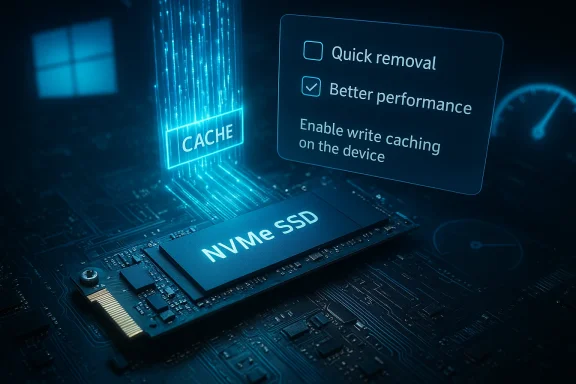
Windows exposes two competing policies for how it treats storage device writes in Device Manager: Quick removal and Better performance. Quick removal disables aggressive write caching so you can unplug removable media without using the “Safely Remove Hardware” workflow; Better performance enables write caching so the OS receives faster acknowledgment of writes and the system can run more responsively, especially under workloads with many small IOs. Microsoft switched many devices to Quick removal by default beginning with Windows 10 version 1809, which improved safety for casual removal but silently reduced responsiveness for some workloads.
That change matters because modern SSDs use caches — either DRAM-backed or pseudo-SLC (an SLC-like region carved from TLC/QLC flash) — to accept writes very quickly and then commit them to NAND in the background. From the OS point of view, a write is “done” either when the drive’s cache acknowledges it, or only after the data is physically committed to NAND. The OS-level policy determines which behavior Windows expects. If Windows is conservative, it will wait for deeper confirmation and the user can notice higher latency on small writes even though the drive itself is capable of very high sequential throughput.
Below the two removal-policy choices there are additional checkboxes:
Flag: exact failure risk and behavior depends on your particular drive’s firmware and hardware protections — that is not something Windows can fully abstract away. If you must know your drive’s behavior under power loss, consult the drive vendor’s specifications or test in a safe lab environment; these vendor-level details are sometimes undocumented or reserved for enterprise datasheets and therefore not fully verifiable for every consumer model. Treat such claims as vendor-dependent.
Practical adjustments to try:
Conclusion
The performance gap you notice on a fast SSD is rarely mystical. Windows’ removal policy and write-caching semantics are a common, easily overlooked cause — and changing Device Manager to Better performance usually restores the snappy behavior modern SSDs are designed to deliver. Do it with care: protect important files, avoid disabling flushes without UPS protection, and verify gains with a few simple tests. With a measured approach you can reclaim the responsiveness you paid for while keeping data safety under control.
Source: MakeUseOf This hidden Windows setting is slowing down your SSD — here’s the fix
 Background / Overview
Windows exposes two competing policies for how it treats storage device writes in Device Manager: Quick removal and Better performance. Quick removal disables aggressive write caching so you can unplug removable media without using the “Safely Remove Hardware” workflow; Better performance enables write caching so the OS receives faster acknowledgment of writes and the system can run more responsively, especially under workloads with many small IOs. Microsoft switched many devices to Quick removal by default beginning with Windows 10 version 1809, which improved safety for casual removal but silently reduced responsiveness for some workloads.That change matters because modern SSDs use caches — either DRAM-backed or pseudo-SLC (an SLC-like region carved from TLC/QLC flash) — to accept writes very quickly and then commit them to NAND in the background. From the OS point of view, a write is “done” either when the drive’s cache acknowledges it, or only after the data is physically committed to NAND. The OS-level policy determines which behavior Windows expects. If Windows is conservative, it will wait for deeper confirmation and the user can notice higher latency on small writes even though the drive itself is capable of very high sequential throughput.
How SSD write caching actually works
The two buffering layers: cache-level vs flash-level commitment
SSDs typically use one or more mechanisms to accept and buffer writes:- DRAM cache / metadata DRAM — High-end and many midrange NVMe drives include a dedicated DRAM chip that stores mapping tables and can speed up metadata operations. DRAM’s latency is orders of magnitude lower than NAND. When the controller places data into DRAM-backed buffers, that write can be acknowledged very quickly.
- SLC (pseudo-SLC) cache — Many TLC/QLC SSDs create a fast write region by treating part of the NAND as SLC temporarily. This is common on DRAM-less consumer drives and provides a high-speed staging area for bursts of writes. Once data settles and garbage collection works, data is destaged to TLC/QLC regions.
Why small, frequent writes suffer most
Large sequential file copies mostly stream through caches and depend on sustained bandwidth, so the difference between policies is often invisible on a single large transfer. The pain point is many small writes — browser cache updates, installer routines writing thousands of tiny files, package managers writing build artifacts, frequent metadata updates from indexing or antivirus — that are latency-sensitive and happen continuously. In those scenarios, giving the SSD freedom to acknowledge writes from its fast cache yields a much snappier experience. Conservative flushing policies increase the effective latency of each tiny write and make the machine feel sluggish.Where Windows imposes the behavior
You control the behavior through Device Manager → Disk drives → [select your drive] → Properties → Policies. The two top-level options are labeled Quick removal (default) and Better performance. Choosing Better performance will enable more aggressive caching behavior without a reboot; Quick removal keeps write caching conservative so the device can be unplugged without using the Eject workflow. Windows remembers per-device settings, but which drives Windows classifies as “external” or which policy becomes default can be affected by the OS version and how the device enumerates — that’s why some internal drives may be treated differently on some systems.Below the two removal-policy choices there are additional checkboxes:
- Enable write caching on the device — allows the device to hold writes in cache for performance. This is the main toggle you need for Better performance behavior.
- Turn off Windows write-cache buffer flushing on the device — disables Windows’ periodic flush requests that ensure data is pushed from device cache to persistent media. Do not enable this unless you fully understand the risk and have reliable power protection, because it removes an important protection against corruption during sudden power loss.
How to verify and flip the setting (step-by-step)
- Open Device Manager (press Windows key + X → Device Manager).
- Expand Disk drives and locate the SSD you want to check. If you don’t know which is which, open Task Manager → Performance → Disks to match model names and active counters.
- Right-click the drive → Properties → Policies tab.
- Under Removal policy, select Better performance to allow more aggressive write caching. Make sure Enable write caching on the device is checked. Click OK — the change applies immediately on most systems.
When to enable Better performance — and when not to
- Internal desktop with reliable power (and preferably a UPS): Enable Better performance. Desktops rarely lose power unexpectedly; if you have a UPS, the risk of corruption is low and you get better responsiveness for everyday tasks and installations.
- Internal laptop that is usually plugged in: Consider Better performance, but be cautious if you frequently run on battery to low levels, or if the system’s battery health is poor. If the laptop can unexpectedly lose power, the protective behavior of Quick removal is safer.
- External USB/Thunderbolt drives and frequently unplugged devices: Leave Quick removal on. External drives are disconnected more often and Quick removal prevents accidental corruption when users forget to eject.
The real trade-off: responsiveness vs power-loss safety
The risk with enabling caching is not drive wear or health — it is data integrity on sudden power loss. Modern drives include protections like power-loss capacitors on many higher-end NVMe enclosures and enterprise drives that ensure cached data can be committed even if power drops. Consumer drives vary widely: some low-cost or DRAM-less models provide minimal protection. The OS-level flushes and default conservative policy are defensive measures to reduce corruption risk across all hardware. When you change to Better performance you accept some increased risk for a smoother experience; that risk is often acceptable for a desktop on mains power but not for a mobile device regularly running on battery.Flag: exact failure risk and behavior depends on your particular drive’s firmware and hardware protections — that is not something Windows can fully abstract away. If you must know your drive’s behavior under power loss, consult the drive vendor’s specifications or test in a safe lab environment; these vendor-level details are sometimes undocumented or reserved for enterprise datasheets and therefore not fully verifiable for every consumer model. Treat such claims as vendor-dependent.
Advanced troubleshooting: when changing the policy won’t help
If switching to Better performance doesn’t move the needle, consider these next steps:- Check drive firmware and controller drivers. Some drives expose vendor drivers that override or bypass Windows defaults; updating the drive’s firmware and the motherboard’s storage drivers can be essential. Many user reports show vendor firmware/driver mismatches preventing policy changes.
- If the Policies tab is missing or options are greyed out, ensure you are editing the correct device (not an optical drive or card reader). Some USB adapters and RAID controllers present a virtual device that doesn’t expose standard policies. Using the vendor’s management utility or replacing the adapter may be required.
- On systems where internal SATA ports are wrongly enumerated as removable, Windows can treat internal drives as “external.” There are registry and controller-level workarounds (for example, storahci TreatAsInternalPort) that advanced users or IT admins use to classify ports correctly, but these are system-level changes and must be done with care.
Power-management and other stealth causes of perceived SSD slowness
If the Device Manager policy is already set to Better performance and your SSD still stutters under small-write workloads, the culprit can be aggressive power-management features that put the drive or the PCIe link into deep sleep, causing wake-up latency on the first IO. On laptops in particular, PCIe Link State Power Management and NVMe idle state transitions can introduce measurable latency for the first I/O after idle, and this compounds across thousands of small operations. Microsoft’s driver documentation explains how StorNVMe and Windows choose power states based on scheme and AC/DC conditions; changing your power plan (or the advanced PCIe/ disk power options) can improve responsiveness.Practical adjustments to try:
- Set the active power plan to High performance and adjust advanced plan settings: PCI Express → Link State Power Management → Off.
- For NVMe-specific tuning, use the powercfg command to adjust NVMe idle timeouts and tolerances (Microsoft documents these options for OEMs and power-sensitive systems).
- Keep drive firmware and the platform BIOS/UEFI up to date; some vendors fix excessive idle transitions or bad power-state reporting in firmware updates.
How to measure whether the change helped
Don’t take subjective impressions alone. Measure both before and after switching policies using a mix of synthetic and real-world tests:- Synthetic benchmarks for throughput and small random IOPS:
- CrystalDiskMark (random 4K Q1/Q32 to capture low-depth latency)
- ATTO or AS SSD (for mixed and sequential performance)
- Real-world tests:
- Install a large game or update that unpacks thousands of small files (observe wall-clock install time).
- Use a file-tree copy test of many small files (e.g., 100,000 small assets) and measure time.
- Run your development build or package manager workload that previously felt slow.
- Monitor with Resource Monitor and Task Manager → Performance → Disk to see which process generates the writes and the drive’s active time and latencies.
- Reboot between runs to clear caches and ensure consistent starting state.
- Run each test multiple times and take the median.
- If possible, test with and without a UPS to validate the power-loss sensitivity trade-off in practice (do not use destructive power-loss testing on production data).
Practical checklist before you change settings
- Back up critical data. Even though the risk is small in many desktop scenarios, the consequence of corruption is not worth skipping backups.
- If you use Better performance, make sure:
- You have reliable mains power or a UPS for desktops.
- Your laptop battery and charging behaviour is stable if you enable it on a laptop.
- Leave Turn off Windows write-cache buffer flushing unchecked unless you have a validated UPS and a tested reason to enable it.
- Update SSD firmware, storage drivers, and motherboard BIOS before changing system-level policies to avoid vendor-specific issues.
- Measure before and after, using both synthetic and real workloads.
A few nuanced warnings and vendor habits
- Some SSDs and enclosures do not permit Windows to change caching policies; vendor firmware or USB-SATA bridge chips may return errors or ignore requests. If Device Manager refuses to change the policy, check for manufacturer utilities or firmware updates. User reports from vendor forums show this occasionally occurs with certain external SSD models.
- The “Quick removal” default that Microsoft adopted around Windows 10 1809 was a broad safety decision aimed at casual users — it reduced accidental corruption from unplugging devices, but it also made conservative performance the baseline. If you rely on external devices for heavy IO, consider switching policies on those devices and always eject properly when Better performance is selected.
- Turning off flushes entirely (“Turn off Windows write-cache buffer flushing”) is an advanced, dangerous tweak: it removes a kernel-to-device safety mechanism. Performance gains can be real for some server-like workloads, but they come at the cost of a larger window for data loss. Only enable this in a controlled environment with full backups and a UPS.
Bottom line — practical recommendation
- For most desktops that are plugged into a reliable mains supply, set the drive policy to Better performance and keep Turn off Windows write-cache buffer flushing unchecked. The result is a noticeably snappier system during installs, updates, and everyday interactive workloads.
- For laptops that are often on battery or for removable drives you unplug frequently, leave Quick removal enabled for peace of mind.
- If you enable Better performance and still see hiccups, investigate NVMe/SATA power management, PCIe ASPM/link-state settings, and firmware updates — these are common secondary causes of perceived SSD slowness. Use the Microsoft NVMe power-management documentation for safe tuning and consult your drive vendor for firmware guidance.
Final notes and a short testing recipe you can run now
- Note your current Device Manager policy for the drive you want to test.
- Run a small workload that felt slow (for example, install or copy a directory with many small files) and record the time.
- Switch the policy to Better performance (enable write caching) and repeat the same workload.
- Compare the times and watch Task Manager’s Disk column — you should see lower IO wait and faster completion if the policy was the bottleneck.
- If there’s no difference, or things get worse, revert the setting and investigate power management and firmware as described above.
Conclusion
The performance gap you notice on a fast SSD is rarely mystical. Windows’ removal policy and write-caching semantics are a common, easily overlooked cause — and changing Device Manager to Better performance usually restores the snappy behavior modern SSDs are designed to deliver. Do it with care: protect important files, avoid disabling flushes without UPS protection, and verify gains with a few simple tests. With a measured approach you can reclaim the responsiveness you paid for while keeping data safety under control.
Source: MakeUseOf This hidden Windows setting is slowing down your SSD — here’s the fix
