

Windows 11 can look friendly and familiar at first glance, but beneath the rounded corners and centered icons lies a surprising collection of productivity, security, and AI features that many users never discover. The widely circulated "31 hidden tricks" checklist is a practical map: small UI tweaks, new multitasking primitives, AI helpers like Copilot, and platform-level upgrades such as passkeys and native archive creation that together change how you work, secure accounts, and move between devices. This feature walks through the most consequential items from that list, verifies which require specific Windows builds or hardware, and gives a pragmatic playbook for adopting the changes safely and effectively. rview
Windows 11’s steady feature rollouts (notably the 23H2 and 24H2 updates) moved many conveniences out of third‑party territory and into the OS itself: File Explorer gained tabs and richer archive support, a new Windows Backup ties settings and app lists to OneDrive, and Microsoft integrated Copilot as a persistent, context‑aware assistant. These changes aren’t just surface polish; they reshape everyday workflows by reducing context switches, modernizing authentication, and folding lightweight generative actions into the right‑click context you already use. But availability is fragmented: many features are gated by build number, update channel, hardware class (Copilot+ PC acceleration), or subscription entitlements (Copilot / Microsoft 365). That makes checking your Windows build and update channel the single most important first step.
Source: PCMag Australia Stop Using Windows 11 Like a Beginner: 31 Hidden Tricks Microsoft Never Taught You
Windows 11’s steady feature rollouts (notably the 23H2 and 24H2 updates) moved many conveniences out of third‑party territory and into the OS itself: File Explorer gained tabs and richer archive support, a new Windows Backup ties settings and app lists to OneDrive, and Microsoft integrated Copilot as a persistent, context‑aware assistant. These changes aren’t just surface polish; they reshape everyday workflows by reducing context switches, modernizing authentication, and folding lightweight generative actions into the right‑click context you already use. But availability is fragmented: many features are gated by build number, update channel, hardware class (Copilot+ PC acceleration), or subscription entitlements (Copilot / Microsoft 365). That makes checking your Windows build and update channel the single most important first step.
 Personalizaeaks with big wins
Realign the Start button and reclaim muscle memory
If the centered Start and taskbar icons feel wrong, you can move them back left via Taskbar Settings → Taskbar Behaviors → Taskbar Alignment. It’s trivial, but the restored left alignment reduces visual search time for long-time Windows users and preserves decades of muscle memory. This is an immediate, zero-risk tweak that rewards habit more than discovery.Customize Quick Settings and the Staparates Quick Settings from notifications and provides a compact panel for Wi‑Fi, Bluetooth, and power options. The panel’s behavior changed across updates, and some actions (like rearranging tiles) behave differently depending on your build; if a control is missing you may need a small registry tweak or to wait for a staged rollout. The Start menu itself is now simpler—pin apps, create folders by dragging icons together, and adjust what appears in the Recommended section through Settings → Personalization → Start. These simple personalization moves cut friction on the things you repeatedly do every day.
Use Themes and per‑desktop wallpapers for visual context
hemes that change accent colors, cursor, and sounds in one click. Additionally, each virtual desktop can have its own wallpaper which is a surprisingly effective way to visually separate projects (work, personal, media). It’s a cheap cognitive trick: different backgrounds reduce accidental context switching and improve focus.Productivity & Multitasking: Work faster, not harder
Snap Layouts, SnSnap Layouts remain one of the most practical additions. Hover over the maximize button or press Windows Key+Z to choose from preset multi‑window arrangements and restore them as Snap Groups. Learn Win+Z, Win+Left/Right Arrow, and Win+Tab to make window management habitually faster—these keyboard flows repay time invested with saved seconds and fewer interruptions.
Multiple desktops with separate wallpapers
Virtual desktops are now easier to manage and personalizcific desktops for “Email & Research,” “Coding,” or “Media” and map workflows to them. Dragging apps between desktops and using distinctive wallpapers helps enforce focus and reduces accidental cross‑task clutter.Title bar shake and other quick-clean gestures
Enable Title bar shake (Settings → System → Multitasking) to quickly miniws by shaking the active window; it’s a fast declutter trick that saves clicking or hunting for the Show Desktop button. Pair this with keyboard shortcuts like Win+D and Alt+Tab for a frictionless session reset.File management & Explorer: Less clicking, more control
Tabs, context AI, and a streamlined ribbon
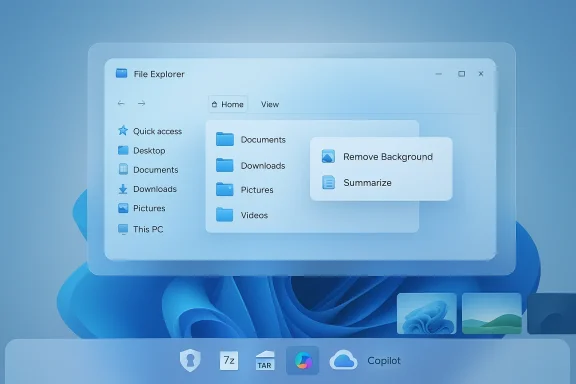
File Explorer now supports tabs (→ Open in New Tab) and a reduced ribbon with context-aware buttons at the top, which speeds common file workflows. The most notable recent addition is AI Actions: a context menu that launches editing or summarization tasks—Remove Background, Erase Objects, and document Summarize—directly from Explorer. These entries act as launchers to Photos, Paint, Edge, or Copilot rather than editing inline, and in some cases require Copilot or Microsoft 365 entitlements. Understand the dependency: many of the document AI actions require a Microsoft 365 Copilot license and are being rolled out in staged Insider and commercial channels.Native creation of 7z and TAR archives
One of the biggest practical upgrades: File Explorer now lets you compress files natively to ZIP, 7z, or TAR and exposes an "Additional options" dialog for choosing compression methods (gzip, bzip2, xz, Zstandard) and levels. This is part of the 24H2 context menu improvements and removes a frequent dependency on third‑party archivers for many users. For power users and enterprise teams, remember that advanced features like password-protected archives and specialized behaviors may still require dedicated tools.Copilot and built‑in AI: Practical uses — and caveats
What Copilot adds to the desktop
Copilot is now integrated into the Windows 11 taskbar as a conversational assistant that can summarize documents, draft text, generate images, search your PC, and—critically—operate with a visual awareness feature called Copilot Vision, which can see the portion of a window you share and walk you through UI steps. Copilot also supports voice interaction and, in some markets and builds, the wake phrase “Hey Copilot.” These features reduce context switching and help with quick, compositional work like drafting or summarizing long files.Copilot+ PCs and on‑device benefits
Devices branded as Copilot+ include hardware acceleration for AI tasks (historically first on certain ARM machines, now expanding to Intel and AMD with feature parity), unlocking on‑device processing for lower latency and better privacy for some features. That distinction matters: on‑device processing reduces cloud transfers, but many Copilot capabilities still use cloud models for the heaviest lifts. If privacy is a requirement for your workflow, treat Copilot Vision and voice features as cloud‑assisted and limit what you share.Smart uses — and responsible limits
Best practical uses include drafting emails, summarizing meeting notes, extracting action items, and quick image edits. Avoid feeding Copilot Vision or the assistant highly regulated or confidential material unless your organization’s compliance review approves it. Microsoft provides controls to opt into or out of these experiences and documents handling behaviors, but responsible adoption means treating Copilot like any cloud service: don’t upload secrets you wouldn’t put on a public cloud.Security & Identity: Make passwords obsolete
Passkeys: simpler and more phishing‑resistant
Windows 11 has built native support for passkeys via Windows Hello and platform authenticators. Passkeys use FIDO public‑key cryptography and are resistant to phishing and credential replay. You can manage device‑bound passkeys from Settings → Accounts → Passkeys and optionally synchronize them to your Microsoft account or to third‑party managers (1Password, Bitwarden) via the new plug‑in model. For a secure rollout, enable passkeys first on low‑risk accounts to get comfortable, then convert primary logins.Windows Backup: restore faster, but know the limits
Windows Backup (introduced around 23H2) stores your settings, Microsoft Store apps list, desktop folders, and some credentials to OneDrive, significantly simplifying a new PC restore. Important nuance: it remembers and reinstalls Microsoft Store apps and syncs settings, but it does not fully image and reinstall legacy Win32 programs automatically—you may need to reinstall certain desktop apps manually. Keep a separate disk image and migration plan for full system recovery and complex app states.Devices & Connectivity: Phone Link, LE Audio, and pairing
Phone Link: run phone apps, copy between devices
Phone Link continues to expand: selected Android devices (Samsung, HONOR, OPPO, ASUS, etc.) can run multiple phone apps on your PC and support app streaming, notifications, texts, and calls. Multiple‑app capability and phone‑app streaming depend on device model, Android version, and Phone Link app version, so check the supported device list before getting excited. For productivity wins, Phone Link allows you to drag content from phone apps into desktop workflows—useful for quick cross‑device tasks.Bluetooth LE Audio and improved call quality
Windows 11 24H2 added meaningful improvements for Bluetooth LE Audio, including support for assistive hearing devices and a "super wideband stereo" mode that avoids the old mono‑downgrade when a mic is active. To use stereo with microphone, both PC and headset must support LE Audio and appropriate drivers; this is a hardware-and-driver dependency, not just an OS flip. The accessibility improvements—controls for audiologist-configured presets—are a notable step forward for users with hearing devices.Media, gaming, and accessibility
New Media Player, Sound Recorder, and Game features
Windows 11’s Media Player and the revamped Sound Recorder add modern UX and better format coverage (Media Player still handles legacy tasks and ripping), whileregates performance overlay, recording, and capture tools. Sound Recorder now supports common formats like AAC, FLAC, MP3, WAV, and WMA, although it lacks trimming tools; for editing tasks you’ll still reach for a DAW. Auto HDR, Game Mode, and the built-in Game Bar remain valuable for gamers and streamers.Sound modes and accessibility
Turn on Mono audio or enhanced audio modes (bass boost, virtual surround) from Settings → System → Sound. Accessibility improvements extend to better visibility of the mouse pointer (split black/white styles that improve contrast) and integrated OCR in Snipping Tool and Photos for quick text extraction from images. These small accessibility investments benefit many users, not just those with permanent impairments.Practical rollout plan: what to enable and when
- Confirm your Windows build: Settings → Windows Update. If you want 24H2 features like 7z/TAR compression and LE Audio improvements, make sure you’re on the 24H2 release or newer.
- Back up your data and create a restore point before making system-wide changes. Use Windows Backup for settings and OneDrive‑backed data, but keep a full disk image for full recovery.
- Start with low‑risk, high‑return tweaks: taskbar alignment, pinning favorite apps, Win+Z Snap Layouts, and File Explorer tabs. These are reversible and immediately beneficial.
- Enable passkeys for a few personal accounts, learn the flow, then expand adoption; keep Windows Hello configured and consider hardware MFA for critical admin accounts.
- Try Copilot for draftut limit Copilot Vision and voice on sensitive work until you verify privacy/compliance for your organization. Use Copilot+ devices for heavier on‑device work if you have privacy or latency concerns.
What to watch: risks, rollout fragmentation, and governance
- RoMany features land first in Insider channels or specific regions; don’t assume universal availability. Confirm build and hardware support before training a team on any new feature.
- Privacy and data handling: Copilot Vision and some AI actions use cloud processing for richer outputs. Treat them like any cloud service: avoid uploading sensitive or regulated data and consult legal/compliance teams for enterprise use. (windowsforum.com)
- Centralized dependency risk: many productivity rebounds revolve around a Microsoft account and OneDrive. That convenience concentrates risk—protect accounts with hardware MFA and keep alternative recovery paths.
- Third‑party gaps: native compression and AI actions reduce but do not eliminate the need for specialized third‑party tools when you require advanced archiving features, secure password managers, or forensic-grade backups. Keep those tools where they add clear technical value.
Verdict: Which tricks deliver the most value
- Immediate wins (near-zero risk): realign the taskbar, pin apps, learn Snap Layouts (Win+Z), and use File Explorer tabs. These accelerate everyday flows.
- High value but require checks: passkeys and Windows Backup (OneDrive flow) — they change your security posture and recovery plan but require initial setup.
- Powerful, cautious adoption: Copilot Vision and AI Actions in File Explorer — compelling productivity gains, but verify privacy, licensing, and rollout limits before using in regulated work.
- Hardware‑dependent upgrades: Bluetooth LE Audio stereo while mic is active and Copilot+ on‑device acceleration — excellent where supported but check drivers and vendor compatibility first.
Conclusion
The "31 hidden tricks" collection is more than a list of clever toggles; it’s a reflection of Windows 11’s larger shift toward integrated AI, modern authentication, and practical desktop ergonomics. Many of these additions are low risk and immediately useful; others—AI actions and Copilot Vision, on‑device acceleration, and cloud backup integrations—offer transformative value when adopted thoughtfully. The key to moving from beginner to power user is a measured approach: verify your Windows build and device compatibility, back up before you change system‑level behaviors, adopt passkeys and cloud backups deliberately, and treat generative AI like a powerful but auditable cloud tool. Do that, and Windows 11 starts to feel less like a cosmetic redesign and more like a modern, workplace‑ready platform.Source: PCMag Australia Stop Using Windows 11 Like a Beginner: 31 Hidden Tricks Microsoft Never Taught You
