

Guiding Tech’s walkthrough of Windows 11’s hidden “Processor performance boost mode” shows users how to expose a buried Control Panel setting that changes how aggressively Windows requests turbo behavior from supported CPUs, using either the Registry or a
The setting Guiding Tech points readers toward is not overclocking, not a magic frame-rate switch, and not a Windows 11-only invention. It is a power-policy control for processor boost behavior: the degree to which Windows encourages a CPU to jump into higher performance states that the chip and firmware already allow.
That distinction is the whole story. Modern Intel, AMD, and Arm processors already manage frequency dynamically, moving between low-power and high-performance states many times per second. Windows does not create extra silicon headroom; it participates in the negotiation among scheduler, firmware, thermal limits, power plan, and workload.
The hidden Control Panel option simply gives users a more direct say in that negotiation. On a desktop with a large cooler and mains power, a more aggressive boost policy can make sense. On a thin laptop with a small fan and a battery that is already losing capacity, the same choice can turn responsiveness into heat, noise, and shorter runtime.
That is why the feature feels both mundane and powerful. It is mundane because it does not bypass CPU limits. It is powerful because the user experience of a PC often lives in exactly these short bursts: opening an app, compiling a small project, exporting a photo, launching a game, or waiting for Windows Search to stop pretending it is weightless.
The practical effect is to unhide “Processor performance boost mode” under Control Panel’s advanced power settings. From there, users can configure it per power plan and, on many laptops, separately for battery and plugged-in use. That matters more than the command itself, because a single machine can have two very different identities depending on whether it is docked or mobile.
This is also why the old Control Panel refuses to die. Windows 11’s Settings app has absorbed much of the visible consumer interface, but many of the operating system’s serious power-management controls still live in the older stack. The result is a split personality: Microsoft markets Windows as simple and modern, while the controls that explain its behavior remain scattered across legacy surfaces, command-line tools, and Registry keys.
The advice to create a restore point or back up the Registry is not boilerplate here. The specific edit is simple, but the Registry is not a sandbox. Enthusiasts often normalize this kind of tweak because it has circulated for years, but a production laptop used for work deserves more caution than a weekend gaming rig.
Disabled is the blunt instrument. It keeps the processor closer to base-clock behavior and can reduce heat and fan noise, but it can also make a machine feel unnecessarily sluggish. It is the setting users reach for when a laptop is too loud, too hot, or too eager to chew through battery, though it can be an overcorrection.
Enabled is the ordinary middle ground. For most users, it is the place to stay unless there is a specific problem to solve. Windows and the processor vendor have usually tuned the default path for a compromise among performance, thermals, acoustics, and longevity.
Aggressive is where the tradeoff becomes visible. It can hold boost behavior longer and respond more eagerly under load, which is useful on performance desktops, gaming laptops with serious cooling, and workstations that spend their lives plugged in. On a fan-limited ultrabook, however, aggressive boost can merely convert short speed into sustained thermal throttling.
The efficient modes are more interesting because they reflect the modern laptop reality. A machine does not need to choose between “fast” and “quiet” as a binary ideology. Efficient Enabled and Efficient Aggressive try to preserve responsiveness while respecting power draw, which is often the sane choice for mobile PCs.
Low Latency Profile, according to recent Windows reporting, is designed to trigger short, targeted processor-frequency bursts during interactive moments such as opening the Start menu, launching apps, or invoking shell UI. Windows Central has reported that Microsoft’s work can improve app launch and system flyout responsiveness in measurable ways, while Windows Latest has tracked the feature’s rollout through recent Windows 11 updates. Microsoft has also defended the general idea, with coverage from Tom’s Hardware and TechRadar noting the company’s argument that modern operating systems already use short performance bursts to improve perceived responsiveness.
That is a different proposition from exposing an old power-plan setting. Low Latency Profile is not asking the user whether a power plan should generally prefer boost. It is Microsoft deciding that certain interactions deserve a brief burst of CPU urgency because latency, not throughput, is what users actually feel.
The controversy around Low Latency Profile was predictable. Critics saw a brute-force workaround for Windows 11 shell sluggishness, not an elegant fix. Microsoft’s counterargument is that responsiveness optimizations are normal operating-system behavior, and that short boosts are not the same thing as wasteful sustained load.
Both sides have a point. Windows should absolutely become leaner, and the Start menu should not need heroics to appear promptly on modern hardware. But operating systems have always been in the business of scheduling urgency, and a short, bounded boost during interactive work is not scandalous by itself.
A CPU’s advertised maximum turbo frequency is often less important than how quickly it gets there, how long it stays there, and what the machine does after heat builds. That is why two laptops with the same processor can feel different. One may have conservative firmware, a quiet fan curve, and a power plan tuned for battery life; another may sprint aggressively and then throttle.
Windows power policy is one part of that chain. It cannot overcome a dust-choked heatsink, a failing fan, poor thermal paste, or OEM firmware that clamps power limits hard. But it can change whether Windows asks for performance eagerly or reluctantly.
This is also where users can fool themselves. A machine may feel faster immediately after enabling an aggressive boost policy, especially during quick launches and bursty work. After twenty minutes of sustained load, the same machine may settle into the same or worse performance because cooling, not policy, has become the limiting factor.
For desktops, the calculus is more forgiving. A tower with a competent cooler and stable power has room to let boost stretch its legs. For laptops, the right answer is situational, and the best setting may be different on battery than it is at a desk.
The tricky part is that faster can sometimes be more efficient. A processor that races to finish a task and returns quickly to idle may use less energy than one that crawls through the same work at a lower frequency. This “race to idle” logic is one reason simplistic advice about disabling boost to save battery can be misleading.
But it is not universally true. If aggressive boost repeatedly wakes fans, raises skin temperature, and keeps voltage high during background-heavy work, battery life can suffer. A laptop used for browser tabs, Teams, Slack, Outlook, and Windows indexing is not always doing clean little bursts that end neatly.
Windows does not present this tradeoff in human terms. It exposes power modes such as Best performance, Balanced, and Best power efficiency in the Settings app, while deeper options remain elsewhere. The user sees battery percentage and fan noise, not the policy machinery underneath.
That opacity is what makes guides like Guiding Tech’s useful and risky at the same time. They reveal a real lever, but the lever does not come with a dashboard explaining consequences. Users have to observe temperatures, noise, responsiveness, and runtime over several days, not just flip a setting and declare victory after one reboot.
A sales laptop, a CAD workstation, a shared conference-room PC, and a developer desktop do not have the same thermal or power priorities. A blanket aggressive boost policy may make one group happier and another group miserable. The first complaint will be speed; the second will be fan noise; the third will be battery life; the fourth will be “my laptop is hot.”
The better administrative approach is segmentation. Performance desktops and fixed workstations can tolerate more aggressive behavior. Mobile users often benefit from efficient boost modes, especially if they move between AC and battery throughout the day. Kiosks, frontline devices, and thermally constrained hardware may need conservative settings to preserve stability and acoustics.
There is also a supportability issue. Because Microsoft hides the setting by default on many systems, enabling it through scripts or policy-like deployment creates a configuration that many users and junior technicians will not know exists. If the setting contributes to heat or noise complaints later, the root cause may be invisible unless it is documented.
Enterprises already learned this lesson with power plans, Modern Standby, USB selective suspend, display sleep, and vendor performance utilities. Windows power behavior is not a single Microsoft dial; it is a negotiation among Windows, firmware, drivers, OEM tools, and user expectations. CPU boost mode belongs in that same messy bucket.
Many games are GPU-bound, especially at higher resolutions and quality settings. In those cases, a more aggressive CPU boost policy may do little for average frame rates. It may still help with shader compilation, asset streaming, background launchers, or CPU-limited scenes, but it is not a substitute for a faster GPU or better cooling.
The bigger potential benefit is frame-time consistency in CPU-sensitive titles. Strategy games, simulation games, esports titles at high refresh rates, and older engines that lean on one or two threads may respond better to quicker CPU boosting. Even then, results depend heavily on the system.
Gaming laptops complicate the story. They often ship with OEM utilities that already control performance modes, fan curves, platform power limits, and GPU behavior. Changing Windows boost mode underneath those tools can produce results that are hard to predict, because the OEM software may override or reinterpret the same power framework.
That is why the sensible gaming advice is empirical. Test the games you actually play, watch temperatures and clocks, and compare plugged-in behavior separately from battery behavior. The correct setting is not the one that sounds most extreme; it is the one that produces smoother play without turning the laptop into a thermal siren.
That means aggressive boost can improve the feel of a workstation without materially changing its long-haul throughput. The first thirty seconds may look better; the next thirty minutes may be governed by cooling and configured package power. On a well-cooled desktop, both can improve. On a thin laptop, the early sprint may simply borrow thermal headroom from later in the run.
This does not make the setting useless. Perceived latency matters for creative and technical work because professionals spend all day initiating small actions. Waiting half a second less, hundreds of times, is a real quality-of-life improvement.
But professionals should resist turning every knob to maximum out of habit. Efficient Aggressive may be a better daily-driver choice than Aggressive on mobile workstations, precisely because it preserves some of the snappy response without constantly biasing the machine toward heat. The fastest-feeling setting is not always the most productive setting over a full workday.
Changing Windows boost policy does not raise the processor’s official maximum turbo ratio. It does not rewrite voltage tables like a manual overclock. It does not replace BIOS or UEFI tuning. It changes how Windows participates in requesting performance states that the platform already supports.
The real risks are more prosaic. A laptop may become louder. Battery life may decline. A poorly cooled system may spend more time near thermal limits. Dusty machines may reveal problems that were already there. Users may chase placebo gains and create inconsistent behavior across power plans.
There is also a diagnostic risk. If someone enables aggressive boost, then later troubleshoots heat, crashes, or battery drain without remembering the change, the setting becomes one more hidden variable. That is why the restore-point advice matters less as disaster prevention and more as configuration hygiene.
The right mental model is not “dangerous overclock.” It is “power-management policy with consequences.” That phrasing is less exciting, but it is much closer to the truth.
Yet the useful explanation remains scattered. If users want to understand boost policy, they are still reading guides, opening Registry Editor, and visiting a Control Panel dialog that looks like a museum exhibit with administrative privileges. That is not a great look for an operating system trying to sell polish.
Microsoft does not need to expose every processor power parameter in the consumer Settings app. Most users should never see half the knobs that Windows supports. But it could explain the relationship between power mode, responsiveness, fan noise, and battery life more honestly.
The Low Latency Profile rollout makes that need sharper. If Windows is going to use short CPU bursts to make the shell feel faster, users should not have to learn about it from reverse engineering, enthusiast utilities, or scattered reporting. Microsoft can defend the engineering decision while still giving administrators and advanced users visibility.
The company’s challenge is trust. When performance improves but the mechanism is hidden, skeptics assume trickery. When controls are buried, enthusiasts assume Microsoft is withholding agency. A clearer interface would not end the arguments, but it would make them less superstitious.
If you expose Processor Performance Boost Mode, treat it as a reversible experiment. Change one thing at a time. Test on battery and AC separately. Watch the machine over several normal workdays. Do not judge by a single benchmark run or the emotional high of making a hidden option appear.
The most concrete guidance is straightforward:
powercfg command. The important part is not that Windows suddenly learned a new trick, but that Microsoft has left one of its most consequential performance-and-battery tradeoffs behind an enthusiast door. In an era when Windows 11 is also gaining a newer Low Latency Profile, “CPU boost” has become a sloppy phrase covering two different systems. That confusion matters, because one setting is a user-tunable power policy, while the other is Microsoft’s attempt to make the Windows shell feel faster without asking users to become firmware engineers.
 Windows Still Hides the Knobs That Explain Its Behavior
The setting Guiding Tech points readers toward is not overclocking, not a magic frame-rate switch, and not a Windows 11-only invention. It is a power-policy control for processor boost behavior: the degree to which Windows encourages a CPU to jump into higher performance states that the chip and firmware already allow.That distinction is the whole story. Modern Intel, AMD, and Arm processors already manage frequency dynamically, moving between low-power and high-performance states many times per second. Windows does not create extra silicon headroom; it participates in the negotiation among scheduler, firmware, thermal limits, power plan, and workload.
The hidden Control Panel option simply gives users a more direct say in that negotiation. On a desktop with a large cooler and mains power, a more aggressive boost policy can make sense. On a thin laptop with a small fan and a battery that is already losing capacity, the same choice can turn responsiveness into heat, noise, and shorter runtime.
That is why the feature feels both mundane and powerful. It is mundane because it does not bypass CPU limits. It is powerful because the user experience of a PC often lives in exactly these short bursts: opening an app, compiling a small project, exporting a photo, launching a game, or waiting for Windows Search to stop pretending it is weightless.
The Registry Hack Is Really a Visibility Hack
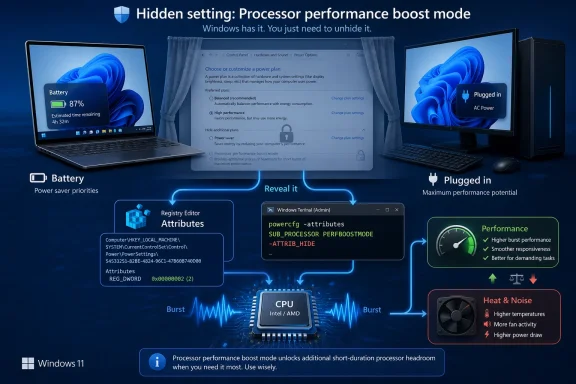
Guiding Tech describes two paths to the same destination. One path edits theAttributes value under the Windows power settings Registry branch for processor boost mode. The other runs powercfg -attributes SUB_PROCESSOR PERFBOOSTMODE -ATTRIB_HIDE from an elevated terminal.The practical effect is to unhide “Processor performance boost mode” under Control Panel’s advanced power settings. From there, users can configure it per power plan and, on many laptops, separately for battery and plugged-in use. That matters more than the command itself, because a single machine can have two very different identities depending on whether it is docked or mobile.
This is also why the old Control Panel refuses to die. Windows 11’s Settings app has absorbed much of the visible consumer interface, but many of the operating system’s serious power-management controls still live in the older stack. The result is a split personality: Microsoft markets Windows as simple and modern, while the controls that explain its behavior remain scattered across legacy surfaces, command-line tools, and Registry keys.
The advice to create a restore point or back up the Registry is not boilerplate here. The specific edit is simple, but the Registry is not a sandbox. Enthusiasts often normalize this kind of tweak because it has circulated for years, but a production laptop used for work deserves more caution than a weekend gaming rig.
Boost Mode Is a Policy, Not a Promise
The most common boost options are familiar to anyone who has spent time tuning Windows power plans: Disabled, Enabled, Aggressive, Efficient Enabled, and Efficient Aggressive. Not every PC exposes every option, and the exact behavior can vary by CPU, firmware, driver stack, Windows build, and OEM configuration. That variability is not a bug in the article; it is the nature of the Windows hardware ecosystem.Disabled is the blunt instrument. It keeps the processor closer to base-clock behavior and can reduce heat and fan noise, but it can also make a machine feel unnecessarily sluggish. It is the setting users reach for when a laptop is too loud, too hot, or too eager to chew through battery, though it can be an overcorrection.
Enabled is the ordinary middle ground. For most users, it is the place to stay unless there is a specific problem to solve. Windows and the processor vendor have usually tuned the default path for a compromise among performance, thermals, acoustics, and longevity.
Aggressive is where the tradeoff becomes visible. It can hold boost behavior longer and respond more eagerly under load, which is useful on performance desktops, gaming laptops with serious cooling, and workstations that spend their lives plugged in. On a fan-limited ultrabook, however, aggressive boost can merely convert short speed into sustained thermal throttling.
The efficient modes are more interesting because they reflect the modern laptop reality. A machine does not need to choose between “fast” and “quiet” as a binary ideology. Efficient Enabled and Efficient Aggressive try to preserve responsiveness while respecting power draw, which is often the sane choice for mobile PCs.
Microsoft’s New Low Latency Profile Muddying the Water Was Inevitable
Guiding Tech correctly separates Processor Performance Boost Mode from Windows 11’s newer Low Latency Profile. That distinction is crucial, because recent coverage from Windows Latest, Windows Central, Tom’s Hardware, TechRadar, and others has used “CPU boost” as shorthand for Microsoft’s new shell-responsiveness work. The terms now overlap in public conversation even though they refer to different layers of the system.Low Latency Profile, according to recent Windows reporting, is designed to trigger short, targeted processor-frequency bursts during interactive moments such as opening the Start menu, launching apps, or invoking shell UI. Windows Central has reported that Microsoft’s work can improve app launch and system flyout responsiveness in measurable ways, while Windows Latest has tracked the feature’s rollout through recent Windows 11 updates. Microsoft has also defended the general idea, with coverage from Tom’s Hardware and TechRadar noting the company’s argument that modern operating systems already use short performance bursts to improve perceived responsiveness.
That is a different proposition from exposing an old power-plan setting. Low Latency Profile is not asking the user whether a power plan should generally prefer boost. It is Microsoft deciding that certain interactions deserve a brief burst of CPU urgency because latency, not throughput, is what users actually feel.
The controversy around Low Latency Profile was predictable. Critics saw a brute-force workaround for Windows 11 shell sluggishness, not an elegant fix. Microsoft’s counterargument is that responsiveness optimizations are normal operating-system behavior, and that short boosts are not the same thing as wasteful sustained load.
Both sides have a point. Windows should absolutely become leaner, and the Start menu should not need heroics to appear promptly on modern hardware. But operating systems have always been in the business of scheduling urgency, and a short, bounded boost during interactive work is not scandalous by itself.
The User Experience Lives in the First Three Seconds
The reason these features attract attention is that most people do not judge a PC by a benchmark suite. They judge it by whether the Start menu appears instantly, whether File Explorer hesitates, whether a browser opens cleanly, and whether the fan screams after a minor task. Processor boost behavior sits directly in that subjective zone.A CPU’s advertised maximum turbo frequency is often less important than how quickly it gets there, how long it stays there, and what the machine does after heat builds. That is why two laptops with the same processor can feel different. One may have conservative firmware, a quiet fan curve, and a power plan tuned for battery life; another may sprint aggressively and then throttle.
Windows power policy is one part of that chain. It cannot overcome a dust-choked heatsink, a failing fan, poor thermal paste, or OEM firmware that clamps power limits hard. But it can change whether Windows asks for performance eagerly or reluctantly.
This is also where users can fool themselves. A machine may feel faster immediately after enabling an aggressive boost policy, especially during quick launches and bursty work. After twenty minutes of sustained load, the same machine may settle into the same or worse performance because cooling, not policy, has become the limiting factor.
For desktops, the calculus is more forgiving. A tower with a competent cooler and stable power has room to let boost stretch its legs. For laptops, the right answer is situational, and the best setting may be different on battery than it is at a desk.
Battery Life Is the Tradeoff Windows Never Explains Clearly
The central tension in CPU boost policy is not performance versus safety. It is performance versus energy behavior. Modern CPUs are designed to boost, and letting them do so inside manufacturer limits is normal operation.The tricky part is that faster can sometimes be more efficient. A processor that races to finish a task and returns quickly to idle may use less energy than one that crawls through the same work at a lower frequency. This “race to idle” logic is one reason simplistic advice about disabling boost to save battery can be misleading.
But it is not universally true. If aggressive boost repeatedly wakes fans, raises skin temperature, and keeps voltage high during background-heavy work, battery life can suffer. A laptop used for browser tabs, Teams, Slack, Outlook, and Windows indexing is not always doing clean little bursts that end neatly.
Windows does not present this tradeoff in human terms. It exposes power modes such as Best performance, Balanced, and Best power efficiency in the Settings app, while deeper options remain elsewhere. The user sees battery percentage and fan noise, not the policy machinery underneath.
That opacity is what makes guides like Guiding Tech’s useful and risky at the same time. They reveal a real lever, but the lever does not come with a dashboard explaining consequences. Users have to observe temperatures, noise, responsiveness, and runtime over several days, not just flip a setting and declare victory after one reboot.
Sysadmins Should Treat This as a Policy Exception, Not a Fleet Default
For IT administrators, the existence of this setting is less interesting than the temptation it creates. A hidden power option that can improve responsiveness sounds like a cheap win, especially in organizations where users complain about sluggish Windows 11 laptops. But fleet-wide power tuning is a place where small changes compound into helpdesk tickets.A sales laptop, a CAD workstation, a shared conference-room PC, and a developer desktop do not have the same thermal or power priorities. A blanket aggressive boost policy may make one group happier and another group miserable. The first complaint will be speed; the second will be fan noise; the third will be battery life; the fourth will be “my laptop is hot.”
The better administrative approach is segmentation. Performance desktops and fixed workstations can tolerate more aggressive behavior. Mobile users often benefit from efficient boost modes, especially if they move between AC and battery throughout the day. Kiosks, frontline devices, and thermally constrained hardware may need conservative settings to preserve stability and acoustics.
There is also a supportability issue. Because Microsoft hides the setting by default on many systems, enabling it through scripts or policy-like deployment creates a configuration that many users and junior technicians will not know exists. If the setting contributes to heat or noise complaints later, the root cause may be invisible unless it is documented.
Enterprises already learned this lesson with power plans, Modern Standby, USB selective suspend, display sleep, and vendor performance utilities. Windows power behavior is not a single Microsoft dial; it is a negotiation among Windows, firmware, drivers, OEM tools, and user expectations. CPU boost mode belongs in that same messy bucket.
Gamers Will Notice the Edge Cases First
Gamers are often the first audience for boost tweaks, partly because they are comfortable changing hidden settings and partly because games expose latency problems brutally. A stutter during a boss fight is more memorable than a spreadsheet that opened half a second faster. But CPU boost mode is not a universal gaming upgrade.Many games are GPU-bound, especially at higher resolutions and quality settings. In those cases, a more aggressive CPU boost policy may do little for average frame rates. It may still help with shader compilation, asset streaming, background launchers, or CPU-limited scenes, but it is not a substitute for a faster GPU or better cooling.
The bigger potential benefit is frame-time consistency in CPU-sensitive titles. Strategy games, simulation games, esports titles at high refresh rates, and older engines that lean on one or two threads may respond better to quicker CPU boosting. Even then, results depend heavily on the system.
Gaming laptops complicate the story. They often ship with OEM utilities that already control performance modes, fan curves, platform power limits, and GPU behavior. Changing Windows boost mode underneath those tools can produce results that are hard to predict, because the OEM software may override or reinterpret the same power framework.
That is why the sensible gaming advice is empirical. Test the games you actually play, watch temperatures and clocks, and compare plugged-in behavior separately from battery behavior. The correct setting is not the one that sounds most extreme; it is the one that produces smoother play without turning the laptop into a thermal siren.
Developers and Creators Need to Separate Burst Work from Sustained Work
Developers, creators, and power users have a different problem. Their workloads often mix bursty foreground actions with long-running compute. A code editor launch, package restore, incremental build, photo preview, or timeline scrub may benefit from eager boost behavior. A full rebuild, video encode, machine-learning job, or large export may quickly run into sustained power and thermal limits.That means aggressive boost can improve the feel of a workstation without materially changing its long-haul throughput. The first thirty seconds may look better; the next thirty minutes may be governed by cooling and configured package power. On a well-cooled desktop, both can improve. On a thin laptop, the early sprint may simply borrow thermal headroom from later in the run.
This does not make the setting useless. Perceived latency matters for creative and technical work because professionals spend all day initiating small actions. Waiting half a second less, hundreds of times, is a real quality-of-life improvement.
But professionals should resist turning every knob to maximum out of habit. Efficient Aggressive may be a better daily-driver choice than Aggressive on mobile workstations, precisely because it preserves some of the snappy response without constantly biasing the machine toward heat. The fastest-feeling setting is not always the most productive setting over a full workday.
The Safety Panic Misses the Real Risk
Every time CPU boost becomes a mainstream topic, some users worry that Windows is “damaging” the processor. That fear misunderstands how modern boost works. CPUs are built to operate across dynamic frequency and voltage ranges, constrained by firmware, silicon limits, thermal sensors, and power management.Changing Windows boost policy does not raise the processor’s official maximum turbo ratio. It does not rewrite voltage tables like a manual overclock. It does not replace BIOS or UEFI tuning. It changes how Windows participates in requesting performance states that the platform already supports.
The real risks are more prosaic. A laptop may become louder. Battery life may decline. A poorly cooled system may spend more time near thermal limits. Dusty machines may reveal problems that were already there. Users may chase placebo gains and create inconsistent behavior across power plans.
There is also a diagnostic risk. If someone enables aggressive boost, then later troubleshoots heat, crashes, or battery drain without remembering the change, the setting becomes one more hidden variable. That is why the restore-point advice matters less as disaster prevention and more as configuration hygiene.
The right mental model is not “dangerous overclock.” It is “power-management policy with consequences.” That phrasing is less exciting, but it is much closer to the truth.
Microsoft Could Make This Less Weird by Owning the Interface
The strangest part of the whole story is that Microsoft has the pieces of a better experience. Windows 11 already has simplified power modes. It already knows whether a device is on battery. It already receives telemetry about performance, responsiveness, and energy behavior. It already has a Settings app that is supposed to replace the Control Panel for normal users.Yet the useful explanation remains scattered. If users want to understand boost policy, they are still reading guides, opening Registry Editor, and visiting a Control Panel dialog that looks like a museum exhibit with administrative privileges. That is not a great look for an operating system trying to sell polish.
Microsoft does not need to expose every processor power parameter in the consumer Settings app. Most users should never see half the knobs that Windows supports. But it could explain the relationship between power mode, responsiveness, fan noise, and battery life more honestly.
The Low Latency Profile rollout makes that need sharper. If Windows is going to use short CPU bursts to make the shell feel faster, users should not have to learn about it from reverse engineering, enthusiast utilities, or scattered reporting. Microsoft can defend the engineering decision while still giving administrators and advanced users visibility.
The company’s challenge is trust. When performance improves but the mechanism is hidden, skeptics assume trickery. When controls are buried, enthusiasts assume Microsoft is withholding agency. A clearer interface would not end the arguments, but it would make them less superstitious.
The Practical WindowsForum Reading of the Boost Switch
For WindowsForum readers, the lesson is not that everyone should enable Aggressive mode and call it optimization. The lesson is that Windows 11 performance tuning has become a layered exercise: old power-plan controls, new scheduler behavior, OEM utilities, firmware limits, and workload-specific expectations all collide on the same machine.If you expose Processor Performance Boost Mode, treat it as a reversible experiment. Change one thing at a time. Test on battery and AC separately. Watch the machine over several normal workdays. Do not judge by a single benchmark run or the emotional high of making a hidden option appear.
The most concrete guidance is straightforward:
- The hidden Processor Performance Boost Mode setting changes Windows power-policy behavior; it does not overclock the CPU or unlock higher turbo frequencies than the hardware already supports.
- The Registry edit and the
powercfgcommand are mainly ways to reveal a Control Panel option that Microsoft often hides by default. - Aggressive boost settings make the most sense on well-cooled desktops and plugged-in performance systems, not as a universal laptop tweak.
- Efficient boost modes are often the more realistic compromise for mobile PCs that need responsiveness without sacrificing too much battery life or acoustic comfort.
- Windows 11’s newer Low Latency Profile is a separate Microsoft-managed responsiveness feature, even though recent coverage often describes both ideas with the same “CPU boost” language.
- Administrators should document and segment any boost-policy changes rather than deploying them blindly across mixed hardware fleets.
References
- Primary source: Guiding Tech
Published: Sat, 04 Jul 2026 06:32:11 GMT
How to Enable Windows 11 CPU Boost - Guiding Tech
Windows 11 hides an advanced processor performance setting behind a Registry tweak. Here’s how to enable Windows CPU boost.www.guidingtech.com
- Related coverage: windowslatest.com
Windows 11's CPU performance boost released today, enable it using these steps
Learn how to check and enable Windows 11’s new Low Latency Profile (June 2026 update) to speed up your Start menu, Search, and Action Center. www.windowslatest.com
- Related coverage: allthings.how
Turn on Windows 11’s Low Latency Profile CPU Boost (June 2026 Update)
Install the June 2026 update or use ViVeTool to switch on the short CPU bursts that speed up the Start menu, Search, and Action Center.allthings.how - Related coverage: pureinfotech.com
How to enable hidden CPU performance boost mode on Windows 11 - Pureinfotech
Learn how to enable and configure Windows 11's hidden Processor performance boost mode to balance speed, responsiveness, and battery life. pureinfotech.com
- Related coverage: windowscentral.com
Confused about Windows 11’s Low Latency Profile? Here is what it actually does and what we know so far about it. | Windows Central
If you are confused about Windows 11’s Low Latency Profile, you are not alone.www.windowscentral.com - Related coverage: notebookcheck.com
Windows 11 mit bis zu 70% weniger Lag: Juni-Update bringt CPU-Boost mit - Notebookcheck News
40 Prozent schnellere App-Starts, 70 Prozent weniger Lag beim Öffnen des Startmenüs: Durch das Windows 11 Low Latency Profile sollen sich PCs wesentlich flotter als bisher anfühlen. Mit dem Juni-Update wird das Feature an alle Nutzer verteilt. www.notebookcheck.com
- Related coverage: tomshardware.com
Microsoft staunchly defends its new 'Low Latency Profile' for Windows 11 after community backlash — says every other OS already boosts CPU speeds for quicker load times | Tom's Hardware
The quest to fix Windows 11 is a bumpy one.www.tomshardware.com - Related coverage: techradar.com
'All modern operating systems do this, including macOS and Linux': Microsoft exec fires back at critics accusing it of 'cheating' with Windows 11 speed boost feature | TechRadar
'Welcome to modern computer science. Come on in!'www.techradar.com
