

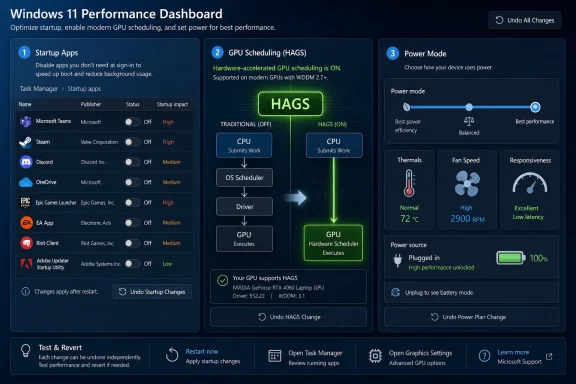
How-To Geek’s Windows optimization test argues that three everyday settings—startup app control, Hardware-Accelerated GPU Scheduling, and Best Performance power mode—deliver the most noticeable gains for typical Windows users in 2026, especially on machines burdened by background launchers, modern GPUs, or conservative power defaults. The useful part is not that these tweaks are obscure; it is that they are boring, reversible, and built into Windows. That makes them more valuable than most “speed up your PC” folklore. The real lesson is that Windows performance is often lost not in one catastrophic bottleneck, but in a pile of reasonable defaults that quietly serve someone else’s priorities.
The Windows optimization industry has always had a credibility problem. For every legitimate setting that reduces latency or frees memory, there are a dozen registry hacks, cleaner apps, driver updaters, and “debloat” scripts that promise a faster PC while adding their own maintenance risk. The worst advice treats Windows like a mysterious machine that can be tricked into speed by disabling random services with scary names.
That is why the three-tweak argument lands better than the usual performance guide. Disabling heavy startup apps, enabling Hardware-Accelerated GPU Scheduling where supported, and switching to Best Performance are not magic incantations. They are simple changes to when software starts, where some graphics scheduling work happens, and how aggressively Windows trades responsiveness for efficiency.
That distinction matters. Windows 11 is not slow because Microsoft forgot how computers work. It is often slower than it needs to be because the operating system is designed for a broad fleet: laptops, desktops, tablets, office PCs, gaming rigs, managed endpoints, and devices whose owners never open Task Manager. Defaults must be safe, battery-conscious, and broadly compatible. Performance enthusiasts, by contrast, usually want immediacy.
The three settings How-To Geek highlights sit exactly at that fault line. They do not ask users to remove Windows components or trust third-party utilities. They ask users to make explicit choices Microsoft tends to leave implicit: which apps deserve to wake up with the machine, whether the GPU should take on more scheduling responsibility, and whether the CPU should behave like it is plugged into a wall or guarding the last 18 percent of a battery.
The reason is simple. Boot time is not just Windows loading Windows. It is also Teams, Steam, Discord, OneDrive, Adobe updaters, browser preloaders, RGB utilities, printer helpers, GPU dashboards, cloud sync clients, launchers, messengers, audio control panels, password managers, and half a dozen vendor utilities all trying to establish themselves before the user has even decided what to do.
Some of those programs are justified. Security tools, sync clients, accessibility software, input utilities, and enterprise agents may need to be present immediately. But many startup entries are not there for the user’s benefit. They are there because software vendors know that the app a user sees first is the app a user is more likely to use, update, subscribe to, or forget to close.
Task Manager’s Startup apps page is one of the rare Windows utilities that makes this trade-off legible. It shows what launches at sign-in and provides a Startup impact rating, which is Microsoft’s way of translating CPU and disk activity during startup into something normal people can act on. That rating is not a perfect performance benchmark, but it is good enough for triage.
The important move is not to disable everything. It is to divide startup programs into two groups: software that must be ready without being asked, and software that merely prefers to be there. Game launchers, media apps, office helpers, chat clients used occasionally, and vendor control panels often belong in the second group. If an app opens quickly from the Start menu, it probably does not need to live rent-free in memory from the moment Windows starts.
This is also the tweak least likely to punish the user. Disabling a startup entry does not uninstall the app, corrupt Windows, or prevent manual launch. It simply moves the decision point back to the person sitting at the keyboard. In a world where so much software behaves as if attention is an entitlement, that is a performance improvement and a small act of desktop self-defense.
That matters more on mainstream hardware than enthusiasts like to admit. A 32GB gaming desktop can absorb a sloppy startup load with irritation rather than disaster. An 8GB or 16GB laptop running a browser, Office, Teams, OneDrive, and a few background utilities has far less room for waste. Once memory pressure rises, Windows has to make harder choices about what stays in RAM and what gets pushed elsewhere.
The page file is not evil; Windows memory management is far more sophisticated than the old “RAM good, page file bad” cliché suggests. But when too many background processes compete for memory, users start to feel the shape of the compromise. Apps pause before repainting. Browser tabs reload. Context switches feel heavier. The machine is not broken, exactly; it is busy serving software the user did not actively request.
This is why startup management is often more effective than cleaning temporary files or chasing tiny registry savings. Disk space can matter, especially on cramped SSDs, but free storage is not the same thing as responsiveness. A PC with 300GB free can still feel sluggish if ten programs are running in the background for no good reason.
For IT administrators, the same principle applies at fleet scale. The problem may not be one bad app, but a cumulative endpoint tax: collaboration suites, VPN clients, security agents, inventory tools, device management components, browser helpers, and line-of-business launchers all piling onto sign-in. Each one may be defensible in isolation. Together, they turn the first few minutes of a workday into a resource contest.
The lesson is not that users should become startup minimalists for sport. It is that startup is a privileged moment. Anything allowed to run there should earn the privilege.
The theory is appealing. If the CPU is spending less time managing graphics work, there is less overhead. If frame scheduling can be handled closer to the graphics hardware, certain workloads may see better latency or smoother delivery. In gaming, video production, 3D rendering, streaming, and GPU-heavy desktop work, small improvements in scheduling can matter more than a raw average frame-rate chart suggests.
But this is also where users need to resist the benchmark-brain version of optimization. HAGS is not a secret turbo button. It depends on the GPU, the driver, the Windows build, the game engine or application, and the rest of the system. Some users report smoother frame pacing. Some see little difference. In specific multi-monitor or hardware-accelerated video scenarios, some have historically reported stutter or regressions, which is precisely why Microsoft treated the feature as an opt-in setting rather than a universal behavioral change.
That does not make it snake oil. It makes it a modern Windows graphics feature: meaningful, conditional, and best judged on the machine in front of you. The correct advice is to enable it if your system supports it, reboot, test the games and apps you actually use, and turn it back off if your setup behaves worse. That is not as satisfying as a universal rule, but it is how PC performance really works.
The setting is also a reminder that Windows performance increasingly depends on specialized hardware paths. Modern PCs are not simple CPU-centered boxes with a graphics card hanging off the side. They are systems of accelerators, firmware, drivers, media engines, neural processors, power controllers, and scheduling layers. A setting like HAGS matters because it changes which part of that system handles a specific kind of work.
For users with modern discrete GPUs and enough VRAM, the downside is usually modest. The feature uses some GPU memory for scheduling-related work, but on contemporary gaming and creator cards that is unlikely to be the deciding factor. On marginal hardware, older drivers, or systems already close to their VRAM limits, the calculus may be less favorable.
That model is now incomplete. A modern graphics workload is a pipeline, and the CPU is only one part of the queue. Frames must be prepared, scheduled, submitted, rendered, displayed, and synchronized with input and refresh behavior. Small delays in that chain can produce the human-visible ugliness of stutter even when the average frame rate looks fine.
This is why graphics scheduling has become a user-facing topic at all. Once GPUs became central to gaming, video, browsers, creative apps, AI workloads, and even pieces of the Windows interface, the question of how work gets fed to the GPU stopped being an implementation detail. It became part of the user experience.
HAGS does not eliminate the CPU from the graphics pipeline, and it does not turn a midrange GPU into a flagship one. But it can reduce some of the CPU-side coordination burden and alter the timing behavior of graphics work. That is enough to make it worth testing on the kinds of PCs WindowsForum readers actually own: machines with discrete GPUs, multiple displays, demanding games, capture software, overlays, and browsers running hardware-accelerated video in the background.
The catch is that enthusiasts often test settings in isolation and then declare permanent victory. Driver updates change behavior. Windows feature updates change behavior. Games update their engines, overlays, anti-cheat components, and frame generation features. A setting that helped last year may become neutral this year, and a setting that once caused trouble may be fixed by a driver release.
That volatility argues for a sane habit rather than a fixed ideology. If HAGS is available, test it after major driver or Windows updates, especially if you care about latency, frame pacing, or GPU-heavy multitasking. Keep notes if you are troubleshooting. Do not let a five-year-old forum post, including ours, outrank your own repeatable experience on your own hardware.
On a plugged-in desktop, however, the equation changes. A gaming tower with a competent cooler and a power supply connected to the wall does not need to behave like an ultrabook trying to survive a cross-country flight. If the user is gaming, compiling code, editing video, running virtual machines, or doing other bursty work, the cost of aggressive power saving may be felt as latency rather than merely lower benchmark numbers.
Windows processor power management can scale CPU frequency and voltage, park cores, and move hardware into lower-power states when demand is light. That is efficient. It is also a bet that the system can wake quickly enough when demand returns. Most of the time, it can. The problem is that “most of the time” is not the same as “never visible.”
Stutters and frame-time spikes are often about transitions. A processor that has to ramp from a low-power state into a high-performance state may do so quickly in human terms and still not quickly enough for a game frame, audio workload, or latency-sensitive application. The average CPU utilization graph may look fine while the user feels a hitch.
Best Performance changes the bias. It tells Windows to favor responsiveness over restraint. It does not repeal physics, and it does not mean every CPU core runs at maximum boost forever, but it reduces the system’s eagerness to save power at the expense of readiness. For desktops, that is often a reasonable default for demanding users.
On laptops, it is more complicated. Best Performance can increase heat, fan noise, and battery drain. It may also run into firmware and OEM limits that prevent the setting from doing what users expect. A thin laptop with constrained cooling cannot become a workstation simply because a slider moved to the right. In some cases, higher sustained performance may require manufacturer utilities, BIOS settings, or accepting more noise and temperature.
That balancing act is defensible. If Microsoft shipped every laptop in Best Performance mode, many users would complain about battery life and fan noise. If it enabled every new graphics scheduling path by default before drivers matured across the ecosystem, regressions would become Microsoft’s problem even when the root cause lived elsewhere. If it blocked apps from adding themselves to startup, software vendors and some users would scream that Windows was breaking expected behavior.
The trouble is that defaults have moral authority in consumer software. Most users interpret the default as the recommended setting, not as a compromise among competing constituencies. If Windows allows fifteen apps to launch at startup, many users assume that is normal. If Balanced mode is selected, they assume it is optimal. If HAGS is off or hidden, they assume they do not need to think about it.
Power users know better, but even power users can overcorrect. The answer to conservative defaults is not reckless tweaking. It is targeted adjustment. Change the settings whose trade-offs you understand, measure the result by how the machine feels under your actual workload, and reverse the change if the cost shows up elsewhere.
That is why this trio is persuasive. Each setting maps to a clear performance story. Startup apps affect boot and background resource use. HAGS affects graphics scheduling on supported systems. Best Performance affects the power-management bias between efficiency and responsiveness. There is no need to invoke vague “system optimization” language when the mechanisms are concrete.
The same clarity is missing from many popular Windows speed guides. Advice to disable animations, clear caches, kill services, clean the registry, or use third-party boosters often promises generalized speed without identifying the bottleneck. Sometimes those steps help in narrow cases. Often they produce placebo, cosmetic change, or future troubleshooting pain.
There was a historical basis for some of that anxiety. Older PCs with spinning hard drives, tiny amounts of RAM, fragmented disks, bloated OEM images, and less mature update systems really could become miserable over time. Defragmentation mattered on hard drives. Removing trialware mattered. A bad startup load could turn a boot into a coffee break.
But the hardware changed. SSDs made many disk-seek problems vanish. Windows improved startup handling and memory management. Security models tightened. Updates became more automatic. The old toolkit did not disappear, though; it adapted. Today’s version is the YouTube short promising 20 hidden settings for “zero input delay” or the script that disables half of Windows in the name of privacy and speed.
The danger is not merely that these tweaks fail. It is that they muddy cause and effect. If a user disables services, changes registry keys, installs a booster, turns off security features, and flips a dozen gaming settings at once, they may not know what helped, what hurt, or what broke Windows Update six months later. Optimization becomes superstition.
The three settings under discussion avoid that trap because they are reversible and observable. Disable a startup app and see whether sign-in improves. Enable HAGS and test the same game or workload. Switch power mode and watch thermals, fan behavior, and responsiveness. If the result is bad, undo the setting. That is engineering, not ritual.
It also means users can stop treating every Windows feature as bloat. Some background apps are waste. Some are valuable. Some power-saving behavior is annoying. Some is essential. Some GPU scheduling changes help. Some configurations are neutral. The mature position is not “Windows is slow until you hack it.” It is “Windows is general-purpose until you tune it for your purpose.”
Still, the principle applies. Enterprise Windows images often accumulate cruft over years of vendor changes, mergers, security mandates, and “temporary” agents that become permanent. A slow sign-in storm at 9 a.m. can be an IT problem, not a user discipline problem. Measuring startup impact, auditing autoruns, and challenging software that insists on launching for every user can produce real productivity gains.
HAGS is similarly complicated in business environments. On standard office hardware, it may be irrelevant. On engineering workstations, creative fleets, CAD deployments, GPU-accelerated VDI, or mixed workloads involving conferencing and visualization, graphics scheduling behavior may matter. But administrators will care less about one user’s frame rate and more about reproducibility, driver support, and whether a change behaves consistently across models.
Power mode is the setting most likely to collide with policy. Many organizations deliberately bias devices toward efficiency to reduce heat, noise, battery complaints, and energy use. On mobile fleets, that is sensible. On fixed workstations assigned to demanding workloads, it may be counterproductive. The right policy is rarely one-size-fits-all.
This is where Windows management tooling matters. The consumer UI makes these tweaks look like personal preference. In a business, they are configuration baselines. IT teams should treat them as workload-specific settings, not universal dogma. A developer workstation, a call-center laptop, a conference-room mini PC, and a gaming-style GPU workstation do not need identical power and startup behavior.
The more interesting enterprise lesson is cultural. Users often blame “Windows” when the actual culprit is the corporate software stack layered on top of it. Conversely, IT teams sometimes blame users for slow machines while continuing to deploy agents that compete at startup and run continuously. Performance is a shared responsibility, and the startup list is where that responsibility becomes visible.
That messiness is not a reason to ignore the settings. It is a reason to test them properly. Average FPS is a blunt instrument. What many users describe as “smoothness” is more closely tied to frame-time consistency, input latency, shader compilation behavior, asset streaming, background processes, overlays, and thermal stability.
Disabling startup apps can help gaming not because Steam or Discord existing is inherently bad, but because unnecessary background work can collide with shader compilation, game launchers, anti-cheat checks, cloud sync, recording software, and browser tabs. If Windows is already busy at the moment a game starts, the first few minutes of play can feel rougher than the hardware spec sheet suggests.
Best Performance can help when games are sensitive to CPU state transitions or when the system is bouncing between idle and load. It is less likely to matter when the GPU is fully saturated and the CPU is already awake and boosting. That is why some users see a difference in competitive titles, simulation games, or CPU-heavy scenes, while others see nothing in GPU-bound workloads.
HAGS belongs in the same category. It is worth testing because the cost of testing is low, not because every rig will benefit. The more exotic the setup—multiple monitors, high-refresh displays, capture software, browser video on a second screen, frame generation, VR, overlays—the more important it is to evaluate the actual experience rather than trust generic advice.
The gaming community is at its best when it treats Windows settings like variables in a system, not articles of faith. Change one thing. Reboot when required. Test the same scenario. Watch one-percent lows, frame-time graphs, thermals, and subjective input feel. Then decide. The answer may be different across hardware, and that is allowed.
That makes them especially useful for WindowsForum readers who routinely become unpaid support staff for family, friends, and coworkers. When someone complains that a PC “got slow,” the temptation is to reach for a dramatic fix: reinstall Windows, remove antivirus, run a cleaner, buy RAM, or blame the latest update. Sometimes those are valid. Often, the better first step is to look at startup, power mode, and workload-specific graphics settings.
A ten-minute tune-up will not rescue failing storage, malware, thermal throttling, insufficient RAM, bad drivers, or a bloated OEM image from 2018. It will not make an old dual-core laptop feel like a modern workstation. It will not compensate for a game that stutters because of shader compilation or a browser session with 200 tabs. No honest optimization tip should promise that.
But it can remove self-inflicted drag. It can make a capable machine feel more like itself. It can shorten the time between login and readiness, reduce background contention, improve responsiveness under bursty loads, and potentially smooth GPU-heavy work on supported systems. Those are modest claims, which is why they are believable.
The reversibility is also important. Windows advice should be judged not only by what it might improve, but by how safely a user can retreat. Disabling a startup app can be undone. HAGS can be toggled off. Power mode can return to Balanced. That reversibility makes experimentation rational instead of reckless.
In an era when Windows is increasingly tied to cloud accounts, AI features, telemetry debates, subscription prompts, and hardware security requirements, it is refreshing to find performance advice that does not require taking a political position on the operating system. These tweaks are practical. They do not ask whether you love Windows. They ask what you want the machine to prioritize.
Microsoft will keep designing Windows for the broad middle of the PC market, and that means the defaults will continue to favor compatibility, efficiency, and vendor coexistence over the sharper edges of enthusiast performance. The opportunity for users and administrators is not to wage war on Windows, but to make its trade-offs explicit: fewer freeloaders at startup, graphics scheduling that matches the hardware, and power behavior that fits the job at hand. If the next generation of Windows optimization advice looks more like that—specific, reversible, and honest about trade-offs—the PC will feel faster not because of folklore, but because the operating system is finally being asked to serve the person actually using it.
 The Best Windows Tweaks Are the Ones That Stop Pretending to Be Magic
The Windows optimization industry has always had a credibility problem. For every legitimate setting that reduces latency or frees memory, there are a dozen registry hacks, cleaner apps, driver updaters, and “debloat” scripts that promise a faster PC while adding their own maintenance risk. The worst advice treats Windows like a mysterious machine that can be tricked into speed by disabling random services with scary names.That is why the three-tweak argument lands better than the usual performance guide. Disabling heavy startup apps, enabling Hardware-Accelerated GPU Scheduling where supported, and switching to Best Performance are not magic incantations. They are simple changes to when software starts, where some graphics scheduling work happens, and how aggressively Windows trades responsiveness for efficiency.
That distinction matters. Windows 11 is not slow because Microsoft forgot how computers work. It is often slower than it needs to be because the operating system is designed for a broad fleet: laptops, desktops, tablets, office PCs, gaming rigs, managed endpoints, and devices whose owners never open Task Manager. Defaults must be safe, battery-conscious, and broadly compatible. Performance enthusiasts, by contrast, usually want immediacy.
The three settings How-To Geek highlights sit exactly at that fault line. They do not ask users to remove Windows components or trust third-party utilities. They ask users to make explicit choices Microsoft tends to leave implicit: which apps deserve to wake up with the machine, whether the GPU should take on more scheduling responsibility, and whether the CPU should behave like it is plugged into a wall or guarding the last 18 percent of a battery.
Startup Apps Are Where “Fast Boot” Goes to Die
The most universally useful tweak is also the least glamorous: stop letting every app launch with Windows. This is not a new discovery, but it remains the Windows performance problem most users can actually feel. A PC can have a fast SSD, a modern processor, and plenty of RAM, then still spend the first minute after login acting like it is negotiating with itself.The reason is simple. Boot time is not just Windows loading Windows. It is also Teams, Steam, Discord, OneDrive, Adobe updaters, browser preloaders, RGB utilities, printer helpers, GPU dashboards, cloud sync clients, launchers, messengers, audio control panels, password managers, and half a dozen vendor utilities all trying to establish themselves before the user has even decided what to do.
Some of those programs are justified. Security tools, sync clients, accessibility software, input utilities, and enterprise agents may need to be present immediately. But many startup entries are not there for the user’s benefit. They are there because software vendors know that the app a user sees first is the app a user is more likely to use, update, subscribe to, or forget to close.
Task Manager’s Startup apps page is one of the rare Windows utilities that makes this trade-off legible. It shows what launches at sign-in and provides a Startup impact rating, which is Microsoft’s way of translating CPU and disk activity during startup into something normal people can act on. That rating is not a perfect performance benchmark, but it is good enough for triage.
The important move is not to disable everything. It is to divide startup programs into two groups: software that must be ready without being asked, and software that merely prefers to be there. Game launchers, media apps, office helpers, chat clients used occasionally, and vendor control panels often belong in the second group. If an app opens quickly from the Start menu, it probably does not need to live rent-free in memory from the moment Windows starts.
This is also the tweak least likely to punish the user. Disabling a startup entry does not uninstall the app, corrupt Windows, or prevent manual launch. It simply moves the decision point back to the person sitting at the keyboard. In a world where so much software behaves as if attention is an entitlement, that is a performance improvement and a small act of desktop self-defense.
The Background App Tax Is Paid in RAM, Patience, and Battery
Startup clutter is easy to underestimate because the desktop eventually settles down. The system becomes usable, the tray icons stop blinking into existence, and the user moves on. But startup apps do not merely affect startup. Many remain resident, updating, syncing, indexing, checking licenses, scanning libraries, and waiting for notifications.That matters more on mainstream hardware than enthusiasts like to admit. A 32GB gaming desktop can absorb a sloppy startup load with irritation rather than disaster. An 8GB or 16GB laptop running a browser, Office, Teams, OneDrive, and a few background utilities has far less room for waste. Once memory pressure rises, Windows has to make harder choices about what stays in RAM and what gets pushed elsewhere.
The page file is not evil; Windows memory management is far more sophisticated than the old “RAM good, page file bad” cliché suggests. But when too many background processes compete for memory, users start to feel the shape of the compromise. Apps pause before repainting. Browser tabs reload. Context switches feel heavier. The machine is not broken, exactly; it is busy serving software the user did not actively request.
This is why startup management is often more effective than cleaning temporary files or chasing tiny registry savings. Disk space can matter, especially on cramped SSDs, but free storage is not the same thing as responsiveness. A PC with 300GB free can still feel sluggish if ten programs are running in the background for no good reason.
For IT administrators, the same principle applies at fleet scale. The problem may not be one bad app, but a cumulative endpoint tax: collaboration suites, VPN clients, security agents, inventory tools, device management components, browser helpers, and line-of-business launchers all piling onto sign-in. Each one may be defensible in isolation. Together, they turn the first few minutes of a workday into a resource contest.
The lesson is not that users should become startup minimalists for sport. It is that startup is a privileged moment. Anything allowed to run there should earn the privilege.
GPU Scheduling Is a Real Feature, Not a Universal Cure
Hardware-Accelerated GPU Scheduling, usually shortened to HAGS, is a more interesting case because it sounds like the kind of setting optimization guides love to oversell. It arrived with the Windows 10 May 2020 Update as part of a shift in how Windows can handle graphics scheduling on supported hardware and drivers. Instead of keeping all high-frequency scheduling work in the traditional CPU-managed path, Windows can let a dedicated GPU scheduling processor take on more of that responsibility.The theory is appealing. If the CPU is spending less time managing graphics work, there is less overhead. If frame scheduling can be handled closer to the graphics hardware, certain workloads may see better latency or smoother delivery. In gaming, video production, 3D rendering, streaming, and GPU-heavy desktop work, small improvements in scheduling can matter more than a raw average frame-rate chart suggests.
But this is also where users need to resist the benchmark-brain version of optimization. HAGS is not a secret turbo button. It depends on the GPU, the driver, the Windows build, the game engine or application, and the rest of the system. Some users report smoother frame pacing. Some see little difference. In specific multi-monitor or hardware-accelerated video scenarios, some have historically reported stutter or regressions, which is precisely why Microsoft treated the feature as an opt-in setting rather than a universal behavioral change.
That does not make it snake oil. It makes it a modern Windows graphics feature: meaningful, conditional, and best judged on the machine in front of you. The correct advice is to enable it if your system supports it, reboot, test the games and apps you actually use, and turn it back off if your setup behaves worse. That is not as satisfying as a universal rule, but it is how PC performance really works.
The setting is also a reminder that Windows performance increasingly depends on specialized hardware paths. Modern PCs are not simple CPU-centered boxes with a graphics card hanging off the side. They are systems of accelerators, firmware, drivers, media engines, neural processors, power controllers, and scheduling layers. A setting like HAGS matters because it changes which part of that system handles a specific kind of work.
For users with modern discrete GPUs and enough VRAM, the downside is usually modest. The feature uses some GPU memory for scheduling-related work, but on contemporary gaming and creator cards that is unlikely to be the deciding factor. On marginal hardware, older drivers, or systems already close to their VRAM limits, the calculus may be less favorable.
The CPU Is No Longer the Only Traffic Cop
The deeper significance of HAGS is that it challenges an old mental model of Windows performance. For years, the CPU was treated as the master coordinator and everything else as a worker. If something felt slow, users looked at CPU percentage. If a game stuttered, they asked whether the processor was bottlenecking the GPU. If a desktop froze, the first instinct was to blame “too many processes.”That model is now incomplete. A modern graphics workload is a pipeline, and the CPU is only one part of the queue. Frames must be prepared, scheduled, submitted, rendered, displayed, and synchronized with input and refresh behavior. Small delays in that chain can produce the human-visible ugliness of stutter even when the average frame rate looks fine.
This is why graphics scheduling has become a user-facing topic at all. Once GPUs became central to gaming, video, browsers, creative apps, AI workloads, and even pieces of the Windows interface, the question of how work gets fed to the GPU stopped being an implementation detail. It became part of the user experience.
HAGS does not eliminate the CPU from the graphics pipeline, and it does not turn a midrange GPU into a flagship one. But it can reduce some of the CPU-side coordination burden and alter the timing behavior of graphics work. That is enough to make it worth testing on the kinds of PCs WindowsForum readers actually own: machines with discrete GPUs, multiple displays, demanding games, capture software, overlays, and browsers running hardware-accelerated video in the background.
The catch is that enthusiasts often test settings in isolation and then declare permanent victory. Driver updates change behavior. Windows feature updates change behavior. Games update their engines, overlays, anti-cheat components, and frame generation features. A setting that helped last year may become neutral this year, and a setting that once caused trouble may be fixed by a driver release.
That volatility argues for a sane habit rather than a fixed ideology. If HAGS is available, test it after major driver or Windows updates, especially if you care about latency, frame pacing, or GPU-heavy multitasking. Keep notes if you are troubleshooting. Do not let a five-year-old forum post, including ours, outrank your own repeatable experience on your own hardware.
Best Performance Is a Desktop Setting Wearing a Laptop Warning Label
The third tweak, switching Windows power mode to Best Performance, is the most context-dependent and the most misunderstood. Microsoft’s Balanced mode exists for good reasons. It tries to deliver acceptable performance while conserving energy, reducing heat, limiting fan noise, and preserving battery life. On a laptop, those are not secondary concerns; they are the product.On a plugged-in desktop, however, the equation changes. A gaming tower with a competent cooler and a power supply connected to the wall does not need to behave like an ultrabook trying to survive a cross-country flight. If the user is gaming, compiling code, editing video, running virtual machines, or doing other bursty work, the cost of aggressive power saving may be felt as latency rather than merely lower benchmark numbers.
Windows processor power management can scale CPU frequency and voltage, park cores, and move hardware into lower-power states when demand is light. That is efficient. It is also a bet that the system can wake quickly enough when demand returns. Most of the time, it can. The problem is that “most of the time” is not the same as “never visible.”
Stutters and frame-time spikes are often about transitions. A processor that has to ramp from a low-power state into a high-performance state may do so quickly in human terms and still not quickly enough for a game frame, audio workload, or latency-sensitive application. The average CPU utilization graph may look fine while the user feels a hitch.
Best Performance changes the bias. It tells Windows to favor responsiveness over restraint. It does not repeal physics, and it does not mean every CPU core runs at maximum boost forever, but it reduces the system’s eagerness to save power at the expense of readiness. For desktops, that is often a reasonable default for demanding users.
On laptops, it is more complicated. Best Performance can increase heat, fan noise, and battery drain. It may also run into firmware and OEM limits that prevent the setting from doing what users expect. A thin laptop with constrained cooling cannot become a workstation simply because a slider moved to the right. In some cases, higher sustained performance may require manufacturer utilities, BIOS settings, or accepting more noise and temperature.
Windows Defaults Are Negotiations, Not Judgments
The useful frame for all three tweaks is that Windows defaults are negotiations. Microsoft is not choosing startup apps, GPU scheduling behavior, and power mode solely for maximum speed. It is balancing compatibility, battery life, stability, support costs, vendor expectations, enterprise manageability, and user confusion.That balancing act is defensible. If Microsoft shipped every laptop in Best Performance mode, many users would complain about battery life and fan noise. If it enabled every new graphics scheduling path by default before drivers matured across the ecosystem, regressions would become Microsoft’s problem even when the root cause lived elsewhere. If it blocked apps from adding themselves to startup, software vendors and some users would scream that Windows was breaking expected behavior.
The trouble is that defaults have moral authority in consumer software. Most users interpret the default as the recommended setting, not as a compromise among competing constituencies. If Windows allows fifteen apps to launch at startup, many users assume that is normal. If Balanced mode is selected, they assume it is optimal. If HAGS is off or hidden, they assume they do not need to think about it.
Power users know better, but even power users can overcorrect. The answer to conservative defaults is not reckless tweaking. It is targeted adjustment. Change the settings whose trade-offs you understand, measure the result by how the machine feels under your actual workload, and reverse the change if the cost shows up elsewhere.
That is why this trio is persuasive. Each setting maps to a clear performance story. Startup apps affect boot and background resource use. HAGS affects graphics scheduling on supported systems. Best Performance affects the power-management bias between efficiency and responsiveness. There is no need to invoke vague “system optimization” language when the mechanisms are concrete.
The same clarity is missing from many popular Windows speed guides. Advice to disable animations, clear caches, kill services, clean the registry, or use third-party boosters often promises generalized speed without identifying the bottleneck. Sometimes those steps help in narrow cases. Often they produce placebo, cosmetic change, or future troubleshooting pain.
The Registry-Cleaner Era Still Haunts Windows Advice
Part of the reason sensible optimization tips sound underwhelming is that users have been trained to expect drama. The Windows performance conversation grew up alongside registry cleaners, startup managers, RAM optimizers, defrag utilities, and OEM “tune-up” suites. These tools built a business around the idea that Windows naturally decays and must be rescued by software that looks busier than the operating system itself.There was a historical basis for some of that anxiety. Older PCs with spinning hard drives, tiny amounts of RAM, fragmented disks, bloated OEM images, and less mature update systems really could become miserable over time. Defragmentation mattered on hard drives. Removing trialware mattered. A bad startup load could turn a boot into a coffee break.
But the hardware changed. SSDs made many disk-seek problems vanish. Windows improved startup handling and memory management. Security models tightened. Updates became more automatic. The old toolkit did not disappear, though; it adapted. Today’s version is the YouTube short promising 20 hidden settings for “zero input delay” or the script that disables half of Windows in the name of privacy and speed.
The danger is not merely that these tweaks fail. It is that they muddy cause and effect. If a user disables services, changes registry keys, installs a booster, turns off security features, and flips a dozen gaming settings at once, they may not know what helped, what hurt, or what broke Windows Update six months later. Optimization becomes superstition.
The three settings under discussion avoid that trap because they are reversible and observable. Disable a startup app and see whether sign-in improves. Enable HAGS and test the same game or workload. Switch power mode and watch thermals, fan behavior, and responsiveness. If the result is bad, undo the setting. That is engineering, not ritual.
It also means users can stop treating every Windows feature as bloat. Some background apps are waste. Some are valuable. Some power-saving behavior is annoying. Some is essential. Some GPU scheduling changes help. Some configurations are neutral. The mature position is not “Windows is slow until you hack it.” It is “Windows is general-purpose until you tune it for your purpose.”
Enterprise IT Will See the Same Tweaks Through a Different Lens
For sysadmins, the home-user version of this advice needs translation. Disabling startup apps across a managed fleet is not just a performance tweak; it is a governance decision. Startup entries may be tied to endpoint security, device management, compliance logging, backup, identity, VPN, or collaboration policy. Removing the wrong one can create risk that is harder to detect than a slow login.Still, the principle applies. Enterprise Windows images often accumulate cruft over years of vendor changes, mergers, security mandates, and “temporary” agents that become permanent. A slow sign-in storm at 9 a.m. can be an IT problem, not a user discipline problem. Measuring startup impact, auditing autoruns, and challenging software that insists on launching for every user can produce real productivity gains.
HAGS is similarly complicated in business environments. On standard office hardware, it may be irrelevant. On engineering workstations, creative fleets, CAD deployments, GPU-accelerated VDI, or mixed workloads involving conferencing and visualization, graphics scheduling behavior may matter. But administrators will care less about one user’s frame rate and more about reproducibility, driver support, and whether a change behaves consistently across models.
Power mode is the setting most likely to collide with policy. Many organizations deliberately bias devices toward efficiency to reduce heat, noise, battery complaints, and energy use. On mobile fleets, that is sensible. On fixed workstations assigned to demanding workloads, it may be counterproductive. The right policy is rarely one-size-fits-all.
This is where Windows management tooling matters. The consumer UI makes these tweaks look like personal preference. In a business, they are configuration baselines. IT teams should treat them as workload-specific settings, not universal dogma. A developer workstation, a call-center laptop, a conference-room mini PC, and a gaming-style GPU workstation do not need identical power and startup behavior.
The more interesting enterprise lesson is cultural. Users often blame “Windows” when the actual culprit is the corporate software stack layered on top of it. Conversely, IT teams sometimes blame users for slow machines while continuing to deploy agents that compete at startup and run continuously. Performance is a shared responsibility, and the startup list is where that responsibility becomes visible.
Gamers Should Care More About Frame Time Than Folklore
Among gamers, these three tweaks will be familiar, but familiarity has not produced consensus. One player swears HAGS fixed stutter. Another insists it caused it. One benchmark shows no meaningful FPS change. Another finds a small gain in lows. Power mode helps one system and does nothing on another because firmware, GPU load, cooling, and game engine behavior dominate the result.That messiness is not a reason to ignore the settings. It is a reason to test them properly. Average FPS is a blunt instrument. What many users describe as “smoothness” is more closely tied to frame-time consistency, input latency, shader compilation behavior, asset streaming, background processes, overlays, and thermal stability.
Disabling startup apps can help gaming not because Steam or Discord existing is inherently bad, but because unnecessary background work can collide with shader compilation, game launchers, anti-cheat checks, cloud sync, recording software, and browser tabs. If Windows is already busy at the moment a game starts, the first few minutes of play can feel rougher than the hardware spec sheet suggests.
Best Performance can help when games are sensitive to CPU state transitions or when the system is bouncing between idle and load. It is less likely to matter when the GPU is fully saturated and the CPU is already awake and boosting. That is why some users see a difference in competitive titles, simulation games, or CPU-heavy scenes, while others see nothing in GPU-bound workloads.
HAGS belongs in the same category. It is worth testing because the cost of testing is low, not because every rig will benefit. The more exotic the setup—multiple monitors, high-refresh displays, capture software, browser video on a second screen, frame generation, VR, overlays—the more important it is to evaluate the actual experience rather than trust generic advice.
The gaming community is at its best when it treats Windows settings like variables in a system, not articles of faith. Change one thing. Reboot when required. Test the same scenario. Watch one-percent lows, frame-time graphs, thermals, and subjective input feel. Then decide. The answer may be different across hardware, and that is allowed.
The Ten-Minute Tune-Up Works Because It Respects the System
What makes the How-To Geek trio compelling is not that it exposes secret Windows incompetence. It is that it respects the architecture enough to avoid breaking it. These changes live in Settings and Task Manager because Microsoft expects users to make them. They are not back-alley hacks; they are knobs on the dashboard.That makes them especially useful for WindowsForum readers who routinely become unpaid support staff for family, friends, and coworkers. When someone complains that a PC “got slow,” the temptation is to reach for a dramatic fix: reinstall Windows, remove antivirus, run a cleaner, buy RAM, or blame the latest update. Sometimes those are valid. Often, the better first step is to look at startup, power mode, and workload-specific graphics settings.
A ten-minute tune-up will not rescue failing storage, malware, thermal throttling, insufficient RAM, bad drivers, or a bloated OEM image from 2018. It will not make an old dual-core laptop feel like a modern workstation. It will not compensate for a game that stutters because of shader compilation or a browser session with 200 tabs. No honest optimization tip should promise that.
But it can remove self-inflicted drag. It can make a capable machine feel more like itself. It can shorten the time between login and readiness, reduce background contention, improve responsiveness under bursty loads, and potentially smooth GPU-heavy work on supported systems. Those are modest claims, which is why they are believable.
The reversibility is also important. Windows advice should be judged not only by what it might improve, but by how safely a user can retreat. Disabling a startup app can be undone. HAGS can be toggled off. Power mode can return to Balanced. That reversibility makes experimentation rational instead of reckless.
In an era when Windows is increasingly tied to cloud accounts, AI features, telemetry debates, subscription prompts, and hardware security requirements, it is refreshing to find performance advice that does not require taking a political position on the operating system. These tweaks are practical. They do not ask whether you love Windows. They ask what you want the machine to prioritize.
Three Toggles Reveal the Real Windows Performance Bargain
The concrete advice is short, but the implications are bigger than the settings panels that contain it. If there is a theme here, it is that Windows performance improves when users reclaim decisions that software vendors and conservative defaults quietly made for them.- Disabling heavy startup apps is the safest and most broadly useful change because it reduces boot-time contention and prevents unused software from occupying resources immediately after sign-in.
- Hardware-Accelerated GPU Scheduling is worth testing on supported modern GPUs, especially for gaming and graphics-heavy workloads, but it should be judged by real workload behavior rather than assumed to help every system.
- Best Performance mode makes the most sense on plugged-in desktops and performance-focused laptops, while battery-powered systems need a more careful balance between responsiveness, heat, noise, and runtime.
- None of these tweaks requires third-party optimizer software, and each can be reversed if the system behaves worse.
- The bigger lesson is that Windows defaults are broad compromises, not personalized performance judgments.
Microsoft will keep designing Windows for the broad middle of the PC market, and that means the defaults will continue to favor compatibility, efficiency, and vendor coexistence over the sharper edges of enthusiast performance. The opportunity for users and administrators is not to wage war on Windows, but to make its trade-offs explicit: fewer freeloaders at startup, graphics scheduling that matches the hardware, and power behavior that fits the job at hand. If the next generation of Windows optimization advice looks more like that—specific, reversible, and honest about trade-offs—the PC will feel faster not because of folklore, but because the operating system is finally being asked to serve the person actually using it.
References
- Primary source: How-To Geek
Published: Fri, 12 Jun 2026 20:31:18 GMT
I tested every Windows optimization tip—these 3 actually matter
I followed every popular Windows optimization tip, and these were the only 3 worth doing. www.howtogeek.com
- Official source: support.microsoft.com
Change the power mode for your Windows PC - Microsoft Support
Learn how to change the power mode on your Windows PC to preserve your battery, limit notifications, and background activity.support.microsoft.com - Official source: learn.microsoft.com
Processor power management options | Microsoft Learn
The Windows 10 processor power management (PPM) algorithms implement OS-level functionality that allows the OS to efficiently use the available processing resources on a platform by balancing the user's expectations of performance and energy efficiency.learn.microsoft.com - Official source: microsoft.com
Take Control of Your Windows Startup | Microsoft Windows
You get to control which applications launch when you start up your Windows computer. Customize your computer by learning how to stop apps from opening on startup.www.microsoft.com
