

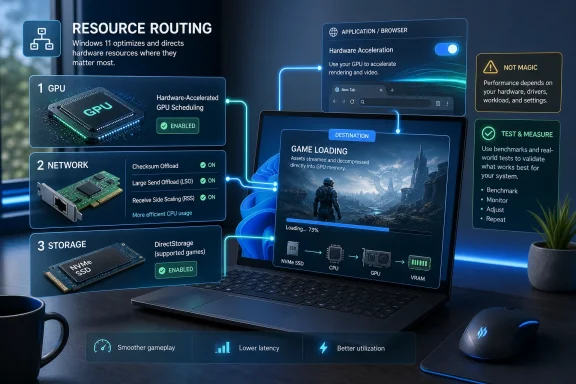
Windows 11 includes several built-in switches that can move graphics scheduling, network packet work, storage I/O, and application acceleration away from the CPU, but their effect depends on the hardware, drivers, workload, and whether individual apps or games actually use those paths. PCWorld’s practical advice is useful because it reframes “slow Windows” as a resource-routing problem, not just a raw-spec problem. The catch is that these settings are not magic performance buttons. They are small levers in a larger Windows architecture that increasingly assumes the CPU should orchestrate work, not perform all of it.
For decades, the consumer PC upgrade story was easy to explain and dangerously easy to oversimplify: if the machine felt slow, blame the processor. Buy a faster CPU, add RAM, replace the hard drive with an SSD, and the problem would usually move somewhere else. That logic still works at the extremes, but it is less useful on a modern Windows 11 system where a midrange CPU may sit beside a powerful GPU, a fast NVMe SSD, a Wi-Fi 6 or 7 adapter, and software that still behaves as if one chip is the only adult in the room.
The PCWorld piece lands on an important truth: Windows 11 has accumulated a surprising number of controls that let users push work toward the parts of the system designed to handle it. Graphics scheduling can shift toward the GPU. Network checksums and packet segmentation can move toward the network adapter. Game asset loading can bypass some of the old storage path. Browsers and creative apps can use hardware acceleration instead of burning CPU cycles on video decode and rendering.
That does not mean every sluggish PC is secretly one toggle away from feeling new. It means the old “CPU bottleneck” diagnosis has become too blunt. A Windows PC can be CPU-bound because the processor is underpowered, but it can also be CPU-bound because the system is asking the CPU to do janitorial work that another component could do more efficiently.
The distinction matters because the second problem is fixable without buying new hardware. It also matters because the wrong fix can make things worse. A system with buggy GPU drivers, a flaky network adapter, or a misbehaving browser extension may become less stable when more work is pushed into acceleration paths.
That distinction is crucial. The feature is not a universal frame-rate booster, and Microsoft has historically described it in careful architectural terms rather than as a miracle switch. It is about reducing latency and overhead in parts of the graphics pipeline, particularly on supported hardware with appropriate modern drivers.
For everyday Windows use, the promise is modest but plausible. If the desktop is juggling video playback, browser compositing, game launchers, chat apps, and multiple high-resolution displays, the CPU can spend real time coordinating work rather than doing user-visible work. Moving more of that scheduling closer to the GPU can smooth the system, particularly when the processor is already busy.
But this is also where the advice needs a warning label. Hardware-Accelerated GPU Scheduling has been a source of mixed user reports for years, especially across different GPU vendors, driver branches, and game engines. Some systems feel smoother with it enabled. Some show no difference. Some encounter oddities with capture software, overlays, VR, or specific games.
That makes it a good first experiment, not a permanent doctrine. Enable it, restart, and test the machine in the tasks that actually matter: the browser tabs you use, the games you play, the video calls you take, the editing tools you run. If the system feels better and nothing breaks, keep it. If it introduces stutter or instability, turn it back off without treating that as a failure.
Checksum offload lets the network interface handle checksum calculations that would otherwise consume CPU time. Large Send Offload lets Windows hand over larger chunks of data and let the adapter break them down for transmission. Receive Side Scaling spreads receive processing across multiple CPU cores instead of letting one core become the unlucky traffic cop.
On paper, these features are obvious wins. In practice, consumer Windows machines are full of inexpensive NICs, vendor driver panels, OEM customizations, USB Ethernet adapters, VPN clients, security suites, and home routers that turn obvious wins into troubleshooting sessions. That is why the advice to change one setting at a time is not mere caution; it is the difference between optimization and self-inflicted outage.
The most likely place to notice network offload benefits is not a casual web page load. It is sustained traffic: copying large files from a NAS, downloading big game updates, streaming while multitasking, backing up to a local server, or moving data across a fast wired network. If CPU usage spikes during those transfers, offload settings are worth checking.
The enterprise version of this story is even more familiar. Server admins have spent years deciding when to trust NIC offloads and when to disable them because a particular driver, hypervisor, or storage path behaves badly. Windows 11 users are getting a consumer-scale version of that same bargain: hardware can relieve the CPU, but only if the driver stack earns the trust.
Windows 11 is well positioned for DirectStorage, and Microsoft’s own requirements point to the need for an NVMe SSD and a DirectX 12 GPU with Shader Model 6.0 support for games that use the feature. But the critical phrase is games that use the feature. DirectStorage is not a global “make my SSD faster” switch. It is an API that developers must build into their engines and asset pipelines.
That is why the practical effects are usually more visible in loading behavior than in average frames per second. A game may load faster. It may stream assets with fewer hitches. It may reduce CPU overhead during specific I/O-heavy moments. But if the game is not built around DirectStorage, or if its bottleneck is shader compilation, engine traversal, VRAM pressure, or network latency, the feature will not rescue it.
This is where Windows marketing and enthusiast reality often part ways. DirectStorage is architecturally important because it points toward the future of PC game asset streaming. It is less important as a checkbox for most users today because support remains dependent on the software. Buying an NVMe SSD was already a good idea; buying one solely because DirectStorage will transform every game is still a stretch.
For WindowsForum readers, the useful approach is diagnostic. Use Xbox Game Bar or vendor tools to confirm capability, keep storage and GPU drivers current, and understand that the feature is a compatibility foundation rather than a universal accelerator. DirectStorage matters most when the game, the GPU, the SSD, and the driver stack are all pulling in the same direction.
This matters because “my PC feels slow” is frequently a browser story. A modern browser is not a document viewer. It is a multimedia runtime with video decode, canvas rendering, WebGL, WebGPU, encrypted media playback, animated interfaces, and dozens of processes competing for attention. If hardware acceleration is disabled, a system can feel inexplicably heavy even when Task Manager does not show one obvious villain.
Creative software makes the same point more dramatically. Video editors, encoders, photo tools, and motion graphics apps may use GPU acceleration for effects, previews, timeline playback, export stages, or specific codecs. When configured correctly, that work moves to hardware designed for parallel processing. When configured poorly, the CPU becomes the fallback engine and the user wonders why a supposedly powerful machine sounds like a leaf blower.
The caveat is that hardware acceleration is not always synonymous with better. Some driver versions introduce glitches. Some apps accelerate only certain codecs or effects. Some laptops behave differently on battery and AC power. Some browser problems blamed on hardware acceleration are really extension problems, profile corruption, or bad video drivers.
Still, the default position in 2026 should be clear: acceleration should usually be on. Turning it off is a troubleshooting step, not a tuning philosophy. If disabling acceleration fixes a problem, the next move should be to update drivers, test extensions, or isolate the app—not to accept permanent CPU fallback as the price of stability.
A browser, editor, game launcher, or creative app may end up on the integrated GPU when the user expects the discrete GPU. Conversely, a lightweight app may wake the dedicated GPU and burn battery for no good reason. The “High performance” or “Maximum performance” choice under Windows graphics settings gives users a way to be explicit.
This is not only about frame rates. Routing a demanding app through the wrong GPU can create extra copies, extra latency, or strange compositing behavior. In some cases, the CPU becomes more involved because the system is shuffling work between graphics devices rather than letting the best device handle it cleanly.
Laptop users should treat this setting as targeted medicine. Do not force every app onto the discrete GPU and then complain about battery life. Instead, assign the high-performance GPU to the handful of applications that justify it: games, 3D tools, video editors, AI-assisted creative apps, and anything that consistently shows GPU-related stutter.
Desktop users with integrated graphics enabled may also benefit, particularly if displays are connected in a way that causes Windows or the driver to make surprising choices. The rule is simple: demanding applications should run on the GPU you bought for demanding applications.
The settings discussed here are different because they are real architectural features. But they still need measurement. Task Manager, Resource Monitor, Xbox Game Bar, vendor overlays, browser task managers, and application-specific performance monitors can all show whether CPU usage falls, GPU usage rises appropriately, or stutter changes.
The useful test is not “did a benchmark number improve by one percent?” It is whether the workload that bothered you improves. If file transfers made the machine lag, test file transfers. If video calls raised fan noise, test video calls. If a game hitched while loading new areas, test that game. If your browser slowed the desktop with multiple video streams, reproduce that scenario.
This matters because offloading work can simply move the bottleneck. A CPU-bound system may become GPU-bound. A network adapter may reduce CPU usage but expose driver instability. A laptop may run faster for ten minutes and then throttle because the dedicated GPU is now awake. A desktop may feel smoother but consume more power at idle.
The best performance tuning is reversible, narrow, and documented. Change one thing. Write down what changed. Test. Keep the improvement. Undo the regression. That sounds less glamorous than a one-click optimizer, which is precisely why it works.
Windows 11 sits in the middle of that complexity. Its job is no longer merely to schedule threads on CPU cores. It must decide which device should decode video, which GPU should render an app, how storage should feed a game engine, whether the NIC should handle packet work, and how all of that interacts with battery life, thermals, security, and driver reliability.
That is why these settings feel both powerful and unsatisfying. They expose real capabilities, but they also reveal how much still depends on vendors. Microsoft can provide the plumbing for GPU scheduling, but GPU makers must support it well. Windows can support network offloads, but NIC drivers must behave. DirectStorage can exist, but game developers must use it. Hardware acceleration can be available, but apps must implement it correctly.
For enthusiasts, this is familiar territory. The PC has always been a coalition government of components. The difference is that the coalition now needs active coordination to feel fast. A spec sheet may say the machine has enough horsepower, but the operating system and apps determine whether that horsepower is used efficiently.
The good news is that Windows 11 gives users more visibility and control than past versions did. The bad news is that control arrives as a set of scattered switches rather than a coherent performance dashboard. Users still have to know where to look, what to test, and when to stop.
 Windows Performance Is No Longer a Single-Chip Story
For decades, the consumer PC upgrade story was easy to explain and dangerously easy to oversimplify: if the machine felt slow, blame the processor. Buy a faster CPU, add RAM, replace the hard drive with an SSD, and the problem would usually move somewhere else. That logic still works at the extremes, but it is less useful on a modern Windows 11 system where a midrange CPU may sit beside a powerful GPU, a fast NVMe SSD, a Wi-Fi 6 or 7 adapter, and software that still behaves as if one chip is the only adult in the room.The PCWorld piece lands on an important truth: Windows 11 has accumulated a surprising number of controls that let users push work toward the parts of the system designed to handle it. Graphics scheduling can shift toward the GPU. Network checksums and packet segmentation can move toward the network adapter. Game asset loading can bypass some of the old storage path. Browsers and creative apps can use hardware acceleration instead of burning CPU cycles on video decode and rendering.
That does not mean every sluggish PC is secretly one toggle away from feeling new. It means the old “CPU bottleneck” diagnosis has become too blunt. A Windows PC can be CPU-bound because the processor is underpowered, but it can also be CPU-bound because the system is asking the CPU to do janitorial work that another component could do more efficiently.
The distinction matters because the second problem is fixable without buying new hardware. It also matters because the wrong fix can make things worse. A system with buggy GPU drivers, a flaky network adapter, or a misbehaving browser extension may become less stable when more work is pushed into acceleration paths.
Hardware-Accelerated GPU Scheduling Is the Symbol of the New Windows Bargain
The most visible setting in this family is Hardware-Accelerated GPU Scheduling, usually found under Settings, System, Display, Graphics, and the advanced graphics options. Its purpose is not to make the GPU “faster” in the cartoonish sense. It changes how some scheduling work is handled so that the GPU and its driver stack take on more responsibility for managing graphics workloads.That distinction is crucial. The feature is not a universal frame-rate booster, and Microsoft has historically described it in careful architectural terms rather than as a miracle switch. It is about reducing latency and overhead in parts of the graphics pipeline, particularly on supported hardware with appropriate modern drivers.
For everyday Windows use, the promise is modest but plausible. If the desktop is juggling video playback, browser compositing, game launchers, chat apps, and multiple high-resolution displays, the CPU can spend real time coordinating work rather than doing user-visible work. Moving more of that scheduling closer to the GPU can smooth the system, particularly when the processor is already busy.
But this is also where the advice needs a warning label. Hardware-Accelerated GPU Scheduling has been a source of mixed user reports for years, especially across different GPU vendors, driver branches, and game engines. Some systems feel smoother with it enabled. Some show no difference. Some encounter oddities with capture software, overlays, VR, or specific games.
That makes it a good first experiment, not a permanent doctrine. Enable it, restart, and test the machine in the tasks that actually matter: the browser tabs you use, the games you play, the video calls you take, the editing tools you run. If the system feels better and nothing breaks, keep it. If it introduces stutter or instability, turn it back off without treating that as a failure.
The Network Adapter Has Been Doing Quiet CPU Relief for Years
The least glamorous advice in PCWorld’s list may be the most sysadmin-friendly: inspect the network adapter’s advanced properties and look for offload features such as checksum offload, Large Send Offload, and Receive Side Scaling. These are not new Windows 11 inventions. They are part of a long-running effort to stop the CPU from micromanaging every packet on a busy connection.Checksum offload lets the network interface handle checksum calculations that would otherwise consume CPU time. Large Send Offload lets Windows hand over larger chunks of data and let the adapter break them down for transmission. Receive Side Scaling spreads receive processing across multiple CPU cores instead of letting one core become the unlucky traffic cop.
On paper, these features are obvious wins. In practice, consumer Windows machines are full of inexpensive NICs, vendor driver panels, OEM customizations, USB Ethernet adapters, VPN clients, security suites, and home routers that turn obvious wins into troubleshooting sessions. That is why the advice to change one setting at a time is not mere caution; it is the difference between optimization and self-inflicted outage.
The most likely place to notice network offload benefits is not a casual web page load. It is sustained traffic: copying large files from a NAS, downloading big game updates, streaming while multitasking, backing up to a local server, or moving data across a fast wired network. If CPU usage spikes during those transfers, offload settings are worth checking.
The enterprise version of this story is even more familiar. Server admins have spent years deciding when to trust NIC offloads and when to disable them because a particular driver, hypervisor, or storage path behaves badly. Windows 11 users are getting a consumer-scale version of that same bargain: hardware can relieve the CPU, but only if the driver stack earns the trust.
DirectStorage Remains a Promise With a Footnote Attached
DirectStorage is the most futuristic item in the set, and also the easiest to overstate. The basic idea is compelling: modern games move enormous assets, and the old storage path was designed for a world of slower drives and smaller workloads. If an NVMe SSD can deliver data quickly, and a GPU can consume and decompress assets quickly, the CPU should not have to stand in the middle stamping every form.Windows 11 is well positioned for DirectStorage, and Microsoft’s own requirements point to the need for an NVMe SSD and a DirectX 12 GPU with Shader Model 6.0 support for games that use the feature. But the critical phrase is games that use the feature. DirectStorage is not a global “make my SSD faster” switch. It is an API that developers must build into their engines and asset pipelines.
That is why the practical effects are usually more visible in loading behavior than in average frames per second. A game may load faster. It may stream assets with fewer hitches. It may reduce CPU overhead during specific I/O-heavy moments. But if the game is not built around DirectStorage, or if its bottleneck is shader compilation, engine traversal, VRAM pressure, or network latency, the feature will not rescue it.
This is where Windows marketing and enthusiast reality often part ways. DirectStorage is architecturally important because it points toward the future of PC game asset streaming. It is less important as a checkbox for most users today because support remains dependent on the software. Buying an NVMe SSD was already a good idea; buying one solely because DirectStorage will transform every game is still a stretch.
For WindowsForum readers, the useful approach is diagnostic. Use Xbox Game Bar or vendor tools to confirm capability, keep storage and GPU drivers current, and understand that the feature is a compatibility foundation rather than a universal accelerator. DirectStorage matters most when the game, the GPU, the SSD, and the driver stack are all pulling in the same direction.
Browsers and Creative Apps Are Where the CPU Tax Becomes Visible
The least exotic advice may deliver the most immediate benefit: keep hardware acceleration enabled in major applications. Chrome, Edge, video editors, photo tools, 3D applications, and conferencing apps routinely include settings that let the GPU handle decode, compositing, effects, rendering, and sometimes AI-enhanced workloads. Disable those settings and the CPU often inherits the bill.This matters because “my PC feels slow” is frequently a browser story. A modern browser is not a document viewer. It is a multimedia runtime with video decode, canvas rendering, WebGL, WebGPU, encrypted media playback, animated interfaces, and dozens of processes competing for attention. If hardware acceleration is disabled, a system can feel inexplicably heavy even when Task Manager does not show one obvious villain.
Creative software makes the same point more dramatically. Video editors, encoders, photo tools, and motion graphics apps may use GPU acceleration for effects, previews, timeline playback, export stages, or specific codecs. When configured correctly, that work moves to hardware designed for parallel processing. When configured poorly, the CPU becomes the fallback engine and the user wonders why a supposedly powerful machine sounds like a leaf blower.
The caveat is that hardware acceleration is not always synonymous with better. Some driver versions introduce glitches. Some apps accelerate only certain codecs or effects. Some laptops behave differently on battery and AC power. Some browser problems blamed on hardware acceleration are really extension problems, profile corruption, or bad video drivers.
Still, the default position in 2026 should be clear: acceleration should usually be on. Turning it off is a troubleshooting step, not a tuning philosophy. If disabling acceleration fixes a problem, the next move should be to update drivers, test extensions, or isolate the app—not to accept permanent CPU fallback as the price of stability.
Hybrid Graphics Can Turn a Good Laptop Into a Confused One
Windows 11’s per-app GPU preference setting is one of those controls that sounds minor until it fixes the exact problem you have. On systems with both integrated graphics and a dedicated GPU, Windows tries to balance performance, power use, and thermals. That is sensible on paper and occasionally maddening in practice.A browser, editor, game launcher, or creative app may end up on the integrated GPU when the user expects the discrete GPU. Conversely, a lightweight app may wake the dedicated GPU and burn battery for no good reason. The “High performance” or “Maximum performance” choice under Windows graphics settings gives users a way to be explicit.
This is not only about frame rates. Routing a demanding app through the wrong GPU can create extra copies, extra latency, or strange compositing behavior. In some cases, the CPU becomes more involved because the system is shuffling work between graphics devices rather than letting the best device handle it cleanly.
Laptop users should treat this setting as targeted medicine. Do not force every app onto the discrete GPU and then complain about battery life. Instead, assign the high-performance GPU to the handful of applications that justify it: games, 3D tools, video editors, AI-assisted creative apps, and anything that consistently shows GPU-related stutter.
Desktop users with integrated graphics enabled may also benefit, particularly if displays are connected in a way that causes Windows or the driver to make surprising choices. The rule is simple: demanding applications should run on the GPU you bought for demanding applications.
The Hidden Risk Is Tuning Without Measuring
The PCWorld advice is strongest when it tells users to test after each change. That is the part many optimization guides treat as boring, and it is the part that separates evidence from superstition. Windows performance tuning has always attracted folk remedies: disable this service, flip that registry value, install this booster, kill every background process, pray to the scheduler.The settings discussed here are different because they are real architectural features. But they still need measurement. Task Manager, Resource Monitor, Xbox Game Bar, vendor overlays, browser task managers, and application-specific performance monitors can all show whether CPU usage falls, GPU usage rises appropriately, or stutter changes.
The useful test is not “did a benchmark number improve by one percent?” It is whether the workload that bothered you improves. If file transfers made the machine lag, test file transfers. If video calls raised fan noise, test video calls. If a game hitched while loading new areas, test that game. If your browser slowed the desktop with multiple video streams, reproduce that scenario.
This matters because offloading work can simply move the bottleneck. A CPU-bound system may become GPU-bound. A network adapter may reduce CPU usage but expose driver instability. A laptop may run faster for ten minutes and then throttle because the dedicated GPU is now awake. A desktop may feel smoother but consume more power at idle.
The best performance tuning is reversible, narrow, and documented. Change one thing. Write down what changed. Test. Keep the improvement. Undo the regression. That sounds less glamorous than a one-click optimizer, which is precisely why it works.
Microsoft’s Real Strategy Is Letting Specialized Silicon Do the Job
The broader story here is not a handful of toggles in Settings. It is Microsoft’s slow adaptation to a PC architecture that has become more heterogeneous. CPUs still matter enormously, but they now share the stage with GPUs, NPUs, SSD controllers, media engines, network adapters, and firmware-level power management that can make or break the user experience.Windows 11 sits in the middle of that complexity. Its job is no longer merely to schedule threads on CPU cores. It must decide which device should decode video, which GPU should render an app, how storage should feed a game engine, whether the NIC should handle packet work, and how all of that interacts with battery life, thermals, security, and driver reliability.
That is why these settings feel both powerful and unsatisfying. They expose real capabilities, but they also reveal how much still depends on vendors. Microsoft can provide the plumbing for GPU scheduling, but GPU makers must support it well. Windows can support network offloads, but NIC drivers must behave. DirectStorage can exist, but game developers must use it. Hardware acceleration can be available, but apps must implement it correctly.
For enthusiasts, this is familiar territory. The PC has always been a coalition government of components. The difference is that the coalition now needs active coordination to feel fast. A spec sheet may say the machine has enough horsepower, but the operating system and apps determine whether that horsepower is used efficiently.
The good news is that Windows 11 gives users more visibility and control than past versions did. The bad news is that control arrives as a set of scattered switches rather than a coherent performance dashboard. Users still have to know where to look, what to test, and when to stop.
The Sensible Windows 11 Tune-Up Is Smaller Than the Hype
The practical lesson is not to enable every acceleration feature and declare victory. It is to treat Windows 11’s offload settings as a short, disciplined tune-up for systems that feel slower than their hardware suggests. The best candidates are PCs with modern GPUs, NVMe storage, decent network adapters, and workloads that combine browsing, media, gaming, file transfers, and creative tools.- Hardware-Accelerated GPU Scheduling is worth testing on supported systems, but it should be judged by stability and smoothness in real workloads rather than assumed to improve every game.
- Network offload settings can reduce CPU work during sustained transfers, but they should be changed one at a time because bad drivers or adapters can cause connection problems.
- DirectStorage is useful only when the hardware and the game support it, and its most realistic benefit is faster loading or smoother asset streaming rather than guaranteed higher frame rates.
- Application hardware acceleration should generally stay enabled in browsers, media tools, and creative software unless it causes a specific, reproducible problem.
- Per-app GPU selection is most valuable on hybrid-graphics laptops and mixed-GPU desktops where Windows may choose power savings over the performance path the user expects.
- Any successful tweak should be measured against the actual workload that felt slow, not against generic optimism or a synthetic benchmark alone.
References
- Primary source: PCWorld
Published: Fri, 22 May 2026 15:00:00 GMT
Windows 11 has built-in settings to reduce CPU bottlenecks. Use them | PCWorld
Speed up Windows 11 without new hardware by offloading CPU work with tricks like hardware-accelerated GPU scheduling.www.pcworld.com - Official source: learn.microsoft.com
TCP/IP Task Offload Overview - Windows drivers | Microsoft Learn
To increase its performance, the Microsoft TCP/IP transport can offload tasks to a NIC that has the appropriate task offload capabilities.learn.microsoft.com - Official source: microsoft.com
Windows 11 Specs and System Requirements | Microsoft Windows
View Windows 11 specs, system requirements, and features from Microsoft. Learn about the device specifications, versions, and languages available for Windows 11.www.microsoft.com - Related coverage: techpowerup.com
Microsoft DirectStorage Walled Off from Windows 10, Now Needs Windows 11 and DirectX 12 Ultimate GPU | TechPowerUp
Microsoft's ambitious DirectStorage API, which attempts to solve the storage bottleneck in games, facilitating faster game load times, has been walled off from Windows 10. To use it, games now require the new Windows 11 operating system, and a GPU that supports the DirectX 12 Ultimate API...www.techpowerup.com - Related coverage: makeuseof.com
What DirectStorage Means for Windows 11 Gamers
Windows 11 comes with DirectStorage built-in, but what is it, and what does it mean for you as a gamer? www.makeuseof.com
- Official source: support.microsoft.com
Optimierungen für Fensterspiele in Windows 11 - Microsoft-Support
Wie Sie das Spielen auf Ihrem Windows 11 PC verbessern können, indem Sie die Optimierung für Fensterspiele-Einstellungen verwenden.support.microsoft.com
- Related coverage: amd.com
