Update and Shut Down Now Powers Off After Updates (KB5067036)

  • Thread Author
Microsoft has quietly repaired one of the small but surprisingly persistent annoyances in Windows: the Start menu’s “Update and shut down” command now behaves as it promises in recent preview builds and the October 28, 2025 optional cumulative preview (KB5067036), addressing an orchestration problem that in many configurations caused the machine to return to an awake state instead of powering off after updates.

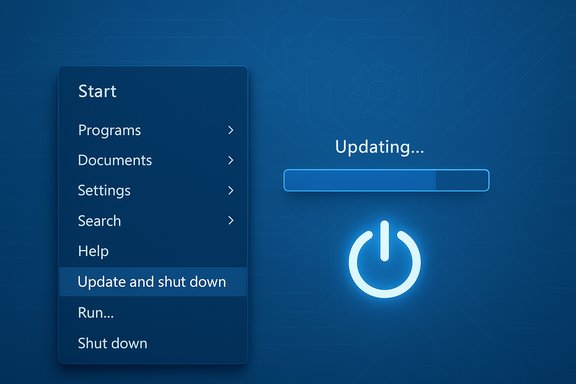
Blue Windows-style UI updating with a progress bar and “Update and shut down” option.Background​

For many users the “Update and shut down” option is a convenience: install pending updates during shutdown so you return to a patched, powered‑off device. Over the past few years, a non-trivial, intermittent subset of Windows 10 and Windows 11 systems did not honor that promise. Instead of powering off after installing updates, affected machines would often complete the update flow and then reboot or return to the lock screen—effectively remaining powered on and defeating the point of the command. The symptom was configuration-dependent and hard to reproduce, which made it a particularly frustrating and long‑running UX failure. Microsoft confirmed a servicing‑level correction in preview channels and published the same fix in the October 28, 2025 optional cumulative preview identified as KB5067036, which produces OS builds 26200.7019 (25H2) and 26100.7019 (24H2). The KB changelog explicitly lists: “Addressed underlying issue which can cause ‘Update and shutdown’ to not actually shut down your PC after updating.” That terse phrasing signals a correction in update orchestration rather than a cosmetic relabeling.

What Microsoft shipped (the facts)​

The package: KB5067036 (Preview)​

  • Release type: Optional, non‑security cumulative preview update.
  • Published: October 28, 2025 (preview release).
  • Affected builds: Produces OS builds 26200.7019 (Windows 11 25H2) and 26100.7019 (Windows 11 24H2).
  • Notable changelog entry: “Addressed underlying issue which can cause ‘Update and shutdown’ to not actually shut down your PC after updating.”
Microsoft bundles a servicing stack update (SSU) with the LCU (latest cumulative update) in these preview packages; the KB page for the October 28 preview lists the SSU and provides standard guidance for staged rollouts and optional install paths. The company’s usual path is Insider flights → optional preview → mainstream Patch Tuesday cumulative update, so this change is being validated in preview before wider automatic distribution.

Timeline and rollout expectations​

  • The fix first appeared in Windows Insider preview release notes in late September 2025 and was validated in Dev/Beta channel builds.
  • Microsoft packaged the same remediation into the optional October 28, 2025 preview (KB5067036).
  • The preview was expected to be folded into the mainstream cumulative update scheduled for Patch Tuesday on November 11, 2025, following telemetry and validation. That mainstream inclusion is consistent with Microsoft’s staged cadence.

Why this bug was harder to fix than it looked​

At the UI level, “Update and shut down” is two simple words. Under the hood, the flow is multi‑phase and touches several subsystems; that complexity produced intermittent outcomes depending on hardware, driver state, and OS configuration.

Key technical contributors​

  • Multi‑phase servicing: Modern Windows updates typically stage files while the system runs and then perform offline commits during shutdown/boot. Some components require one or more reboots to be safely replaced, producing conditional pathways in the servicing orchestration.
  • Fast Startup (hybrid shutdown): With Fast Startup enabled, Windows saves kernel session state to disk to speed boot, which changes shutdown semantics and can interact poorly with offline servicing. The hybrid behavior can make the OS choose a restart path to ensure update integrity.
  • Sign‑in/finish workflows: Features like “Use my sign‑in info to finish setting up this device” alter whether post‑update configuration steps run automatically after a restart and can change the final power state decision.
  • Drivers and third‑party agents: File locks, driver replacement needs, firmware handoffs, and management agents can force the servicing stack to prefer a restart to ensure consistency, leading to the observed mismatch.
The bottom line: the orchestration layer that decides whether to honor a user’s explicit shutdown intent after offline servicing must balance correctness and safety. If telemetry or file replacement logic indicates a restart is required, the system may have (incorrectly) overridden the shutdown request—hence the intermittent returns to an awake state. Microsoft’s changelog language points to fixes at that orchestration level rather than simple UI tweaks.

What the KB change actually does (technical summary)​

Microsoft’s public notes are intentionally concise, but the practical effect of KB5067036 in preview testers’ reports is straightforward: the servicing orchestration has been adjusted so that when the conditions that formerly forced a restart are not required, the OS completes update commits and then powers off the machine as the “Update and shut down” option indicates. That correction reduces the mismatch between the user’s expressed intent and the final device power state. Important caveat: because the problem was intermittent and environment‑dependent, the fix is similarly conservative—Microsoft staged validation across Insider flights and then the optional preview package to ensure telemetry confirmed the behavior across diverse hardware before general rollout. Preview releases can and do carry the risk of regressions, which is why Microsoft recommends piloting optional updates first.

Known issues and immediate risks​

While the KB fixes the Update-and-Shut‑Down orchestration in many configurations, the preview package also documented at least one notable regression: Task Manager may continue to run in the background after the app is closed, leaving multiple taskmgr.exe instances running in the background and affecting device performance. Microsoft lists this as a known issue in the October 28 preview and is investigating. That is a practical reason to be cautious when installing preview packages on production or critical machines. Other risks and considerations:
  • Optional preview updates are not security updates and are staged—installing them exposes the machine to any latent regressions introduced in the preview.
  • The fix may not immediately propagate to every machine even after installing the optional KB due to server‑side feature flighting; some elements are enabled gradually.
  • If a machine requires a restart to finalize a particular driver or firmware replacement, the OS should still choose reboot semantics to preserve update integrity—this behavior is intentional and necessary in some cases.

How to get the fix now (step‑by‑step)​

If you want the remediation immediately and are comfortable testing preview packages, follow these steps on a non‑critical device:
  • Open Settings > Update & Security > Windows Update.
  • Click “Check for updates.”
  • Look for the “Optional updates available” area; the October 28, 2025—KB5067036 preview should appear there for eligible devices. Select and install it.
  • Install any accompanying Servicing Stack Update (SSU) if listed—Microsoft combines SSU + LCU in the package and recommends both be applied together.
  • Reboot as prompted and test the “Update and shut down” behavior with a small test update or a simulated update workflow. Validate that shutdown now completes as expected.
For administrators and organizations:
  • Pilot the preview on a small, representative set of devices first.
  • Collect telemetry and user reports across varied hardware and management states.
  • If validated, plan for the mainstream inclusion via the Patch Tuesday cumulative update (expected Nov 11, 2025) and deploy through normal update management channels during the scheduled maintenance window.

Practical guidance and safe alternatives​

If you don’t want to install a preview, or if you need an immediate workaround until the fix reaches your managed update ring, consider these steps:
  • Use Update and restart instead of Update and shut down; a restart completes all offline servicing cycles before you decide to power off. This is less convenient but more deterministic.
  • Manually shut down using the hardware power button after updates—note this can interrupt some update flows and is not recommended as a long‑term practice.
  • For laptop users worried about overnight battery drain, disable Fast Startup as a temporary mitigation; this reverts shutdown semantics to a cold shutdown and can reduce hybrid state interactions with the servicing stack (testing required; this changes boot speed behavior).
  • If you manage fleets, add a validation step in your maintenance scripts to confirm the device is truly powered off (for example, check for network presence or use remote management telemetry) before assuming a maintenance window has completed.

Critical analysis: strengths of Microsoft’s approach​

  • Correct layer of fix: Microsoft addressed the servicing orchestration rather than relabeling the UI, which is the correct engineering approach—fixing behavior at source rather than masking symptoms. The changelog language and preview behavior both indicate a servicing-level correction.
  • Staged validation: Shipping first to Insider channels and then as an optional preview respects the complexity of the issue and the heterogeneity of Windows hardware. This reduces the chance of a premature, broadly disruptive rollout.
  • Clear changelog entry: The KB includes an explicit line describing the behavior fix; that transparency, while terse, provides administrators and power users a clear cue about what was corrected.

Critical analysis: residual risks and open questions​

  • Intermittency remains sensitive to environment: Because the root cause was conditional orchestration interacting with drivers, Fast Startup, and firmware handoffs, some configurations may still require a restart to complete safe servicing. The fix will reduce false positives but cannot remove legitimate restart needs without risking update integrity. Users should not expect the button to override necessary restart conditions.
  • Preview regressions: The optional pack’s Task Manager regression demonstrates a real tradeoff: preview fixes can introduce new, visible problems. Administrators must weigh the benefit of the shutdown fix against the possibility of regressions that affect stability or performance.
  • Incomplete public diagnostic detail: Microsoft’s public notes do not break down the exact orchestration changes or the telemetry criteria used to decide between shutdown and restart. That lack of deeper technical disclosure limits independent verification of completeness and leaves room for continued edge‑case behavior. Treat claims about exact internal logic as plausible engineering inference rather than fully verifiable fact unless Microsoft publishes more detailed developer guidance.

What this means for everyday users and IT pros​

For everyday users, the practical outcome should be straightforward: in many cases, choosing Update and shut down will now actually power the PC off after installing updates—if your device receives the preview or the mainstream Patch Tuesday roll‑out that includes the fix. For laptop owners who avoided the option because it previously left the machine on, this should restore a simple and time‑saving workflow. For IT professionals, the fix removes an intermittent source of maintenance fragility. Predictable shutdown semantics matter for imaging, staging, overnight maintenance windows, and scripted operations. However, IT teams should continue to pilot changes, validate across representative hardware and management stacks, and prefer the mainstream cumulative update deployment (Patch Tuesday) for broad rollout unless their change control processes include preview testing.

Quick checklist for action​

  • If you want the fix now and are comfortable with preview software: install KB5067036 (Oct 28, 2025 preview) from Settings > Windows Update > Optional updates. Validate on non‑critical machines.
  • If you prefer stability: wait for the mainstream cumulative update on Patch Tuesday (expected Nov 11, 2025). Pilot there before broad deployment.
  • If you encounter the Task Manager regression after installing the preview: gather logs, revert the optional LCU if necessary, and follow Microsoft’s support guidance while the company investigates.
  • For managed fleets: add validation steps to confirm devices reach the expected power state after updates; disable Fast Startup only as a tested mitigation if warranted.

Final assessment​

This fix is an important quality‑of‑life correction that restores a small but meaningful promise of Windows’ update UX: when the Start menu says “Update and shut down,” users should be able to trust that the machine will finish installing updates and then power itself off. Microsoft implemented a servicing‑level change and staged the rollout through Insider previews and an October 28 optional preview package identified as KB5067036, with mainstream inclusion targeted via the regular Patch Tuesday cadence. That is the right engineering and release strategy for a problem rooted in multi‑phase servicing and device‑dependent orchestration. At the same time, the preview’s Task Manager issue and the opaque nature of orchestration logic highlight why organizations and cautious users should validate before broad adoption. The fix reduces friction and restores predictability for many users, but administrators must still account for legitimate restart requirements and the ever‑present tradeoff between early access and regression risk. Small UX promises matter—especially at scale—and Microsoft’s orchestration fix is a welcome restoration of reliability. Users and IT teams should follow the staged rollout guidance, pilot where appropriate, and expect the mainstream cumulative update in the November Patch Tuesday cycle to bring the correction to broader audiences.
Source: PCMag Australia Microsoft Fixes 'Update and Shut Down' Bug That Doesn't Actually Turn Off Your PC
 

Microsoft has finally closed a decade‑old annoyance: the Start menu command labeled “Update and shut down” will now, in supported Windows 11 builds, actually power the machine off after installing updates instead of quietly restarting and leaving the PC at the lock screen.

Laptop screen shows “Update and shut down” with a green power icon and Windows logo.Background​

For many Windows users the “Update and shut down” option has been a chronic source of frustration. The expected behavior is simple: apply pending updates, then shut down. In practice, however, affected systems frequently applied updates and then restarted to the sign‑in screen or desktop — behaving like “Update and restart” despite the visible label. The inconsistency produced real-world problems: drained laptop batteries overnight, disrupted maintenance windows, and widespread confusion about whether devices were truly off. Microsoft documented and shipped a targeted correction inside the October 28, 2025 optional preview cumulative update identified as KB5067036, which produces OS builds 26200.7019 for Windows 11 version 25H2 and 26100.7019 for version 24H2. The Microsoft release notes and the preview KB explicitly list the change as an “addressed underlying issue which can cause ‘Update and shutdown’ to not actually shut down your PC after updating.” This change was staged from Insider previews into the optional preview KB and then slated for broader distribution as part of the mainstream Patch Tuesday rollout in November 2025, following Microsoft’s normal deployment path for servicing fixes. That means users who want the fix immediately can install the optional preview; the mainstream November cumulative update will deliver it more broadly after telemetry validation and gradual rollout.

What changed, technically — and what’s still unclear​

The observable fix​

From a functional standpoint, the remediation restores deterministic behavior to the power option: choose Update and shut down, the system installs applicable updates and then powers off instead of returning to the sign‑in screen. The Microsoft changelog is concise but explicit about that outcome.

Plausible root causes (explainers, not official postmortems)​

Community analysis and engineering commentary point at the interplay between Windows’ update servicing pipeline and the shutdown orchestration. When updates need files that are locked while the OS is running, Windows performs an “offline servicing” phase during shutdown or restart to replace those files. Historically, Windows could enter an intermediate state — finishing offline servicing, initiating a restart sequence, and then not honoring the user’s explicit power‑off intent, effectively leading to a reboot. Experts also noted that Fast Startup and certain servicing stack behaviors could complicate whether the system performs a true shutdown or a hybrid/fast‑boot sequence. These explanations map plausibly to the symptom but Microsoft has not published a detailed technical postmortem describing internal signals or code paths that were changed. Treat the exact internal mechanism as plausible and consistent with community findings but not conclusively documented by Microsoft.

Why the buggy behavior persisted for so long​

There are three overlapping reasons why this issue lingered:
  • The symptom is inconsistent across hardware, firmware, and update combinations, making it hard to reproduce in test labs.
  • The failure mode lives in low‑level servicing and power management orchestration — areas typically guarded by complex compatibility and regression test suites, which can miss edge cases on real hardware.
  • Fixes that touch the servicing stack can introduce secondary problems, and Microsoft tends to stage such changes carefully using Insiders and optional previews before full release; that conservative rollout extended the time users waited for a universal fix.

Timeline — what Microsoft shipped and when​

  • September 2025: The fix appears in Insider Dev/Beta preview releases as Microsoft validates the change in preview flights.
  • October 28, 2025: Microsoft publishes KB5067036 (Preview), an optional non‑security cumulative update that includes the “Update and shutdown” fix and surfaces builds 26200.7019 and 26100.7019.
  • Early November 2025: The fix is folded into the mainstream cumulative update (Patch Tuesday) for broader distribution after telemetry validation and staged rollout. Administrators and consumers who prefer a conservative path could wait for this mainstream rollout; early adopters could install the optional KB immediately.

How to tell if your PC has the fix (practical checklist)​

  • Open Settings → Windows Update → Update history and look for KB5067036 or the November cumulative update entry.
  • Run the About Windows dialog (press Win+R, type winver, Enter) and confirm the OS build is 26200.7019 (25H2) or 26100.7019 (24H2) or newer.
  • If you want the fix immediately, go to Settings → Windows Update → Advanced options → Optional updates and install KB5067036. Remember: optional preview updates may include multiple changes that Microsoft is still validating.

Why this fix matters​

  • Battery life for laptops: A machine that “restarts” instead of truly shutting down can remain powered long enough to drain a battery overnight. Restoring true shutdown behavior prevents that silent drain.
  • Predictability for automation and maintenance: Scripts and scheduled maintenance that rely on deterministic power states regain reliability. Enterprises that orchestrate offline updates, imaging, or hardware tests will see fewer surprises.
  • User trust: Small inconsistencies in everyday actions — like choosing a clearly labeled power option — erode confidence. Fixing such an obvious mismatch helps improve perceived quality more than many invisible fixes.

Caveats and risks: the price of a bundled preview​

While the KB that introduced the fix is clear about the change, the October 28 preview also demonstrates why optional rollups can be risky.
  • Reports surfaced that KB5067036 introduced a Task Manager regression that caused multiple lingering instances of taskmgr.exe when the Task Manager window was closed, potentially consuming significant memory and degrading performance. Microsoft and independent testers confirmed the behavior and suggested workarounds, including using taskkill or avoiding the close button until a follow‑up fix is shipped. This illustrates the trade‑off between receiving a fix early and exposing devices to fresh regressions.
  • Bundling many fixes and feature tweaks in one cumulative preview increases the surface area for unintended side effects. The servicing pipeline change that corrected “Update and shut down” is cross‑cutting and interacts with other subsystems (process lifecycle, session management, UI), so regressions — while uncommon — are possible and were observed in this case.
  • Staged rollout means inconsistent experiences. Some users may see the change immediately while others wait; inconsistent behavior across an organization complicates support and troubleshooting.
Given these realities, the safe operational advice is: test optional previews on a small ring of devices before expanding deployment to production hardware, and keep reliable rollback and imaging options available.

Step‑by‑step: installing and validating the KB​

  • Before you start:
  • Create a System Restore point or full image backup if you plan to install optional previews on production devices. Optional previews are not security‑critical and can be skipped until the mainstream cumulative update arrives.
  • Check for updates: Settings → Windows Update → Check for updates.
  • If KB5067036 (Preview) appears under Optional updates, choose Download and install.
  • After the update completes, verify the OS build via winver: confirm 26200.7019 (25H2) or 26100.7019 (24H2) or newer.
  • Test behavior: with a small non‑disruptive update pending (or by triggering any lightweight optional update), select Start → Power → Update and shut down and observe whether the device powers off completely. If it does, the remediation is present.
If you prefer not to install the optional preview, wait for the mainstream Patch Tuesday cumulative update (the November 2025 release window) and apply that package instead.

If you see problems after installing KB5067036​

  • Symptom: Task Manager duplicates or refuses to fully exit.
  • Mitigation: Open an elevated command prompt and run:
    taskkill /im taskmgr.exe /f
  • If problems persist, uninstall the optional preview from Settings → Update history → Uninstall updates, or roll back using a system image. Report the issue through the Feedback Hub so Microsoft can prioritize a follow‑up fix.
  • Symptom: Unexpected behavior in other UI areas or drivers.
  • Mitigation: Check the KB changelog for known issues, verify drivers are up to date from the hardware vendor, and consider deferring the optional preview on production systems until any regressions are resolved via subsequent updates.

Broader context: support boundaries and Windows 10​

This remediation targets supported Windows 11 builds (24H2 and 25H2). Windows 10 reached end of support on October 14, 2025, which means that most Windows 10 devices will not receive this kind of fix through standard Windows Update channels unless the device is enrolled in an Extended Security Updates (ESU) program or an enterprise support agreement. That reality leaves some users — particularly those on older hardware that cannot upgrade to Windows 11 — without an official repair unless they accept the ESU route or upgrade hardware.

Quality lessons for Microsoft and the industry​

  • User‑facing semantics matter. A label like “Update and shut down” carries an obvious promise. When that promise is broken, trust erodes quickly — more so than many invisible stability improvements. Restoring plain‑English features should be a test priority.
  • Narrow fixes reduce regression risk. The October preview bundled servicing fixes alongside UI and feature changes; that bundling contributed to a secondary regression in Task Manager. When a change touches the servicing stack and power state logic, the safest course is to keep the change focused or to stage extra validation across diverse hardware.
  • Staged rollouts remain essential. Microsoft’s use of Insider rings, preview optional releases, and phased Patch Tuesday rollouts is the correct engineering practice for changes that can have broad compatibility impact. The consequence is that repairs take longer to become universal. That trade‑off is necessary, but it should be communicated clearly so users understand the expected timeline.

Bottom line​

The long road to a reliable Update and shut down is finally over for supported Windows 11 devices: Microsoft’s optional preview KB5067036 (builds 26200.7019 and 26100.7019) restores true shutdown semantics, and the fix is scheduled for broader deployment in the November 2025 cumulative update. For users who need the fix now, installing the preview is an option, but it comes with the usual caveats about optional updates — particularly the risk of unrelated regressions, as evidenced by Task Manager duplication reports tied to the same KB. Administrators and careful users should validate the preview on a small set of machines, keep backups, and otherwise wait for the mainstream Patch Tuesday inclusion if they prefer minimal risk. What this episode underlines is simple: even small, highly visible features can carry outsized weight in user experience. Restoring the promise behind a power option is a modest technical change with outsized practical and psychological benefits — and it’s one that many users will notice every time they shut down their PC.
Source: innovation-village.com After 10 Years, Microsoft Fixes Windows “Update and Shut Down” Problem - Innovation Village | Technology, Product Reviews, Business
 

Microsoft has quietly closed a small but maddening gap between label and behavior: the Start‑menu option “Update and shut down” in Windows now behaves like it says in recent Windows 11 preview builds and the October 28, 2025 optional cumulative preview (KB5067036), addressing a long‑running servicing orchestration bug that left some machines powered on after applying updates.

Windows update menu with pinned apps and OS build details on a blue tech background.Background​

For many Windows users the phrase Update and shut down was meant to be a convenience: apply pending updates while you step away, then return to a patched, powered‑off PC. Instead, a non‑trivial subset of devices would install updates and then come back to the lock screen or desktop — effectively restarting rather than powering off. That mismatch caused real pain: drained laptop batteries, failed maintenance windows, and scripts or imaging flows that assumed deterministic power states.
Microsoft validated a servicing‑level correction in Windows Insider flight notes and then packaged the same remediation into the October 28, 2025 optional preview cumulative update identified as KB5067036, producing OS builds 26200.7019 (Windows 11 25H2) and 26100.7019 (Windows 11 24H2). The change was described tersely as an improvement that “addressed underlying issue which can cause ‘Update and shutdown’ to not actually shut down your PC after updating.”

Overview: what Microsoft shipped and when​

  • The remediation first appeared in Windows Insider Dev/Beta channel release notes in late September 2025 and was validated in preview flights.
  • Microsoft packaged the fix into the optional (non‑security) preview cumulative update KB5067036, published October 28, 2025.
  • Installing KB5067036 yields OS builds 26200.7019 for Windows 11 25H2 and 26100.7019 for 24H2.
  • The company planned to fold the fix into the mainstream November Patch Tuesday cumulative update for broader distribution on November 11, 2025, following staged validation.
Those are the concrete, verifiable markers you need to know: the KB number, the preview release date, and the affected build numbers. Multiple independent outlets and community repositories corroborated the timeline and build IDs during preview testing.

Technical anatomy: why a two‑word UI item became hard to implement​

On the surface “Update and shut down” appears atomic — apply updates, then power off. Under the hood it’s a multi‑stage orchestration across multiple subsystems:
  • Staging: updates are placed while the OS is running.
  • Offline servicing commits: updates that replace in‑use files are applied during offline servicing phases that happen across shutdown/reboot boundaries.
  • Post‑commit flows: Windows may need to run configuration steps after a reboot (for example, things tied to user sign‑in or finish setup).
  • Power‑state decision: after all servicing phases, the system must decide whether to return to the desktop (restart) or to power off (shutdown).
In some environments, interactions between these stages can cause the final power‑off directive to be lost or superseded by a necessary restart requirement — producing the symptom users observed. Key technical contributors cited by testers and community analysis include Fast Startup (hybrid shutdown), multi‑phase servicing, sign‑in/finish behavior, driver and firmware handoffs, and timing/race conditions inside the servicing stack.

Fast Startup and hybrid shutdown​

Fast Startup speeds boot by preserving kernel session state to disk during shutdown. That hybrid behavior changes shutdown semantics, and in some cases interacts poorly with offline servicing, nudging the orchestrator toward restart semantics even when the user selected shut down. Many community workarounds historically involved disabling Fast Startup to regain deterministic shutdown behavior.

Multi‑phase servicing and driver interactions​

Modern LCUs (Latest Cumulative Updates) often include staged operations that may require multiple offline commits. If a particular component or driver cannot be safely replaced without a full reboot, the servicing stack may prefer restart to ensure system integrity — again, potentially overriding the user’s shutdown intent. The fix Microsoft shipped targets the orchestration logic that reconciles these conditional paths.

What KB5067036 actually changes​

Microsoft described the KB5067036 change as an improvement to the servicing orchestration, not merely a label or UI tweak. The preview package bundles both feature adjustments and reliability fixes; the important items related to shutdown behavior are:
  • A servicing‑level orchestration correction intended to preserve the user’s shutdown intent after updates complete.
  • The package includes both an LCU and the accompanying SSU, which together update servicing logic and sequencing.
  • The preview is staged and gated: Microsoft used Insider telemetry and the optional preview ring to validate the change before mainstream rollout. That means the fix may be enabled progressively (server‑side gating), even after the preview is installed.
Multiple independent reports from testers confirm that, on machines where the issue previously appeared, Update and shut down now produces a true shutdown in the majority of test cases after the preview is applied — provided the staging/gating bits are active. Early testers reported meaningful improvement, but also noted that preview builds occasionally introduced collateral regressions.

Caveats, regressions and staged rollout risks​

The correction is welcome, but it is not a guarantee for every environment overnight. Important caveats include:
  • Preview releases can introduce regressions. Early installs of KB5067036 produced at least one notable regression: a Task Manager duplication issue reported by several testers. Microsoft and the community flagged that as an example of why staged validation matters.
  • Staged or gated rollouts mean installing the preview does not always instantly enable the corrected shutdown behavior — server‑side flags and telemetry control may determine when the change is active on a particular device. Administrators should pilot on representative hardware before wide deployment.
  • The incidence of the original bug was highly environment‑dependent. Some devices never exhibited the problem, others did repeatedly, and many failed only with certain updates, drivers, or BIOS/firmware states. That variability makes universal predictions risky.
All of the above argue for the standard operational posture: test the preview on non‑critical devices, collect telemetry, and stage deployment using pilot rings rather than pushing to production en masse.

Verifying the fix: how to check build and confirm behavior​

If you want to confirm whether a machine has the fix or to test it yourself, follow these practical steps.
  • Check the OS build: open Run → winver. The build line will show something like OS Build 26200.7019 (25H2) or 26100.7019 (24H2) if the preview package is installed.
  • If you’re not on that build and want the fix now, go to Settings → Windows Update → Optional updates available and look for the October 28, 2025 preview (KB5067036). Install it on a test device first.
  • After installation, stage a small update or use a non‑critical pending update, select Update and shut down, and observe whether the machine powers off (not return to the lock screen). If the machine powers off, the correction is functioning for that device; if it comes back on, collect logs and feedback for triage.
For administrators and power users who prefer command line checks:
  • Use PowerShell to query the build: (Get‑ComputerInfo).OsBuildNumber or check the output of systeminfo.
  • To download the MSU directly and install offline, obtain the package from the Microsoft Update Catalog (apply standard enterprise controls and sign the package accordingly).
Note: the preview is optional; if you prefer stability, wait for the mainstream cumulative update scheduled for Patch Tuesday (November 11, 2025) when Microsoft intends to promote the fix after telemetry validation.

Practical mitigation options before and during rollout​

If deterministic shutdown is critical in your environment and you cannot or will not install the preview immediately, consider these pragmatic choices:
  • Use a two‑step manual approach: choose Update and restart, then manually shut down the device after the restart completes. This guarantees a powered‑off state.
  • Disable Fast Startup as a conservative mitigation on machines where hybrid shutdown semantics may interfere with offline servicing. This can be done in Control Panel → Power Options → Choose what the power buttons do → Turn off fast startup. Be aware this increases boot time slightly.
  • For managed fleets, create a pilot ring, install KB5067036 on those test machines, validate scenarios across your hardware matrix, monitor for regressions (e.g., Task Manager oddities), and only then broaden rollout.

The timeline and the “decade‑old” framing — what’s accurate, what’s rhetoric​

Many reports characterize this fix as correcting a “decade‑old” bug. That language captures user frustration, but it’s worth being precise:
  • Public community threads and Microsoft Q&A show related update‑and‑shutdown oddities dating back to at least 2018, and persistent reports continued through Windows 10 and Windows 11 eras. That supports a multi‑year timeline of user reports.
  • Calling the issue decades old is rhetorical and not clearly supported by an engineering‑level timeline that pins the exact same root cause back to Windows 8 or earlier. Microsoft’s release notes describe a recent servicing fix without a long historical postmortem, so a conservatively worded claim is that the problem persisted for several years, not definitively for multiple decades. Treat “decades‑old” as editorial shorthand rather than a rigorously verified fact.
Flagging that distinction is important: it keeps reporting accurate while acknowledging why users and admins felt the issue persisted for a long time.

Cross‑checks and independent corroboration​

This remediation is verifiable across multiple independent artefacts:
  • Microsoft Insider release notes and the KB entry for the October 28, 2025 preview explicitly list the servicing change that addresses the Update and shut down behavior.
  • Multiple mainstream tech outlets and community sites reported the same sequence: fix in Insider builds → inclusion in KB5067036 preview → staged fold‑in to November Patch Tuesday. Early tester reports corroborate that many affected devices now honor the shutdown directive.
Those independent confirmations across official and community channels provide a high‑confidence picture: Microsoft shipped a servicing change and exposed it in preview before the planned mainstream rollout.

Risk analysis and what to watch for next​

The fix addresses a real usability and operational problem, but it is not risk‑free:
  • Collateral regressions: preview channels already revealed at least one regression (Task Manager duplication). Any fix that touches deep orchestration can surface side effects in other subsystems, so expectation management is required.
  • Gated rollouts: server‑side gating can mean an installed preview does not immediately flip the corrected behavior on a device. That complicates verification in large fleets.
  • Environment heterogeneity: the original bug’s intermittent nature means the fix’s effectiveness still depends on driver, firmware, and update payload permutations. Administrators must test broadly.
The pragmatic conclusion is that while the engineering correction is the right fix, administrators and power users should treat the preview as a step in a staged validation pipeline — not as an immediate license to mass‑deploy without testing.

Recommendations (concise checklist)​

  • For home users who want the fix now: install KB5067036 on a spare/non‑critical device via Settings → Windows Update → Optional updates. Test Update and shut down with a small pending update to verify behavior. Back up important data first.
  • For IT administrators: create a pilot ring (representative hardware), install KB5067036, validate shutdown semantics and run regression checks (Task Manager, update failures, known error codes). Use staged deployment policies.
  • If you require immediate deterministic shutdown and cannot install the preview: use Update and restart then manually shut down, or disable Fast Startup temporarily as a mitigation.
  • Monitor Microsoft’s mainstream cumulative update on Patch Tuesday (November 11, 2025) for the broadly distributed roll‑out of the fix and for any follow‑up patches addressing preview regressions.

Conclusion​

Fixing the Update and shut down mismatch is a deceptively important quality‑of‑life improvement. Microsoft addressed the problem at the servicing orchestration layer, validated it in Insider flights, and packaged the remediation into the October 28, 2025 preview KB5067036 (OS builds 26200.7019 for 25H2 and 26100.7019 for 24H2). Early testing indicates the option now performs a true shutdown in many previously affected scenarios, but preview‑level regressions and staged rollouts counsel caution.
For users and administrators the sensible path is familiar: verify build numbers with winver, pilot KB5067036 on representative devices if you want the fix early, and otherwise wait for the November Patch Tuesday mainstream release to obtain the correction with the lowest operational risk. This remediation restores a basic, everyday promise of the Windows UX — and, once broadly deployed and validated, should remove a small yet persistent annoyance for millions of users.

Source: El-Balad.com Windows 11 25H2 Fixes Decades-Old “Update and Shut Down” Bug
 

Microsoft has quietly delivered a long‑requested repair: the “Update and shut down” option in Windows 11 (and the corresponding servicing path for affected Windows 10 configurations) now behaves as labeled in preview builds and the October 28, 2025 optional preview cumulative update (KB5067036), addressing an intermittent bug that for years left machines powered on after applying updates instead of powering them off.

Blue Windows update screen showing Insider Preview, Patch Tuesday, and KB5067036 installing updates.Background / Overview​

For many users the Start menu prompt Update and shut down reads like an obvious promise: apply pending updates, then power the PC off. For a significant — though not universal — subset of devices, that expectation was repeatedly broken. Machines would install updates, run the necessary offline servicing steps during a reboot, and then return to the login screen or desktop instead of powering off, effectively performing a restart rather than a shutdown. That behavior drained laptop batteries overnight, disrupted maintenance windows, and eroded trust in a basic Windows Update workflow. Microsoft first documented the remediation in Windows Insider release notes in late September 2025 and then folded the same servicing change into the October 28, 2025 optional (preview) update KB5067036, which produces OS builds 26200.7019 (Windows 11 25H2) and 26100.7019 (Windows 11 24H2). The preview package explicitly lists the improvement as addressing an “underlying issue” that could cause “Update and shutdown” to not actually shut down the PC. The repair is staged through Microsoft’s normal quality‑assurance path — Insider flights → optional preview → mainstream cumulative update — with the general rollout expected on Patch Tuesday, November 11, 2025.

Why this small UI problem mattered​

The symptom sounds trivial on paper, but the consequences were practical:
  • Battery and energy waste — Laptops expected to be off overnight were left running and could be drained by morning.
  • Operational friction — Administrators and automation that rely on deterministic shutdowns saw workflows fail intermittently.
  • Trust erosion — When a labeled UI action doesn’t deliver, users adopt workarounds (e.g., always choosing Update and restart), which undermines update compliance and convenience.
Community threads and troubleshooting logs show this problem surfaced repeatedly from 2022 onward, and became a frequent support complaint in both consumer and enterprise contexts. The intermittent, environment‑dependent nature of the bug — varying by hardware, drivers, update payload, and Fast Startup state — made it hard to reproduce and diagnose, which helps explain why the issue persisted for years.

What Microsoft shipped (builds, KBs and timeline)​

Microsoft’s artifacts are concrete and verifiable. Key facts:
  • The fix first appeared in Windows Insider preview release notes dated September 29, 2025 (Dev/Beta channel builds).
  • Microsoft published the optional preview cumulative update KB5067036 on October 28, 2025. That preview produces OS builds 26200.7019 (25H2) and 26100.7019 (24H2) and lists the change: “Addressed underlying issue which can cause ‘Update and shutdown’ to not actually shut down your PC after updating.”
  • The company is following its usual staged rollout: preview → telemetry validation → inclusion in the mainstream cumulative update (Patch Tuesday) expected on November 11, 2025. Multiple independent outlets that tested the preview corroborated the packaging and the build numbers.
What the package contains, at a glance:
  • Latest Cumulative Update (LCU) changes bundled with a Servicing Stack Update (SSU) to ensure reliable servicing semantics.
  • A targeted servicing orchestration change intended to preserve and honor the user’s final power‑off intent across the offline servicing phases.

Technical anatomy: why “Update and shut down” sometimes acted like “Update and restart”​

Understanding why a two‑word UI action could produce the wrong outcome requires a short tour of Windows update plumbing.

The multi‑phase servicing pipeline​

Modern Windows updates frequently run in multiple phases:
  • Stage payload while Windows is running.
  • Reboot for offline servicing (commit file replacements and component swaps).
  • Additional commits or housekeeping during next boot or shutdown.
If any component requires an intermediate reboot for integrity (drivers, firmware, critical components), the servicing orchestration may choose to perform a restart flow to guarantee consistency rather than a cold power‑off.

Fast Startup (hybrid shutdown) changes shutdown semantics​

Fast Startup (also called hybrid shutdown) preserves kernel session state to disk to accelerate boot. That hybrid behavior alters the semantics of a shutdown and can interact poorly with offline servicing flows, changing whether a shutdown completes as a cold power‑off or a hybrid resume.

Sign‑in and finishing flows​

Features such as “Use my sign‑in info to finish setting up my device” can trigger automatic post‑update sign‑in tasks. Interactions between post‑servicing configuration and sign‑in flows can affect the final power-state decision.

Driver, firmware and third‑party interactions​

Third‑party drivers, management agents, or firmware updates that need a full restart to complete replacement can push the orchestrator toward resuming a running state instead of powering off.
Taken together, these interlocking conditions built a race/decision problem at the servicing‑orchestration layer — the exact area Microsoft’s terse change note says it addressed. The fix, therefore, is not a cosmetic relabeling but a change to how the servicing stack communicates and preserves the user’s power‑off intent across these stages.

How to tell whether your machine has the fix (practical verification)​

If you want to verify whether a Windows 11 system includes the remediation, use the methods below.
  • Check Windows build with winver:
  • Press Windows key + R, type winver, and press Enter.
  • If you see OS Build 26200.7019 (25H2) or 26100.7019 (24H2), the KB5067036 preview artifacts are present.
  • Inspect Windows Update > Optional updates:
  • Go to Settings > Windows Update > Advanced options > Optional updates (or look for “Preview” updates).
  • KB5067036 was published as an optional non‑security preview update on October 28, 2025; it appears under “Optional updates” when available.
  • Use the Microsoft Update Catalog or MSU packages:
  • Administrators can download the MSU from the catalog and apply it manually to test machines. The KB page lists MSU and CAB assets when available.
  • Join Windows Insider (for earlier access):
  • The remediation was in Insider flights (Dev/Beta) as of September 29, 2025; joining the Insider Program on a non‑critical test device provides early access for validation.
  • Functional test:
  • With pending updates staged, choose Start > Power > Update and shut down and confirm the machine powers off fully (no return to lock screen). If the PC powers off and stays off, the expected behavior is restored. If it returns to the login screen, the remediation is not present or the machine’s configuration is producing a corner case.

Immediate workarounds and mitigations​

If you still see the old behavior and need a short‑term fix:
  • Use Update and restart — it reliably finishes update sequences (albeit leaving the machine powered on).
  • Disable Fast Startup — on affected laptops, disabling Fast Startup via Control Panel > Power Options > Choose what the power buttons do > Change settings that are currently unavailable > uncheck Turn on fast startup may avoid hybrid semantics that influence servicing. This is a known workaround used by many community posts while the servicing orchestration was unreliable.
  • Apply the Preview on a non‑critical device — if comfortable with optional previews, test KB5067036 on a spare device first.

Risks, regressions and why to pilot before broad deployment​

Preview updates are intentionally staged. They let Microsoft validate changes across broad hardware, but they can introduce regressions. KB5067036 fixed the Update‑and‑Shutdown logic while also shipping other UX and feature changes, and community testing surfaced at least one notable regression: a Task Manager duplication/closure bug where Task Manager windows keep respawning or cannot be closed cleanly. That side‑effect has been reported by multiple outlets and acknowledged in community threads; Microsoft is tracking and working on fixes for regressions reported against the preview. Administrators should treat the preview as a pilot candidate, not a universal push to production. Key cautionary points:
  • Optional preview updates are not automatically pushed to all systems; they can contain unrelated UX or driver changes.
  • A fix touching service orchestration can have ripple effects (task/process management, boot/resume timing). Testing across representative hardware and driver stacks is essential.

Guidance for home users, power users, and IT administrators​

Practical recommendations to balance timely remediation with safety.
For home users:
  • If you rely on Update and shut down nightly and want the fix immediately, install KB5067036 from Windows Update > Optional updates — but only on a non‑critical device first if you’re concerned about potential regressions.
  • If you prefer stability, wait for the mainstream cumulative update scheduled for Patch Tuesday, November 11, 2025, when the fix is expected to reach broader distribution after telemetry validation.
For power users and enthusiasts:
  • Join Windows Insider Dev/Beta on a test machine to validate the fix sooner (the change first appeared in the September 29 Insider notes). Run representative shutdown/update scenarios with and without Fast Startup enabled.
For IT and enterprise:
  • Add KB5067036 to a pilot ring in your update management process (WSUS, SCCM/ConfigMgr, Intune).
  • Validate power‑down behavior across your hardware matrix, paying attention to laptops, hybrid devices, and machines with custom drivers or management agents.
  • Monitor for regressions (Task Manager anomalies, driver install failures) and keep rollback plans ready (uninstall optional preview, restore from system image).
  • Be mindful that Windows 10 reached end of standard support on October 14, 2025; organizations still on Windows 10 should plan upgrades or ESU enrollment rather than expect the same preview servicing for Windows 10 general releases.

Critical analysis — strengths and lingering weaknesses​

This remediation is meaningful: Microsoft fixed a real user‑facing reliability problem that had practical consequences for battery life, automation and user confidence in the update UX. The company followed an appropriate engineering path — validate in Insider rings, roll the change into an optional preview, collect telemetry, and stage for mainstream distribution — which reduces the likelihood of a catastrophic regression at scale. The KB and Insider notes make the intention clear and the build numbers provide verifiable artifacts for tracking adoption. However, notable risks and open questions remain:
  • Microsoft’s changelog language is deliberately terse. The phrase “Addressed underlying issue” doesn’t give practitioners a full forensic explanation, which complicates enterprise risk assessment. Administrators should therefore validate behavior in controlled pilots rather than rely on the short KB note alone.
  • Preview packages that touch orchestration logic can spawn unrelated regressions. Reports of Task Manager duplication and lingering processes are a reminder that fixes at the service layer can ripple unpredictably across the system. Conservative deployment and robust telemetry are essential.
  • Because the bug was intermittent and hardware‑dependent, some edge cases may persist even after the November mainstream rollout; local driver or firmware updates could still nudge systems into restart flows unless those components are also updated.

Checklist — what to do next (concise)​

  • If you want the fix now:
  • Install KB5067036 from Settings > Windows Update > Optional updates on a non‑critical test device.
  • If you prefer the safe route:
  • Wait for the Patch Tuesday release on November 11, 2025 (mainstream CU) for wider, tested distribution.
  • Pilot the update across representative hardware before mass deployment.
  • If you run Windows 10:
  • Note that Windows 10 reached end of standard support on October 14, 2025; do not assume the preview fix will be backported — plan upgrades or ESU as appropriate.

Conclusion​

A deceptively small UX mismatch — a Start menu item that sometimes lied — has now been addressed at the servicing orchestration layer. The repair surfaced in Windows Insider builds in late September 2025 and was packaged into the October 28, 2025 optional preview update KB5067036 (OS builds 26200.7019 and 26100.7019), with a broader mainstream distribution expected on Patch Tuesday, November 11, 2025. That progression restores a simple, dependable workflow for users who want to apply updates and have their machines power off afterward. At the same time, the event is a reminder that seemingly tiny UI promises rest on complex orchestration logic. Organizations and power users should validate the preview on representative hardware, watch for side effects (the Task Manager regression is one reported example), and follow conservative deployment practices. For home users the practical choices are straightforward: install the preview on test hardware now or wait for the verified mainstream CU in November — either way, the expected behavior for Update and shut down appears to be restored, but careful rollout and monitoring remain the prudent path.

Source: SSBCrack News Microsoft Addresses Longstanding Issues with 'Update and Shut Down' Feature in Windows 10 and 11 - SSBCrack News
 

Microsoft has finally closed one of those quietly maddening Windows chapters: the Start‑menu command labeled “Update and shut down” now behaves as advertised in the tested Windows 11 builds, thanks to a targeted servicing correction shipped in the October 28, 2025 optional preview (KB5067036) and staged for broader distribution on Patch Tuesday, November 11, 2025. This fix addresses an intermittent, environment‑dependent orchestration bug that in many systems caused the OS to install updates and then restart instead of powering off — a small UX mismatch that produced real-world problems for laptop owners, maintenance windows, and scripted workflows. The correction is documented in Microsoft’s KB article for the October preview and has been independently validated by reporters and community testers.

Hands type on a laptop as a Windows 11 update screen glows in a high-tech server room.Background / Overview​

For most users the power-menu action Update and shut down is a convenience: choose it at the end of the day, and the machine should apply pending updates then power off so you return to a patched — and dark — PC. Over the last several years, however, many users and IT teams have observed a different, intermittent outcome: updates would start, the installer would enter offline servicing phases, and instead of a final power‑off the device would return to the sign‑in screen or desktop — effectively restarting. That behavior wasted battery life, disrupted maintenance automation, and created uncertainty about whether a device was truly powered down. Community reporting and troubleshooting discussions trace complaints across forums and social channels, and Microsoft confirmed it had a targeted servicing fix in Insider builds before packaging the change as part of KB5067036. A few important, verifiable facts to anchor this story:
  • The fix first appeared in Windows Insider preview flights, then was included in the October 28, 2025 optional preview cumulative update identified as KB5067036 (combined SSU + LCU package).
  • That preview produced OS builds 26200.7019 for Windows 11 version 25H2 and 26100.7019 for version 24H2.
  • Microsoft documented the change as: “Addressed underlying issue which can cause ‘Update and shutdown’ to not actually shut down your PC after updating.” — language that indicates a servicing/orchestration correction rather than a superficial label change.
Note on historical scope: the complaint has been reported across multiple Windows releases and community threads; some summaries claim the issue goes back to the Windows 8/Windows 10 era. That historical breadth is consistent with community archives, but exact earliest timestamps in every forum thread vary and the specific year cited in some pieces (e.g., “2013”) is not uniformly verifiable from official engineering records; treat precise historical dates outside Microsoft’s own records as illustrative rather than definitive.

The technical anatomy: why “Update and shut down” can fail​

How update servicing and shutdown interact​

At a glance the UI command is simple, but under the hood Windows performs a multi‑phase orchestration when updates are applied during a shutdown flow:
  • Windows stages update payloads while the OS is running.
  • The system may need to perform offline servicing — replacing files that cannot be changed while the runtime is active.
  • Offline servicing often runs across a reboot/shutdown boundary, sometimes requiring one or more intermediate reboots to fully commit component swaps (drivers, kernel components, etc..
  • Finally, the OS must decide whether to return to the desktop (restart) or to power the machine off (shutdown), honoring the user’s original intent.
A break or race in the handoff between the servicing stack, the boot orchestrator, and the power manager can cause the final power state decision to flip from off to restart, which is what users experienced. The intermittent, hardware‑dependent nature of this sequencing made the bug difficult to reproduce and expensive to test comprehensively across the enormous Windows ecosystem.

Common contributing factors​

Several runtime features and device configurations amplify the problem:
  • Fast Startup (hybrid shutdown): By design this feature preserves kernel session state to speed boot time. Those hybrid semantics change the meaning of a “shutdown” event and can interact unpredictably with offline servicing code paths. Disabling Fast Startup has been a frequent community workaround.
  • Multi‑phase servicing: Some update payloads truly need an intermediate reboot to replace in‑use drivers and components. If servicing logic chooses a restart to guarantee integrity, the flow can override an earlier shutdown intent.
  • Sign‑in finishing/resume behavior: Options like “Use my sign‑in info to finish setting up my device” can cause post‑update configuration flows to run after a restart, altering the expected power state sequence.
  • Device/driver idiosyncrasies: Locked handles, driver swap requirements, or vendor-specific firmware interactions change the servicing stack’s choices on whether a reboot is required.
These interlocking subsystems explain why a small UI mismatch produced outsized, persistent pain: the fix had to travel through privileged, risk‑sensitive parts of Windows (the servicing stack and shutdown orchestration), and those components require careful staged validation because small changes can cascade into hard‑to‑diagnose regressions.

What Microsoft changed — the KB5067036 fix explained​

The package and where it landed​

Microsoft bundled the remediation in the optional, non‑security preview cumulative update KB5067036, released October 28, 2025 for Windows 11 versions 24H2 and 25H2 (OS builds 26100.7019 and 26200.7019). The combined package included a servicing stack update (SSU, KB5067035) and the LCU changes that implement the behavioral correction. Microsoft’s official notes explicitly list the “Update and shutdown” fix and also call out known issues introduced by the preview (notably a Task Manager regression). The update followed Microsoft’s usual staged approach: an initial validation cycle inside Windows Insider flight rings (Dev/Beta), then Release Preview packaging as an optional preview KB, and finally a planned mainstream rollout during Patch Tuesday on November 11, 2025. That staged route lets Microsoft collect diverse telemetry before broad deployment.

What the fix appears to do​

Microsoft’s changelog is concise rather than technical; it describes the change as addressing an “underlying issue” so the company did not publish a deep, line‑by‑line engineering postmortem when the preview shipped. However, observed and reported behavior from testers, combined with the change being delivered in the servicing stack and LCU, supports a narrow technical interpretation:
  • Engineers adjusted the servicing/shutdown orchestration so the system preserves the user’s final power intent across the offline servicing boundary. In practical terms, the OS sets and respects a “finalize and power off” state so that offline commits complete and the machine then powers down rather than returning to the running desktop.
  • Because the fix touches the servicing pipeline, it was necessary to update the SSU alongside the LCU — which is exactly what Microsoft did in the October preview package.

Known preview caveats​

Preview builds sometimes surface collateral issues. Microsoft’s KB for the October preview expressly notes a known problem: Task Manager might continue running in the background after the app is closed, leading to duplicate taskmgr.exe instances and resource usage. That regression was identified quickly by preview testers and is being investigated; it demonstrates exactly why IT teams and cautious users should pilot the preview rather than deploying it broadly before mainstream rollout.

User reactions and community signals​

Relief, roast and practical advice​

The immediate reaction across social platforms, news sites, and community forums combined relief with a healthy dose of sarcasm — many users joked that Microsoft took a decade to fix something “that’s been broken forever,” while others celebrated the restored predictability. Tech sites and community testers verified the behavior after installing KB5067036 in preview rings and reported the corrected shutdown semantics. Common guidance that emerged from community testing and editorial coverage:
  • If you need the fix today: install the optional KB5067036 preview only on non‑critical or test devices and validate the Update + Shutdown flow there.
  • If you value stability: wait for Microsoft’s mainstream Patch Tuesday cumulative update (scheduled Nov 11, 2025) when the fix will be more broadly deployed after telemetry validation.
  • Useful temporary workaround: use Update and restart, then manually power down after the machine reaches the sign‑in screen; it’s less elegant but deterministic until the fix reaches your device.

Verifiability caution​

Some coverage and social posts attribute precise historical timelines — for example, stating the bug first appeared in 2013 — but those specific year claims are inconsistent across sources and not uniformly borne out by Microsoft’s engineering documentation. While it’s clear the issue persisted across multiple Windows release cycles and affected both Windows 10 and Windows 11 devices in different cases, treat precise year‑by‑year origin claims as community recollections unless Microsoft publishes a formal retrospective post‑mortem.

Enterprise impact and deployment best practices​

Why this matters to IT​

For enterprise administrators the correction is more than a consumer quality‑of‑life win. Deterministic shutdown semantics underpin automation, imaging, compliance checks, and many maintenance workflows. Unexpected reboots at the end of a maintenance window can cause:
  • Failed scheduled tasks and unattended patching scripts.
  • Battery and power plan drift in deployed laptops intended to be powered off.
  • Audit and compliance alarms in environments where background activity is monitored.

Recommended rollout plan for administrators​

  • Pilot: Install KB5067036 (optional preview) on a representative pilot ring that covers your hardware and driver diversity. Test Update+Shutdown workflows with and without Fast Startup enabled.
  • Validate: Verify the fix across typical update payloads used in your environment and monitor for regressions (Task Manager behavior was reported in preview). Collect telemetry and logs for any anomalies.
  • Staged deployment: Use phased deployment (pilot → broad pilot → general availability) with rollback instructions and a documented uninstall/rollback plan for the LCU if needed.
  • Leverage management tools: Deliver the update via WSUS, SCCM/ConfigMgr, or endpoint management tooling for controlled rollout and reporting.
These steps balance the benefit of deterministic shutdown against the preview risk surface that arises when servicing layers change.

Legacy systems, Windows 10 and the upgrade divide​

As of Microsoft’s official timeline, Windows 10 reached end of support on October 14, 2025, which places many legacy desktops and laptops outside standard servicing pipelines; those devices will not automatically receive the KB5067036 fix unless they are covered by Extended Security Updates (ESU) or specific vendor arrangements. Administrators who still manage large Windows 10 fleets must therefore weigh ESU enrolment, hardware upgrades, or targeted migration to Windows 11 to receive ongoing servicing fixes like this. Millions of systems still run Windows 10 in the wild, and strict Windows 11 hardware requirements (TPM 2.0, Secure Boot, CPU families) have slowed migration for some organizations. That means a non‑trivial segment of users who experienced the Update+Shutdown issue in Windows 10 might not benefit from the 2025 fix unless they buy ESU or upgrade hardware. This tension highlights the operational friction between modern servicing practices and legacy device ecosystems.

Broader context: Windows update reliability and the servicing stack​

Small UX fixes, big platform implications​

This correction illustrates a broader truth about modern OS maintenance: seemingly minor UI or behavioral expectations often map to deep, privileged subsystems. Fixing a “label vs. behavior” mismatch in the Start menu required changes to the servicing pipeline and the SSU — components at the heart of Windows update reliability. Microsoft’s staged approach (Insider → Release Preview → Patch Tuesday) reflects the tradeoff between fixing user pain quickly and avoiding large‑scale regressions that could be far more damaging.

How this fits with longer‑term trends​

Microsoft has been gradually moving toward less disruptive update experiences (hot patching, staged rollout, and the like). The KB5067036 remediation is consistent with that push: it reduces unnecessary restarts and attempts to make updates more predictable for end users and admins. However, some update classes — especially those that touch drivers or kernel components — will continue to require reboots because of safety and correctness requirements; this fix narrows the gap between intent and behavior but does not eliminate the fundamental need for occasional reboots.

Risks, unknowns and the limits of the public record​

  • Microsoft’s public release notes for KB5067036 are intentionally concise; they do not disclose the precise race condition or code path that caused the misbehavior. That means any detailed claims about the exact internal bug are engineering inferences unless Microsoft publishes a technical post‑mortem. Treat root‑cause assertions beyond the KB wording as plausible analyses rather than confirmed facts.
  • Preview channels revealed at least one collateral regression (Task Manager instances persisting after close). While Microsoft is investigating that regression, it underlines the practical tradeoff preview adopters accept: early access to fixes versus the risk of unrelated side effects. Administrators should pilot updates carefully.
  • Device‑specific outcomes remain possible. Because the failure mode depended on particular combinations of update payloads, drivers, firmware, and power settings, not every device will experience the same improvement even after receiving the patch; broad telemetry is required to confirm full resolution across the hardware ecosystem.

Practical checklist — what users and admins should do now​

  • For consumers who want the fix immediately:
  • Back up important data.
  • Install the optional preview update KB5067036 via Settings → Windows Update → Optional updates available on a non‑critical device.
  • Test Update and shut down with representative updates and check for Task Manager oddities.
  • For cautious users and most enterprises:
  • Wait for Microsoft’s mainstream cumulative update on Patch Tuesday, November 11, 2025, which will include the fix for broader distribution.
  • Stage the update in pilot rings; validate Update+Shutdown semantics and watch for regressions.
  • If still on Windows 10, evaluate ESU options or migration to Windows 11 to remain eligible for ongoing servicing corrections.

Looking ahead: why this matters for Windows reliability​

Fixing the “Update and shut down” bug is both symbolically and practically important. Symbolically, it restores a simple promise: a two‑word UI action should do what it says. Practically, it reduces unexpected energy use on portable devices, stabilizes scheduled maintenance workflows, and lowers helpdesk noise for a mundane but recurring complaint.
More broadly, the incident reinforces three operational lessons for large platform vendors and IT teams:
  • Small UX expectations surface deep technical complexity; resolve them at the right system layer, not with cosmetic workarounds.
  • Staged validation across diverse hardware remains essential when modifying servicing and boot orchestration.
  • Pilot, telemetry, and rollback planning are non‑negotiable components of change management in modern OS environments.

Conclusion​

A decade‑long annoyance for many Windows users has been addressed with a targeted servicing correction in KB5067036 and its accompanying SSU (KB5067035) — first validated in Insider previews and packaged into Microsoft’s October 28, 2025 optional update, then staged for wider deployment during the November 11, 2025 Patch Tuesday. The change is narrow in scope but meaningful in impact: when the update completes, Update and shut down should now genuinely power the machine off instead of restarting, restoring deterministic behavior for a widely used workflow. Microsoft’s terse public change log and the preview‑side Task Manager regression reinforce a simple rule: test widely, deploy carefully, and treat early previews as what they are — early. For most users the best plan remains to wait for the mainstream November rollout; power users and admins who need the fix sooner should pilot the optional KB on representative hardware and monitor for regressions. This repair is a welcome example of platform polish — not flashy, but the kind of pragmatic engineering that quietly improves everyday computing.

Source: WebProNews Microsoft Squashes Decade-Old Shutdown Bug: Inside the Fix That Ends User Frustration
 

Back
Top