

If your Windows 10 PC is being labeled “incompatible,” you don’t have to toss it or pay for Extended Security Updates immediately — there are proven, no‑cost ways to move that machine to Windows 11, and two practical methods account for most real‑world scenarios: a short registry workaround for in‑place upgrades, and a Rufus‑created installer for older or unusual hardware.
Microsoft ended mainstream support for Windows 10 on October 14, 2025, which means unpatched security and feature updates are no longer delivered to most Windows 10 installations. That deadline is the practical reason many people are urgently looking for a reliable migration path to Windows 11 or some other supported platform. Microsoft’s official guidance encourages users to upgrade eligible devices to Windows 11 or enroll in the consumer Extended Security Updates (ESU) program for a limited bridge period. At the same time, Microsoft’s Windows 11 upgrade path is gated by a strict compatibility baseline: a supported 64‑bit CPU, UEFI firmware with Secure Boot capability, and a Trusted Platform Module (TPM) 2.0 are the headline requirements, plus minimum RAM and disk space. Starting with Windows 11 version 24H2, Microsoft also enforced CPU instruction requirements (SSE4.2 and POPCNT) in ways that block some very old processors from booting the OS. That last change is a hard technical limit in some cases — there is no safe workaround if the CPU truly lacks the required instruction set. In practice, however, most machines sold within the last 10–12 years are capable of running Windows 11 once firmware toggles or small installer tweaks are applied. The two approaches covered below are the ones most technicians and enthusiasts use today: a registry tweak that allows an in‑place upgrade from within Windows 10, and a Rufus‑created USB installer that automates the more advanced bypasses for machines that don’t support UEFI/Secure Boot or lack TPM.
Why this works: Microsoft historically provided an official registry workaround that told the Windows Setup program to relax the CPU compatibility check and accept a TPM version lower than 2.0 in certain cases. That guidance has since been removed from Microsoft’s support documentation, but the technique still functions on many systems — proceed with caution and full backups.
Step‑by‑step (four steps):
One practical gotcha reported by many technicians: language selection. If your Windows 10 installation uses a locale such as English (UK) but you use the Windows 11 ISO for English (United States) or vice versa, the upgrade may refuse to preserve apps and settings, forcing a data‑only or clean install. If that happens, re‑download the ISO in the correct language and try again.
If you proceed, keep careful notes of the machine model, BIOS/UEFI revisions, the exact Windows 11 build you install, and any errors encountered — that documentation is invaluable if you need to recover or roll back. Above all, treat unsupported installs as a pragmatic stopgap for keeping older hardware useful and secure, not as a one‑size‑fits‑all substitute for supported hardware and vendor assurances.
Source: Bahia Verdade Upgrade your 'incompatible' Windows 10 PC to Windows 11 for free - here's how - Bahia Verdade
 Background / Overview
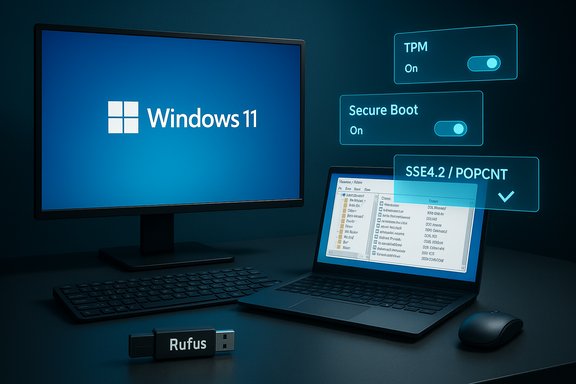
Microsoft ended mainstream support for Windows 10 on October 14, 2025, which means unpatched security and feature updates are no longer delivered to most Windows 10 installations. That deadline is the practical reason many people are urgently looking for a reliable migration path to Windows 11 or some other supported platform. Microsoft’s official guidance encourages users to upgrade eligible devices to Windows 11 or enroll in the consumer Extended Security Updates (ESU) program for a limited bridge period. At the same time, Microsoft’s Windows 11 upgrade path is gated by a strict compatibility baseline: a supported 64‑bit CPU, UEFI firmware with Secure Boot capability, and a Trusted Platform Module (TPM) 2.0 are the headline requirements, plus minimum RAM and disk space. Starting with Windows 11 version 24H2, Microsoft also enforced CPU instruction requirements (SSE4.2 and POPCNT) in ways that block some very old processors from booting the OS. That last change is a hard technical limit in some cases — there is no safe workaround if the CPU truly lacks the required instruction set. In practice, however, most machines sold within the last 10–12 years are capable of running Windows 11 once firmware toggles or small installer tweaks are applied. The two approaches covered below are the ones most technicians and enthusiasts use today: a registry tweak that allows an in‑place upgrade from within Windows 10, and a Rufus‑created USB installer that automates the more advanced bypasses for machines that don’t support UEFI/Secure Boot or lack TPM.Compatibility checklist — what you must verify before you begin
Before attempting any upgrade, confirm the following on the target PC. If any of these checks fail, that affects which upgrade path you should choose.- CPU type: 64‑bit x64 CPU (ARM and 32‑bit CPUs are excluded).
- Instruction support: SSE4.2 and POPCNT are required by Windows 11 24H2 and later; if the CPU lacks these, Windows 11 24H2 may not boot. This is a hard technical barrier.
- Firmware mode: UEFI is required for a standard supported upgrade path (Legacy BIOS requires conversion to UEFI/GPT for in‑place upgrades). Check Msinfo32.exe → BIOS Mode.
- Secure Boot: Supported; recommended to be enabled (it can often remain disabled for testing but enabling improves security).
- TPM: TPM 2.0 is required for supported installs; some workarounds accept TPM 1.2 or fTPM, but a system with no TPM support at all narrows options to Rufus and clean installs. Use tpm.msc to confirm TPM presence and specification version.
- Disk space: Microsoft lists 64 GB as the official minimum free space; in practical experience an upgrade often succeeds with 25–30 GB free, but plan for 64 GB where possible.
Option 1 — The registry edit for an in‑place upgrade (when UEFI/TPM present)
This is the least invasive method because it upgrades Windows 10 to Windows 11 while preserving apps, settings, and files in most cases. It works only when you run the Windows 11 Setup from within the existing Windows 10 installation (you can’t boot from the USB and use this exact trick).Why this works: Microsoft historically provided an official registry workaround that told the Windows Setup program to relax the CPU compatibility check and accept a TPM version lower than 2.0 in certain cases. That guidance has since been removed from Microsoft’s support documentation, but the technique still functions on many systems — proceed with caution and full backups.
Step‑by‑step (four steps):
- Backup first — full disk image recommended.
- Create a system image or use your preferred backup method. This is not optional; registry edits and OS upgrades can fail and require recovery.
- Make the registry change:
- Open Registry Editor (Regedit.exe) as an administrator.
- Navigate to HKEY_LOCAL_MACHINE\SYSTEM\Setup.
- If the key MoSetup does not exist, right‑click Setup → New → Key and name it MoSetup.
- With MoSetup selected, right‑click the right pane → New → DWORD (32‑bit) Value. Name it AllowUpgradesWithUnsupportedTPMOrCPU.
- Double‑click the new value and set Value data = 1. Click OK, then restart the PC. A typo or wrong location will cause Setup to ignore the tweak.
- Download and mount the Windows 11 ISO:
- Get the official x64 ISO from Microsoft’s Download Windows 11 page and save it to the system drive (do not put the ISO on the USB you might use later).
- In File Explorer, double‑click the ISO to mount it as a virtual DVD drive.
- Run Setup.exe from the mounted ISO:
- Launch Setup.exe from inside Windows 10.
- When the compatibility warning dialog appears, read it and accept the risk to continue. During the initial Setup screens click “Change how setup downloads updates” → choose “Not right now” to reduce early failures reported by some users.
- Choose to keep apps and files or pick another option; follow the on‑screen prompts until Setup completes and the machine restarts several times.
When this method is the right choice
- Your PC uses UEFI, supports Secure Boot and has a TPM (or fTPM/TPM 1.2).
- You want to preserve apps and settings and avoid a clean reinstall.
- The CPU supports SSE4.2/POPCNT or you are running a Windows 11 build that previously worked on that hardware.
Risks and limitations
- Microsoft removed the official guidance for this registry tweak from its support pages in early 2025; that does not necessarily mean the tweak stopped working, but it does mean Microsoft no longer documents or endorses it. Proceed only if you accept potential update and warranty consequences.
Option 2 — Use Rufus to create modified installation media (older or very atypical PCs)
When the machine lacks TPM support, is using Legacy BIOS, or you cannot (or will not) switch to UEFI, Rufus offers an easier path. Rufus includes an “Extended Windows 11 installation” option that automates the required workaround steps and modifies the installer to skip many hardware checks. This method requires creating a bootable USB with Rufus and then launching Setup.exe from within the running Windows environment on the target PC (do not boot from the Rufus USB if you want to preserve apps — booting will typically lead to a clean install unless used carefully). Key points verified against independent reporting:- Rufus 4.6 (and later) added a setup wrapper and options to bypass in‑place upgrade restrictions introduced with Windows 11 24H2; community testing confirms the feature is the practical way to relax TPM/Secure Boot/CPU checks for many systems.
- Rufus cannot defeat the SSE4.2/POPCNT instruction requirement — if the CPU lacks those instructions, Windows 11 24H2 and later may not boot at all.
- Back up your system.
- Download the Windows 11 x64 ISO directly from Microsoft and save it to your PC.
- Get the latest Rufus (official site or Microsoft Store). Use version 4.6 or newer for 24H2‑era compatibility workarounds.
- Insert a 16 GB (or larger) USB flash drive and run Rufus.
- In Rufus:
- Boot selection → Disk or ISO image → Select the Windows 11 ISO you downloaded.
- Ensure Partition scheme and Target system match the target PC (GPT/UEFI for UEFI systems, MBR/BIOS for legacy systems).
- Click Start. When the “Windows User Experience” dialog appears, check the box to remove hardware requirements (it may be labeled “Remove requirement for TPM and Secure Boot” or similar) and confirm. Rufus will build an installer with the chosen bypasses.
- When Rufus finishes, open the USB drive in File Explorer and run Setup.exe from within the target Windows installation. Do not boot from the USB unless you intend a clean install.
- Accept the compatibility warning and continue; choose whether to keep apps and files.
When to use Rufus
- The PC has no TPM or Secure Boot support and cannot be reasonably updated to UEFI.
- The target system uses Legacy BIOS and you need a method that supports custom partition schemes.
- You’re willing to accept the unsupported upgrade risks and have full backups.
Important caveats
- Rufus does not solve a missing CPU instruction set (SSE4.2/POPCNT) problem. If the CPU truly lacks those, the OS may be unbootable.
- Some users have reported a “revoked UEFI bootloader” or related errors when certain ISOs are used; if you see that, download a fresh ISO and recreate the Rufus media.
Clean installs and language pitfalls
A clean install (boot the installer and erase the system partition) always bypasses CPU compatibility checks, but it still requires TPM/Secure Boot where applicable and will erase apps and settings. If you choose a clean install, back up everything and be prepared to reinstall drivers and software.One practical gotcha reported by many technicians: language selection. If your Windows 10 installation uses a locale such as English (UK) but you use the Windows 11 ISO for English (United States) or vice versa, the upgrade may refuse to preserve apps and settings, forcing a data‑only or clean install. If that happens, re‑download the ISO in the correct language and try again.
Troubleshooting common errors and how to recover
- “Compatible TPM cannot be found”:
- Check tpm.msc and firmware (UEFI/BIOS) settings. Many modern boards have fTPM (AMD) or PTT (Intel) disabled by default; enabling it often resolves the block. If the system has no TPM at all, use Rufus or a clean install and accept the unsupported status.
- “The processor isn’t currently supported” even after registry tweak:
- Confirm CPU supports SSE4.2/POPCNT. Use CPU‑Z or a similar utility to inspect the “Instructions” list. If instructions are missing, the upgrade will likely fail. If they are present, ensure the registry key is correctly created and that you launched Setup.exe from within Windows.
- “An unsupported operation was attempted” when using Rufus‑created media:
- During early Setup screens choose “Change how setup downloads updates” → “Not right now.” Several users reported that selecting this option avoids premature failures. If you still get the error, recreate the Rufus USB with a fresh ISO.
- Setup quits unexpectedly or fails in SAFE_OS phase:
- Retry, ensure your disk has adequate free space, disconnect unnecessary USB devices, and try “Not right now” for updates. If errors persist, collect SetupDiag output and the Setup logs for diagnosis.
Risks, warranty and update implications — what you should accept before proceeding
- Unsupported installations may not be entitled to cumulative updates or feature upgrades. Microsoft’s installer and support pages explicitly warn that installing Windows 11 on unsupported hardware could mean missing updates or facing blocked features. That warning is a legal and technical caveat — treat such installs as experimental for critical machines.
- Microsoft removed the official support article describing the registry bypass in early 2025. That removal signals a corporate tilt toward pushing users to supported hardware, and Microsoft may block, restrict, or change update behavior for such devices in future releases. Proceed with backups and risk awareness.
- Driver and vendor support: OEM drivers for older hardware may never be updated for Windows 11; you may need to rely on generic drivers or community solutions. This can affect stability, sleep/hibernate, or specialized hardware functions.
- Security posture: hardware‑backed security features (VBS, HVCI, certain virtualization scenarios) are tied to TPM/UEFI/Secure Boot; bypassing these checks leaves you with a weaker security baseline even under Windows 11.
Alternatives to forcing an upgrade
- Extended Security Updates (ESU): For consumers, Microsoft offered a one‑year ESU bridge after October 14, 2025 (paid option). This is a short‑term stopgap to buy time for hardware replacement or migration. For businesses, commercial ESU options and multi‑year plans exist but at higher per‑device costs.
- Replace or buy a new PC: For many households and organizations, replacing older machines is the cleanest path to a supported Windows 11 environment.
- Consider alternative OSes: Modern Linux distributions (or ChromeOS Flex) can give older hardware improved security and performance without the Windows upgrade constraints.
- Cloud/hosted desktop: Windows 365 or Azure Virtual Desktop can deliver a supported Windows 11 environment to older endpoints for a monthly cost.
Practical checklist — ready to run the upgrade (quick summary)
- Confirm CPU is 64‑bit and supports SSE4.2/POPCNT if you plan to use Windows 11 24H2 or later.
- Confirm UEFI/BIOS mode and whether Secure Boot and fTPM/PTT can be enabled. Use Msinfo32.exe and tpm.msc.
- Make a complete backup (system image + file copy).
- Decide: Registry edit + mounted ISO (Option 1) if UEFI/TPM present, or Rufus USB (Option 2) if TPM/Secure Boot missing or Legacy BIOS.
- Download the official Windows 11 ISO and the recommended Rufus version (4.6+) if using Rufus.
- Follow steps carefully, watch the “Change how setup downloads updates” setting, and collect logs if Setup fails (SetupDiag is useful).
Conclusion
Upgrading an “incompatible” Windows 10 PC to Windows 11 is no longer arcane tinkering reserved for a handful of enthusiasts — two well‑documented methods cover the majority of real‑world cases. The registry tweak supports in‑place upgrades on systems that already expose UEFI and some form of TPM, while Rufus automates a broader set of bypasses for older or atypical hardware. Both approaches come with clear trade‑offs: potential loss of update entitlement, driver quirks, and the legal/technical backing that only supported hardware receives. Make a complete backup, verify CPU instruction support (SSE4.2/POPCNT), and pick the route that best matches the target machine’s firmware and TPM status.If you proceed, keep careful notes of the machine model, BIOS/UEFI revisions, the exact Windows 11 build you install, and any errors encountered — that documentation is invaluable if you need to recover or roll back. Above all, treat unsupported installs as a pragmatic stopgap for keeping older hardware useful and secure, not as a one‑size‑fits‑all substitute for supported hardware and vendor assurances.
Source: Bahia Verdade Upgrade your 'incompatible' Windows 10 PC to Windows 11 for free - here's how - Bahia Verdade
