

Most PCs sold in the last decade can be moved to Windows 11 even if Windows Update says they’re “incompatible,” and there are two practical, widely used methods for doing it: a simple registry override that lets you run the official Windows 11 installer from inside Windows 10, and a Rufus-created installer that automates a broader bypass for machines without TPM, Secure Boot, or UEFI.
Microsoft ended support for Windows 10 on October 14, 2025. That step removed guaranteed security and feature updates for most Windows 10 devices and has pushed many users to upgrade, replace hardware, or enroll in the Extended Security Updates (ESU) program if they need more time. If you’re still on Windows 10, this deadline is the immediate reason to consider migrating to Windows 11, or at least to plan a safe path forward. Windows 11’s compatibility rules are narrower than Windows 10’s. The headline requirements are: a supported 64‑bit CPU family listed by Microsoft, UEFI firmware with Secure Boot support, and a Trusted Platform Module (TPM) version 2.0. Recent servicing (Windows 11 version 24H2 and later) also added a hard instruction‑set requirement — SSE4.2 (including the POPCNT instruction) — that makes some very old CPUs impossible to support. That means if a machine lacks those instructions, no installer tweak will make it a modern Windows 11 install target. The remainder of this feature will:
Important safety premise: back up everything first. Do not skip the image. This registry edit is minor, but a failed OS upgrade can require a full restore.
Step‑by‑step (exact):
This guide consolidates community‑tested procedures and official lifecycle facts to give a clear, practical path for upgrading “incompatible” Windows 10 PCs to Windows 11. While the registry tweak and Rufus installer have helped hundreds of thousands of users extend hardware life, they remain workarounds — useful and sometimes essential, but not a substitute for the predictability and security guarantees of officially supported hardware and vendor drivers. Proceed prepared, with a full backup and a rollback plan.
Source: gamenexus.com.br Upgrade your 'incompatible' Windows 10 PC to Windows 11 for free - here's how - GameNexus
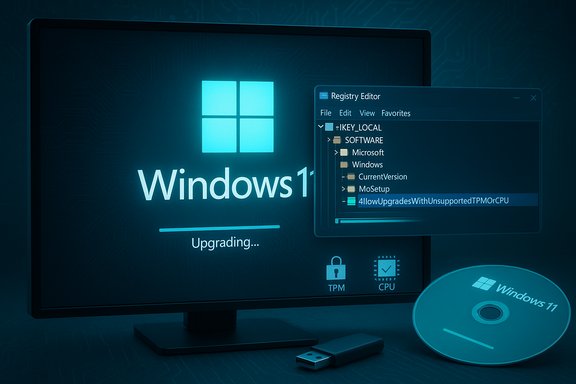 Background / Overview
Microsoft ended support for Windows 10 on October 14, 2025. That step removed guaranteed security and feature updates for most Windows 10 devices and has pushed many users to upgrade, replace hardware, or enroll in the Extended Security Updates (ESU) program if they need more time. If you’re still on Windows 10, this deadline is the immediate reason to consider migrating to Windows 11, or at least to plan a safe path forward. Windows 11’s compatibility rules are narrower than Windows 10’s. The headline requirements are: a supported 64‑bit CPU family listed by Microsoft, UEFI firmware with Secure Boot support, and a Trusted Platform Module (TPM) version 2.0. Recent servicing (Windows 11 version 24H2 and later) also added a hard instruction‑set requirement — SSE4.2 (including the POPCNT instruction) — that makes some very old CPUs impossible to support. That means if a machine lacks those instructions, no installer tweak will make it a modern Windows 11 install target. The remainder of this feature will:- Explain the compatibility checks and what they actually mean for real PCs.
- Lay out the two practical upgrade routes — Option 1: the registry override and Option 2: Rufus extended installer — with step‑by‑step guidance.
- Show how to prepare, back up, and troubleshoot.
- Analyze the tradeoffs, security implications, and long‑term maintenance burdens for unsupported or “bypassed” installs.
Why Microsoft blocks upgrades — and what the checks protect
Modern Windows safeguards rely on platform features that are hard or impossible to replicate in software alone. The requirement for TPM 2.0, Secure Boot, UEFI, and specific CPU features isn’t arbitrary: Microsoft’s compatibility policy aims to ensure the OS can use hardware‑backed cryptographic keys, enable virtualization‑based security features, and rely on instruction sets that modern drivers and kernel subsystems assume are present. In plain terms, the checks are there to protect users and reduce the attack surface for firmware and kernel attacks. That said, many otherwise healthy PCs are blocked only because the CPU isn’t on Microsoft’s approved list or the TPM is an older spec. Those systems often have UEFI, enough memory, and plenty of storage; they run everyday workloads perfectly fine. For these machines, a carefully executed bypass can get a working Windows 11 installation — but it’s not the same as being on a supported build. The distinction matters for update entitlement and vendor support downstream.How to check whether your PC can be upgraded without hacks
Before trying any bypass, confirm the machine’s firmware and platform status. Do these three quick checks:- Open System Information (Msinfo32.exe) and check:
- BIOS Mode — is it UEFI or Legacy?
- Secure Boot State — Supported? Enabled?
- Open the TPM management console (Tpm.msc) to check whether a TPM is present and which specification it reports (1.2 vs 2.0).
- Verify CPU instruction support if you’re targeting Windows 11 24H2 or later — confirm SSE4.2/POPCNT using a tool such as CPU‑Z or Sysinternals Coreinfo.
Preparation: backups, disk space, and account considerations
Any OS upgrade carries risk. Before proceeding:- Make a full disk image (not just file backups). If the upgrade breaks, you’ll want a complete rollback option.
- Export or synchronize user‑level data (Documents, Pictures, browser profiles, app data). Use OneDrive, an external drive, or an image backup.
- Free up space: Microsoft lists 64 GB as the documented minimum, but real‑world in‑place upgrades usually succeed with 25–40 GB free. Still, plan for 64 GB where possible.
- Ensure you have the Windows 11 ISO (official download) saved locally and a reliable internet connection for post‑install updates.
Option 1 — The simple registry edit (best for UEFI + TPM systems)
This is the least invasive method and the one most likely to preserve installed apps, settings, and files. It works when your PC boots in UEFI, has a TPM (even TPM 1.2 in many community tests), and fails only because the CPU isn’t on Microsoft’s whitelist.Important safety premise: back up everything first. Do not skip the image. This registry edit is minor, but a failed OS upgrade can require a full restore.
Step‑by‑step (exact):
- Backup and prepare
- Create a full system image and copy critical files externally. This is not optional.
- Create the registry value
- Run Registry Editor (Regedit.exe) as Administrator.
- Navigate to:
HKEY_LOCAL_MACHINE\SYSTEM\Setup - If a key named MoSetup does not exist under Setup, create it: right‑click Setup → New → Key → name it MoSetup.
- With MoSetup selected, right‑click the right pane → New → DWORD (32‑bit) Value.
- Name the new DWORD exactly: AllowUpgradesWithUnsupportedTPMOrCPU
- Double‑click it and set Value data to 1. Click OK.
- Restart the PC.
- Download and mount the official Windows 11 ISO
- Get the x64 Disk Image from the official Windows 11 Download page and save it locally.
- Double‑click the ISO to mount it in File Explorer.
- Run Setup.exe from the mounted ISO
- Double‑click Setup.exe and accept the compatibility warning to continue.
- At the early prompt “Change how setup downloads updates,” choose “Not right now” if you experience installation stalls.
- Choose the upgrade option you prefer: keep apps/settings/files, keep data only, or clean install.
- Let Setup complete. The PC will restart multiple times.
- Typos or wrong value type (QWORD vs DWORD) will cause Setup to ignore the tweak — spelling and type are exact.
- If your PC boots in Legacy BIOS mode, convert to UEFI/GPT first or use Option 2.
- Language mismatches between an installed Windows 10 locale and the ISO can force a clean install. If that happens, re‑download the correct language ISO.
Option 2 — Use the free Rufus utility (best for Legacy BIOS, no TPM, or tricky firmware)
When a PC lacks a TPM entirely, boots in Legacy/MBR mode, or you don’t want to convert to UEFI, Rufus provides a practical alternative. Recent Rufus releases expose an Extended Windows 11 installation option that automates the same modifications many technicians used to perform manually. Rufus builds installer media that relaxes TPM, Secure Boot and some memory checks in the booted installer environment. It does not add CPU instructions to old silicon. What you need:- Windows 11 x64 ISO (download from Microsoft and save it to your system drive).
- A USB flash drive (16 GB recommended). The USB will be reformatted.
- Rufus 4.6 or later (community guidance recommends version 4.6+ for 24H2 era behavior).
- Download and prepare
- Download the official Windows 11 ISO and save it.
- Download Rufus (official site or Microsoft Store). Back up any data on the USB.
- Create the Rufus installer
- Run Rufus and select the target USB drive.
- Under Boot selection choose “Disk or ISO image” and point to the Windows 11 ISO.
- Confirm Partition Scheme and Target System (GPT/UEFI for modern boards; MBR/BIOS for older boards).
- Click Start.
- In the Windows User Experience dialog that appears, check the option to “Remove requirement for 4GB+ RAM, Secure Boot and TPM 2.0” (wording varies by Rufus version). You can also disable OOBE Microsoft account enforcement and skip telemetry if desired.
- Click OK and let Rufus write the media.
- Run Setup from the created USB (in‑place upgrade) or boot from USB (clean install)
- To keep apps and files: open the new USB in File Explorer on the target PC and double‑click Setup.exe (do not boot from the USB).
- To perform a clean install: boot from the USB and follow the installer prompts.
- If Setup shows “This PC doesn’t currently meet Windows 11 system requirements,” accept the warning and continue.
- Again, if setup stalls early, choose “Change how setup downloads updates” and select “Not right now.”
- Rufus’s bypass works by modifying the runtime installer environment (boot.wim) or adding LabConfig‑style flags so the pre‑flight checks are skipped during the booted installation path. It does not change Windows kernel binaries or add missing CPU features. If the CPU lacks SSE4.2/POPCNT, version 24H2 installer builds may outright refuse to boot.
Step‑by‑step troubleshooting and common error messages
- “The PC doesn’t meet Windows 11 system requirements” (dialog during Setup)
- If you used the registry flag but see this message when running the Installation Assistant, verify:
- The MoSetup key and AllowUpgradesWithUnsupportedTPMOrCPU DWORD exist and are set to 1 exactly.
- You launched Setup.exe from inside Windows (the registry tweak does not affect a booted USB installer).
- If you used Rufus, run Setup.exe from inside Windows rather than booting, or recreate USB and ensure you selected the bypass option in Rufus.
- “An unsupported operation was attempted” or early Setup quits
- When running from Rufus media with certain Windows 11 24H2 builds, pick “Not right now” for updates during the early “Change how setup downloads updates” step and retry. Many community reports show this bypass resolves premature quits.
- Driver oddities or missing devices after the upgrade
- Immediately check Device Manager and Windows Update for driver updates. Visit the OEM support site for Windows 11 drivers and firmware updates. Older hardware frequently needs manual driver work after an unsupported upgrade.
- If the system won’t boot after a clean install
- Restore your full image backup. That’s why a fail‑safe image is essential before you begin.
Security, warranty, and update implications — the real tradeoffs
Installing Windows 11 on unsupported hardware is a pragmatic stopgap, but it’s not identical to running Windows 11 on a supported device:- Update entitlement is uncertain. Microsoft’s installer and lifecycle guidance make clear: devices that don’t meet the stated system requirements may not be guaranteed updates, including security updates. Historically, behavior has been inconsistent — some bypassed installs continued to receive updates for a while, others were excluded as Microsoft tightened enforcement. Expect variability and plan to manage updates manually if you go unsupported.
- You may lose hardware‑rooted protections. Without TPM 2.0 and Secure Boot (or if they’re disabled), features like BitLocker’s TPM‑protected keys and certain virtualization‑based protections are weaker or unavailable, raising the attack surface compared with a fully supported machine.
- Drivers and stability. OEMs are not required to publish Windows 11 drivers for older models; you may need to rely on legacy drivers or community patches, which introduces long‑term maintenance work.
- Warranty, enterprise policy, and compliance. Unsupported installs on corporate devices can void managed configurations or violate policies. Avoid these methods on business‑critical endpoints.
Cross‑checking the major claims (transparency and verification)
Key facts summarized earlier were verified against multiple independent sources:- Windows 10 end‑of‑support (October 14, 2025) is documented on Microsoft’s support page.
- The registry value AllowUpgradesWithUnsupportedTPMOrCPU is the community‑documented override used to skip CPU/TPM checks for an in‑place upgrade; community guides and Microsoft Q&A threads discuss and demonstrate it, although Microsoft’s official documentation no longer promotes it as a supported path. Because Microsoft’s own public documentation about this specific registry flag has changed over time, the claim that Microsoft “removed the support article in December 2024” is reported in some community articles but is difficult to verify as a single authoritative event; treat that specific date as softly reported and proceed with caution.
- Rufus’s “remove requirements” option (and the advice to use Rufus 4.6 or later for 24H2-era media) is widely reported by practical guides and testing across reputable tech outlets and community testers; Rufus automates the installer tweaks applied in the booted installer environment. It does not add missing CPU instructions.
- Windows 11 version 24H2 adds the SSE4.2/POPCNT instruction requirement that cannot be bypassed by registry or Rufus — this is well documented in community testing and independent reporting; CPUs that lack these instructions (generally very old chips) cannot be used for modern Windows 11 builds.
A practical decision flow (which option to pick)
- Does the PC boot in UEFI and show a TPM in tpm.msc? Yes → use Option 1 (registry override), because it’s simpler and usually preserves apps and settings.
- Does the PC lack TPM, run Legacy BIOS, or is converting to UEFI impractical? Yes → use Option 2 (Rufus).
- Does the CPU lack SSE4.2/POPCNT? Yes → Windows 11 24H2 and later are effectively impossible on that hardware; your options are to keep using Windows 10 with ESU, switch to a lightweight Linux distribution for older hardware, or replace the CPU/machine.
Recommended post‑upgrade checklist
- Immediately check Windows Update and Device Manager for drivers; install OEM firmware updates.
- Confirm TPM and Secure Boot are enabled if your hardware supports them; re‑enable them in firmware after install if you had to disable them temporarily.
- Run a full antivirus/antimalware scan and verify BitLocker status if you need disk encryption.
- Create a fresh system image of the upgraded machine so you have a new rollback point.
- Monitor Windows Update behavior for the first few months — unsupported installs can see changes to update entitlement.
Final analysis: strengths, risks, and a recommendation
Strengths of the bypass approaches:- They extend the usable life of perfectly serviceable hardware and avoid near‑term replacement costs.
- The registry override is simple for UEFI + TPM machines and often preserves apps and settings.
- Rufus packages the manual, error‑prone steps into a GUI that automates the safe‑sounding installer tweaks many technicians previously performed by hand.
- Update entitlement is not guaranteed for bypassed installs; long‑term security depends on whether Microsoft continues to service such devices or decides to block updates.
- Hardware features cannot be added in software: missing CPU instructions (SSE4.2/POPCNT) are a hard block for modern Windows 11 builds.
- Unsupported installs increase maintenance burden (drivers, firmware, and potential stability issues) and may affect enterprise compliance or warranty coverage.
- For personal or hobby systems where you control backups and are comfortable troubleshooting, the registry method (Option 1) or Rufus (Option 2) are practical ways to run Windows 11 on older hardware. Proceed only after a full image backup and with the expectation of some manual maintenance.
- For business‑critical or security‑sensitive systems, do not rely on bypasses — prioritize supported hardware or short‑term ESU while planning for replacement.
This guide consolidates community‑tested procedures and official lifecycle facts to give a clear, practical path for upgrading “incompatible” Windows 10 PCs to Windows 11. While the registry tweak and Rufus installer have helped hundreds of thousands of users extend hardware life, they remain workarounds — useful and sometimes essential, but not a substitute for the predictability and security guarantees of officially supported hardware and vendor drivers. Proceed prepared, with a full backup and a rollback plan.
Source: gamenexus.com.br Upgrade your 'incompatible' Windows 10 PC to Windows 11 for free - here's how - GameNexus
