

Microsoft's “this PC can't run Windows 11” verdict is a prompt, not a sentence — and in many cases the upgrade is both possible and practical if you understand what you're doing and accept the trade-offs. view
Microsoft ended mainstream support for Windows 10 on October 14, 2025, which means Windows 10 devices stopped receiving routine security and feature updates from that date. Microsoft recommends upgrading to Windows 11 or enrolling eligible devices in the limited Extended Security Updates (ESU) program if you can’t move immediately.
Windows 11 enforces a tighter hardware baseline than Windows 10. The public minimums include a compatible 64‑bit CPU (1 GHz, 2+ cores and listed on Microsoft’s approved CPU lists), 4 GB RAM, 64 GB storage, UEFI firmware with Secure Boot capability, and TPM 2.0 (or an equivalent platform attestation). Microsoft’s rationale is explicit: those requirements raise the platform security baseline and enable hardware-backed features such as BitLocker, Windows Hello, virtualization‑based security, and more.
Still, for many mid‑range desktops and laptops built around 2018–2021, the hardware is functionally capable of running Windows 11 even when the official compatibility checker flags the system because of a single missing item — most commonly TPM 2.0 or an OEM firmware setting left disabled. Community workarounds have consolidated into two practical paths: enable or add the missing hardware in firmware (the preferstallation media that instructs the Windows installer to skip specific checks. The latter path — which uses tools like Rufus to build a customized USB installer — is what the ZDNET author (and many readers) used to complete an upgrade in minutes.
Two important constraints to understand:
But this convenience is not free: skipping hardware requirements places update delivery and certain hardware‑backed mitigations on uncertain ground. The maker community’s experience suggests many users will have stable, long‑term outcomes, while others will run into driver or update problems that require a rollback or eventual hardware replacement.
If you choose to follow the Rufus path, do so deliberately: understand the difference between a supported firmware change (enable fTPM/PTT or add a discrete TPM module) and an installer bypass; make images and backups; keep OEM drivers nearby; and plan a clear migration timeline for machines you rely on. For critical systems, the only responsible path is to move to supported hardware or use sanctioned enterprise migration strategies.
If you want a step‑by‑step, annotated checklist tuned to your exact motherboard and CPU model (including where to look in UEFI for fTPM/PTT or how to identify a TPM header on your board), I can assemble a tailored guide for your hardware.
Source: ZDNET Microsoft said my PC can't run Windows 11, but I upgraded in 5 minutes anyway - here's how
Microsoft ended mainstream support for Windows 10 on October 14, 2025, which means Windows 10 devices stopped receiving routine security and feature updates from that date. Microsoft recommends upgrading to Windows 11 or enrolling eligible devices in the limited Extended Security Updates (ESU) program if you can’t move immediately.
Windows 11 enforces a tighter hardware baseline than Windows 10. The public minimums include a compatible 64‑bit CPU (1 GHz, 2+ cores and listed on Microsoft’s approved CPU lists), 4 GB RAM, 64 GB storage, UEFI firmware with Secure Boot capability, and TPM 2.0 (or an equivalent platform attestation). Microsoft’s rationale is explicit: those requirements raise the platform security baseline and enable hardware-backed features such as BitLocker, Windows Hello, virtualization‑based security, and more.
Still, for many mid‑range desktops and laptops built around 2018–2021, the hardware is functionally capable of running Windows 11 even when the official compatibility checker flags the system because of a single missing item — most commonly TPM 2.0 or an OEM firmware setting left disabled. Community workarounds have consolidated into two practical paths: enable or add the missing hardware in firmware (the preferstallation media that instructs the Windows installer to skip specific checks. The latter path — which uses tools like Rufus to build a customized USB installer — is what the ZDNET author (and many readers) used to complete an upgrade in minutes.
 What the ZDNET piece reported — a concise summary
- The author built a desktop in 2020 (Intel Core i9‑9900 on an Asus board) and found Windows Update/PC Health Check deemed the machine ineligible because the board didn't present a TPM 2.0 interface.
- Instead of buying a new PC, the author used the free tool Rufus to creation media that explicitly removes the installer checks for TPM, Secure Boot, and the 4 GB RAM gate, then ran Setup.exe from the USB to perform the upgrade. The author reports the media creation itself took about five minutes and the full upgrade completed with the ndows 11.
- ZDNET framed this as a practical, time‑saving workaround for personal systems that otherwise meet the non‑TPM requirements (storage, RAM, and CPU instructions), and advised readers to consult more detailed guides and to prepare backups if they attempt the same.
How the Rufus method actually works (technical mechanics)
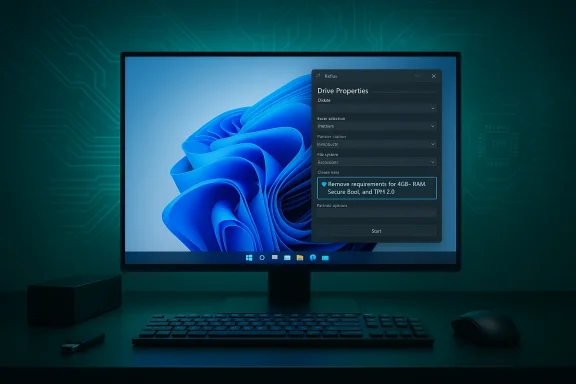
Rufus does not change Microsoft’s signed Windows binaries or rewrite microcode. Instead, when creating a Windows 11 USB installer, Rufus offers an option that modifies how the Windows Setup environment performs pre‑flight checks. When you check the box labelled something like “Remove requirement for 4GB+ RAM, Secure Boot and TPM 2.0,” Rufus generates installer media that bypasses the installer’s compatibility gates during a booted installation. That makes the installer accept hardware configurations Microsoft’s standard pathway would block.Two important constraints to understand:
- Rufus can only bypass policy checks enforced by the installer; it cannot change the physical CPU instruction set. If a build of Windows requires CPU instructions your processor lacks (for example, POPCNT/SSE4.2 in certain Windows 11 24H2 builds), no installer trick will add those instructions to silicon — the OS may refuse to boot.
- Even after a successful install, Microsoft’s official position is that systems installed outside the published hardware requirements are not guaranteed to be entitled to receive updates, and some update or feature paths may be blocked. That risk is non‑trivial and should be treated as a core part of the decision.
Verified claims and cross‑checks
- Windows 10 end of support: Microsoft’s support and lifecycle pages confirm Windows 10 reached end of support on October 14, 2025. This is the main driver behind the surge of upgrades and the urgency users feel.
- Windows 11 hardware baseline: Microsoft’s official system requirements list TPM 2.0, UEFI+Secure Boot, CPU compatibility lists, 4 GB RAM, and 64 GB storage as the baseline.
- Rufus installer bypass options: multiple independent technical writeups (MakeUseOf, PCWorld, Digital Citizen and others) document the Rufus UI and confirm the presence of checkboxes to remove TPM/Secure Boot/4GB checks and to skip the MSA (Microsoft account) requirement during media creation. A Rufus developer response on forums corroborates that the option only affects installer checks and does not prevent Windows from using TPM/Secure Boot if they are present.
- 24H2 CPU instruction issue: reputable outlets (Ars Technica, Gigazine, and others) reported that early 24H2 previews introduced reliance on the POPCNT instruction (SSE4.2 family), causing certain very old CPUs to be unable to boot or run those builds — a hardware limitation no installer tweak can fix.
The 10‑minute reality: what actually takes time
The oft‑repeated “five‑minute” claim is accurate only for the media creation step. Creating a Rufus USB with a Windows 11 ISO and selecting the bypass options often takes 5–10 minutes on a modern workstation. The full installation — including file copy, reboots, driver detection, updates, and post‑install driver fixes — typically takes longer (30–90 minutes) depending on storage speed and how many drivers need manual attention. Plan for the full window and a reliable backup before you begin.Step‑by‑step, practical checklist (safe, risk‑aware)
Below is a pragmatic workflow combining ZDNET’s approach with best practices and cross‑checked technical notes.- Backup first. Make a complete disk image (macrium, Clonezilla, or your favorite imaging tool) and copy critical files off the PC. Treat this as mandatory.
- Confirm what’s actually failing. Run msinfo32 and tpm.msc, and/or the PC Health Check app, to see whether the block is TPM/firmware, CPU whitelist, or insufficient RAM/storage. If TPM is present but disabled in firmware (fTPM or Intel PTT), enabling it might be the simplest fix.
- Firmware route: Check firmware (UEFI) settings — enable fTPM/PTT and Secure Boot if available. Some desktop boards have a physical TPM header that supports an optional discrete TPM 2.0 module; ASUS documentation notes when a board exposes such connectivity. If your board supports a module, purchasing and populating the header lets you get to a supported configuration. This is the preferred path when feasible.
- If firmware changes are impossible or you’re on a laptop without TPM 2.0, download the latest Rufus and the Windows 11 multi‑edition ISO to a working PC. Insert a blank USB (8–16 GB recommended) and launch Rufus. (digitalcitizen.life)
- In Rufus: select Device → Boot Selection → Disk or ISO image → choose the Windows 11 ISO. Press Start. When the Windows User Experience dialog appears, check “Remove requirement for 4GB+ RAM, Secure Boot and TPM 2.0.” Optionally check the box to skip the Microsoft account and privacy questions if you want a local account and automated privacy defaults. Click OK and let Rufus finish.
- On the upgraded PC, open the USB drive in File Explorer and run Setup.exe to perform an in‑place upgrade if you want to retain apps and files. If you clean‑install from boot, remember the installer might re‑run checks differently; the Rufus booted installer is intentionally crafted to skip checks, but running Setup.exe from inside a running Windows session gives a good chance to keep apps and settings. The ZDNET walkthrough specifically advised choosing “Not right now” for downloading updates during setup, to avoid installer confusion.
- After install: immediately check Device Manager and install OEM chipset, storage, and network drivers from the manufacturer’s site if anything is missing. Create a fresh system image once the machine is stable.
Benefits that make this attractive
- Extended hardware life: You can push capable 2019–2021 PCs forward and run a supported‑looking desktop environment and features without buying new hardware. This has clear environmental and economic benefits.
- Faster access to features: Windows 11 improvements in UI, Snap Layouts, DirectStorage (when supported hardware is present), and Windows security features can be useful on well‑spec’d machines.
- Low upfront cost: Hardware updates like adding a TPM module (if your board supports one) are usually cheaper than a full PC replacement, and the Rufus route requires only a spare USB stick.
The real risks — what you must accept
- Update and support uncertainty: Microsoft’s official guidance warns that installations performed on unsupported hardware may not be entitled to receive updates, and manufacturers may decline warranty support for issues caused by unsupported configurations. This is an explicit policy and not just folklore. Enterprises or mission‑critical systems should not rely on this workaround.
- Feature/driver fragility: Some hardware drivers and future feature updates may assume hardware capabilities (firmware attestation, hardware isolation) that unsupported systems lack. Users report occasional driver quirks and update blocking months after the initial upgrade. That variance is why many community posts call this a pragmatic short‑to‑medium term fix — not a permanent architecture for production machines.
- CPU instruction hard limits: Recent Windows 11 builds (notably the 24H2 family) introduced reliance on CPU instructions such as POPCNT and certain SSE4 features. If your CPU lacks those, the OS may refuse to boot or fail on update — no installer or Rufus setting can change that. Vintage CPUs (Core 2 Duo era and earlier) are the most affected. If your device is that old, consider alternative OS strategies instead.
- Security posture: TPM 2.0 + Secure Boot enable features like hardware‑backed keys, measured boot, and virtualization‑based protections. Skipping those checks means you may have weaker defenses against modern kernel‑level attacks — a significant trade‑off for users who handle sensitive data.
- Legal/enterprise compliance: Organizations subject to regulatory or compliance obligations must avoid unsupported installations; the workaround can void internal compliance assurances and breach contractual obligations.
Alternatives and safer routes
- Enable firmware TPM (fTPM/PTT) or install a discrete TPM module if your board supports it. This converts the machine into a supported configuration without hacks. Check OEM documentation for the exact steps.
- Replace the motherboard/CPU with supported components when budgets and timelines permit — this guarantees support and updates.
- Enroll in Windows 10 ESU (if still offered for your scenario) to buy time while planning a proper migration, or migrate to a modern Linux distro or ChromeOS Flex for machines that cannot be practically upgraded.
- For businesses, consider virtualization or cloud desktops (Azure Virtual Desktop, Windows 365) as a short‑term bridge while you replace unsupported endpoints.
A realistic recommendation for WindowsForum readers
- If your device can enable TPM 2.0 and Secure Boot in UEFI, do that first. It's the cleanest path to a supported machine and protects entitlement to updates.
- If firmware enabling is impossible, and the machine is a personal, non‑critical PC with recent hardware (NVMe SSD, 8 GB+ RAM, modern GPU), the Rufus method is a reasonable stopgap — but only after a complete backup, driver download, and acceptance of the update/support risks. Treat the result as a pragmatic extension, not a permanent certificate of support.
- If the CPU lacks SSE4.2/POPCNT or you rely on this machine for business/compliance, do not use a bypass: the CPU limit is hardware‑level and future updates will likely break the system. Replace or virtualize instead.
What to watch for after upgrading
- Confirm Windows Update behavior for cumulative and feature updates; note any errors or blocks and keep a recovery plan ready. Some community members recommend waiting a few weeks to see how update behavior shapes up before using the machine for anything critical.
- Keep drivers current from OEM sites and reimage the machine if stability degrades. Generate a fresh system image once the system is validated.
- Monitor Microsoft’s policy updates. Microsoft can change entitlement policies or the Update service's behavior; an unsupported device today could be treated differently after a future cumulative or feature update. Plan hardware refresh or migration windows (12–24 months is a reasonable community guideline).
Final analysis — balancing value, risk, and timeline
The ZDNET author’s experience is emblematic of a broad community reality: many Windows 10 PCs that Microsoft labels “incompatible” are capable of running Windows 11 acceptably when the incompatibility is strictly a firmware check like TPM 2.0. Tools like Rufus package community workarounds into a repeatable, user‑friendly flow that minimizes the technical friction of creating tailored installation media. For hobbyists, home users, and tinkerers with reliable backups, that route provides substantial value and can be the difference between discarding otherwise serviceable hardware and continuing to use it.But this convenience is not free: skipping hardware requirements places update delivery and certain hardware‑backed mitigations on uncertain ground. The maker community’s experience suggests many users will have stable, long‑term outcomes, while others will run into driver or update problems that require a rollback or eventual hardware replacement.
If you choose to follow the Rufus path, do so deliberately: understand the difference between a supported firmware change (enable fTPM/PTT or add a discrete TPM module) and an installer bypass; make images and backups; keep OEM drivers nearby; and plan a clear migration timeline for machines you rely on. For critical systems, the only responsible path is to move to supported hardware or use sanctioned enterprise migration strategies.
If you want a step‑by‑step, annotated checklist tuned to your exact motherboard and CPU model (including where to look in UEFI for fTPM/PTT or how to identify a TPM header on your board), I can assemble a tailored guide for your hardware.
Source: ZDNET Microsoft said my PC can't run Windows 11, but I upgraded in 5 minutes anyway - here's how
