

How-To Geek’s experiment with Windows Kiosk Mode turns a spare Windows 10 or Windows 11 laptop into a single-app writing machine by using Assigned Access, a Microsoft feature built for public terminals, retail displays, and other locked-down devices. The trick is not that Windows suddenly becomes a better word processor. It is that the operating system’s most enterprise-flavored restraint can be repurposed as a personal boundary. In an era when “focus mode” usually means asking the same distraction engine to behave politely, the more interesting move is to remove the engine from the room.
The modern productivity market has spent years selling writers softer versions of self-control. There are website blockers, minimalist editors, Pomodoro timers, notification filters, and browser extensions that gamify not opening the browser tab you already know you want to open. Some of them help, but nearly all share the same structural weakness: they live inside the same environment they are trying to discipline.
That is why this Kiosk Mode experiment lands differently. It does not merely dim the rest of Windows. It places the user into a separate account where the normal desktop, taskbar, Start menu, tray icons, and casually available apps are not part of the session. The machine is still a Windows PC, but for that account it behaves less like a general-purpose computer and more like an appliance.
Microsoft calls the underlying feature Assigned Access, and its official purpose is mundane in the way important IT features often are. A business can configure a device so that a customer, patient, student, or passerby sees only the application they are supposed to use. A kiosk can be an Edge browser session, a line-of-business app, a digital sign, a point-of-sale front end, or a tightly curated multi-app environment.
The How-To Geek twist is to stop treating that mundanity as a limitation. If the feature can keep a retail customer from wandering into the Windows desktop, it can also keep a writer from wandering into email, Slack, YouTube, or the thousand tiny errands that disguise themselves as work. The target user changes, but the architecture of temptation is the same.
On Windows 10 and Windows 11, the simple path runs through Settings, where Windows can walk an administrator through setting up a kiosk account and selecting an app. More advanced deployments can be handled through PowerShell, provisioning packages, mobile device management, Microsoft Intune, and XML-based Assigned Access configurations. In enterprise hands, that tooling is about repeatability and compliance; in a writer’s hands, it becomes an unusually strict form of workspace design.
That distinction is important because Kiosk Mode does not pretend to solve attention as a psychological problem. It solves access as a systems problem. If the account is configured to launch only a single app, the user is not being asked to resist the browser. The browser is not available in that context.
The most interesting part of the How-To Geek setup is therefore not the writing app chosen, but the deliberate separateness of the account and device. The regular Windows profile remains intact elsewhere, with its files, tabs, chat apps, settings, and mess. The kiosk account becomes a narrow tunnel into one activity, and the narrowness is the feature.
That is where the spare laptop matters. The How-To Geek author’s setup uses an aging machine that was otherwise sitting idle, then configures it to boot into a dedicated local account tied to one writing application. This turns retired hardware into something closer to a digital typewriter, but with autosave, export, and modern text handling still intact.
The physical ritual is doing more work than it first appears. Opening a different laptop, entering a different account, and seeing only a blank writing environment creates a boundary that a toolbar button cannot. It tells the brain that this is not the same arena where tabs accumulate and messages arrive.
There is a lesson here for IT people as much as for writers. We often think of endpoint policy as a way to reduce organizational risk, but policy also shapes behavior. The same mechanism that prevents a library patron from opening Control Panel can prevent a freelancer from opening a browser “just for a second.” That is not mindfulness. It is architecture.
This is the opposite of how most personal computers are configured. Windows, macOS, ChromeOS, Android, and iOS all compete on reducing friction across tasks. Resume instantly. Sync everything. Surface every notification everywhere. Make the next action only one tap away.
For creative work, that convenience often becomes hostile. The user does not need the machine to be maximally flexible at every moment. They need it to be intentionally inflexible for a defined block of time. Kiosk Mode, precisely because it was never designed as a lifestyle feature, is less interested in flattering the user and more willing to say no.
The exit path is not a prison. A properly configured Windows device still has administrator accounts, management paths, and ways to disable or change the kiosk configuration. But the difference between “impossible” and “annoying enough that I will not do it reflexively” is the difference between security and habit design. For writing, the latter is often enough.
The How-To Geek setup sensibly favors an app with full-screen writing, local autosave, and export to plain text or Markdown. That is the right instinct. A single-purpose machine should reduce distractions, not introduce a new dependency that makes the work harder to move, back up, or publish.
This is where writers should resist the romance of the typewriter analogy. A typewriter produces a physical page. A Windows kiosk produces files, and files need a workflow. If the only path out of the kiosk is clumsy copying, manual sync, or an app-specific export ritual, the system will eventually become irritating enough to abandon.
The best version of this setup treats the kiosk laptop as a drafting station, not the entire production pipeline. Draft on the locked-down device, then move the text to a normal machine for editing, fact-checking, formatting, CMS work, image handling, and publication. The separation is not only about distraction; it is about respecting the difference between composition and everything that comes after.
Windows Kiosk Mode changes the economics. If an old laptop is already in a drawer, the cost of experimentation is close to zero. The user is not buying a boutique device to discover whether environmental restriction helps. They are reassigning a depreciated PC to a narrower job.
That does not make a kiosk laptop equivalent to purpose-built writing hardware. A spare laptop still has Windows update cycles, battery age, fan noise, startup quirks, and all the maintenance baggage of a general-purpose operating system. It is a repurposed machine, not a handcrafted instrument.
But that roughness may be acceptable because the value is not aesthetic purity. The value is the policy boundary. If a ten-year-old laptop can present one editor, hide the rest of Windows, and keep a draft safe until export, it may deliver most of what people buy dedicated writing devices for, without another hardware purchase.
That setup tax is likely to filter the audience. The people most likely to try this are already comfortable poking around Windows settings, creating local accounts, and diagnosing why a session dropped to a black screen instead of opening the intended application. For WindowsForum readers, that may sound like a Saturday project. For everyone else, it may sound like the reason they bought a MacBook and never looked back.
There is also an edition and capability wrinkle. Basic kiosk setup is designed around supported app types and Windows’ assigned-access model, while more complicated scenarios can run into limitations that depend on app packaging, account type, device management method, and Windows version. Enterprise admins know this territory well: the demo path is often simpler than the production path.
For a personal writing machine, the practical advice is to keep the design boring. Use a standard local account. Pick an app that behaves predictably. Avoid building a Rube Goldberg sync system. The more clever the kiosk becomes, the more it starts resembling the overcomplicated productivity stack it was meant to replace.
This is the part productivity software often misunderstands. The goal is not merely to hide distractions; it is to make crossing into them feel like a conscious decision rather than a muscle-memory twitch. Separate hardware raises that threshold. A same-device account switch lowers it.
There is also a subtler contamination problem. The primary PC already carries the emotional residue of everything else: work chats, admin tasks, gaming, shopping, bills, calendar alerts, background utilities, unfinished tabs. Even if the kiosk account technically hides those things, the device itself still says “everything machine.”
A spare laptop says something different because it has been demoted and then promoted into a narrower role. It is no longer the center of the user’s digital life. It is a tool with a job. That sounds sentimental until one remembers that offices, studios, benches, labs, and workshops have always used physical space to cue behavior.
A personal kiosk can tolerate rough edges that an enterprise kiosk cannot. If a writing laptop misbehaves once a month, the owner can fix it. If a fleet of exam-room check-in devices or warehouse terminals misbehaves after Patch Tuesday, the help desk hears about it before coffee. The same feature lives in both worlds, but the operational burden differs sharply.
Still, the personal experiment is a useful reminder of why kiosk features exist. General-purpose computing is powerful because it can do almost anything. Managed computing is powerful because it can decline to do almost anything else. The right answer depends on the job.
There is a security angle, too, though it should not be oversold. A kiosk writing account is not a replacement for system hardening, patching, backups, least-privilege administration, or disk encryption. But reducing the account’s normal exposure to browsers, mail clients, scripts, and random downloads can reduce the casual attack surface during that mode of use. Less reachable functionality means fewer opportunities for self-inflicted trouble.
The cleanest answer is deliberately modest. Draft locally, export as plain text or Markdown, and transfer through a method that is reliable but not too convenient. A USB drive, a controlled sync folder, or a manual network share can all work, depending on how much temptation the user is willing to reintroduce.
This is where the philosophy of the project becomes concrete. If the kiosk laptop has the same cloud drive client, browser credentials, chat notifications, and background services as the main machine, the boundary starts to collapse. If it has no path out except awkward copy-and-paste into a USB file, the workflow may become too brittle.
The sweet spot is a transfer path that respects the two-phase model: drafting happens in the quiet room, publishing happens in the noisy one. That is how many writers already work mentally. Kiosk Mode simply gives the separation an operating-system boundary.
There is also a privilege embedded in the spare-device premise. Not everyone has an unused laptop capable of running Windows 10 or Windows 11 comfortably. Not everyone wants to maintain another machine, even one with a narrow job. For some users, the best focus tool remains a notebook, a tablet with notifications off, or a writing app on the machine they already use.
But “not for everyone” is not the same as gimmick. The most effective tools are often specific. A standing desk is not a universal cure for sedentary work, but it solves a real problem for some bodies. A locked-down writing laptop is not a universal cure for distraction, but it solves a real problem for people whose obstacle is the shape of the computing environment itself.
The broader lesson is that attention tools should be judged by where they intervene. Apps intervene at the layer of preference. Kiosk Mode intervenes at the layer of permission. For users who have learned not to trust their own preferences at 3:17 p.m. with a hard paragraph unfinished, permission is the stronger lever.
That makes the feature culturally interesting. The same operating system that now puts search, widgets, Copilot entry points, cloud nudges, and Microsoft account prompts near the center of the experience also includes a mechanism for stripping the session down to one app. Windows contains both the distraction and the antidote, though the antidote is filed under device configuration rather than personal productivity.
There is a small irony in using a corporate lockdown feature to reclaim personal agency. Assigned Access exists because organizations do not trust users of shared terminals to stay within bounds. The writer adopts the same posture toward themselves, but voluntarily and temporarily. It is self-management through sysadmin logic.
That may sound bleak, but it is also refreshingly honest. Most people do not fail to focus because they lack another inspirational dashboard. They fail because the machine in front of them is optimized to make context switching effortless. A feature designed to stop strangers from escaping a retail app turns out to be well suited to stopping the owner from escaping a draft.
A draft machine does not need a high-refresh display, a discrete GPU, or a cutting-edge processor. It needs a working keyboard, tolerable battery life or a nearby outlet, stable storage, and enough performance to run Windows and a text editor without irritation. In many homes and offices, that describes hardware currently doing nothing.
Repurposing old PCs is not always worth the maintenance burden. Security updates, aging SSDs, swollen batteries, failing hinges, and unsupported operating systems can turn thrift into false economy. But if the hardware is still supported and physically sound, narrowing its purpose can extend its useful life in a way that general-purpose reuse cannot.
The result is not only cheaper than buying a dedicated writing device; it is more aligned with what the old hardware can still do well. A laptop that feels tired under a dozen browser tabs may feel perfectly adequate when asked to display one editor and save text files. Constraints can make old machines feel new by lowering the demands placed on them.
Autologon is tempting because it makes the device feel instant, but it deserves thought. On a machine containing sensitive drafts or personal data, automatic sign-in may be the wrong trade. Full-disk encryption, physical security, and the sensitivity of the writing all matter. A distraction-free machine should not become a data-loss machine.
The same caution applies to synchronization. A cloud client can be useful, but the moment it brings notifications, browser sign-ins, or background prompts, it starts pulling the device back toward general-purpose computing. The cleanest workflows are often the most primitive: write, save, export, move, edit elsewhere.
There is no moral victory in making the setup harsher than necessary. If research is integral to the writing process, keep a separate research device nearby or collect notes before entering the kiosk session. If music helps, decide whether the music app belongs outside the system rather than inside it. The point is to remove the loopholes that actually break your focus, not to perform austerity for its own sake.
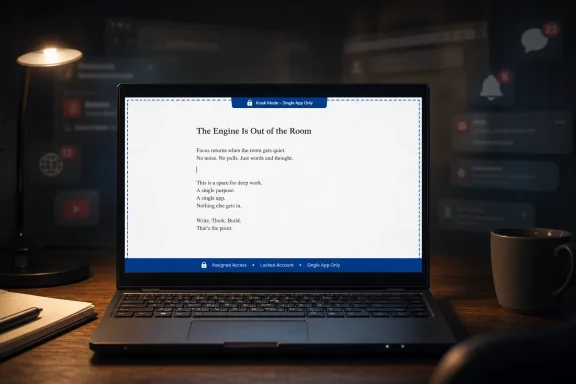 The Best Focus App May Be the One That Refuses to Be an App
The modern productivity market has spent years selling writers softer versions of self-control. There are website blockers, minimalist editors, Pomodoro timers, notification filters, and browser extensions that gamify not opening the browser tab you already know you want to open. Some of them help, but nearly all share the same structural weakness: they live inside the same environment they are trying to discipline.That is why this Kiosk Mode experiment lands differently. It does not merely dim the rest of Windows. It places the user into a separate account where the normal desktop, taskbar, Start menu, tray icons, and casually available apps are not part of the session. The machine is still a Windows PC, but for that account it behaves less like a general-purpose computer and more like an appliance.
Microsoft calls the underlying feature Assigned Access, and its official purpose is mundane in the way important IT features often are. A business can configure a device so that a customer, patient, student, or passerby sees only the application they are supposed to use. A kiosk can be an Edge browser session, a line-of-business app, a digital sign, a point-of-sale front end, or a tightly curated multi-app environment.
The How-To Geek twist is to stop treating that mundanity as a limitation. If the feature can keep a retail customer from wandering into the Windows desktop, it can also keep a writer from wandering into email, Slack, YouTube, or the thousand tiny errands that disguise themselves as work. The target user changes, but the architecture of temptation is the same.
Assigned Access Was Built for Control, Not Mindfulness
Windows Kiosk Mode is not new, and that matters. This is not a Copilot-era focus assistant, not a cloud service, and not another layer of behavioral nudging. It is old-fashioned endpoint restriction: one account, one intended experience, and a system policy that makes deviation deliberately awkward.On Windows 10 and Windows 11, the simple path runs through Settings, where Windows can walk an administrator through setting up a kiosk account and selecting an app. More advanced deployments can be handled through PowerShell, provisioning packages, mobile device management, Microsoft Intune, and XML-based Assigned Access configurations. In enterprise hands, that tooling is about repeatability and compliance; in a writer’s hands, it becomes an unusually strict form of workspace design.
That distinction is important because Kiosk Mode does not pretend to solve attention as a psychological problem. It solves access as a systems problem. If the account is configured to launch only a single app, the user is not being asked to resist the browser. The browser is not available in that context.
The most interesting part of the How-To Geek setup is therefore not the writing app chosen, but the deliberate separateness of the account and device. The regular Windows profile remains intact elsewhere, with its files, tabs, chat apps, settings, and mess. The kiosk account becomes a narrow tunnel into one activity, and the narrowness is the feature.
The Spare Laptop Becomes a Physical Policy
A single-purpose device has a different psychological weight from a single-purpose app. Anyone who has tried to write in a full-screen editor while knowing that Alt-Tab, the Windows key, or a swipe gesture can instantly return them to the wider internet understands the problem. The distraction is not just visible content; it is the presence of possibility.That is where the spare laptop matters. The How-To Geek author’s setup uses an aging machine that was otherwise sitting idle, then configures it to boot into a dedicated local account tied to one writing application. This turns retired hardware into something closer to a digital typewriter, but with autosave, export, and modern text handling still intact.
The physical ritual is doing more work than it first appears. Opening a different laptop, entering a different account, and seeing only a blank writing environment creates a boundary that a toolbar button cannot. It tells the brain that this is not the same arena where tabs accumulate and messages arrive.
There is a lesson here for IT people as much as for writers. We often think of endpoint policy as a way to reduce organizational risk, but policy also shapes behavior. The same mechanism that prevents a library patron from opening Control Panel can prevent a freelancer from opening a browser “just for a second.” That is not mindfulness. It is architecture.
Friction Works Best When It Is Uneven
The most elegant part of the setup is the asymmetry. Starting a writing session is easy: wake the laptop, enter or automatically land in the kiosk account, and begin. Escaping into general-purpose computing is possible, but inconvenient enough to interrupt the impulse.This is the opposite of how most personal computers are configured. Windows, macOS, ChromeOS, Android, and iOS all compete on reducing friction across tasks. Resume instantly. Sync everything. Surface every notification everywhere. Make the next action only one tap away.
For creative work, that convenience often becomes hostile. The user does not need the machine to be maximally flexible at every moment. They need it to be intentionally inflexible for a defined block of time. Kiosk Mode, precisely because it was never designed as a lifestyle feature, is less interested in flattering the user and more willing to say no.
The exit path is not a prison. A properly configured Windows device still has administrator accounts, management paths, and ways to disable or change the kiosk configuration. But the difference between “impossible” and “annoying enough that I will not do it reflexively” is the difference between security and habit design. For writing, the latter is often enough.
The Writing App Is Secondary, but It Cannot Be an Afterthought
The app still matters. A kiosked writing machine fails if the assigned application cannot save reliably, export cleanly, or recover gracefully after sleep and resume. Minimalism is not an excuse for trapping work inside a fragile container.The How-To Geek setup sensibly favors an app with full-screen writing, local autosave, and export to plain text or Markdown. That is the right instinct. A single-purpose machine should reduce distractions, not introduce a new dependency that makes the work harder to move, back up, or publish.
This is where writers should resist the romance of the typewriter analogy. A typewriter produces a physical page. A Windows kiosk produces files, and files need a workflow. If the only path out of the kiosk is clumsy copying, manual sync, or an app-specific export ritual, the system will eventually become irritating enough to abandon.
The best version of this setup treats the kiosk laptop as a drafting station, not the entire production pipeline. Draft on the locked-down device, then move the text to a normal machine for editing, fact-checking, formatting, CMS work, image handling, and publication. The separation is not only about distraction; it is about respecting the difference between composition and everything that comes after.
Microsoft Accidentally Built a Better Digital Typewriter
There is a long-running niche market for distraction-free writing hardware. Devices such as dedicated e-ink typewriters, minimalist drafting tablets, and keyboard-first writing slabs promise freedom from the browser by removing the browser altogether. The appeal is obvious, especially to people who write for a living and recognize that the most expensive writing tool is often the one that keeps them from writing.Windows Kiosk Mode changes the economics. If an old laptop is already in a drawer, the cost of experimentation is close to zero. The user is not buying a boutique device to discover whether environmental restriction helps. They are reassigning a depreciated PC to a narrower job.
That does not make a kiosk laptop equivalent to purpose-built writing hardware. A spare laptop still has Windows update cycles, battery age, fan noise, startup quirks, and all the maintenance baggage of a general-purpose operating system. It is a repurposed machine, not a handcrafted instrument.
But that roughness may be acceptable because the value is not aesthetic purity. The value is the policy boundary. If a ten-year-old laptop can present one editor, hide the rest of Windows, and keep a draft safe until export, it may deliver most of what people buy dedicated writing devices for, without another hardware purchase.
The Setup Tax Is Real, and It Is Part of the Filter
The How-To Geek author says the process consumed much of an afternoon, including account creation, app testing, file-transfer planning, and troubleshooting around reliable app launch. That detail should not be waved away. Kiosk Mode is friendly by enterprise configuration standards, but it is still more involved than installing a focus app.That setup tax is likely to filter the audience. The people most likely to try this are already comfortable poking around Windows settings, creating local accounts, and diagnosing why a session dropped to a black screen instead of opening the intended application. For WindowsForum readers, that may sound like a Saturday project. For everyone else, it may sound like the reason they bought a MacBook and never looked back.
There is also an edition and capability wrinkle. Basic kiosk setup is designed around supported app types and Windows’ assigned-access model, while more complicated scenarios can run into limitations that depend on app packaging, account type, device management method, and Windows version. Enterprise admins know this territory well: the demo path is often simpler than the production path.
For a personal writing machine, the practical advice is to keep the design boring. Use a standard local account. Pick an app that behaves predictably. Avoid building a Rube Goldberg sync system. The more clever the kiosk becomes, the more it starts resembling the overcomplicated productivity stack it was meant to replace.
A Single-PC Kiosk Misses the Point
It is possible to configure a kiosk-style account on the same PC used for everything else. It is also much less compelling. The How-To Geek article rightly notes that switching back to the normal account on the same machine is too easy, and that ease erodes the whole premise.This is the part productivity software often misunderstands. The goal is not merely to hide distractions; it is to make crossing into them feel like a conscious decision rather than a muscle-memory twitch. Separate hardware raises that threshold. A same-device account switch lowers it.
There is also a subtler contamination problem. The primary PC already carries the emotional residue of everything else: work chats, admin tasks, gaming, shopping, bills, calendar alerts, background utilities, unfinished tabs. Even if the kiosk account technically hides those things, the device itself still says “everything machine.”
A spare laptop says something different because it has been demoted and then promoted into a narrower role. It is no longer the center of the user’s digital life. It is a tool with a job. That sounds sentimental until one remembers that offices, studios, benches, labs, and workshops have always used physical space to cue behavior.
IT Pros Will Recognize Both the Power and the Fragility
For sysadmins, the appeal of this story is obvious, but so are the caveats. Assigned Access is a control surface, and control surfaces come with edge cases. Apps update. Windows updates. Store packages change identifiers. Autologon introduces its own trade-offs. File transfer can undermine the isolation if it becomes too permissive.A personal kiosk can tolerate rough edges that an enterprise kiosk cannot. If a writing laptop misbehaves once a month, the owner can fix it. If a fleet of exam-room check-in devices or warehouse terminals misbehaves after Patch Tuesday, the help desk hears about it before coffee. The same feature lives in both worlds, but the operational burden differs sharply.
Still, the personal experiment is a useful reminder of why kiosk features exist. General-purpose computing is powerful because it can do almost anything. Managed computing is powerful because it can decline to do almost anything else. The right answer depends on the job.
There is a security angle, too, though it should not be oversold. A kiosk writing account is not a replacement for system hardening, patching, backups, least-privilege administration, or disk encryption. But reducing the account’s normal exposure to browsers, mail clients, scripts, and random downloads can reduce the casual attack surface during that mode of use. Less reachable functionality means fewer opportunities for self-inflicted trouble.
The Cloud Is Convenient Until It Becomes the Distraction
The biggest practical question is how drafts leave the machine. Local-only writing is calming until it collides with modern publishing workflows, which often assume cloud documents, browser-based CMSs, collaborative comments, AI tools, and immediate cross-device availability. A kiosk laptop that cannot move text efficiently becomes a notebook with extra steps.The cleanest answer is deliberately modest. Draft locally, export as plain text or Markdown, and transfer through a method that is reliable but not too convenient. A USB drive, a controlled sync folder, or a manual network share can all work, depending on how much temptation the user is willing to reintroduce.
This is where the philosophy of the project becomes concrete. If the kiosk laptop has the same cloud drive client, browser credentials, chat notifications, and background services as the main machine, the boundary starts to collapse. If it has no path out except awkward copy-and-paste into a USB file, the workflow may become too brittle.
The sweet spot is a transfer path that respects the two-phase model: drafting happens in the quiet room, publishing happens in the noisy one. That is how many writers already work mentally. Kiosk Mode simply gives the separation an operating-system boundary.
This Is Not for Everyone, Which Is Why It Works
The obvious objection is that dedicating a laptop to one app is excessive. For many people, it is. If the main source of distraction is a handful of websites, a browser blocker may be enough. If the user needs constant research access while drafting, locking away the browser may create more interruption than focus.There is also a privilege embedded in the spare-device premise. Not everyone has an unused laptop capable of running Windows 10 or Windows 11 comfortably. Not everyone wants to maintain another machine, even one with a narrow job. For some users, the best focus tool remains a notebook, a tablet with notifications off, or a writing app on the machine they already use.
But “not for everyone” is not the same as gimmick. The most effective tools are often specific. A standing desk is not a universal cure for sedentary work, but it solves a real problem for some bodies. A locked-down writing laptop is not a universal cure for distraction, but it solves a real problem for people whose obstacle is the shape of the computing environment itself.
The broader lesson is that attention tools should be judged by where they intervene. Apps intervene at the layer of preference. Kiosk Mode intervenes at the layer of permission. For users who have learned not to trust their own preferences at 3:17 p.m. with a hard paragraph unfinished, permission is the stronger lever.
The Enterprise Feature Finds a Consumer Story
Microsoft rarely markets Windows as a platform for deliberate scarcity. The company’s modern pitch is usually abundance: more integrations, more AI assistance, more cloud continuity, more places where your files, messages, and work context follow you. Kiosk Mode comes from the opposite tradition. It is Windows as restraint.That makes the feature culturally interesting. The same operating system that now puts search, widgets, Copilot entry points, cloud nudges, and Microsoft account prompts near the center of the experience also includes a mechanism for stripping the session down to one app. Windows contains both the distraction and the antidote, though the antidote is filed under device configuration rather than personal productivity.
There is a small irony in using a corporate lockdown feature to reclaim personal agency. Assigned Access exists because organizations do not trust users of shared terminals to stay within bounds. The writer adopts the same posture toward themselves, but voluntarily and temporarily. It is self-management through sysadmin logic.
That may sound bleak, but it is also refreshingly honest. Most people do not fail to focus because they lack another inspirational dashboard. They fail because the machine in front of them is optimized to make context switching effortless. A feature designed to stop strangers from escaping a retail app turns out to be well suited to stopping the owner from escaping a draft.
The Old Laptop Has One More Job to Do
This is also a sustainability story, though not in the glossy corporate sense. Old laptops often occupy a frustrating middle state: too slow or worn for everyday work, too functional to throw away, too low-value to resell meaningfully. A single-app writing role is one of the rare jobs where those limitations may not matter.A draft machine does not need a high-refresh display, a discrete GPU, or a cutting-edge processor. It needs a working keyboard, tolerable battery life or a nearby outlet, stable storage, and enough performance to run Windows and a text editor without irritation. In many homes and offices, that describes hardware currently doing nothing.
Repurposing old PCs is not always worth the maintenance burden. Security updates, aging SSDs, swollen batteries, failing hinges, and unsupported operating systems can turn thrift into false economy. But if the hardware is still supported and physically sound, narrowing its purpose can extend its useful life in a way that general-purpose reuse cannot.
The result is not only cheaper than buying a dedicated writing device; it is more aligned with what the old hardware can still do well. A laptop that feels tired under a dozen browser tabs may feel perfectly adequate when asked to display one editor and save text files. Constraints can make old machines feel new by lowering the demands placed on them.
The WindowsForum Version of This Experiment Should Be Boring on Purpose
For readers tempted to try this, the winning implementation is the least dramatic one. Create a standard local account, configure Assigned Access through Windows’ built-in kiosk setup, assign a trustworthy writing app, test sleep and resume, test export, and make sure an administrator account remains available for recovery. The goal is not to build an elegant prison. It is to build a room with a door that is just annoying enough to open casually.Autologon is tempting because it makes the device feel instant, but it deserves thought. On a machine containing sensitive drafts or personal data, automatic sign-in may be the wrong trade. Full-disk encryption, physical security, and the sensitivity of the writing all matter. A distraction-free machine should not become a data-loss machine.
The same caution applies to synchronization. A cloud client can be useful, but the moment it brings notifications, browser sign-ins, or background prompts, it starts pulling the device back toward general-purpose computing. The cleanest workflows are often the most primitive: write, save, export, move, edit elsewhere.
There is no moral victory in making the setup harsher than necessary. If research is integral to the writing process, keep a separate research device nearby or collect notes before entering the kiosk session. If music helps, decide whether the music app belongs outside the system rather than inside it. The point is to remove the loopholes that actually break your focus, not to perform austerity for its own sake.
The Kiosk Laptop Wins by Making Windows Smaller
The most concrete lesson from the How-To Geek experiment is that Windows becomes more interesting when it becomes less available.- Windows Kiosk Mode uses Assigned Access to lock a selected account into a restricted app experience rather than merely hiding distractions in the normal desktop.
- A spare laptop makes the setup more effective because the physical device itself becomes part of the boundary between drafting and everything else.
- The writing app should autosave locally and export to open formats, because distraction-free drafting still needs a dependable path back into the real publishing workflow.
- The setup requires patience, testing, and some Windows troubleshooting, so it fits tinkerers better than users looking for a one-click focus cure.
- A same-device kiosk account can work technically, but it loses much of the behavioral force that comes from using separate hardware.
- The strongest version of the idea is not maximal lockdown but intentional asymmetry: easy to start writing, inconvenient to drift away.
References
- Primary source: How-To Geek
Published: Mon, 22 Jun 2026 15:16:17 GMT
I used Windows Kiosk Mode to build a distraction-free writing machine
This might just be the writing hack you've been waiting for all along. www.howtogeek.com
- Official source: learn.microsoft.com
Configure a Single-App Kiosk With Assigned Access | Microsoft Learn
Learn how to configure a single-app kiosk with Assigned Access.learn.microsoft.com - Related coverage: windowscentral.com
How to set up Kiosk mode on Windows 11 | Windows Central
On Windows 11, Kiosk is a feature that allows you to set up a computer to run as a one-app device, and in this guide, I explain the steps to enable and configure the feature on your computer.www.windowscentral.com - Related coverage: techtarget.com
What is kiosk mode (Windows assigned access)? | Definition from TechTarget
Learn how enterprises can restrict users from running unauthorized apps in scenarios such as POS and retail displays using Windows kiosk mode.www.techtarget.com - Related coverage: makeuseof.com
What Is Kiosk Mode? Here's How to Use It on Windows 11
If you want ultimate control over how people use a PC, then you need Kiosk mode. Here's why. www.makeuseof.com
- Related coverage: woshub.com
Configure Kiosk Mode on Windows 11 (Single or Multi-App) | Windows OS Hub
Kiosk mode is a special Windows client lockdown feature used to run only pre-defined (allowlisted) apps in a full-screen mode. All other Windows functionality is locked and unavailable to users.…woshub.com
- Related coverage: ibm.com
IBM Documentation
The Kiosk mode with assigned access settings configures a Kiosk system with separate user accounts that can lock down a device to access only a single app or multiple Windows apps.www.ibm.com
- Related coverage: archive.ph
- Related coverage: maximumpcguides.com
How to set up Kiosk mode on Windows 11? -
In Windows 11, Kiosk mode is a highly practical feature designed specifically for public or shared spaces. This feature allows a device to be restricted towww.maximumpcguides.com - Related coverage: der-windows-papst.de
