

A home NAS can be made faster, quieter, safer, and more useful over a single weekend by adding lightweight containerized services, improving network throughput, reducing drive vibration, connecting a USB-aware UPS, and scheduling automated disk health checks. The cheapness is the point: the best NAS upgrades are often not new disks or a new chassis, but the boring interventions that turn a storage box from “somewhere files go” into infrastructure you can actually trust. For Windows users and home-lab tinkerers, that matters because the NAS has quietly become the most important computer in the house — the one that holds the photos, backups, media libraries, VM images, and half-finished experiments nobody wants to lose.
The old consumer NAS pitch was simple: put drives in a little box, map a share in Windows, and stop emailing yourself files. That still works, but it undersells what modern NAS hardware has become. Even modest Synology, QNAP, Asustor, TrueNAS, Unraid, and OpenMediaVault systems are often Linux servers with web interfaces, app stores, scheduled jobs, notification systems, and enough spare CPU to do more than serve SMB shares.
That does not mean every NAS should become a miniature cloud platform. A two-bay ARM box with 2GB of RAM is not a virtualization cluster, and pretending otherwise is how “quick weekend project” becomes “why is my backup target swapping itself to death?” But it does mean the average home NAS has more useful headroom than many owners ever touch.
The best upgrades respect that tension. They do not demand a rack, a 10GbE switch, enterprise drives, or a second mortgage disguised as a homelab budget. They use what the NAS already has — idle cycles, USB ports, SMART telemetry, and a permanent place on the network — and turn those capabilities into practical value.
There is also a Windows angle here that rarely gets enough attention. For many households and small offices, the NAS is the silent backend for File Explorer network drives, Windows Backup alternatives, Veeam repositories, media shares, Hyper-V exports, and “I’ll clean this up later” archives. When that box is slow, noisy, under-monitored, or unprotected from power loss, the Windows experience suffers too.
That isolation is the attraction. A container bundles an application and its dependencies into a defined runtime environment, so a failed experiment is usually something you remove rather than something you spend Sunday night unpicking from the OS. For a NAS, where the primary job is still protecting data, that separation is more than convenience; it is a guardrail against turning storage infrastructure into a science fair accident.
The obvious starter projects are the ones that make the network better without asking much of the hardware. WireGuard can give you a lightweight VPN back into your home network. Pi-hole can block many ads, trackers, and known malicious domains at the DNS layer. Uptime Kuma can watch a handful of local services and tell you when something has disappeared. These are exactly the sort of “small but always useful” jobs a NAS is good at.
Media servers are more conditional. Plex, Jellyfin, and similar tools can run beautifully on a NAS when the client devices can direct-play the files, but transcoding changes the story quickly. A NAS CPU that is perfectly adequate for file serving may struggle if it is asked to convert high-bitrate 4K video on the fly. Intel Quick Sync, hardware transcoding support, and paid feature gates all matter here, and users should test before building a household entertainment plan around assumptions.
The trap is container sprawl. Once the first service works, it becomes tempting to add dashboards, download managers, photo libraries, password managers, wikis, automation stacks, and three different monitoring tools. That is how a storage appliance becomes a dependency maze. The practical rule is simple: start with one service you will actually use, document how it is configured, back up the config directory, and only then add another.
That is why the container approach is preferable to installing random packages directly into the NAS operating system. The more the base system remains boring, the easier it is to update, troubleshoot, migrate, and recover. If a container breaks after an image update, you can roll back or recreate it. If the vendor firmware breaks because unofficial packages replaced dependencies, you are in a much less pleasant place.
Administrators should also think about identity and exposure early. A service available only on the LAN is one risk profile; a service published to the internet is another. If you want remote access, a VPN is usually the cleaner starting point than port-forwarding a half-dozen web apps and hoping each one stays patched.
For WindowsForum readers, the biggest win may be using the NAS to simplify the rest of the network. A local DNS blocker, a private VPN, and a monitored SMB backup target can make every Windows PC in the house more manageable. The NAS is no longer just a passive endpoint; it becomes part of the network’s control plane.
A 1GbE connection has a theoretical ceiling of about 125MB/s before overhead. SATA 6Gb/s SSDs operate on a storage interface far above that, and even hard drives in arrays can push enough sequential throughput to make gigabit networking the choke point. If your NAS has SSD cache, SSD volumes, multiple disks, or simply serves large media and backup files, the network may be the slowest part of the path.
The cheap-ish fix is 2.5GbE, not necessarily 10GbE. Multi-gig Ethernet has become common on newer motherboards, mini PCs, switches, and some routers, while USB 2.5GbE adapters are inexpensive enough to qualify as weekend impulse buys. For many homes, 2.5GbE is the sweet spot: meaningfully faster than gigabit, much cheaper and cooler-running than a full 10GbE migration, and often compatible with existing Cat 5e cabling over normal household runs.
The caveat is NAS support. A USB Ethernet adapter is not useful if the NAS operating system lacks the driver, blocks the device, or does not support it reliably after reboot. Some vendors support selected adapters; others tolerate them unofficially; still others make the experience more painful than it is worth. Before buying, check the NAS model, OS version, chipset compatibility, and community reports.
The USB port matters too. USB 3.2 Gen 1, the specification formerly known through the naming fog as USB 3.0 or USB 3.1 Gen 1, provides a 5Gb/s signaling rate, which is enough headroom for a 2.5GbE adapter. Plugging that same adapter into a USB 2.0 port, however, is an exercise in self-sabotage. The adapter may work, but it will not deliver the upgrade you thought you bought.
This is where a small multi-gig switch can be a better purchase than a new router. Many home networks route internet traffic at one speed but move local traffic through a switch. If your goal is faster transfers between a Windows workstation and the NAS, a compact 2.5GbE switch connecting those two machines may solve the problem without disturbing the whole network.
Windows users should also remember that SMB performance is affected by more than link speed. Client storage speed, antivirus scanning, Wi-Fi quality, jumbo frame mismatches, CPU load, and the number of small files being copied can all make a fast link feel ordinary. A single huge backup image will show the upgrade better than a directory containing 80,000 thumbnails and JSON files.
That is not a reason to avoid multi-gig. It is a reason to measure before and after. Run a simple file copy test, use a network benchmark such as iperf if your NAS supports it, and watch CPU usage during transfers. If the network link is pegged, the upgrade is working. If the CPU is pegged, you found the next bottleneck.
Mechanical hard drives vibrate. That vibration travels through drive trays, chassis feet, desks, shelves, and cabinets. A rigid surface can amplify the sound, especially if the NAS sits on a thin metal desk, hollow shelving, or a cabinet panel with just the wrong resonant frequency. The drive is not necessarily failing; the room is simply helping it sing.
Anti-vibration feet, silicone pads, dense rubber mats, or purpose-made isolation pads can help. The key is to decouple the NAS from the surface without trapping heat. A clean silicone trivet can even be a useful temporary test: if the noise drops when the NAS sits on it, vibration transfer was part of the problem.
Drive tray mounts are the next layer. Some NAS units ship with rubber grommets or vibration-damping hardware; some do not. If the chassis itself is resonating, adding proper anti-vibration mounting hardware between the drive and tray can help, assuming the design allows it. Improvised foam jammed into a drive bay is not a clever mod; it is a cooling problem waiting to become a drive problem.
The fan is a harder target. Replacing fans can improve acoustics on some DIY builds, but commercial NAS appliances often use specific fan curves, connectors, and airflow assumptions. A quieter fan that moves less air may make the box more pleasant while slowly raising drive temperatures. That is a bad trade, especially for disks expected to run all day.
This is also where placement matters. A NAS tucked into a closed cabinet may seem quieter because the door blocks sound, but the enclosure may run warmer and dustier. A NAS sitting on a resonant desk may be cool but irritating. The best location is boring: stable, ventilated, accessible, and not acting as an acoustic amplifier.
Noise can also be diagnostic. A rhythmic vibration that changes with drive activity is different from a grinding, clicking, or scraping sound. If a drive begins making new mechanical noises, do not solve that with a rubber pad. Check SMART data, verify backups, and assume the disk is trying to tell you something.
For home users, the benefit of silencing vibration is partly psychological. A NAS that is annoying gets moved, unplugged, or hidden somewhere thermally stupid. A NAS that fades into the background is more likely to stay powered, patched, monitored, and useful.
Storage hates surprise power loss. Modern file systems, journaling, copy-on-write designs, RAID layers, SSD caches, and application databases are all more resilient than their ancestors, but none of them are improved by having power yanked mid-write. The danger is not only a dead disk; it is silent corruption, interrupted updates, damaged volumes, or services that come back in a confused state.
A UPS changes the failure mode. Instead of instantly losing power, the NAS receives a signal over USB or the network and begins a controlled shutdown after a defined threshold. That is the feature to buy for. Runtime is useful, but communication is essential.
This is why the cheapest power strip with a battery may not be enough. The NAS needs to know the UPS is on battery and how much time remains, or at least when to enter safe mode. Many NAS operating systems support common USB-connected UPS units, and some can act as a network UPS server for other devices. Compatibility lists are worth checking before purchase.
A small UPS also protects the network path if configured thoughtfully. If the NAS depends on a switch to receive a shutdown signal from a network UPS server, that switch needs power too. In a simple setup, plugging the NAS and the relevant network device into the battery-backed outlets can avoid a failure where the UPS is alive but the NAS can no longer hear from it.
That class is common enough to matter. Short outages, voltage dips, and nuisance flickers are exactly the events people dismiss because the lights come back quickly. The NAS may not be so casual. If it was rebuilding an array, applying an update, scrubbing a volume, or receiving a backup, a two-second outage can be the most consequential event of the week.
The setup is usually straightforward: connect the UPS by USB if supported, enable UPS support in the NAS control panel, set a safe shutdown or safe-mode threshold, and test it at a time when no important writes are running. Do not discover during a storm that the USB cable was never connected or the NAS did not recognize the unit.
For small offices, the argument is even stronger. A NAS used as a shared file server or backup target is business infrastructure, no matter how consumer-grade the enclosure looks. Spending a little money to make power loss orderly is one of the easiest reliability wins available.
SMART data is imperfect. Drives can fail without warning, and some scary attributes need context. But imperfect telemetry is still better than discovering a disk problem only after the array is degraded, the rebuild fails, or the backup you needed lives on the same unhealthy volume. Short and extended SMART tests exist because storage devices can report useful early signals.
The weekend task is not merely turning on SMART. It is setting a schedule that makes sense. Short tests can run more frequently; extended tests take longer and should be scheduled during low-usage windows. Scrubs, parity checks, antivirus scans, cloud sync jobs, and backup windows should not all collide because every maintenance task was set to Sunday at 2:00 a.m.
Notifications are the real upgrade. Email alerts, push notifications, mobile apps, webhooks, or integrations with a monitoring service all beat “I’ll remember to check the dashboard.” You will not remember. The NAS is valuable precisely because it is easy to ignore.
There is a human factor here too. Alerts should be actionable and not so noisy that they become background radiation. If every minor warning generates panic, users disable notifications. If only serious disk, volume, temperature, fan, backup, and UPS events alert you, those alerts keep their force.
For Windows users, that plan may include File History alternatives, image backups, Veeam Agent jobs, robocopy scripts, cloud replication, external USB disks rotated offline, or another NAS in a different location. The exact tool matters less than the recovery test. If you have never restored a file, a folder, and a full machine image, your backup strategy is still theoretical.
The NAS should also monitor itself beyond disks. Temperature, fan speed, volume status, snapshot failures, replication failures, and failed login attempts can all be early warnings. Storage reliability is not one metric; it is a pattern of things behaving normally until they do not.
Still, scheduled disk tests are the obvious place to start because the cost is nearly zero. The NAS already has the data. The drives already expose telemetry. The software usually already knows how to schedule the tests. The missing piece is the owner taking 20 minutes to make the warnings visible.
That is a better philosophy than chasing the most elaborate homelab possible. A NAS does not need to become Kubernetes with drive bays to justify its place on the network. It needs to do a few important jobs reliably, visibly, and without demanding constant attention.
The priority order depends on the household. If the NAS is already fast enough but sits in a room where the drive vibration is maddening, start with damping. If it stores irreplaceable family photos and has no UPS, fix power first. If it is mostly idle and you have been meaning to run Pi-hole or WireGuard, containers are the gateway drug worth trying.
The only mistake is treating “cheap” as the same thing as “trivial.” A $30 network adapter can create driver problems. A free container can create security exposure. A misplaced foam pad can raise drive temperatures. A UPS that is never tested can become decorative plastic. Low-cost upgrades still deserve adult supervision.
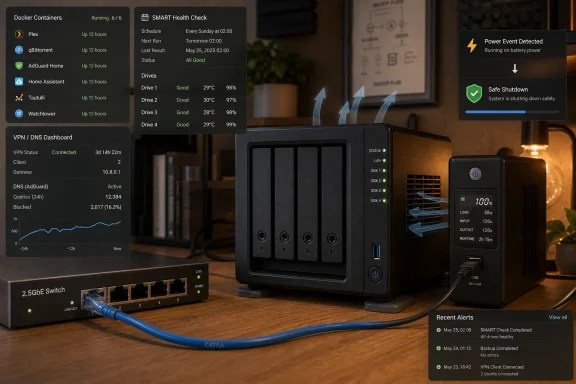 The NAS Became a Server While Nobody Was Looking
The old consumer NAS pitch was simple: put drives in a little box, map a share in Windows, and stop emailing yourself files. That still works, but it undersells what modern NAS hardware has become. Even modest Synology, QNAP, Asustor, TrueNAS, Unraid, and OpenMediaVault systems are often Linux servers with web interfaces, app stores, scheduled jobs, notification systems, and enough spare CPU to do more than serve SMB shares.That does not mean every NAS should become a miniature cloud platform. A two-bay ARM box with 2GB of RAM is not a virtualization cluster, and pretending otherwise is how “quick weekend project” becomes “why is my backup target swapping itself to death?” But it does mean the average home NAS has more useful headroom than many owners ever touch.
The best upgrades respect that tension. They do not demand a rack, a 10GbE switch, enterprise drives, or a second mortgage disguised as a homelab budget. They use what the NAS already has — idle cycles, USB ports, SMART telemetry, and a permanent place on the network — and turn those capabilities into practical value.
There is also a Windows angle here that rarely gets enough attention. For many households and small offices, the NAS is the silent backend for File Explorer network drives, Windows Backup alternatives, Veeam repositories, media shares, Hyper-V exports, and “I’ll clean this up later” archives. When that box is slow, noisy, under-monitored, or unprotected from power loss, the Windows experience suffers too.
Containers Turn Spare NAS Cycles Into Useful Services
The most visible weekend upgrade is also the one most likely to change how you think about the machine: add Docker, Container Station, Container Manager, Podman, or the equivalent container framework your NAS platform supports. Containers are not magic, but they are a clean way to experiment without turning the base NAS operating system into a junk drawer of half-installed packages.That isolation is the attraction. A container bundles an application and its dependencies into a defined runtime environment, so a failed experiment is usually something you remove rather than something you spend Sunday night unpicking from the OS. For a NAS, where the primary job is still protecting data, that separation is more than convenience; it is a guardrail against turning storage infrastructure into a science fair accident.
The obvious starter projects are the ones that make the network better without asking much of the hardware. WireGuard can give you a lightweight VPN back into your home network. Pi-hole can block many ads, trackers, and known malicious domains at the DNS layer. Uptime Kuma can watch a handful of local services and tell you when something has disappeared. These are exactly the sort of “small but always useful” jobs a NAS is good at.
Media servers are more conditional. Plex, Jellyfin, and similar tools can run beautifully on a NAS when the client devices can direct-play the files, but transcoding changes the story quickly. A NAS CPU that is perfectly adequate for file serving may struggle if it is asked to convert high-bitrate 4K video on the fly. Intel Quick Sync, hardware transcoding support, and paid feature gates all matter here, and users should test before building a household entertainment plan around assumptions.
The trap is container sprawl. Once the first service works, it becomes tempting to add dashboards, download managers, photo libraries, password managers, wikis, automation stacks, and three different monitoring tools. That is how a storage appliance becomes a dependency maze. The practical rule is simple: start with one service you will actually use, document how it is configured, back up the config directory, and only then add another.
Self-Hosting Works Best When the NAS Remains a NAS
The home-lab culture around self-hosting can make restraint look like failure. It is not. A NAS is first a place where important data lives; every extra service should be judged by whether it improves that mission or at least does not endanger it.That is why the container approach is preferable to installing random packages directly into the NAS operating system. The more the base system remains boring, the easier it is to update, troubleshoot, migrate, and recover. If a container breaks after an image update, you can roll back or recreate it. If the vendor firmware breaks because unofficial packages replaced dependencies, you are in a much less pleasant place.
Administrators should also think about identity and exposure early. A service available only on the LAN is one risk profile; a service published to the internet is another. If you want remote access, a VPN is usually the cleaner starting point than port-forwarding a half-dozen web apps and hoping each one stays patched.
For WindowsForum readers, the biggest win may be using the NAS to simplify the rest of the network. A local DNS blocker, a private VPN, and a monitored SMB backup target can make every Windows PC in the house more manageable. The NAS is no longer just a passive endpoint; it becomes part of the network’s control plane.
The First Speed Bottleneck Is Usually Ethernet, Not Storage
The second upgrade is less glamorous but often more immediately noticeable: check whether the network link is holding the NAS back. Gigabit Ethernet was luxurious when spinning disks and Wi-Fi 4 laptops dominated the house. It looks less impressive when even a basic SATA SSD can saturate it without trying.A 1GbE connection has a theoretical ceiling of about 125MB/s before overhead. SATA 6Gb/s SSDs operate on a storage interface far above that, and even hard drives in arrays can push enough sequential throughput to make gigabit networking the choke point. If your NAS has SSD cache, SSD volumes, multiple disks, or simply serves large media and backup files, the network may be the slowest part of the path.
The cheap-ish fix is 2.5GbE, not necessarily 10GbE. Multi-gig Ethernet has become common on newer motherboards, mini PCs, switches, and some routers, while USB 2.5GbE adapters are inexpensive enough to qualify as weekend impulse buys. For many homes, 2.5GbE is the sweet spot: meaningfully faster than gigabit, much cheaper and cooler-running than a full 10GbE migration, and often compatible with existing Cat 5e cabling over normal household runs.
The caveat is NAS support. A USB Ethernet adapter is not useful if the NAS operating system lacks the driver, blocks the device, or does not support it reliably after reboot. Some vendors support selected adapters; others tolerate them unofficially; still others make the experience more painful than it is worth. Before buying, check the NAS model, OS version, chipset compatibility, and community reports.
The USB port matters too. USB 3.2 Gen 1, the specification formerly known through the naming fog as USB 3.0 or USB 3.1 Gen 1, provides a 5Gb/s signaling rate, which is enough headroom for a 2.5GbE adapter. Plugging that same adapter into a USB 2.0 port, however, is an exercise in self-sabotage. The adapter may work, but it will not deliver the upgrade you thought you bought.
Faster Links Expose the Rest of the Chain
A network upgrade is only as good as the path around it. If the NAS has 2.5GbE but the switch is gigabit, the Windows PC is on Wi-Fi, and the router’s “LAN” ports are all 1GbE, the faster adapter becomes decorative. You need the NAS, switch, client, and cabling to support the speed tier you expect.This is where a small multi-gig switch can be a better purchase than a new router. Many home networks route internet traffic at one speed but move local traffic through a switch. If your goal is faster transfers between a Windows workstation and the NAS, a compact 2.5GbE switch connecting those two machines may solve the problem without disturbing the whole network.
Windows users should also remember that SMB performance is affected by more than link speed. Client storage speed, antivirus scanning, Wi-Fi quality, jumbo frame mismatches, CPU load, and the number of small files being copied can all make a fast link feel ordinary. A single huge backup image will show the upgrade better than a directory containing 80,000 thumbnails and JSON files.
That is not a reason to avoid multi-gig. It is a reason to measure before and after. Run a simple file copy test, use a network benchmark such as iperf if your NAS supports it, and watch CPU usage during transfers. If the network link is pegged, the upgrade is working. If the CPU is pegged, you found the next bottleneck.
Silence Is a Reliability Feature in Disguise
Noise reduction sounds cosmetic until you live near the NAS. The low hum of spinning drives, the buzz of a resonant shelf, and the intermittent chatter of seek activity can make a technically “quiet” box feel like a tiny machine shop in the corner. The cheapest improvement may be putting the NAS on something that stops the furniture from becoming a speaker.Mechanical hard drives vibrate. That vibration travels through drive trays, chassis feet, desks, shelves, and cabinets. A rigid surface can amplify the sound, especially if the NAS sits on a thin metal desk, hollow shelving, or a cabinet panel with just the wrong resonant frequency. The drive is not necessarily failing; the room is simply helping it sing.
Anti-vibration feet, silicone pads, dense rubber mats, or purpose-made isolation pads can help. The key is to decouple the NAS from the surface without trapping heat. A clean silicone trivet can even be a useful temporary test: if the noise drops when the NAS sits on it, vibration transfer was part of the problem.
Drive tray mounts are the next layer. Some NAS units ship with rubber grommets or vibration-damping hardware; some do not. If the chassis itself is resonating, adding proper anti-vibration mounting hardware between the drive and tray can help, assuming the design allows it. Improvised foam jammed into a drive bay is not a clever mod; it is a cooling problem waiting to become a drive problem.
The fan is a harder target. Replacing fans can improve acoustics on some DIY builds, but commercial NAS appliances often use specific fan curves, connectors, and airflow assumptions. A quieter fan that moves less air may make the box more pleasant while slowly raising drive temperatures. That is a bad trade, especially for disks expected to run all day.
The Rule Is Damping, Not Suffocation
The guiding principle is simple: damp vibration without blocking airflow. NAS drives like stable temperatures, and cramped enclosures depend on predictable front-to-back or bottom-to-top air movement. Anything that obstructs vents, raises the chassis into an unstable position, or traps warm exhaust air is not an upgrade.This is also where placement matters. A NAS tucked into a closed cabinet may seem quieter because the door blocks sound, but the enclosure may run warmer and dustier. A NAS sitting on a resonant desk may be cool but irritating. The best location is boring: stable, ventilated, accessible, and not acting as an acoustic amplifier.
Noise can also be diagnostic. A rhythmic vibration that changes with drive activity is different from a grinding, clicking, or scraping sound. If a drive begins making new mechanical noises, do not solve that with a rubber pad. Check SMART data, verify backups, and assume the disk is trying to tell you something.
For home users, the benefit of silencing vibration is partly psychological. A NAS that is annoying gets moved, unplugged, or hidden somewhere thermally stupid. A NAS that fades into the background is more likely to stay powered, patched, monitored, and useful.
A Cheap UPS Is Boring Until the Lights Flicker
The most underrated NAS upgrade is a small uninterruptible power supply. Not a giant unit designed to keep a gaming PC alive through a movie, but a modest UPS that gives the NAS time to survive brownouts, ride through brief outages, and shut down cleanly when power is not coming back.Storage hates surprise power loss. Modern file systems, journaling, copy-on-write designs, RAID layers, SSD caches, and application databases are all more resilient than their ancestors, but none of them are improved by having power yanked mid-write. The danger is not only a dead disk; it is silent corruption, interrupted updates, damaged volumes, or services that come back in a confused state.
A UPS changes the failure mode. Instead of instantly losing power, the NAS receives a signal over USB or the network and begins a controlled shutdown after a defined threshold. That is the feature to buy for. Runtime is useful, but communication is essential.
This is why the cheapest power strip with a battery may not be enough. The NAS needs to know the UPS is on battery and how much time remains, or at least when to enter safe mode. Many NAS operating systems support common USB-connected UPS units, and some can act as a network UPS server for other devices. Compatibility lists are worth checking before purchase.
A small UPS also protects the network path if configured thoughtfully. If the NAS depends on a switch to receive a shutdown signal from a network UPS server, that switch needs power too. In a simple setup, plugging the NAS and the relevant network device into the battery-backed outlets can avoid a failure where the UPS is alive but the NAS can no longer hear from it.
Power Protection Is Not a Backup Strategy
A UPS should not be confused with backup. It does not protect against accidental deletion, ransomware, theft, fire, controller failure, or the classic user mistake of “I thought that folder was duplicated somewhere else.” It protects against one class of event: bad power behavior.That class is common enough to matter. Short outages, voltage dips, and nuisance flickers are exactly the events people dismiss because the lights come back quickly. The NAS may not be so casual. If it was rebuilding an array, applying an update, scrubbing a volume, or receiving a backup, a two-second outage can be the most consequential event of the week.
The setup is usually straightforward: connect the UPS by USB if supported, enable UPS support in the NAS control panel, set a safe shutdown or safe-mode threshold, and test it at a time when no important writes are running. Do not discover during a storm that the USB cable was never connected or the NAS did not recognize the unit.
For small offices, the argument is even stronger. A NAS used as a shared file server or backup target is business infrastructure, no matter how consumer-grade the enclosure looks. Spending a little money to make power loss orderly is one of the easiest reliability wins available.
SMART Checks Are the NAS Equivalent of Smoke Alarms
The fifth upgrade is free, but only if you actually configure it: enable drive health monitoring, schedule SMART tests, and set alerts that reach you somewhere you will notice. A NAS that quietly logs a failing disk without notifying anyone is not monitoring; it is keeping a diary.SMART data is imperfect. Drives can fail without warning, and some scary attributes need context. But imperfect telemetry is still better than discovering a disk problem only after the array is degraded, the rebuild fails, or the backup you needed lives on the same unhealthy volume. Short and extended SMART tests exist because storage devices can report useful early signals.
The weekend task is not merely turning on SMART. It is setting a schedule that makes sense. Short tests can run more frequently; extended tests take longer and should be scheduled during low-usage windows. Scrubs, parity checks, antivirus scans, cloud sync jobs, and backup windows should not all collide because every maintenance task was set to Sunday at 2:00 a.m.
Notifications are the real upgrade. Email alerts, push notifications, mobile apps, webhooks, or integrations with a monitoring service all beat “I’ll remember to check the dashboard.” You will not remember. The NAS is valuable precisely because it is easy to ignore.
There is a human factor here too. Alerts should be actionable and not so noisy that they become background radiation. If every minor warning generates panic, users disable notifications. If only serious disk, volume, temperature, fan, backup, and UPS events alert you, those alerts keep their force.
Drive Health Monitoring Only Works When Backups Exist
SMART testing can tell you a disk may be failing; it cannot make the data safe by itself. RAID is not backup, snapshots are not always backup, and a NAS full of carefully monitored disks can still lose data to user error or malware. The health-check upgrade belongs inside a larger backup plan.For Windows users, that plan may include File History alternatives, image backups, Veeam Agent jobs, robocopy scripts, cloud replication, external USB disks rotated offline, or another NAS in a different location. The exact tool matters less than the recovery test. If you have never restored a file, a folder, and a full machine image, your backup strategy is still theoretical.
The NAS should also monitor itself beyond disks. Temperature, fan speed, volume status, snapshot failures, replication failures, and failed login attempts can all be early warnings. Storage reliability is not one metric; it is a pattern of things behaving normally until they do not.
Still, scheduled disk tests are the obvious place to start because the cost is nearly zero. The NAS already has the data. The drives already expose telemetry. The software usually already knows how to schedule the tests. The missing piece is the owner taking 20 minutes to make the warnings visible.
The Weekend Win Is Making the Box Less Forgettable
These five upgrades share a theme: they make the NAS harder to ignore in the right ways. Containers make it more useful. Multi-gig networking makes it feel less like a bottleneck. Vibration damping makes it easier to live with. A UPS makes power loss less dramatic. Health checks make failure less surprising.That is a better philosophy than chasing the most elaborate homelab possible. A NAS does not need to become Kubernetes with drive bays to justify its place on the network. It needs to do a few important jobs reliably, visibly, and without demanding constant attention.
The priority order depends on the household. If the NAS is already fast enough but sits in a room where the drive vibration is maddening, start with damping. If it stores irreplaceable family photos and has no UPS, fix power first. If it is mostly idle and you have been meaning to run Pi-hole or WireGuard, containers are the gateway drug worth trying.
The only mistake is treating “cheap” as the same thing as “trivial.” A $30 network adapter can create driver problems. A free container can create security exposure. A misplaced foam pad can raise drive temperatures. A UPS that is never tested can become decorative plastic. Low-cost upgrades still deserve adult supervision.
Five Small Changes That Make a NAS Feel Like Infrastructure
The practical lesson is not that every NAS needs every upgrade by Monday morning. It is that the most valuable improvements are often the ones that reduce friction, reduce risk, or reveal problems earlier. Before buying more storage, make the storage you already own work smarter.- A lightweight container platform can turn idle NAS resources into useful services such as VPN access, DNS filtering, monitoring, or media serving.
- A 2.5GbE upgrade can be more sensible than jumping to 10GbE, but only if the NAS, switch, client, cabling, and USB adapter support the faster path.
- Anti-vibration pads and proper drive mounts can make a NAS easier to live with, as long as the fix does not block airflow or trap heat.
- A USB-aware UPS lets the NAS shut down cleanly during outages instead of gambling with active writes and filesystem integrity.
- Scheduled SMART tests and real notifications turn disk health from something you check after a failure into something the NAS reports before the weekend is ruined.
References
- Primary source: How-To Geek
Published: 2026-05-22T13:40:06.930817
5 brilliant weekend NAS upgrades that cost almost nothing
Your NAS can do more than store files—make sure you take advantage of it. www.howtogeek.com
- Related coverage: techradar.com
USB 3.2 to take over the world's computers – but not how you think | TechRadar
Prepare for a big rebranding pushwww.techradar.com
