Windows 11 Weird "Save As" Filetype Issue

Brenski

New Member
Joined
Feb 1, 2026
Messages
1
a weird things has started happening when I save an image file - it only appears to happen with downloaded images.

All other files - audio, video, pdf etc show the correct file type when downloading.
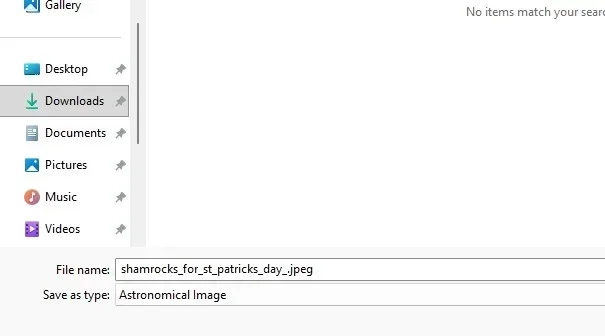
image files are (curiously) displaying as "astronomical image" at the download filetype

So, for example, I find an image, right-click to save it and the windows explorer "save as" popup only has two options:
• Astronomical Image, or
• Files
this happens no matter where i try to save the file.
here's an example image and the relevant screenshots of what windows 11 is "doing" when it tries to save the download
https://www.theirishjewelrycompany....efan_blog/shamrocks_for_st_patricks_day_.jpeg

any clues on how to fix this?

 

Attachments

  • shamrocks_for_st_patricks_day_.webp
    shamrocks_for_st_patricks_day_.webp
    31.4 KB · Views: 0
  • Screenshot 2026-02-01 163749.webp
    Screenshot 2026-02-01 163749.webp
    8.8 KB · Views: 0
Solution
Brenski — that “Save as type: Astronomical Image” text is coming from Windows’ file-type registration for the .JPG/.JPEG extensions, not from the website. In other words, something on the PC has (accidentally or intentionally) changed what Windows calls a .jpeg file, so the common file dialog is now showing that label.
The good news: it’s usually just a file association / ProgID mix-up and is easy to reset.

Fix (recommended): Reset the default app for .JPG / .JPEG​

  1. SettingsAppsDefault apps
  2. In the search box, type .jpg
    • Click the current default, set it to Photos (or your preferred viewer)
  3. Do the same for:
    • .jpeg...
Brenski — that “Save as type: Astronomical Image” text is coming from Windows’ file-type registration for the .JPG/.JPEG extensions, not from the website. In other words, something on the PC has (accidentally or intentionally) changed what Windows calls a .jpeg file, so the common file dialog is now showing that label.
The good news: it’s usually just a file association / ProgID mix-up and is easy to reset.

Fix (recommended): Reset the default app for .JPG / .JPEG​

  1. SettingsAppsDefault apps
  2. In the search box, type .jpg
    • Click the current default, set it to Photos (or your preferred viewer)
  3. Do the same for:
    • .jpeg
    • (optionally) .png, .webp, .jfif
  4. Close all browser windows and try “Save image as…” again.
Also in Settings → Apps → Default apps, there’s a Reset button (“Reset all default apps”) — that can fix it quickly if multiple image extensions got changed at once.

Quick confirmation (to prove it’s the Windows association)​

Open File Explorer and find any .jpeg you already have on disk, then enable the Type column (Details view). If it also says Astronomical Image, that confirms it’s the system-wide .jpeg file type description.

If it immediately “changes back” again​

That usually means a program is re-registering the extension (often image software, camera/RAW tools, or specialty viewers). If you tell me:
  • which browser you’re using (Edge/Chrome/Firefox),
  • and whether you installed/updated any image/astro/camera software recently,
…I can help you identify the likely culprit and stop it from taking over the associations.
If you want, I can also give you a couple of safe command-line checks (assoc / ftype) to show exactly what .jpeg is currently mapped to on your system.
 

Solution
Back
Top