

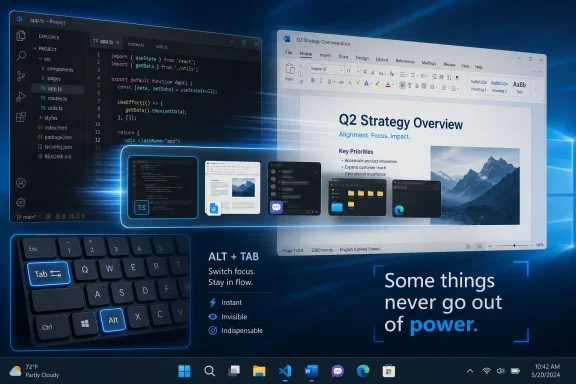
Alt+Tab has been part of Microsoft Windows since Windows 1.0 in 1985, and in 2026 it remains one of the fastest everyday ways to move between open apps on a Windows PC. That longevity is not nostalgia; it is a design verdict. Windows has acquired Task View, virtual desktops, Snap layouts, PowerToys launchers, touch gestures, and AI-branded sidebars, but the old two-key switcher still solves the core multitasking problem with almost no friction. The lesson is uncomfortable for modern interface design: sometimes the best Windows feature is the one that gets out of the way before the interface has time to impress you.
Alt+Tab is brutally narrow. It does not organize your work, summarize your tabs, rearrange your desktop, or suggest a better workflow. It simply lets you move from the window you are using to another window you have already opened.
That simplicity is why it survives. The command occupies a tiny space in muscle memory: hold Alt, tap Tab, release. Once learned, it becomes less like invoking a feature and more like shifting your eyes from one page to another.
The modern desktop is full of visual affordances designed to be discoverable. Taskbars glow, thumbnails preview, Start menus search, and window buttons invite clicks. Alt+Tab is the opposite kind of interface: nearly invisible until the user needs it, then immediate enough to feel physical.
That matters because multitasking is not really about having many windows open. It is about lowering the cost of changing context. Every extra click, pointer movement, animation, or search box adds a little tax to thought, and Alt+Tab remains one of Windows’ best tax shelters.
That duality is visible in the way experienced users move. They may use a mouse for graphics work, browsing, or casual navigation, but when the job becomes repetitive, the keyboard takes over. Switching apps, snapping windows, opening File Explorer, locking the machine, launching pinned programs, and searching the Start menu all become keystrokes.
Alt+Tab sits at the center of that map because it is not tied to a specific app. Ctrl+C and Ctrl+V are universal in spirit, but they still act on content. Alt+Tab acts on attention itself. It is the shortcut that decides where the next shortcut will land.
That is why the How-To Geek argument resonates beyond a simple productivity tip. The point is not merely that Alt+Tab is convenient. The point is that Windows still rewards users who stop treating the desktop as a collection of clickable objects and start treating it as a navigable workspace.
Alt+Tab compresses that whole gesture into a chord. Instead of reaching for the mouse, locating the pointer, finding the right thumbnail or taskbar icon, and clicking, the user performs a motion that can be completed before the pointer would have reached its destination. The gain may be fractions of a second, but fractions compound when the action is constant.
This is why keyboard-first computing often feels faster than benchmarks can prove. It is not just that a shortcut takes less time than a mouse movement. It is that the shortcut reduces hesitation. You do not stop to visually parse the desktop; you already know the next move.
The same principle explains why command palettes, app launchers, and terminal workflows remain beloved by technical users. They replace visual hunting with intent. Type what you mean, press Enter, and move on.
That distinction matters. Task View is better when you need to survey the whole workspace. Virtual desktops are better when you need to separate projects. Snap is better when you need two or three windows arranged spatially. Alt+Tab is better when you already know where you are going.
The shortcut’s visual strip is just enough interface to confirm your target without demanding more. Tap once to bounce between the two most recent windows. Tap repeatedly to skim. Add Shift to reverse direction. Use Alt+Esc if you want to cycle without the visual overlay, though that is more spartan than most people need.
In other words, Alt+Tab succeeds because it scales down. It does not ask the user to manage the desktop every time they switch tasks. It lets the user perform a small act of navigation and immediately return to work.
That makes Task View useful, but not as a replacement. It exposes the broader state of your machine: open windows, desktops, and the structure of your current session. For users who keep separate spaces for writing, research, communication, testing, or media work, Task View turns Windows from a pile of windows into a set of rooms.
Virtual desktops sharpen that model. Ctrl+Windows+Left and Ctrl+Windows+Right let users move between those rooms without opening the overview. Once that habit forms, a single monitor can feel less cramped because the constraint is no longer raw screen area; it is whether the user has divided work into meaningful contexts.
But virtual desktops do not eliminate the need for fast switching inside a context. In fact, they make Alt+Tab more valuable. A well-organized desktop narrows the set of windows competing for attention, and Alt+Tab then becomes quicker because the switcher contains fewer irrelevant targets.
The most effective Windows workflow is therefore layered. Use desktops to separate kinds of work, Task View to manage the map, Snap to arrange the room, and Alt+Tab to move between the two things currently in your head.
The important word is temporary. A sysadmin comparing an event log with documentation does not necessarily want to create a permanent layout. A writer checking notes against a draft does not need a whole project-management ritual. They need two panes, right now, and then they need to move on.
The keyboard makes that fluid. Snap a browser to one side, snap a document to the other, Alt+Tab between them, then Windows+D to clear the deck when the thought is finished. These are small actions, but together they form a grammar of work.
Microsoft’s more recent Snap layouts are visually useful, especially for users who prefer the mouse or need more complex arrangements. Yet the keyboard shortcut remains the power move because it is faster and less ceremonial. The visual layout picker says, “Choose a pattern.” Windows+Arrow says, “Put this there.”
That move turns Start into a launcher rather than a menu. You do not browse through tiles, folders, or pinned icons. You express intent in text. The same pattern has conquered developer tools, editors, browsers, and productivity apps because it matches how experienced users think once they already know what they want.
This is also where Microsoft’s own PowerToys Command Palette enters the story. Command Palette is aimed squarely at users who want a faster, extensible launcher for apps, commands, development tools, calculations, and system actions. It is not built into Windows in the same default, unavoidable way as Start, but it reflects the same pressure: power users want Windows to respond to typed intent, not just clicks.
That pressure is not new. It is the old command-line impulse returning inside graphical computing. The difference is that modern launchers and palettes let users keep the GUI while bypassing its slower rituals.
That change has made window switching more ambiguous. Is the thing you need an app, a window, a tab, a progressive web app, a virtual desktop, or a cloud workspace pretending to be local software? Windows has tried to blur those boundaries in places, including options that can expose Microsoft Edge tabs in Alt+Tab.
For some users, that is helpful. For others, it pollutes the switcher with too many near-identical destinations. The broader lesson is that Alt+Tab works best when the user’s workspace has boundaries. If everything is a tab and every tab is a task, the shortcut becomes a carousel instead of a scalpel.
Still, the browser’s sprawl makes keyboard navigation more valuable, not less. The more cluttered the workspace, the more punishing mouse-driven hunting becomes. Alt+Tab, Ctrl+Tab, browser search, address-bar shortcuts, and launcher tools become survival mechanisms for a desktop that has absorbed the web’s chaos.
Alt+Tab crossed that boundary decades ago. It is taught informally, passed between coworkers, absorbed by students, rediscovered by casual users, and retained by professionals who have moved through multiple Windows eras. It is one of the few shortcuts that can make a user look instantly more fluent at a PC.
The reason is partly mechanical. Alt and Tab are close enough to press comfortably with one hand, and the action has a clear rhythm. Hold, tap, release. The shortcut is memorable because it is embodied.
It also has a forgiving learning curve. A beginner can use it accidentally and understand it immediately. An expert can use it continuously without thinking. Few interface elements serve both groups this well.
A developer may have an editor, terminal, browser, database tool, Teams chat, documentation, and a test VM open at once. An IT pro may be moving between remote consoles, admin portals, ticket systems, PowerShell, and monitoring dashboards. A writer may be bouncing among notes, drafts, browser research, image tools, and messaging.
In those environments, the mouse is still useful, but it is too dependent on the visible state of the screen. Keyboard shortcuts create stable paths through unstable workspaces. The user does not need the desktop to look the same every minute because the commands remain the same.
That is why keyboard fluency feels like control. It gives users a private layer of predictability beneath whatever Microsoft, app developers, or web services have decided to rearrange this year.
Alt+Tab is refreshingly uninterested in that debate. It does not care whether the app is Win32, UWP, Electron, web-wrapped, corporate, local, or cloud-connected. If it is a window, the shortcut can probably get you there.
That neutrality is powerful. Modern platforms increasingly want to steer users toward preferred services, accounts, feeds, recommendations, and subscriptions. A shortcut that simply switches windows is not monetizable in any obvious way. It is infrastructure, not engagement.
For WindowsForum readers, that distinction is familiar. The features that keep machines usable in real environments are often not the ones showcased in launch events. They are the stable, boring affordances that let people get work done despite everything layered on top.
Speed is not just a performance metric. It is a feature. A system that lets users act at the speed of intention feels better even if the underlying hardware is unchanged. Conversely, a system that adds visual richness while slowing common actions feels worse even on a fast PC.
This is where Windows sometimes works against itself. Search that pauses to fetch web results, menus that rearrange themselves around recommendations, and settings that split across old and new interfaces all make the machine feel less direct. Users notice, even when they cannot name the design failure.
Alt+Tab avoids that trap because it has almost no policy agenda. It does not ask what Microsoft wants to promote. It asks what the user had open. That is why it feels faster than many newer features that are technically more ambitious.
The problem is not the mouse. The problem is becoming dependent on pointer-only computing for actions that are repeated constantly. If every app switch, window arrangement, launch, search, and desktop cleanup requires pointer travel, the user is leaving speed on the table.
The best Windows users tend to be hybrid users. They click when visual precision matters and use the keyboard when intent is already clear. Alt+Tab is the gateway drug to that hybrid style because it delivers an immediate payoff without requiring the user to memorize a whole productivity manifesto.
Once that door opens, other shortcuts follow naturally. Windows+E for File Explorer. Windows+I for Settings. Windows+L to lock the PC. Windows+number to launch or switch to pinned taskbar apps. Windows+D to show the desktop. Each one removes another small dependency on visual hunting.
That is a missed opportunity. Windows does not need to force everyone into keyboard-first computing, but it could do more to reveal the power layer at the right moments. A user who repeatedly clicks taskbar icons could be gently shown Windows+number. A user who drags windows to screen edges could learn Windows+Arrow. A user who opens Start and clicks the search box could be told they can just type.
The danger, of course, is that teaching can become nagging. Windows already has enough pop-ups, prompts, and “helpful” suggestions. The trick would be restraint: surface the shortcut once, make it easy to dismiss, and never turn productivity education into another engagement funnel.
PowerToys points in a better direction because it assumes the user wants tools, not lectures. Command Palette, Keyboard Manager, FancyZones, and related utilities appeal to people who want to shape the machine around their workflow. They are optional, which is precisely why they feel respectful.
The future of Windows will almost certainly include more AI, more cloud identity, more web-shaped apps, and more attempts to make the desktop feel proactive. Some of that may be useful. But the best version of Windows will still need commands that are immediate, predictable, local, and boring in the best sense of the word.
Alt+Tab is not beloved because it is old. It is old because it got something right: multitasking is not a spectacle, it is a reflex. The more Microsoft remembers that, the better Windows will feel in whatever interface era comes next.
Source: How-To Geek This 41-Year-Old Windows Shortcut Is Still the Fastest Way to Multitask
 The Old Shortcut Keeps Winning Because It Does Almost Nothing
Alt+Tab is brutally narrow. It does not organize your work, summarize your tabs, rearrange your desktop, or suggest a better workflow. It simply lets you move from the window you are using to another window you have already opened.That simplicity is why it survives. The command occupies a tiny space in muscle memory: hold Alt, tap Tab, release. Once learned, it becomes less like invoking a feature and more like shifting your eyes from one page to another.
The modern desktop is full of visual affordances designed to be discoverable. Taskbars glow, thumbnails preview, Start menus search, and window buttons invite clicks. Alt+Tab is the opposite kind of interface: nearly invisible until the user needs it, then immediate enough to feel physical.
That matters because multitasking is not really about having many windows open. It is about lowering the cost of changing context. Every extra click, pointer movement, animation, or search box adds a little tax to thought, and Alt+Tab remains one of Windows’ best tax shelters.
Microsoft Built a Mouse World, but Power Users Kept the Keyboard Map
Windows popularized the graphical PC for generations of users, but it never fully abandoned the keyboard habits inherited from earlier computing. The result is a strange dual personality. Windows is approachable with a mouse, yet at its fastest it often behaves like a command-driven environment hiding under a GUI.That duality is visible in the way experienced users move. They may use a mouse for graphics work, browsing, or casual navigation, but when the job becomes repetitive, the keyboard takes over. Switching apps, snapping windows, opening File Explorer, locking the machine, launching pinned programs, and searching the Start menu all become keystrokes.
Alt+Tab sits at the center of that map because it is not tied to a specific app. Ctrl+C and Ctrl+V are universal in spirit, but they still act on content. Alt+Tab acts on attention itself. It is the shortcut that decides where the next shortcut will land.
That is why the How-To Geek argument resonates beyond a simple productivity tip. The point is not merely that Alt+Tab is convenient. The point is that Windows still rewards users who stop treating the desktop as a collection of clickable objects and start treating it as a navigable workspace.
The Fastest Interface Is the One Your Hand Never Leaves
The mouse is precise, but it is not always fast. Moving from keyboard to mouse interrupts posture, attention, and rhythm. For anyone writing, coding, administering systems, taking notes, triaging tickets, or comparing documents, that interruption happens hundreds of times a day.Alt+Tab compresses that whole gesture into a chord. Instead of reaching for the mouse, locating the pointer, finding the right thumbnail or taskbar icon, and clicking, the user performs a motion that can be completed before the pointer would have reached its destination. The gain may be fractions of a second, but fractions compound when the action is constant.
This is why keyboard-first computing often feels faster than benchmarks can prove. It is not just that a shortcut takes less time than a mouse movement. It is that the shortcut reduces hesitation. You do not stop to visually parse the desktop; you already know the next move.
The same principle explains why command palettes, app launchers, and terminal workflows remain beloved by technical users. They replace visual hunting with intent. Type what you mean, press Enter, and move on.
Alt+Tab Is a Tiny Window Manager Disguised as a Shortcut
On paper, Alt+Tab is an app switcher. In practice, it is a lightweight window manager. It creates a temporary mental model of your open work and lets you traverse it quickly without committing to a larger organizational system.That distinction matters. Task View is better when you need to survey the whole workspace. Virtual desktops are better when you need to separate projects. Snap is better when you need two or three windows arranged spatially. Alt+Tab is better when you already know where you are going.
The shortcut’s visual strip is just enough interface to confirm your target without demanding more. Tap once to bounce between the two most recent windows. Tap repeatedly to skim. Add Shift to reverse direction. Use Alt+Esc if you want to cycle without the visual overlay, though that is more spartan than most people need.
In other words, Alt+Tab succeeds because it scales down. It does not ask the user to manage the desktop every time they switch tasks. It lets the user perform a small act of navigation and immediately return to work.
Task View Solves a Different Problem, and That Is Why It Belongs Beside Alt+Tab
Windows+Tab is sometimes described as a cousin to Alt+Tab, but the two are philosophically different. Alt+Tab is a quick turn of the head. Task View is stepping back from the desk.That makes Task View useful, but not as a replacement. It exposes the broader state of your machine: open windows, desktops, and the structure of your current session. For users who keep separate spaces for writing, research, communication, testing, or media work, Task View turns Windows from a pile of windows into a set of rooms.
Virtual desktops sharpen that model. Ctrl+Windows+Left and Ctrl+Windows+Right let users move between those rooms without opening the overview. Once that habit forms, a single monitor can feel less cramped because the constraint is no longer raw screen area; it is whether the user has divided work into meaningful contexts.
But virtual desktops do not eliminate the need for fast switching inside a context. In fact, they make Alt+Tab more valuable. A well-organized desktop narrows the set of windows competing for attention, and Alt+Tab then becomes quicker because the switcher contains fewer irrelevant targets.
The most effective Windows workflow is therefore layered. Use desktops to separate kinds of work, Task View to manage the map, Snap to arrange the room, and Alt+Tab to move between the two things currently in your head.
Snap Turned Windows Into a Keyboard-Managed Workspace
Window snapping is another example of Microsoft quietly rewarding keyboard users. Windows+Arrow can throw a window left, right, up, down, or into a corner depending on context and version. What began as a convenience for widescreen monitors has become one of the core ways Windows users build temporary workstations.The important word is temporary. A sysadmin comparing an event log with documentation does not necessarily want to create a permanent layout. A writer checking notes against a draft does not need a whole project-management ritual. They need two panes, right now, and then they need to move on.
The keyboard makes that fluid. Snap a browser to one side, snap a document to the other, Alt+Tab between them, then Windows+D to clear the deck when the thought is finished. These are small actions, but together they form a grammar of work.
Microsoft’s more recent Snap layouts are visually useful, especially for users who prefer the mouse or need more complex arrangements. Yet the keyboard shortcut remains the power move because it is faster and less ceremonial. The visual layout picker says, “Choose a pattern.” Windows+Arrow says, “Put this there.”
The Start Menu Is Better When You Stop Clicking It
The Start menu is often judged as a visual object: too many recommendations, too much Bing, too little control, not enough density, too many ads by another name. Those complaints are not imaginary. But the Start menu’s best trick is still the one many users overlook: press the Windows key and start typing.That move turns Start into a launcher rather than a menu. You do not browse through tiles, folders, or pinned icons. You express intent in text. The same pattern has conquered developer tools, editors, browsers, and productivity apps because it matches how experienced users think once they already know what they want.
This is also where Microsoft’s own PowerToys Command Palette enters the story. Command Palette is aimed squarely at users who want a faster, extensible launcher for apps, commands, development tools, calculations, and system actions. It is not built into Windows in the same default, unavoidable way as Start, but it reflects the same pressure: power users want Windows to respond to typed intent, not just clicks.
That pressure is not new. It is the old command-line impulse returning inside graphical computing. The difference is that modern launchers and palettes let users keep the GUI while bypassing its slower rituals.
The Browser Made Alt+Tab Messier, but Also More Important
There is one modern complication the original Windows designers did not have to face: the browser became an operating system inside the operating system. Many people no longer switch between ten traditional applications. They switch between one browser containing twenty tabs, a chat app, a notes app, a file manager, and perhaps a remote desktop session.That change has made window switching more ambiguous. Is the thing you need an app, a window, a tab, a progressive web app, a virtual desktop, or a cloud workspace pretending to be local software? Windows has tried to blur those boundaries in places, including options that can expose Microsoft Edge tabs in Alt+Tab.
For some users, that is helpful. For others, it pollutes the switcher with too many near-identical destinations. The broader lesson is that Alt+Tab works best when the user’s workspace has boundaries. If everything is a tab and every tab is a task, the shortcut becomes a carousel instead of a scalpel.
Still, the browser’s sprawl makes keyboard navigation more valuable, not less. The more cluttered the workspace, the more punishing mouse-driven hunting becomes. Alt+Tab, Ctrl+Tab, browser search, address-bar shortcuts, and launcher tools become survival mechanisms for a desktop that has absorbed the web’s chaos.
The Shortcut Endures Because It Respects Human Memory
Good interface design is often described in terms of discoverability, but expert work depends on recall. A discoverable feature is easy to find. A recalled feature is already in your hands.Alt+Tab crossed that boundary decades ago. It is taught informally, passed between coworkers, absorbed by students, rediscovered by casual users, and retained by professionals who have moved through multiple Windows eras. It is one of the few shortcuts that can make a user look instantly more fluent at a PC.
The reason is partly mechanical. Alt and Tab are close enough to press comfortably with one hand, and the action has a clear rhythm. Hold, tap, release. The shortcut is memorable because it is embodied.
It also has a forgiving learning curve. A beginner can use it accidentally and understand it immediately. An expert can use it continuously without thinking. Few interface elements serve both groups this well.
Keyboard-First Windows Is Not Minimalism — It Is Control
There is a temptation to describe keyboard-first computing as minimalist, but that is not quite right. The keyboard-first Windows user is not necessarily running fewer apps or avoiding complexity. Often, they are managing more complexity than the average user and need better control over it.A developer may have an editor, terminal, browser, database tool, Teams chat, documentation, and a test VM open at once. An IT pro may be moving between remote consoles, admin portals, ticket systems, PowerShell, and monitoring dashboards. A writer may be bouncing among notes, drafts, browser research, image tools, and messaging.
In those environments, the mouse is still useful, but it is too dependent on the visible state of the screen. Keyboard shortcuts create stable paths through unstable workspaces. The user does not need the desktop to look the same every minute because the commands remain the same.
That is why keyboard fluency feels like control. It gives users a private layer of predictability beneath whatever Microsoft, app developers, or web services have decided to rearrange this year.
Windows Keeps Adding Surfaces, but the Power Layer Is Still Underneath
The last decade of Windows design has been full of surfaces: Action Center, Widgets, Copilot, Start recommendations, notification flyouts, Teams integrations, search highlights, and settings pages that migrate slowly from Control Panel to the modern app. Some of these are useful. Some are distractions. Many feel like Microsoft trying to decide what the Windows desktop is for in an age of cloud services and AI assistants.Alt+Tab is refreshingly uninterested in that debate. It does not care whether the app is Win32, UWP, Electron, web-wrapped, corporate, local, or cloud-connected. If it is a window, the shortcut can probably get you there.
That neutrality is powerful. Modern platforms increasingly want to steer users toward preferred services, accounts, feeds, recommendations, and subscriptions. A shortcut that simply switches windows is not monetizable in any obvious way. It is infrastructure, not engagement.
For WindowsForum readers, that distinction is familiar. The features that keep machines usable in real environments are often not the ones showcased in launch events. They are the stable, boring affordances that let people get work done despite everything layered on top.
The 41-Year Lesson Is That Speed Is a Product Feature
It is easy to dismiss keyboard shortcuts as personal preference. Some people like them, some do not. But that framing understates the product lesson Microsoft should take from Alt+Tab’s longevity.Speed is not just a performance metric. It is a feature. A system that lets users act at the speed of intention feels better even if the underlying hardware is unchanged. Conversely, a system that adds visual richness while slowing common actions feels worse even on a fast PC.
This is where Windows sometimes works against itself. Search that pauses to fetch web results, menus that rearrange themselves around recommendations, and settings that split across old and new interfaces all make the machine feel less direct. Users notice, even when they cannot name the design failure.
Alt+Tab avoids that trap because it has almost no policy agenda. It does not ask what Microsoft wants to promote. It asks what the user had open. That is why it feels faster than many newer features that are technically more ambitious.
The Mouse Is Not the Enemy, but Pointer-Only Computing Is a Ceiling
None of this means the mouse is obsolete. Precision pointing is essential for design work, spreadsheets, maps, games, media editing, and countless web interfaces. Touchpads and touchscreens also have their place, especially on laptops and tablets.The problem is not the mouse. The problem is becoming dependent on pointer-only computing for actions that are repeated constantly. If every app switch, window arrangement, launch, search, and desktop cleanup requires pointer travel, the user is leaving speed on the table.
The best Windows users tend to be hybrid users. They click when visual precision matters and use the keyboard when intent is already clear. Alt+Tab is the gateway drug to that hybrid style because it delivers an immediate payoff without requiring the user to memorize a whole productivity manifesto.
Once that door opens, other shortcuts follow naturally. Windows+E for File Explorer. Windows+I for Settings. Windows+L to lock the PC. Windows+number to launch or switch to pinned taskbar apps. Windows+D to show the desktop. Each one removes another small dependency on visual hunting.
The Real Upgrade Is Teaching Windows Users the Layer They Already Own
The strange thing about Windows shortcuts is that they are both universal and under-taught. They appear in support documents, productivity articles, corporate training decks, and power-user lore, but many users still learn them by accident. Microsoft ships a fast interface and then mostly relies on folklore to explain it.That is a missed opportunity. Windows does not need to force everyone into keyboard-first computing, but it could do more to reveal the power layer at the right moments. A user who repeatedly clicks taskbar icons could be gently shown Windows+number. A user who drags windows to screen edges could learn Windows+Arrow. A user who opens Start and clicks the search box could be told they can just type.
The danger, of course, is that teaching can become nagging. Windows already has enough pop-ups, prompts, and “helpful” suggestions. The trick would be restraint: surface the shortcut once, make it easy to dismiss, and never turn productivity education into another engagement funnel.
PowerToys points in a better direction because it assumes the user wants tools, not lectures. Command Palette, Keyboard Manager, FancyZones, and related utilities appeal to people who want to shape the machine around their workflow. They are optional, which is precisely why they feel respectful.
The Small Set of Keystrokes That Still Changes the Whole Desktop
The case for Alt+Tab is really the case for learning just enough of Windows’ keyboard layer to stop fighting the interface. You do not need to become a shortcut absolutist. You need a handful of commands that remove the most common interruptions.- Alt+Tab remains the fastest general-purpose way to move between recently used windows when your hands are already on the keyboard.
- Windows+Tab is better for surveying open work and managing virtual desktops, not for replacing quick app switching.
- Ctrl+Windows+Left and Ctrl+Windows+Right make virtual desktops practical because they turn separate workspaces into something you can traverse instantly.
- Windows+Arrow shortcuts make Snap useful without dragging windows around the screen.
- Pressing the Windows key and typing turns the Start menu into a launcher instead of a place to browse.
- PowerToys Command Palette extends the same keyboard-first idea for users who want a more capable launcher and command surface than Start provides.
The Next Windows Interface Should Learn From the Shortcut That Refuses to Die
Alt+Tab’s endurance should embarrass and encourage Microsoft in equal measure. It is embarrassing because a 41-year-old shortcut still outperforms many newer interface ideas at the moment users most need speed. It is encouraging because it proves Windows does not need to reinvent productivity every few years; it needs to preserve and extend the parts of the system that already match how people work.The future of Windows will almost certainly include more AI, more cloud identity, more web-shaped apps, and more attempts to make the desktop feel proactive. Some of that may be useful. But the best version of Windows will still need commands that are immediate, predictable, local, and boring in the best sense of the word.
Alt+Tab is not beloved because it is old. It is old because it got something right: multitasking is not a spectacle, it is a reflex. The more Microsoft remembers that, the better Windows will feel in whatever interface era comes next.
Source: How-To Geek This 41-Year-Old Windows Shortcut Is Still the Fastest Way to Multitask
