

Microsoft has been trying to retire the old Control Panel for more than a decade, but for many advanced workflows the legacy app remains the single reliable place to get specific jobs done — and in practice, Windows still depends on it for a surprising set of system-critical tasks.
Background
Windows’ move from the classic Control Panel to the modern Settings app has been slow and incremental. Microsoft began steering users toward Settings in the Windows 8 era and accelerated that migration across Windows 10 and Windows 11, but the transition is incomplete: many deep, device-level controls, administrative utilities, and legacy management panels still live only in Control Panel or in shell namespaces accessible from it. That leaves power users, technicians, and enterprises juggling two UIs and sometimes switching back and forth while troubleshooting.The result is a hybrid reality: Settings is cleaner and friendlier for everyday users, while Control Panel remains the authoritative place for advanced configuration. That’s why—even though Microsoft continues to migrate functionality—Control Panel remains necessary for certain tasks that Settings does not fully replace.
Why Control Panel still matters: an overview of the six essential tasks
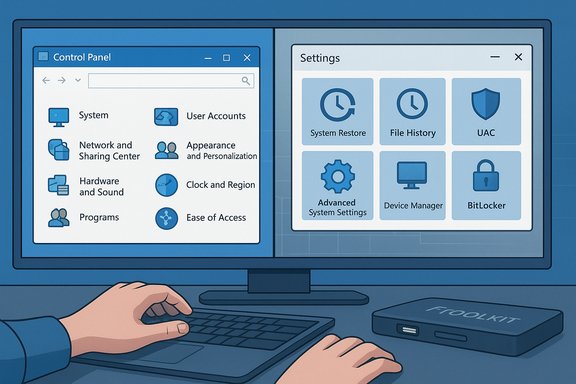
The modern Settings app covers many day-to-day preferences, but the following six areas are commonly still best handled (or only available) in Control Panel:- System Restore (System Protection) — creating, enabling, and restoring restore points.
- File History — local file versioning and restore controls.
- User Account Control (UAC) — fine-grained UAC slider and behavior.
- Advanced System Settings — environment variables, performance, startup/recovery, and user profiles.
- Device Manager — driver rollbacks, manual driver installs, and hardware troubleshooting.
- BitLocker Drive Encryption — full BitLocker control, removable-drive encryption, and recovery key management.
System Restore: a lightweight safety net you should enable
System Restore (part of System Protection) takes point-in-time snapshots of critical system files and registry settings so you can roll back when an update, driver, or app change breaks the system. It’s not a substitute for a full disk image, but it’s fast and often fixes problems that don’t require catastrophic recovery.- Why it matters: Restores can salvage a system after faulty drivers, bad installer behavior, or accidental registry changes without requiring a full image restore or reinstall.
- The catch: System Protection is not always enabled by default on every drive because snapshots consume disk space, so you often have to turn it on manually through Control Panel. Settings exposes some recovery options, but the Control Panel interface is still the most direct way to manage restore points on a per-drive basis.
Quick steps: enable System Restore via Control Panel
- Open Control Panel → System and Security → System.
- Click System protection (left column).
- Select the system drive (usually C
 and click Configure.
 - Turn on Turn on system protection, set disk space usage, and click OK.
- Create a manual restore point with Create… after significant changes.
File History: local file versioning and recovery
File History predates Microsoft’s OneDrive-first approach for versioned backups. It saves incremental copies of files so users can restore previous versions without a full image restore.- What it covers: Historically File History backed many folders; modern Windows 11 restricts File History primarily to Libraries, Desktop, Contacts, and Favorites unless you add additional folders to Libraries manually. That reduces discoverability but the core capability remains relevant for local, offline versioning.
- When to use it: Use File History alongside a full-image backup strategy if you want per-file versioning without using cloud services.
Practical tip: include extra folders
Because File History backs only Library locations by default, add frequently used folders to a Library to include them in File History, or use a dedicated file backup tool for more flexible backup rules.User Account Control (UAC): security prompts you can and should control
User Account Control is a foundational security feature: it prevents programs from silently obtaining elevated privileges. The Settings app gives high-level account and sign-in options, but UAC’s fine-grained slider and behavior adjustments remain in Control Panel.- Why it matters: Developers, testers, and some admin scenarios need to temporarily relax UAC prompts or change the notification level. Those advanced tweaks are still controlled from Control Panel → System and Security → Security and Maintenance → Change User Account Control settings.
- Risk: Disabling or lowering UAC reduces protection against malicious applications. Any change should be temporary and reversible; document and automate the reversal in environments where reproducibility matters.
Advanced system settings: environment variables, performance, and startup recovery
The Advanced tab of System Properties is one of the most powerful administrative interfaces in Windows. It contains:- Environment Variables — essential for development tools, build environments, and many older applications that read PATH or other system variables.
- Performance Options — visual effects, virtual memory settings, and processor scheduling.
- Startup and Recovery — how the system behaves on failure, whether to write memory dumps, and whether Windows restarts automatically.
- User Profiles — tools to troubleshoot and manage corrupted profiles or roaming profiles in corporate environments.
How to open Advanced System Settings
- Control Panel → System and Security → System → Advanced system settings.
- Or Win + R → sysdm.cpl and press Enter.
Device Manager: the hardware toolbox technicians can't do without
When a device misbehaves, Device Manager provides the granular controls you need: update or rollback drivers, disable problem devices, or uninstall and reinstall hardware stacks. Settings offers device summaries and simple toggles, but Device Manager’s depth is still unmatched for driver-level troubleshooting.- Typical tasks only reliably done in Device Manager:
- Rolling back a driver after a bad update.
- Forcing driver installs from INF files.
- Viewing device properties and hardware IDs for compatibility searches.
- Changing device-specific power management options.
BitLocker Drive Encryption: full-featured management lives in Control Panel
Windows 11 introduced a simpler device encryption flow for consumer devices, but the full BitLocker management console — used to encrypt removable drives, choose encryption algorithms, back up recovery keys, and manage authentication options — still lives in Control Panel for Pro/Education/Enterprise editions.- Why this matters: Enterprises and security-conscious users need fine-grained BitLocker management: TPM options, multifactor unlock, and recovery key handling are essential for compliance, mobile-device security, and incident response.
- The Settings app’s device encryption is convenient, but it’s not a drop-in replacement for BitLocker’s advanced management console. If you rely on removable-drive encryption, custom key escrow, or alternate authentication schemes, Control Panel remains the authoritative UI.
Workarounds and productivity tricks: God Mode, shortcuts, PowerShell, and Group Policy
While Control Panel remains available, productivity-minded technicians have a few reliable strategies to reduce UI friction and keep advanced controls accessible.God Mode: one searchable admin index
The so-called God Mode folder (All Tasks shell namespace) aggregates many Control Panel items, administrative tools, and legacy panels into a single searchable list. Create a folder named Label.{ED7BA470-8E54-465E-825C-99712043E01C} (commonly GodMode.{GUID}) and Explorer renders a master index. It’s a powerful shortcut for discovery and quick launches, but it’s a convenience — not a supported management API — and not suitable as a fleet automation technique.- Pros: Fast discovery, single place for hundreds of applets, drag-and-drop to make shortcuts.
- Cons: Not a privilege escalation, contents vary by build and installed components, and it’s a human-facing tool (not auditable like scripts or policies).
Shortcuts and ms-settings URIs
For frequently used Control Panel or Settings pages, create desktop or taskbar shortcuts:- Explorer shortcuts to legacy applets (for example, compmgmt.msc, devmgmt.msc, sysdm.cpl).
- ms-settings: URIs to open specific Settings pages quickly (Start → Run → ms-settings
 rivacy or start ms-settings. Use these in scripts or technician toolkits.
PowerShell and Group Policy
For repeatable, auditable changes across many machines, prefer PowerShell, Group Policy, or Intune/MDM. These methods are contractible, scriptable, and verifiable—exactly what enterprises need to avoid brittle, UI-driven processes. Relying on Control Panel for mass configuration is a support risk.Critical analysis: strengths, risks, and what Microsoft’s approach means
Strengths of the migration to Settings
- Modern UX and consistency: Settings provides a cleaner, touch-friendly interface and a unified design language that better suits casual users and new devices.
- Maintainability: Consolidating code paths and retiring legacy applets reduces the attack surface and maintenance burden over time. Microsoft’s public rationale emphasizes security and cloud integration.
Real-world risks and costs
- Feature parity lag: Many advanced settings, enterprise features, and hardware-level controls have not been fully migrated; removing Control Panel prematurely would break workflows and support processes. The migration is demonstrably incomplete, and in many cases Settings redirects back to Control Panel.
- Offline capability erosion: Microsoft’s move toward cloud-based support flows (Get Help, online diagnostics) risks removing local, offline troubleshooters that are essential when the network is down — exactly when you most need local tools.
- Fragmentation for power users: The split UI creates a usability tax for administrators who must remember where to find functions between Settings, Control Panel, shell namespaces, and management consoles. That costs time during incident response.
Compatibility and enterprise caution
Enterprises depend on stability and predictable management interfaces. Microsoft’s slow migration strategy reduces the chance of breaking large installed bases, but it also leaves organizations juggling legacy and modern tools. Best practice: maintain both a modern management plane (Intune/GPO/PowerShell) and a documented Control Panel toolkit for emergency GUI-based recovery.Practical recommendations for users and admins
- Enable System Restore on critical machines and document restore-point creation as part of major change procedures.
- Keep local backups and image-based recovery routines. Relying solely on cloud or partial backups (File History) is risky for full-system incidents.
- Back up BitLocker recovery keys to secure locations (Azure AD, AD, or an encrypted password vault) and verify recovery procedures periodically.
- Script and document all configuration changes using PowerShell or Group Policy so changes are auditable; use the GUI for discovery or last-resort fixes.
- Build a small technician USB/toolkit with shortcuts to common Control Panel applets and an ms-settings quick-launch script; include offline drivers and vendor diagnostic tools.
- Test migration impacts: before adopting a “Settings-only” policy, test on representative hardware to ensure no business-critical control remains locked behind Control Panel-only dialogs.
What to watch next: migration signals and unverifiable claims
Microsoft’s public messaging has varied over time: it’s accurate to say the company has been shifting functionality to Settings since the Windows 8 era, but precise timelines and feature-parity targets are not always publicly documented and can change with each Windows feature update. Treat claims about exact timelines or a definitive Control Panel removal date with caution unless confirmed by official Microsoft updates, because migration status is build-dependent and can change across versions. If your workflow depends on a specific Control Panel panel, validate its presence on the exact Windows build and edition you run.When planning long-term migration away from Control Panel, verify these specifics on the target builds:
- Is the particular Control Panel applet present or redirected?
- If migrated, does Settings expose the same options and are the command-line or PowerShell equivalents available?
- Does the change break any scripts or third-party tools that expect legacy behavior?
Conclusion
The Control Panel’s gradual demotion to a legacy role is real, but the app is far from irrelevant. For critical system tasks—System Restore, File History, UAC, Advanced System Settings, Device Manager, and BitLocker—Control Panel is still the most reliable, discoverable, and sometimes the only UI that provides the full controls administrators and power users need. While Settings is the better fit for everyday configuration and Microsoft’s modern vision, the practicality of system administration and enterprise management means Control Panel will remain part of the Windows toolkit until parity is complete and proven across every relevant Windows build.Practical, risk-aware system management today requires a hybrid approach: prefer modern APIs, policy, and scripting for scale and auditability, but retain Control Panel knowledge and toolkits for fast, on-the-ground recovery and deep troubleshooting. The real-headed plan for technicians and IT teams is simple: keep the modern path optimized, but don’t throw away the legacy toolbox until Microsoft demonstrably replicates every needed capability in a supported, tested way.
Source: MakeUseOf Microsoft keeps hiding Control Panel, but it's still necessary for these 6 vital tasks
