

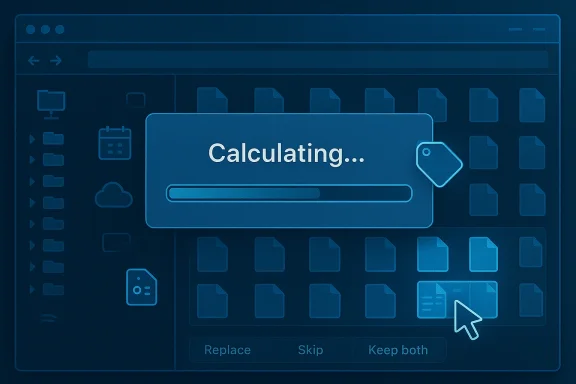
You’re not imagining it: File Explorer really does pause on “Calculating…” before it copies, and that pause is a deliberate design choice — not a frozen PC. The Explorer copy dialog performs a metadata-first pass (enumeration) so Windows can present a single, manageable progress experience and batch conflict decisions up front; that same behavior, however, is what makes a seemingly simple drag‑and‑drop feel glacial on big folders. File Explorer is doing when it “calculates”
When you start a drag‑and‑drop copy or move, File Explorer doesn’t immediately stream bytes. Instead it usually goes into an enumeration phase: it scans the selected folders and files to build a manifest that includes counts, sizes, and any potential filename conflicts. That manifest lets Explorer:
- estimate total size and an ETA for a single progress bar,
- detect duplicates so it can present choices like Replace / Skip / Keep both in grouped form,
- precompute the set of operations so it can show a coherent summary rather than dozens or thousands of separate dialogs.
Why the progress bar lies so often (anyway)
Explorer’s progress estimate attempts to avoid the classic “99% then stall on a huge file” problem by knowing the job before it begins. In practice the estimate is still a rough prediction — throughput depends on the underlying hardware, file sizes, fragmentation, cloud or network latency, and transient locks. Explorer samples short‑term throughput to compute ETA, which yields jumps and sometimes wildly wrong remaining times. The result: a long “Calculating…” phase followed by an unreliable progress estimate.There’s also a systems‑level artifact: many of the strings and dpy dialog are embedded in Windows resources (the same dialog text appears in shell resources), which reflects that this is a longstanding GUI behavior inside the shell rather than an overlay from a third‑party app. The presence of those strings in shell resources underscores that the behavior is built into Explorer itself.
Why this matters in the real world: common scenarios that trigger long calculations
Many small files vs few large files
- Thousands of small files cause a lot of directory entries and individual metadata reads; enumeration dominates wall time.
- One huge file (a multi‑GB video) is fast to enumerate but slow to copy; the “Calculating…” step is brief, but the transfer itself takes ages.
Network shares and flaky connections
If a source or destination is a mapped network share or a disconnected VPN location, Explorer’s enumeration can stall while trying to read remote metadata, time out, or wait for network retries — and no local GUI trick will speed a slow network. Use the command line to inspect connections (net use) and clear ghost mappings before big transfers. Folder type sniffing, thumbnails, and preview handlers
Explorer also tries to “optimize” folder views by sniffing contents and enabling thumbnail generation or metadata extraction for specific folder templates (Pictures, Music, Videos). Those sniffing/thumbnail steps can add delay when opening or copying from heavy folders (Downloads and large media collecties). For many users, forcing a folder to the generic template reduces the sniffing overhead.Practical, tested ways to get past the pause (what actually saves time)
Below are pragmatic, widely used strategies for avoiding or shortening Explorer’s preflight delay. Where a claim is a technical parameter (for example Robocopy switches), I’ve verified it against authoritative docs and community guides.1) Break big jobs into smaller batches
Instead of selecting an entire 100 GB tree, group files by type, date, or project and copy them in chunks. Smaller selections mean smaller enumerations and shorter “Calculating…” timeovery easier if something goes wrong mid‑transfer. Community practice and troubleshooting guides consistently recommend chunking to avoid metadata‑heavy enumeration.2) Stop folder content sniffing (Optimize this folder for → General items)
Right‑click a problematic folder → Properties → Customize → Optimize this folder for → General items, then click Apply to subfolders. This prevents Explorer from repeatedly attempting thumbnails and heavy metadata reads for pictures or music in that tree. If you want to make this behavior default system‑wide, Windows stores per‑folder templary area — power users and administrators use a small registry change to force NotSpecified for AllFolders, but apply with caution and a backup.3) Use Robocopy for big or repeatable jobs
Robocopy (Robust File Copy) is a built‑in command‑line tool designed for resilient, scripted file transfers. It can start copying immediately without Explorer’s GUI preflight, and it has options that make bulk migrations practical:- /MT[:n] — multi‑threaded copies (n between 1 and 128; default value when you invoke /MT is 8). Mormously when copying many small files by performing parallel file reads/writes.
- /Z — restartable mode for transient network interruptions.
- /MIR — mirror a directory tree.
- /R and /W — retry and wait parameters for error handling.
- robocopy "C:\Source" "D:\Dest" /E /Z /MT:16 /R:3 /W:5 /LOG:C:\copylog.txt
4) Use a dedicated GUI copy utility when you want clicks instead of the command line
Several third‑party tools avoid Explorer’s enumeration behavior or present more useful progress and error handling:- FastCoh performance for local disks and network shares.
- TeraCopy — GUI with file verification, pause/resume, and retry options.
- SuperCopier / Copy Handler — alternatives that provide more control and logging.
5) Check and clear mapped/ghost network drives before copying
If a mapped drive is slow or disconnected, Explorer’s enumeration will choke. Usenet use to list and remove stale mappings:net use— list mapped connections.net use Z: /deleteornet use * /delete— remove mappings.
net use as a first step when mapped‑drive copies hang or Explorer rework locations. 6) Try compressing first for many small files
If you’re moving thousands of tiny files, it’s often faster to compress them into a single archive and copy the archive, then extract at the destination. Compression reduces per‑file overhead and turns thousands of metadata operations into one sequential write. This is a standard approach in and user guides.7) Hardware upgrades: NVMe/SSD, faster USB and better cables
There’s no substitute for better hardware. If you routinely move large datasets, an SSD or NVMe drive as source or destination dramatically reduces both enumeration and transfer time. Similarly, use USB 3.x/Thunderbolt rather than USB 2.0, and ensure cables, hubs, and ports are the appropriate generation. These hardware recommendations are commonplace and decisive in real‑world benchmarks.Technical verification and caveats (what I checked for accuracy)
- Robocopy's /MT behavior and parameters are documented in Microsoft’s Robocopy reference and in independent community guides; Microsoft’s docs explicitly list /MT and note its default thread behavior and limits, and community guides provide practical recommendations for thread counts. For authoritative detail on syntax and limits, see Microsoft’s command reference.
- The Explorer “Calculating…” behavior is a shell‑level design. Evidence for this includes community documentation and troubleshooting writeups explaining folder enumeration and the Explorer copy dialog behavior, and the presence of copy/move strings in Windows shell resource files. Those two independent indicators — shell resources showing the strings and multiple independent how‑tos explaining enumeration — corroborate that this is an intentional Explorer design. That said, the precise historical origin (for example, “this appeared in Windows Vista”) is widely reported in user guides and articles, but the exact internal implementation timeline at Microsoft isn’t easy to pin down from public documentation. Consider the "since Vista" claim widely reported and plausible, but not exhaustively verifiable from a single Microsoft archival statement. Treat that historical point as community knowledge rather than Microsoft technical policy.
- Recommendation caveat: multi‑threaded copying (/MT) helps with many small files and network transfers, but on some hardware (older spinning drives or saturated controllers) too many parallel threads can reduce overall throughput due to higher seek contention or CPU overhead. Always test on representative data before running /MT at high values. Microsoft’s documentation and experienced sysadmin guidance both emphasize testing.
A short, practical chenow
- Pause background syncing apps (OneDrive/Dropbox/Google Drive) before large copies.
- If the folder has thousanit, move the archive, then extract.
- For scripted/mass moves, use Robocopy with /MT and logging (test thread counts first).
- If Explorer stalls, open a command prompt and run
net useto verify mapped drives and remove stale mandline.com] - Right‑click problem folders → Properties → Customize → Optimize this folder for: General items; apply to subfolders. Consider the registry tweak only if you understand the implications.
- Consider third‑party copy tools (TeraCopy, FastCopy) if you need a GUI with better error handling or verification.
Risks and trade‑offs you should know about
- Disabling Explorer checks (or turning off antivirus) to speed transfers can expose you to reasecurity protections permanently; do it only temporarily for trusted files and re‑enable them immediately. Community guides warn about this, and enterprise environments restrict such changes.
- Robocith the wrong flags (e.g., /MIR will mirror source to destination and can delete files at the destination). Always run a dry run, log output, and test commands on a small sample before a full migration. Microsoft’s documentation highlights these flags and the responsibility that comes with them.
- Multi‑threading isn’t a free speedup: on some HDD setups it reduces total throughput. If your target is a spinning platter drive, try conservative thread counts (4–8) or single‑threaded copying.
- Network copies are bounded by the link, switch, and server performance. No local tool can fix a bad or overloaded WAN/VPN link. Check link health and server responsiveness before blaming Explorer.
Final verdict: why Windows chose the pause — and when you should fight it
Explorer’s “Calculating…” behavior is a pragmatic UX trade: it collects metadata up front to keep the user experience tidy (single progress bar, grouped conflict prompts), but that convenience penalizes large, metadata‑heavy jobs. If you value a clean GUI that asks one question rather than 10,000, the default behavior is useful; if you value raw speed, repeatability, and resilience at scale, use Robocopy or a dedicated copy tool and tune for your hardware and network.In short: the pause is intentional, not a bug — but it’s avoidable. For one‑off day‑to‑day moves, tweak folders and chunk big jobs. For large migrations, use Robocopy or a fast third‑party tool, test your settings, and keep safety checks (logs, verification, and backups) in place. Practical community experience and Microsoft’s own tooling align on this prescription.
Now that you know what Explorer is doing and why, you can choose the right tool for the job — whether that’s a quick folder optimization and a batch copy, or a scripted Robocopy migration that bypasses the “Calculating…” wait entirely.
Source: MakeUseOf There’s a simple reason why File Explorer takes forever to start copying
