

Microsoft’s PowerShell pipeline gives Windows users a structured, object-based way to filter, sort, transform, export, and act on command output, while classic CMD batch files still largely depend on fragile text parsing inherited from an older command-line era. That difference is not cosmetic. It is the difference between automation that understands a file as a file and automation that treats a directory listing as a pile of characters. For anyone still living in
The old Windows command prompt has survived because it is fast, familiar, and everywhere. For decades, it has been the comfort zone for administrators who know exactly when to reach for
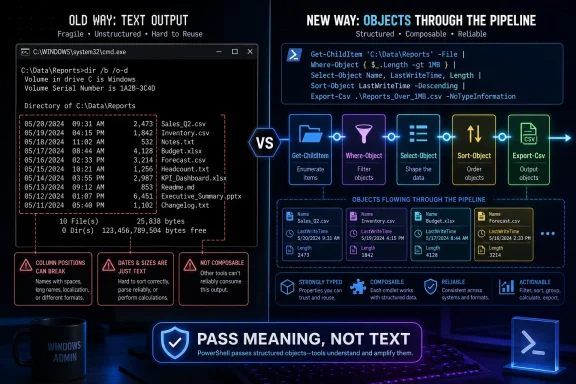
But CMD’s weakness shows up the moment a script needs to reason about output. A human can look at a directory listing and understand dates, sizes, and names. A batch file has to carve that same listing into tokens, columns, and environment variables, hoping that the shape of the text does not change.
That is why a tiny formatting change can break an otherwise dependable script. The script was not actually working with files, dates, and sizes. It was working with a printed representation of those things.
PowerShell’s great advantage is that it refuses to pretend the printed table is the data. Its pipeline passes structured objects between commands, and the text display at the end is just one possible rendering. That turns automation from screen-scraping into composition.
They also train users to accept pain as normal. A moderately useful batch file often becomes a miniature parsing engine:
The example from MakeUseOf is familiar because it is ordinary. Find files larger than 50MB that have not been modified in the last 30 days. Show the name, date, and size. Sort the result. This is not exotic automation; it is the kind of housekeeping task Windows users have been writing for years.
In CMD, the work quickly stops being about files and starts being about the shape of
That silence is the killer. CMD often does not tell you, “Your assumption about the date column is wrong.” It simply produces no output, the wrong output, or a result that looks plausible enough to be dangerous.
The important part is not that this can be written in one line. One-liners are satisfying, but terseness is not the main prize. The important part is that each command receives something meaningful from the previous command.
A file passed through the PowerShell pipeline is not merely a row of text. It has a name, a path, a length, timestamps, attributes, and methods. The next command does not need to guess which characters represent the size. It asks the object for its
That changes how scripts age. A batch file full of token positions often becomes mysterious even to its author. A PowerShell pipeline tends to preserve intent. The command reads from left to right: get files, filter files, select fields, sort files.
It also changes how scripts are modified. If the threshold moves from 50MB to 100MB, the relevant part of the pipeline changes in one obvious place. In a batch script, the same change may force the author back into the parsing logic to verify that no assumption has been disturbed.
Unix-like systems made text pipelines into an art form because many tools were designed around predictable line-oriented output. CMD inherited piping without giving users a comparable ecosystem of composable text filters. Windows administrators instead learned to stitch together commands that were never especially friendly to machine parsing.
PowerShell was Microsoft’s answer to that mismatch. Rather than demanding that every command serialize itself into parseable text, PowerShell commands can pass .NET objects through the pipeline. The display system may show a table, but that table is not what downstream commands consume.
That distinction matters most when automation leaves the toy stage. Filtering processes by memory use, restarting stopped services, exporting inventories to CSV, collecting event logs, inspecting certificates, querying registry keys, or managing cloud resources all benefit from a pipeline that preserves object properties.
It is not just prettier syntax. It is lower operational risk.
That criticism misses the bargain PowerShell is offering. In exchange for longer names, commands follow a more predictable verb-noun pattern and participate in a common pipeline model. The user learns not only a command, but a grammar.
Once that grammar clicks, the same pattern travels. Get something. Filter it. Sort it. Select the properties that matter. Export it. Act on it. The pipeline becomes less a trick than a working method.
That is why the example involving processes is so revealing.
The same applies to services.
This is where PowerShell starts to feel less like a shell and more like a small administrative language.
There is also a real cost to rewriting working scripts. If a batch file has run reliably for years and touches a sensitive workflow, replacing it merely for aesthetic reasons is not discipline. It is churn. Enterprises have enough of that already.
But there is a difference between maintaining old CMD scripts and choosing CMD for new automation. The former may be prudent. The latter increasingly looks like choosing the harder path on purpose.
The practical boundary is simple: if the task runs one command and a human reads the result, CMD is often fine. If the task needs to filter, compare, transform, export, or act on the result, PowerShell should be the default candidate.
That boundary is not about fashion. It is about the nature of the data.
This is the cost of moving from visible text to structured data. PowerShell asks users to think about objects, properties, types, and pipeline binding. For casual use, that can feel like overhead. For automation, it is the thing that prevents fragile workarounds.
The key mental shift is that the screen is not the source of truth. What appears in the console is a view. The object traveling through the pipeline may contain far more information than PowerShell chooses to display by default.
That is why tools such as
The old CMD habit is to parse what you see. The PowerShell habit is to discover what you have.
In PowerShell, exporting structured objects is a first-class operation. Once a pipeline has produced the objects and selected the properties,
For administrators, this matters because CSV remains the lowest common denominator of operational reporting. Asset lists, file inventories, process snapshots, service states, event summaries, and permission audits all tend to end up in spreadsheets or ticket attachments. PowerShell shortens the distance between system state and usable data.
CMD can still produce files. PowerShell can produce data.
That distinction becomes even more important when scripts feed other systems. A fragile text report read by a human is one thing. A fragile text report consumed by another automation process is an incident waiting to happen.
A clean multi-line PowerShell script is often better than a dense one-liner. Variables can make intent clearer. Error handling can be explicit. Logging can be added. Edge cases can be handled without turning the command into a horizontal wall of punctuation.
The pipeline should be readable, not performative. The best administrative scripts are the ones another person can safely modify at 2 a.m. during a maintenance window. If a one-liner helps, use it. If it obscures intent, break it apart.
That said, the reason one-liners are so persuasive is that they reveal how much unnecessary scaffolding batch files require. In CMD, a simple filtering task can demand loops, token splitting, and conditional jumps. In PowerShell, those mechanics often disappear because the shell already understands the objects in motion.
PowerShell does not eliminate complexity. It moves complexity to the right layer.
That does not mean every Windows user needs to become a PowerShell expert. It does mean that power users who stop at CMD are leaving capability on the table. The more Windows administration intersects with remote management, structured reporting, cloud services, and repeatable automation, the more CMD looks like a launch pad rather than a destination.
This is especially true for security-minded users. Investigating processes, services, scheduled tasks, event logs, startup entries, certificates, and file metadata benefits from object-aware filtering. A responder who can quickly shape system data into evidence has an advantage over one copying console text into a text editor.
Developers see the same pattern. Build scripts, packaging steps, test runners, and environment checks can all be written in CMD, but PowerShell offers better access to structured output and richer error handling. It also travels across Windows, Linux, and macOS in modern PowerShell, which makes it less tied to the old Windows-only scripting assumptions.
The old line was that CMD was enough for a power user. The new line is that CMD is enough until the output matters.
Another good target is any script that creates intermediate files merely to pass data between steps. Temporary text files are often a sign that the automation is compensating for a weak pipeline. PowerShell can frequently keep the data in motion without writing and rereading it.
The same goes for scripts that end with “open the output and check it manually.” If a human must scan a report for rows that meet a known condition, PowerShell can probably filter those rows before the report is generated. If a script creates a list and then another script consumes it, PowerShell can probably make the handoff cleaner.
This is how the transition should happen: not through a grand rewrite, but through attrition. The next time a batch file breaks because output changed, replace the fragile section with PowerShell. The next time a task requires parsing columns, reach for objects first.
The payoff compounds. Each new PowerShell pipeline teaches a reusable pattern.
That is how better tools win in practice. They remove pain the user had normalized.
For WindowsForum readers, the practical lesson is not that CMD is useless. It is that CMD’s design makes some jobs harder than they need to be, especially when output becomes input. PowerShell’s pipeline is not just a nicer pipe; it is a different contract between commands.
.bat files, the lesson is blunt: CMD can launch commands, but PowerShell was built to compose them.
 CMD’s Real Problem Was Never the Command Prompt
The old Windows command prompt has survived because it is fast, familiar, and everywhere. For decades, it has been the comfort zone for administrators who know exactly when to reach for ipconfig, ping, net use, robocopy, or a quick dir. It asks little of the user and gives little ceremony in return.But CMD’s weakness shows up the moment a script needs to reason about output. A human can look at a directory listing and understand dates, sizes, and names. A batch file has to carve that same listing into tokens, columns, and environment variables, hoping that the shape of the text does not change.
That is why a tiny formatting change can break an otherwise dependable script. The script was not actually working with files, dates, and sizes. It was working with a printed representation of those things.
PowerShell’s great advantage is that it refuses to pretend the printed table is the data. Its pipeline passes structured objects between commands, and the text display at the end is just one possible rendering. That turns automation from screen-scraping into composition.
The Batch File Veteran Eventually Meets the Wall
Every longtime Windows user has a batch file origin story. There is the cleanup script that deletes stale files, the server check that runs before coffee, the one-off deployment helper that somehow becomes permanent infrastructure. Batch files earn loyalty because they solve real problems with tools already on the machine.They also train users to accept pain as normal. A moderately useful batch file often becomes a miniature parsing engine:
FOR /F, token numbers, delimiter choices, delayed expansion, temporary variables, and defensive quoting. The result may be clever, but cleverness is not the same as robustness.The example from MakeUseOf is familiar because it is ordinary. Find files larger than 50MB that have not been modified in the last 30 days. Show the name, date, and size. Sort the result. This is not exotic automation; it is the kind of housekeeping task Windows users have been writing for years.
In CMD, the work quickly stops being about files and starts being about the shape of
dir output. Dates may appear differently depending on regional settings. Spacing may shift. File names may include characters that make token handling unpleasant. A script that looks perfectly reasonable on one machine can silently fail on another.That silence is the killer. CMD often does not tell you, “Your assumption about the date column is wrong.” It simply produces no output, the wrong output, or a result that looks plausible enough to be dangerous.
PowerShell Wins Because the Pipe Carries Meaning
The PowerShell replacement is not magic. It is just a different model.Get-ChildItem retrieves file system items. Where-Object filters them by properties such as LastWriteTime and Length. Select-Object chooses which properties to display and can calculate a friendly size in megabytes. Sort-Object orders the result.The important part is not that this can be written in one line. One-liners are satisfying, but terseness is not the main prize. The important part is that each command receives something meaningful from the previous command.
A file passed through the PowerShell pipeline is not merely a row of text. It has a name, a path, a length, timestamps, attributes, and methods. The next command does not need to guess which characters represent the size. It asks the object for its
Length.That changes how scripts age. A batch file full of token positions often becomes mysterious even to its author. A PowerShell pipeline tends to preserve intent. The command reads from left to right: get files, filter files, select fields, sort files.
It also changes how scripts are modified. If the threshold moves from 50MB to 100MB, the relevant part of the pipeline changes in one obvious place. In a batch script, the same change may force the author back into the parsing logic to verify that no assumption has been disturbed.
Text Parsing Is a Tax Windows Users Forgot They Were Paying
The CMD pipeline is useful, but it is fundamentally a text pipeline. One command writes characters to standard output, and another command reads characters from standard input. That model is universal, old, and powerful, but on Windows it often pushes structure onto the user instead of preserving it for the next command.Unix-like systems made text pipelines into an art form because many tools were designed around predictable line-oriented output. CMD inherited piping without giving users a comparable ecosystem of composable text filters. Windows administrators instead learned to stitch together commands that were never especially friendly to machine parsing.
PowerShell was Microsoft’s answer to that mismatch. Rather than demanding that every command serialize itself into parseable text, PowerShell commands can pass .NET objects through the pipeline. The display system may show a table, but that table is not what downstream commands consume.
That distinction matters most when automation leaves the toy stage. Filtering processes by memory use, restarting stopped services, exporting inventories to CSV, collecting event logs, inspecting certificates, querying registry keys, or managing cloud resources all benefit from a pipeline that preserves object properties.
It is not just prettier syntax. It is lower operational risk.
The One-Liner Is Less Important Than the Contract Between Commands
PowerShell’s critics often focus on its verbosity.Get-ChildItem is longer than dir. Where-Object is longer than findstr. The naming convention can feel heavy to users raised on terse commands and switches.That criticism misses the bargain PowerShell is offering. In exchange for longer names, commands follow a more predictable verb-noun pattern and participate in a common pipeline model. The user learns not only a command, but a grammar.
Once that grammar clicks, the same pattern travels. Get something. Filter it. Sort it. Select the properties that matter. Export it. Act on it. The pipeline becomes less a trick than a working method.
That is why the example involving processes is so revealing.
Get-Process | Where-Object WorkingSet -gt 200MB is not merely shorter than the CMD equivalent. It is clearer about what it means. The command is not searching a printed table for a number that happens to be in a column. It is filtering process objects by a memory-related property.The same applies to services.
Get-Service | Where-Object Status -eq 'Stopped' | Start-Service reads almost too plainly, which is precisely the point. The pipeline carries service objects into a command that knows how to start services. The user is not manufacturing a second command line from parsed text.This is where PowerShell starts to feel less like a shell and more like a small administrative language.
CMD Remains Useful Because Muscle Memory Is Infrastructure Too
None of this means CMD is dead. It remains part of Windows for a reason, and there are tasks where launching the old shell is still natural. Quick diagnostics, legacy scripts, recovery environments, and vendor instructions often assume CMD. Many administrators can type a half-dozen CMD commands faster than they can explain them.There is also a real cost to rewriting working scripts. If a batch file has run reliably for years and touches a sensitive workflow, replacing it merely for aesthetic reasons is not discipline. It is churn. Enterprises have enough of that already.
But there is a difference between maintaining old CMD scripts and choosing CMD for new automation. The former may be prudent. The latter increasingly looks like choosing the harder path on purpose.
The practical boundary is simple: if the task runs one command and a human reads the result, CMD is often fine. If the task needs to filter, compare, transform, export, or act on the result, PowerShell should be the default candidate.
That boundary is not about fashion. It is about the nature of the data.
PowerShell’s Object Model Is Also Its Learning Curve
PowerShell’s advantage can make it feel strange at first. Users accustomed to text output may not immediately understand why a command displays only some properties even though the object contains many more. They may wonder why formatting commands should usually come late in a pipeline, or whySelect-Object and Format-Table are not interchangeable.This is the cost of moving from visible text to structured data. PowerShell asks users to think about objects, properties, types, and pipeline binding. For casual use, that can feel like overhead. For automation, it is the thing that prevents fragile workarounds.
The key mental shift is that the screen is not the source of truth. What appears in the console is a view. The object traveling through the pipeline may contain far more information than PowerShell chooses to display by default.
That is why tools such as
Get-Member become important. They let users inspect what a command actually emits. Once a user learns to ask, “What properties does this object have?” instead of “Which column is this value in?” the shell starts to open up.The old CMD habit is to parse what you see. The PowerShell habit is to discover what you have.
Exporting Data Exposes the Difference Fast
The CSV example is another place where PowerShell’s design pays off. In CMD, producing a reliable CSV often means manually echoing comma-separated lines, escaping values, and hoping file names or fields do not contain characters that break the format. It is possible, but it is busywork.In PowerShell, exporting structured objects is a first-class operation. Once a pipeline has produced the objects and selected the properties,
Export-Csv can serialize the result without asking the user to hand-build each row. That is not merely convenient; it is the difference between a report and a string-building exercise.For administrators, this matters because CSV remains the lowest common denominator of operational reporting. Asset lists, file inventories, process snapshots, service states, event summaries, and permission audits all tend to end up in spreadsheets or ticket attachments. PowerShell shortens the distance between system state and usable data.
CMD can still produce files. PowerShell can produce data.
That distinction becomes even more important when scripts feed other systems. A fragile text report read by a human is one thing. A fragile text report consumed by another automation process is an incident waiting to happen.
The Best PowerShell Scripts Are Not Always the Shortest
There is a trap in the “one line replaced 14 lines” story. It can make PowerShell sound valuable because it compresses scripts. Sometimes it does. But PowerShell’s deeper value is that it lets automation be expressed at the level of the task instead of the level of parsing mechanics.A clean multi-line PowerShell script is often better than a dense one-liner. Variables can make intent clearer. Error handling can be explicit. Logging can be added. Edge cases can be handled without turning the command into a horizontal wall of punctuation.
The pipeline should be readable, not performative. The best administrative scripts are the ones another person can safely modify at 2 a.m. during a maintenance window. If a one-liner helps, use it. If it obscures intent, break it apart.
That said, the reason one-liners are so persuasive is that they reveal how much unnecessary scaffolding batch files require. In CMD, a simple filtering task can demand loops, token splitting, and conditional jumps. In PowerShell, those mechanics often disappear because the shell already understands the objects in motion.
PowerShell does not eliminate complexity. It moves complexity to the right layer.
The Windows Admin’s Default Shell Has Already Changed
Microsoft has spent years nudging Windows administration toward PowerShell, and the ecosystem reflects that shift. Modern Windows management, Microsoft 365 administration, Azure automation, Hyper-V operations, Exchange management, and countless security workflows assume PowerShell fluency. CMD still exists, but it is no longer the center of gravity.That does not mean every Windows user needs to become a PowerShell expert. It does mean that power users who stop at CMD are leaving capability on the table. The more Windows administration intersects with remote management, structured reporting, cloud services, and repeatable automation, the more CMD looks like a launch pad rather than a destination.
This is especially true for security-minded users. Investigating processes, services, scheduled tasks, event logs, startup entries, certificates, and file metadata benefits from object-aware filtering. A responder who can quickly shape system data into evidence has an advantage over one copying console text into a text editor.
Developers see the same pattern. Build scripts, packaging steps, test runners, and environment checks can all be written in CMD, but PowerShell offers better access to structured output and richer error handling. It also travels across Windows, Linux, and macOS in modern PowerShell, which makes it less tied to the old Windows-only scripting assumptions.
The old line was that CMD was enough for a power user. The new line is that CMD is enough until the output matters.
The Sensible Migration Is Gradual, Not Ideological
The right response to PowerShell is not to delete every.bat file in sight. A better migration starts by identifying the scripts that are most fragile: the ones that parse command output, depend on date formats, construct reports manually, or break when spacing changes. Those are the scripts most likely to benefit from PowerShell.Another good target is any script that creates intermediate files merely to pass data between steps. Temporary text files are often a sign that the automation is compensating for a weak pipeline. PowerShell can frequently keep the data in motion without writing and rereading it.
The same goes for scripts that end with “open the output and check it manually.” If a human must scan a report for rows that meet a known condition, PowerShell can probably filter those rows before the report is generated. If a script creates a list and then another script consumes it, PowerShell can probably make the handoff cleaner.
This is how the transition should happen: not through a grand rewrite, but through attrition. The next time a batch file breaks because output changed, replace the fragile section with PowerShell. The next time a task requires parsing columns, reach for objects first.
The payoff compounds. Each new PowerShell pipeline teaches a reusable pattern.
The Pipeline Lesson That Should Stick
The MakeUseOf example resonates because it describes a common conversion moment. The user does not abandon CMD after reading a manifesto. They abandon it after a brittle script breaks and a PowerShell pipeline solves the same problem with less ceremony and more clarity.That is how better tools win in practice. They remove pain the user had normalized.
For WindowsForum readers, the practical lesson is not that CMD is useless. It is that CMD’s design makes some jobs harder than they need to be, especially when output becomes input. PowerShell’s pipeline is not just a nicer pipe; it is a different contract between commands.
- CMD remains useful for quick commands, legacy scripts, and familiar troubleshooting routines.
- Batch files become fragile when they depend on fixed-width text, regional date formats, or token positions.
- PowerShell pipelines pass structured objects, allowing later commands to filter and act on real properties instead of parsed strings.
- Common administrative tasks such as file cleanup, process filtering, service management, and CSV reporting are usually clearer in PowerShell.
- The best migration strategy is to replace fragile parsing-heavy batch scripts first, rather than rewriting every working script at once.
References
- Primary source: MakeUseOf
Published: 2026-06-15T10:01:07.041289
I found PowerShell's pipeline does what batch files can't and I stopped using CMD
A single pipeline replaced fourteen lines and I never looked back. www.makeuseof.com
- Official source: learn.microsoft.com
Sort-Object (Microsoft.PowerShell.Utility) - PowerShell | Microsoft Learn
The Sort-Object cmdlet sorts objects in ascending or descending order based on object property values. If sort properties aren't included in a command, PowerShell uses default sort properties of the first input object. If the input object's type has no default sort properties, PowerShell...learn.microsoft.com - Related coverage: computerweekly.com
Key concepts: PowerShell Pipeline and PowerShell Objects - Introducing Microsoft PowerShell
PowerShell is an object-oriented language, which makes it different than other command shells even though it may look similarwww.computerweekly.com
- Official source: devblogs.microsoft.com
Mastering the (steppable) pipeline - PowerShell Community
The PowerShell pipeline explained from the beginning to the end.devblogs.microsoft.com - Official source: microsoft.com
Coffee Break | Windows PowerShell and Piping - Microsoft Dynamics 365 Blog
The | (pipe) functionality in Windows PowerShell offers endless opportunities for formatting and manipulating results from one cmdlet to the next. Coffee Break 4: Piping in Windows PowerShell Each time we run a Windows PowerShell cmdlet, the resulting output is not text but an Object providing...www.microsoft.com - Official source: download.microsoft.com
