

Windows Task Manager’s CPU meter has always been less of a live feed than a short-term memory test, and that distinction matters more on modern PCs than it did on the beige-box machines of the 1990s. Former Microsoft engineer Dave Plummer, who wrote the original Task Manager, says the number is effectively a “moving little obituary for the immediate past” rather than a snapshot of the instant you glance at it. That framing helps explain why the meter can feel slippery today: it was built around time-based accounting in an era when CPUs were simpler, clocks were steadier, and “busy” meant something much closer to “productive” than it often does now.
Task Manager began life as a practical, stripped-down utility meant to help Windows users recover from a misbehaving PC without dragging the system down further. Plummer has said the original design emphasis was speed and low overhead, and that philosophy shaped everything from its small footprint to its minimalistic approach to measurement. The whole point was to show users what was happening without becoming part of the problem, which is why the tool earned such loyalty even as Windows itself became larger and more layered.
The CPU meter, however, was always a compromise. Plummer describes the logic as timer-driven: sample cumulative kernel data, compare it with the previous sample, and infer utilization from the delta. That approach is elegant in a 1990s Windows environment because it is cheap, stable, and good enough for diagnosing a runaway process. It is also fundamentally interval-based, which means the number is always describing a recent window of activity rather than an instantaneous state.
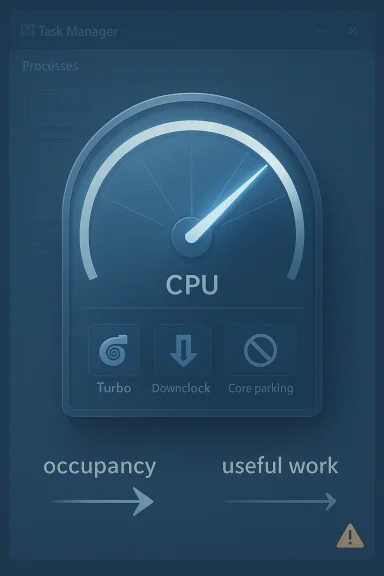
That distinction became more important once CPUs stopped behaving like fixed-speed engines. Modern processors downclock, park cores, enter sleep states, and then burst into turbo behavior when work appears. In that world, a percentage derived from elapsed time can tell you that a process kept the processor occupied, but not always how much useful work the silicon delivered during that same period. The result is a familiar feeling for Windows users: the meter looks authoritative, yet it can still feel a little detached from the actual experience of the machine.
Microsoft has also changed the way Task Manager reports CPU use over time. Windows 8 introduced a shift toward utility-based accounting, which can even let readings climb above 100 percent under turbo conditions because the number is no longer strictly tied to a fixed nominal frequency. Microsoft’s own documentation says the newer approach aims to better reflect actual work performed, not just the passage of time. That helps align Task Manager with modern CPU behavior, but it also reinforces Plummer’s point: the meter is trying to summarize a moving target, not capture a perfect truth.
This design choice explains a lot of the odd behavior people still notice. Open Task Manager and a spike may already have passed. Leave it open and the numbers often look calmer because the sampling window is rolling forward. The tool is doing what it was built to do, but the result can feel misleading if the viewer expects a live reading of the exact instant.
The delta method also scales well. Windows can calculate process and system activity without attaching expensive instrumentation to every running task, which would defeat the purpose of a lightweight utility. That economy of design mattered enormously in the era when Task Manager was invented, because the diagnostic tool itself had to be cheap enough to run on a machine that might already be close to collapse.
In practical troubleshooting, “good enough” has often been the right answer. A process pegging a core, a system worker spinning, or a runaway application eating cycles will all show up clearly enough in a sampled meter. The tool’s job was to reveal the obvious culprit quickly, not to publish an academic paper on CPU scheduling theory.
The catch is that users tend to infer more precision than the meter can really promise. A percentage looks exact, but the number is rooted in a moving window and a simplified accounting model. That makes Task Manager useful, yet never absolute.
This matters because users often treat Task Manager as a neutral judge. In reality, the same workload can look different depending on how the CPU is scaling at that moment. A lightly loaded machine can downshift into a sleepy power-saving state, then suddenly jump to turbo frequencies when work appears. The meter is still telling the truth about occupancy, but not necessarily about productivity.
That is why Plummer’s metaphor works so well. The number is an obituary for recent past activity, not a prophecy for the next millisecond. It preserves the history of the last sampling window, but it cannot fully encode the electrical and thermal drama happening beneath the surface.
The newer model is arguably more honest for general users because it reflects how much usable work the chip is delivering. But the change also means that CPU percentages are now tied to a richer interpretation of performance state. That can make readings feel less intuitive to people who grew up with the older model, especially when a system reports more than 100 percent under turbo conditions.
For enthusiasts and admins, the lesson is straightforward: percentages are context, not gospel. If the numbers look odd, it may be because the machine is doing something unusual rather than because the tool has broken. That is a subtle but crucial distinction.
That is why defensive code matters. Engineers often add assertions not because they expect the impossible, but because they want to catch the weird edge cases that show up in real hardware, real scheduling, and real field conditions. In a utility like Task Manager, those tiny anomalies can become support calls, forum threads, and long-running myths.
The existence of those quirks also illustrates a broader truth about Windows internals: the kernel’s accounting model was never designed to be an elegant human-facing dashboard. It was built to manage resources correctly. Task Manager had to translate that machinery into a digestible format, and translation always introduces some loss.
There is also a cultural dimension here. Windows engineering in the 1990s was full of constraints that forced elegance through restraint. You did not get to waste cycles just to make a graph prettier. Every extra call to the kernel had to justify its existence, and every added feature had to survive the performance budget.
That old discipline is partly why Task Manager became iconic. It did not just display information; it respected the system it was diagnosing. In a modern operating system full of layers, services, and telemetry, that restraint feels almost radical.
That change reflects a broader shift in Windows itself. The operating system moved from an environment where many users were comfortable with terse technical data to one where Microsoft had to serve a much wider audience. The cost of that shift is that more features often mean more abstraction, and more abstraction means more chances for misunderstanding.
The result is a tool that is more capable but less austere. It is easier to use, but not always easier to interpret. That tradeoff is visible every time users compare Task Manager against third-party tools and wonder why the numbers do not line up perfectly.
That matters because inconsistent measurement inside the same utility undermines trust. If the Processes tab says one thing and the Performance tab says another, users are left guessing which number is real. Aligning the views should reduce confusion, even if it does not eliminate all ambiguity around turbo states and modern CPU behavior.
The deeper lesson is that measurement models are not just technical choices. They are user-experience decisions. A metric becomes trustworthy when the same logic applies everywhere a user sees it.
Microsoft’s own guidance still tells admins to start with Task Manager when diagnosing CPU issues, then move to Performance Monitor and specific counters if the problem warrants deeper analysis. That workflow implicitly recognizes the meter’s value as a first-pass indicator.
The biggest virtue of Task Manager is speed. It is already there, it is easy to understand at a glance, and it generally points you in the right direction. That makes it a great triage tool even when it is not the perfect measuring instrument.
In that sense, the CPU meter answers the practical question. It tells you whether the processor has been busy enough to matter. That is usually sufficient to decide whether to close an app, stop a sync operation, or dig deeper into logs and counters.
The fact that the number is recent rather than instantaneous is not a flaw in that context. It is part of why the meter smooths out noise and remains readable under load.
The broader ecosystem benefits when the built-in tool aligns more closely with common expectations. It reduces support noise, simplifies documentation, and makes cross-tool comparisons less confusing. At the same time, it can break long-standing assumptions in scripts or habits built around the older behavior.
Microsoft’s decision to shift toward more consistent CPU workload numbers therefore has a real ecosystem impact. It helps make the Windows default experience more coherent, but it also nudges power users to relearn what the percentages mean. That is a small change on paper and a big change in practice.
That is why Microsoft’s documentation still points professionals toward Performance Monitor and specific counters when they need depth. Task Manager remains the front door, not the entire observability stack. In enterprise environments especially, the difference between time-based occupancy and utility-based work can matter for capacity planning and CPU-bound troubleshooting.
The competitive implication is that Windows has to keep both audiences satisfied. If the metric is too technical, casual users lose trust. If it is too simplified, professionals lose confidence. That balancing act is one of the hardest things Microsoft has to get right.
That mismatch drives a lot of the frustration around Task Manager. If the processor speed changed a moment ago, the meter may still be smoothing over the old state. If a background task burst and ended quickly, the user may miss it entirely unless they were watching at the right moment.
This is not unique to Windows. It is a problem in almost every monitoring system, from telemetry dashboards to cloud observability tools. Sampling always trades precision for usability. The difference is that Task Manager is visible to everyone, so its tradeoffs are more emotionally charged.
That metaphor also explains why the tool can still be trusted despite imperfections. An obituary does not need to capture every breath to be meaningful. It needs to capture the essential story well enough for the reader to act on it. Task Manager’s CPU meter has always worked the same way.
That means the future of the CPU meter may depend on better explanations as much as better code. Users do not necessarily need a more complicated percentage. They need a clearer model of what that percentage represents, when it is sampled, and how it relates to processor behavior under different power states. That is especially important in an era of hybrid cores, aggressive boosting, and battery-sensitive laptops.
The likely path forward is a layered one: simple defaults for mainstream users, richer counters for enthusiasts, and consistent definitions across the app. If Microsoft gets that balance right, Task Manager can remain the first place Windows users look when something feels wrong without pretending to answer questions it was never designed to solve.
Source: theregister.com Task Manager's CPU%: an obituary for the recent past
 Overview
Task Manager began life as a practical, stripped-down utility meant to help Windows users recover from a misbehaving PC without dragging the system down further. Plummer has said the original design emphasis was speed and low overhead, and that philosophy shaped everything from its small footprint to its minimalistic approach to measurement. The whole point was to show users what was happening without becoming part of the problem, which is why the tool earned such loyalty even as Windows itself became larger and more layered.The CPU meter, however, was always a compromise. Plummer describes the logic as timer-driven: sample cumulative kernel data, compare it with the previous sample, and infer utilization from the delta. That approach is elegant in a 1990s Windows environment because it is cheap, stable, and good enough for diagnosing a runaway process. It is also fundamentally interval-based, which means the number is always describing a recent window of activity rather than an instantaneous state.
That distinction became more important once CPUs stopped behaving like fixed-speed engines. Modern processors downclock, park cores, enter sleep states, and then burst into turbo behavior when work appears. In that world, a percentage derived from elapsed time can tell you that a process kept the processor occupied, but not always how much useful work the silicon delivered during that same period. The result is a familiar feeling for Windows users: the meter looks authoritative, yet it can still feel a little detached from the actual experience of the machine.
Microsoft has also changed the way Task Manager reports CPU use over time. Windows 8 introduced a shift toward utility-based accounting, which can even let readings climb above 100 percent under turbo conditions because the number is no longer strictly tied to a fixed nominal frequency. Microsoft’s own documentation says the newer approach aims to better reflect actual work performed, not just the passage of time. That helps align Task Manager with modern CPU behavior, but it also reinforces Plummer’s point: the meter is trying to summarize a moving target, not capture a perfect truth.
How the Original Meter Worked
The original Task Manager did not wait for a magical CPU usage value to appear from the kernel. It sampled the system on a timer, queried accumulated execution times, and compared the latest reading with the previous one. That delta-based method is simple, fast, and robust enough to be useful even when the rest of Windows is under strain.Sampling, Not Scrying
The key idea is that Task Manager was never a realtime oscilloscope for the processor. It was more like a ledger that occasionally reconciled the books. By checking how much CPU time had accumulated since the last sample, it could estimate what each process had consumed during the interval between checks. That makes the meter extremely practical for troubleshooting, but it also means users are seeing a recent average rather than a fully current state.This design choice explains a lot of the odd behavior people still notice. Open Task Manager and a spike may already have passed. Leave it open and the numbers often look calmer because the sampling window is rolling forward. The tool is doing what it was built to do, but the result can feel misleading if the viewer expects a live reading of the exact instant.
The delta method also scales well. Windows can calculate process and system activity without attaching expensive instrumentation to every running task, which would defeat the purpose of a lightweight utility. That economy of design mattered enormously in the era when Task Manager was invented, because the diagnostic tool itself had to be cheap enough to run on a machine that might already be close to collapse.
- Timer-driven sampling kept the code simple and fast.
- Cumulative counters avoided expensive per-event bookkeeping.
- Interval comparisons produced useful estimates without deep tracing.
- Low overhead was a design requirement, not an afterthought.
Why the Math Still Makes Sense
Plummer’s explanation is elegant because it shows that the meter was built around a real systems problem: how do you summarize processor activity without burdening the processor? The answer was to sample the kernel’s accounting data, calculate a delta, and normalize it against total system activity. That gives an answer that is good enough for the moment, even if it is not perfect in a philosophical sense.In practical troubleshooting, “good enough” has often been the right answer. A process pegging a core, a system worker spinning, or a runaway application eating cycles will all show up clearly enough in a sampled meter. The tool’s job was to reveal the obvious culprit quickly, not to publish an academic paper on CPU scheduling theory.
The catch is that users tend to infer more precision than the meter can really promise. A percentage looks exact, but the number is rooted in a moving window and a simplified accounting model. That makes Task Manager useful, yet never absolute.
Why Modern CPUs Complicate the Picture
Modern processors have turned CPU measurement into a much subtler problem than it was when Task Manager was born. Frequency scaling, turbo boost, power gating, and aggressive sleep states all mean that two identical percentages can represent very different amounts of work. A CPU at 100 percent while downclocked is not doing the same amount of useful work as a CPU at 100 percent while boosting aggressively.Time-Based Accounting vs Actual Work
Microsoft’s documentation on the Windows 8 change makes the distinction explicit: the old style was time-based, while the newer utility counters attempt to account for performance state and turbo behavior. In other words, the older metric answers “how long was the processor busy?” while the newer approach tries to answer “how much work was actually done?” That is a much better fit for modern hardware, but it also makes comparisons across versions trickier.This matters because users often treat Task Manager as a neutral judge. In reality, the same workload can look different depending on how the CPU is scaling at that moment. A lightly loaded machine can downshift into a sleepy power-saving state, then suddenly jump to turbo frequencies when work appears. The meter is still telling the truth about occupancy, but not necessarily about productivity.
That is why Plummer’s metaphor works so well. The number is an obituary for recent past activity, not a prophecy for the next millisecond. It preserves the history of the last sampling window, but it cannot fully encode the electrical and thermal drama happening beneath the surface.
- Turbo Boost can make utilization appear to exceed 100 percent.
- Downclocking can make a busy CPU look less productive than expected.
- Sleep and parking states can distort intuitive interpretations.
- Nominal frequency assumptions no longer match real processor behavior.
The Windows 8 Pivot
Microsoft’s own support material says Windows 8 changed Task Manager and Performance Monitor to use processor utility counters rather than pure processor time counters. That was an important conceptual shift. It acknowledged that modern CPUs are not best understood as fixed-speed engines doing identical work per unit of time.The newer model is arguably more honest for general users because it reflects how much usable work the chip is delivering. But the change also means that CPU percentages are now tied to a richer interpretation of performance state. That can make readings feel less intuitive to people who grew up with the older model, especially when a system reports more than 100 percent under turbo conditions.
For enthusiasts and admins, the lesson is straightforward: percentages are context, not gospel. If the numbers look odd, it may be because the machine is doing something unusual rather than because the tool has broken. That is a subtle but crucial distinction.
The Debugging Story Behind the Numbers
Plummer’s account is more than a nostalgic anecdote. It is a reminder that diagnostic software is often written in the middle of chaos, with imperfect data, limited time, and bugs that refuse to stay hidden. He even noted that he once left his phone number in comments while chasing a strange CPU-reporting issue, which sounds exactly like the kind of late-night engineering archaeology that older Windows code still inspires.When Assertions Become Documentation
One of the most revealing details in Plummer’s explanation is that kernel quirks could make the percentages fail to sum neatly to 100. That sounds like a trivial rounding issue until you remember how much faith users place in a displayed total. If Task Manager says 101 percent or 99 percent, even briefly, people instinctively think something is wrong.That is why defensive code matters. Engineers often add assertions not because they expect the impossible, but because they want to catch the weird edge cases that show up in real hardware, real scheduling, and real field conditions. In a utility like Task Manager, those tiny anomalies can become support calls, forum threads, and long-running myths.
The existence of those quirks also illustrates a broader truth about Windows internals: the kernel’s accounting model was never designed to be an elegant human-facing dashboard. It was built to manage resources correctly. Task Manager had to translate that machinery into a digestible format, and translation always introduces some loss.
- Assertions help catch measurement anomalies early.
- Rounding errors can produce visible totals that seem “off.”
- Kernel accounting is optimized for scheduling, not presentation.
- Human-facing metrics require interpretation layered on top of system data.
Why the Old Code Still Matters
Older Windows code like Task Manager survives because it solved a real problem well enough to become infrastructure. The principles behind it—small code, few dependencies, low overhead, fast response—still resonate, even if the implementation now lives in a very different Windows ecosystem. That is one reason Plummer’s comments continue to land with engineers and power users alike.There is also a cultural dimension here. Windows engineering in the 1990s was full of constraints that forced elegance through restraint. You did not get to waste cycles just to make a graph prettier. Every extra call to the kernel had to justify its existence, and every added feature had to survive the performance budget.
That old discipline is partly why Task Manager became iconic. It did not just display information; it respected the system it was diagnosing. In a modern operating system full of layers, services, and telemetry, that restraint feels almost radical.
What Changed Between Windows XP and Today
The original Task Manager from the Windows XP era was leaner, simpler, and much more obviously a utility than a platform. The modern version is broader, more polished, and more integrated into the rest of Windows. That evolution brought usability improvements, but it also introduced new measurement complexity and a larger gap between what users expect and what the meter can precisely communicate.From Lean Tool to Richer Dashboard
Plummer’s own retrospective makes the contrast vivid. The original Task Manager was designed to be a rescue tool, not a Swiss Army knife. Over time, Microsoft added more tabs, richer visuals, and more reporting dimensions, which made the application more helpful for ordinary users but also more complicated to reason about.That change reflects a broader shift in Windows itself. The operating system moved from an environment where many users were comfortable with terse technical data to one where Microsoft had to serve a much wider audience. The cost of that shift is that more features often mean more abstraction, and more abstraction means more chances for misunderstanding.
The result is a tool that is more capable but less austere. It is easier to use, but not always easier to interpret. That tradeoff is visible every time users compare Task Manager against third-party tools and wonder why the numbers do not line up perfectly.
The Consistency Problem
A major frustration in recent Windows versions has been that Task Manager has not always used the same CPU accounting approach on every page. Microsoft has been moving to fix that inconsistency, and reporting suggests the newer builds are finally aligning the various tabs with standard metrics and third-party tools. Ars Technica reported that Microsoft’s revamped Task Manager aims to make CPU usage more consistent across pages and that an optional legacy-style “CPU Utility” column can be added for those who want the old view.That matters because inconsistent measurement inside the same utility undermines trust. If the Processes tab says one thing and the Performance tab says another, users are left guessing which number is real. Aligning the views should reduce confusion, even if it does not eliminate all ambiguity around turbo states and modern CPU behavior.
The deeper lesson is that measurement models are not just technical choices. They are user-experience decisions. A metric becomes trustworthy when the same logic applies everywhere a user sees it.
- Older Task Manager was minimalist and fast.
- Modern Task Manager is more visual and feature-rich.
- Consistency across tabs is now a major usability issue.
- Legacy-style views remain important for power users.
Why the Meter Still Feels Useful
Even with all its caveats, Task Manager’s CPU meter remains one of the most practical tools in Windows. It gives users an immediate sense of whether the machine is busy, whether a process is misbehaving, and whether a system-wide slowdown is likely CPU-related. For day-to-day troubleshooting, that is enormously valuable.Fast Triage for Real Problems
Most people opening Task Manager are not performing performance engineering. They want to know whether Chrome, an updater, a game, or a background service is causing the fan to scream. In those situations, a sampled CPU meter is often exactly the right level of detail. It surfaces the culprit quickly without forcing the user into a lab-grade tracing session.Microsoft’s own guidance still tells admins to start with Task Manager when diagnosing CPU issues, then move to Performance Monitor and specific counters if the problem warrants deeper analysis. That workflow implicitly recognizes the meter’s value as a first-pass indicator.
The biggest virtue of Task Manager is speed. It is already there, it is easy to understand at a glance, and it generally points you in the right direction. That makes it a great triage tool even when it is not the perfect measuring instrument.
Why “Occupancy” Beats Precision for Many Users
Plummer’s “occupancy rather than productivity” remark captures the tool’s real value. Most users do not need a perfect estimate of how much work each CPU cycle delivered. They need to know whether the machine is occupied enough to explain lag, heat, or battery drain.In that sense, the CPU meter answers the practical question. It tells you whether the processor has been busy enough to matter. That is usually sufficient to decide whether to close an app, stop a sync operation, or dig deeper into logs and counters.
The fact that the number is recent rather than instantaneous is not a flaw in that context. It is part of why the meter smooths out noise and remains readable under load.
- Quick triage is Task Manager’s core strength.
- Occupancy signals are often more useful than microsecond precision.
- Busy vs idle is usually the first diagnostic question.
- Deeper tools remain necessary for root-cause analysis.
The Competitive and Ecosystem Implications
The debate over Task Manager’s CPU metric is not just about one Windows app. It reflects a larger ecosystem problem: every monitoring tool makes assumptions, and those assumptions shape user trust. When Microsoft changes its definitions, third-party tools, enterprise dashboards, and support scripts can all drift out of sync.Third-Party Tools and Standard Metrics
One reason CPU measurement has become contentious is that enthusiasts increasingly compare Task Manager to tools like Process Explorer, HWiNFO, and hardware vendor utilities. If those tools use a different accounting basis, users interpret the differences as error, even when each tool is simply answering a different question. That tension is part of why Microsoft has leaned toward standardizing Task Manager’s behavior.The broader ecosystem benefits when the built-in tool aligns more closely with common expectations. It reduces support noise, simplifies documentation, and makes cross-tool comparisons less confusing. At the same time, it can break long-standing assumptions in scripts or habits built around the older behavior.
Microsoft’s decision to shift toward more consistent CPU workload numbers therefore has a real ecosystem impact. It helps make the Windows default experience more coherent, but it also nudges power users to relearn what the percentages mean. That is a small change on paper and a big change in practice.
Enterprise vs Consumer Expectations
Consumers want quick answers. Enterprises want reproducible metrics. Those priorities overlap, but they are not identical. A home user seeing 80 percent CPU usually wants to know whether their laptop will stop lagging. An IT admin, by contrast, may want a standardized metric that maps cleanly to telemetry, baselines, and incident response.That is why Microsoft’s documentation still points professionals toward Performance Monitor and specific counters when they need depth. Task Manager remains the front door, not the entire observability stack. In enterprise environments especially, the difference between time-based occupancy and utility-based work can matter for capacity planning and CPU-bound troubleshooting.
The competitive implication is that Windows has to keep both audiences satisfied. If the metric is too technical, casual users lose trust. If it is too simplified, professionals lose confidence. That balancing act is one of the hardest things Microsoft has to get right.
The Human Side of Measurement
There is something charmingly human about Plummer’s description of Task Manager as an obituary for the immediate past. It acknowledges that every measurement is a retrospective, no matter how fast the sampling interval is. The machine has already moved on by the time you look at the number.Why Users Think in Instants
People instinctively want a live answer because the interface looks live. A graph animates, a percentage changes, and our brains assume the number is describing now. But in systems engineering, “now” is usually a bucket of recent history with a finite resolution.That mismatch drives a lot of the frustration around Task Manager. If the processor speed changed a moment ago, the meter may still be smoothing over the old state. If a background task burst and ended quickly, the user may miss it entirely unless they were watching at the right moment.
This is not unique to Windows. It is a problem in almost every monitoring system, from telemetry dashboards to cloud observability tools. Sampling always trades precision for usability. The difference is that Task Manager is visible to everyone, so its tradeoffs are more emotionally charged.
Why the Metaphor Works
Calling the CPU meter an obituary is funny because it is half true. An obituary describes what happened, not what is happening. Task Manager’s meter does the same thing, just on a fraction-of-a-second scale. It is a narrative about the last interval, not a prophecy of the current one.That metaphor also explains why the tool can still be trusted despite imperfections. An obituary does not need to capture every breath to be meaningful. It needs to capture the essential story well enough for the reader to act on it. Task Manager’s CPU meter has always worked the same way.
- Users want instantaneous truth.
- Sampling delivers recent history instead.
- Small windows still contain useful signal.
- The metaphor matches how the tool really behaves.
Strengths and Opportunities
Task Manager’s CPU meter remains a remarkable example of practical systems design, and the current discussion around it creates an opportunity to educate users rather than simply apologize for imperfect numbers. If Microsoft continues to standardize the experience, the built-in tool can stay both approachable and technically defensible.- Low overhead keeps Task Manager usable even on stressed systems.
- Fast triage remains ideal for everyday troubleshooting.
- Modern counter alignment can reduce confusion across tabs.
- Utility-based reporting better reflects turbo and power-state behavior.
- User education can improve trust in the numbers.
- Legacy compatibility options help power users compare old and new behavior.
- Built-in visibility means fewer people need third-party tools for basic diagnosis.
Risks and Concerns
The biggest risk is that users will take any percentage as a literal truth, regardless of how it was calculated. That can lead to unnecessary panic, bad troubleshooting, or false comparisons between tools that are measuring different things. It also leaves room for confusion when Windows changes the underlying methodology again.- Metric ambiguity can undermine user confidence.
- Cross-version comparisons are easy to misinterpret.
- Different tools may legitimately report different CPU values.
- Turbo and throttling can make the same workload look inconsistent.
- Support confusion grows when tabs disagree.
- Power users may resent changes to long-established behavior.
- Documentation gaps can make a correct metric feel broken.
Looking Ahead
The next stage of Task Manager will likely be defined less by raw redesign and more by measurement clarity. Microsoft already appears to be steering the tool toward more consistent CPU accounting, and that trend should continue as hardware becomes even more dynamic. The challenge is to improve fidelity without turning a rescue utility into a research dashboard.That means the future of the CPU meter may depend on better explanations as much as better code. Users do not necessarily need a more complicated percentage. They need a clearer model of what that percentage represents, when it is sampled, and how it relates to processor behavior under different power states. That is especially important in an era of hybrid cores, aggressive boosting, and battery-sensitive laptops.
The likely path forward is a layered one: simple defaults for mainstream users, richer counters for enthusiasts, and consistent definitions across the app. If Microsoft gets that balance right, Task Manager can remain the first place Windows users look when something feels wrong without pretending to answer questions it was never designed to solve.
- More consistent CPU definitions across pages and versions.
- Better explanations of what Task Manager is measuring.
- Optional advanced columns for legacy-minded power users.
- Improved alignment with third-party and enterprise tooling.
- Clearer guidance on when to use Performance Monitor instead.
Source: theregister.com Task Manager's CPU%: an obituary for the recent past
