

Since upgrading, many users report that Windows 11 no longer feels as snappy as Windows 10 — slower animations, delayed context menus, and a general sense that the desktop “lags” even on supported hardware — and the explanation isn’t a single bug but a stack of design trade‑offs that add up to a heavier default experience.
Windows 11 launched as a deliberate redesign: a modernized UI, deeper cloud integrations, and a security‑first baseline intended to prepare the PC for on‑device AI, new app models, and tighter platform APIs. Those goals changed the OS’ default surface area — more resident services, more online lookups, modern rendering layers, and stricter security primitives enabled out of the box. On many systems that produces the feeling of sluggishness because responsiveness — how fast the UI reacts to clicks and keystrokes — is narrower than raw benchmark numbers.
That perceptual gap is important. Benchmarks focused on throughput or synthetic scores can show parity or gains for Windows 11 on modern hardware, but everyday interactivity — opening File Explorer, invoking right‑click menus, or switching windows — depends on minute latencies that accumulate into an obvious user experience difference. Independent hands‑on tests and community reporting repeatedly point to these micro‑interactions as the main source of complaints.
For most users the fix is pragmatic: trim the extras you don’t use, update drivers and firmware, apply a few low‑risk settings changes, and consider hardware upgrades where budget allows. For organizations, the choice between staying on Windows 10 or moving to Windows 11 should be guided by inventory profiling, staged pilots, and strict driver validation — remembering that Windows 10’s support clock and security posture are changing the long‑term calculus.
Trim the background noise, reduce the visual polish when it costs you cycles, and Windows 11 will feel far closer to what users expect — leave everything enabled and untouched, and the OS will continue to feel heavier than its predecessor.
Source: thewincentral.com Windows 11 Feels Slower Than Windows 10 — Here’s the Real Reason - WinCentral
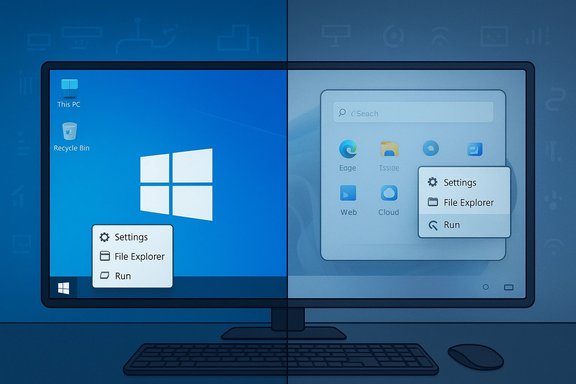 Background / Overview
Windows 11 launched as a deliberate redesign: a modernized UI, deeper cloud integrations, and a security‑first baseline intended to prepare the PC for on‑device AI, new app models, and tighter platform APIs. Those goals changed the OS’ default surface area — more resident services, more online lookups, modern rendering layers, and stricter security primitives enabled out of the box. On many systems that produces the feeling of sluggishness because responsiveness — how fast the UI reacts to clicks and keystrokes — is narrower than raw benchmark numbers.That perceptual gap is important. Benchmarks focused on throughput or synthetic scores can show parity or gains for Windows 11 on modern hardware, but everyday interactivity — opening File Explorer, invoking right‑click menus, or switching windows — depends on minute latencies that accumulate into an obvious user experience difference. Independent hands‑on tests and community reporting repeatedly point to these micro‑interactions as the main source of complaints.
Why Windows 11 can feel slower than Windows 10
1. A bigger baseline: more features running by default
Windows 11 ships with a wider set of background features enabled out of the box: live Widgets, built‑in Teams and Copilot hooks, cloud search and recommendations, persistent syncing agents (OneDrive), and expanded telemetry/diagnostics. Each of these uses some CPU, memory, and I/O even when idle; together they raise the OS’ memory footprint and periodic activity, reducing headroom on laptops and mid‑range machines. On constrained systems, those tiny costs are felt as UI latency.2. Modern visuals and UI composition cost cycles
The refreshed look — rounded corners, transparency, blur layers, and smoother animations — is GPU‑accelerated and composited differently than the leaner Win32 shell in Windows 10. Windows 11 increasingly mixes legacy Win32 elements with WinUI/XAML layers from the Windows App SDK, which introduces extra paint and composition stages. On integrated or older GPUs, the extra compositing work can become perceptible as stutter or delayed renders. This isn’t a cosmetic-only trade-off: the UI thread now sometimes waits on more complex rendering work.3. File Explorer and context menus are more dynamic
File Explorer was rebuilt to support cloud features, richer previews, and extension points. Modern Explorer may query shell extensions, cloud providers, thumbnail and preview handlers, and Copilot hooks when you open a folder or right‑click on a file. Those dynamic lookups can delay the initial presentation of the folder view or the context menu, particularly if third‑party extensions or networked storage are involved. The result: small, repeated delays during routine file navigation.4. Security features that add overhead
Windows 11 enforces a stronger security baseline by default: TPM 2.0/ Secure Boot requirements, Memory Integrity (HVCI), and optional Virtualization‑Based Security (VBS) are more commonly enabled. These make devices safer against modern threats but can add runtime checks, driver validation, and additional kernel responsibilities that increase the OS’ minimum resource usage. On older CPUs without crypto offload or modern accelerators, software‑based encryption (BitLocker) and security checks can produce measurable throughput penalties.5. More reliance on the cloud and online lookups
Search, recommendations, Widgets, and some Start menu surfaces in Windows 11 reach online services by default. If your internet connection is slow or intermittent, UI elements that expect cloud data can pause rendering while waiting for responses — and that waiting looks identical to a “slow OS.” Windows 10 leaned more heavily on local-first flows, making it feel more responsive when offline.6. Driver/OEM complexities and update cadence
Windows 11’s rapid feature cadence and new servicing model (feature packs, modular UI packages) places greater reliance on up‑to‑date drivers and OEM middleware. The 24H2 rollout exposed how fragile those dependencies can be: targeted upgrade holds and compatibility blocks from Microsoft followed driver and middleware failures (e.g., audio drivers and certain Intel components). When drivers misbehave, shell responsiveness and gaming stability can degrade — and those failures amplify perceptions of a slow OS.Benchmarks versus perception: not the same thing
It’s important to separate two claims:- Raw performance (benchmarks): In many controlled tests on modern hardware, Windows 11 scores similarly to or better than Windows 10 on synthetic CPU/GPU benchmarks and some application throughput tests. These numbers are meaningful for heavy computational workloads.
- Responsiveness (subjective feel): Everyday interactivity depends on micro‑latencies — UI paint times, context‑menu readiness, folder enumeration, and first‑paint of the shell. These are sensitive to background services, compositor layers, shell extensions, and networked calls. Even small increases in these latencies compound into a noticeably less “snappy” experience. Multiple hands‑on comparisons that install Windows 10 and Windows 11 cleanly on the same hardware often show Windows 10 being faster in these micro‑interactions.
What Microsoft has done to address the problem
Microsoft has been responsive: fixes and mitigation experiments have arrived through Insider channels and cumulative updates. Notable actions include:- Experimental File Explorer preload: a toggle that keeps a warmed‑lightweight Explorer instance resident to reduce first‑open latency (visible in certain Insider builds). Preload reduces cold‑open time at the cost of a modest, device‑dependent memory reservation (commonly ~30–35 MB in tests).
- Context‑menu declutter and grouping: moving infrequently used commands into flyouts and isolating cloud provider entries, aimed at lowering the number of dynamic entries that must be queried during a right‑click. Early Insider builds show a more compact menu in testing.
- Targeted performance and reliability fixes: Microsoft has patched specific slow‑close and Explorer glitches reported by Insiders, and issued targeted safeguards during feature rollouts when driver problems were detected.
Practical, safe fixes to make Windows 11 feel faster
Most perceived slowness is fixable without reinstalling or buying new hardware. The list below prioritizes reversible, low‑risk changes that reduce background work and UI overhead.- Disable animation and transparency effects
- Path: Settings → Accessibility → Visual effects → Turn off Transparency effects and Animation effects.
- For a deeper cut: System Properties → Advanced → Performance Settings → Adjust for best performance.
- Benefit: Reduces GPU and compositor work, often the single biggest perceptual win on integrated GPUs.
- Turn off Widgets and Copilot if unused
- Widgets and Copilot agents maintain networks of periodic refreshes. Disable them to remove background cycles and network lookups.
- Audit startup apps and background apps
- Use Task Manager → Startup to disable nonessential startup apps.
- Settings → Apps → Installed apps to uninstall preloaded inbox apps you don’t use.
- Manage OneDrive and cloud‑integrated folders
- Pause or limit OneDrive sync for large or seldom‑used folders. Cloud overlays and status checks can slow Explorer enumeration.
- Enable File Explorer preload (Insiders or where available)
- If present, the preload toggle under Folder Options can cut Explorer cold‑open times at the cost of a small memory increase. Test and measure the trade‑off for your device.
- Reduce telemetry/diagnostics where enterprise policy permits
- On personal systems, reduce optional diagnostic levels in Settings → Privacy & security → Diagnostics & feedback. Enterprise admins should use Group Policy/MDM rules for safe configuration.
- Change power profile to Performance (when plugged in)
- Settings → System → Power & battery → Power mode: set to Best performance to reduce CPU throttling for responsiveness.
- Update drivers and firmware
- Install OEM driver updates (audio, GPU, chipset). Many reported regressions are driver-dependent; vendors often release fixes tied to Windows feature updates.
- Consider selective security toggles with caution (enterprise only)
- Memory Integrity (HVCI) and VBS can be disabled to reclaim cycles on older hardware, but this reduces the device security posture. Any such change should be weighed carefully and tested.
- Keep storage fast and healthy
- NVMe/SSD storage materially reduces many I/O latency artifacts. On older HDDs the OS’ prefetching and compressed filesystem strategies can worsen perceived performance.
For IT: should you stay on Windows 10 or move to Windows 11?
There’s no one‑size‑fits‑all answer. Consider these facts and trade‑offs:- Windows 10 remains attractive for raw snappiness on older, constrained hardware and for some legacy apps. But Microsoft ended mainstream support for Windows 10 on October 14, 2025, and extended security support timing and ESU bridges change the calculus for enterprises. Prolonged reliance on Windows 10 increases operational and security risk and will eventually require migration.
- Windows 11 delivers a platform for future capabilities (on‑device AI, DirectStorage, updated driver models) and a stronger default security posture. For modern fleets (NVMe storage, 8–16+ GB RAM, up‑to‑date drivers), the benefits often outweigh the perceptual costs — provided devices are tuned and drivers are vendor‑certified.
- Audit device inventory for bottlenecks (storage type, RAM, driver age).
- Pilot Windows 11 migrations with a tuned image (visual effects disabled, preinstalled vendor drivers, preload setting evaluated).
- Set clear rollout guardrails and telemetry SLOs for responsiveness to catch regressions early.
- Plan for staged migration with application compatibility testing and driver vetting.
Technical deep dive: what’s happening under the hood
Mixed rendering stacks and paint latency
Windows 11 increasingly uses WinUI/XAML and the Windows App SDK for many surfaces while still relying on Win32 for legacy components. That hybrid composition model often inserts an extra initialization and paint pass when a UI element is first rendered. Preloading warms that path for first‑open scenarios but cannot eliminate per‑item dynamic enumeration costs (e.g., thumbnails or cloud extension callbacks).Dynamic context menu construction
Unlike older static context menus, the modern right‑click flow can query registered shell extensions, cloud providers, and Copilot/AI handlers on demand. Each query is a potential I/O or inter‑process call, and third‑party extensions that don’t isolate work can block the shell. Streamlining menus reduces the number of these queries and lowers the worst‑case latency profiles.Software BitLocker and crypto overhead
On systems using software‑based disk encryption, every I/O can incur crypto cycles. Without CPU crypto offload, that’s a measurable CPU cost that impacts throughput and battery life. Microsoft has signaled plans for improved hardware offload support on newer SoCs to reduce this burden, but older hardware remains affected.Risks and long‑term trade‑offs
- Security vs responsiveness: Disabling security features yields performance gains but increases exposure to modern threats. The better path is to modernize hardware or deploy targeted optimizations rather than wholesale security rollback.
- Cloud dependence: The more an OS leans on cloud services, the more variable its feel becomes across networks and regions. Offline scenarios will continue to expose gaps between local‑first and cloud‑first designs.
- Update velocity: Faster feature delivery increases the chance of driver or middleware regressions. Enterprises need tighter validation and staged rollouts. The 24H2 experience showed how intertwined vendor driver quality and OS servicing are.
- Perception and adoption: Even modest UI regressions can stall adoption at scale. Microsoft’s path forward must prioritize measurable responsiveness SLOs and clearer telemetry so that users and admins can trust platform stability before enabling broad AI or promotional surfaces.
The bottom line
Windows 11 isn’t inherently broken — it’s a different design trade‑off. Microsoft added visuals, cloud hooks, AI integrations, and a stronger security baseline that together expand what the OS can do. Those additions are valuable for many users and are prerequisites for future features. But they also raise the system’s default resource needs and introduce dynamic behaviors that can cost milliseconds at each interaction. The result is a perception of slowness that matters because responsiveness drives user satisfaction.For most users the fix is pragmatic: trim the extras you don’t use, update drivers and firmware, apply a few low‑risk settings changes, and consider hardware upgrades where budget allows. For organizations, the choice between staying on Windows 10 or moving to Windows 11 should be guided by inventory profiling, staged pilots, and strict driver validation — remembering that Windows 10’s support clock and security posture are changing the long‑term calculus.
Trim the background noise, reduce the visual polish when it costs you cycles, and Windows 11 will feel far closer to what users expect — leave everything enabled and untouched, and the OS will continue to feel heavier than its predecessor.
Source: thewincentral.com Windows 11 Feels Slower Than Windows 10 — Here’s the Real Reason - WinCentral
