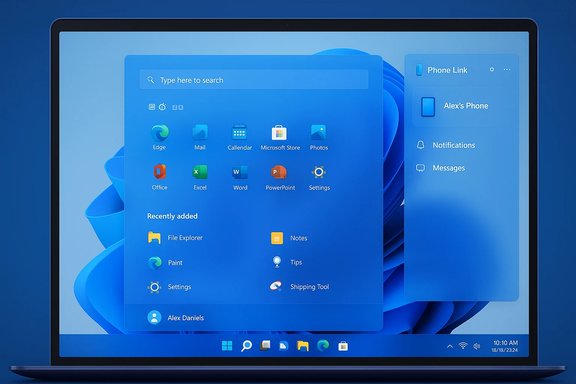
The redesigned Start menu that suddenly fills laptops and smaller screens is not an accident — it’s a deliberate, system-level reimagining of Windows 11’s launcher that Microsoft has been gating and shipping through servicing updates since late 2025, and which began reaching many mainstream devices with the January 2026 cumulative rollouts. The change is significant: Start has moved from a compact, centered launcher to a single, vertically scrollable canvas that surfaces Pinned apps, Recommended items, and the full All apps inventory on one surface, and that shift explains why the menu now appears so large on many machines.
Microsoft first began testing the new Start experience in Insider and Release Preview channels in late October 2025 via an optional preview package (notably KB5067036). The code was folded into servicing updates during November 2025 (for example, KB5068861), and the wider patching waves — including the January 2026 cumulative updates — have exposed the new Start to many more devices through staged, server-side enablement. That delivery model means the binaries can be present on a machine even if the feature isn't enabled yet; Microsoft flips the experience on gradually to monitor telemetry and reduce the blast radius of regressions.
This rollout method — shipping functionality in servicing updates and using feature gating — explains why users report sudden, inconsistent appearances of the new Start across otherwise identical devices. It also matters for organizations that manage images and apply provisioning policies: the change is real, shipping in Microsoft's update stream, and should be treated as a functional UX update rather than a cosmetic theme tweak.
For many users on large, high‑DPI displays the new Start will feel more productive and modern. For users on smaller laptops or those who prize compactness and manual control, the shift is jarring: manual resizing that once offered a quick remedy is intentionally absent, and the only in‑OS mitigations are view mode choices and display scaling. Microsoft’s platform-led delivery model makes the redesign both a product decision and an operational change for administrators, so treating it as a real UX policy update — with pilots, documentation, and user coaching — is the best way forward.
Ultimately, the new Start is not a bug to be fixed with a hotpatch; it is a deliberate reorientation of the Windows 11 launcher toward a single-canvas, content-rich model. Users and IT teams can adapt with the available settings, scaling workarounds, and administrative controls, while Microsoft continues to refine the experience through its servicing and staged‑enablement model.
Source: igor´sLAB Windows 11: Why the Start menu is suddenly huge | igor´sLAB
 Background
Microsoft first began testing the new Start experience in Insider and Release Preview channels in late October 2025 via an optional preview package (notably KB5067036). The code was folded into servicing updates during November 2025 (for example, KB5068861), and the wider patching waves — including the January 2026 cumulative updates — have exposed the new Start to many more devices through staged, server-side enablement. That delivery model means the binaries can be present on a machine even if the feature isn't enabled yet; Microsoft flips the experience on gradually to monitor telemetry and reduce the blast radius of regressions.This rollout method — shipping functionality in servicing updates and using feature gating — explains why users report sudden, inconsistent appearances of the new Start across otherwise identical devices. It also matters for organizations that manage images and apply provisioning policies: the change is real, shipping in Microsoft's update stream, and should be treated as a functional UX update rather than a cosmetic theme tweak.
What changed: the anatomy of the “huge” Start
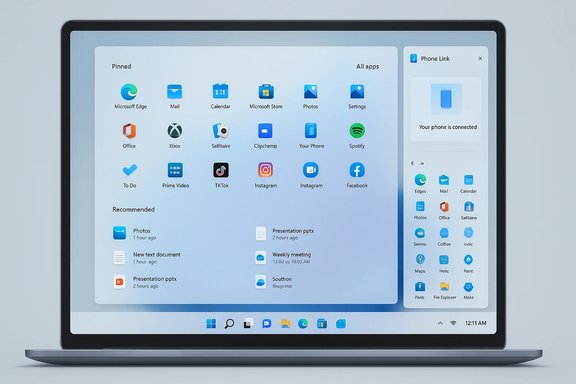
The redesign rearranges the Start experience around three core principles: a single surface, multiple presentation modes for apps, and deeper cross‑device integration.A single, vertically scrollable surface
- Pinned apps, Recommended items (recent files and suggested apps), and the All apps inventory now live on one continuous canvas rather than being split across separate panes.
- That single-surface model removes the old “open Start → click All apps” interaction and replaces it with a single press plus scroll to reach everything. The intent is discoverability and fewer mental hops, especially on touch and high-DPI displays.
Three app views: Category, Grid, List
- Category view automatically groups installed apps into topical buckets such as Productivity, Games, Creativity and Communication. It surfaces frequently used items inside those groups.
- Grid view creates a denser, tile-like alphabetical layout optimized for horizontal scanning on wide displays.
- List view remains the classic A→Z vertical list favored by mouse-and-keyboard power users and is retained for compactness and accessibility.
- The Start menu remembers the last selected view and restores it on next open. This flexibility is intended to bridge different mental models for app discovery.
Responsive density and column increases
- The UI adapts to screen size and DPI. On larger monitors the Start can show more columns and more tiles per row; on smaller displays the same design can produce a tall, scrollable stack.
- Published behavior and early hands‑on coverage indicate that column counts and pin density are higher by default on capable hardware (for example, moving from six to eight pins per row on larger displays), which directly increases the vertical footprint when All apps are visible.
Phone Link and other integrated panels
- A Phone Link (mobile companion) control has been folded into the Start chrome. When expanded it becomes a collapsible sidebar inside Start that surfaces messages, calls, photos and quick phone actions from a paired smartphone.
- When Phone Link is expanded (or when other functional areas appear), Start can behave more like a dashboard than a compact launcher — further increasing how much of the screen it consumes, especially on smaller displays.
Why it looks “huge”: technical and design reasons
The perceived bloat comes from concrete, intentional decisions, not a rendering bug. Three technical changes account for most of the added size:- More visible columns and pins: The layout shows more app tiles side‑by‑side when space permits, increasing both width and the number of rows needed to show apps. On many desktop configurations this means more content is visible at once — which is great for large screens, but less so for 13–15-inch laptops.
- Categorized All apps: The integrated All apps view groups applications into blocks and shows them as groups of tiles; categorization aims to reduce search friction but requires more real estate to show group headings and tiles.
- Parallel functional areas: Recommended content, pinned apps, and the All apps list are now visually balanced in parallel sections. That design avoids awkward empty spaces on big monitors but makes the canvas taller when all areas have content.
Personalization: what you can and can’t change
Microsoft has responded to common user complaints with several personalization toggles, but some expected freedoms are intentionally restricted.- You can switch between Category, Grid, and List views for the All apps area, and you can toggle visibility for recently added apps, most used apps, and recommended files under Settings > Personalization > Start. Hiding Recommended content can make Start visually lighter.
- What’s missing is free manual resizing of the Start window like Windows 10 allowed. Microsoft states that arbitrary resizing would interfere with the intended animations, transitions, and the visual integrity of the single-surface design; in short, design fidelity was prioritized over manual scaling. That is a deliberate trade-off and not an accidental omission according to Microsoft's messaging during the rollout.
Workarounds and practical mitigations
There are a few practical steps users and IT admins can take to reduce Start’s dominance without disabling the redesign entirely.- Use List view for the All apps area — it is the most compact presentation and preserves a familiar A→Z layout.
- Hide Recommended content in Settings → Personalization → Start. This removes recent files and promoted items from view and trims vertical length in many cases.
- Collapse the Pins area where possible and configure the number of pins you keep on the first row to reduce vertical stacking.
- The only global way to reduce Start’s footprint is OS-level display scaling (Settings → System → Display → Scale). Increasing the scaling value makes UI elements smaller and can make Start occupy less apparent vertical space, but this affects every application and UI element across the system and is therefore a blunt instrument rather than a targeted fix. Microsoft does not currently offer per-surface scaling for Start.
- For enterprise environments, the Configure Start Pins Group Policy has been extended to allow admins to apply pinned layouts at first sign-in while still letting users personalize afterwards; this helps provisioning workflows but does not change resizing behavior.
Enterprise and administrative implications
The Start redesign is more than a consumer UI change; it has operational consequences for imaging, training, and helpdesk workflows.- Deployment model matters: Microsoft ships the code in servicing updates and controls exposure via server-side feature flags. This means identical images can behave differently across devices until Microsoft enables the experience for each device group. Plan pilot deployments and staged user communication accordingly.
- Provisioning changes: The updated Group Policy for Start pins lets admins apply a pinned layout at first sign-in while allowing user changes to persist. That helps with standardized images and vendor bundles, but it doesn't provide a way to lock Start size or layout in the way some organizations might prefer.
- Support load: Because Start now exposes more features and can look dramatically different, help desks should update documentation and triage scripts. A single screenshot no longer captures every step a user might encounter — the view mode and phone linkage can change the UI’s appearance and behavior.
User reaction and ergonomics
Reactions among Windows power users and IT pros have been predictable: a split between those who appreciate the improved discoverability and those who find the new size and density harmful to desktop workflows.- Benefits people commonly cite:
- Faster discovery for obscure or rarely used apps without extra clicks.
- Better use of large, high‑DPI displays and external monitors where a larger canvas feels natural.
- Modern continuity with Phone Link integration brings phone content within the primary launcher.
- Common complaints:
- Loss of compactness for laptop users who rely on small, focused launchers.
- No manual resize option removes a familiar way to reclaim screen real estate.
- Phone Link and recommended content can make the Start menu feel like a near-fullscreen overlay on smaller screens.
Risks, regressions, and things to watch
While the redesign is intentional and broadly vetted in preview channels, there are practical risks and early regressions worth noting.- Phased enablement creates inconsistent behavior across fleets; two identical machines can show different Start experiences, complicating support and documentation.
- Compatibility with third‑party shell extensions and start replacements: complex Start behaviours can interact badly with legacy shell mods; administrators should test common third-party tools used in their environment.
- Usability on small screens: the Phone Link side panel and recommended feeds can cause Start to appear to dominate screen real estate and interfere with quick context tasks; this is especially visible at common laptop resolutions (e.g., 1920×1080 at 100% scaling). Early tests reproduced very tall Start surfaces in those scenarios.
- Telemetry-driven rollouts: Microsoft can modify the experience via server‑side controls, which is an advantage for stability but means administrators must monitor release-health channels and patch notes closely for changes or corrective updates.
What to expect next
Microsoft’s staged rollout and servicing-driven delivery mean the design will continue to evolve:- Expect polish and bug fixes to arrive via cumulative updates and feature enablement iterations rather than a single major release.
- Microsoft may tweak density defaults and responsiveness logic based on telemetry and feedback from the wider deployment; small adjustments to how many columns or how the Recommended area collapses are plausible.
- Administrative controls may expand over time, but no immediate return to free manual resizing is currently visible in the public rollout notes — the company appears committed to the single-surface design philosophy for now.
Practical checklist: what to do if Start suddenly appears huge
- Open Settings → Personalization → Start and:
- Disable Recommended items and other toggles to reduce clutter.
- Switch the All apps view to List for the most compact layout.
- Collapse pinned rows and keep fewer daily‑use apps on the pins area.
- If you must, adjust Display scaling to a smaller size for the entire system (note: this affects every app).
- For managed fleets: pilot the update in a controlled group and update provisioning policies to account for the new Group Policy behavior for pinned layouts.
Conclusion
The sudden “giant” Start menu in Windows 11 is a purposeful shift in Microsoft’s launcher philosophy: move from split panes to a single, scrollable canvas that prioritizes discoverability and cross-device continuity over the compact, manually scaled launcher favored by many desktop users. The change arrived via a staged servicing rollout that began in preview in late 2025 and broadened through November and January servicing channels, which explains the sudden and uneven exposure users are reporting.For many users on large, high‑DPI displays the new Start will feel more productive and modern. For users on smaller laptops or those who prize compactness and manual control, the shift is jarring: manual resizing that once offered a quick remedy is intentionally absent, and the only in‑OS mitigations are view mode choices and display scaling. Microsoft’s platform-led delivery model makes the redesign both a product decision and an operational change for administrators, so treating it as a real UX policy update — with pilots, documentation, and user coaching — is the best way forward.
Ultimately, the new Start is not a bug to be fixed with a hotpatch; it is a deliberate reorientation of the Windows 11 launcher toward a single-canvas, content-rich model. Users and IT teams can adapt with the available settings, scaling workarounds, and administrative controls, while Microsoft continues to refine the experience through its servicing and staged‑enablement model.
Source: igor´sLAB Windows 11: Why the Start menu is suddenly huge | igor´sLAB