

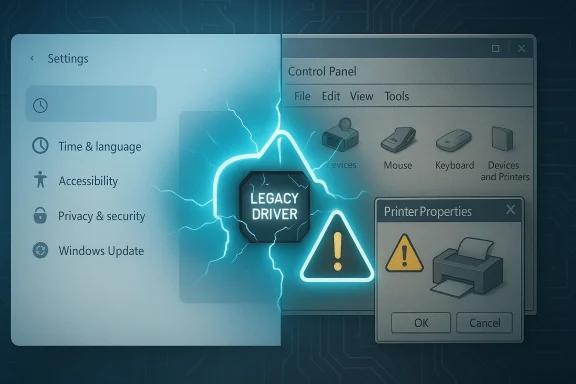
Microsoft’s long-promised Control Panel overhaul is moving slowly for a very familiar reason: printers and device drivers still make the old utility hard to replace without breaking things. The company has spent years migrating individual settings into Windows 11’s Settings app, but the legacy shell remains deeply tied to hardware workflows that enterprises, home users, and OEMs still rely on every day. That makes the delay less a failure of ambition and more a case of compatibility reality winning over UI polish. Recent Microsoft documentation around print-driver deprecation helps explain why the company is being cautious: Windows 11 is simultaneously modernizing printing while still supporting older driver paths during a staged transition.
The Control Panel is one of the oldest surviving parts of Windows, and its endurance says as much about Microsoft’s platform strategy as it does about user habits. In the Windows 8 era, Microsoft made a visible push to shift administrative tasks into a more touch-friendly Settings app, but that migration never fully completed. Even in Windows 11, many advanced and device-specific options still live in Control Panel because too many workflows, utilities, and drivers assume they are there. Microsoft’s own support and driver documentation still reference Control Panel-adjacent paths for printing, devices, and system configuration, which shows how much of the platform’s old plumbing remains intact.
That incomplete transition has been visible for years. Microsoft has already moved several everyday configuration items into Settings, including clock behavior, keyboard repeat timing, mouse cursor blink rate, and date formatting. But more advanced tools remain rooted in the older interface, especially where hardware behavior and legacy drivers intersect. The result is a split experience: Settings for the mainstream, Control Panel for the edge cases, and an in-between period that has stretched on for far longer than many Windows users expected.
Printers are the clearest example of why this has been difficult. Printing is not just a UI problem; it is an ecosystem problem involving OEM drivers, device metadata, spooler behavior, class drivers, and support apps. Microsoft has been pushing a modern print platform built around IPP, Mopria certification, inbox class drivers, and Print Support Apps that can replace some vendor-specific functionality without relying on legacy driver packages. But that modernization is happening in stages, and those stages matter because the old path cannot simply be removed overnight without risking outages for existing devices.
The reason this matters now is that Microsoft is no longer treating print modernization as a vague future goal. In January 2026, the company implemented the next phase of its print driver deprecation plan, blocking new printer driver submissions by default and routing them through manual review. That is a big signal: Microsoft is willing to tighten the ecosystem, but it is also admitting that the transition must be managed carefully. When a platform vendor changes the rules for printer drivers while still depending on legacy Control Panel flows, the UI refresh and the plumbing refresh become tightly coupled.
The new print framework also shows why a simple visual refresh is not enough. Microsoft now encourages use of the inbox IPP class driver and Print Support Apps to customize the experience in a more modern way. Those PSAs are designed to handle brand-specific behavior and richer UI while avoiding the baggage of older printer drivers. If Control Panel is still where users expect to find device-centric management, Microsoft has to decide whether to modernize the shell first or continue shifting the underlying print experience first.
What has not moved is just as revealing. Device Manager, file explorer options, and advanced system settings still linger in the legacy world because they sit closer to the Windows kernel, storage stack, hardware abstraction, and device metadata paths. Those are not simple page rewrites. They are the kinds of surfaces that must preserve decades of muscle memory, tooling, and scripting assumptions. That is why the redesign cannot be rushed.
This is also why design work and platform work are now inseparable. The new Settings app is not just a prettier face; it is part of a broader attempt to standardize how Windows configuration is delivered. If Microsoft can modernize dialogs through reusable tooling, it can move faster on a larger set of system components. But until that tooling is mature, the company risks creating inconsistent behavior if it accelerates the rollout prematurely.
But every simplification introduces transition friction. Some printers still depend on legacy features that are not easy to port to a new model. Multi-function devices, scan workflows, fax endpoints, color management, and device-specific branding all complicate the equation. Microsoft can push new standards, but it still has to preserve enough compatibility that organizations do not face sudden surprises.
Microsoft’s challenge is not merely to duplicate old screens. It has to preserve the habits built around them. Admins know where to click in Control Panel because it has been the same for years. If Microsoft moves those controls into Settings, it has to ensure search, discoverability, keyboard access, and documentation all keep up. Otherwise the migration saves the company technical debt but creates user debt elsewhere.
At the same time, Microsoft cannot afford to leave the experience frozen forever. A fragmented interface slows adoption of newer Windows 11 design conventions and undermines the message that Windows is becoming simpler and safer. The company has to modernize enough to keep the platform coherent, but not so aggressively that it undermines confidence. That balancing act is one of the defining tensions of Windows in 2026.
Source: XDA We finally know why Windows 11's revamped Control Panel is taking so long
 Background
The Control Panel is one of the oldest surviving parts of Windows, and its endurance says as much about Microsoft’s platform strategy as it does about user habits. In the Windows 8 era, Microsoft made a visible push to shift administrative tasks into a more touch-friendly Settings app, but that migration never fully completed. Even in Windows 11, many advanced and device-specific options still live in Control Panel because too many workflows, utilities, and drivers assume they are there. Microsoft’s own support and driver documentation still reference Control Panel-adjacent paths for printing, devices, and system configuration, which shows how much of the platform’s old plumbing remains intact.That incomplete transition has been visible for years. Microsoft has already moved several everyday configuration items into Settings, including clock behavior, keyboard repeat timing, mouse cursor blink rate, and date formatting. But more advanced tools remain rooted in the older interface, especially where hardware behavior and legacy drivers intersect. The result is a split experience: Settings for the mainstream, Control Panel for the edge cases, and an in-between period that has stretched on for far longer than many Windows users expected.
Printers are the clearest example of why this has been difficult. Printing is not just a UI problem; it is an ecosystem problem involving OEM drivers, device metadata, spooler behavior, class drivers, and support apps. Microsoft has been pushing a modern print platform built around IPP, Mopria certification, inbox class drivers, and Print Support Apps that can replace some vendor-specific functionality without relying on legacy driver packages. But that modernization is happening in stages, and those stages matter because the old path cannot simply be removed overnight without risking outages for existing devices.
The reason this matters now is that Microsoft is no longer treating print modernization as a vague future goal. In January 2026, the company implemented the next phase of its print driver deprecation plan, blocking new printer driver submissions by default and routing them through manual review. That is a big signal: Microsoft is willing to tighten the ecosystem, but it is also admitting that the transition must be managed carefully. When a platform vendor changes the rules for printer drivers while still depending on legacy Control Panel flows, the UI refresh and the plumbing refresh become tightly coupled.
Why Printers Still Hold the Line
The central point behind the delay is simple: printers are brittle. A redesigned Control Panel may look harmless on paper, but if the revamp changes how devices are discovered, how advanced dialogs are invoked, or how old setup paths are exposed, the failure mode can be very visible. Users tolerate cosmetic inconsistency far more easily than a dead printer on a workday morning, and Microsoft knows that. The company’s own support guidance still recommends using Windows Update or manufacturer sites to install printer drivers, while the legacy Add Printer Driver Wizard remains an option for some situations, which is an admission that the old and new worlds are still overlapping.Legacy Driver Paths Still Exist
There is also a technical reason the company is cautious: Windows still supports older driver models for compatibility, even as it nudges users and OEMs toward newer options. Microsoft’s deprecation guidance says that existing third-party printer drivers can still be installed, and that the company will continue security fixes for the legacy platform while Windows remains in support. That is not the same as saying the old model is healthy; it means the migration must proceed without stranding customers who depend on legacy hardware. That distinction is the whole story.The new print framework also shows why a simple visual refresh is not enough. Microsoft now encourages use of the inbox IPP class driver and Print Support Apps to customize the experience in a more modern way. Those PSAs are designed to handle brand-specific behavior and richer UI while avoiding the baggage of older printer drivers. If Control Panel is still where users expect to find device-centric management, Microsoft has to decide whether to modernize the shell first or continue shifting the underlying print experience first.
- Printer management is still tied to older workflows.
- OEM drivers remain important for edge-case functionality.
- Microsoft is deprecating old paths gradually, not abruptly.
- A UI refresh alone would not solve compatibility issues.
- Driver behavior, not just interface design, is the real constraint.
Settings App Migration Has Already Started
Microsoft has not been idle. Over the past few Windows 11 releases, a steady stream of Control Panel functions has been absorbed into Settings. The company has moved several low-risk options first, especially those that can be reimplemented cleanly in a modern UI without needing deep driver hooks. That pattern makes sense: it allows Microsoft to test the migration strategy on settings that are more likely to behave consistently across hardware.The Easy Wins Came First
The first wave of migration focused on user-facing knobs rather than deeply technical controls. Date and time formatting, mouse timing behavior, and certain keyboard settings are good examples because they are comparatively isolated from hardware vendors and third-party control panels. Once those features were moved, the boundary between Settings and Control Panel became even more visible. Users could see the future of Windows administration, but they could also see how much of the old interface still had to remain.What has not moved is just as revealing. Device Manager, file explorer options, and advanced system settings still linger in the legacy world because they sit closer to the Windows kernel, storage stack, hardware abstraction, and device metadata paths. Those are not simple page rewrites. They are the kinds of surfaces that must preserve decades of muscle memory, tooling, and scripting assumptions. That is why the redesign cannot be rushed.
- Simple preference toggles were the first candidates for migration.
- Hardware-heavy tools remain in legacy UI surfaces.
- The remaining Control Panel items are the most sensitive ones.
- Microsoft is balancing modernization against stability.
- Any misstep would be obvious to power users and IT teams.
What Microsoft Design Leaders Are Signaling
The public comments from Microsoft design leaders matter because they clarify the company’s intent. According to the reporting cited by the original XDA piece, March Rogers suggested that printer devices and drivers are a major reason the revamp is taking longer than expected. Marcus Ash, who leads Windows Design and Research, has also said the team is building tooling to modernize dialogs built in legacy frameworks. Taken together, those comments point to a company that still wants to modernize the experience, but only once the tooling and platform layers are ready.Modernizing Dialogs Is Harder Than It Looks
A lot of users think of Control Panel as a window with checkboxes and icons. Microsoft has to think of it as a dependency surface. Every dialog has to coexist with older APIs, legacy extension points, accessibility requirements, localization, and in many cases third-party vendor code. If the modern replacement breaks those expectations, the change will be felt far beyond the visible UI. That is the hidden tax of platform continuity.This is also why design work and platform work are now inseparable. The new Settings app is not just a prettier face; it is part of a broader attempt to standardize how Windows configuration is delivered. If Microsoft can modernize dialogs through reusable tooling, it can move faster on a larger set of system components. But until that tooling is mature, the company risks creating inconsistent behavior if it accelerates the rollout prematurely.
A Cautious Signal, Not a Cancellation
Importantly, none of this suggests Microsoft has abandoned the idea of a modernized Control Panel experience. It suggests the opposite: the company still intends to move, but it is sequencing the work around fragile hardware and legacy workflows. That is a much more believable explanation than a simple lack of interest. Microsoft has already shown with print platform changes that it is willing to take controversial steps; it just wants the transition to be survivable.- Microsoft is still committed to modernization.
- The blocker is mostly compatibility, not design philosophy.
- Reusable tooling could accelerate future UI changes.
- Vendor extensions make a clean cutover difficult.
- Stability concerns will keep shaping the rollout order.
The Printing Stack Is Being Rewritten in Public
Printing is undergoing a deeper architectural change than most users realize. The move toward IPP-based inbox printing, Mopria support, and Store-delivered Print Support Apps suggests Microsoft wants Windows to treat printing more like a managed service and less like a bundle of one-off driver packages. That is a major shift in how devices are onboarded and maintained. It also helps explain why a shiny Control Panel redesign cannot be prioritized ahead of the underlying print story.Why the New Model Matters
The modern print platform reduces reliance on manufacturer-specific software while improving consistency and security. Microsoft says the inbox class driver approach delivers a simpler and more secure experience, and the company frames Print Support Apps as the path to brand-specific features and advanced settings. In other words, Microsoft is trying to separate baseline functionality from optional richness. That is a classic platform simplification move, and it makes sense for Windows 11.But every simplification introduces transition friction. Some printers still depend on legacy features that are not easy to port to a new model. Multi-function devices, scan workflows, fax endpoints, color management, and device-specific branding all complicate the equation. Microsoft can push new standards, but it still has to preserve enough compatibility that organizations do not face sudden surprises.
- The new print model favors security and consistency.
- Legacy workflows still exist for real-world devices.
- PSAs reduce the need for monolithic vendor drivers.
- Migration is happening, but not uniformly.
- Enterprises will care more about stability than aesthetics.
Device Manager and Advanced Settings Are the Last Big Holdouts
Even if most casual users can live entirely inside Settings, power users cannot. Device Manager, file explorer options, and other advanced system dialogs still serve as essential control surfaces for troubleshooting, driver verification, and hardware configuration. These are not nostalgic leftovers; they are operational tools. Removing or disrupting them would have immediate consequences for IT support and enthusiastic users who still depend on manual intervention.Why Power Users Notice Every Regression
The more specialized a setting is, the less forgiving the audience becomes. A mouse acceleration tweak is one thing; a driver installation path or device properties dialog is another. Those workflows often bridge Windows, vendor software, and administrator procedures, so a cosmetic rewrite that changes navigation or hides options can feel like a functional regression. That is especially true in enterprise environments.Microsoft’s challenge is not merely to duplicate old screens. It has to preserve the habits built around them. Admins know where to click in Control Panel because it has been the same for years. If Microsoft moves those controls into Settings, it has to ensure search, discoverability, keyboard access, and documentation all keep up. Otherwise the migration saves the company technical debt but creates user debt elsewhere.
Enterprise vs Consumer Expectations
Consumers generally want fewer places to look and fewer confusing options. Enterprises, by contrast, want predictability, policy compliance, and a known troubleshooting map. That means the same Control Panel modernization that excites consumer-focused designers can trigger caution in large IT departments. Microsoft has to satisfy both audiences at once, which is one reason legacy surfaces remain.- Power users rely on advanced dialogs for troubleshooting.
- Enterprises need stable admin workflows and documentation.
- Consumers benefit from fewer overlapping interfaces.
- Search and discoverability must improve before migration succeeds.
- Removing legacy tools too early would create support friction.
Competitive and Market Implications
The Control Panel story is not just about Windows aesthetics; it reflects how Microsoft is competing in a world where platform consistency, security, and managed-device simplicity matter more than ever. Apple and Google have long pushed users toward simpler, more centralized system settings, while Microsoft has had to retain more legacy compatibility because of the size and age of its software ecosystem. That ecosystem is both Windows’ greatest strength and its biggest constraint.Compatibility as a Strategic Asset
For Microsoft, backward compatibility is not merely a technical obligation. It is a market differentiator. Enterprises continue to choose Windows because older peripherals, line-of-business applications, and admin tools are still expected to work. A messy Control Panel migration would weaken that promise. So even though the legacy UI looks dated, preserving it can actually be a competitive advantage in the short and medium term.At the same time, Microsoft cannot afford to leave the experience frozen forever. A fragmented interface slows adoption of newer Windows 11 design conventions and undermines the message that Windows is becoming simpler and safer. The company has to modernize enough to keep the platform coherent, but not so aggressively that it undermines confidence. That balancing act is one of the defining tensions of Windows in 2026.
What Rivals Learn From This
Rivals can see the lesson clearly: a modern UI is easy to promise and hard to deliver when hardware ecosystems are complex. Microsoft’s delay is a reminder that platform transitions are less about design mockups than about managing the tail of old dependencies. If anything, the Control Panel saga reinforces why Windows still carries so much legacy surface area after all these years. It is the cost of being the universal desktop platform.- Legacy compatibility remains a Windows advantage.
- A clean redesign must not compromise vendor hardware.
- Platform credibility matters as much as visual consistency.
- Enterprises value known control paths over novelty.
- The competition has less legacy burden, but also less breadth.
Strengths and Opportunities
Microsoft’s slow approach is frustrating for design-minded users, but it creates real upside if the company gets the sequencing right. A deliberate migration could yield a cleaner Windows 11, a more secure print stack, and fewer confusing overlaps between Settings and Control Panel. The opportunity is not just a prettier UI; it is a more coherent operating system experience.- Better consistency across system configuration pages.
- Improved security by reducing reliance on legacy printer drivers.
- Simpler onboarding for modern printers using inbox drivers and PSAs.
- Lower confusion if Settings becomes the single main destination.
- More scalable tooling for future dialog modernization.
- Cleaner support documentation if legacy paths are retired methodically.
- Potential performance gains from leaning on newer frameworks.
Risks and Concerns
The risk profile is obvious: any rushed migration could cause printer failures, broken device configuration, or missing advanced settings that are not obvious until users need them. Even if the new UI looks good, a single regression can dominate the public conversation and overshadow months of progress. For Windows, a single broken printer can do more reputational damage than a dozen polished screenshots can fix.- Printer compatibility failures if legacy hooks are removed too early.
- Support burden spikes if settings move without clear parity.
- Enterprise disruption if admin workflows change unexpectedly.
- Fragmentation if Settings and Control Panel remain split for too long.
- Third-party driver issues as the deprecation policy tightens.
- User frustration when familiar tools disappear or relocate.
- False confidence if visual refresh outpaces functional readiness.
Looking Ahead
The next phase of this story will likely be less about a single Control Panel reveal and more about incremental movement. Microsoft has already shown that it prefers staged migration: move the safe pieces, modernize the frameworks, tighten the driver ecosystem, and only then tackle the harder dialogs. That method is slower, but it is also far less likely to blow up on contact with legacy hardware.What Will Matter Most
The success of this strategy will depend on whether Microsoft can make the migration invisible to most users. If printers continue to work, Device Manager remains dependable, and advanced settings are surfaced clearly, then the redesign can arrive without drama. If not, the company will be forced into another round of backtracking and support explanations. That would be the worst-case scenario.Signals to Watch
- New Settings pages replacing more Control Panel items.
- Additional print-driver restrictions or exceptions.
- Broader rollout of Print Support Apps and inbox class drivers.
- More Microsoft language about “legacy frameworks” and dialog modernization.
- Any UI changes to Device Manager or advanced hardware dialogs.
- Support updates tied to printer regressions or device compatibility.
Source: XDA We finally know why Windows 11's revamped Control Panel is taking so long
