

Windows quietly replacing a carefully chosen NVIDIA driver with a different build is alarming — but it’s also predictable behavior rooted in how Windows Update, driver signing, and vendor distribution interplay, and it underscores why “clearance” driver pages are a high‑risk shortcut that often does more harm than good.
If you were deliberately running NVIDIA GeForce driver version 441.41 you were using a Game Ready driver NVIDIA released on November 26, 2019. That release bundled game‑specific fixes (for titles such as Halo: Reach and Quake II RTX updates) and new features like Image Sharpening for OpenGL/Vulkan.
Windows, however, treats drivers as part of the system update surface: starting in modern Windows builds, Windows Update can and will acquire and install device drivers it determines are appropriate for your hardware. That includes situations where Windows believes a newer or “better” driver exists in Microsoft’s driver catalog. Microsoft documents this automatic download behavior and exposes settings and controls to change it — but the default system behavior is to keep drivers current via Windows Update.
That combination — a user choosing a specific legacy or older NVIDIA build (441.41) and Windows Update aggressively seeking replacement drivers — is the exact scenario that leads to the experience you described: “Been using 441.41. Windows just forced driver.” The forced change is not mystical; it’s the OS enforcing a maintenance policy intended to keep hardware supported and secure.
Why these pages are risky:
Benefits of remaining on 441.41 (when it truly solves a problem)
Important: DDU is a third‑party tool. Follow the official DDU instructions and create a full system restore point or image first.
Quick validation path:
Windows will keep trying to be helpful by keeping drivers current; the responsibility for balancing stability and security rests with you. When you want to lock a driver version in place, do so deliberately, with backups, a rollback plan, and verified driver packages from trusted sources. If the change came from an advertorial “clearance” page, stop, verify, remove any untrusted binaries, and reinstall a vendor‑signed driver to restore a secure kernel trust boundary.
Source: Born2Invest https://born2invest.com/?b=style-230269912/
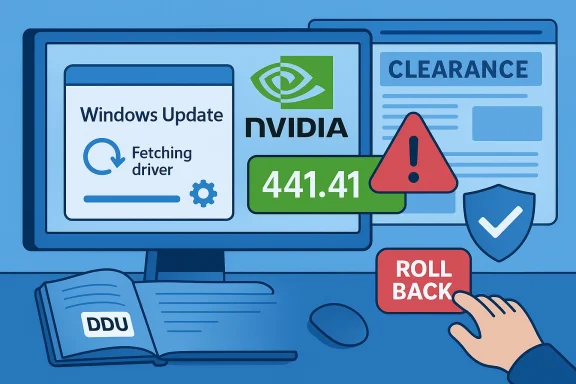 Background: what you likely had, and what Windows probably did
If you were deliberately running NVIDIA GeForce driver version 441.41 you were using a Game Ready driver NVIDIA released on November 26, 2019. That release bundled game‑specific fixes (for titles such as Halo: Reach and Quake II RTX updates) and new features like Image Sharpening for OpenGL/Vulkan. Windows, however, treats drivers as part of the system update surface: starting in modern Windows builds, Windows Update can and will acquire and install device drivers it determines are appropriate for your hardware. That includes situations where Windows believes a newer or “better” driver exists in Microsoft’s driver catalog. Microsoft documents this automatic download behavior and exposes settings and controls to change it — but the default system behavior is to keep drivers current via Windows Update.
That combination — a user choosing a specific legacy or older NVIDIA build (441.41) and Windows Update aggressively seeking replacement drivers — is the exact scenario that leads to the experience you described: “Been using 441.41. Windows just forced driver.” The forced change is not mystical; it’s the OS enforcing a maintenance policy intended to keep hardware supported and secure.
Why Windows sometimes overrides your chosen GPU driver
Automatic driver delivery is a feature, not a bug
Windows Update’s goal is to keep hardware working by delivering vendor‑supplied drivers or Microsoft‑validated driver packages when a machine is online. For the broad user base this reduces support calls and improves out‑of‑the‑box experience. Microsoft clearly documents that Windows will automatically download recommended and updated hardware drivers as part of Windows Update.When Windows decides a driver should be replaced
There are several triggers that make Windows prefer a different driver:- The currently installed driver is unsigned, outdated, or missing.
- Microsoft’s driver catalog lists a newer or higher‑priority “Automatic” driver for your hardware.
- An OS upgrade or cumulative update includes a driver‑delivery change that reassigns which driver is recommended to your device family.
Driver signing and trust: why Windows will usually accept a Microsoft‑catalog driver
For kernel‑mode drivers, Windows enforces digital signing policies that require vendor packages to be signed through Microsoft’s hardware dashboard or equivalent signing channels. That means drivers offered through Windows Update usually carry release signatures or meet Microsoft’s signing policy, which in turn increases the probability the OS will accept and install them. Microsoft documents these signing requirements and the associated verification steps.The “clearance” driver problem — why advertorial download pages are dangerous
You also referenced a Born2Invest landing page that looks like a marketing/advertorial “clearance” driver download. Community analysis and technical reviewers repeatedly warn that these pages often lack vendor provenance, cryptographic checksums, and legitimate release metadata — and shoulrified and potentially unsafe*. Automated analysis flagged the Born2Invest snippets you cited as unstable and lacking vendor metadata; forum guidance explicitly recommends avoiding such advertorial mirrors.Why these pages are risky:
- Kernel‑mode drivers are privileged code. A tampered installer can introduce malware or remove safety checks.
- Third‑party repackagers may strip vendor metadata or deliver drivers incompatible with OEM customizations (causing thermal, battery, or hybrid‑graphics breakage).
- Many of these pages omit checksums, digital signatures, and verifiable release notes — all signals that the package wasn’t obtained from a trusted vendor channel.
The tradeoffs: staying on 441.41 vs accepting the Windows‑supplied driver
If 441.41 “worked” for you, why would Windows pu? And what are the risks of forcing Windows to leave it alone?Benefits of remaining on 441.41 (when it truly solves a problem)
- Restores compatibility with older software that relied on legacy driver behavior.
- Keeps a known‑good baseline for workflows or games that regressed on newer drivers.
- Avoids the time and risk of re‑testing user settings after a driver change.
- Older drivers do not receive security in unpatched vulnerabilities. Microsoft and industry guidance warn that archived drivers are not maintained and represent a long‑term risk for day‑to‑day, internet‑connected systems.
- Newer applications, OS updates, and games may expect newer driver feature sets; compatibility can degrade unpredictably.
- OEM customizations and firmware can expect newer drivers to correct thermal or power‑management behavior — an old driver can break those integrations.
Practical, safe steps to take right now
Below is a technician‑grade, user‑friendly remediation checklist. Do these in order and only proceed to a more invasive step if needed.1. Confirm what changed
- Open Settings > Windows Update > Update history and look at the driver updates or optional updates that were installed. Windows records the vendor and version that it installed.
- Use Device Manager > Display adapters > Properties > Driver tab to note the installed Driver Version and the Driver Date. This tells you whether Windows replaced 441.41 with a newer or Microsoft‑packaged driver.
2. Roll back via Device Manager (quick, reversible)
- In Device Manager, select the NVIDIA device, open Properties, Driver tab, and click Roll Back Driver if the button is active.
- Reboot and check if your original behavior returns.
3. Use Display Driver Uninstaller (DDU) for a clean reinstall
If Device Manager rollback doesn’t resolve things, use Display Driver Uninstaller (DDU) in Safe Mode to remove leftover files and registry keys introduced by the newer driver. Then reinstall the NVIDIA package you trust. Community practices recommend this for persistent or corrupted driver installs.Important: DDU is a third‑party tool. Follow the official DDU instructions and create a full system restore point or image first.
4. Reinstall a verified driver package from the vendor
- Download drivers only from NVIDIA’s official driver archive or your OEM support page. The official NVIDIA driver page lists 441.41 as a Game Ready WHQL release (released 2019‑11‑26).
- Choose the full NVIDIA installer and select Custom > Clean Install during setup to replace driver components cleanly.
5. Block Windows from re‑installing drivers (if you must keep 441.41)
If you have a legitimate reason to keep a legacy build like 441.41 and you want to prevent Windows Update from forcibly replacing it, there are supported methods:- For Windows Pro/Enterprise/Education: use the Group Policy Editor and enable Computer Configuration > Administrative Templates > Windows Components > Windows Update > Do not include drivers with Windows Updates. This instructs Windows Update to exclude driver packages.
- For Home editions: set the registry key ExcludeWUDriversInQualityUpdate under HKEY_LOCAL_MACHINE\SOFTWARE\Policies\Microsoft\Windows\WindowsUpdate to 1 (advanced users only). Microsoft documents these approaches and also provides the Show/Hide Updates troubleshooter to hide a specific driver update temporarily.
6. Verify the package before installing: digital signatures and checksums
Always verify driver packages:- Check the driver installer’s digital signature. Microsoft documents how drivers must be signed for kernel‑mode load and how to use SignTool to verify signatures. If a package fails signature verification, do not install it.
- When provided, compare released checksums or file sizes against vendor metadata. NVIDIA and OEMs sometimes publish file hashes; if they do, validate them.
- Prefer WHQL or Microsoft‑cataloged drivers for general use; hotfix or beta drivers exist but carry QA tradeoffs.
When and how to embrace an updated driver again
If the Windows‑installed driver fixes a necessary security issue or restores functionality broken by older Windows patches, moving forward with the update is usually the right call.Quick validation path:
- Test the Windows driver in a controlled way (create a restore point or image).
- Run the critical apps or games that you use most and document behavior.
- If perry NVIDIA’s latest Game Ready release or a vendor‑provided hotfix — but only with backups and a rollback plan. NVIDIA sometimes issues hotfix drivers for targeted regressions (these are useful but carry abbreviated QA).
How to tell if a driver package is legitimate — a short checklist
- Is the package hosted on NVIDIA.com, your OEM support site, or is it delivered by Windows Update? If not, be suspicious.
- Does the installer carry a valid Microsoft release signature or vendor code signature? Use SignTool or check file properties. Microsoft requires kernel drivers to be signed.
- Are checksums or release notes available that match what youon’t install.
- If the page is an advertorial or SEO‑heavy “clearance” copy with no vendor metadata, treat it as untrusted. Community and automated analysis flagged Born2Invest‑style landing pieces as lacking vendor provenance.
Special cases and advanced diagnostics
VIDEO_TDR_FAInd recurring crashes
If, after an update, you see repeated VIDEO_TDR_FAILURE bugchecks implicating nvlddmkm.sys (the NVIDIA kernel driver), the problem space includes:- Driver incompatibilities or regressions.
- Hardware faults (overheating, PSU, memory).
- Residual driver artifacts from incomplete installs.
When vendors release hotfix drivers
NVIDIA occasionally ships hotfix drivers to address urgent regressions caused by OS updates or specific scenarios. These hotfix drivers are useful in emergencies but are intentionally distributed with an abbreviated QA pass; they are meant to be temporary and later folded into full WHQL releasestfix, plan to upgrade to the long‑term Game Ready/WHQL build once it is released.Critical risks and final verdict
- Installing drivers from advertorial “clearance” pages is high risk. Automated and community reviews flagged the Born2Invest snippets as unverified and lacking vendor metadata; kernel‑level software from such pages can compromise system integrity.
- Windows Update will, by design, try to keep your drivers current. That behavior can override deliberate legacy choices and is governed by livery rules and signing policies. If you want to preserve a specific old driver, use the supported block methods but accept the security tradeoffs.
- Validate everything. Always prefer NVIDIA’s official archive or OEM downloads, verify signatures and checksums, and use DDU for clean installs when rolling drivers back. For kernel drivers, signature verification is not optional — it’s part of Windows security policy.
Recommendation summary — what you should do now (concise)
- Confirm the current installed driver and Windows Update history.
- If a change caused problems, attempt Device Manager rollback; if that fails, use DDU for a clean uninstall.
- Reinstall an NVIDIA driver only from NVIDIA.com or your OEM support page and verify the installer’s digital signature.
- If you must keep an older driver like 441.41, block driver updates via Group Policy or the registry, but plan to re‑test and re‑enable updates periodically.
- Never trust advertorial “clearance” driver downloads without vendor provenance and cryptographic verification. Treat such pages as untrusted until proven otherwise.
Windows will keep trying to be helpful by keeping drivers current; the responsibility for balancing stability and security rests with you. When you want to lock a driver version in place, do so deliberately, with backups, a rollback plan, and verified driver packages from trusted sources. If the change came from an advertorial “clearance” page, stop, verify, remove any untrusted binaries, and reinstall a vendor‑signed driver to restore a secure kernel trust boundary.
Source: Born2Invest https://born2invest.com/?b=style-230269912/
