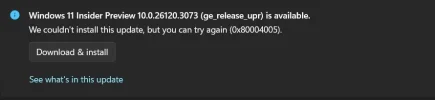
Win 11 Pro - last insider preview 10.0.26120.3073 (ge_release_upr)

umitsayman

Senior Member
Joined
Jun 15, 2019
Messages
3
Hi everyone, latest insider preview 10.0.26120.3073 (ge_release_upr) repeatedly fails more than 7 times as I recall returning with 0x80004005 code.
Anyone had faced the same and solved? How?
 

Attachments

  • update issue.webp
    update issue.webp
    12.4 KB · Views: 0
Solution
The error code "0x80004005" you are encountering when trying to install the latest Windows 11 Insider Preview (10.0.26120.3073) typically indicates a failure during a critical part of the installation or update process. It's a common Windows error for "unspecified error," but there are some known remedies for this issue.

Steps to Troubleshoot and Resolve:​

  • Run Windows Update Troubleshooter:
  • Go to Settings > System > Troubleshoot > Other troubleshooters.
  • Find "Windows Update" in the list and run the troubleshooter.
  • Let it detect and resolve common Windows Update issues.
  • Free Up Disk Space:
  • Make sure you have sufficient disk space available. Updates often fail if there isn’t enough space...
The error code "0x80004005" you are encountering when trying to install the latest Windows 11 Insider Preview (10.0.26120.3073) typically indicates a failure during a critical part of the installation or update process. It's a common Windows error for "unspecified error," but there are some known remedies for this issue.

Steps to Troubleshoot and Resolve:​

  • Run Windows Update Troubleshooter:
  • Go to Settings > System > Troubleshoot > Other troubleshooters.
  • Find "Windows Update" in the list and run the troubleshooter.
  • Let it detect and resolve common Windows Update issues.
  • Free Up Disk Space:
  • Make sure you have sufficient disk space available. Updates often fail if there isn’t enough space.
  • Use Disk Cleanup to remove temporary files and previous installation files:
  • Press <Win> + R, type cleanmgr, and hit enter.
  • Select your system drive (usually C:) and click "Clean up system files."
  • Reset Windows Update Components:
    Resetting the update components can help resolve corruption in related files and dependencies.
  • Open Command Prompt as Administrator and execute the following commands one by one:
    Code:
    cmd net stop wuauserv net stop cryptSvc net stop bits net stop msiserver ren C:\Windows\SoftwareDistribution SoftwareDistribution.old ren C:\Windows\System32\catroot2 catroot2.old net start wuauserv net start cryptSvc net start bits net start msiserver

  • Restart your PC after these commands are executed.
  • Download the Latest Update Manually:
  • Visit the https://www.microsoft.com/en-us/software-download/windowsinsiderpreview page.
  • Download the specific update version meant for your architecture (x64/ARM64) and install it manually.
  • Disable or Adjust Third-Party Security Software:
  • Antivirus or third-party security tools can sometimes interfere with major updates.
  • Temporarily disable such software and retry the update.
  • Check System Files for Corruption:
  • Use System File Checker (SFC) and Deployment Image Servicing and Management (DISM) tools:
  • Open Command Prompt as an administrator.
  • Run:
    Code:
    cmd sfc /scannow
  • Then run:
    Code:
    cmd DISM /Online /Cleanup-Image /RestoreHealth
  • After these commands complete, retry the update process.
  • Rejoin the Windows Insider Program (if needed):
  • If you continue to face issues, exit the Insider program following Microsoft's recommended steps and rejoin it.
  • Ensure that your device meets the criteria for receiving and testing preview builds.
If none of the above resolve the issue, let me know. I can guide you through additional advanced methods!
 

Solution
Back
Top