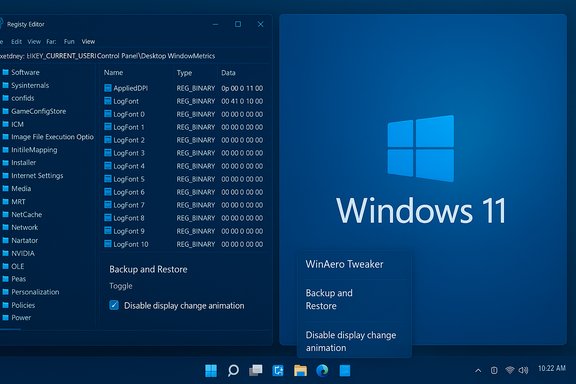
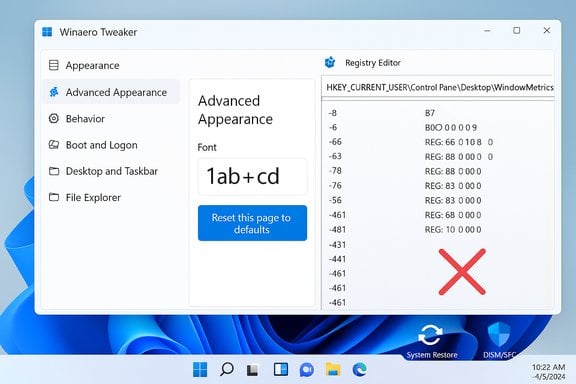
A widely used Windows customization tool is under renewed scrutiny after multiple community reports that Winaero Tweaker’s “Reset this page to defaults” control inside the Advanced Appearance module can write legacy font metrics directly into the Windows 11 registry, breaking modern scaling and accessibility behavior and — in some reported cases — forcing users to perform a full system restore to recover a usable desktop.
Winaero Tweaker is a popular third‑party utility that exposes hundreds of registry and policy tweaks for Windows, packaging complex edits into a friendly UI for power users. It has long included an Advanced Appearance section that manipulates the same low‑level keys Windows historically used to control UI fonts, spacing and title‑bar metrics — settings that used to live in the HKEY_CURRENT_USER\Control Panel\Desktop\WindowMetrics key on older Windows versions. Community posts and product pages documenting Winaero’s options (including a “Reset Advanced Appearance” and per‑page “Reset this page to defaults” control) make it clear the tool intentionally writes to those same registry locations to implement or revert cosmetic changes. At the same time Microsoft has modernized UI typography in Windows 11: the OS now favours the variable Segoe UI family (Segoe UI Variable) and relies more heavily on runtime scaling and accessibility subsystems to compute text size and font selection for high‑DPI displays. Those platform changes make many of the old fixed LOGFONT registry approaches brittle or incompatible with Windows 11’s intended rendering model. Microsoft’s own guidance and Windows 11 typography documentation explain the move to variable fonts and the recommended handling of optical size/scaling.
Important: export any registry keys you will delete and create a restore point if possible.
Community troubleshooting shows there is a pragmatic path back to normal in many cases (delete WindowMetrics, change scaling to force recomputation, sign out/in), and standard system repair tools (DISM, SFC, System Restore) remain useful fallbacks. But the simplest, most effective mitigation is prevention: avoid those risky Advanced Appearance reset operations on Windows 11 until the tool author issues a verified fix, and always treat registry‑level UI changes like any high‑impact system modification — back up first, test second, and keep a recovery plan ready.
Source: Neowin Winaero Tweaker's 'Reset to Defaults' setting is corrupting Windows 11 systems
 Background
Winaero Tweaker is a popular third‑party utility that exposes hundreds of registry and policy tweaks for Windows, packaging complex edits into a friendly UI for power users. It has long included an Advanced Appearance section that manipulates the same low‑level keys Windows historically used to control UI fonts, spacing and title‑bar metrics — settings that used to live in the HKEY_CURRENT_USER\Control Panel\Desktop\WindowMetrics key on older Windows versions. Community posts and product pages documenting Winaero’s options (including a “Reset Advanced Appearance” and per‑page “Reset this page to defaults” control) make it clear the tool intentionally writes to those same registry locations to implement or revert cosmetic changes. At the same time Microsoft has modernized UI typography in Windows 11: the OS now favours the variable Segoe UI family (Segoe UI Variable) and relies more heavily on runtime scaling and accessibility subsystems to compute text size and font selection for high‑DPI displays. Those platform changes make many of the old fixed LOGFONT registry approaches brittle or incompatible with Windows 11’s intended rendering model. Microsoft’s own guidance and Windows 11 typography documentation explain the move to variable fonts and the recommended handling of optical size/scaling. What the reports are claiming
A Reddit poster going by RemarkableOil451 (widely redistributed in community channels) said that clicking “Reset this page to defaults” in any of the Advanced Appearance subpages (for example Icons, Menus, Caption/Title Bar, Message Font) caused Winaero to immediately write binary LOGFONT values into HKEY_CURRENT_USER\Control Panel\Desktop\WindowMetrics without requiring the user to press the app’s Apply button. The inserted values allegedly use a legacy static 9pt Segoe UI metric; on modern, high‑DPI Windows 11 systems those hardcoded binary entries conflict with the OS’s accessibility scaling and cause UI text to render incorrectly or become illegible. The poster reports that deleting the visible keys did not fully restore the original behavior; the system reportedly fell back to Arial in many places and only a full System Restore returned the machine to a normally functioning state. Community troubleshooting threads and forum posts from other users document the same keys and provide recovery steps — notably the advice to remove the entire WindowMetrics key and force Windows to recompute default metrics by changing display scaling and signing out. A longstanding community workaround (and an earlier Winaero bug discussion) shows that mistakes or partial changes in WindowMetrics can be stubborn and that some Winaero font tweaks have historically required very specific follow‑up steps to fully restore defaults.Why this matters: technical context
The Windows 11 typography model vs legacy registry metrics
- Modern Windows 11 uses a variable Segoe UI family and a runtime accessibility/scaling pipeline that determines which optical size and weight to use for UI text. This model is designed to adapt to different DPI/scale factors and languages, improving legibility across displays. Hardcoded legacy values — especially in binary LOGFONT form — bypass those runtime decisions and can override or conflict with the intended settings. Microsoft documentation explains the role of Segoe UI Variable and the optical size axis used by Windows 11.
- Legacy tweaks that directly write LOGFONT blobs to HKEY_CURRENT_USER\Control Panel\Desktop\WindowMetrics were built for Windows versions where those metrics were authoritative. On Windows 11, injecting static binary font descriptors interferes with the variable‑font, scaling‑first design and can break fallback rules. Community threads and practical troubleshooting guides have repeatedly warned about the fragility of editing WindowMetrics on newer builds.
Accessibility and high‑DPI impacts
When Windows cannot reconcile a hardcoded font metric with display scaling, two things commonly happen:- The system may obey the written metrics for size but not the variable font family choice, producing very small or clipped glyphs on high‑DPI displays.
- Font substitution and fallback logic may activate (for example forcing a fallback to Arial) if the exact expected Segoe UI variant or LOGFONT structure is inconsistent with the OS’s font registry expectations. That can make many UI elements unreadable and severely degrade accessibility for users relying on larger text or magnification.
Reported symptom timeline (as described by affected users)
- Open Winaero Tweaker → Advanced Appearance → choose a subpage (Icons, Menus, Caption etc..
- Click “Reset this page to defaults” (expectation: preview only, or an undo to app defaults).
- Observe preview text shrink or change immediately in the preview area.
- Close the app without pressing Apply — but the registry has already been modified.
- On re‑login or normally during use, text across UI surfaces is incorrectly sized or substituted; high‑DPI monitors show illegible UI.
- Attempts to remove the visible registry values (the six binary values like CaptionFont, IconFont, MenuFont etc. return sizes but not the original font face — the system falls back to Arial or shows garbled glyphs.
- User either performs a System Restore or follows the community recovery trick (delete the whole WindowMetrics key, force Windows to recompute scaling, sign out and back in) to return to normal.
Confirmations, cross‑checks and limits of verification
- The primary, load‑bearing public report is the Reddit thread from a user who posted a detailed walk‑through of how the Reset control allegedly behaves and the effects observed. The Reddit thread includes follow‑up comments that identify the precise registry key (HKEY_CURRENT_USER\Control Panel\Desktop\WindowMetrics) and community recovery steps. That thread is the clearest, concrete account of the behavior.
- Independent community forums and Q&A boards contain longstanding guidance about WindowMetrics edits causing issues and mention Winaero’s font tweaks as the likely mechanism; a BleepingComputer forum thread describes the same set of symptoms and a practical sequence of recovery steps — and warns that Winaero’s Advanced Appearance pages can be buggy and require exact sequences to revert safely. Those community threads corroborate the risk profile (third‑party registry writers vs modern Windows font model) even if they do not reproduce every detail of the Reddit poster’s experience.
- Microsoft documentation confirms the shift in Windows 11 to a variable Segoe UI and an optical‑size driven typography pipeline — the platform has moved on from the simple 9pt Segoe paradigm. This is the technical reason why injecting legacy LOGFONT blobs may be harmful on Windows 11. That platform shift is documented and verifiable.
How to avoid being affected: immediate best practices
- Do not click “Reset this page to defaults” in Winaero Tweaker’s Advanced Appearance pages on Windows 11 if you rely on the OS’s accessibility scaling or run a high‑DPI display. Until Winaero publishes a confirmed fix or guidance, avoid that control entirely.
- Create a system restore point and export registry keys before using any tweaker. Export HKEY_CURRENT_USER\Control Panel\Desktop and any WindowMetrics keys so you have a direct rollback file. This is standard for any tool that writes deep registry keys.
- Prefer built‑in Settings or accessibility options for changing text size, display scaling and accessibility features. Those methods use supported APIs and are stable across Windows updates. Microsoft’s Windows 11 typography guidance recommends using Segoe UI Variable and the system’s display accessibility features rather than raw registry edits.
- Test tools on a virtual machine or secondary account before applying them to your main daily driver. If a tweak makes the UI unreadable, the blast radius is contained.
Recovery guide — how to attempt a repair (community‑verified approach)
The following sequence is derived from community troubleshooting that has been tested by multiple users. These steps assume you can still sign in and open Registry Editor; if you cannot, boot to WinRE to restore a system image or run System Restore.Important: export any registry keys you will delete and create a restore point if possible.
- Open Registry Editor (regedit.exe) as the affected user.
- Export and save HKEY_CURRENT_USER\Control Panel\Desktop\WindowMetrics to a .reg file (File → Export) for backup.
- Delete the entire WindowMetrics key:
- Right‑click HKEY_CURRENT_USER\Control Panel\Desktop\WindowMetrics → Delete.
- Open Settings → System → Display and set the scaling to an arbitrary value (community testers commonly used 175%).
- Sign out of your account and sign back in (signing out/in forces Windows to recompute per‑user metrics and rebuild default values for WindowMetrics).
- Return to Settings → System → Display and restore your preferred scaling value.
- If font substitution or glyph corruption persists, run the following system checks:
- Open an elevated PowerShell/CMD and run:
- DISM /Online /Cleanup-Image /RestoreHealth
- sfc /scannow
- If problems remain, restore the registry export you saved or perform a System Restore to a point from before the incident.
- Backup WindowMetrics.
- Delete WindowMetrics.
- Change scaling to a different number.
- Sign out and back in.
- Restore scaling.
- Run DISM + SFC if necessary.
Developer responsibility and UX failures
If the community observations are accurate, two separate but related design failures are present:- Unsafe default behavior: a Reset control that performs immediate persistent writes without requiring the app’s explicit Apply/commit step violates the typical expectation for preview/reset UI flows. Users reasonably expect Reset to be non‑committal or gated behind a final apply prompt if the operation changes system state.
- Legacy assumptions: shipping code that writes static binary LOGFONT values assumes Windows will interpret and use those values the way Windows 7 did. Windows 11’s typography and accessibility pipeline invalidate that assumption. Tools must be updated to detect the OS platform and either avoid legacy operations or implement safer, Windows‑11‑aware algorithms.
- Ship OS‑specific guards (disable legacy Advanced Appearance edits on Windows 11 builds unless the implementation is tested).
- Add explicit, irreversible‑action confirmations and a clearly documented audit/log of registry edits the tool makes.
- Provide a one‑click revert that explicitly restores Microsoft’s defaults by using supported APIs (or at minimum by removing the exact keys the tool wrote).
- Keep release notes and changelogs for each tweak that explain what registry keys are touched and how to undo them manually.
What Winaero users should do right now
- Stop using the Advanced Appearance → Reset this page to defaults control on Windows 11.
- If you must tweak fonts or metrics, use supported accessibility settings in Settings → Accessibility and only use registry tweaks if you understand the exact keys and have backups.
- If you already clicked Reset and observed bad font behavior, follow the recovery guide above and create a support post including the exported WindowMetrics .reg file so others and the developer can analyze the exact changes.
- Check Winaero’s latest release notes and the tool’s GitHub page (or official page) for an acknowledgement and a patched build; apply updates only from the official distribution channel after verifying the digital signature and checksums. Community maintainers often respond quickly to high‑impact regressions, but you should still proceed with caution after an update.
Broader lessons for power users and IT pros
- Tweaker tools are convenience layers over registry edits. They provide efficiency but also concentrate risk. A single button in a GUI can write multiple low‑level keys in seconds; that same convenience can cause fast, painful breakage if platform expectations change.
- Apply the same precautions you use for firmware or driver changes: test on a non‑production VM or a throwaway account, take image backups, and document the precise registry modifications you intend to make.
- For enterprise or managed devices: avoid third‑party registry writers on corporate endpoints. Use Group Policy, MDM, and supported tooling to control UI behavior. Unsupported tweaks can break support agreements and hamper troubleshooting.
Conclusion
The recent community reports about Winaero Tweaker’s Reset this page to defaults function are a strong reminder that Windows has evolved: the font and scaling model that served Windows 7 and early Windows 10 is no longer the safe default on Windows 11. When a third‑party tool continues to write legacy binary font metrics into HKEY_CURRENT_USER\Control Panel\Desktop\WindowMetrics, the consequences on high‑DPI displays and modern accessibility stacks can be severe — ranging from unreadable UI to a forced System Restore.Community troubleshooting shows there is a pragmatic path back to normal in many cases (delete WindowMetrics, change scaling to force recomputation, sign out/in), and standard system repair tools (DISM, SFC, System Restore) remain useful fallbacks. But the simplest, most effective mitigation is prevention: avoid those risky Advanced Appearance reset operations on Windows 11 until the tool author issues a verified fix, and always treat registry‑level UI changes like any high‑impact system modification — back up first, test second, and keep a recovery plan ready.
Source: Neowin Winaero Tweaker's 'Reset to Defaults' setting is corrupting Windows 11 systems