

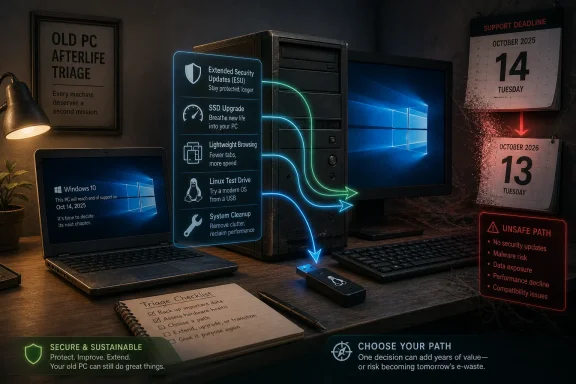
Microsoft ended mainstream Windows 10 support on October 14, 2025, but consumers can still buy time through Extended Security Updates until October 13, 2026, while experimenting with cleanup, storage upgrades, lighter browsing, Linux, or narrower roles for aging PCs. That makes the post-support Windows 10 moment less like a guillotine and more like a sorting exercise. The question is no longer whether Windows 11 is the official destination. It is whether every old PC deserves to be pushed there at all.
The MakeUseOf argument lands because it says the quiet part out loud: many Windows 10 machines are not dead, merely misused. A decade of startup cruft, vendor utilities, abandoned printer daemons, browser extensions, cloud sync tools, and spinning disks can make a perfectly serviceable PC feel like landfill. Windows 11 may be the supported path, but it is not a magic performance patch.
Microsoft’s Extended Security Updates program changes the emotional shape of the decision. For consumers, ESU does not keep Windows 10 alive indefinitely; it extends security updates for one more year past the October 14, 2025 support cutoff. That is a narrow bridge, not a new road.
But bridges matter. A user who enrolls in ESU has time to decide whether an old laptop should be cleaned up, upgraded with an SSD, converted into a Linux machine, demoted to a writing station, or retired. Without that year, the Windows 10 end-of-support date risks becoming a shopping holiday engineered by fear.
The right frame is not “how do I avoid Windows 11 forever?” It is “what job does this machine still do well, and what risk am I willing to carry while it does it?”
Windows 11 broke that pattern. Its hardware requirements, particularly around TPM 2.0, Secure Boot, and supported processors, made the upgrade path feel less like a software update and more like a hardware audit. Some PCs that run Windows 10 comfortably are officially excluded from Windows 11, even if enthusiasts have found ways around the installer checks.
That distinction matters. A supported upgrade is not the same thing as a possible upgrade. The former gives ordinary users a clear maintenance path; the latter creates a gray market of registry tweaks, Rufus-built installers, and future uncertainty over whether Microsoft will continue tolerating unsupported configurations.
MakeUseOf’s practical advice sits inside that gray zone. It does not deny that Windows 10 is past its mainstream shelf life. Instead, it argues that a post-support machine should be evaluated before it is replaced, and that evaluation begins with the boring stuff enthusiasts often skip: what is running, what is slow, what is unsafe, and what the machine is actually for.
Consumer ESU gives Windows 10 users access to security updates through October 13, 2026. In the United States, Microsoft has offered enrollment options that include paying $30, redeeming 1,000 Microsoft Rewards points, or using a no-cash route tied to Microsoft account and backup/sync settings. The exact terms have been a point of frustration because they fold a security extension into Microsoft’s broader account ecosystem.
That is a very Microsoft compromise. The company gets to say it is not abandoning consumers cold, while still nudging them toward Windows 11, Microsoft accounts, cloud backup, and new PCs. Users get time, but not a reprieve from the larger platform strategy.
For IT professionals, the takeaway is sharper: ESU should not become a reason to defer inventory decisions indefinitely. A Windows 10 machine enrolled in ESU is still an exception that needs a plan. The date on that plan is October 13, 2026, not “later.”
For home users, ESU is best understood as permission to experiment responsibly. It gives you time to clean the machine, test Linux, replace a disk, or migrate a relative’s files without turning every login into a security gamble.
Old RGB control panels, printer monitors, OEM update agents, bundled audio suites, duplicate cloud sync clients, browser updaters, game launchers, VPN remnants, and telemetry helpers all have a way of surviving the hardware they were installed to support. They accumulate quietly. Then the user blames Windows.
A targeted cleanup can feel dramatic because Windows startup time is often death by a dozen background tasks. Disabling nonessential startup entries, removing dormant OEM utilities, and cutting down on notification-driven widgets can make the system feel less haunted. This is not the same as running a random “PC optimizer,” which is usually snake oil with a progress bar.
The distinction is intent. Debloating means identifying what the system no longer needs and removing it with care. Blind optimization means trusting a third-party utility to make sweeping changes you may not understand. On an unsupported or nearly unsupported machine, that difference matters even more.
There is also a psychological benefit. Once a user sees that a five-year-old or eight-year-old machine can become responsive again, the upgrade decision becomes less panicked. Windows 11 may still be the right move, but it is no longer being used as a substitute for maintenance.
This is especially true for Windows 10 because the operating system is chatty with storage. Updates, indexing, antivirus scans, browser caches, and background services all compete for disk access. On a hard drive, that competition feels like the entire system has frozen. On an SSD, it often fades into the background.
The economics are difficult to ignore. A modest SATA SSD costs far less than a new Windows 11 laptop, and for many machines it is the only upgrade that really matters. RAM helps if the system is starving, but moving from an HDD to an SSD changes the baseline experience.
There is an environmental argument here as well. Microsoft and PC makers prefer to talk about security, performance, and AI readiness, but the end of Windows 10 also risks accelerating e-waste. If a $30 security extension and a cheap SSD can keep a secondary machine useful for another year or two, that is not nostalgia. It is rational asset management.
The caveat is that an SSD does not solve trust. A faster unsupported system is still unsupported unless enrolled in ESU or moved to another maintained operating system. Speed should not be mistaken for safety.
On an old Windows 10 machine, ten Chrome tabs and a handful of extensions can overwhelm the system more effectively than the operating system itself. That does not make Chrome bad in any simple sense. It means the modern web has become an application platform with the appetite of an operating system and the manners of an advertising stack.
Switching browsers can help, but the bigger issue is discipline. A lighter browser setup, fewer extensions, aggressive content blocking, and a cap on open tabs can rescue older hardware. So can replacing Electron desktop apps with web versions in cases where the browser instance is already open and the desktop app merely duplicates the same workload.
There is an irony here. Users often upgrade hardware to accommodate software habits they could change in five minutes. A machine that feels unusable under a mountain of tabs may be perfectly adequate as a writing system, tax-prep station, media controller, or family admin PC.
This is where Windows 11 is not the cure. If the bottleneck is the browser, moving to Windows 11 on the same low-spec hardware may simply add more baseline overhead before the same browser workload arrives. The result can be a newer operating system that feels worse.
The truth is more practical. Linux Mint, Zorin OS, and other desktop-friendly distributions have become plausible homes for old Windows 10 hardware, especially when the user’s workload is browser-first. If the machine’s job is web browsing, document editing, media playback, light photo management, or remote access, Linux is no longer an exotic suggestion.
The best argument for testing Linux is that it can be done without surrendering Windows immediately. A second drive, a live USB, or a dual-boot setup lets a user discover what works and what breaks. Wi-Fi, sleep behavior, printer support, GPU drivers, and specialty software are the places where reality should be checked before anyone declares victory.
Linux can make old PCs feel new because it often has lower idle overhead and fewer vendor-installed barnacles. But it is not a universal replacement. Adobe workflows, some games, certain business VPNs, proprietary accounting tools, and niche hardware utilities can still anchor a user to Windows.
For WindowsForum readers, the serious Linux argument is not ideological. It is operational. If a Windows 10 PC cannot run Windows 11 officially and does not justify replacement, a maintained Linux distribution may be the most secure way to keep the hardware useful beyond the ESU window.
A single-purpose PC is different. An old laptop can become a distraction-free writing machine. A desktop with a modest GPU can become a retro gaming box. A low-power system can serve media through Plex or Jellyfin. A machine with spare storage can become a local backup target. None of these roles requires pretending the device is still a primary workstation.
This is where the Windows 10 question becomes less about version numbers and more about boundaries. A dedicated writing machine that rarely browses the web carries a different risk profile from a daily banking and email machine. A local media server behind a router is not the same as a child’s web-browsing laptop with an administrator account.
Security-minded readers will object, correctly, that “single-purpose” is not a magic shield. A vulnerable machine can still be attacked if it is exposed, misconfigured, or used carelessly. But narrowing the role reduces the attack surface and clarifies whether Windows 10 is still appropriate.
The broader lesson is that old hardware should be assigned, not indulged. Once you know what a PC is for, the upgrade decision becomes easier. If it needs modern security features, active browser support, and daily internet exposure, move on. If it needs to draft text, play local media, or run a legacy scanner, a narrower future may be enough.
The problem is not that Microsoft wants users on Windows 11. The problem is that the company’s hardware line has created a hard edge between PCs that are officially welcome and PCs that are merely capable. Users can feel the difference between a machine that is too slow and a machine that has been declared unfit.
Unsupported Windows 11 installs sit in a particularly awkward place. They may work today. They may receive updates. They may satisfy an enthusiast’s need to keep a favorite machine alive. But they are also built on an implied shrug from Microsoft, and that is not a foundation most households or small businesses should rely on for critical systems.
For administrators, this is where sentiment must give way to policy. Unsupported upgrades are lab experiments, not fleet strategy. A business that cannot replace every Windows 10 endpoint immediately should be using ESU, segmentation, application control, backup discipline, and a dated migration plan—not YouTube installer hacks.
For home enthusiasts, the calculus is freer but still real. If the machine is a hobby box, experiment. If it stores family photos, tax records, passwords, medical documents, or work files, do not confuse cleverness with stewardship.
That drift is what Microsoft’s deadline is meant to interrupt. The company has commercial incentives, but the security reality is not imaginary. Unsupported operating systems become harder to defend over time as attackers study patch differences, vendors drop testing, and application makers move their baselines forward.
MakeUseOf’s six-things-before-upgrading frame works only if “before” remains part of the sentence. Clean the system before upgrading. Install an SSD before replacing the PC. Try Linux before forcing unsupported Windows 11. Repurpose the machine before recycling it. Enroll in ESU before pretending the risk has not changed.
The sequence matters. It turns procrastination into triage.
The best version of this advice is not anti-upgrade. It is anti-waste and anti-panic. It says that the end of Windows 10 should trigger an inventory of usefulness, not an automatic purchase.
That order keeps nostalgia from overruling risk. It also keeps Microsoft’s upgrade pressure from overruling common sense.
Source: MakeUseOf Windows 10 support is long over, but I wouldn’t upgrade an old PC before trying these 6 things
 The Windows 10 Afterlife Is Not a Strategy, but It Is a Window
The MakeUseOf argument lands because it says the quiet part out loud: many Windows 10 machines are not dead, merely misused. A decade of startup cruft, vendor utilities, abandoned printer daemons, browser extensions, cloud sync tools, and spinning disks can make a perfectly serviceable PC feel like landfill. Windows 11 may be the supported path, but it is not a magic performance patch.Microsoft’s Extended Security Updates program changes the emotional shape of the decision. For consumers, ESU does not keep Windows 10 alive indefinitely; it extends security updates for one more year past the October 14, 2025 support cutoff. That is a narrow bridge, not a new road.
But bridges matter. A user who enrolls in ESU has time to decide whether an old laptop should be cleaned up, upgraded with an SSD, converted into a Linux machine, demoted to a writing station, or retired. Without that year, the Windows 10 end-of-support date risks becoming a shopping holiday engineered by fear.
The right frame is not “how do I avoid Windows 11 forever?” It is “what job does this machine still do well, and what risk am I willing to carry while it does it?”
Microsoft’s Deadline Turned Maintenance Into a Consumer Decision
For years, Windows users were trained to treat operating-system upgrades as inevitabilities. Windows 10 complicated that by being both durable and familiar. It ran on a huge range of hardware, tolerated old peripherals, and became the place where millions of households and small offices stopped thinking about the operating system altogether.Windows 11 broke that pattern. Its hardware requirements, particularly around TPM 2.0, Secure Boot, and supported processors, made the upgrade path feel less like a software update and more like a hardware audit. Some PCs that run Windows 10 comfortably are officially excluded from Windows 11, even if enthusiasts have found ways around the installer checks.
That distinction matters. A supported upgrade is not the same thing as a possible upgrade. The former gives ordinary users a clear maintenance path; the latter creates a gray market of registry tweaks, Rufus-built installers, and future uncertainty over whether Microsoft will continue tolerating unsupported configurations.
MakeUseOf’s practical advice sits inside that gray zone. It does not deny that Windows 10 is past its mainstream shelf life. Instead, it argues that a post-support machine should be evaluated before it is replaced, and that evaluation begins with the boring stuff enthusiasts often skip: what is running, what is slow, what is unsafe, and what the machine is actually for.
ESU Buys Time, Not Forgiveness
The Extended Security Updates program is the first thing to discuss because it defines the acceptable risk envelope. If a Windows 10 PC remains connected to the internet after support ends, pretending nothing has changed is reckless. The machine may still boot, browse, print, and sync files, but the security model has shifted.Consumer ESU gives Windows 10 users access to security updates through October 13, 2026. In the United States, Microsoft has offered enrollment options that include paying $30, redeeming 1,000 Microsoft Rewards points, or using a no-cash route tied to Microsoft account and backup/sync settings. The exact terms have been a point of frustration because they fold a security extension into Microsoft’s broader account ecosystem.
That is a very Microsoft compromise. The company gets to say it is not abandoning consumers cold, while still nudging them toward Windows 11, Microsoft accounts, cloud backup, and new PCs. Users get time, but not a reprieve from the larger platform strategy.
For IT professionals, the takeaway is sharper: ESU should not become a reason to defer inventory decisions indefinitely. A Windows 10 machine enrolled in ESU is still an exception that needs a plan. The date on that plan is October 13, 2026, not “later.”
For home users, ESU is best understood as permission to experiment responsibly. It gives you time to clean the machine, test Linux, replace a disk, or migrate a relative’s files without turning every login into a security gamble.
The First Upgrade Is Uninstalling the Past
The MakeUseOf piece is strongest when it starts not with an operating system swap, but with Task Manager. That is unfashionable advice, which is why it is useful. Many aging Windows PCs are not slow because the CPU has suddenly become obsolete; they are slow because every vendor that ever touched the machine left something behind.Old RGB control panels, printer monitors, OEM update agents, bundled audio suites, duplicate cloud sync clients, browser updaters, game launchers, VPN remnants, and telemetry helpers all have a way of surviving the hardware they were installed to support. They accumulate quietly. Then the user blames Windows.
A targeted cleanup can feel dramatic because Windows startup time is often death by a dozen background tasks. Disabling nonessential startup entries, removing dormant OEM utilities, and cutting down on notification-driven widgets can make the system feel less haunted. This is not the same as running a random “PC optimizer,” which is usually snake oil with a progress bar.
The distinction is intent. Debloating means identifying what the system no longer needs and removing it with care. Blind optimization means trusting a third-party utility to make sweeping changes you may not understand. On an unsupported or nearly unsupported machine, that difference matters even more.
There is also a psychological benefit. Once a user sees that a five-year-old or eight-year-old machine can become responsive again, the upgrade decision becomes less panicked. Windows 11 may still be the right move, but it is no longer being used as a substitute for maintenance.
The Cheapest Speed Boost Is Still the Most Boring One
If the old PC still uses a spinning hard drive, the conversation should almost stop there. A SATA SSD is the closest thing the PC world has to a resurrection spell. It will not turn a dual-core relic into a workstation, but it can transform boot times, app launches, Windows Update behavior, and the general feeling of the machine.This is especially true for Windows 10 because the operating system is chatty with storage. Updates, indexing, antivirus scans, browser caches, and background services all compete for disk access. On a hard drive, that competition feels like the entire system has frozen. On an SSD, it often fades into the background.
The economics are difficult to ignore. A modest SATA SSD costs far less than a new Windows 11 laptop, and for many machines it is the only upgrade that really matters. RAM helps if the system is starving, but moving from an HDD to an SSD changes the baseline experience.
There is an environmental argument here as well. Microsoft and PC makers prefer to talk about security, performance, and AI readiness, but the end of Windows 10 also risks accelerating e-waste. If a $30 security extension and a cheap SSD can keep a secondary machine useful for another year or two, that is not nostalgia. It is rational asset management.
The caveat is that an SSD does not solve trust. A faster unsupported system is still unsupported unless enrolled in ESU or moved to another maintained operating system. Speed should not be mistaken for safety.
The Browser Became the Real Operating System
The MakeUseOf advice about browsing habits may sound small, but it cuts to the heart of modern PC performance. For many users, the browser is now the heaviest application they run. It is also where email, documents, chat, shopping, banking, entertainment, and work dashboards all collide.On an old Windows 10 machine, ten Chrome tabs and a handful of extensions can overwhelm the system more effectively than the operating system itself. That does not make Chrome bad in any simple sense. It means the modern web has become an application platform with the appetite of an operating system and the manners of an advertising stack.
Switching browsers can help, but the bigger issue is discipline. A lighter browser setup, fewer extensions, aggressive content blocking, and a cap on open tabs can rescue older hardware. So can replacing Electron desktop apps with web versions in cases where the browser instance is already open and the desktop app merely duplicates the same workload.
There is an irony here. Users often upgrade hardware to accommodate software habits they could change in five minutes. A machine that feels unusable under a mountain of tabs may be perfectly adequate as a writing system, tax-prep station, media controller, or family admin PC.
This is where Windows 11 is not the cure. If the bottleneck is the browser, moving to Windows 11 on the same low-spec hardware may simply add more baseline overhead before the same browser workload arrives. The result can be a newer operating system that feels worse.
Linux Is No Longer Just the Enthusiast Escape Hatch
The Linux recommendation is the part of the MakeUseOf piece most likely to split the room. For some Windows users, “try Linux” still sounds like “learn a new religion.” For others, it is the obvious answer to a machine Microsoft has left behind.The truth is more practical. Linux Mint, Zorin OS, and other desktop-friendly distributions have become plausible homes for old Windows 10 hardware, especially when the user’s workload is browser-first. If the machine’s job is web browsing, document editing, media playback, light photo management, or remote access, Linux is no longer an exotic suggestion.
The best argument for testing Linux is that it can be done without surrendering Windows immediately. A second drive, a live USB, or a dual-boot setup lets a user discover what works and what breaks. Wi-Fi, sleep behavior, printer support, GPU drivers, and specialty software are the places where reality should be checked before anyone declares victory.
Linux can make old PCs feel new because it often has lower idle overhead and fewer vendor-installed barnacles. But it is not a universal replacement. Adobe workflows, some games, certain business VPNs, proprietary accounting tools, and niche hardware utilities can still anchor a user to Windows.
For WindowsForum readers, the serious Linux argument is not ideological. It is operational. If a Windows 10 PC cannot run Windows 11 officially and does not justify replacement, a maintained Linux distribution may be the most secure way to keep the hardware useful beyond the ESU window.
Single-Purpose PCs Are the Antidote to Upgrade Panic
The most underrated advice in the MakeUseOf piece is to stop asking old PCs to do everything. General-purpose computing is demanding because it invites disorder. A machine used for browsing, gaming, printing, syncing, editing, messaging, scanning, streaming, and experimenting will eventually become a mess.A single-purpose PC is different. An old laptop can become a distraction-free writing machine. A desktop with a modest GPU can become a retro gaming box. A low-power system can serve media through Plex or Jellyfin. A machine with spare storage can become a local backup target. None of these roles requires pretending the device is still a primary workstation.
This is where the Windows 10 question becomes less about version numbers and more about boundaries. A dedicated writing machine that rarely browses the web carries a different risk profile from a daily banking and email machine. A local media server behind a router is not the same as a child’s web-browsing laptop with an administrator account.
Security-minded readers will object, correctly, that “single-purpose” is not a magic shield. A vulnerable machine can still be attacked if it is exposed, misconfigured, or used carelessly. But narrowing the role reduces the attack surface and clarifies whether Windows 10 is still appropriate.
The broader lesson is that old hardware should be assigned, not indulged. Once you know what a PC is for, the upgrade decision becomes easier. If it needs modern security features, active browser support, and daily internet exposure, move on. If it needs to draft text, play local media, or run a legacy scanner, a narrower future may be enough.
Windows 11 Is the Right Answer for Many PCs, Just Not All of Them
It is easy for Windows 10 holdouts to turn this debate into a referendum on Windows 11. That is a mistake. Windows 11 is the supported client Windows platform, and for many users it is the responsible destination. New hardware, current drivers, active security features, and long-term application support all point in that direction.The problem is not that Microsoft wants users on Windows 11. The problem is that the company’s hardware line has created a hard edge between PCs that are officially welcome and PCs that are merely capable. Users can feel the difference between a machine that is too slow and a machine that has been declared unfit.
Unsupported Windows 11 installs sit in a particularly awkward place. They may work today. They may receive updates. They may satisfy an enthusiast’s need to keep a favorite machine alive. But they are also built on an implied shrug from Microsoft, and that is not a foundation most households or small businesses should rely on for critical systems.
For administrators, this is where sentiment must give way to policy. Unsupported upgrades are lab experiments, not fleet strategy. A business that cannot replace every Windows 10 endpoint immediately should be using ESU, segmentation, application control, backup discipline, and a dated migration plan—not YouTube installer hacks.
For home enthusiasts, the calculus is freer but still real. If the machine is a hobby box, experiment. If it stores family photos, tax records, passwords, medical documents, or work files, do not confuse cleverness with stewardship.
The Hidden Cost Is Not the Upgrade, but the Drift
The danger after Windows 10 support is not that every old PC instantly becomes compromised. The danger is drift. Users postpone one month, then three, then a year. A machine that was supposed to be temporary remains on the kitchen desk, still signed into email, still syncing photos, still holding passwords, still browsing the modern web.That drift is what Microsoft’s deadline is meant to interrupt. The company has commercial incentives, but the security reality is not imaginary. Unsupported operating systems become harder to defend over time as attackers study patch differences, vendors drop testing, and application makers move their baselines forward.
MakeUseOf’s six-things-before-upgrading frame works only if “before” remains part of the sentence. Clean the system before upgrading. Install an SSD before replacing the PC. Try Linux before forcing unsupported Windows 11. Repurpose the machine before recycling it. Enroll in ESU before pretending the risk has not changed.
The sequence matters. It turns procrastination into triage.
The best version of this advice is not anti-upgrade. It is anti-waste and anti-panic. It says that the end of Windows 10 should trigger an inventory of usefulness, not an automatic purchase.
The Old-PC Playbook After Microsoft’s Deadline
The practical path is narrower than the internet argument makes it sound. A Windows 10 machine after October 14, 2025 needs a security decision first, a performance decision second, and an identity decision third. Is it protected? Is it responsive enough? What is it for?That order keeps nostalgia from overruling risk. It also keeps Microsoft’s upgrade pressure from overruling common sense.
- A Windows 10 PC that remains online should be enrolled in Extended Security Updates or moved to a maintained operating system.
- A PC with a spinning hard drive should get an SSD evaluation before anyone assumes the whole machine is obsolete.
- A slow Windows installation should be audited for startup apps, abandoned utilities, duplicate sync tools, and unnecessary background services before being replaced.
- A browser-heavy workload should be simplified with fewer extensions, fewer open tabs, and lighter web habits before blaming the operating system.
- A Windows 11-ineligible PC should be tested with Linux or reassigned to a narrow role before being forced onto an unsupported Windows 11 path.
- A machine used for sensitive daily work should not be kept on Windows 10 indefinitely just because it still feels fast.
Source: MakeUseOf Windows 10 support is long over, but I wouldn’t upgrade an old PC before trying these 6 things
