Microsoft’s recent BetaNews coverage exposes a familiar tension in modern Windows servicing: feature updates that deliver headline improvements can also undo user choices and change system behavior, from reinstalling in‑box apps you previously removed to altering parental controls and pushing new default workflows — all while a lively crop of Store apps continues to evolve the Windows experience.
Background
The three BetaNews items under review — a report that the Windows 10 Anniversary Update may reinstall bundled apps users had previously removed, a piece on Microsoft Family’s expanded blocking capabilities (including the ability to block Chrome and Firefox), and a weekly roundup of best Windows 8/Windows Store apps — are short, practical dispatches aimed at consumers and power users. Together they illustrate two parallel stories about the Windows platform: the steady evolution of features and servicing mechanics, and the persistent churn of small apps in the Microsoft Store that both complement and sometimes conflict with the OS.- The Anniversary Update (an important Windows 10 feature update) introduced many platform‑level improvements but also produced surprises for users and administrators when update mechanics interacted with pre-existing user changes.
- Microsoft Family and parental‑control tooling have incrementally expanded, giving families more granular control — including the power to block specific applications — but these changes have operational and privacy implications.
- BetaNews’ weekly app roundups remain a practical discovery feed for useful Store apps, while also serving as a reminder that many small utilities are brittle and tied to platform changes.
Windows 10 Anniversary Update: what BetaNews reported and what it means
Summary of the reported behavior
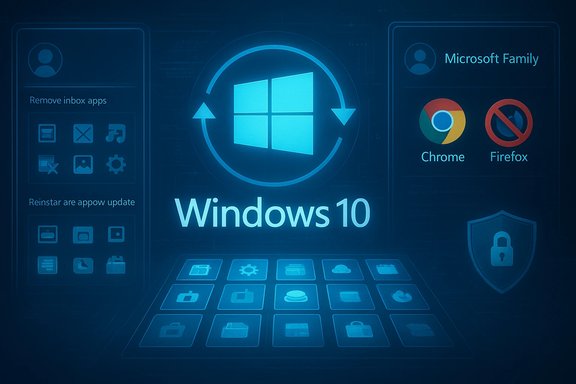
BetaNews reported that the Anniversary Update — a major Windows 10 feature release — has a behavior some users found unwelcome: bundled or inbox apps that they had previously uninstalled were being re‑provisioned or reinstalled after the update. That left people surprised to find apps they intentionally removed reappearing, sometimes resetting defaults or adding unwanted tiles in Start.Why this can happen — technical explanation
There are several, well‑documented reasons updates can reinstate apps:- Provisioning and image refresh: Feature updates replace or refresh large parts of the installed image and may reapply default app provisioning from the image or OEM package. This can reinstall apps that were removed from the default image.
- Servicing / appx provisioning rules: Some Store/UWP packages are provisioned to new user profiles or re‑applied during servicing operations; cumulative changes to the provisioning state during a feature update can re‑introduce those packages.
- Rollback and recovery artifacts: When Windows preserves the previous installation to support rollback, it may synchronize packages and metadata in ways that produce unexpected adds/removals during the finishing steps of the update.
Verified patterns and community reports
Independent community threads from the same era documented both removals and reinstalls of inbox apps when major updates landed, with frustrated users reporting Media Player, Movie Maker, and other familiar utilities disappearing or reappearing depending on the update path. The public record shows this is not an isolated, anecdotal claim: it’s a recurring servicing phenomenon across multiple Windows feature updates.Practical mitigation steps for users and sysadmins
- Create a short pilot ring and test the feature update on representative hardware and user profiles before broad rollout.
- After update in a test image, run package enumeration commands (Get‑AppxPackage, Get‑ProvisionedAppxPackage) to detect newly provisioned packages. If you detect reinstalls, capture the provisioning state and adjust your image or provisioning scripts accordingly.
- For persistent unwanted apps, use scripted removal plus Group Policy or MDM policy where possible. For enterprises, prefer managed provisioning (MDM/Intune, provisioning packages) rather than manual removals that can be reverted by servicing.
- Maintain clear documentation of any customizations to the default image so upgrades can be validated against expected profile state.
Caveats and unverifiable claims
BetaNews’ reporting is consistent with community observations, but specific claims about which bundled apps are affected (and how often) depend on the build, OEM image, and the update path a device takes (in‑place vs. clean install). Any single headline like “the update reinstalls everything you removed” overstates the generality—this behavior is repeatable in many contexts, but not universal. Treat headline phrasing as a practical alert rather than a deterministic rule for every system.Microsoft Family changes: blocking browsers and parental control evolution
What changed
BetaNews highlighted changes to Microsoft Family controls that enable parents or guardians to block specific applications — including popular third‑party browsers such as Chrome and Firefox — rather than just blocking categories or web content. This is a meaningful expansion of parental‑control granularity: policies can now target executables or store packages, affecting what a signed child account can launch.How the blocking works
- Family controls are enforced at the account and service layer; they rely on the child using a Microsoft account and on the device honoring the Family policy via the service’s enforcement hooks in Windows. Policies can block apps by package identity or by executable name, depending on the control surface.
- Blocking Chrome/Firefox works because the Family service can identify those apps as distinct launchable targets and instruct Windows to prevent their execution for regulated accounts. This is not an OS‑level “global kill switch” for the process; it’s an account/service‑driven restriction.
Benefits and strengths
- Granular parental control: Parents gain direct control over which browser engines are permitted, allowing them to confine a child to a curated default (for example, Edge with SafeSearch) or to kiosk‑style environments.
- Centralized management: Policies applied via Microsoft Family can be managed remotely and don’t require local Group Policy or third‑party parental‑control tools for simple blocking scenarios.
Risks and operational caveats
- Dependency on Microsoft accounts and cloud services: Blocking requires the enrolled child to sign into Windows with a Microsoft account and for the device to reach Microsoft’s Family service periodically. Offline use or local accounts can bypass these controls.
- Circumvention and false sense of security: Savvy users can sideload portable browsers, create local accounts, or run browsers from USB media to avoid controls. For robust control, combine account restrictions with device‑level configurations (Kiosk mode, AppLocker, or enterprise MDM) when required.
- Privacy and entanglement with telemetry: Expanding account controls increases reliance on cloud telemetry and account linking, which raises privacy questions for families and schools; administrators should document policy scope and retention practices.
Recommendations
- For parents: test control flows on your child’s device while offline and online, and keep at least one adult account with a local admin profile to recover or override incorrect behavior.
- For schools and IT admins: prefer enterprise‑grade controls (MDM, AppLocker, Windows Kiosk mode) when you need airtight blocking across a fleet, and use Microsoft Family for household scenarios or small deployments.
Best Windows 8 / Store apps this week — the practical roundup
BetaNews’ approach and picks
BetaNews’ weekly app roundups function as curated discovery — a short list of “App of the Week” picks and several small utilities worth trying. The recent roundups under review spotlighted apps such as Tubecast Pro and Polarr Photo Editor, plus helpful utilities (Grid Maker for Instagram, WinDynamicDesktop, Norton Safe Web for Edge) and occasionally platform items like SDK updates and Surface firmware fixes. These lists are not deep reviews; they’re discovery leads.Why these roundups still matter
- They surface practical, low‑friction tools users can test in minutes. For busy users, a one‑line endorsement plus a quick caveat is often enough to justify a short trial.
- They call attention to platform‑level items (SDK drops, firmware updates) that admins should not ignore, turning a consumer‑focused list into useful operational intelligence.
Strengths and risks for app adoption
- Strengths:
- Rapid discovery of useful utilities (photo editors, casting clients, diagnostic tools).
- Frequent, bite‑sized updates that let users stay productively experimental.
- Risks:
- Churn and maintenance fragility: Many Store apps are single‑developer projects with inconsistent update cadence; independence from Microsoft’s platform does not guarantee longevity.
- API and platform dependencies: Changes to Windows SDKs, Store policies, or third‑party APIs (YouTube, Chromecast) can break app features suddenly. Tubecast and similar third‑party clients historically suffered such fragility.
Practical checklist before installing a Store app
- Confirm publisher reputation and check recent update cadence.
- Review permissions and whether the app uses cloud synchronization or account sign‑ins.
- Test free/trial versions on non‑critical machines.
- For enterprise use, verify licensing and support contracts — the Store is not a substitute for formal procurement.
Cross‑cutting analysis: what the three items together reveal about Windows
Two coexisting dynamics
- Platform centralization vs. user control — Microsoft’s strategy of integrating services, provisioning, and store delivery creates a more consistent, secure ecosystem for most users. The trade‑off is reduced permanence for individual choices (uninstalling inbox apps is less durable across feature updates).
- Rich third‑party ecosystem and fragility — Store apps give users options and creativity, but they rely on platform APIs and upstream services; when Microsoft changes provisioning rules or a third party changes an API, user workflows can break.
Strengths
- Faster delivery of security and features via continuous updates and SDKs — this gives developers access to new APIs and gives consumers more capable default experiences.
- Consolidated protection and parental workflows through account‑level enforcement and cloud policy, which simplifies management for many households.
Risks
- Control erosion for power users — updates can reintroduce packaged apps and override manual customizations unless those changes are locked into the provisioning or managed at image‑level.
- Privacy and telemetry trade‑offs when services like Microsoft Family or Feedback/telemetry are used to power controls and diagnostics.
- Operational brittleness for organizations that fail to stage updates: mixed‑version fleets complicate help desks and policy enforcement.
Concrete recommendations — put into practice
For home users
- Use a test account on your primary device to trial a feature update before accepting it broadly; keep a local admin account to troubleshoot recovery scenarios.
- If you rely on removed/unwanted apps being absent, implement a scripted post‑update removal as part of your personal maintenance routine or use an image with the desired provisioning baked in.
- For parental controls, pair Microsoft Family with local device policies (and educate children on why controls exist). Test policies both online and offline.
For IT professionals and device managers
- Maintain a staging ring and run in‑place upgrades on representative hardware first.
- Capture the provisioning state and build automation: image builds should explicitly include or exclude packages intended for the fleet, and update automation should log any deviations.
- Document parental‑control or delegated controls when devices are for families or kiosk use; use AppLocker/MDM for enforced application control where needed.
Conclusion
BetaNews’ short reports are a practical lens on two durable truths about modern Windows: updates bring important capabilities and security improvements, but platform‑level servicing and provisioning can surprise users who expect removed apps and customizations to persist. Meanwhile, Microsoft’s incremental expansion of family controls gives parents more enforcement tools — at the cost of greater service dependency and privacy trade‑offs — and the Store remains a fertile but sometimes brittle source of useful apps.Treat the headlines as signals: plan staged deployments, validate the provisioning model, and pair cloud‑based controls with device‑level enforcement when reliability matters. The Windows ecosystem’s strength lies in its scale and continuous innovation; the operational task is to harness that value while insulating users and organizations from the occasional friction that comes with change.
Source: BetaNews https://betanews.com/article/unwant...om/series/best-windows-8-apps-this-week-103/]